
MODULE 9 CONTROL SYSTEMS MICROPROCESSOR CONTROL Goal This




- Slides: 64
MODULE 9 – CONTROL SYSTEMS: MICROPROCESSOR CONTROL
Goal �This module is to provide an introduction to microprocessor control systems and how they can be used for ROV control. The MATE ROV Control System is used as a reference.
Objectives �Upon completion of this module, the student should be able to: �Identify the main components of a microprocessor system �Describe binary signaling levels representative of a binary 0 and binary 1 �Connect the Arduino controller to a laptop and download software �Use sample programs for basic interfacing
Sections �Microprocessor Control Systems � Microprocessors � Input/Output Devices � Communication �The Arduino Uno Board � EEPROM � RAM • Programmable Input/Output pins • Analog Input pins • USB connection
References �“Underwater Robotics Science, Design & Fabrication”, Chapter 9
Objective 1: �Identify the main components of a microprocessor system
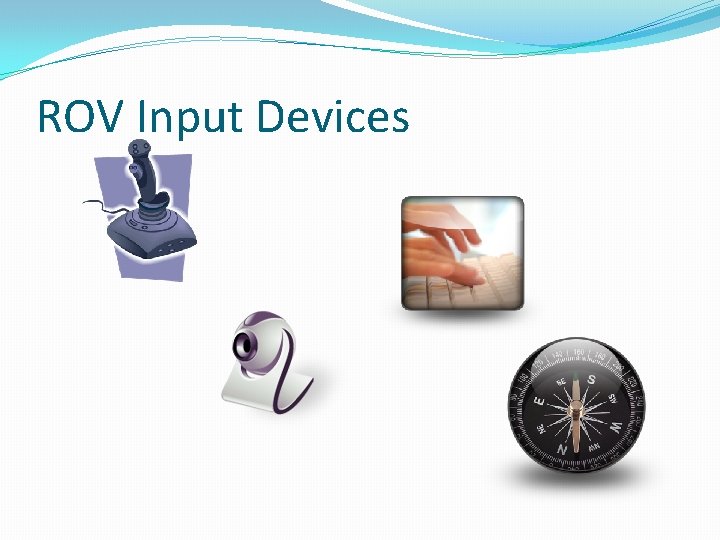
Definitions �Input Device: �An input device provides data and control signals to a computer �On an ROV, input devices may include: Joystick (input from human operator) � Keyboard (input from a human operator) � Voltage/current sensors (inputs regarding system health) � Underwater camera � Depth sensor � Heading sensor � Pitch/roll sensor � Leak detector � Temperature sensor � And many more depending on the application �
ROV Input Devices
Definitions (cont’d) �Output Device: �An output device is used to communicate the results of a process into human observable form. �On an ROV, output devices may include: � Video display � Thruster speed/direction � Tool actuation � Lighting control
ROV Output Devices
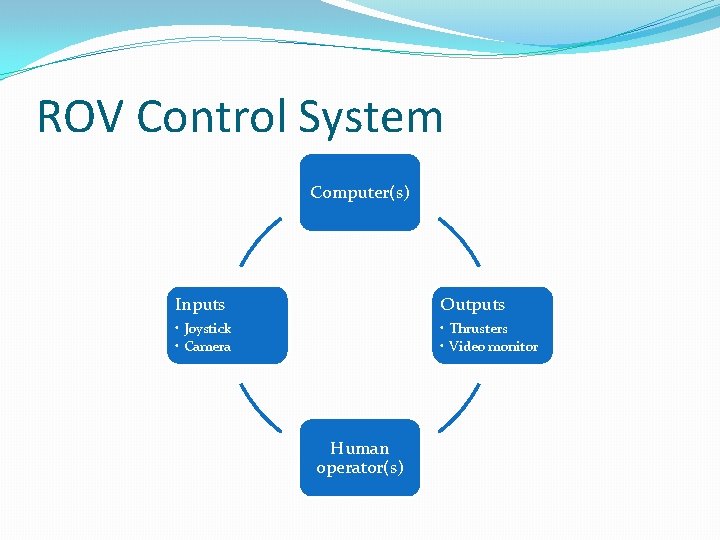
Definitions (cont’d) �Control System: �A control system regulates outputs based upon a set of inputs and an established control protocol. �On an ROV, the control system is comprised of inputs, outputs as indicated above, one or more computers, and of course, one or more human operators
ROV Control System Computer(s) Inputs Outputs • Joystick • Camera • Thrusters • Video monitor Human operator(s)
Computers in ROVs �Industrial ROVs rely on one or more computers for control �The computers may be either on board the ROV, at the surface, or distributed �Computers may include the desktop or notebook type that we use regularly but will also likely include one or more embedded controllers
Embedded Controller �An Embedded Controller incorporates all of the components of a microprocessor system on a single integrated circuit (chip). These components include: �Microprocessor �Memory �Input/Output � Pins that receive inputs from other system devices � Pins that provide outputs to other system devices �Now, consider the function of each of these components
Microprocessor �This is the brain of an embedded controller. It is responsible for: �Controlling the flow and timing of the computer program �Performing all arithmetic and logic operations �Exchanging information with the memory and input/output devices
Memory �Embedded controllers use two types of memory: �EEPROM (Electrically Erasable Programmable Read Only Memory) is non-volatile memory. That is, the information remains even through a power-down. � RAM (Random Access Memory) is volatile memory. That is, the information is lost when the controller loses power.
Memory (cont’d) �Note that the main difference between EEPROM and RAM is volatility. If information has to be available next time you power up, such as the program, it must be stored in EEPROM. �Why bother with RAM since we can write to EEPROM? �It is faster to write to RAM and computers are prized for their speed.
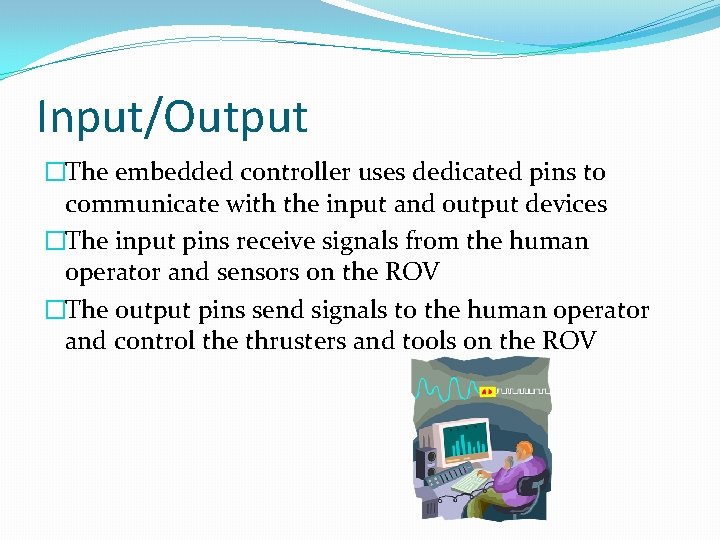
Input/Output �The embedded controller uses dedicated pins to communicate with the input and output devices �The input pins receive signals from the human operator and sensors on the ROV �The output pins send signals to the human operator and control the thrusters and tools on the ROV
Objective 2: �Describe binary signaling levels representative of a binary 0 and binary 1
Information Representation �Reference Chapter 9, section 5. 3 – 5. 8
Information Representation �Computers represent information as a pattern of 1 s and 0 s. Computer electronics are only stable in one of two states. Hence, they are binary (bi=two) systems. �Conventionally, a high voltage (usually 5 V) is a 1 and a low voltage (usually 0 V) is a 0. �Numbers, letters, video, audio, temperature, depth, etc. can be represented in binary format.
Information Communication �Each input/output pin will either be 5 V (high or 1) or 0 V (low or 0) at any point in time �Data may be exchanged with the outside world in parallel using multiple pins to represent a value. �However, due to the limited number of pins, on an Embedded Controller, data is more likely to be exchanged with the outside world serially by sending a series of 1 s and 0 s on a single pin. �Communication is only successful when both the sender and receiver agree on the coding protocol in terms of voltages and data rates.
Information Communication (cont’d) �There are many standard data communication protocols including: �RS-232 �RS-485 �I²C �Ethernet �USB �These examples all happen to be serial protocols �An embedded controller can communicate using any of these methods using appropriate interfaces and software
Embedded Controller Options �There are many embedded controller options available including: �PIC �ARM �ATMEL �All will be similar in concept but will vary based upon: �Speed �Memory capacity �Instruction set �I/O capacity
Objective 3: �Connect the Arduino controller to a laptop and download software
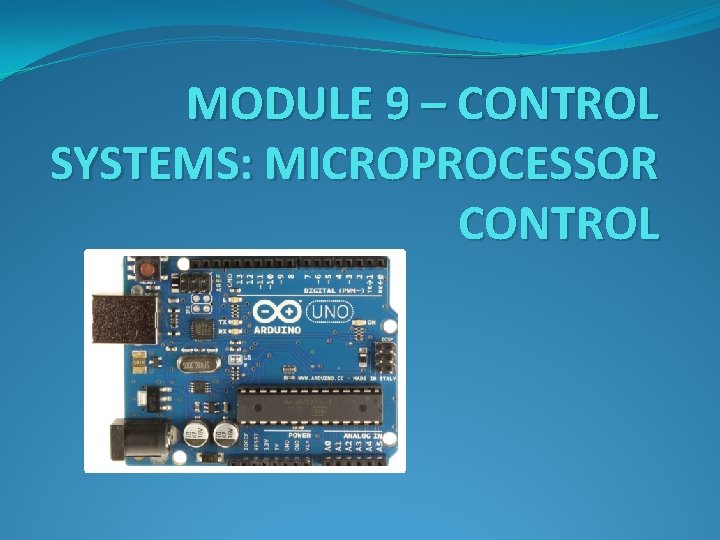
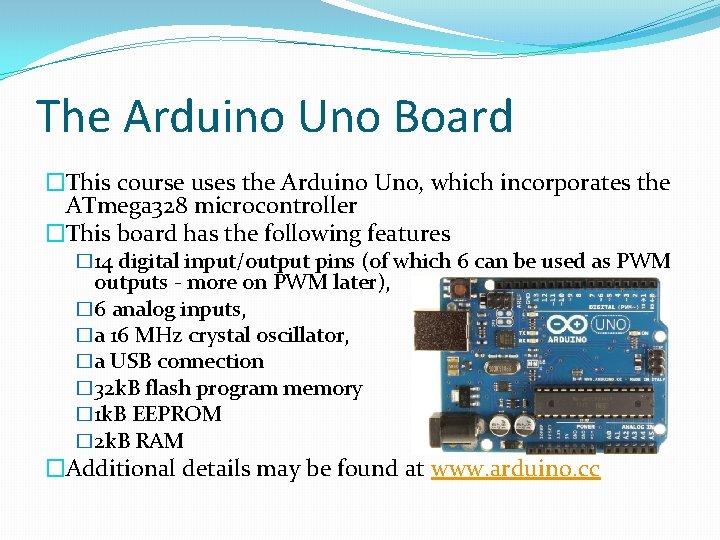
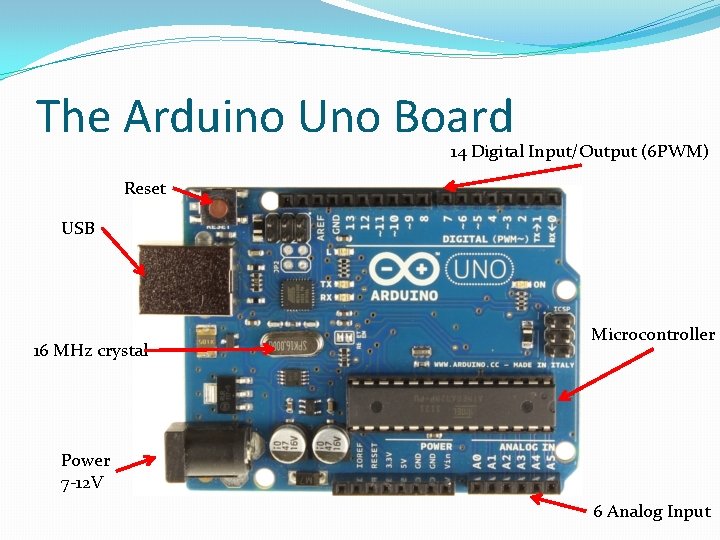
The Arduino Uno Board �This course uses the Arduino Uno, which incorporates the ATmega 328 microcontroller �This board has the following features � 14 digital input/output pins (of which 6 can be used as PWM outputs - more on PWM later), � 6 analog inputs, �a 16 MHz crystal oscillator, �a USB connection � 32 k. B flash program memory � 1 k. B EEPROM � 2 k. B RAM �Additional details may be found at www. arduino. cc
The Arduino Uno Board 14 Digital Input/Output (6 PWM) Reset USB 16 MHz crystal Microcontroller Power 7 -12 V 6 Analog Input
Arduino Development Environment �The Arduino development environment contains: �A text editor for writing program code, (referred to as a sketch by Arduino) �A message area, �A text console, �A toolbar with buttons for common functions, �A series of menus. �The Development Environment connects to the Arduino hardware to upload programs and communicate with them. �Additional details may be found at http: //arduino. cc/en/Guide/Environment
Installing Arduino Software �Ensure that the Arduino software is installed before proceeding �See procedure in Module 3 for downloading and installing Arduino software
Connecting the Hardware �Plug your Arduino into a USB port on your computer �Note the green light indicating that it is powered up �The Arduino will start running the program (sketch) in memory each time it powers up or is reset (the red button)
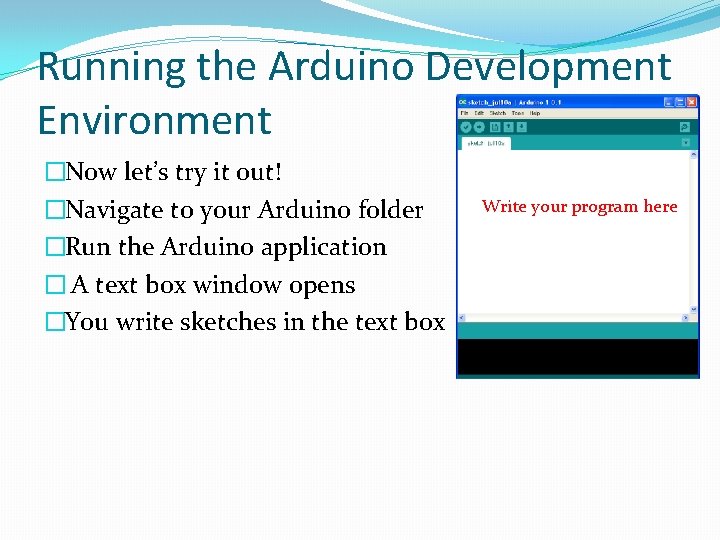
Running the Arduino Development Environment �Now let’s try it out! �Navigate to your Arduino folder �Run the Arduino application � A text box window opens �You write sketches in the text box Write your program here
Running the Arduino Development Environment �Go to http: //arduino. cc/en/Guide/Environment to read a description of the controls in the Development Environment �As you Mouse. Over each control, it is identified on the Development Environment panel �Check your Device Manager to determine the Arduino com: port. Ensure that your software finds the Arduino board on the right serial com: port by selecting the appropriate one from the Tools|Serial Port menu item
Arduino Programming �The standard Development Environment uses the C programming language. If you are not familiar with C, you can find many tutorials online with a Google search or you may elect to learn as you work your way through the examples provided on the Arduino web site. �A description of the Arduino C language implementation may be found at http: //arduino. cc/en/Reference/Home. Page
Arduino Programming �Some things to watch for when programming in C �C is case sensitive so a variable called “Depth” is not the same as one called “depth” �Lines end with a semicolon �= assigns a value to a variable while == is a test to determine if two things are equal (don’t mix them up since they behave differently) �// comments a single line �/* comments everything following until a */ is reached �Blocks of program code are enclosed by braces { }
You. Tube Arduino Tutorials �Jeremy Blum has an excellent tutorial series on the Artuino on You. Tube �Watch the first one now at Jeremy Blum’s Arduino Tutorial 1
Objective 4: �Use sample programs for basic interfacing
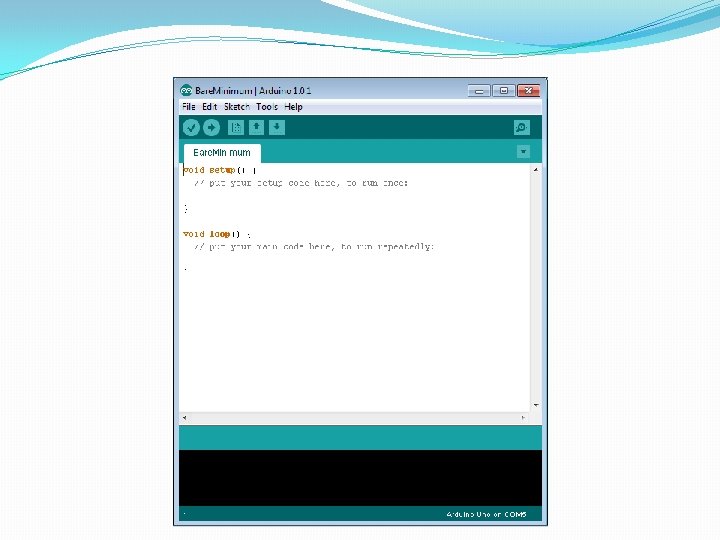
Sample Arduino Sketches (Bare. Minimum) �Go to http: //arduino. cc/en/Tutorial/Home. Page and examine the “Bare. Minimum” sketch �Note that every sketch will consist of a Setup function that runs once at the beginning �This is followed by a Loop function that will repeat forever �These functions do not return a value, hence are void �Load the Bare. Minimum sketch from the examples|01. Basics folder �Upload the sketch to run it (No output expected)
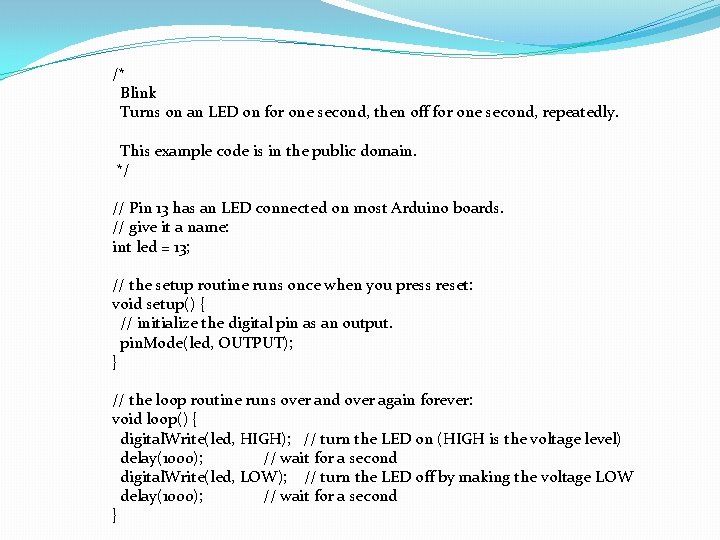
Sample Arduino Sketches (Blink) �Go to http: //arduino. cc/en/Tutorial/Home. Page, read the background and examine the “Blink” sketch �Load the Blink sketch from the examples|01. Basics folder
/* Blink Turns on an LED on for one second, then off for one second, repeatedly. This example code is in the public domain. */ // Pin 13 has an LED connected on most Arduino boards. // give it a name: int led = 13; // the setup routine runs once when you press reset: void setup() { // initialize the digital pin as an output. pin. Mode(led, OUTPUT); } // the loop routine runs over and over again forever: void loop() { digital. Write(led, HIGH); // turn the LED on (HIGH is the voltage level) delay(1000); // wait for a second digital. Write(led, LOW); // turn the LED off by making the voltage LOW delay(1000); // wait for a second }
Sample Arduino Sketches (Blink) �Upload the sketch to run it �Observe that the LED is on for 1 second then off for 1 second �This is a digital output since the value is only high or low. There is no intermediate voltage.
Test Your Knowledge (Blink) �Change your sketch to make the LED stay on for 5 seconds then go off for 5 seconds �Upload your revised program to the Arduino �Use a voltmeter to measure between the output pin (13) and GND. You should see the DC voltage vary between 0 and 5 V �Change your sketch to make the LED turn on for 50 ms and then off for 50 ms �Observe the LED blinking faster �Now what is the output voltage reading? Why? �Is this still a digital output?
Test Your Knowledge (Blink) (cont’d) �The voltmeter averages its reading over a longer time than the blink rate so you should read about 2. 5 V since the LED is on for half of the time. It is still a digital output, as could be shown on an oscilloscope. �Change your sketch so that the LED is on for 25 ms and off for 75 ms. �Is the output voltage now about 1. 25 V? �What voltage would you expect if the LED was on for 75 ms and off for 25 ms? �Prove it.
Test Your Knowledge (Blink) (cont’d) �Change your sketch so that the LED is on for 5 ms and off for 5 ms �What output voltage do you expect? �Is it 2. 5 V? �Why isn’t the LED blinking? �Your eyes cannot perceive flashing faster than about 25 times per second and the LED is flashing at 100 times per second. Research “persistence of vision” if interested in this effect. (think of movies, television, and flip books)
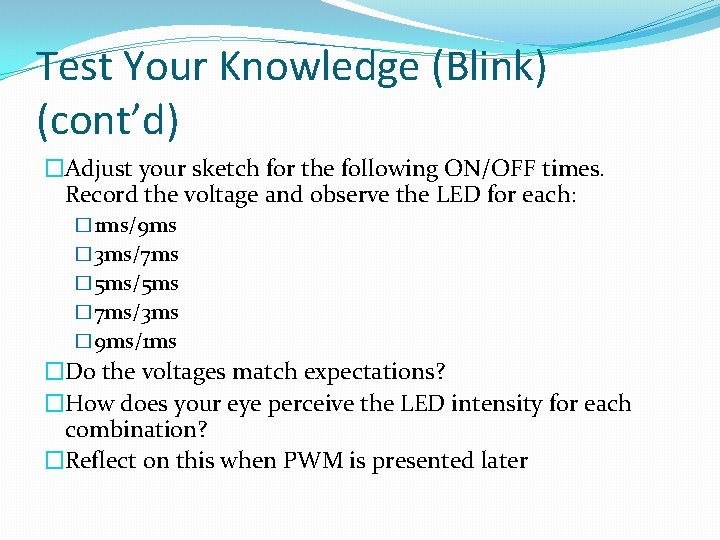
Test Your Knowledge (Blink) (cont’d) �Adjust your sketch for the following ON/OFF times. Record the voltage and observe the LED for each: � 1 ms/9 ms � 3 ms/7 ms � 5 ms/5 ms � 7 ms/3 ms � 9 ms/1 ms �Do the voltages match expectations? �How does your eye perceive the LED intensity for each combination? �Reflect on this when PWM is presented later
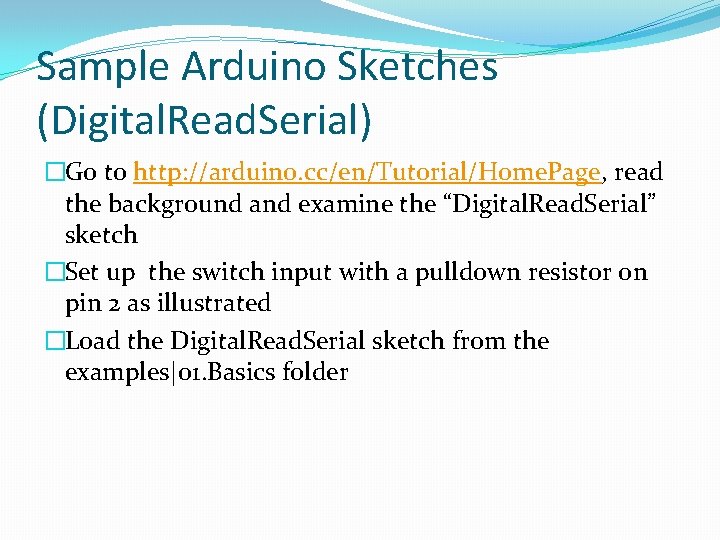
Sample Arduino Sketches (Digital. Read. Serial) �Go to http: //arduino. cc/en/Tutorial/Home. Page, read the background and examine the “Digital. Read. Serial” sketch �Set up the switch input with a pulldown resistor on pin 2 as illustrated �Load the Digital. Read. Serial sketch from the examples|01. Basics folder
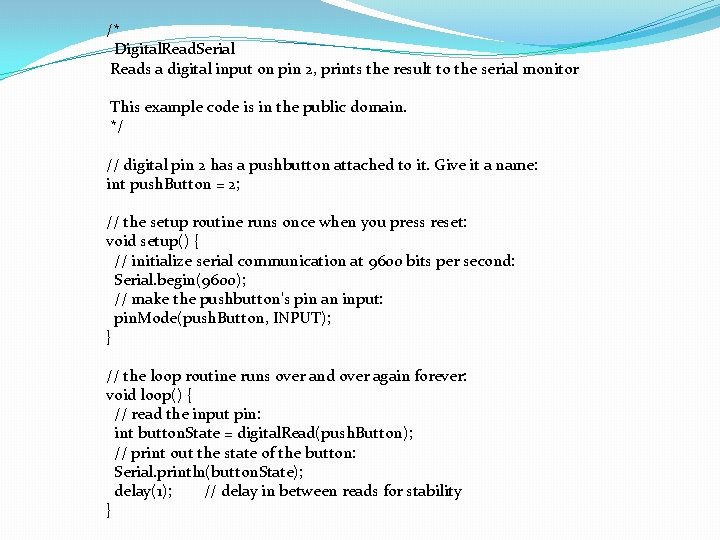
/* Digital. Read. Serial Reads a digital input on pin 2, prints the result to the serial monitor This example code is in the public domain. */ // digital pin 2 has a pushbutton attached to it. Give it a name: int push. Button = 2; // the setup routine runs once when you press reset: void setup() { // initialize serial communication at 9600 bits per second: Serial. begin(9600); // make the pushbutton's pin an input: pin. Mode(push. Button, INPUT); } // the loop routine runs over and over again forever: void loop() { // read the input pin: int button. State = digital. Read(push. Button); // print out the state of the button: Serial. println(button. State); delay(1); // delay in between reads for stability }
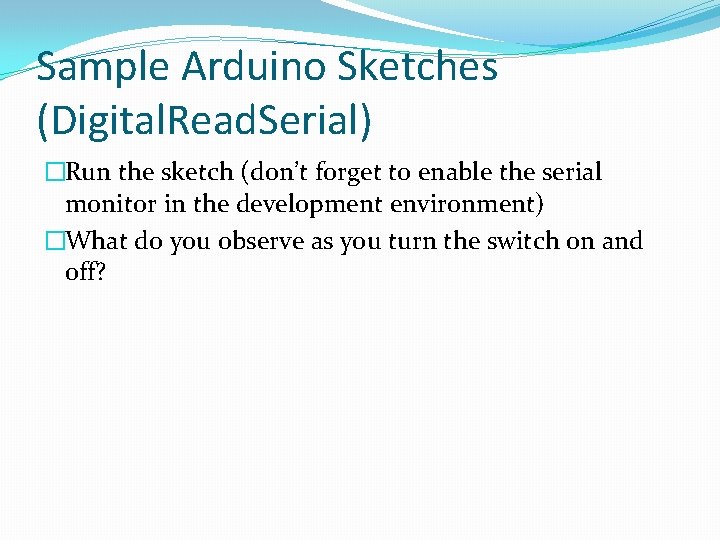
Sample Arduino Sketches (Digital. Read. Serial) �Run the sketch (don’t forget to enable the serial monitor in the development environment) �What do you observe as you turn the switch on and off?
Test Your Knowledge (Digital. Read. Serial) �Modify your sketch so that the pin 13 LED turns on when the switch is closed and off when the switch is open �Test it �Modify your sketch so that the pin 13 LED turns off when the switch is closed and on when the switch is open �Test it
Further Reinforcement �Watch Jeremy Blum’s tutorial 2 at Jeremy Blum’s Arduino Tutorial 2 �Note the discussion on switch debounce �If you need a refresher on basic Electrical Engineering, watch tutorial 3 at Jeremy Blum’s Arduino Tutorial 3
Sample Arduino Sketches (Analog. Read. Serial) �Go to http: //arduino. cc/en/Tutorial/Home. Page, read the background and examine the “Analog. Read. Serial” sketch �Set up a potentiometer (minimum 500 ohm) between 5 V and GND with the wiper connected to analog pin 0 �Load the Analog. Read. Serial sketch from the examples|01. Basics folder
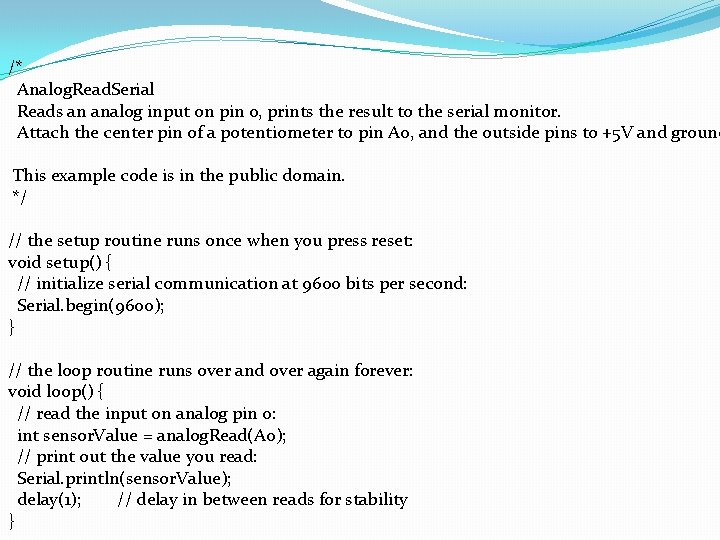
/* Analog. Read. Serial Reads an analog input on pin 0, prints the result to the serial monitor. Attach the center pin of a potentiometer to pin A 0, and the outside pins to +5 V and ground This example code is in the public domain. */ // the setup routine runs once when you press reset: void setup() { // initialize serial communication at 9600 bits per second: Serial. begin(9600); } // the loop routine runs over and over again forever: void loop() { // read the input on analog pin 0: int sensor. Value = analog. Read(A 0); // print out the value you read: Serial. println(sensor. Value); delay(1); // delay in between reads for stability }
Sample Arduino Sketches (Analog. Read. Serial) �Run the sketch (don’t forget to enable the serial monitor in the development environment) �Note that the Arduino reads an analog (continuously variable) value between 0 and 5 volts and represents it as a number between 0 and 1023. 0 V is read as 0 and 5 V is read as 1023 with all other values scaled to integers between 0 and 1023
Test Your Knowledge (Analog. Read. Serial) �How would you display voltage, rather than a value from 0 -1023? �We just need to scale the output so that 0 is displayed as 0 and 1023 is displayed as 5 �Try changing the println function to: �Serial. println(sensor. Value*5/1023); �Upload it. �What is displayed? �Is it satisfactory? �Did you expect better resolution?
Test Your Knowledge (Analog. Read. Serial) �The problem is that the C language is treating the values as integers. Instead, we would like to have floating point values. �Try replacing the println function with: �Serial. println(sensor. Value*5. 0/1023. 0); �Run it. �Is it satisfactory? �Note that 5. 0 is treated as a floating point value while 5 is treated as an integer. C gives the user a lot of power but “with great power…”
Test Your Knowledge (Analog. Read. Serial) �A potentiometer can be used as a position sensor (rotary or linear). Joysticks use rotary potentiometers �Try substituting the potentiometer with two resistors in series between 5 V and GND (the values aren’t critical but keep them over 100 ohms and less than 10 k) �Connect analog pin 0 to the junction between the two resistors �Is the voltage reading on analog pin 0 what you would expect it to be based on Ohm’s Law?
Test Your Knowledge (Analog. Read. Serial) �Instead of two resistors, try with one resistor and a sensor that changes resistance. Some examples include: �Cadmium Sulfide (Cd. S) light sensor, �Thermistor �Force sensor �You may need to adjust the resistor value depending on your device but start with one between 1 k and 10 k �Now when you run your Analog. Read. Serial sketch, you should see the voltage vary as you change the sensed parameter
Test Your Knowledge (Analog. Read. Serial) (optional) �If you have a Cd. S light sensor: �Remove the Cd. S sensor from the circuit and use an ohmmeter to measure the sensor’s resistance in the dark �Now measure the sensor’s resistance in the light �Using a spreadsheet, fill column A with resistance values from 100 to 10000 in steps of 100. This will represent the resistance placed in series with the Cd. S sensor �Using your knowledge of Ohm’s Law, use a formula to fill column B with the voltage that would be read if the Cd. S sensor was in the dark for each resistor value in column A �Fill column C with the voltage that would be read if the Cd. S sensor was in the light for each resistor value in column A
Test Your Knowledge (Analog. Read. Serial) (optional) �Fill column D with the difference between the dark and light columns for each resistor value in column A �Make a graph of light level range (column D) against resistor value (column A) �What would be the optimum choice of resistor value to couple with your Cd. S sensor, that is, which resistor gives the largest range? �Replace the 1 k resistor in your circuit with a nearoptimum resistor value and record the difference in voltage range between light and dark compared to the range with the 1 k resistor
Further Reinforcement �Watch Jeremy Blum’s tutorial 4 at Jeremy Blum’s Arduino Tutorial 4
Challenge �A thermistor changes resistance with temperature changes �Propose a procedure for determining an optimal resistance to put in series with a thermistor for a range of water temperatures between 5°C and 40°C based upon the procedure described for a light sensor above �Note that for this exercise, putting thermistor in a watertight plastic bag will keep it dry as long as the bag opening is held above water
Challenge (cont’d) �Get a thermistor and prove your procedure �Plot a calibration graph for your thermistor-resistor combination against a known thermometer standard between 5°C and 40°C �Using your thermistor, test the room temperature. �Does your value match the standard thermometer? �Would your thermistor have a better temperature discrimination at the low end or high end of the temperature range?
Challenge (cont’d) �Propose a procedure for determining how fast your thermistor responds to temperature changes �Try it �Attach your thermistor to a small block of plastic (about 1 g) using electric tape �How is the response time affected? �Think of two reasons why this might be.
Reflection �Think of other sensors that might be used on an ROV �Are the sensors used for digital or analog measurement? �How would you configure a pin that is going to control thruster speed? �How often would you need to read a joystick’s position in order to control an ROV? Every 1 m. S? Every 10 m. S? , Every 100 m. S? Every 1 S? What factors affect your choice?