
Module 6 Submodeling 6 Submodeling Training Manual It
Module 6 Submodeling

6. Submodeling Training Manual • It is a way to “zoom in” on specific regions of a previouslyanalyzed model, create a fine mesh, and obtain highly accurate results just for that region. INTRODUCTION TO ANSYS 6. 0 - Part 2 • Submodeling is a finite element technique used to get more accurate results in a region of the model. October 30, 2001 Inventory #001571 6 -2
. . . Submodeling Training Manual • In this chapter, we will describe the submodeling procedure for a stress analysis. The following topics will be covered: A. General Procedure B. Workshop INTRODUCTION TO ANSYS 6. 0 - Part 2 • The submodeling technique has been successfully used not just for stress analyses, but also for thermal, electromagnetic and CFD analyses. October 30, 2001 Inventory #001571 6 -3

Submodeling A. General Procedure Training Manual 1. Create and analyze the initial model 2. Create the submodel 3. Perform cut boundary interpolation 4. Analyze the submodel 5. Verify that the distance between the cut boundaries and the stress concentration is adequate INTRODUCTION TO ANSYS 6. 0 - Part 2 Five main steps: October 30, 2001 Inventory #001571 6 -4

Submodeling . . . General Procedure Training Manual • Follows the same steps as in a normal static analysis. • The geometry need not include local details such as fillet radii. • The mesh must be fine enough for accurate displacement results since submodeling theory is based on displacements interpolated from the coarse model to the submodel. INTRODUCTION TO ANSYS 6. 0 - Part 2 1. Create and analyze the initial (coarse) model October 30, 2001 Inventory #001571 6 -5

Submodeling . . . General Procedure Training Manual • The submodel is an independent, more finely meshed model of a region of interest within the initial model. • Typically, the submodel will include details — such as a fillet radius — that were omitted in the initial model. • Some rules for the submodel: – It must be in the same location with respect to the global origin as the corresponding portion in the initial model. – It must have the same loading conditions as the initial model: gravity, symmetry boundaries, temperatures, etc. INTRODUCTION TO ANSYS 6. 0 - Part 2 2. Create the submodel October 30, 2001 Inventory #001571 6 -6
Submodeling . . . General Procedure Training Manual a) Start by changing the jobname (since files from the initial analysis will be needed later). • Utility Menu > File > Change Jobname • Or /FILNAM command b) Build the submodel by: • Clearing the database and starting a new model • Or simply clearing the mesh and modifying the initial model Which method you choose depends on how much detail you want to include in the submodel geometry. INTRODUCTION TO ANSYS 6. 0 - Part 2 • Steps to create the submodel: October 30, 2001 Inventory #001571 6 -7

Submodeling . . . General Procedure d) Apply all loads and boundary conditions that need to be duplicated from the initial model. Examples: • symmetry conditions • gravity • temperatures INTRODUCTION TO ANSYS 6. 0 - Part 2 c) Specify desired mesh controls and mesh the submodel. Training Manual October 30, 2001 Inventory #001571 6 -8
Submodeling . . . General Procedure Training Manual • This is the key step in submodeling, where displacements from the initial model are mapped to the cut boundaries of the submodel. • Steps involved: a) First select the nodes on the cut boundary of the submodel. b) Write those nodes to a file. • Preprocessor > Create > Nodes > Write Node File • Or use the NWRITE command The file name defaults to jobname. node. INTRODUCTION TO ANSYS 6. 0 - Part 2 3. Perform cut-boundary interpolation October 30, 2001 Inventory #001571 6 -9
Submodeling . . . General Procedure Training Manual • Utility Menu > Select > Everything (or ALLSEL command) • Toolbar > SAVE_DB (or SAVE command) • Main Menu > Finish (or FINISH command) d) Activate results from the initial analysis. (Remember, we need the displacements from the initial analysis. ) • Change the jobname back to the initial one • Resume the initial database (RESUME command or Toolbar > RESUM_DB) • Enter POST 1 and read in the desired set of results (SET command or General Postproc > -Read Results-) INTRODUCTION TO ANSYS 6. 0 - Part 2 c) Restore the full set of nodes, save the database, and exit PREP 7. October 30, 2001 Inventory #001571 6 -10
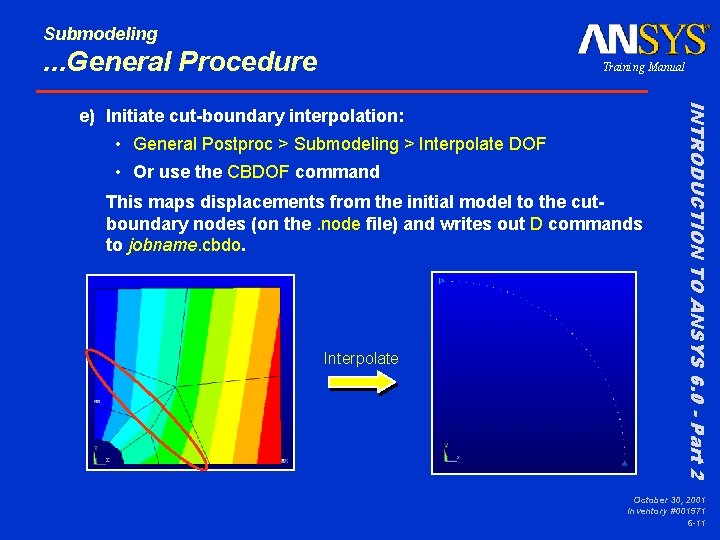
Submodeling . . . General Procedure Training Manual • General Postproc > Submodeling > Interpolate DOF • Or use the CBDOF command This maps displacements from the initial model to the cutboundary nodes (on the. node file) and writes out D commands to jobname. cbdo. Interpolate INTRODUCTION TO ANSYS 6. 0 - Part 2 e) Initiate cut-boundary interpolation: October 30, 2001 Inventory #001571 6 -11
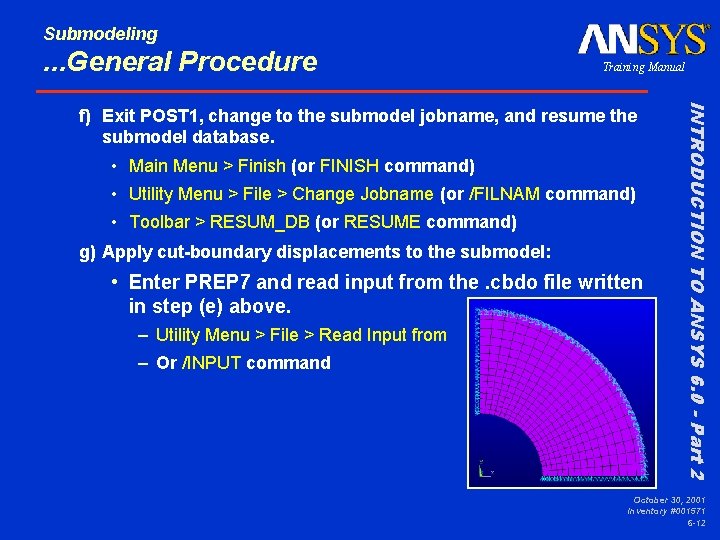
Submodeling . . . General Procedure Training Manual • Main Menu > Finish (or FINISH command) • Utility Menu > File > Change Jobname (or /FILNAM command) • Toolbar > RESUM_DB (or RESUME command) g) Apply cut-boundary displacements to the submodel: • Enter PREP 7 and read input from the. cbdo file written in step (e) above. – Utility Menu > File > Read Input from – Or /INPUT command INTRODUCTION TO ANSYS 6. 0 - Part 2 f) Exit POST 1, change to the submodel jobname, and resume the submodel database. October 30, 2001 Inventory #001571 6 -12
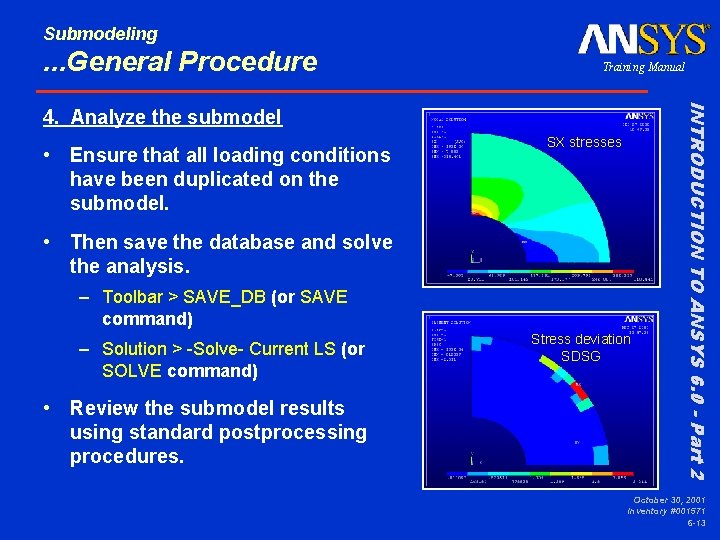
Submodeling . . . General Procedure Training Manual • Ensure that all loading conditions have been duplicated on the submodel. SX stresses • Then save the database and solve the analysis. – Toolbar > SAVE_DB (or SAVE command) – Solution > -Solve- Current LS (or SOLVE command) • Review the submodel results using standard postprocessing procedures. Stress deviation SDSG INTRODUCTION TO ANSYS 6. 0 - Part 2 4. Analyze the submodel October 30, 2001 Inventory #001571 6 -13
Submodeling . . . General Procedure Training Manual • This is an important step since submodeling theory is based on the assumption that the cut boundary is far away from the stress concentration region. • You can do this by comparing stress or strain results at the cut boundary: – Compare path plots at that location between the initial model and submodel. – Use the query option. – List the results. – Etc. INTRODUCTION TO ANSYS 6. 0 - Part 2 5. Verify the cut-boundary distance October 30, 2001 Inventory #001571 6 -14
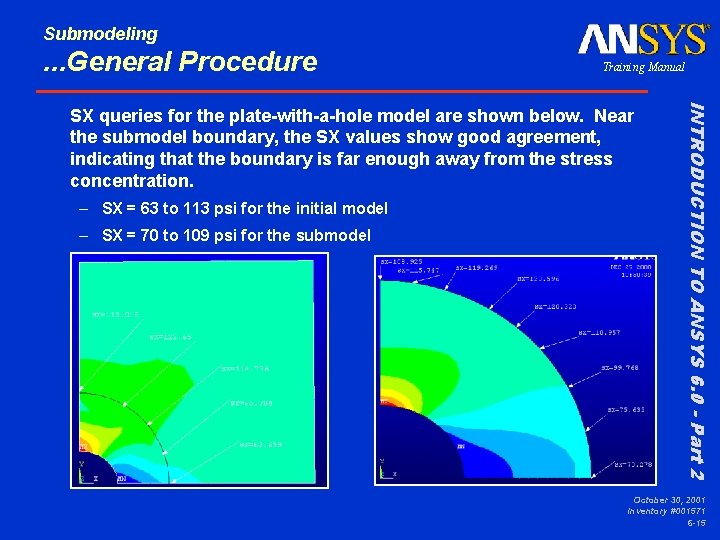
Submodeling . . . General Procedure Training Manual – SX = 63 to 113 psi for the initial model – SX = 70 to 109 psi for the submodel INTRODUCTION TO ANSYS 6. 0 - Part 2 SX queries for the plate-with-a-hole model are shown below. Near the submodel boundary, the SX values show good agreement, indicating that the boundary is far enough away from the stress concentration. October 30, 2001 Inventory #001571 6 -15
Submodeling B. Workshop Training Manual W 5. Crankshaft Please refer to your Workshop Supplement for instructions. INTRODUCTION TO ANSYS 6. 0 - Part 2 • This workshop consists of the following problem: October 30, 2001 Inventory #001571 6 -16
- Slides: 16