
Module 6 Securing Windows 7 Desktops Module Overview
- Slides: 57
Module 6 Securing Windows 7 Desktops
Module Overview • Overview of Security Management in Windows 7 • Securing a Windows 7 Client Computer by Using Local Group Policy Settings • Securing Data by Using EFS and Bit. Locker • Configuring Application Restrictions • Configuring User Account Control • Configuring Windows Firewall • Configuring Security Settings in Internet Explorer 8 • Configuring Windows Defender
Lesson 1: Overview of Security Management in Windows 7 • Key Security Features in Windows 7 • What is Action Center? • Demonstration: Configuring Action Center Settings
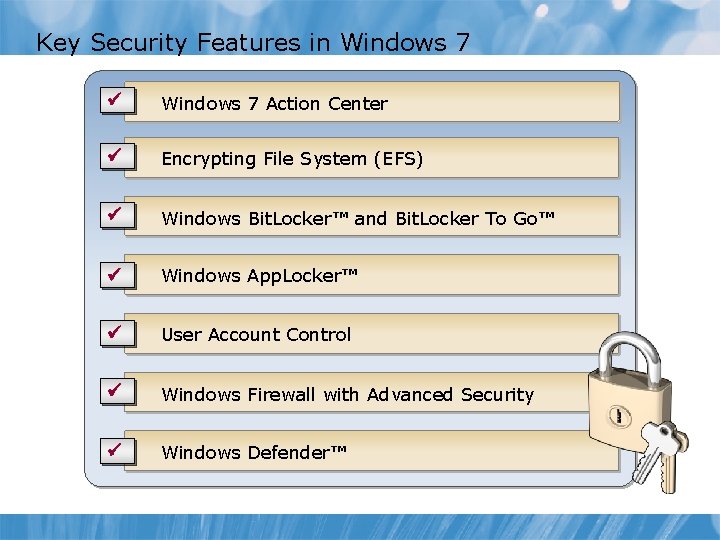
Key Security Features in Windows 7 ü Windows 7 Action Center ü Encrypting File System (EFS) ü Windows Bit. Locker™ and Bit. Locker To Go™ ü Windows App. Locker™ ü User Account Control ü Windows Firewall with Advanced Security ü Windows Defender™
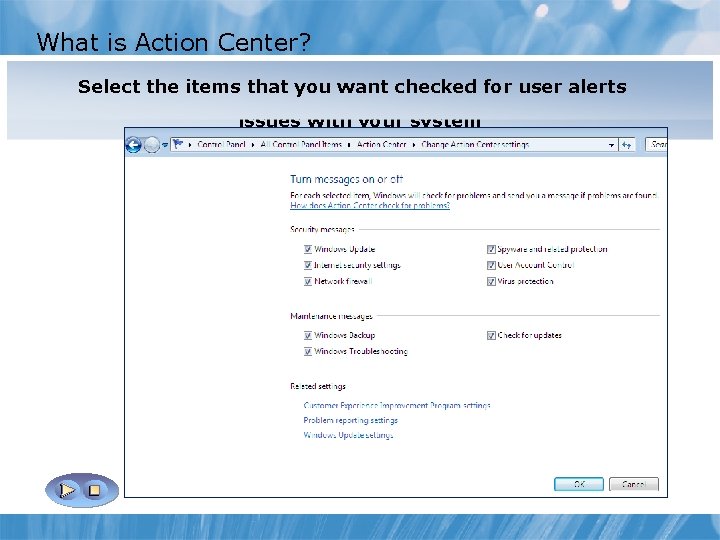
What is Action Center? Action Center is a central location for viewing messages about Select the items that you want checked for user alerts your system and the starting point for diagnosing and solving issues with your system
Demonstration: Configuring Action Center Settings Your instructor will demonstrate how to: • Change Action Center Settings • Change User Control Settings • View Archived Messages 10 min
Lesson 2: Securing a Windows 7 Client Computer by Using Local Security Policy Settings • What is Group Policy? • How are Group Policy Objects Applied? • How Multiple Local Group Policies Work • Demonstration: Creating Multiple Local Group Policies • Demonstration: Configuring Local Security Policy Settings
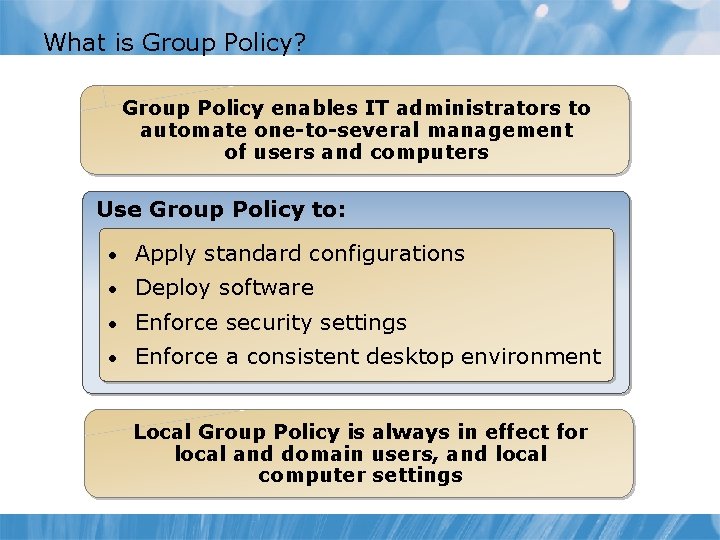
What is Group Policy? Group Policy enables IT administrators to automate one-to-several management of users and computers Use Group Policy to: • Apply standard configurations • Deploy software • Enforce security settings • Enforce a consistent desktop environment Local Group Policy is always in effect for local and domain users, and local computer settings
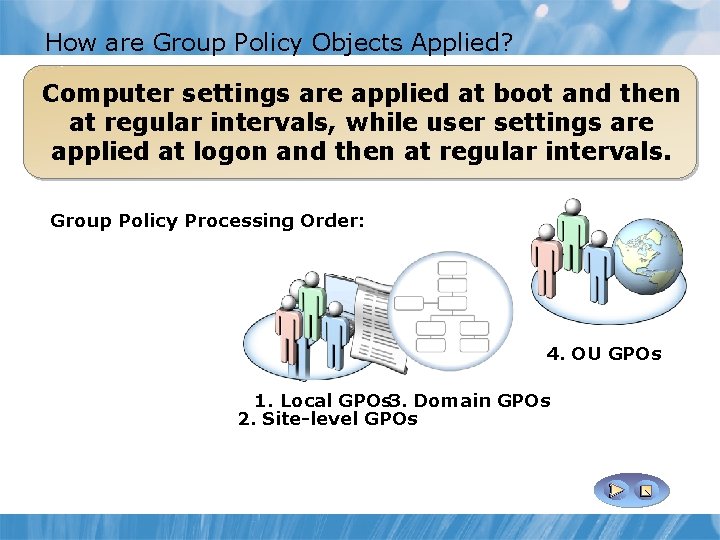
How are Group Policy Objects Applied? Computer settings are applied at boot and then at regular intervals, while user settings are applied at logon and then at regular intervals. Group Policy Processing Order: 4. OU GPOs 1. Local GPOs 3. Domain GPOs 2. Site-level GPOs
How Multiple Local Group Policies Work Multiple Local Group Policy allow an administrator to apply different levels of Local Group Policy to local users on a stand-alone computer. There are three layers of Local Group Policy Objects, which are applied in the following order: 1. Local Group Policy object that may contain both computer and user settings. 2. Administrators and Non-Administrators Local Group Policy objects are applied next and contain only user settings. 3. User-specific Local Group Policy is applied last, contains only user settings, and applies to one specific user on the local computer.
Demonstration: Creating Multiple Local Group Policies Your instructor will demonstrate how to: • Create a custom management console • Configure the Local Computer Policy • Configure the Local Computer Administrators Policy • Configure the Local Computer Non- Administrators Policy • Test multiple local group policies 10 min
Demonstration: Configuring Local Security Policy Settings Your instructor will demonstrate how to: • Review the local security group policy settings 10 min
Lesson 3: Securing Data by Using EFS and Bit. Locker • What is EFS? • Demonstration: Encrypting and Decrypting Files and Folders by Using EFS • What is Bit. Locker? • Bit. Locker Requirements • Bit. Locker Modes • Group Policy Settings for Bit. Locker • Configuring Bit. Locker to Go • Recovering Bit. Locker Encrypted Drives
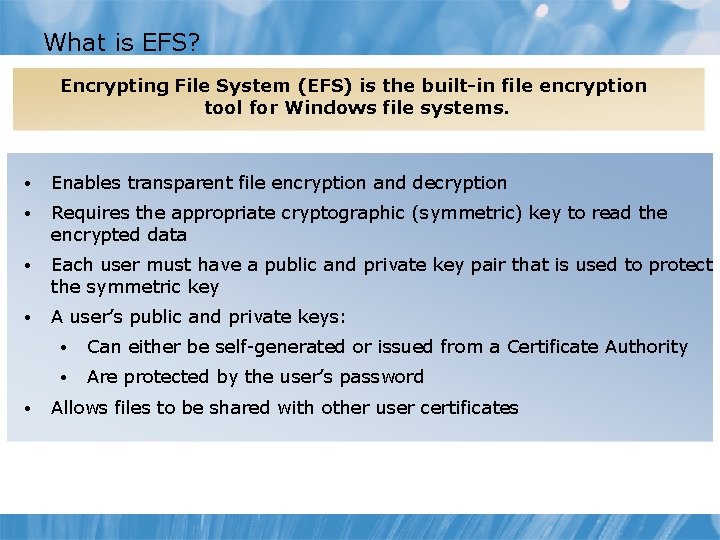
What is EFS? Encrypting File System (EFS) is the built-in file encryption tool for Windows file systems. • Enables transparent file encryption and decryption • Requires the appropriate cryptographic (symmetric) key to read the encrypted data • Each user must have a public and private key pair that is used to protect the symmetric key • A user’s public and private keys: • • Can either be self-generated or issued from a Certificate Authority • Are protected by the user’s password Allows files to be shared with other user certificates
Demonstration: Encrypting and Decrypting Files and Folders by Using EFS Your instructor will demonstrate how to: • Encrypt files and folders • Confirm the files and folders have been encrypted • Decrypt files and folders • Confirm the files and folders have been decrypted 10 min
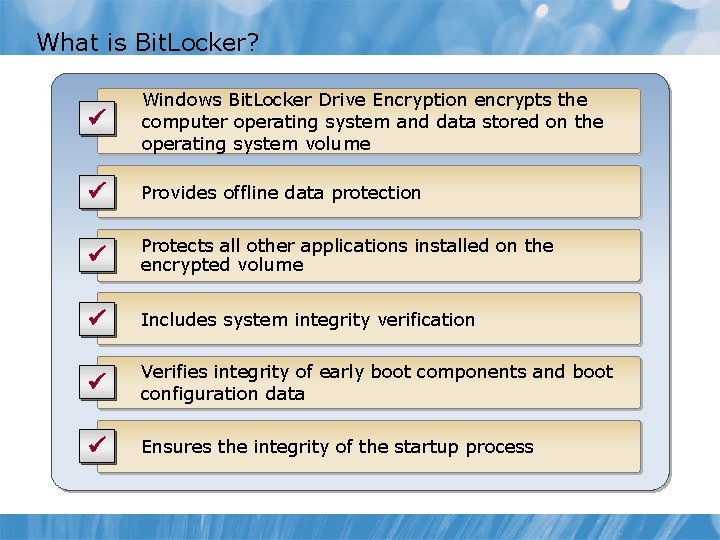
What is Bit. Locker? ü Windows Bit. Locker Drive Encryption encrypts the computer operating system and data stored on the operating system volume ü Provides offline data protection ü Protects all other applications installed on the encrypted volume ü Includes system integrity verification ü Verifies integrity of early boot components and boot configuration data ü Ensures the integrity of the startup process
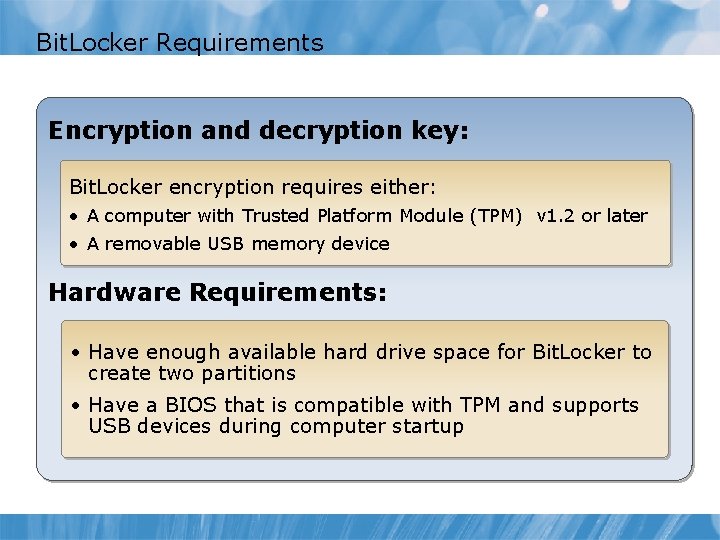
Bit. Locker Requirements Encryption and decryption key: Bit. Locker encryption requires either: • A computer with Trusted Platform Module (TPM) v 1. 2 or later • A removable USB memory device Hardware Requirements: • Have enough available hard drive space for Bit. Locker to create two partitions • Have a BIOS that is compatible with TPM and supports USB devices during computer startup
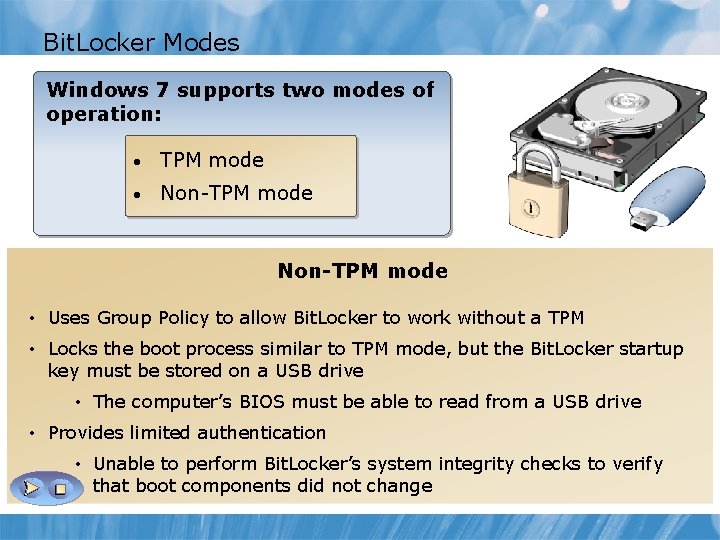
Bit. Locker Modes Windows 7 supports two modes of operation: • TPM mode • Non-TPM mode • Uses Policyboot to allow Bit. Locker to work a TPM Locks. Group the normal process until the user without optionally supplies a personal PIN and/or inserts a USB drive containing a Bit. Locker startup • Locks the boot process similar to TPM mode, but the Bit. Locker startup key must be stored on a USB drive • The encrypted disk must be located in the original computer • The computer’s BIOS must be able to read from a USB drive • Performs system integrity verification on boot components • Provides limited authentication • If any items changed unexpectedly, the drive is locked and • Unable to perform Bit. Locker’s system integrity checks to verify prevented from being accessed or decrypted that boot components did not change
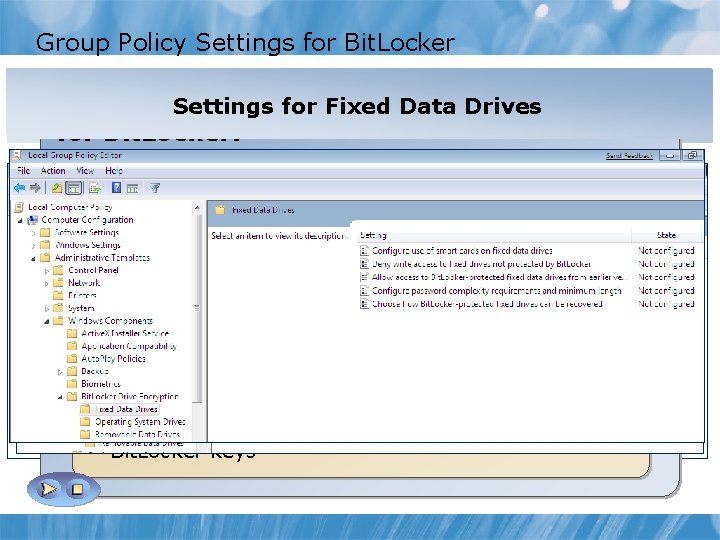
Group Policy Settings for Bit. Locker Local Group Policy Settings for. Operating Removable Data Drives Group Policy provides the. Data following settings Settings for Fixed Drives Settings for System Drives Bit. Locker Drive Encryption for Bit. Locker: • Turn on Bit. Locker backup to Active Directory Domain Services • Configure the recovery folder on Control Panel Setup • Enable advanced startup options on Control Panel Setup • Configure the encryption method • Prevent memory overwrite on restart • Configure TPM validation method used to seal Bit. Locker keys
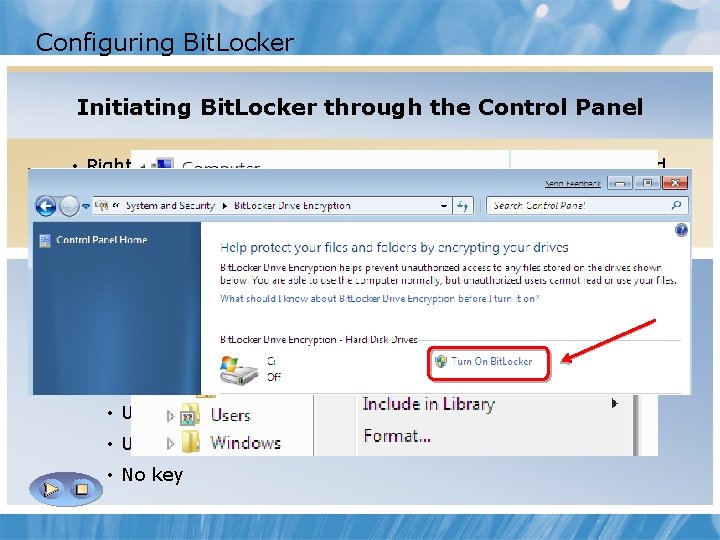
Configuring Bit. Locker Three methods to enable Bit. Locker: Initiating. Bit. Lockerthrough. Windows the Control Panel Initiating Explorer • From System and Settings in Control Panel • Right-click the volume to be encrypted in Windows Explorer and select the Turn on Bit. Locker menu option • Use the command-line tool titled manage-bde. wsf Enabling Bit. Locker initiates a start-up wizard: • Validates system requirements • Creates the second partition if it does not already exist • Allows you to configure how to access an encrypted drive: • USB • User function keys to enter the Passphrase • No key
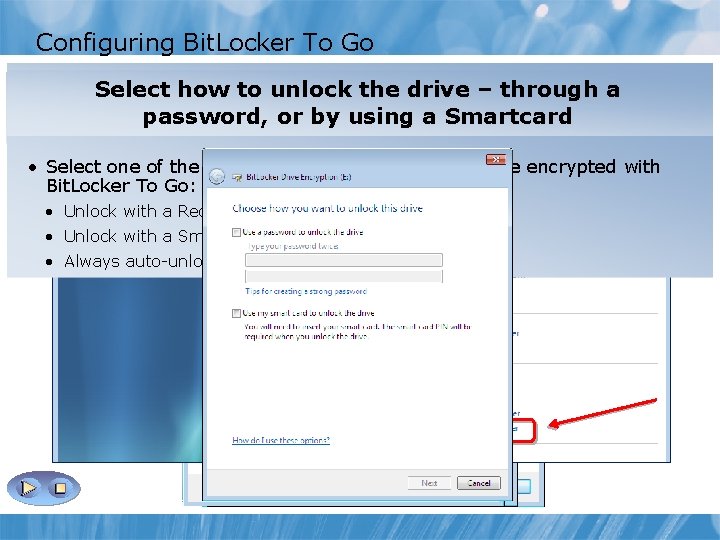
Configuring Bit. Locker To Go Select how to. Drive unlock the drive – through a • Enable Bit. Locker To Go Encryption byrecovery right-clicking the portable Select how to store your key Manage Encrypted by Bit. Locker To Manage Drive Encrypted by. Smartcard Bit. Locker To. Go Go Encrypt the clicking Drive device (such asaaa. Drive USB drive) and using then Turn On Bit. Locker password, or by a • Select one of the following settings to unlock a drive encrypted with Bit. Locker To Go: • Unlock with a Recovery Password or passphrase • Unlock with a Smart Card • Always auto-unlock this device on this PC
Recovering Bit. Locker Encrypted Drives When a Bit. Locker-enabled computer starts: • Bit. Locker checks the operating system for conditions indicating a security risk • If a condition is detected: • Bit. Locker enters recovery mode and keeps the system drive locked • The user must enter the correct Recovery Password to continue The Bit. Locker Recovery Password is: • A 48 -digit password used to unlock a system in recovery mode • Unique to a particular Bit. Locker encryption • Can be stored in Active Directory • If stored in Active Directory, search for it by using either the drive label or the computer’s password
Lesson 4: Configuring Application Restrictions • What is App. Locker? • App. Locker Rules • Demonstration: Configuring App. Locker Rules • Demonstration: Enforcing App. Locker Rules • What are Software Restriction Policies?
What is App. Locker? App. Locker is a new Windows 7 security feature that enables IT professionals to specify exactly what is allowed to run on user desktops Benefits of App. Locker • Controls how users can access and run all types of applications • Ensures that user desktops are running only approved, licensed software
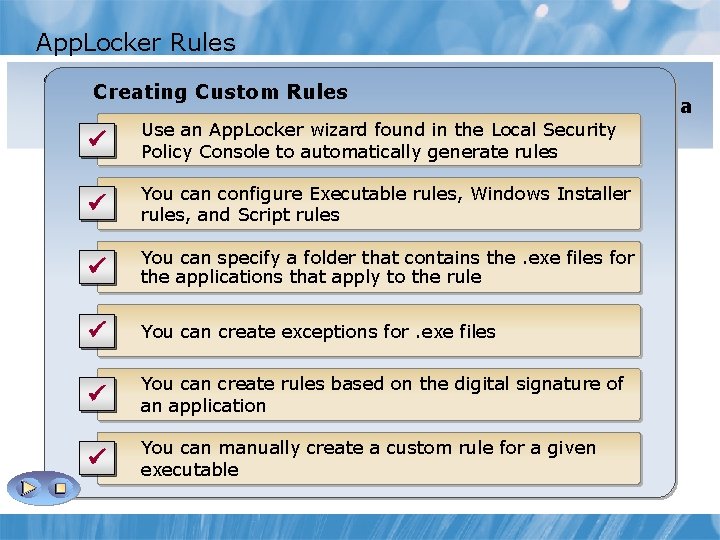
App. Locker Rules Create default. Custom App. Locker rules first, before manually Creating Rules creating new rules or automatically generating rules for a Use an App. Locker wizard found in the Local Security specific folder ü Policy Console to automatically generate rules Default You rules enable the Executable following: rules, Windows Installer can configure ü rules, and Script rules All users to run files in the default Program Files directory You can specify a folder that contains the. exe files for ü the applications that apply to the rule All users to run all files signed by the Windows operating system ü You can create exceptions for. exe files Members of the built-in Administrators group to run all files You can create rules based on the digital signature of ü an application ü You can manually create a custom rule for a given executable
Demonstration: Configuring App. Locker Rules Your instructor will demonstrate how to: • Create new executable rule • Create new Windows Installer rule • Automatically generate Script rules 10 min
Demonstration: Enforcing App. Locker Rules Your instructor will demonstrate how to: • Enforce App. Locker Rules • Confirm the executable rule enforcement • Confirm the Windows Installer rule enforcement 10 min
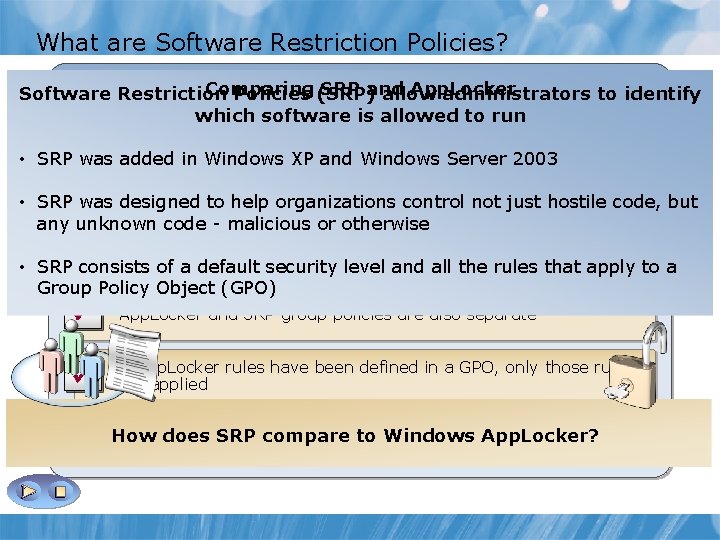
What are Software Restriction Policies? Comparing SRP and App. Locker Software Restriction Policies (SRP) allow administrators to identify software is allowed to. Policies run (SRP) App. Lockerwhich replaces the Software Restriction ü feature from prior Windows versions • SRP was added in Windows XP and Windows Server 2003 SRP snap-in and SRP rules are included in Windows 7 for • SRPü was compatibility designed to purposes help organizations control not just hostile code, but • App. Locker rules are completely separate from SRP rules ü SRP consists of a default security level and all the rules that apply to a any unknown code - malicious or otherwise Group Policy Object (GPO) ü App. Locker and SRP group policies are also separate ü If App. Locker rules have been defined in a GPO, only those rules are applied ü Definedoes App. Locker rules in a separate GPO to App. Locker? ensure How SRP compare to Windows interoperability between SRP and App. Locker policies
Lesson 5: Configuring User Account Control • What is UAC? • How UAC Works • Demonstration: Configuring Group Policy Settings for UAC • Configuring UAC Notification Settings
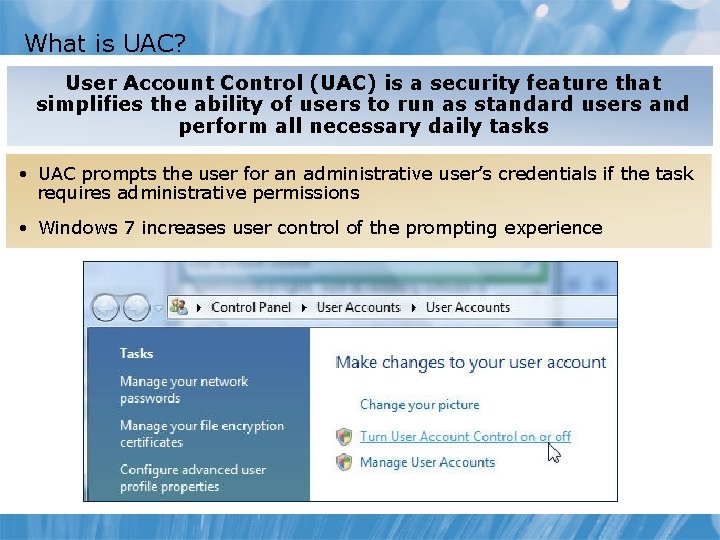
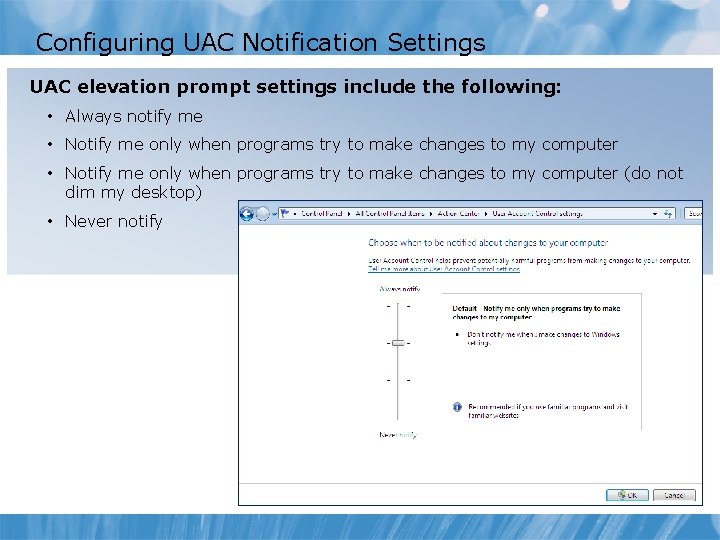
What is UAC? User Account Control (UAC) is a security feature that simplifies the ability of users to run as standard users and perform all necessary daily tasks • UAC prompts the user for an administrative user’s credentials if the task requires administrative permissions • Windows 7 increases user control of the prompting experience
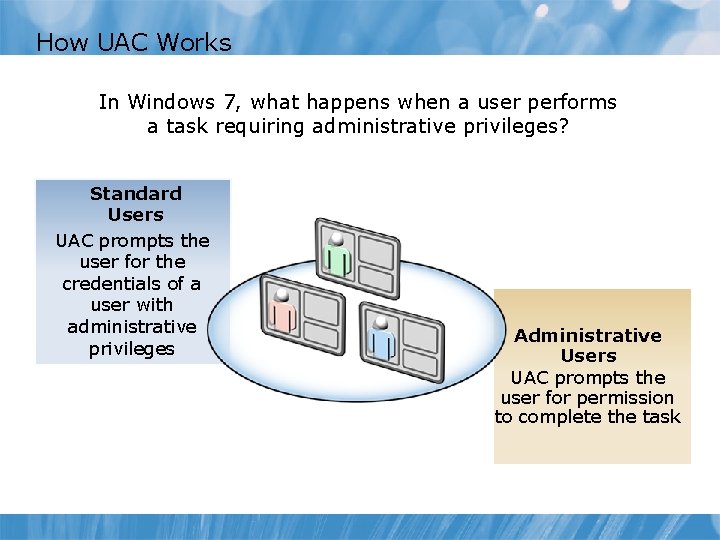
How UAC Works In Windows 7, what happens when a user performs a task requiring administrative privileges? Standard Users UAC prompts the user for the credentials of a user with administrative privileges Administrative Users UAC prompts the user for permission to complete the task
Demonstration: Configuring Group Policy Settings for UAC Your instructor will demonstrate how to: • Open the User Accounts window • Review • View user groups the Credential Prompt • Change User Account Settings and View the Consent Prompt 10 min
Configuring UAC Notification Settings UAC elevation prompt settings include the following: • Always notify me • Notify me only when programs try to make changes to my computer (do not dim my desktop) • Never notify
Lab A: Configuring UAC, Local Security Policies, EFS, and App. Locker • Exercise 1: Configuring virus protection and User Account Control (UAC) notification settings in Action Center • Exercise 2: Configuring Multiple Local Group Policies to manage the appearance of selected program icons • Exercise 3: Configuring and testing encryption of files and folders • Exercise 4: Configuring and testing App. Locker rules to control what programs can be executed Logon information Virtual machine LON-CL 1 and LON-DC 1 User name Administrator Password Pa$$w 0 rd Estimated time: 50 minutes
Lab A Scenario Your company is implementing Windows 7 computers for all corporate users. As an administrator at your organization you are responsible for configuring the new Windows 7 computers to support various corporate requirements. You have been asked to: § Turn off virus protection notifications § Verify the User Account Control (UAC) settings are set to “Always notify but not dim the desktop” § Configure multiple local group policies to control which of the default program icons appear on users’ and administrators’ computers § Encrypt all sensitive data on computers using EFS § Use App. Locker rules to prevent corporate users from running Windows Media Player and installing unauthorized applications
Lab A Review • Where can you turn on and off security messages related to virus protection? What are some of the other security messages that can be configured in Windows 7? • How can the notifications about changes to the computer be suppressed? • Can multiple local group policies be created and applied to different users? • What are some of the ways of protecting sensitive data in Windows 7? • How can Windows 7 users be prevented from running applications, such as Windows Media Player?
Lesson 6: Configuring Windows Firewall • Discussion: What is a Firewall? • Configuring the Basic Firewall Settings • Windows Firewall with Advanced Security Settings • Well-Known Ports Used by Applications • Demonstration: Configuring Inbound, Outbound, and Connection Security Rules
Discussion: What is a Firewall? 1. What type of firewall does your organization currently use? 2. What are the reasons that it was selected? 10 min
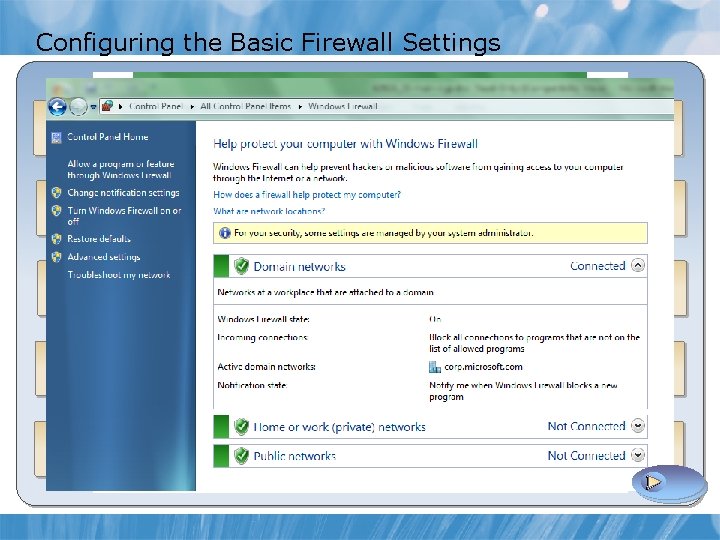
Configuring the Basic Firewall Settings Configure network locations Turn Windows Firewall on or off and customize network location settings Add, change, or remove allowed programs Set up or modify multiple active profile settings Configure Windows Firewall notifications
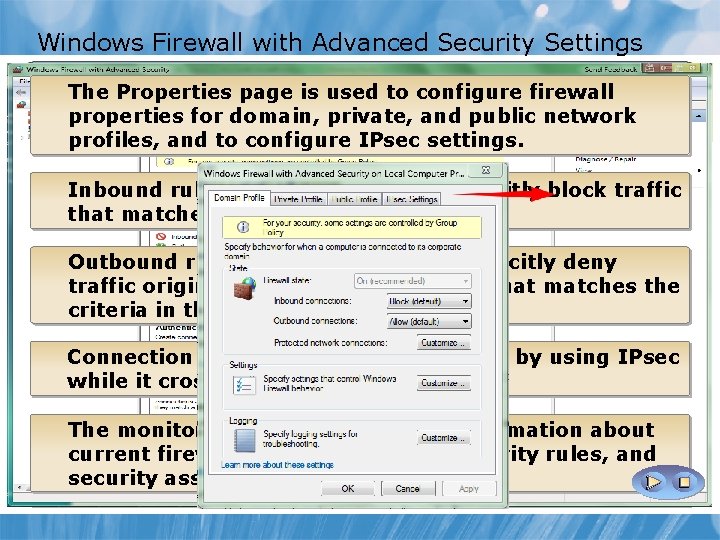
Windows Firewall with Advanced Security Settings Windows Firewall with Security filtersfirewall incoming and The Properties page. Advanced is used to configure outgoing based on its public configuration properties forconnections domain, private, and network profiles, and to configure IPsec settings. Inbound rules explicitly allow or explicitly block traffic that matches criteria in the rule. Outbound rules explicitly allow or explicitly deny traffic originating from the computer that matches the criteria in the rule. Connection security rules secure traffic by using IPsec while it crosses the network. The monitoring interface displays information about current firewall rules, connection security rules, and security associations.
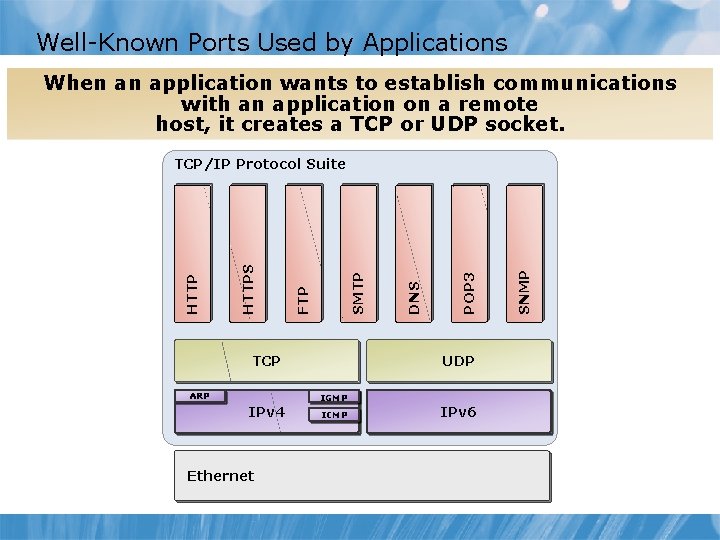
Well-Known Ports Used by Applications When an application wants to establish communications with an application on a remote host, it creates a TCP or UDP socket. TCP ARP UDP IGMP IPv 4 Ethernet ICMP IPv 6 SNMP POP 3 DNS SMTP FTP HTTPS HTTP TCP/IP Protocol Suite
Demonstration: Configuring Inbound, Outbound, and Connection Security Rules Your instructor will demonstrate how to: • Configure an Inbound Rule • Configure an Outbound Rule • Test the Outbound Rule • Create a Connection Security Rule • Review Monitoring Settings in Windows Firewall 15 min
Lesson 7: Configuring Security Settings in Internet Explorer 8 • Discussion: Compatibility Feature in Internet Explorer 8 • Enhanced Privacy Features in Internet Explorer 8 • The Smart. Screen Feature in Internet Explorer 8 • Other Security Features in Internet Explorer 8 • Demonstration: Configuring Security in Internet Explorer 8
Discussion: Compatibility Features in Internet Explorer 8 What compatibility issues do you think you may encounter when updating Internet Explorer? 10 min
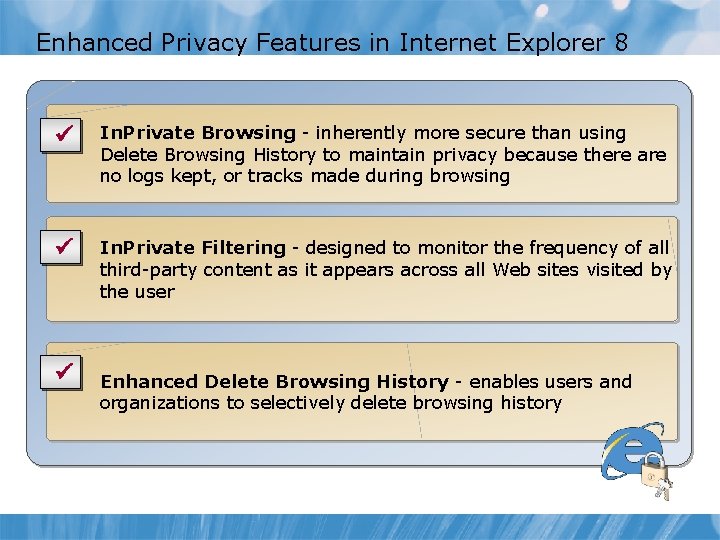
Enhanced Privacy Features in Internet Explorer 8 ü In. Private Browsing - inherently more secure than using Delete Browsing History to maintain privacy because there are no logs kept, or tracks made during browsing ü In. Private Filtering - designed to monitor the frequency of all third-party content as it appears across all Web sites visited by the user ü Enhanced Delete Browsing History - enables users and organizations to selectively delete browsing history
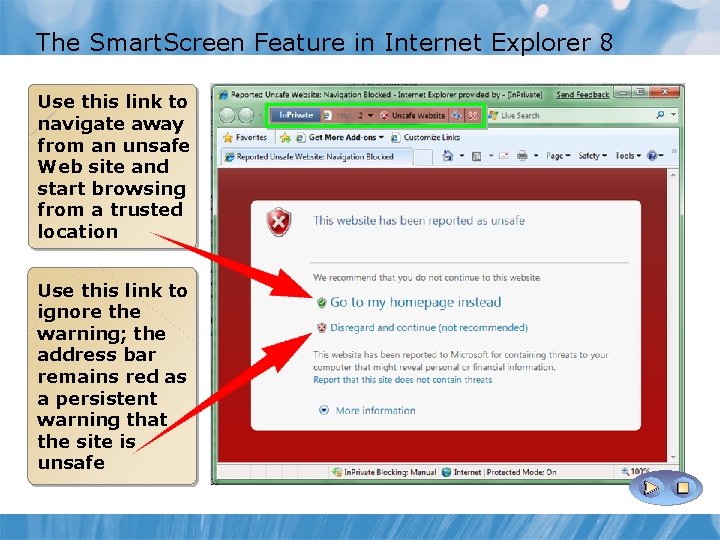
The Smart. Screen Feature in Internet Explorer 8 Use this link to navigate away from an unsafe Web site and start browsing from a trusted location Use this link to ignore the warning; the address bar remains red as a persistent warning that the site is unsafe
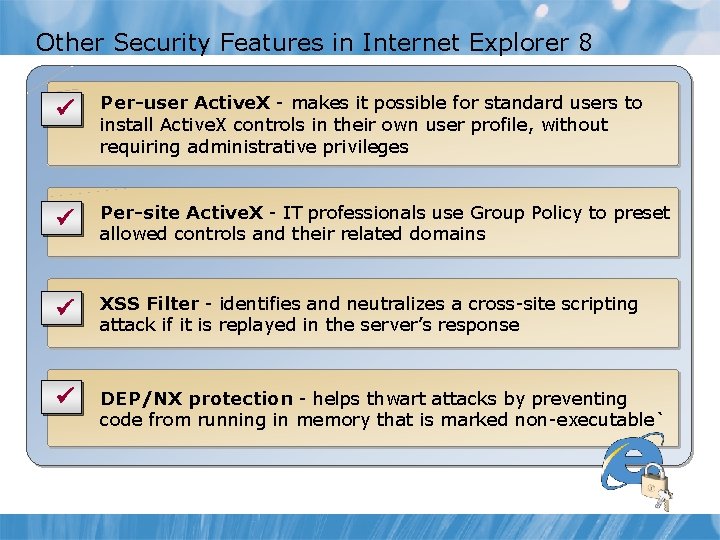
Other Security Features in Internet Explorer 8 ü Per-user Active. X - makes it possible for standard users to install Active. X controls in their own user profile, without requiring administrative privileges ü Per-site Active. X - IT professionals use Group Policy to preset allowed controls and their related domains ü XSS Filter - identifies and neutralizes a cross-site scripting attack if it is replayed in the server’s response ü DEP/NX protection - helps thwart attacks by preventing code from running in memory that is marked non-executable`
Demonstration: Configuring Security in Internet Explorer 8 Your instructor will demonstrate how to: • Enable Compatibility View for All Web Sites • Delete Browsing History • Configure In. Private Browsing • Configure In. Private Filtering • View Add-on Management Interface 10 min
Lesson 8: Configuring Windows Defender • What is Malicious Software? • What is Windows Defender? • Scanning Options in Windows Defender • Demonstration: Configuring Windows Defender Settings
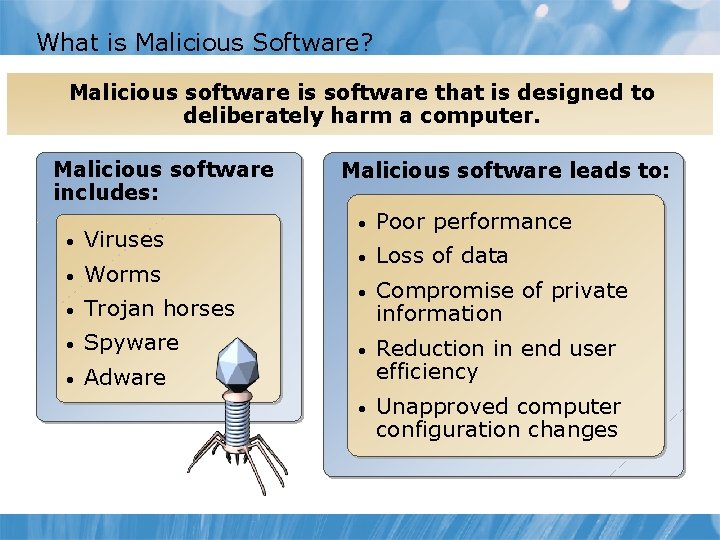
What is Malicious Software? Malicious software is software that is designed to deliberately harm a computer. Malicious software includes: • Viruses • Worms • Trojan horses • Spyware • Adware Malicious software leads to: • Poor performance • Loss of data • Compromise of private information • Reduction in end user efficiency • Unapproved computer configuration changes
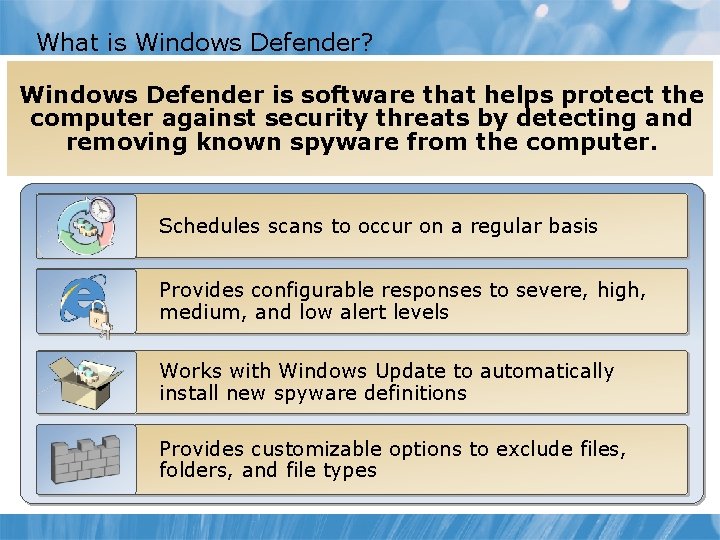
What is Windows Defender? Windows Defender is software that helps protect the computer against security threats by detecting and removing known spyware from the computer. Schedules scans to occur on a regular basis Provides configurable responses to severe, high, medium, and low alert levels Works with Windows Update to automatically install new spyware definitions Provides customizable options to exclude files, folders, and file types
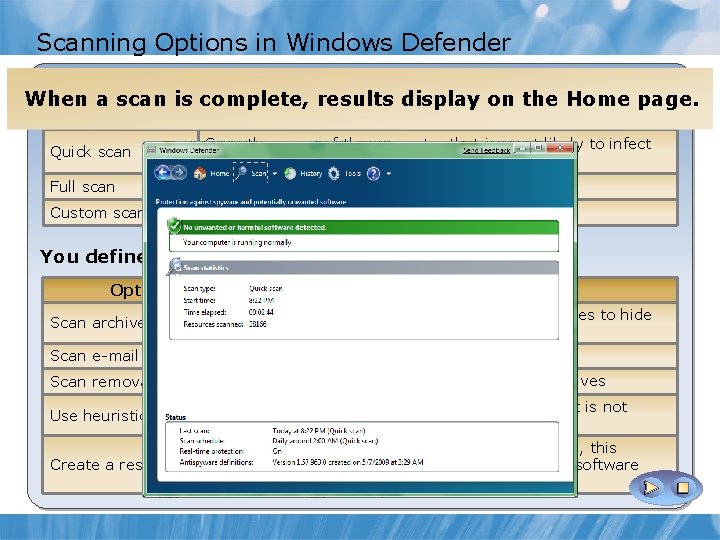
Scanning Options in Windows Defender You define when to scan When a scan is complete, results display on the Home page. Scan Type Description Quick scan Scan the areas of the computer that is most likely to infect be infected Full scan Scan all areas of the computer Custom scan Scan specific areas of the computer only You define what to scan Option Description Scan archive files May increase scanning time, but spyware likes to hide in these locations Scan e-mail messages and attachments Scan removable drives such as USB flash drives Use heuristics Alert you to potentially harmful behavior if it is not included in a definition file Create a restore point If detected items are automatically removed, this restores system settings if you want to use software you did not intend to remove
Demonstration: Configuring Windows Defender Settings Your instructor will demonstrate how to: • Set Windows Defender Options • View Quarantine Items • View Allowed Items • Microsoft Spy. Net • Windows Defender Website 10 min
Lab B: Configuring Windows Firewall, Internet Explorer 8. 0 Security Settings, and Windows Defender • Exercise 1: Configuring and testing inbound and outbound rules in Windows Firewall • Exercise 2: Configuring and testing security settings in Internet Explorer 8 • Exercise 3: Configuring scan settings and default actions in Windows Defender Logon information Virtual machine LON-CL 1 and LON-DC 1 User name Administrator Password Pa$$w 0 rd Estimated time: 45 minutes
Lab B Scenario Your company has recently implemented Windows 7 computers for all corporate users. Some of the users have been connecting to and from other desktops via RDP. You need to prevent them from doing so with the use of Windows Firewall. As an administrator at your organization you are responsible for configuring and testing various security settings: § In Internet Explorer 8, including In. Private Browsing, In. Private Filtering and the compatibility view for all web sites. § In order to prevent malware from infecting computers you need to configure Windows Defender scan settings, schedule scans to run on Sundays at 10: 00 PM and set severe alert items to quarantine. § You also need to review what items have been allowed on computers.
Lab B Review • What are the types of rules you can configure in Windows Firewall? • What are some of the new security settings in Internet Explorer 8? • Will the default Windows Defender settings allow to check for new definitions, regularly scan for spyware and other potentially unwanted software? • What are some of the types of scans Windows Defender can perform to detect malicious and unwanted software?
Module Review and Takeaways • Review questions • Real-World Issues and Scenarios • Common Issues • Best Practices