
Module 3 SQL Server 2005 Administrative Tools Overview
![sqlcmd Command-Line Switches sqlcmd [-? ] [ { | [-L[c]] | {-U login_id [-P](https://slidetodoc.com/presentation_image/4e5a6691da57d8b33730f3873b18095a/image-21.jpg "sqlcmd Command-Line Switches sqlcmd [-? ] [ { | [-L[c]] | {-U login_id [-P")
- Slides: 35
Module 3: SQL Server 2005 Administrative Tools
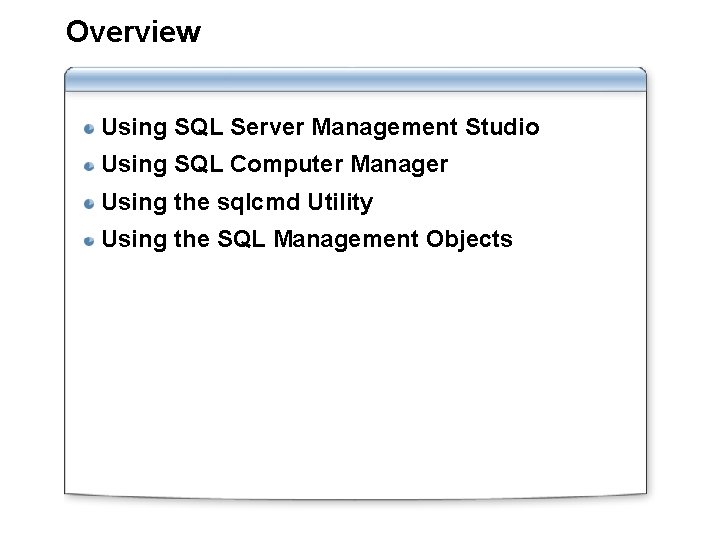
Overview Using SQL Server Management Studio Using SQL Computer Manager Using the sqlcmd Utility Using the SQL Management Objects
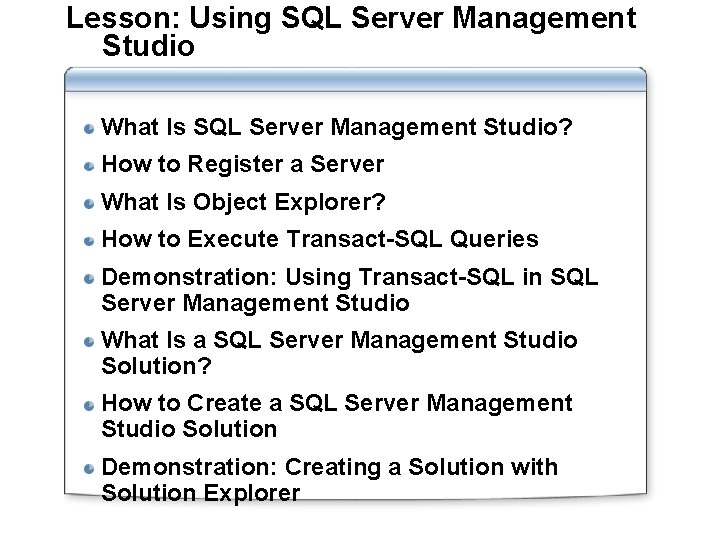
Lesson: Using SQL Server Management Studio What Is SQL Server Management Studio? How to Register a Server What Is Object Explorer? How to Execute Transact-SQL Queries Demonstration: Using Transact-SQL in SQL Server Management Studio What Is a SQL Server Management Studio Solution? How to Create a SQL Server Management Studio Solution Demonstration: Creating a Solution with Solution Explorer
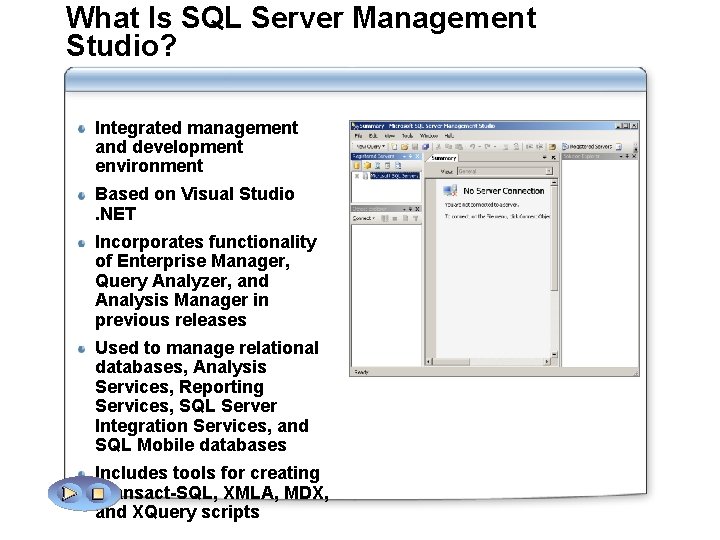
What Is SQL Server Management Studio? Integrated management and development environment Based on Visual Studio. NET Incorporates functionality of Enterprise Manager, Query Analyzer, and Analysis Manager in previous releases Used to manage relational databases, Analysis Services, Reporting Services, SQL Server Integration Services, and SQL Mobile databases Includes tools for creating Transact-SQL, XMLA, MDX, and XQuery scripts
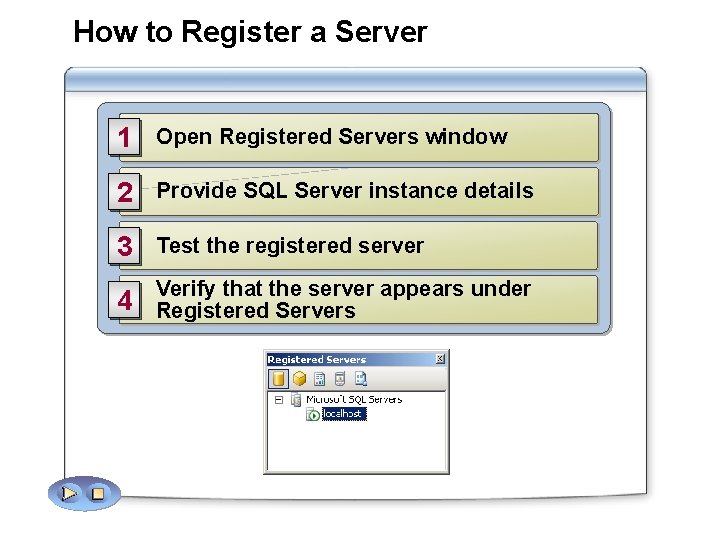
How to Register a Server 1 Open Registered Servers window 2 Provide SQL Server instance details 3 Test the registered server 4 Verify that the server appears under Registered Servers
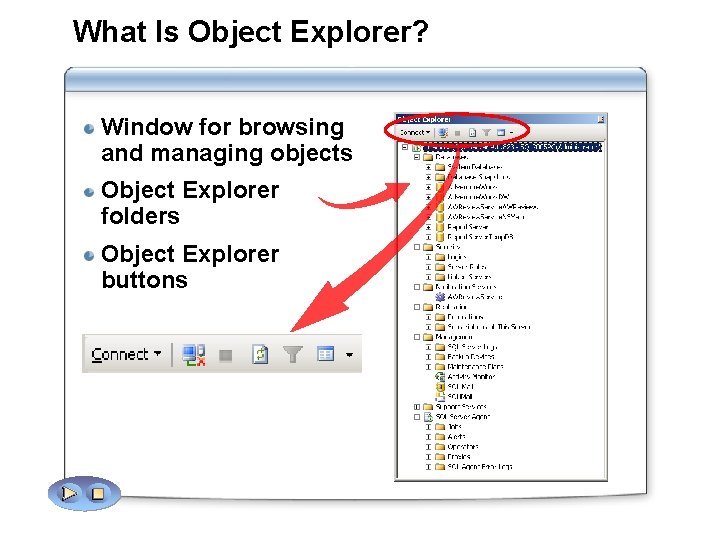
What Is Object Explorer? Window for browsing and managing objects Object Explorer folders Object Explorer buttons
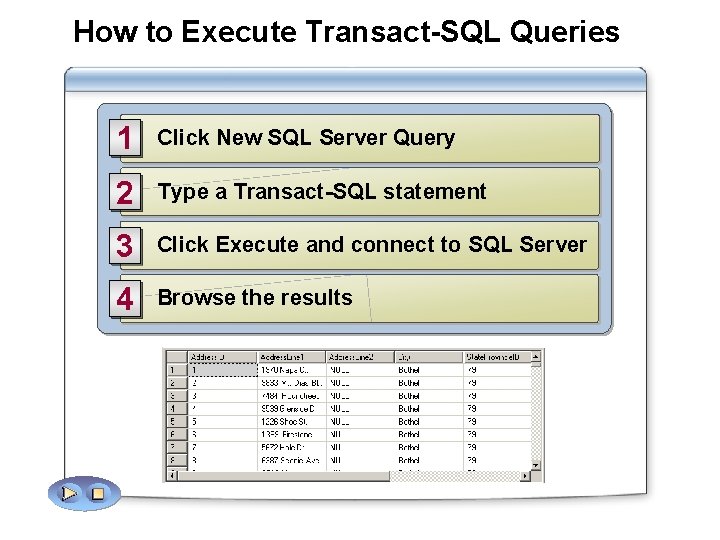
How to Execute Transact-SQL Queries 1 Click New SQL Server Query 2 Type a Transact-SQL statement 3 Click Execute and connect to SQL Server 4 Browse the results
Demonstration: Using Transact-SQL in SQL Server Management Studio In this demonstration, you will see how to create and execute a query
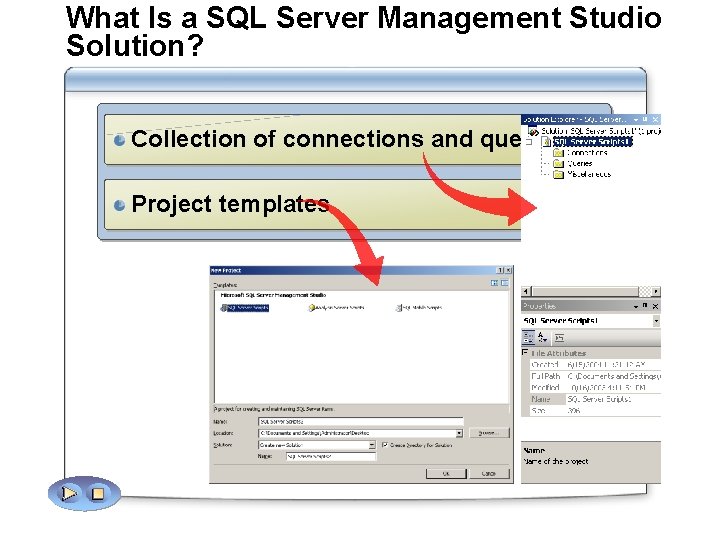
What Is a SQL Server Management Studio Solution? Collection of connections and queries Project templates
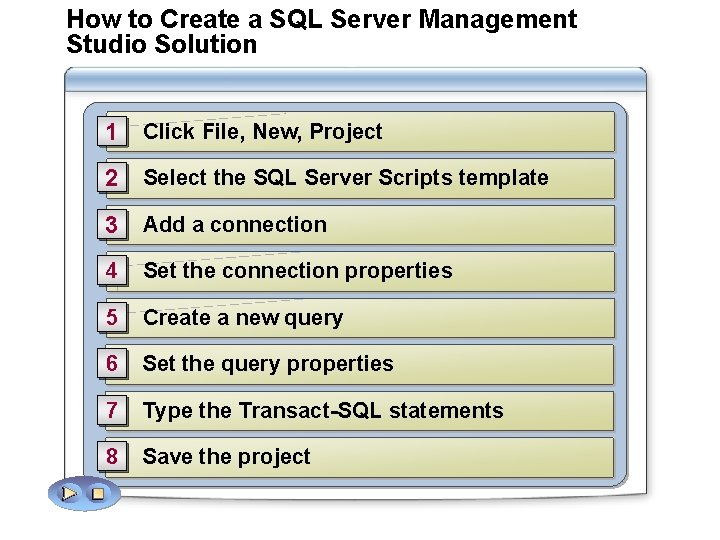
How to Create a SQL Server Management Studio Solution 1 Click File, New, Project 2 Select the SQL Server Scripts template 3 Add a connection 4 Set the connection properties 5 Create a new query 6 Set the query properties 7 Type the Transact-SQL statements 8 Save the project
Demonstration: Creating a Solution with Solution Explorer In this demonstration, you will see how to create a SQL Server Management Studio solution
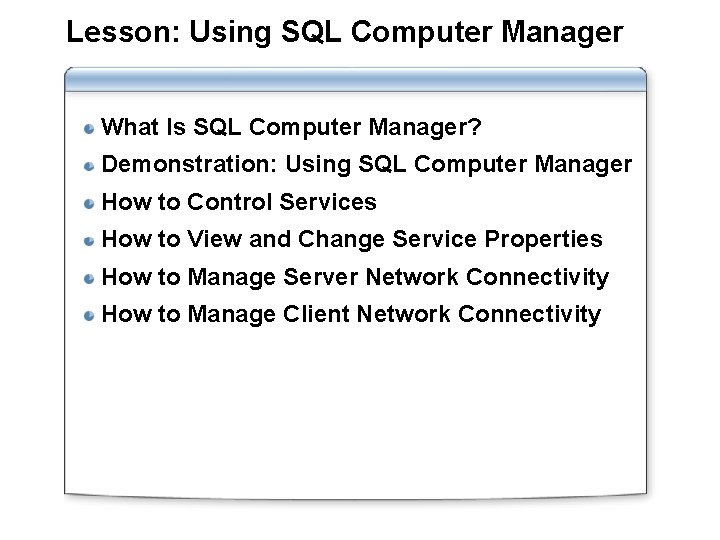
Lesson: Using SQL Computer Manager What Is SQL Computer Manager? Demonstration: Using SQL Computer Manager How to Control Services How to View and Change Service Properties How to Manage Server Network Connectivity How to Manage Client Network Connectivity
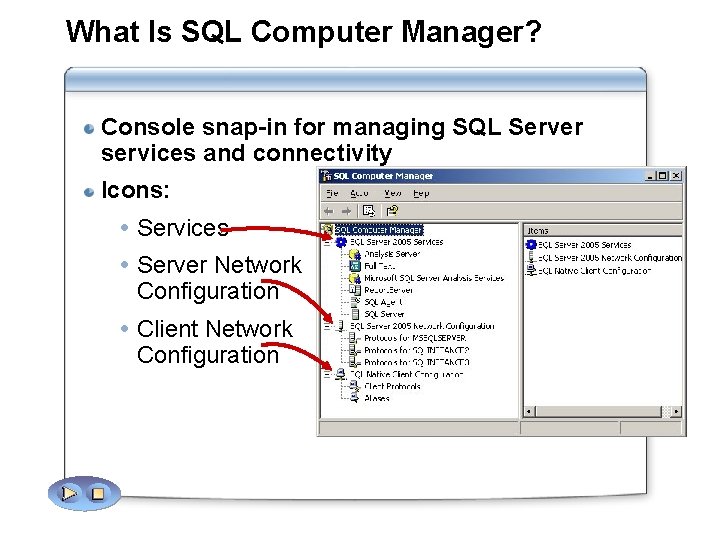
What Is SQL Computer Manager? Console snap-in for managing SQL Server services and connectivity Icons: Services Server Network Configuration Client Network Configuration
Demonstration: Using SQL Computer Manager In this demonstration, you will see how to: Start SQL Computer Manager View SQL Server 2005 Services View Server Network Configuration View Client Network Configuration
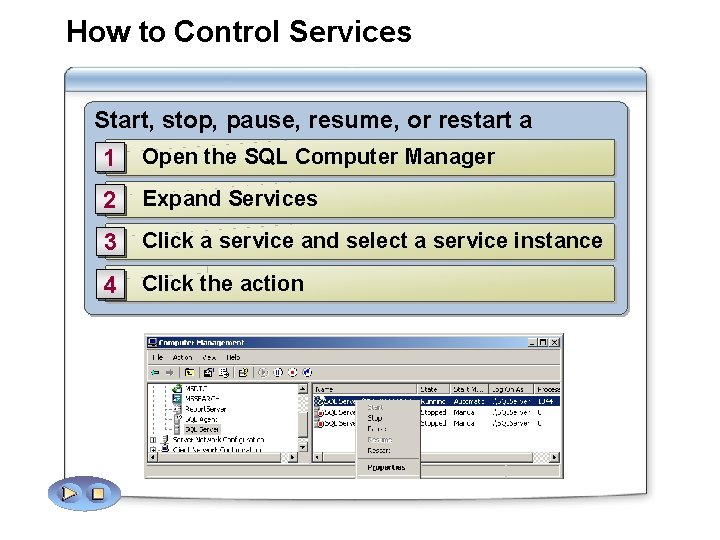
How to Control Services Start, stop, pause, resume, or restart a service 1 Open the SQL Computer Manager 2 Expand Services 3 Click a service and select a service instance 4 Click the action
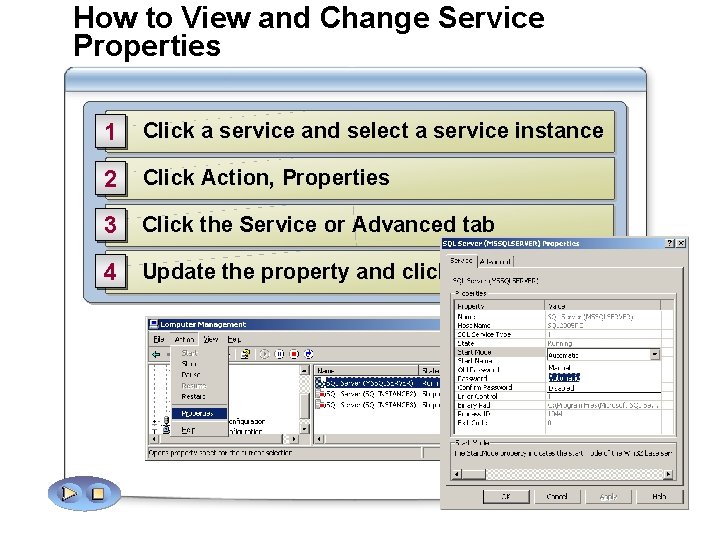
How to View and Change Service Properties 1 Click a service and select a service instance 2 Click Action, Properties 3 Click the Service or Advanced tab 4 Update the property and click OK
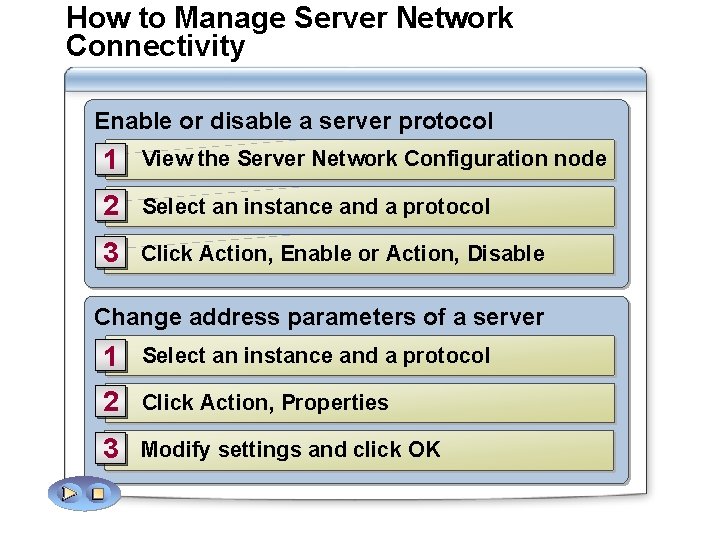
How to Manage Server Network Connectivity Enable or disable a server protocol 1 View the Server Network Configuration node 2 Select an instance and a protocol 3 Click Action, Enable or Action, Disable Change address parameters of a server protocol 1 Select an instance and a protocol 2 Click Action, Properties 3 Modify settings and click OK
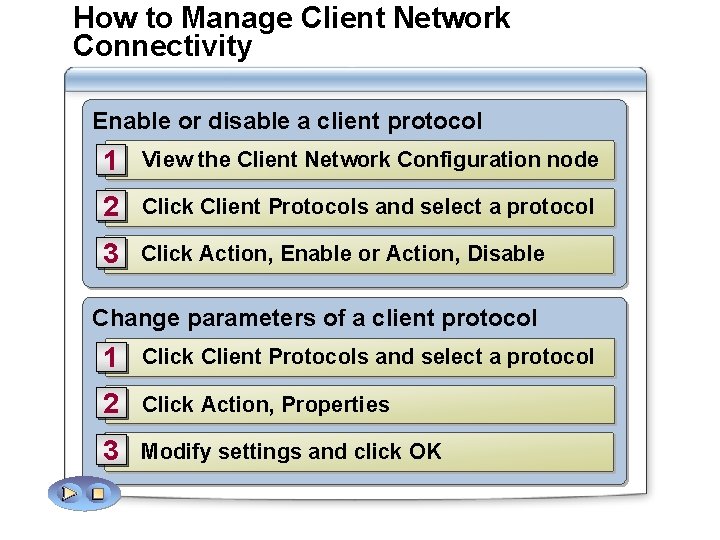
How to Manage Client Network Connectivity Enable or disable a client protocol 1 View the Client Network Configuration node 2 Click Client Protocols and select a protocol 3 Click Action, Enable or Action, Disable Change parameters of a client protocol 1 Click Client Protocols and select a protocol 2 Click Action, Properties 3 Modify settings and click OK
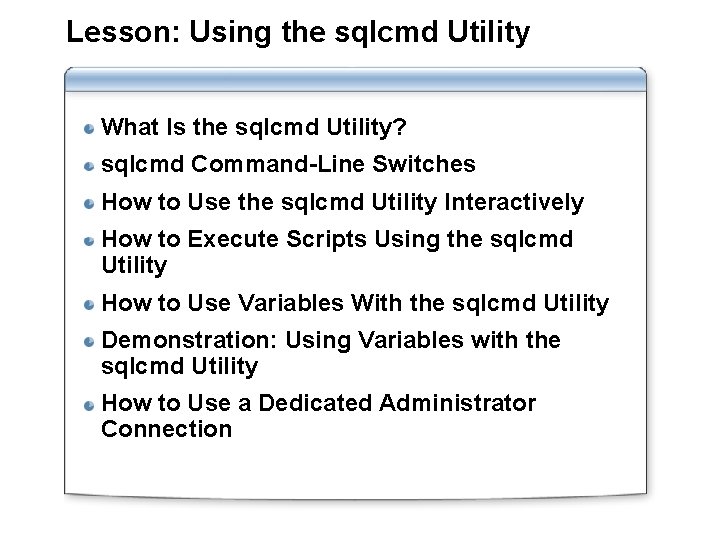
Lesson: Using the sqlcmd Utility What Is the sqlcmd Utility? sqlcmd Command-Line Switches How to Use the sqlcmd Utility Interactively How to Execute Scripts Using the sqlcmd Utility How to Use Variables With the sqlcmd Utility Demonstration: Using Variables with the sqlcmd Utility How to Use a Dedicated Administrator Connection
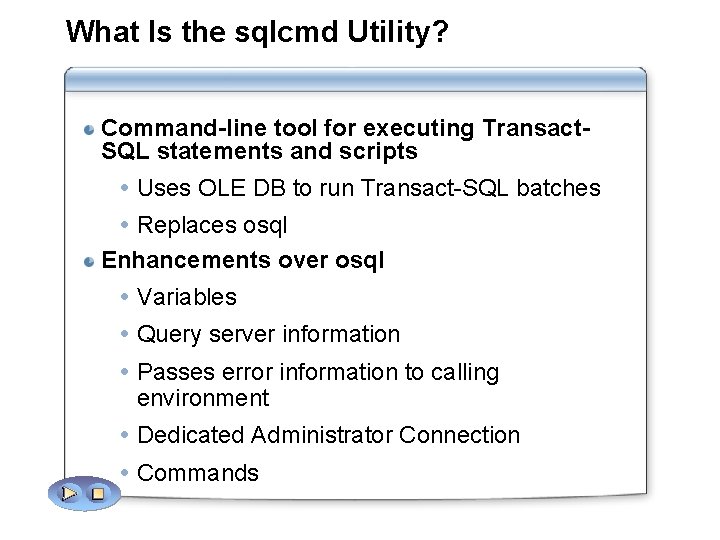
What Is the sqlcmd Utility? Command-line tool for executing Transact. SQL statements and scripts Uses OLE DB to run Transact-SQL batches Replaces osql Enhancements over osql Variables Query server information Passes error information to calling environment Dedicated Administrator Connection Commands
sqlcmd Command-Line Switches sqlcmd [-? ] [ { | [-L[c]] | {-U login_id [-P password]} | –E } [-S server_name[instance_name]] [-H wksta_name] [-d db_name] [-l time_out] [-t time_out] [-h headers] [-s col_separator] [-w column_width] [-a packet_size] [-I] [-c cmd_end] [-q "query"] [-Q "query"] [-m error_level] [-r [0 | 1]] [-i input_file[, file 2…]] [-o output_file] [-p[1]] [-b] [-u] [-R] [-v var="value"[var="value"…]][-A] [-X[1]] [-V severitylevel] ]
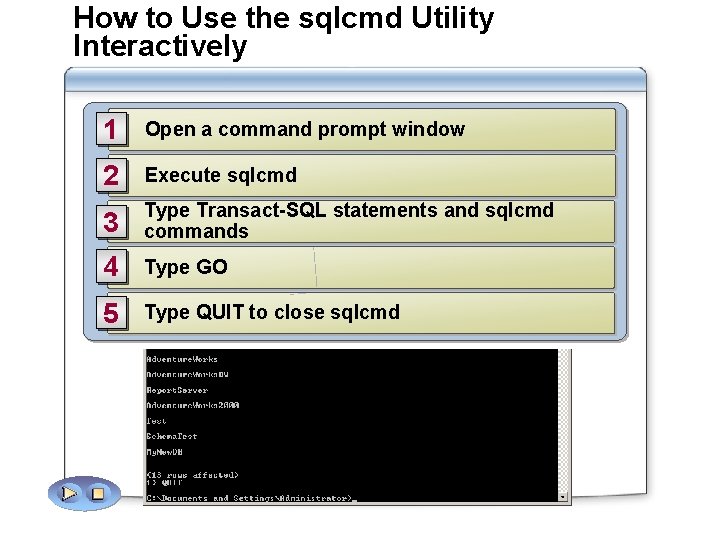
How to Use the sqlcmd Utility Interactively 1 Open a command prompt window 2 Execute sqlcmd 3 Type Transact-SQL statements and sqlcmd commands 4 Type GO 5 Type QUIT to close sqlcmd
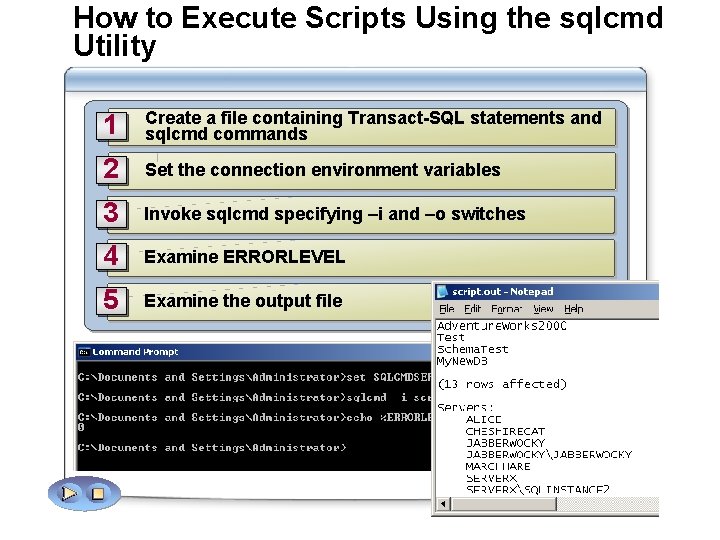
How to Execute Scripts Using the sqlcmd Utility 1 Create a file containing Transact-SQL statements and sqlcmd commands 2 Set the connection environment variables 3 Invoke sqlcmd specifying –i and –o switches 4 Examine ERRORLEVEL 5 Examine the output file
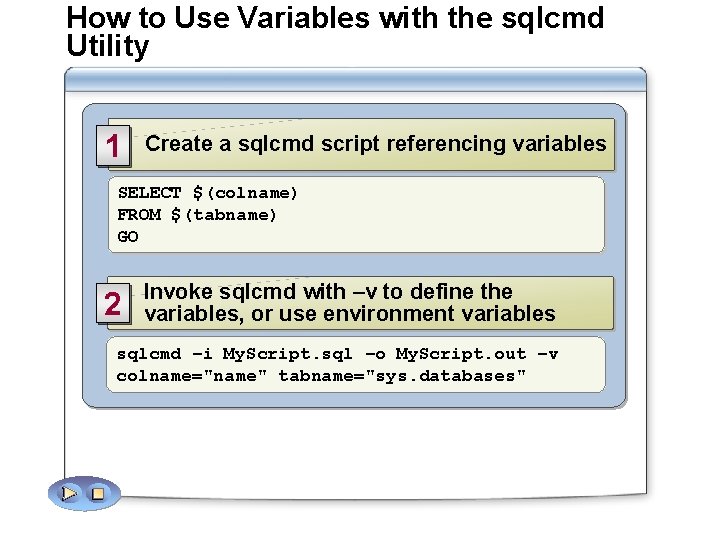
How to Use Variables with the sqlcmd Utility 1 Create a sqlcmd script referencing variables SELECT $(colname) FROM $(tabname) GO 2 Invoke sqlcmd with –v to define the variables, or use environment variables sqlcmd –i My. Script. sql –o My. Script. out –v colname="name" tabname="sys. databases"
Demonstration: Using Variables with the sqlcmd Utility In this demonstration, you will see how to: Reference variables in a script Instantiate variables from the command line Use environment variables
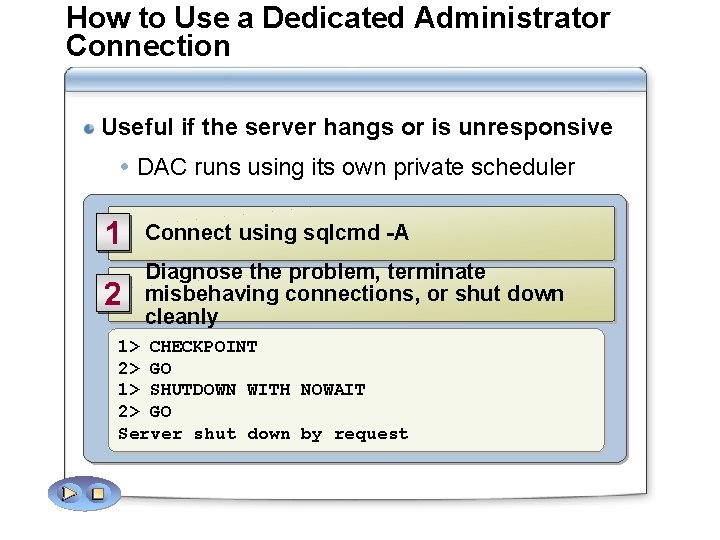
How to Use a Dedicated Administrator Connection Useful if the server hangs or is unresponsive DAC runs using its own private scheduler 1 Connect using sqlcmd -A 2 Diagnose the problem, terminate misbehaving connections, or shut down cleanly 1> CHECKPOINT 2> GO 1> SHUTDOWN WITH NOWAIT 2> GO Server shut down by request
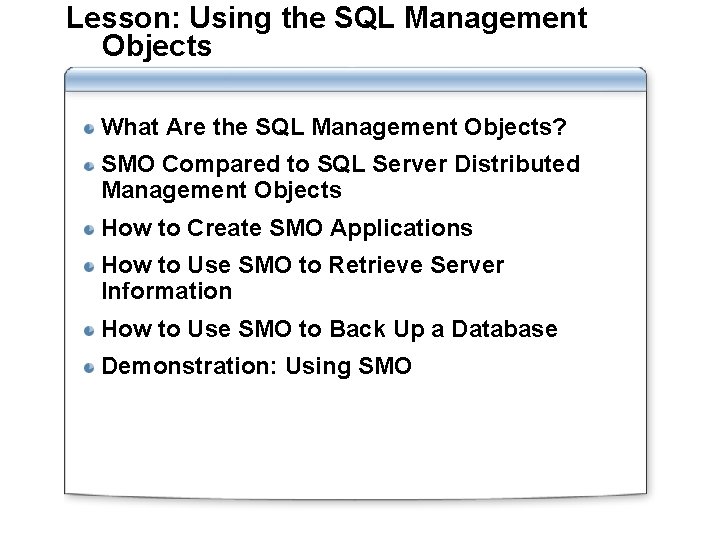
Lesson: Using the SQL Management Objects What Are the SQL Management Objects? SMO Compared to SQL Server Distributed Management Objects How to Create SMO Applications How to Use SMO to Retrieve Server Information How to Use SMO to Back Up a Database Demonstration: Using SMO
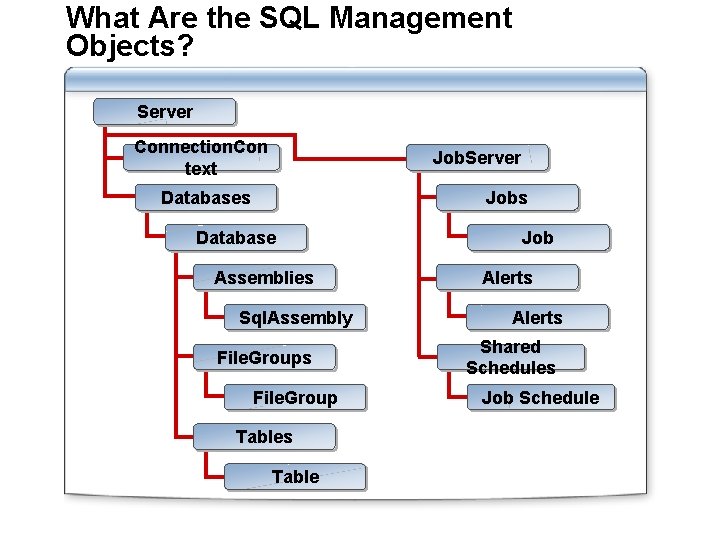
What Are the SQL Management Objects? Server Connection. Con text Job. Server Databases Jobs Database Assemblies Sql. Assembly File. Groups File. Group Tables Table Job Alerts Shared Schedules Job Schedule
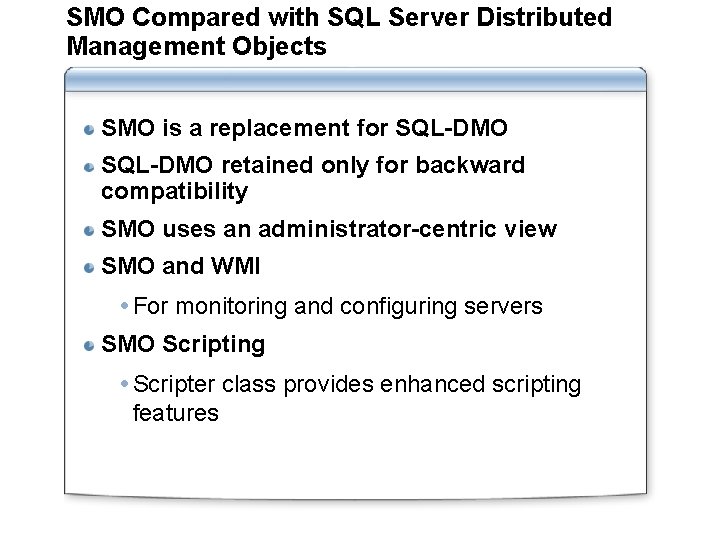
SMO Compared with SQL Server Distributed Management Objects SMO is a replacement for SQL-DMO retained only for backward compatibility SMO uses an administrator-centric view SMO and WMI For monitoring and configuring servers SMO Scripting Scripter class provides enhanced scripting features
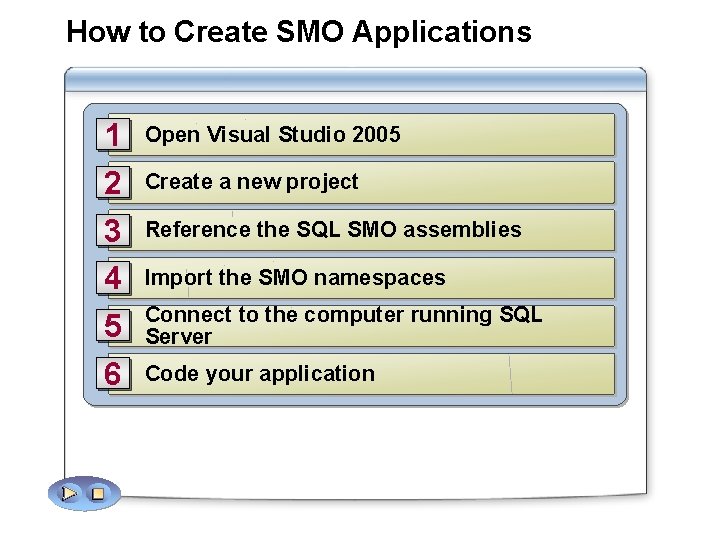
How to Create SMO Applications 1 2 3 4 5 6 Open Visual Studio 2005 Create a new project Reference the SQL SMO assemblies Import the SMO namespaces Connect to the computer running SQL Server Code your application
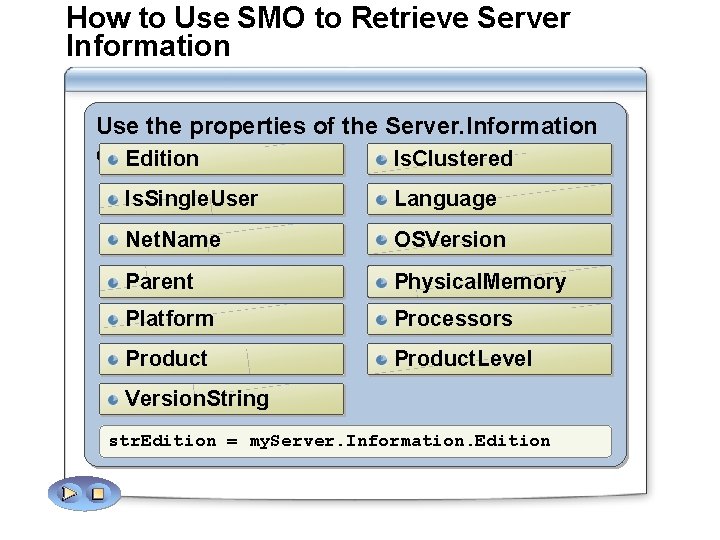
How to Use SMO to Retrieve Server Information Use the properties of the Server. Information class Edition Is. Clustered Is. Single. User Language Net. Name OSVersion Parent Physical. Memory Platform Processors Product. Level Version. String str. Edition = my. Server. Information. Edition
Practice: Using SMO In this practice, you will see how to: Create an SMO application Retrieve server information
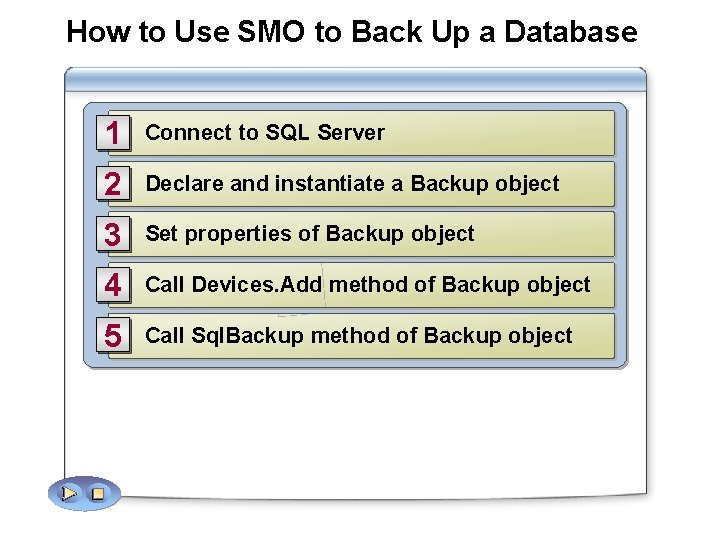
How to Use SMO to Back Up a Database 1 Connect to SQL Server 2 Declare and instantiate a Backup object 3 Set properties of Backup object 4 Call Devices. Add method of Backup object 5 Call Sql. Backup method of Backup object
Demonstration: Using SMO In this demonstration, you will see how to: Use SMO to connect to a SQL Server Use SMO to list databases on a SQL Server Use SMO to create a new database
Lab 3: Administering SQL Server 2005 Exercise 1: Creating the Personnel Database Exercise 2: Populating the Personnel Database Exercise 3: Backing up the Personnel Database