
Module 2 Configuring Disks and Device Drivers Module
- Slides: 31
Module 2 Configuring Disks and Device Drivers
Module Overview • Partitioning Disks in Windows® 7 • Managing Disk Volumes • Maintaining Disks in Windows 7 • Installing and Configuring Device Drivers
Lesson 1: Partitioning Disks in Windows 7 • What is an MBR Disk? • What is a GPT Disk? • Disk Management Tools • Demonstration: Converting an MBR Partition to a GPT Partition
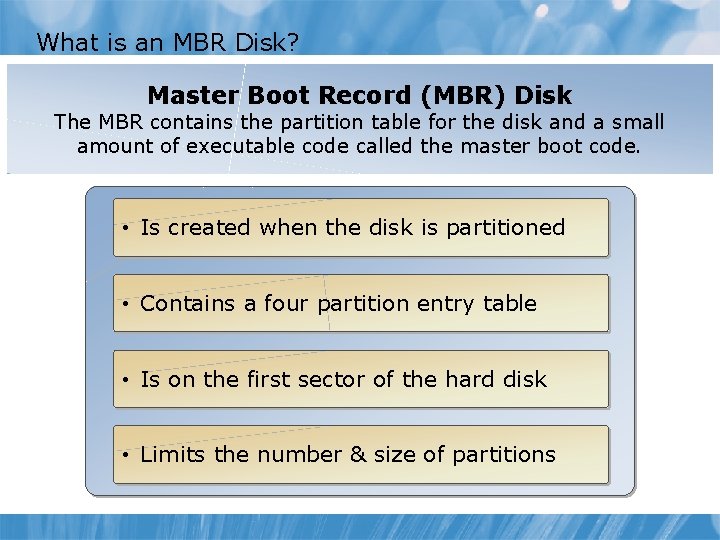
What is an MBR Disk? Master Boot Record (MBR) Disk The MBR contains the partition table for the disk and a small amount of executable code called the master boot code. • Is created when the disk is partitioned • Contains a four partition entry table • Is on the first sector of the hard disk • Limits the number & size of partitions
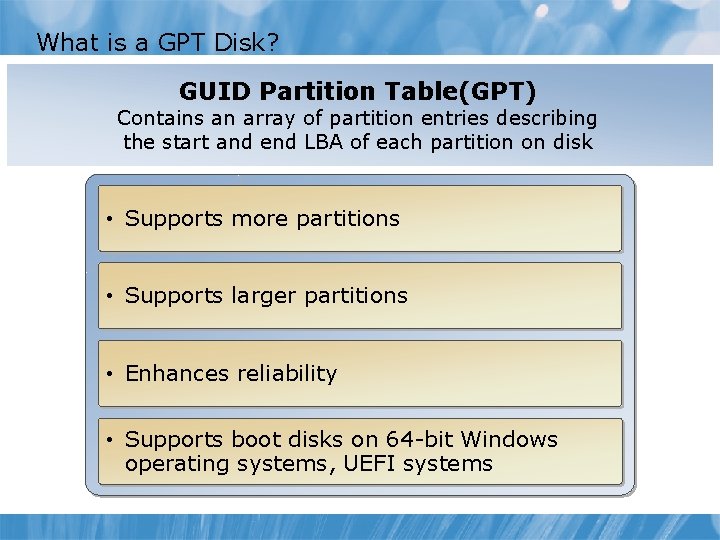
What is a GPT Disk? GUID Partition Table(GPT) Contains an array of partition entries describing the start and end LBA of each partition on disk • Supports more partitions • Supports larger partitions • Enhances reliability • Supports boot disks on 64 -bit Windows operating systems, UEFI systems
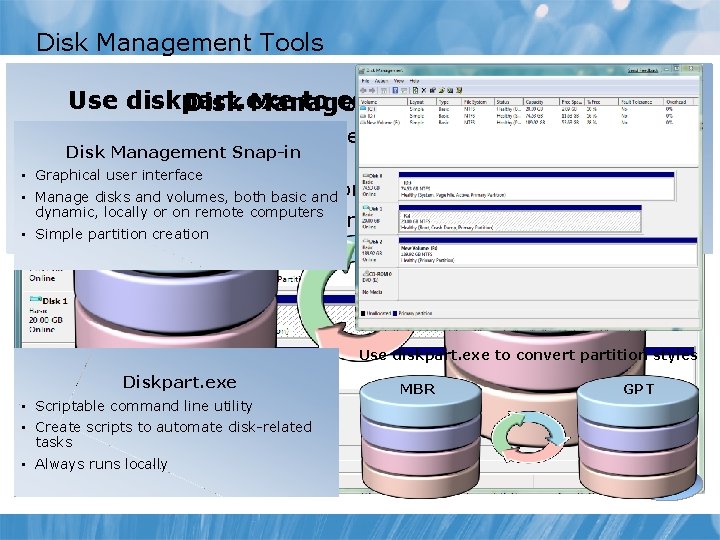
Disk Management Tools Use diskpart. exe to convert. Snap-in partition styles Disk Management Diskpart. exe • • Scriptable Graphical user interface • command line utility Disk Management Snap-in • Create Managescripts disks to and volumes, disk-related both basic and Graphical user • interface automate tasks MBR dynamic, • Manage disks and volumes, both locally basic and or • or. Always locally dynamic, locally on remoteruns computers • GPT on remote computers Simple partition creation • Simple partition creation Use diskpart. exe to convert partition styles Diskpart. exe • Scriptable command line utility • Create scripts to automate disk-related tasks • Always runs locally MBR GPT
Demonstration: Converting an MBR Partition to a GPT Partition Your instructor will demonstrate how to: • Convert a Disk to GPT by using Diskpart. exe • Convert Disk 2 to GPT by using Disk Management • Verify the Disk Type 10 min
Lesson 2: Managing Disk Volumes • What is a Simple Volume? • Demonstration: Creating a Simple Volume • What are Spanned and Striped Volumes? • Demonstration: Creating Spanned and Striped Volumes • Purpose of Resizing a Volume • Demonstration: Resizing a Volume
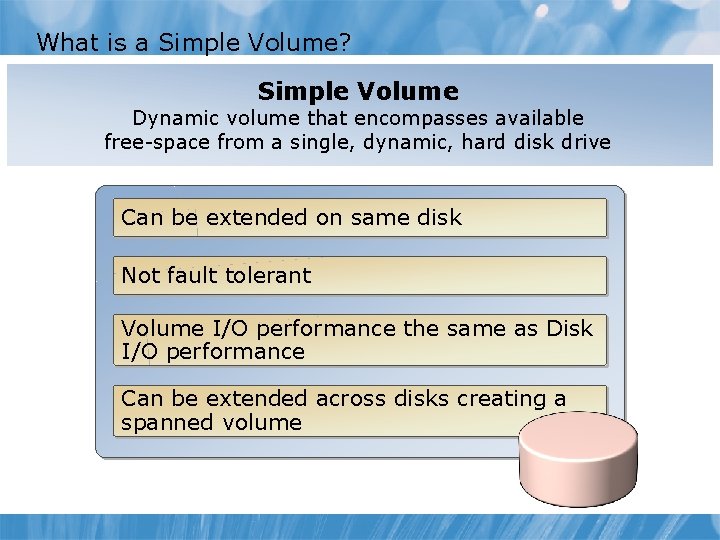
What is a Simple Volume? Simple Volume Dynamic volume that encompasses available free-space from a single, dynamic, hard disk drive Can be extended on same disk Not fault tolerant Volume I/O performance the same as Disk I/O performance Can be extended across disks creating a spanned volume
Demonstration: Creating a Simple Volume Your instructor will demonstrate how to create a simple volume by using Disk Management and Diskpart. exe. 10 min
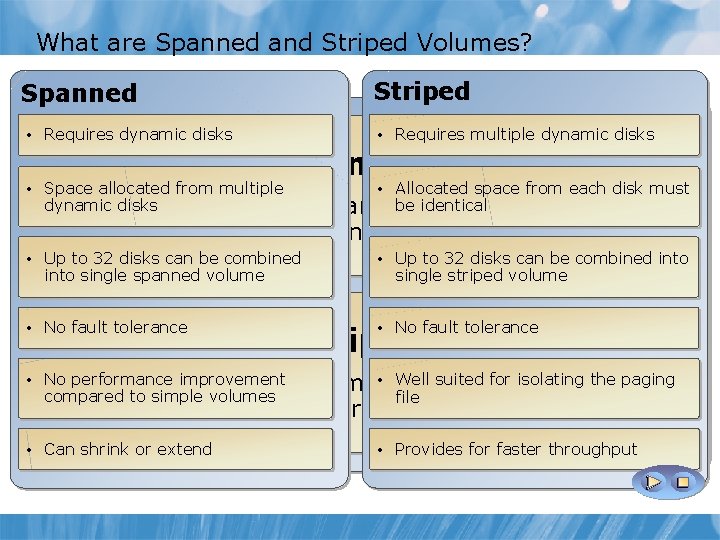
What are Spanned and Striped Volumes? Spanned Striped • Requires dynamic disks • Requires multiple dynamic disks Spanned • Space allocated from multiple • Allocated space from each disk must • Up to 32 disks can be combined into • No fault tolerance dynamic disks A spanned be of identical volume joins areas unallocated space disks into a single logical disk. into single spanned volume single striped volume Striped • Well suited forof isolating the paging A striped volume maps stripes data compared to simple volumes file cyclically across the disks. • No performance improvement • Can shrink or extend • Provides for faster throughput
Demonstration: Creating Spanned and Striped Volumes Your instructor will demonstrate how to: • Create a spanned volume • Create a striped volume 10 min
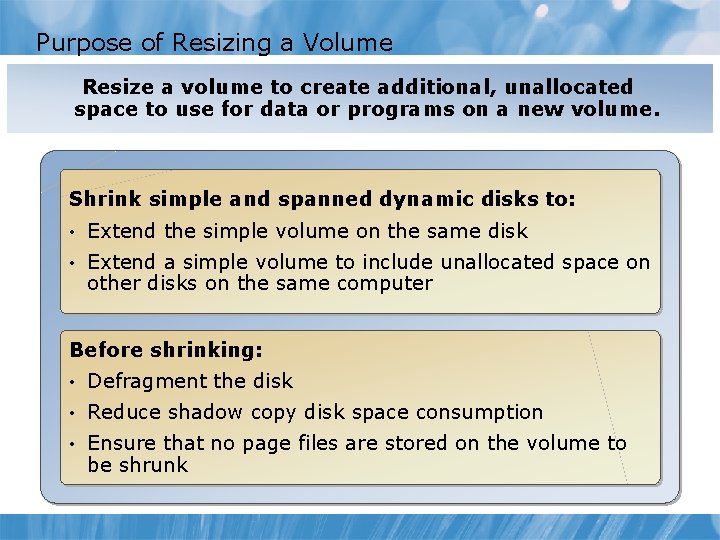
Purpose of Resizing a Volume Resize a volume to create additional, unallocated space to use for data or programs on a new volume. Shrink simple and spanned dynamic disks to: • Extend the simple volume on the same disk • Extend a simple volume to include unallocated space on other disks on the same computer Before shrinking: • Defragment the disk • Reduce shadow copy disk space consumption • Ensure that no page files are stored on the volume to be shrunk
Demonstration: Resizing a Volume Your instructor will demonstrate how to: • Shrink a volume by using Diskpart. exe • Extend a volume by Disk Management 5 min
Lesson 3: Maintaining Disks in Windows 7 • What is Disk Fragmentation? • Defragmenting a Disk • What are Disk Quotas? • Demonstration: Configuring Disk Quotas
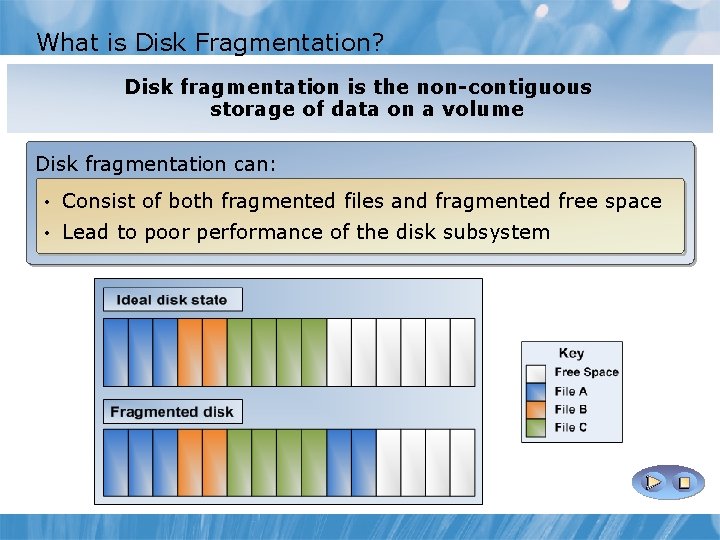
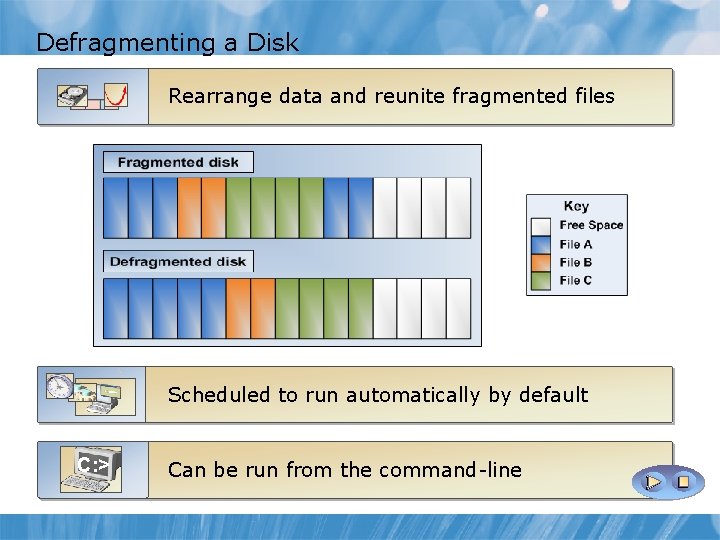
What is Disk Fragmentation? Disk fragmentation is the non-contiguous storage of data on a volume Disk fragmentation can: • Consist of both fragmented files and fragmented free space • Lead to poor performance of the disk subsystem
Defragmenting a Disk Rearrange data and reunite fragmented files Scheduled to run automatically by default C: > Can be run from the command-line
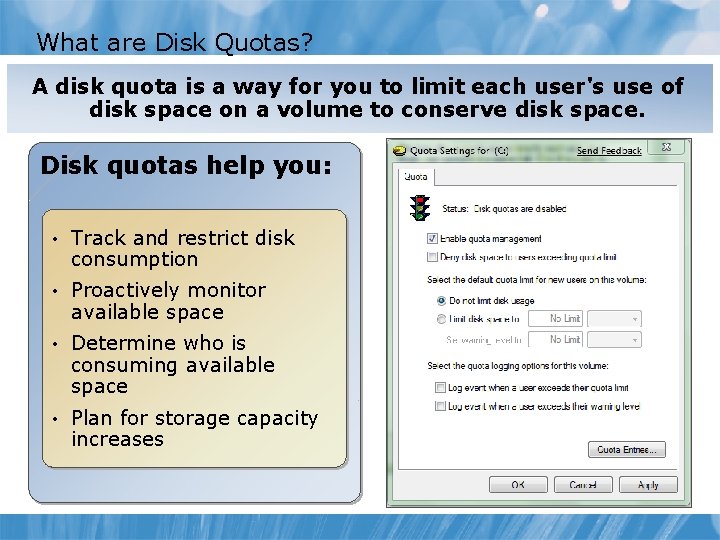
What are Disk Quotas? A disk quota is a way for you to limit each user's use of disk space on a volume to conserve disk space. Disk quotas help you: • Track and restrict disk consumption • Proactively monitor available space • Determine who is consuming available space • Plan for storage capacity increases
Demonstration: Configuring Disk Quotas Your instructor will demonstrate how to: • Create a quota • Test a quota • Review quota alerts and event-log messages 12 min
Lesson 4: Installing and Configuring Device Drivers • Overview of Device Drivers in Windows 7 • Installing Devices and Drivers • Device Driver Management Tools • Options for Updating Drivers • Managing Signed Drivers • Discussion: Options for Recovering from a Driver Problem • Demonstration: Managing Drivers by Using Device Manager
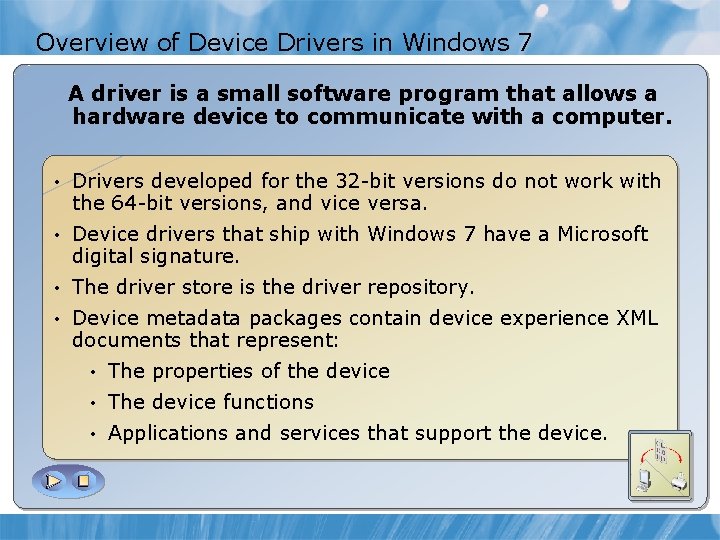
Overview of Device Drivers in Windows 7 A driver is a small software program that allows a hardware device to communicate with a computer. • Drivers developed for the 32 -bit versions do not work with the 64 -bit versions, and vice versa. • Device drivers that ship with Windows 7 have a Microsoft digital signature. • The driver store is the driver repository. • Device metadata packages contain device experience XML documents that represent: • The properties of the device • The device functions • Applications and services that support the device.
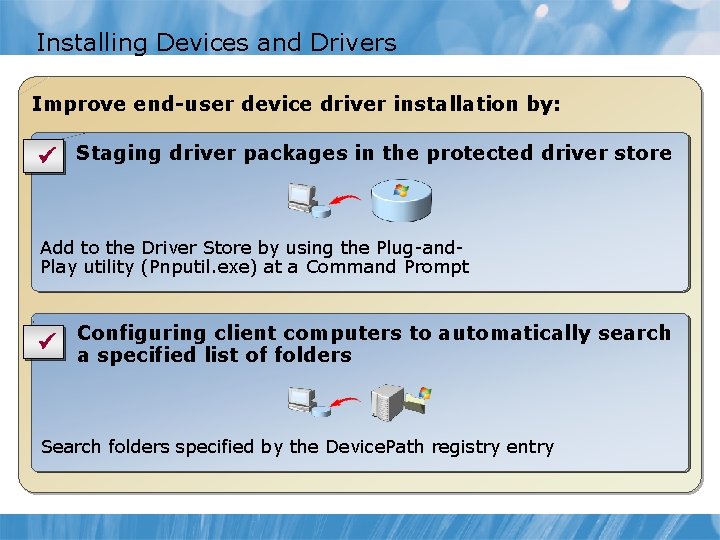
Installing Devices and Drivers Improve end-user device driver installation by: ü Staging driver packages in the protected driver store Add to the Driver Store by using the Plug-and. Play utility (Pnputil. exe) at a Command Prompt client computers to automatically search ü Configuring a specified list of folders Search folders specified by the Device. Path registry entry
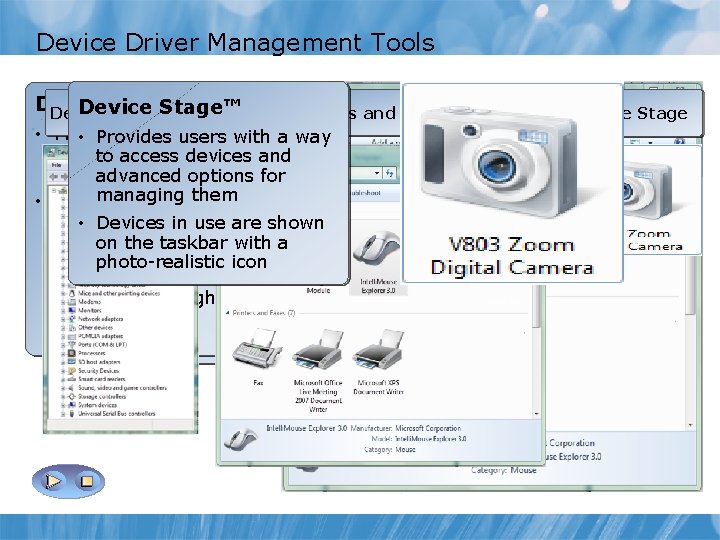
Device Driver Management Tools Devices and Printers Device Stage™ Device Manager Devices and Printers Device Manager • Provides a place to with • Provides users • Helps install and a way manage devices to access devices update drivers and for advanced options for hardware devices, managing them change the hardware • Devices that display in settings for those this • location are usually Devices in use are shown devices, and external devices that on the taskbar with a troubleshoot problems you connect or photo-realistic icon disconnect the. Manager • Usefrom Device computer to through manage adevices port or network only on a local connection computer Device Stage
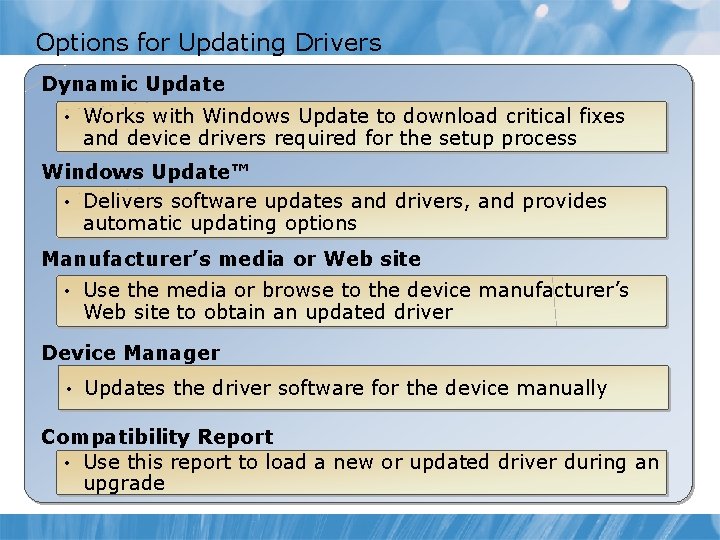
Options for Updating Drivers Dynamic Update • Works with Windows Update to download critical fixes and device drivers required for the setup process Windows Update™ • Delivers software updates and drivers, and provides automatic updating options Manufacturer’s media or Web site • Use the media or browse to the device manufacturer’s Web site to obtain an updated driver Device Manager • Updates the driver software for the device manually Compatibility Report • Use this report to load a new or updated driver during an upgrade
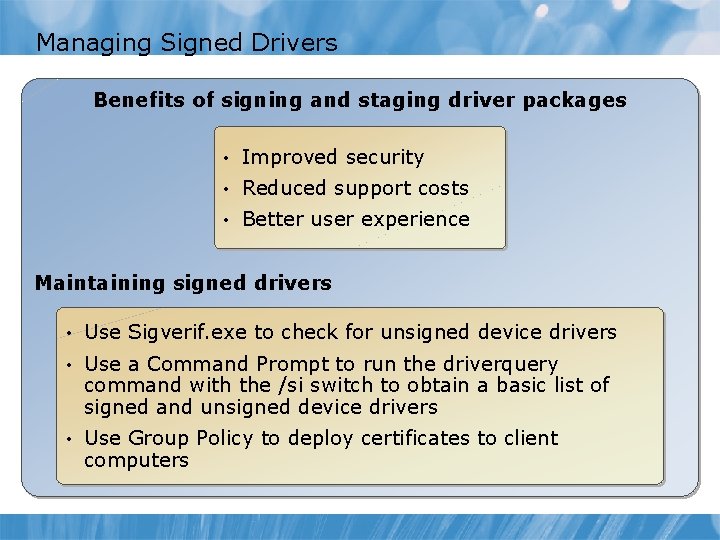
Managing Signed Drivers Benefits of signing and staging driver packages • Improved security • Reduced support costs • Better user experience Maintaining signed drivers • Use Sigverif. exe to check for unsigned device drivers • Use a Command Prompt to run the driverquery command with the /si switch to obtain a basic list of signed and unsigned device drivers • Use Group Policy to deploy certificates to client computers
Discussion: Options for Recovering from a Driver Problem 1. How often have new devices and their associated drivers introduced reliability problems on computers that you manage? 2. What are possible ways of recovering from a driver problem? Describe a situation in which you might use each recovery method to resolve a driver problem. 15 min
Demonstration: Managing Drivers by Using Device Manager Your instructor will demonstrate how to: • Update a device driver • Rollback the driver 12 min
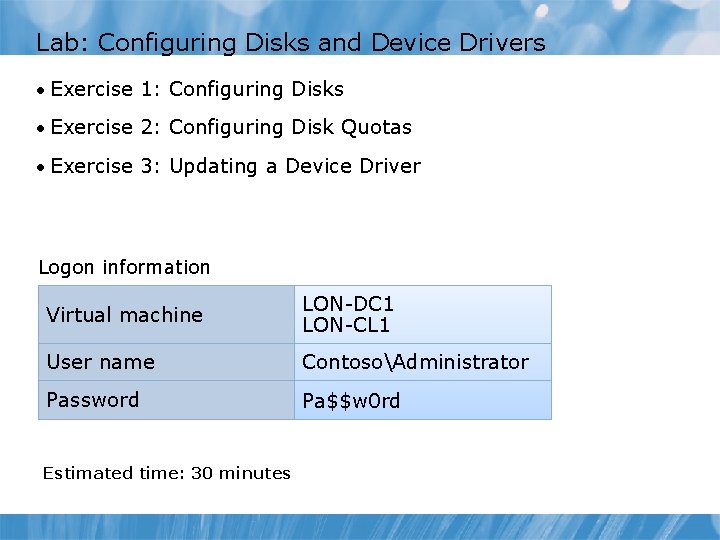
Lab: Configuring Disks and Device Drivers • Exercise 1: Configuring Disks • Exercise 2: Configuring Disk Quotas • Exercise 3: Updating a Device Driver Logon information Virtual machine LON-DC 1 LON-CL 1 User name ContosoAdministrator Password Pa$$w 0 rd Estimated time: 30 minutes
Lab Scenario • A Windows 7 computer is used for rendering large engineering drawings. It requires expanded disk space and fast disks. Initially a simple volume is requested, but then an application requires a separate drive letter and the simple volume must be shrunk. Then, more disk space is required, so a spanned volume is created. Finally, a striped volume is created to enhance performance. • Some of the employees at the engineering company work on a shift basis. Disk quotas need to be created for people who share computers on a shift basis and to see which user is using how much disk space allocated. • As the volume of work increases, some of the devices are not functioning as required. Your task is to perform an update of the drivers for those devices.
Lab Review 1. In Exercise 1, you used the assign command in diskpart to assign a drive letter to a newly created volume. Instead of assigning a drive letter, what else could you do? 2. In Exercise 2, you used local disk quotas to manage disk consumption. Although this is a useful local management tool, in an enterprise network based on Windows Server® 2008, what other disk space management tools could you use? 3. In Exercise 3, you used driver roll back to reverse a driver update you made. If your computer will not start properly, how can you address a driver-related problem?
Module Review and Takeaways • Review Questions • Common Issues • Best Practices • Tools