
Module 2 2 Introduction to Global Positioning Systems
Module 2. 2 Introduction to Global Positioning Systems Rollout of Health Facility Registry/Master Facility List for States and Local Government Areas in Nigeria March 2019
Outline § Gain basic understanding of global positioning systems (GPS), including satellites in orbit § Learn how to create a waypoint using the Garmin e. Trex 20
GPS basics
Global positioning system What is GPS? § GPS is a satellite-based system that can be used to locate positions anywhere on the earth • A worldwide radio-navigation system • Uses satellites as reference points to calculate positions § Operated by the U. S. Department of Defense (DOD)—full operation 1994 • Initially developed for military applications but later access was given to civilian users
Other navigation systems § In addition to GPS, other systems are in use: • A worldwide radio-navigation system: The Russian GLObal NAvigation Satellite System (GLONASS)—full operation in 2007 • European Union Galileo positioning system— its operation started in 2016 • Chinese Compass navigation system—in operation since 2000 • Indian Regional Navigational Satellite System
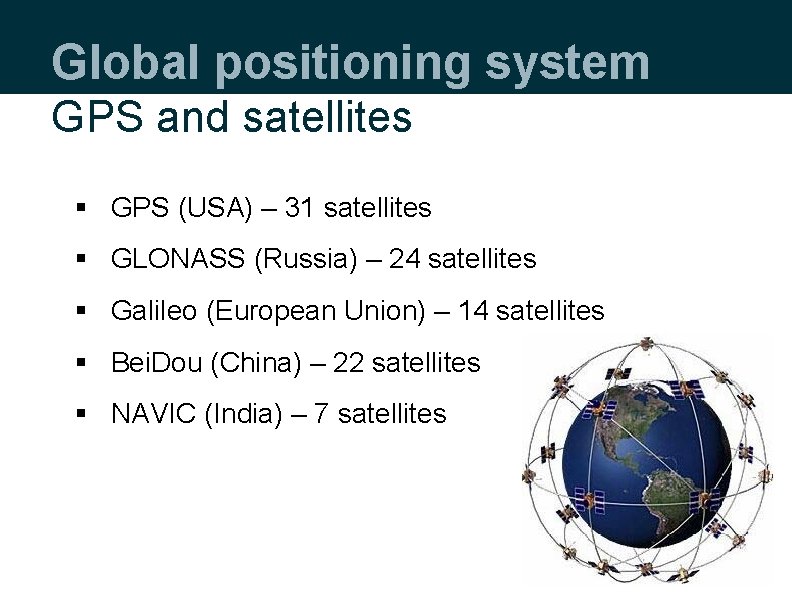
Global positioning system GPS and satellites § GPS (USA) – 31 satellites § GLONASS (Russia) – 24 satellites § Galileo (European Union) – 14 satellites § Bei. Dou (China) – 22 satellites § NAVIC (India) – 7 satellites
GLONASS and GPS § Some modern receivers are able to use both GLONASS and GPS satellites together. • Providing greatly improved coverage in urban canyons and giving a very fast time to fix due to the availability of more than 50 satellites.
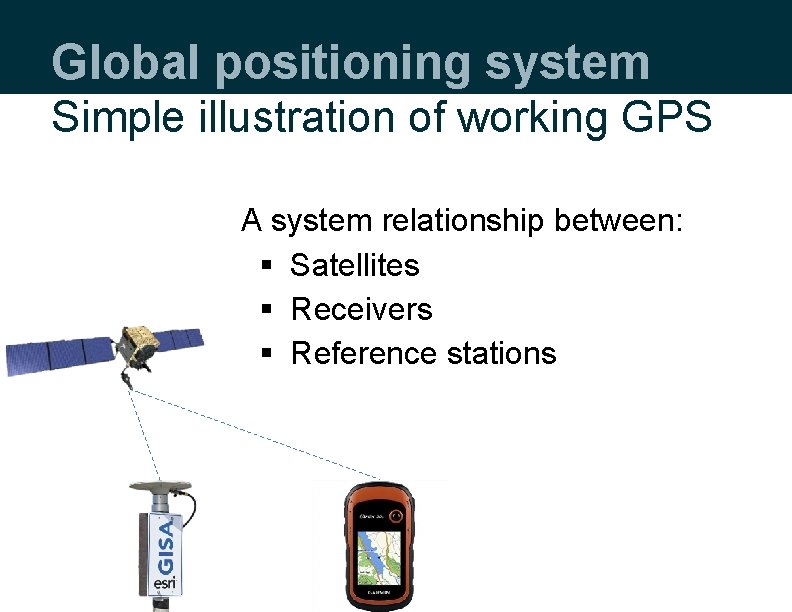
Global positioning system Simple illustration of working GPS A system relationship between: § Satellites § Receivers § Reference stations
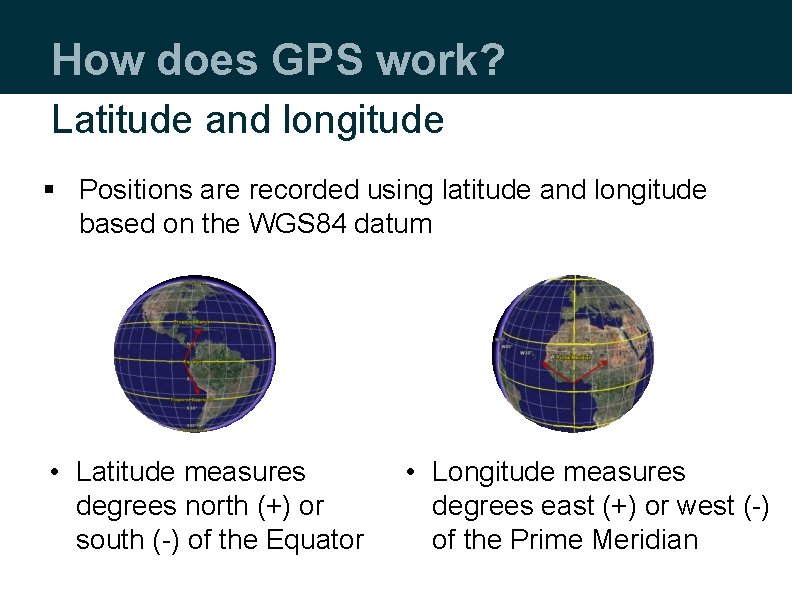
How does GPS work? Latitude and longitude § Positions are recorded using latitude and longitude based on the WGS 84 datum • Latitude measures degrees north (+) or south (-) of the Equator • Longitude measures degrees east (+) or west (-) of the Prime Meridian
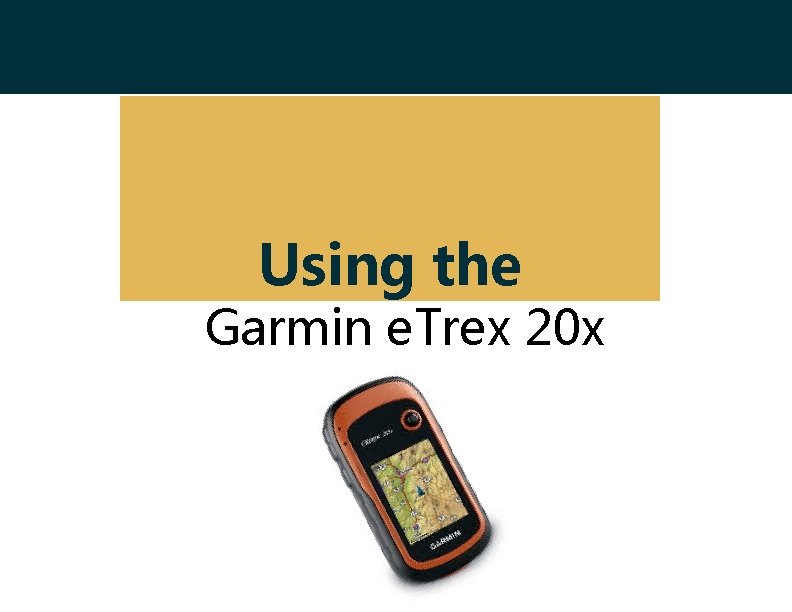
Using the Garmin e. Trex 20 x
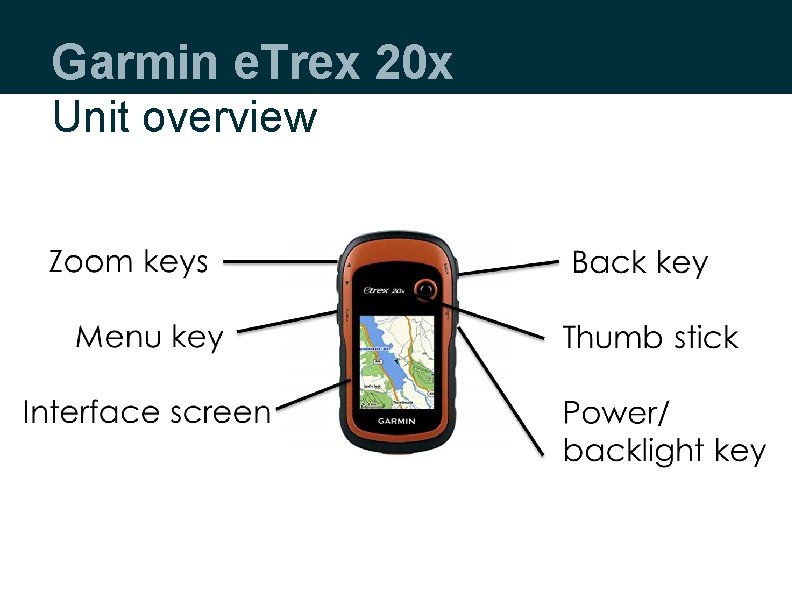
Garmin e. Trex 20 x Unit overview

Garmin e. Trex 20 x Unit overview Mini-USB port Locked battery cover Unlocked
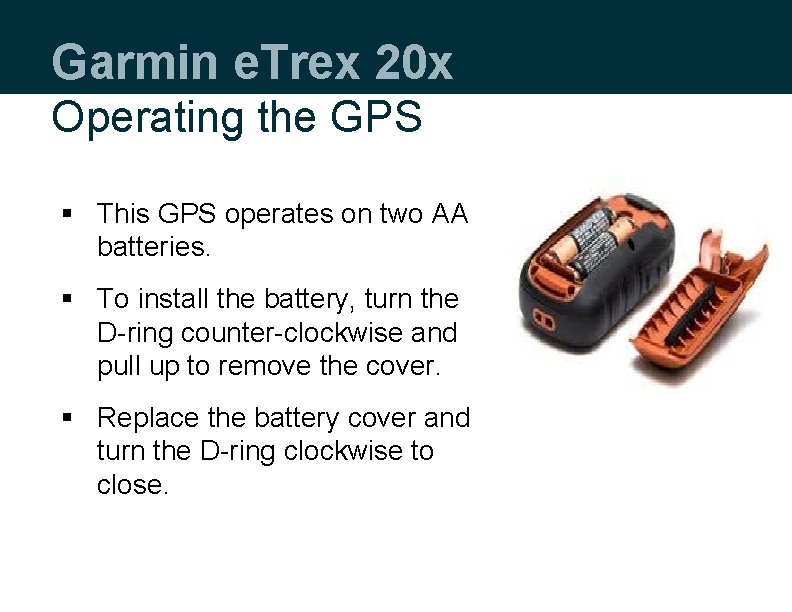
Garmin e. Trex 20 x Operating the GPS § This GPS operates on two AA batteries. § To install the battery, turn the D-ring counter-clockwise and pull up to remove the cover. § Replace the battery cover and turn the D-ring clockwise to close.
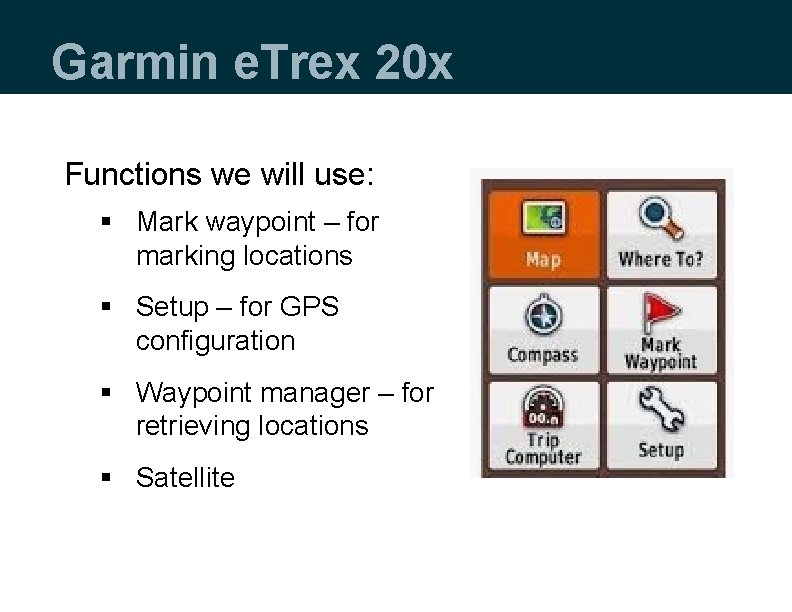
Garmin e. Trex 20 x Functions we will use: § Mark waypoint – for marking locations § Setup – for GPS configuration § Waypoint manager – for retrieving locations § Satellite
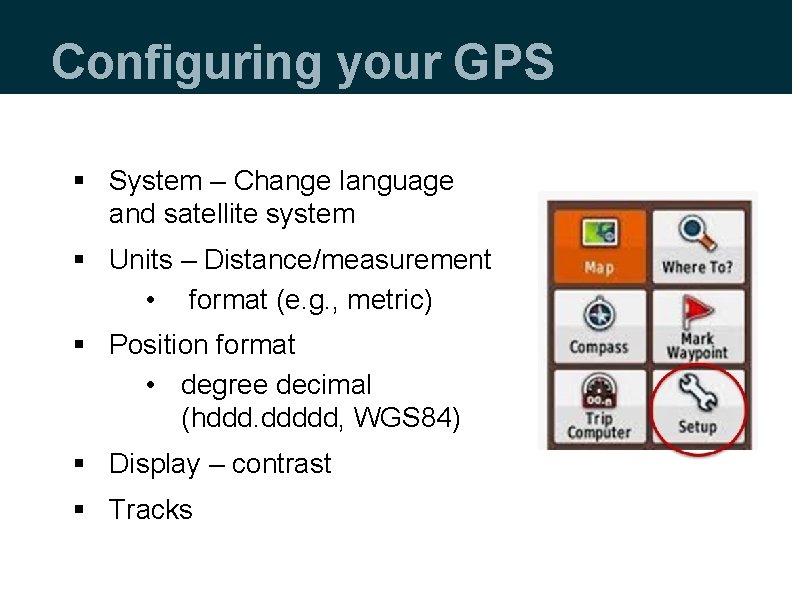
Configuring your GPS § System – Change language and satellite system § Units – Distance/measurement • format (e. g. , metric) § Position format • degree decimal (hddd. ddddd, WGS 84) § Display – contrast § Tracks
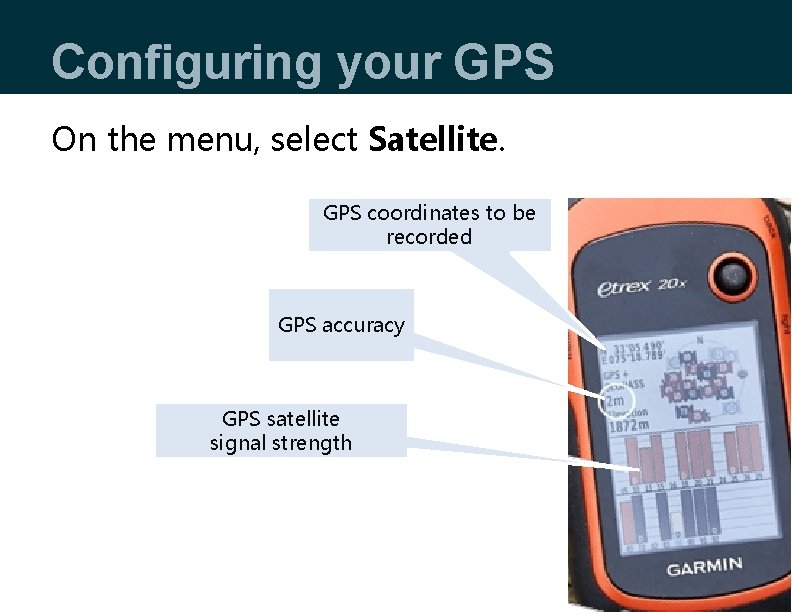
Configuring your GPS On the menu, select Satellite. GPS coordinates to be recorded GPS accuracy GPS satellite signal strength
How to use GPS To capture facility geocoordinates § Physically travel to the health facility you wish to map § Move to a space within 10 meters of the facility entrance § Look for a location with a clear view of the sky
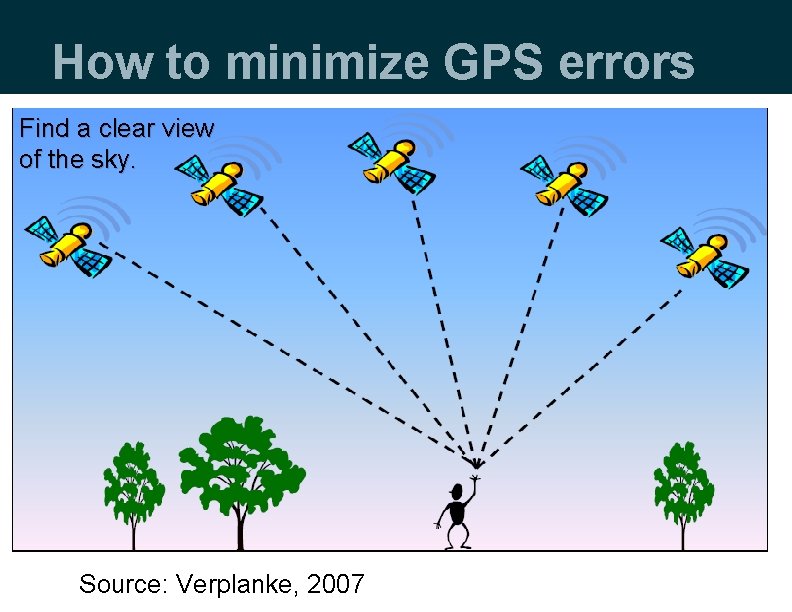
How to minimize GPS errors Find a clear view of the sky. Source: Verplanke, 2007
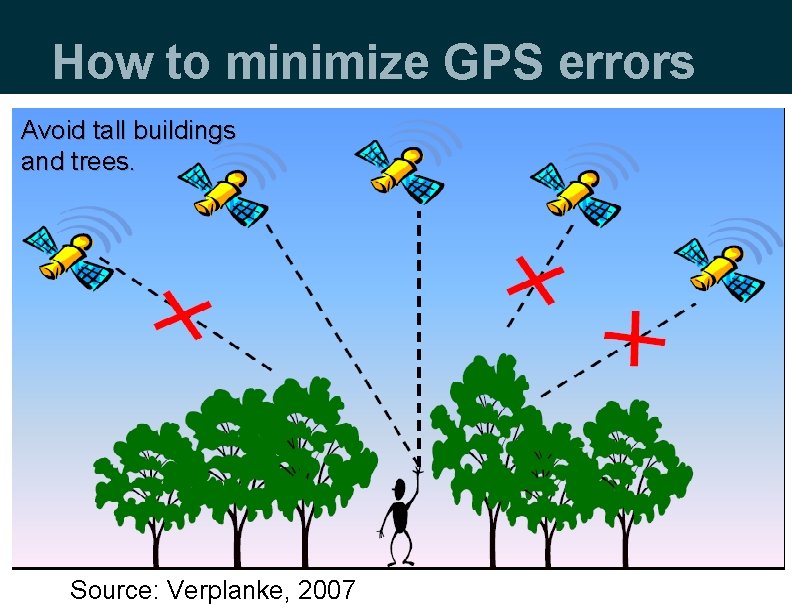
How to minimize GPS errors Avoid tall buildings and trees. Source: Verplanke, 2007
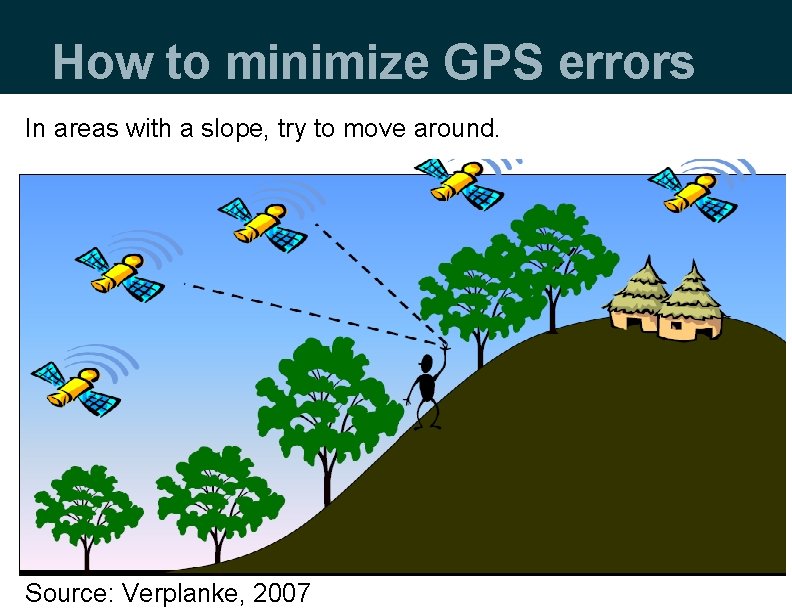
How to minimize GPS errors In areas with a slope, try to move around. Source: Verplanke, 2007
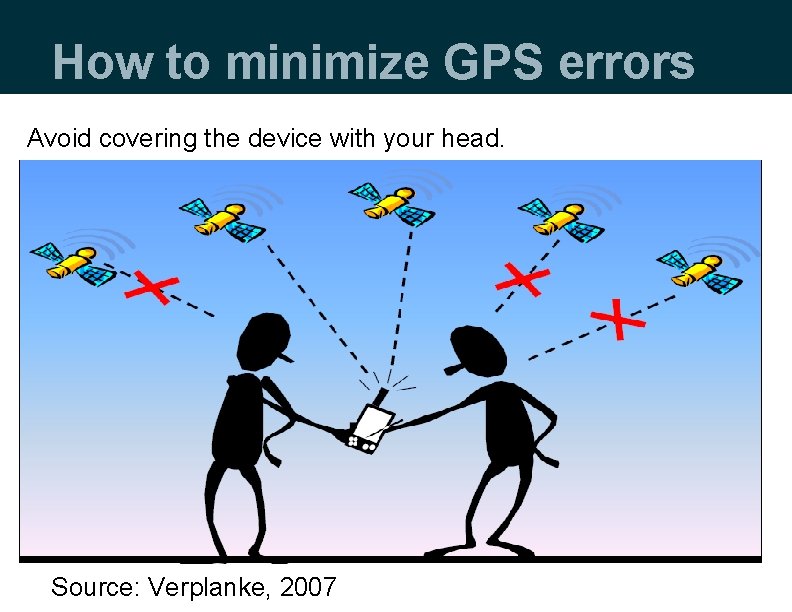
How to minimize GPS errors Avoid covering the device with your head. Source: Verplanke, 2007
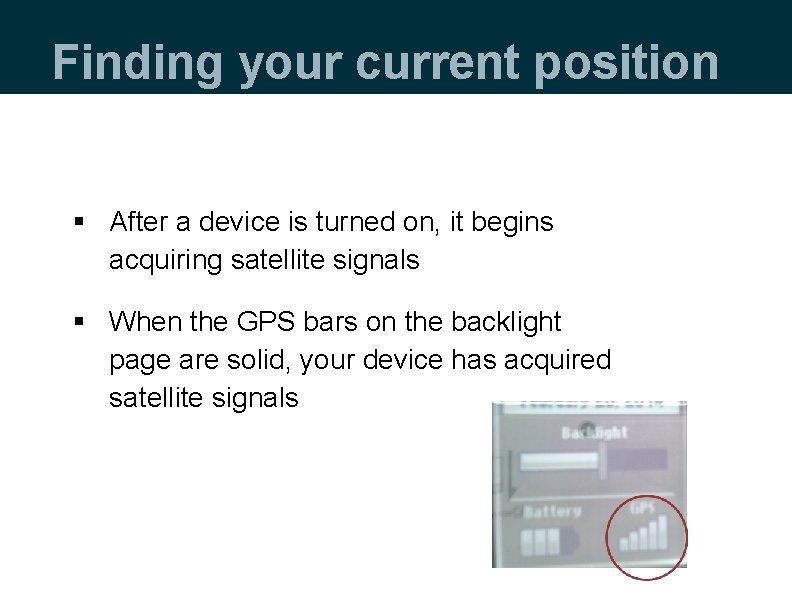
Finding your current position § After a device is turned on, it begins acquiring satellite signals § When the GPS bars on the backlight page are solid, your device has acquired satellite signals
Finding your current position After acquiring enough signals: § GPS gives accuracy of the current positions § The desired accuracy ranges from 3 m to 9 m § With desired accuracy you can now mark your position (waypoint)
Marking a waypoint § Waypoints are locations that you can mark (save in memory) for mapping activities, as well as destinations to navigate later. § The GPS automatically assigns a numeric name to the new waypoint. § You can rename the assigned numeric name as text or numbers.
Marking a waypoint (2) § To mark a way point, press and hold the thumb stick. § Rename a waypoint by using a health facility’s full name or initials. § Select Done to save the way point in the memory. Note: If you press and hold during saving, you will find yourself saving more than one point in one location.
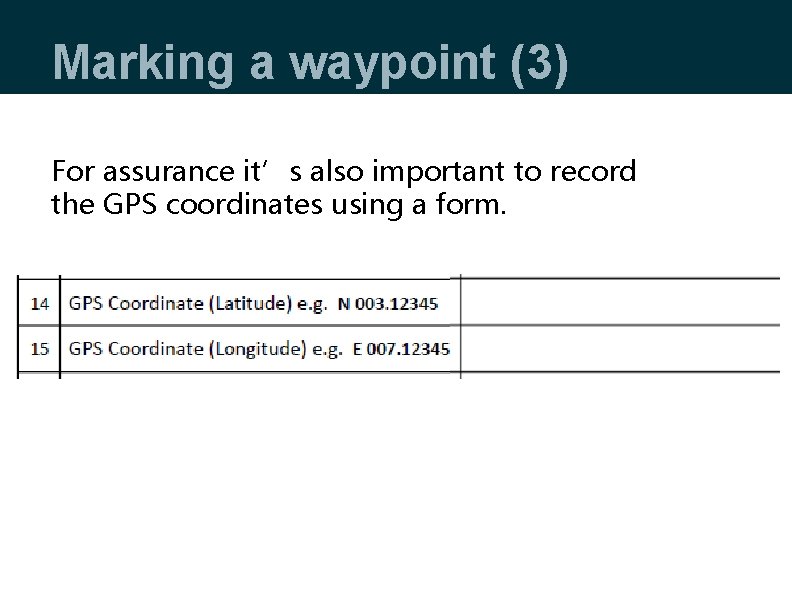
Marking a waypoint (3) For assurance it’s also important to record the GPS coordinates using a form.
Retrieving/viewing § Go to Waypoint Manager. • Select a waypoint to view its details. • Press Go if you want to navigate to it. • Or press Menu for other options.
Deleting a waypoint § To delete all waypoints: • Go to Waypoint Manager, press Menu button and select delete. § To delete a single waypoint: • Go to Waypoint Manager, select a point you want to delete, open it to view its particulars, press Menu button, and select delete. Note: Please be careful when deleting a waypoint.
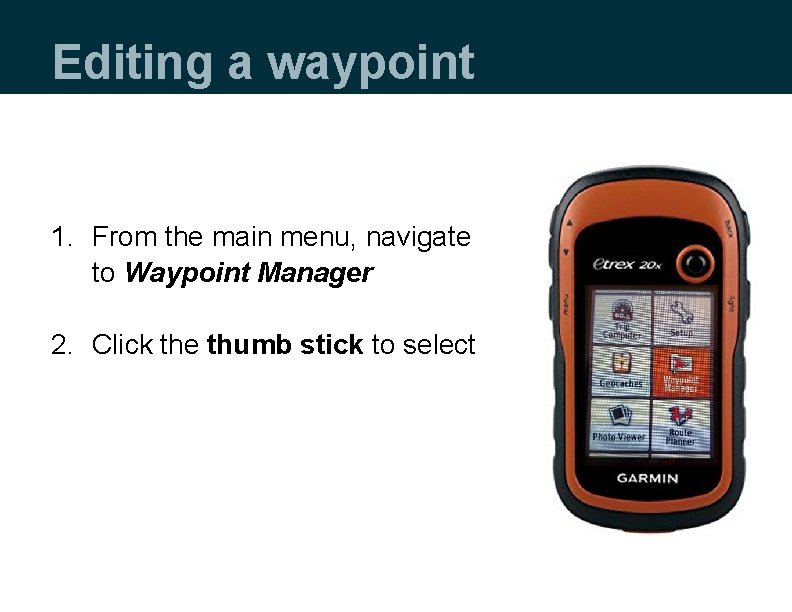
Editing a waypoint 1. From the main menu, navigate to Waypoint Manager 2. Click the thumb stick to select
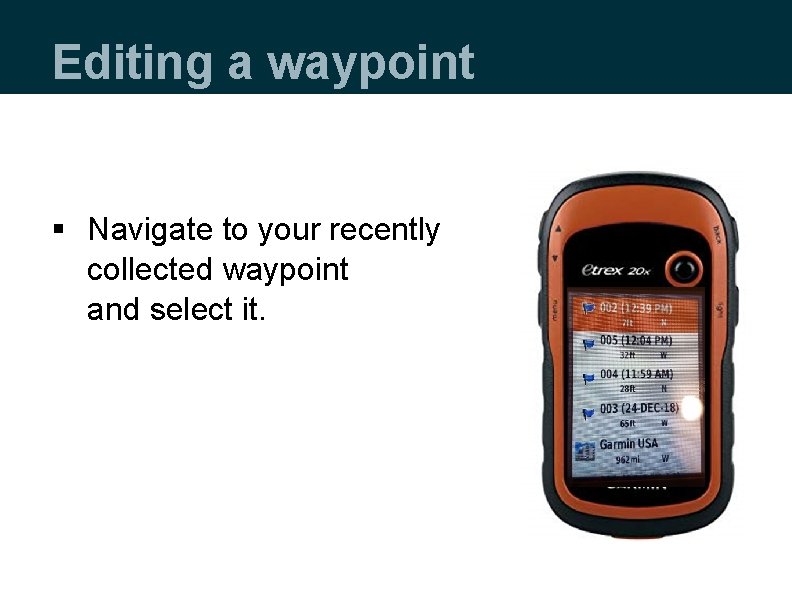
Editing a waypoint § Navigate to your recently collected waypoint and select it.
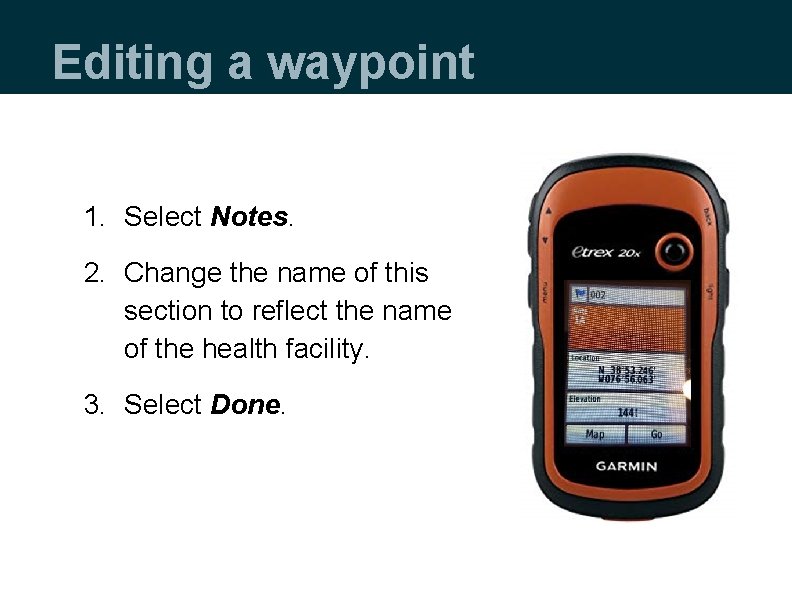
Editing a waypoint 1. Select Notes. 2. Change the name of this section to reflect the name of the health facility. 3. Select Done.
Thank you! Thank You!

This presentation was produced with the support of the United States Agency for International Development (USAID) under the terms of MEASURE Evaluation cooperative agreement AID-OAA-L-14 -00004. MEASURE Evaluation is implemented by the Carolina Population Center, University of North Carolina at Chapel Hill in partnership with ICF International; John Snow, Inc. ; Management Sciences for Health; Palladium; and Tulane University. Views expressed are not necessarily those of USAID or the United States government. www. measureevaluation. org
- Slides: 33