
Module 13 System and User Security This slide
![Using the w command • Displays detailed user and system information: [sysadmin@localhost ~]$ w](https://slidetodoc.com/presentation_image_h/142b40881c326fff21f6a6d16fcf488f/image-27.jpg "Using the w command • Displays detailed user and system information: [sysadmin@localhost ~]$ w")
- Slides: 28
Module 13 System and User Security This slide deck is for LPI Academy instructors to use for lectures for LPI Academy courses. ©Copyright Network Development Group 2013.
Exam Objective 5. 1 Basic Security and Identifying User Types Objective Summary – Working with Root and Standard Users – System Users This slide deck is for LPI Academy instructors to use for lectures for LPI Academy courses. ©Copyright Network Development Group 2013.
User accounts and passwords This slide deck is for LPI Academy instructors to use for lectures for LPI Academy courses. ©Copyright Network Development Group 2013.
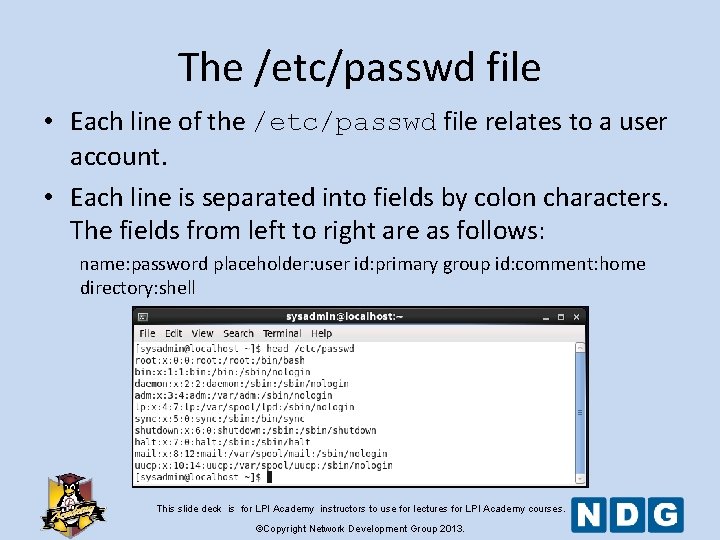
User accounts • Files in the /etc directory contain account data. • The /etc/passwd file defines some of the account information for user accounts. This slide deck is for LPI Academy instructors to use for lectures for LPI Academy courses. ©Copyright Network Development Group 2013.
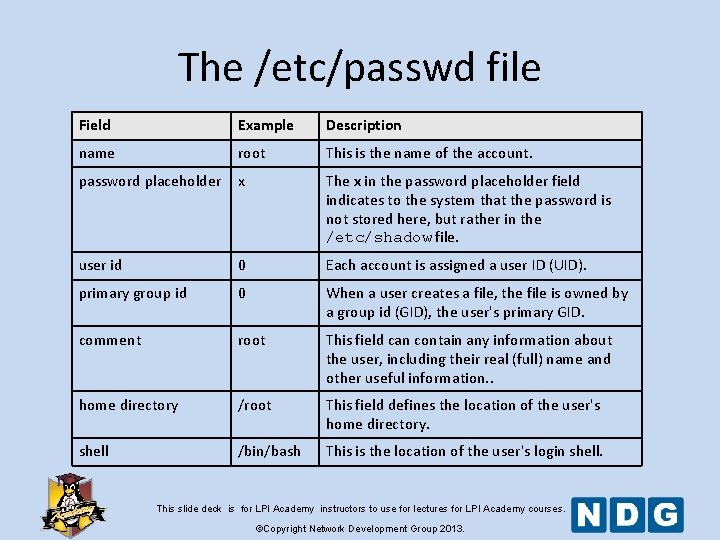
The /etc/passwd file • Each line of the /etc/passwd file relates to a user account. • Each line is separated into fields by colon characters. The fields from left to right are as follows: name: password placeholder: user id: primary group id: comment: home directory: shell This slide deck is for LPI Academy instructors to use for lectures for LPI Academy courses. ©Copyright Network Development Group 2013.
The /etc/passwd file Field Example Description name root This is the name of the account. password placeholder x The x in the password placeholder field indicates to the system that the password is not stored here, but rather in the /etc/shadow file. user id 0 Each account is assigned a user ID (UID). primary group id 0 When a user creates a file, the file is owned by a group id (GID), the user's primary GID. comment root This field can contain any information about the user, including their real (full) name and other useful information. . home directory /root This field defines the location of the user's home directory. shell /bin/bash This is the location of the user's login shell. This slide deck is for LPI Academy instructors to use for lectures for LPI Academy courses. ©Copyright Network Development Group 2013.
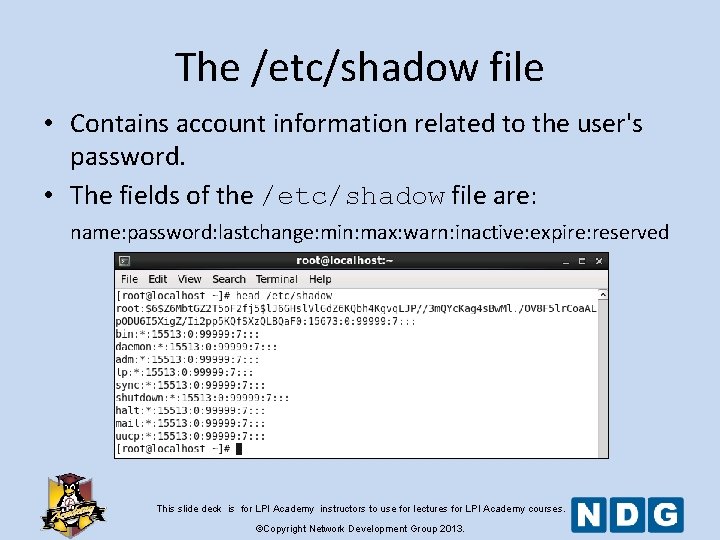
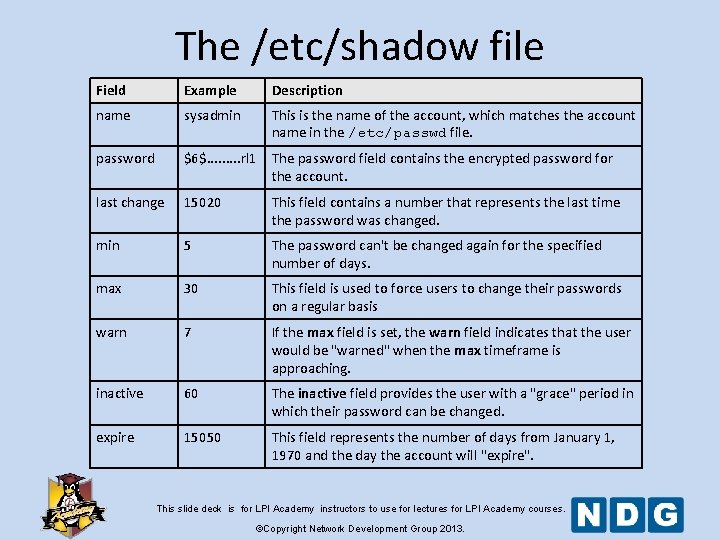
The /etc/shadow file • Contains account information related to the user's password. • The fields of the /etc/shadow file are: name: password: lastchange: min: max: warn: inactive: expire: reserved This slide deck is for LPI Academy instructors to use for lectures for LPI Academy courses. ©Copyright Network Development Group 2013.
The /etc/shadow file Field Example Description name sysadmin This is the name of the account, which matches the account name in the /etc/passwd file. password $6$. . rl 1 The password field contains the encrypted password for the account. last change 15020 This field contains a number that represents the last time the password was changed. min 5 The password can't be changed again for the specified number of days. max 30 This field is used to force users to change their passwords on a regular basis warn 7 If the max field is set, the warn field indicates that the user would be "warned" when the max timeframe is approaching. inactive 60 The inactive field provides the user with a "grace" period in which their password can be changed. expire 15050 This field represents the number of days from January 1, 1970 and the day the account will "expire". This slide deck is for LPI Academy instructors to use for lectures for LPI Academy courses. ©Copyright Network Development Group 2013.
Viewing Account Information This slide deck is for LPI Academy instructors to use for lectures for LPI Academy courses. ©Copyright Network Development Group 2013.
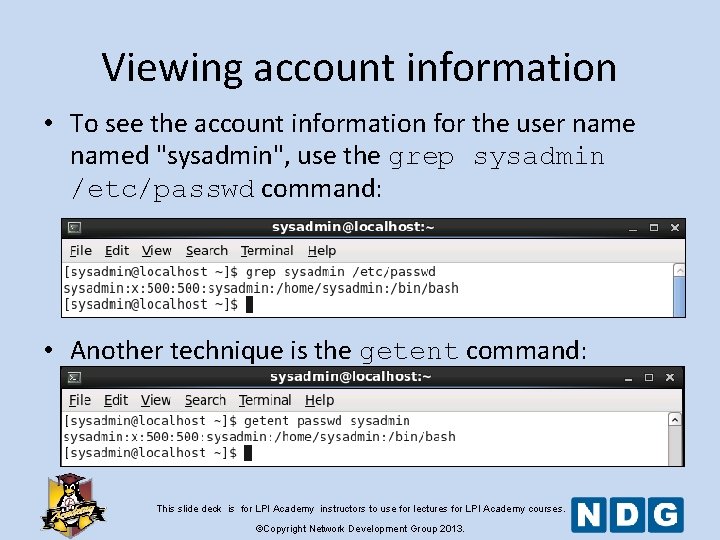
Viewing account information • To see the account information for the user named "sysadmin", use the grep sysadmin /etc/passwd command: • Another technique is the getent command: This slide deck is for LPI Academy instructors to use for lectures for LPI Academy courses. ©Copyright Network Development Group 2013.
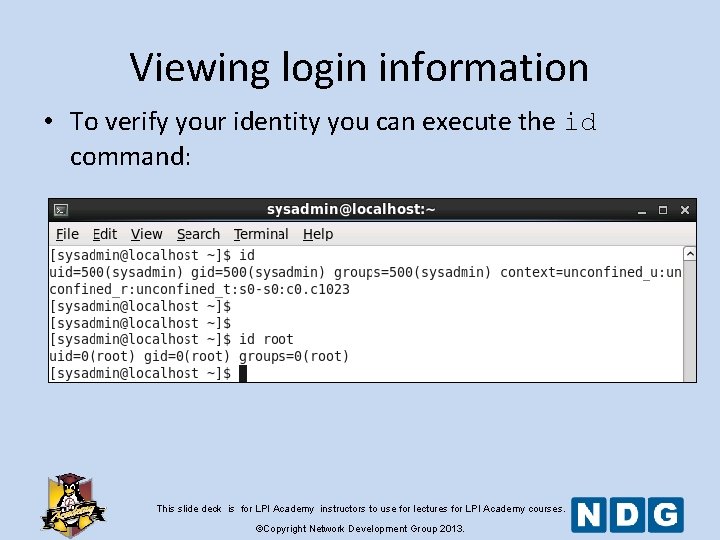
Viewing login information • To verify your identity you can execute the id command: This slide deck is for LPI Academy instructors to use for lectures for LPI Academy courses. ©Copyright Network Development Group 2013.
System Accounts This slide deck is for LPI Academy instructors to use for lectures for LPI Academy courses. ©Copyright Network Development Group 2013.
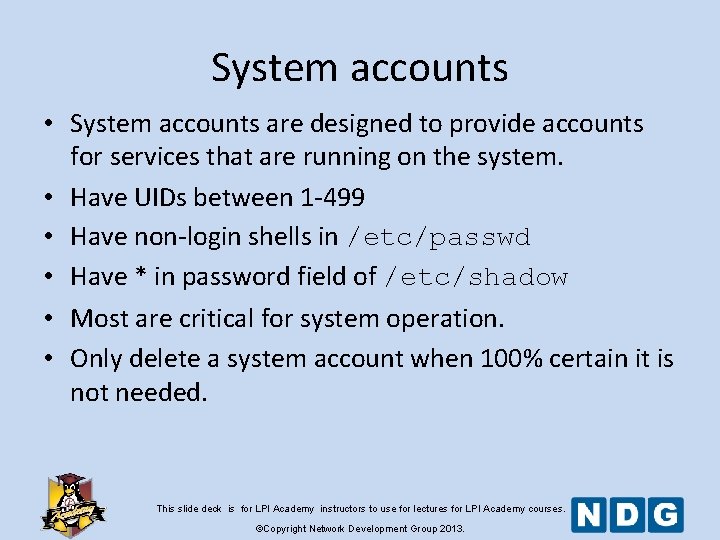
System accounts • System accounts are designed to provide accounts for services that are running on the system. • Have UIDs between 1 -499 • Have non-login shells in /etc/passwd • Have * in password field of /etc/shadow • Most are critical for system operation. • Only delete a system account when 100% certain it is not needed. This slide deck is for LPI Academy instructors to use for lectures for LPI Academy courses. ©Copyright Network Development Group 2013.
System Groups This slide deck is for LPI Academy instructors to use for lectures for LPI Academy courses. ©Copyright Network Development Group 2013.
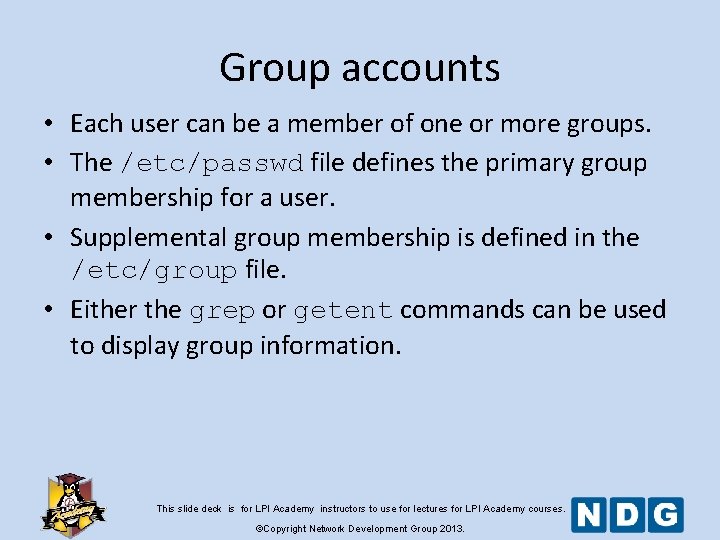
Group accounts • Each user can be a member of one or more groups. • The /etc/passwd file defines the primary group membership for a user. • Supplemental group membership is defined in the /etc/group file. • Either the grep or getent commands can be used to display group information. This slide deck is for LPI Academy instructors to use for lectures for LPI Academy courses. ©Copyright Network Development Group 2013.
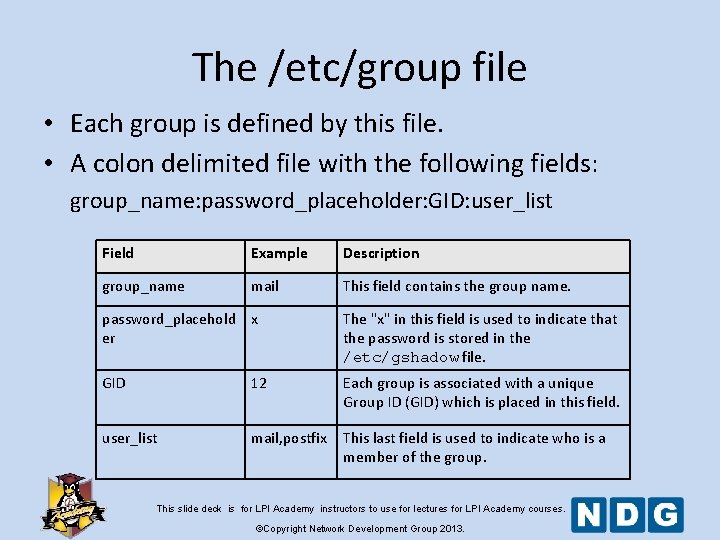
The /etc/group file • Each group is defined by this file. • A colon delimited file with the following fields: group_name: password_placeholder: GID: user_list Field Example Description group_name mail This field contains the group name. password_placehold x er The "x" in this field is used to indicate that the password is stored in the /etc/gshadow file. GID 12 Each group is associated with a unique Group ID (GID) which is placed in this field. user_list mail, postfix This last field is used to indicate who is a member of the group. This slide deck is for LPI Academy instructors to use for lectures for LPI Academy courses. ©Copyright Network Development Group 2013.
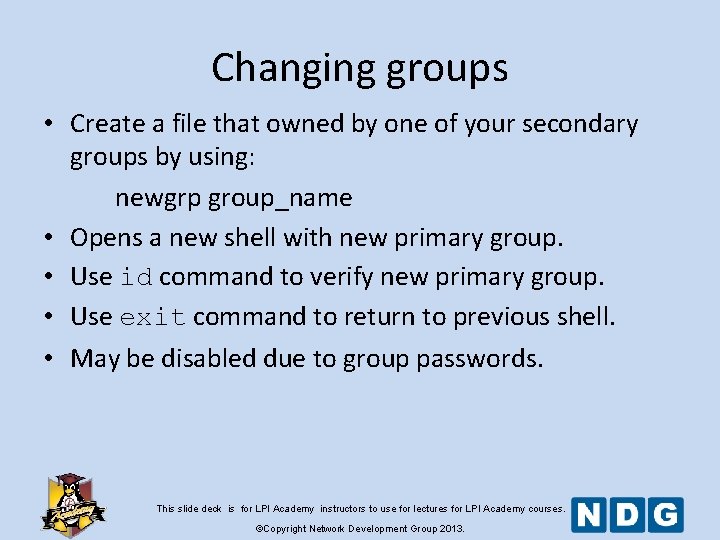
Changing groups • Create a file that owned by one of your secondary groups by using: newgrp group_name • Opens a new shell with new primary group. • Use id command to verify new primary group. • Use exit command to return to previous shell. • May be disabled due to group passwords. This slide deck is for LPI Academy instructors to use for lectures for LPI Academy courses. ©Copyright Network Development Group 2013.
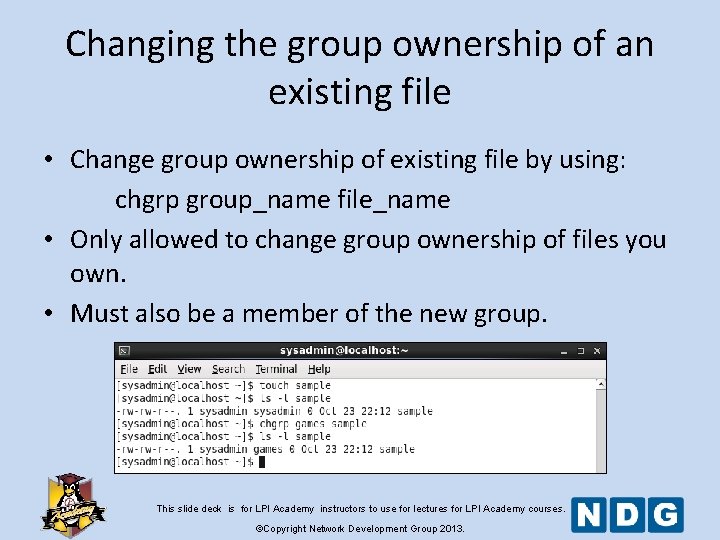
Changing the group ownership of an existing file • Change group ownership of existing file by using: chgrp group_name file_name • Only allowed to change group ownership of files you own. • Must also be a member of the new group. This slide deck is for LPI Academy instructors to use for lectures for LPI Academy courses. ©Copyright Network Development Group 2013.
Working with root This slide deck is for LPI Academy instructors to use for lectures for LPI Academy courses. ©Copyright Network Development Group 2013.
Logging in as root • Logging in directly to root account poses a security risk. • Instead, use the su or sudo command. This slide deck is for LPI Academy instructors to use for lectures for LPI Academy courses. ©Copyright Network Development Group 2013.
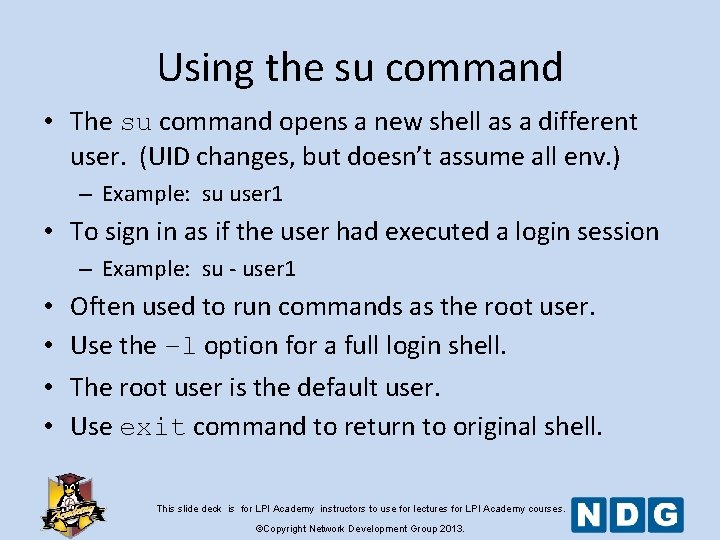
Using the su command • The su command opens a new shell as a different user. (UID changes, but doesn’t assume all env. ) – Example: su user 1 • To sign in as if the user had executed a login session – Example: su - user 1 • • Often used to run commands as the root user. Use the –l option for a full login shell. The root user is the default user. Use exit command to return to original shell. This slide deck is for LPI Academy instructors to use for lectures for LPI Academy courses. ©Copyright Network Development Group 2013.
sudo Command This slide deck is for LPI Academy instructors to use for lectures for LPI Academy courses. ©Copyright Network Development Group 2013.
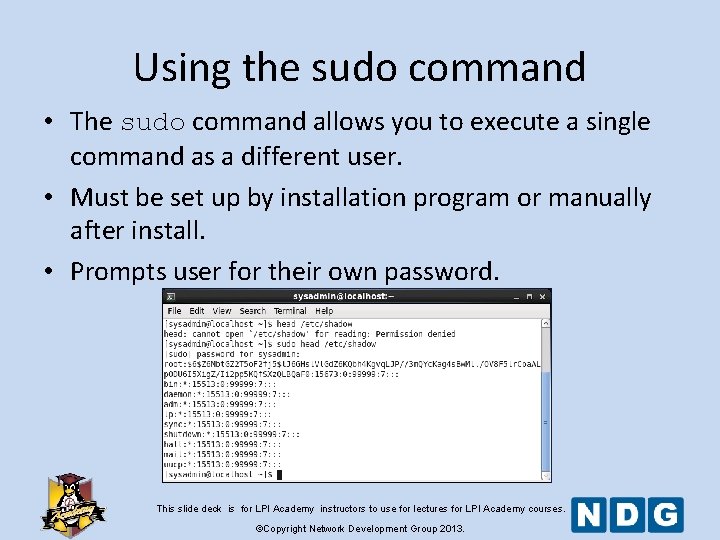
Using the sudo command • The sudo command allows you to execute a single command as a different user. • Must be set up by installation program or manually after install. • Prompts user for their own password. This slide deck is for LPI Academy instructors to use for lectures for LPI Academy courses. ©Copyright Network Development Group 2013.
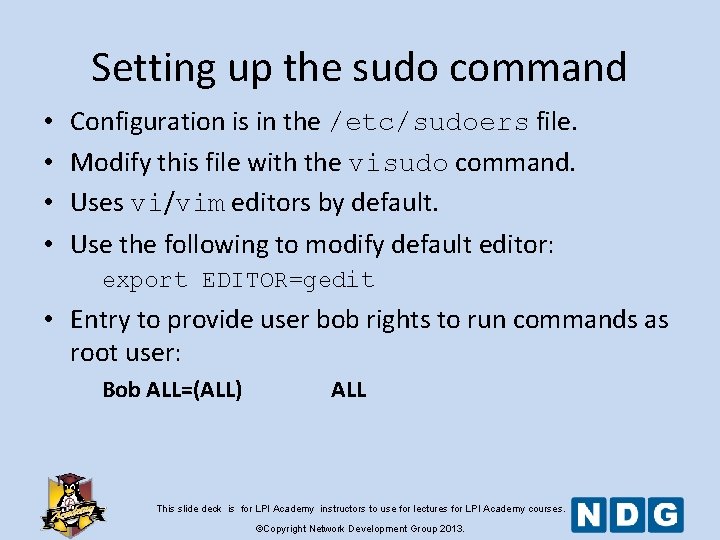
Setting up the sudo command • • Configuration is in the /etc/sudoers file. Modify this file with the visudo command. Uses vi/vim editors by default. Use the following to modify default editor: export EDITOR=gedit • Entry to provide user bob rights to run commands as root user: Bob ALL=(ALL) ALL This slide deck is for LPI Academy instructors to use for lectures for LPI Academy courses. ©Copyright Network Development Group 2013.
who and w Command This slide deck is for LPI Academy instructors to use for lectures for LPI Academy courses. ©Copyright Network Development Group 2013.
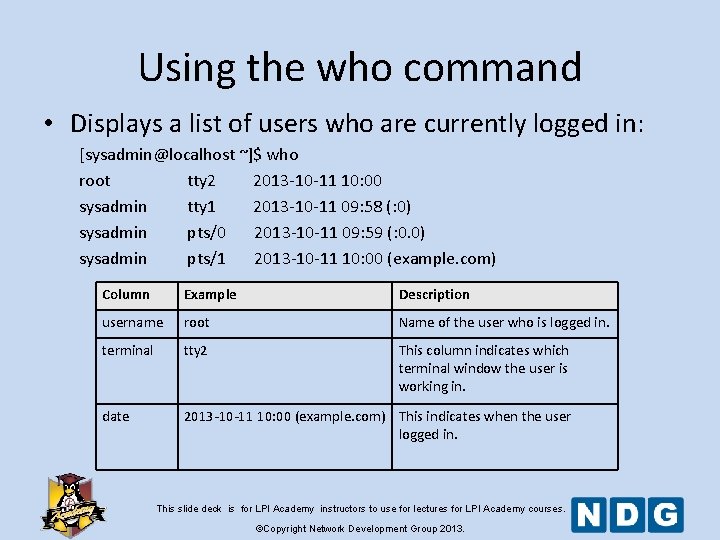
Using the who command • Displays a list of users who are currently logged in: [sysadmin@localhost ~]$ who root tty 2 2013 -10 -11 10: 00 sysadmin tty 1 2013 -10 -11 09: 58 (: 0) sysadmin pts/0 2013 -10 -11 09: 59 (: 0. 0) sysadmin pts/1 2013 -10 -11 10: 00 (example. com) Column Example Description username root Name of the user who is logged in. terminal tty 2 This column indicates which terminal window the user is working in. date 2013 -10 -11 10: 00 (example. com) This indicates when the user logged in. This slide deck is for LPI Academy instructors to use for lectures for LPI Academy courses. ©Copyright Network Development Group 2013.
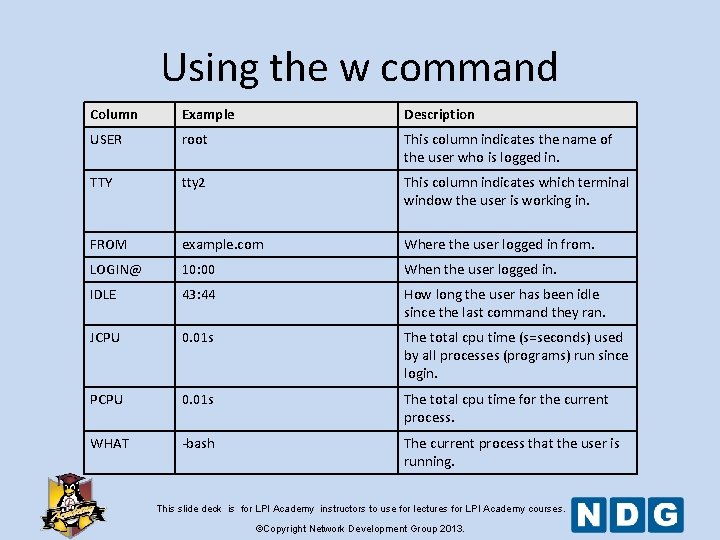
Using the w command • Displays detailed user and system information: [sysadmin@localhost ~]$ w 10: 44: 03 up 50 min, 4 users, load average: 0. 78, 0. 44, 0. 19 USER TTY FROM LOGIN@ IDLE JCPU root tty 2 10: 00 43: 44 0. 01 s sysadmin tty 1 : 0 09: 58 50: 02 5. 68 s sysadmin pts/0 : 0. 0 09: 59 0. 00 s 0. 14 s sysadmin pts/1 example. com 10: 00 0. 00 s 0. 03 s PCPU 0. 01 s 0. 16 s 0. 13 s 0. 01 s This slide deck is for LPI Academy instructors to use for lectures for LPI Academy courses. ©Copyright Network Development Group 2013. WHAT -bash id who w
Using the w command Column Example Description USER root This column indicates the name of the user who is logged in. TTY tty 2 This column indicates which terminal window the user is working in. FROM example. com Where the user logged in from. LOGIN@ 10: 00 When the user logged in. IDLE 43: 44 How long the user has been idle since the last command they ran. JCPU 0. 01 s The total cpu time (s=seconds) used by all processes (programs) run since login. PCPU 0. 01 s The total cpu time for the current process. WHAT -bash The current process that the user is running. This slide deck is for LPI Academy instructors to use for lectures for LPI Academy courses. ©Copyright Network Development Group 2013.