
Module 1 Installing Microsoft Windows XP Professional Overview
- Slides: 32
Module 1: Installing Microsoft Windows XP Professional
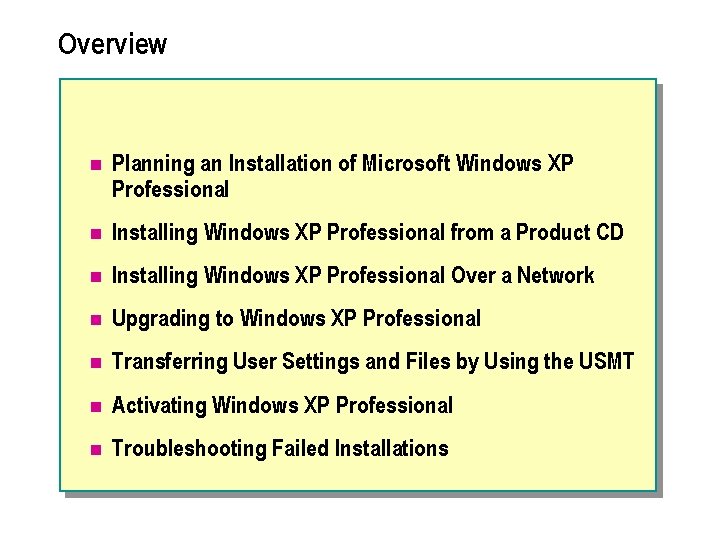
Overview n Planning an Installation of Microsoft Windows XP Professional n Installing Windows XP Professional from a Product CD n Installing Windows XP Professional Over a Network n Upgrading to Windows XP Professional n Transferring User Settings and Files by Using the USMT n Activating Windows XP Professional n Troubleshooting Failed Installations
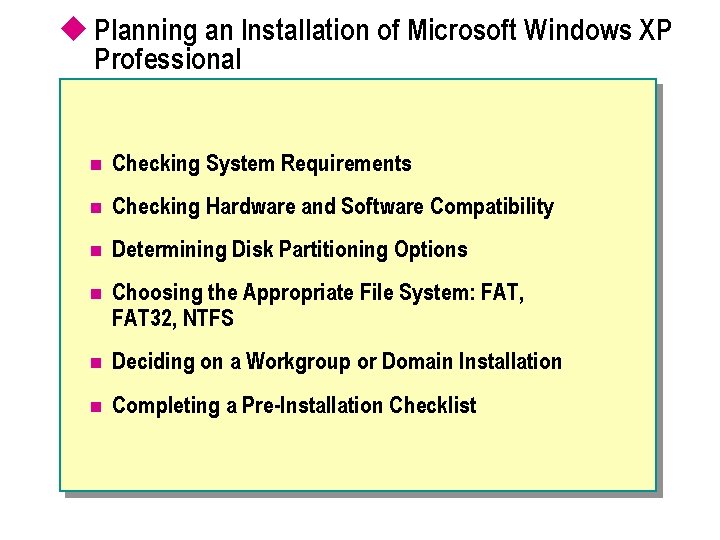
u Planning an Installation of Microsoft Windows XP Professional n Checking System Requirements n Checking Hardware and Software Compatibility n Determining Disk Partitioning Options n Choosing the Appropriate File System: FAT, FAT 32, NTFS n Deciding on a Workgroup or Domain Installation n Completing a Pre-Installation Checklist
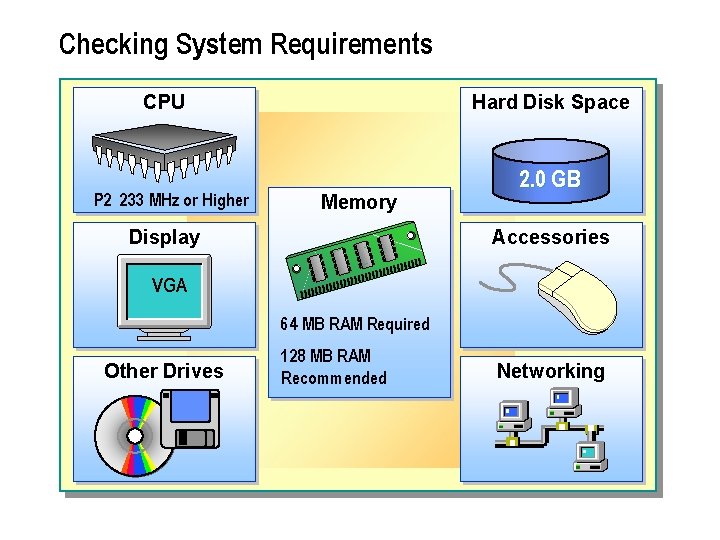
Checking System Requirements CPU P 2 233 MHz or Higher Hard Disk Space Memory Display 2. 0 GB Accessories VGA 64 MB RAM Required Other Drives 128 MB RAM Recommended Networking
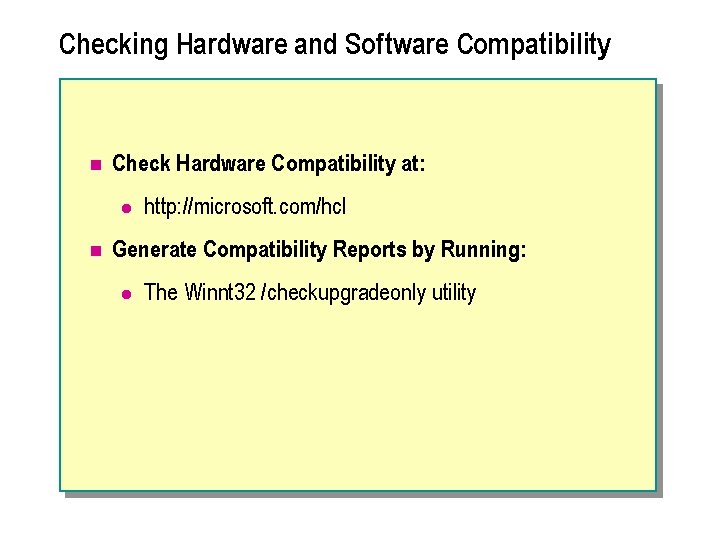
Checking Hardware and Software Compatibility n Check Hardware Compatibility at: l n http: //microsoft. com/hcl Generate Compatibility Reports by Running: l The Winnt 32 /checkupgradeonly utility
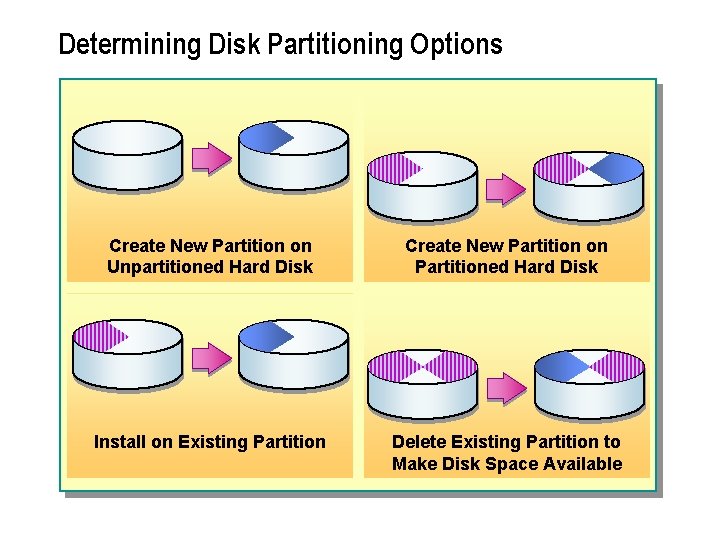
Determining Disk Partitioning Options Create New Partition on Unpartitioned Hard Disk Create New Partition on Partitioned Hard Disk Install on Existing Partition Delete Existing Partition to Make Disk Space Available
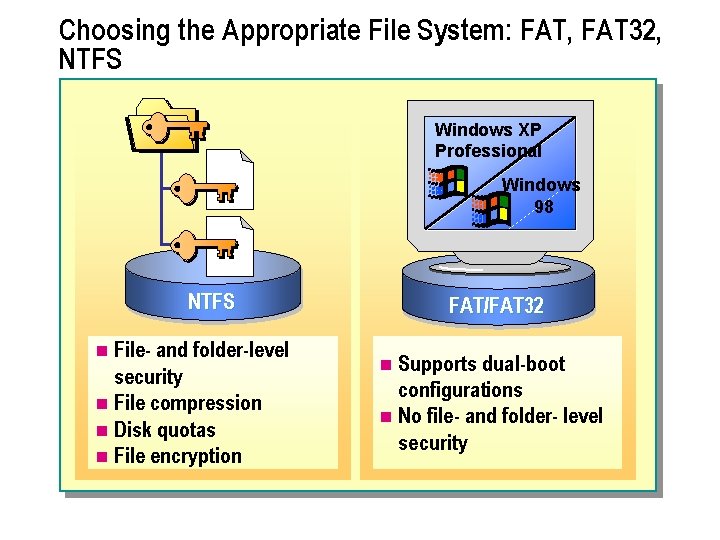
Choosing the Appropriate File System: FAT, FAT 32, NTFS Windows XP Professional Windows 98 NTFS File- and folder-level security n File compression n Disk quotas n File encryption n FAT/FAT 32 Supports dual-boot configurations n No file- and folder- level security n
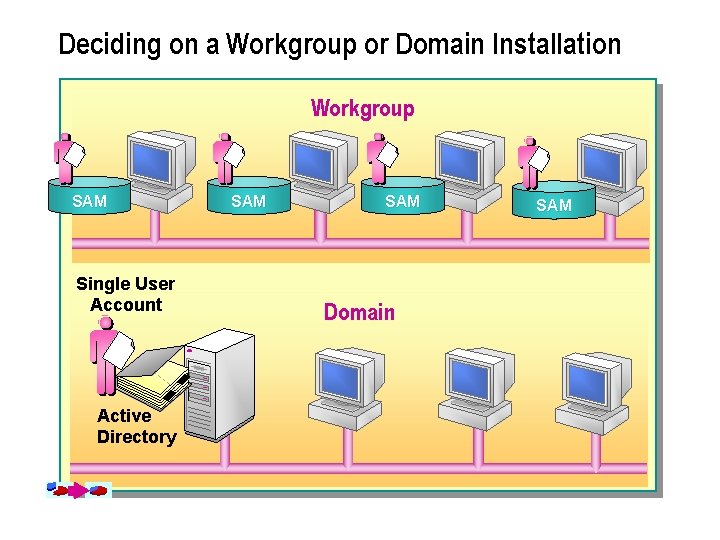
Deciding on a Workgroup or Domain Installation Workgroup SAM Single User Account Active Directory SAM Domain SAM
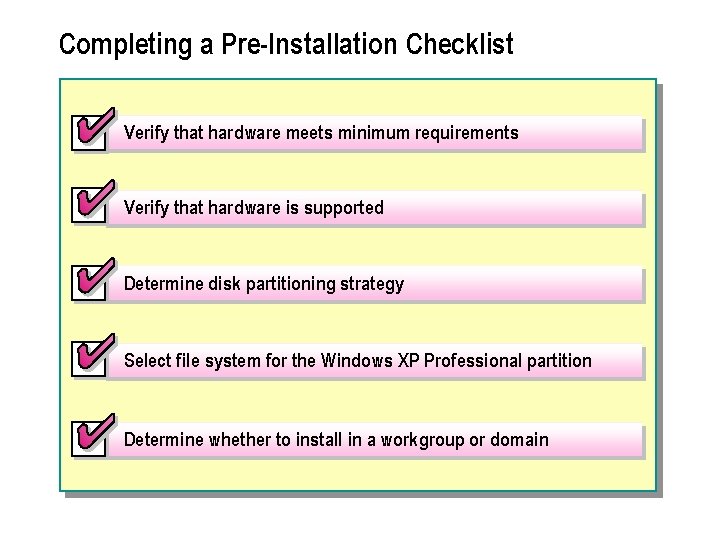
Completing a Pre-Installation Checklist Verify that hardware meets minimum requirements Verify that hardware is supported Determine disk partitioning strategy Select file system for the Windows XP Professional partition Determine whether to install in a workgroup or domain
Lab A: Planning a Microsoft Windows XP Professional Installation
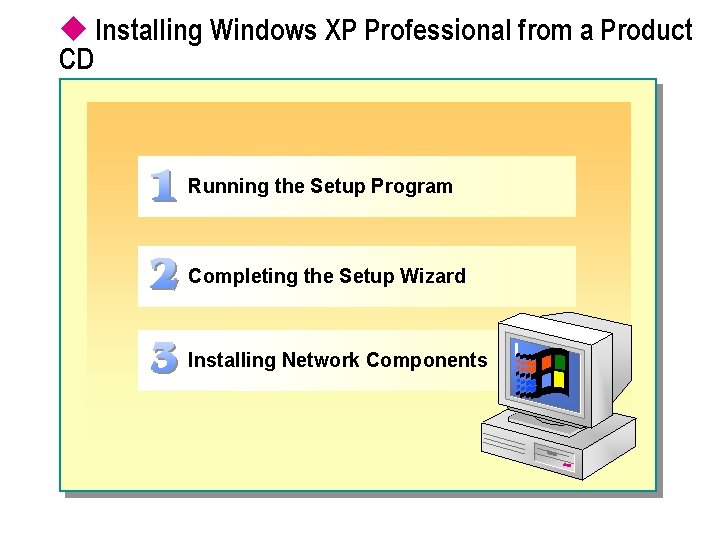
u Installing Windows XP Professional from a Product CD Running the Setup Program Completing the Setup Wizard Installing Network Components
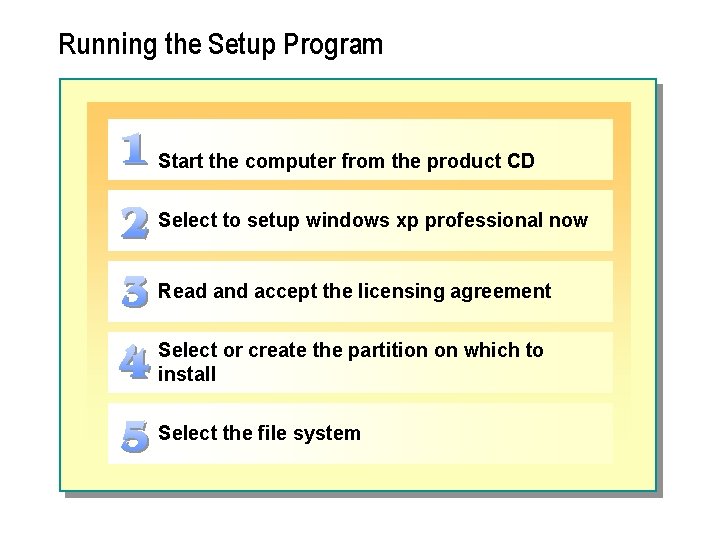
Running the Setup Program Start the computer from the product CD Select to setup windows xp professional now Read and accept the licensing agreement Select or create the partition on which to install Select the file system
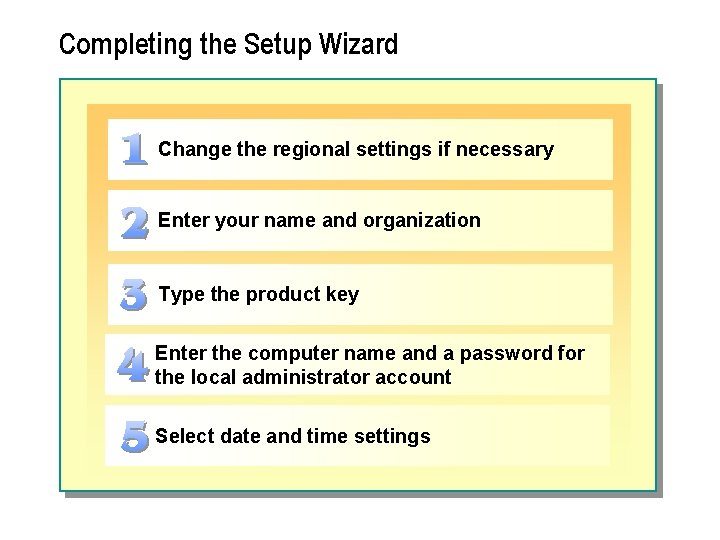
Completing the Setup Wizard Change the regional settings if necessary Enter your name and organization Type the product key Enter the computer name and a password for the local administrator account Select date and time settings
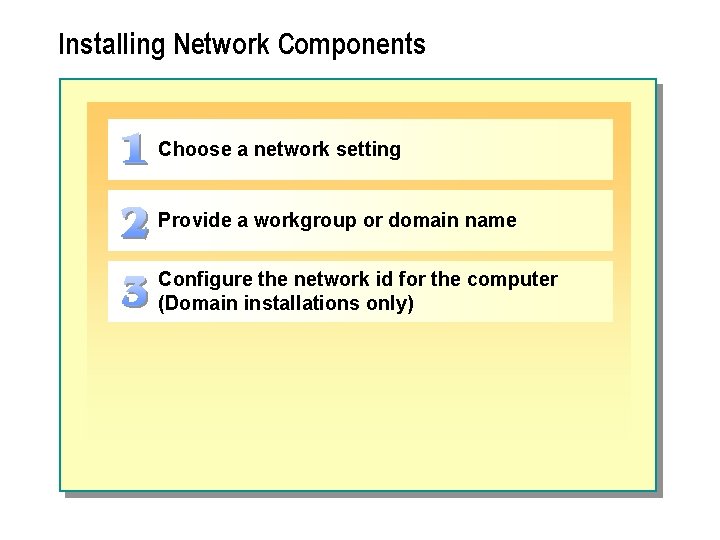
Installing Network Components Choose a network setting Provide a workgroup or domain name Configure the network id for the computer (Domain installations only)
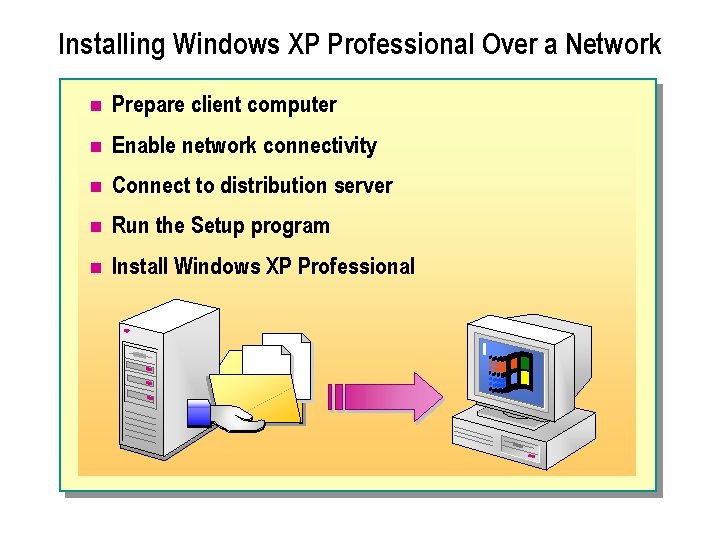
Installing Windows XP Professional Over a Network n Prepare client computer n Enable network connectivity n Connect to distribution server n Run the Setup program n Install Windows XP Professional
Lab B: Installing Windows XP Professional (Simulation)
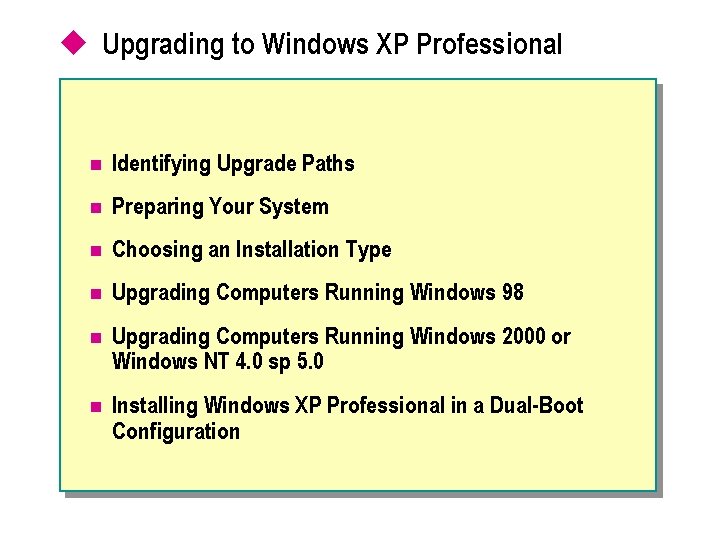
u Upgrading to Windows XP Professional n Identifying Upgrade Paths n Preparing Your System n Choosing an Installation Type n Upgrading Computers Running Windows 98 n Upgrading Computers Running Windows 2000 or Windows NT 4. 0 sp 5. 0 n Installing Windows XP Professional in a Dual-Boot Configuration
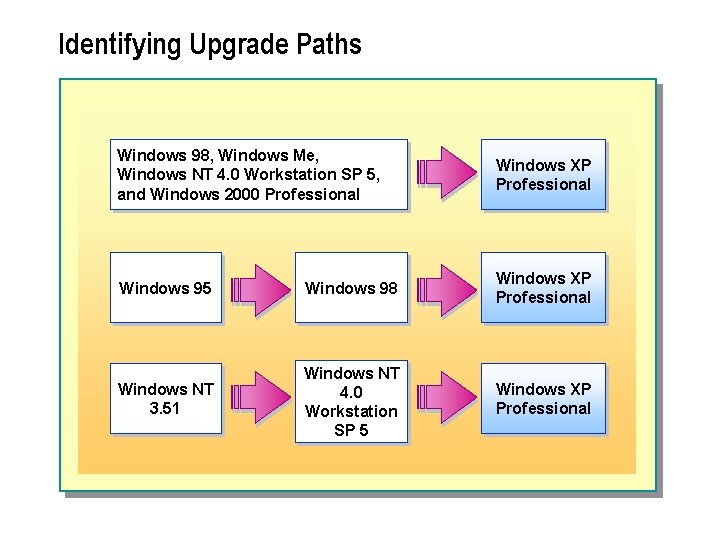
Identifying Upgrade Paths Windows 98, Windows Me, Windows NT 4. 0 Workstation SP 5, and Windows 2000 Professional Windows XP Professional Windows 95 Windows 98 Windows XP Professional Windows NT 3. 51 Windows NT 4. 0 Workstation SP 5 Windows XP Professional
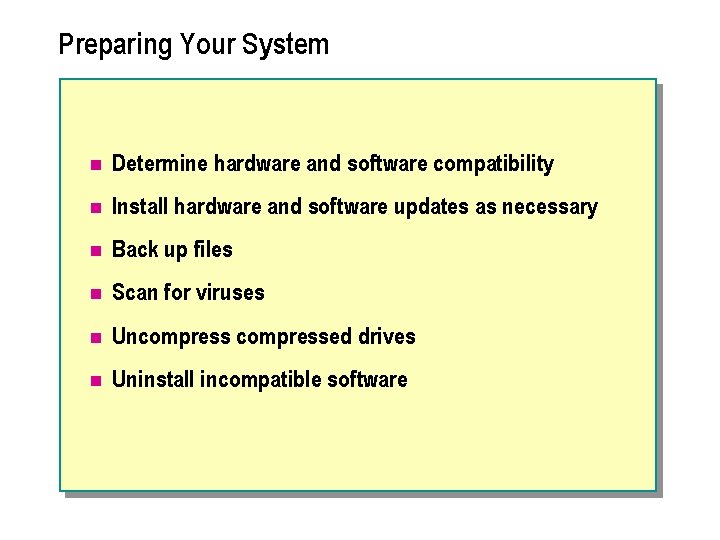
Preparing Your System n Determine hardware and software compatibility n Install hardware and software updates as necessary n Back up files n Scan for viruses n Uncompressed drives n Uninstall incompatible software
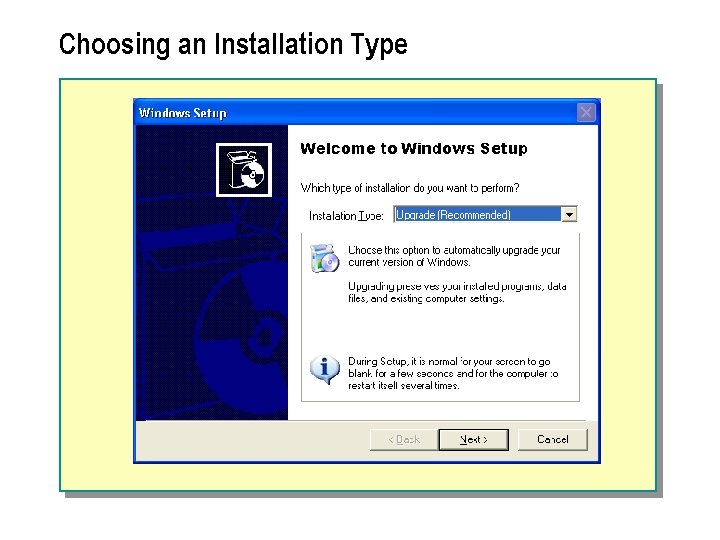
Choosing an Installation Type
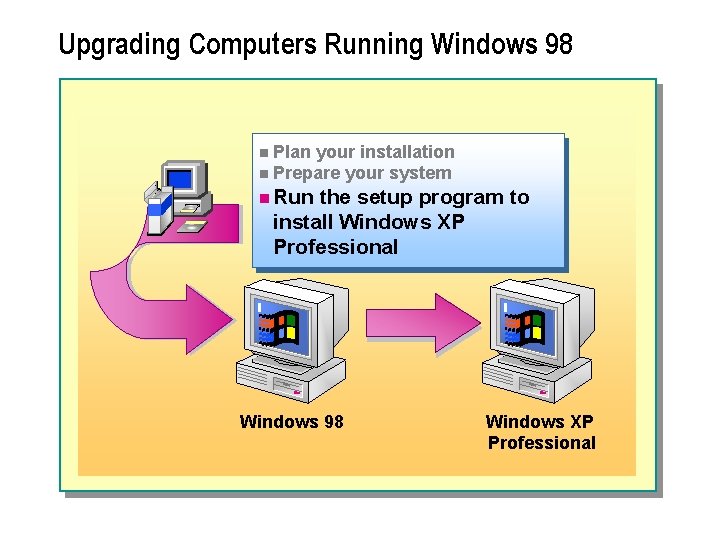
Upgrading Computers Running Windows 98 n Plan your installation n Prepare your system n Run the setup program to install Windows XP Professional Windows 98 Windows XP Professional
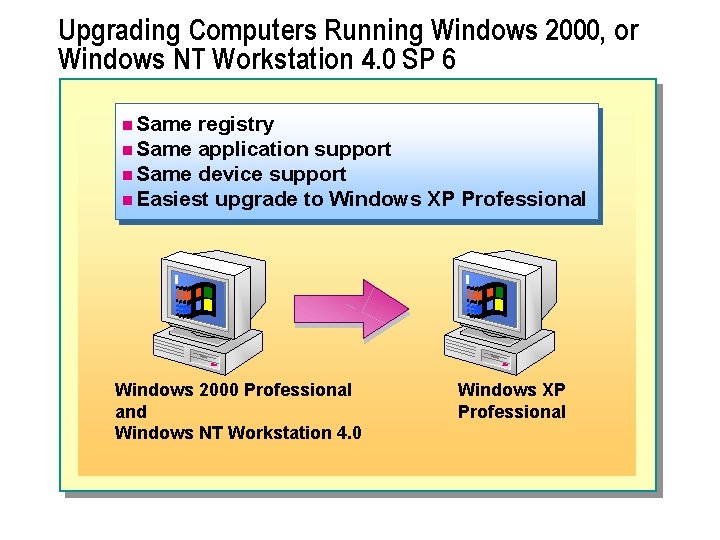
Upgrading Computers Running Windows 2000, or Windows NT Workstation 4. 0 SP 6 n Same registry n Same application support n Same device support n Easiest upgrade to Windows XP Professional Windows 2000 Professional and Windows NT Workstation 4. 0 Windows XP Professional
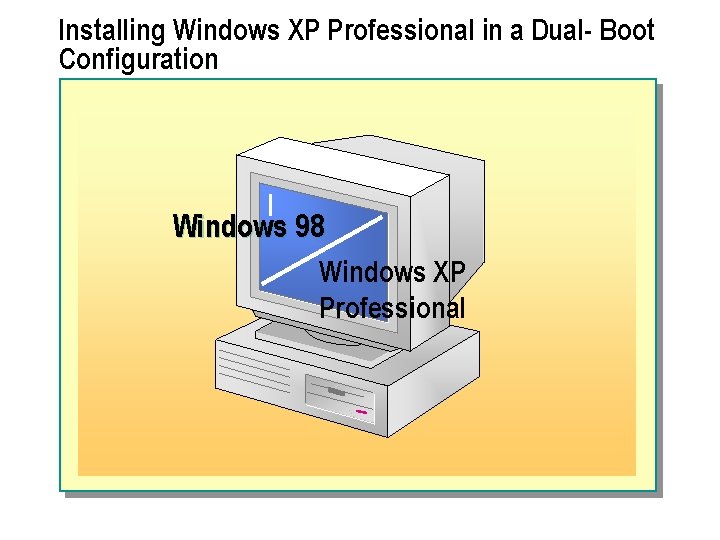
Installing Windows XP Professional in a Dual- Boot Configuration Windows 98 Windows XP Professional
u Transferring User Settings and Files by Using the USMT n Settings, Folders, and File Types Transferred by Default n Using the Files and Settings Transfer Wizard n Transferring a User State by Using Command-Line Tools n Changing the Files or Settings Transferred by Modifying the. inf Files
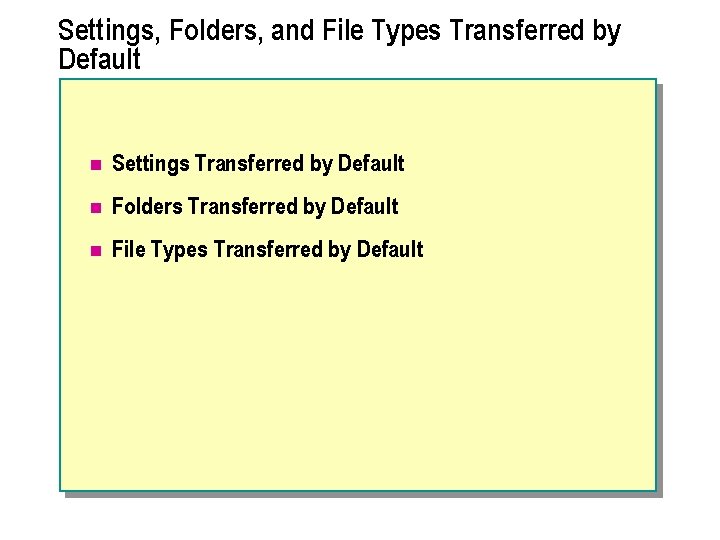
Settings, Folders, and File Types Transferred by Default n Settings Transferred by Default n Folders Transferred by Default n File Types Transferred by Default
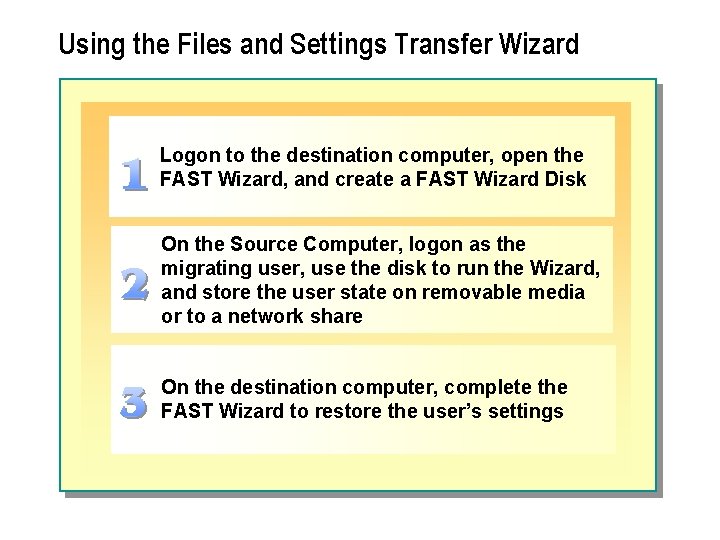
Using the Files and Settings Transfer Wizard Logon to the destination computer, open the FAST Wizard, and create a FAST Wizard Disk On the Source Computer, logon as the migrating user, use the disk to run the Wizard, and store the user state on removable media or to a network share On the destination computer, complete the FAST Wizard to restore the user’s settings
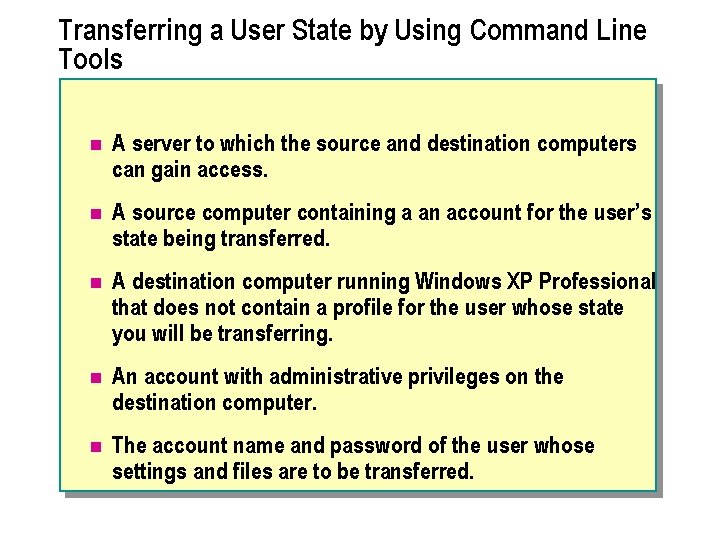
Transferring a User State by Using Command Line Tools n A server to which the source and destination computers can gain access. n A source computer containing a an account for the user’s state being transferred. n A destination computer running Windows XP Professional that does not contain a profile for the user whose state you will be transferring. n An account with administrative privileges on the destination computer. n The account name and password of the user whose settings and files are to be transferred.
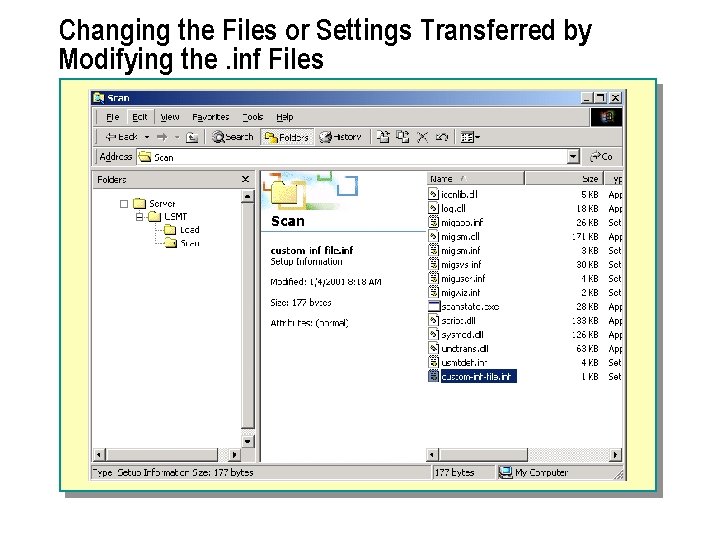
Changing the Files or Settings Transferred by Modifying the. inf Files
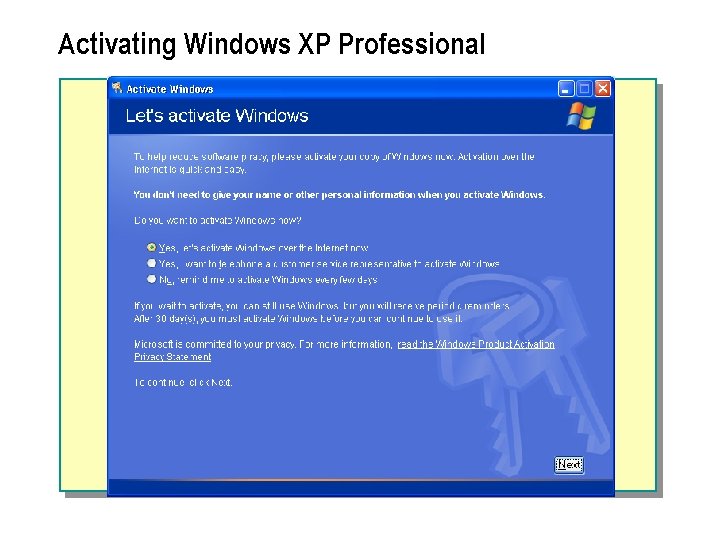
Activating Windows XP Professional
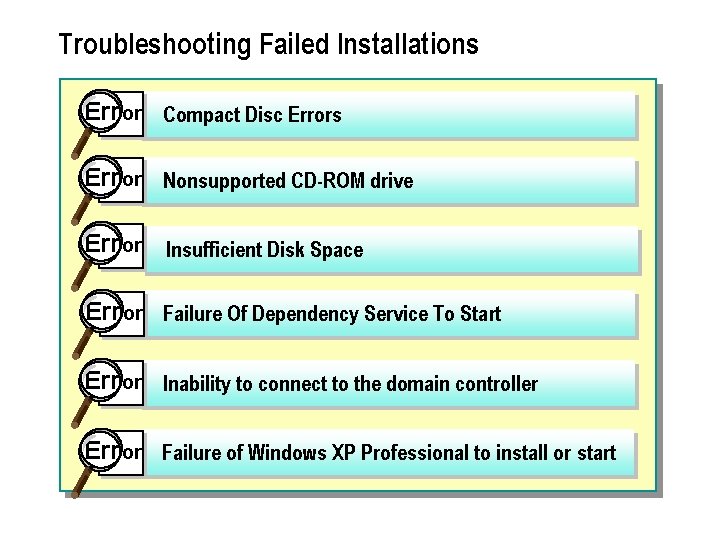
Troubleshooting Failed Installations Err or Compact Disc Errors Err or Nonsupported CD-ROM drive Err or Insufficient Disk Space Err or Failure Of Dependency Service To Start Err or Inability to connect to the domain controller Err or Failure of Windows XP Professional to install or start
Lab C: Upgrading Windows 98 to Windows XP Professional
Review n Planning an Installation of Microsoft Windows XP Professional n Installing Windows XP Professional from a Product CD n Installing Windows XP Professional Over a Network n Upgrading to Windows XP Professional n Transferring User Settings and Files by Using the USMT n Activating Windows XP Professional n Troubleshooting Failed Installations