
Modelsim tutorial Writing and simulating VHDL codes Winter


- Slides: 16
Modelsim tutorial Writing and simulating VHDL codes Winter 2020 Dr. Milad Ghantous MET department-German University in Cairo
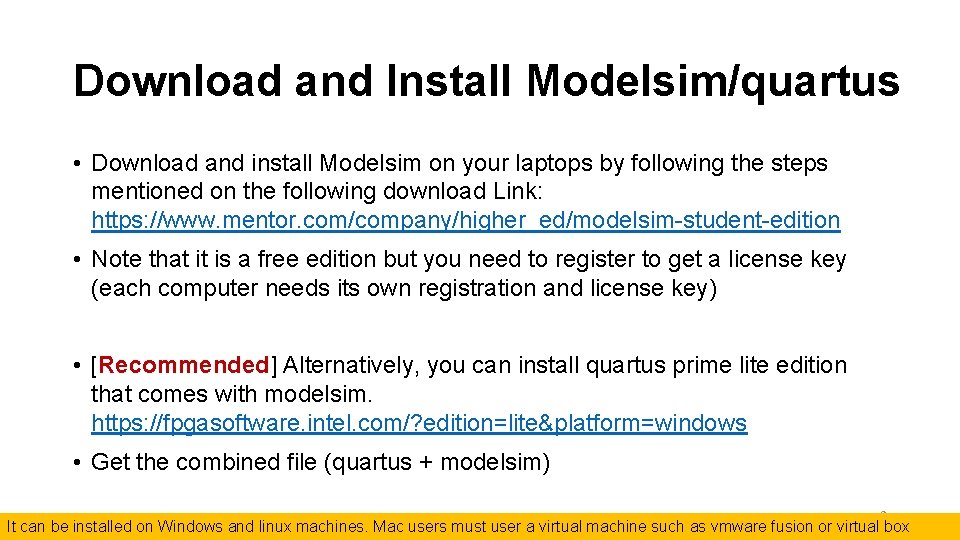
Download and Install Modelsim/quartus • Download and install Modelsim on your laptops by following the steps mentioned on the following download Link: https: //www. mentor. com/company/higher_ed/modelsim-student-edition • Note that it is a free edition but you need to register to get a license key (each computer needs its own registration and license key) • [Recommended] Alternatively, you can install quartus prime lite edition that comes with modelsim. https: //fpgasoftware. intel. com/? edition=lite&platform=windows • Get the combined file (quartus + modelsim) 2 It can be installed on Windows and linux machines. Mac users must user a virtual machine such as vmware fusion or virtual box
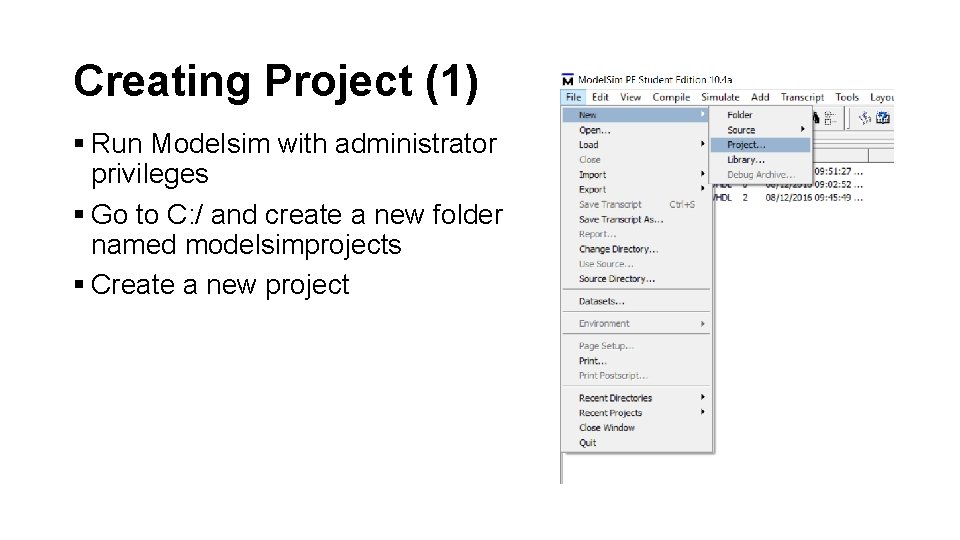
Creating Project (1) § Run Modelsim with administrator privileges § Go to C: / and create a new folder named modelsimprojects § Create a new project
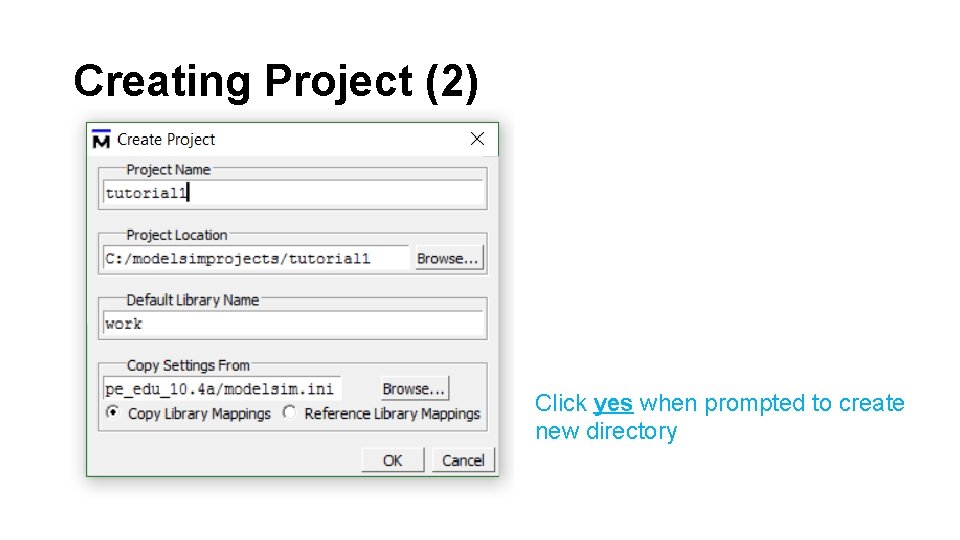
Creating Project (2) Click yes when prompted to create new directory
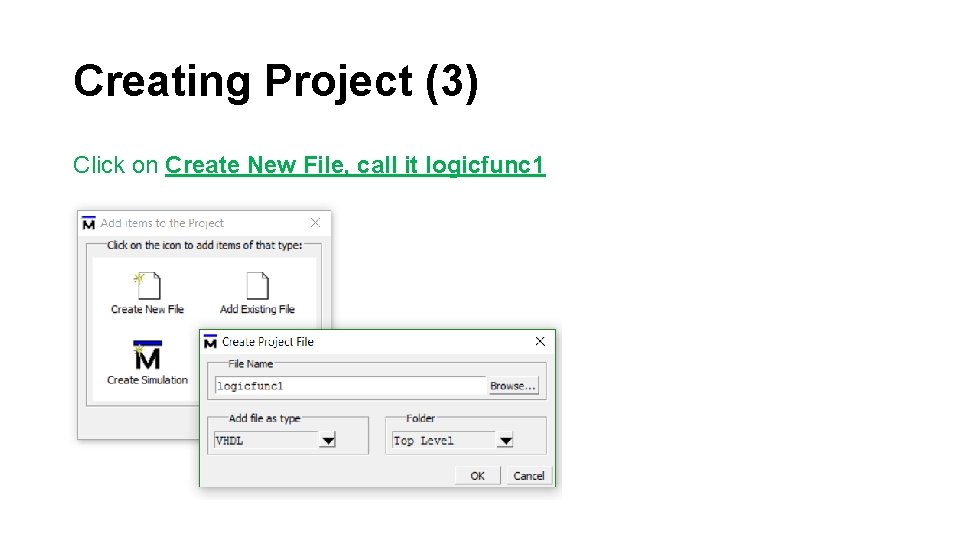
Creating Project (3) Click on Create New File, call it logicfunc 1
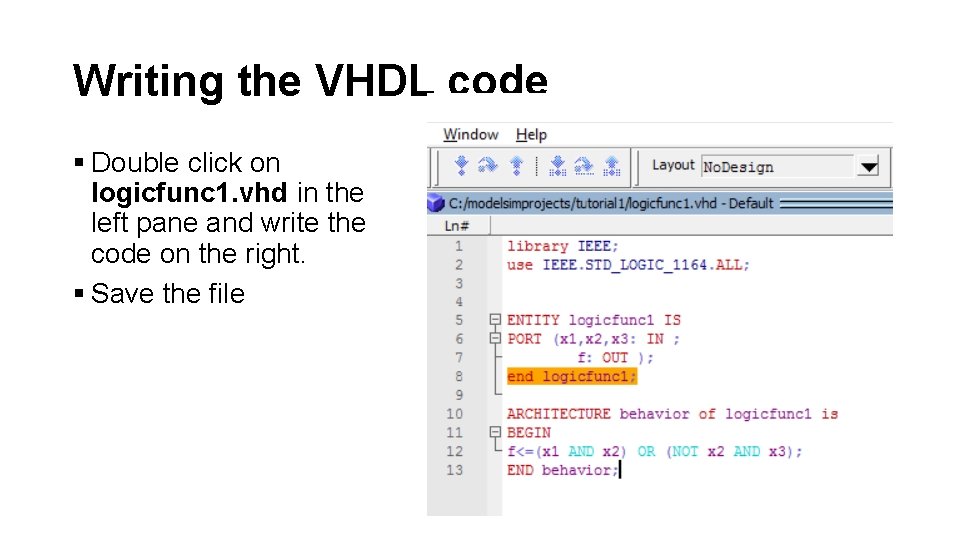
Writing the VHDL code § Double click on logicfunc 1. vhd in the left pane and write the code on the right. § Save the file
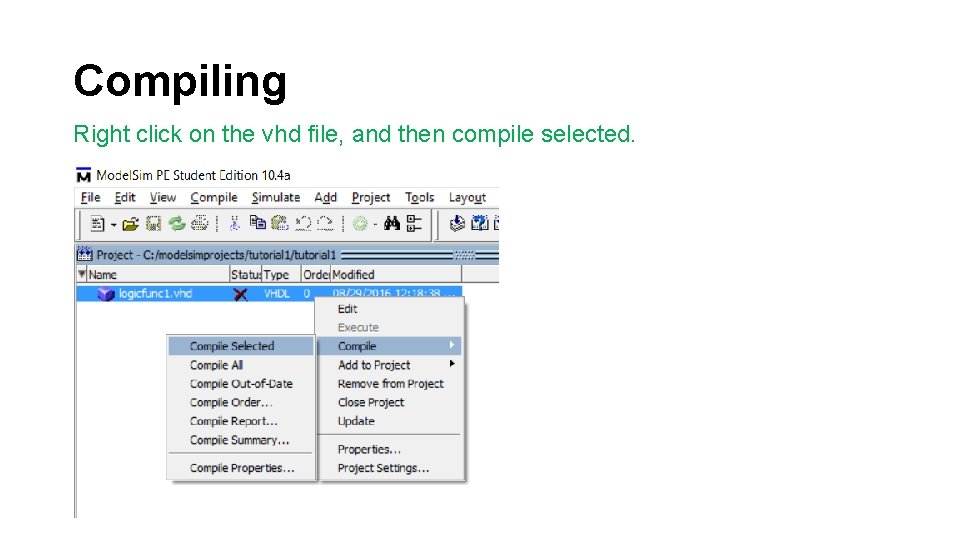
Compiling Right click on the vhd file, and then compile selected.
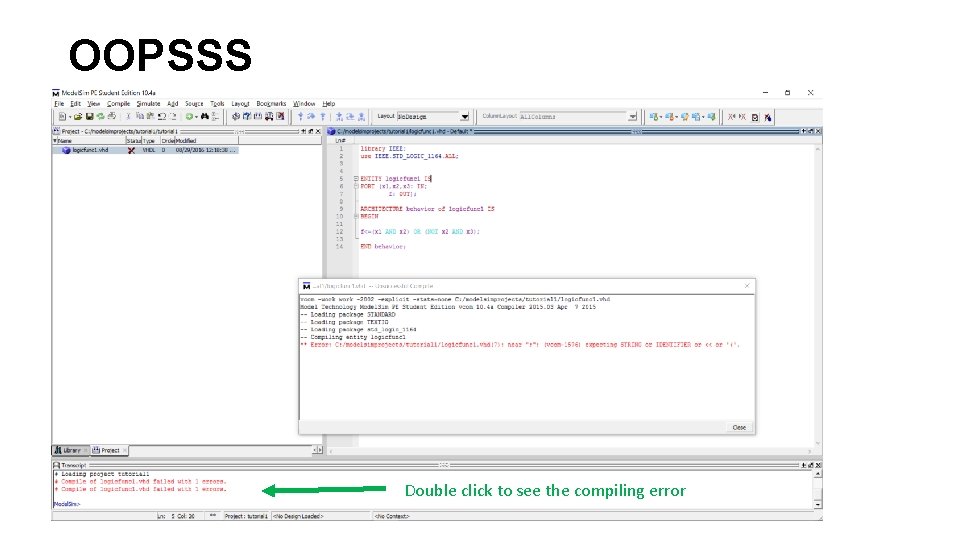
OOPSSS Double click to see the compiling error
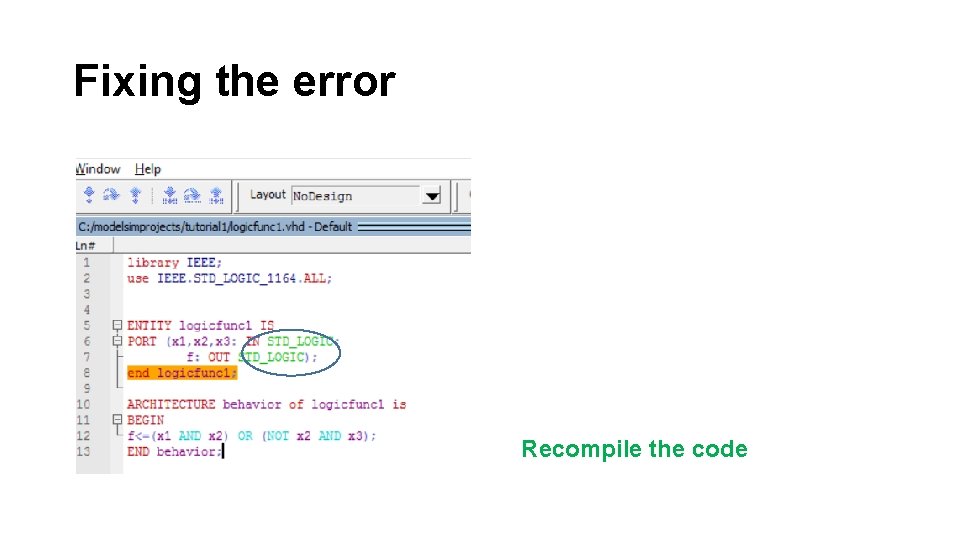
Fixing the error Recompile the code
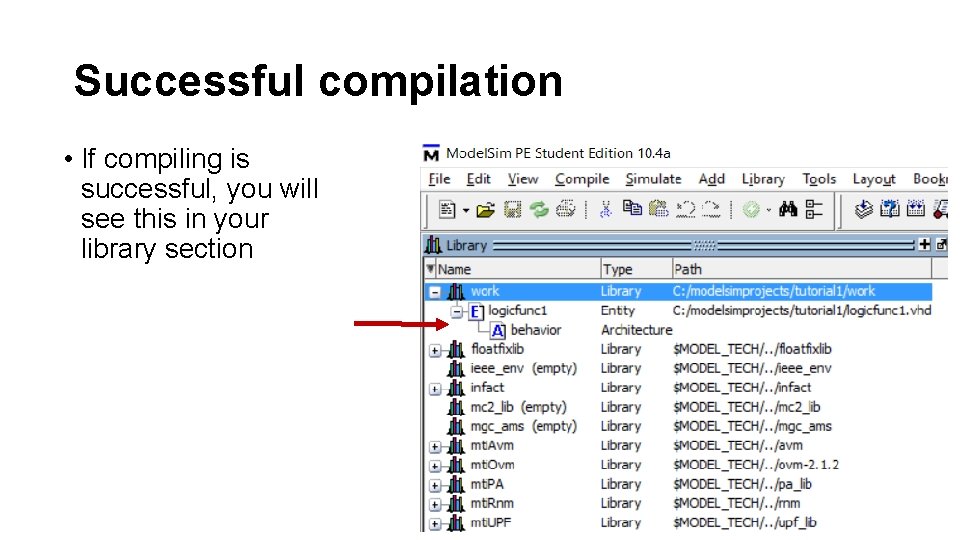
Successful compilation • If compiling is successful, you will see this in your library section
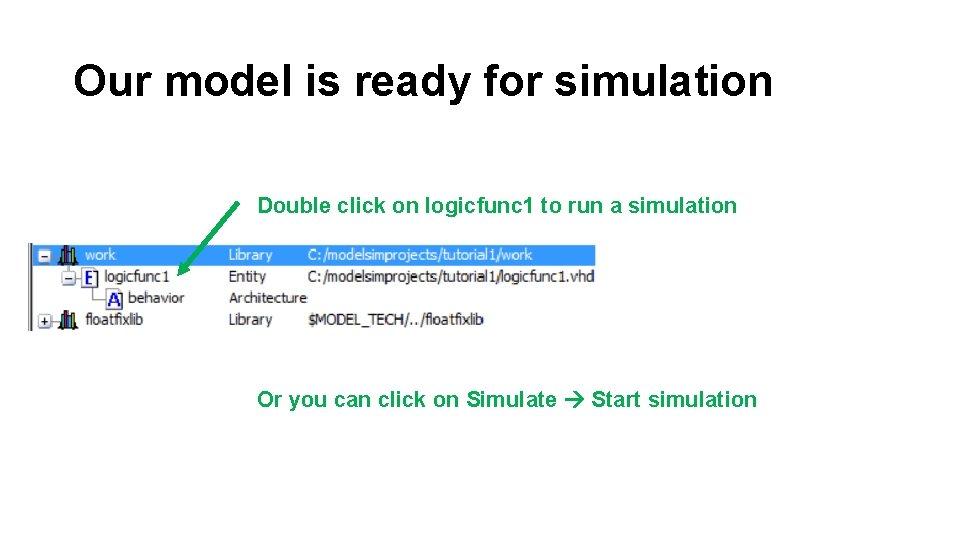
Our model is ready for simulation Double click on logicfunc 1 to run a simulation Or you can click on Simulate Start simulation
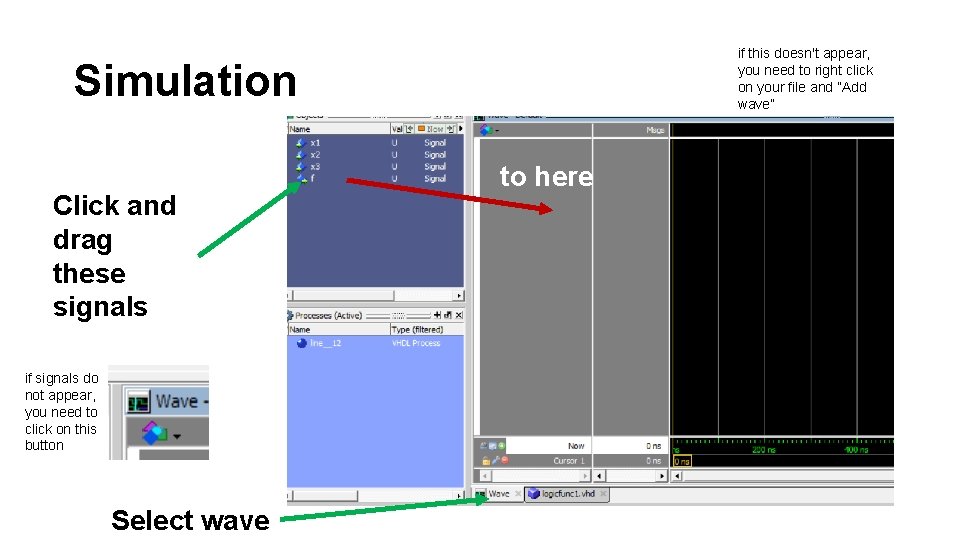
if this doesn't appear, you need to right click on your file and ”Add wave” Simulation Click and drag these signals if signals do not appear, you need to click on this button Select wave to here
We will test the correct functionality through wave simulation • Truth Table of the function x 1 x 2 x 3 f 0 0 0 1 1 0 1 0 0 0 1 0 1 1 1 1 1 We got this after using a k-map to minimize
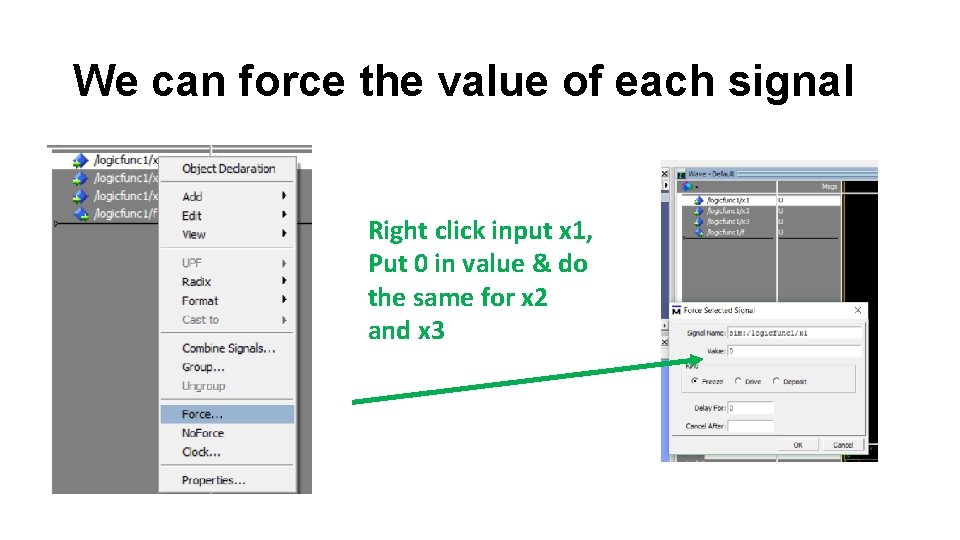
We can force the value of each signal Right click input x 1, Put 0 in value & do the same for x 2 and x 3
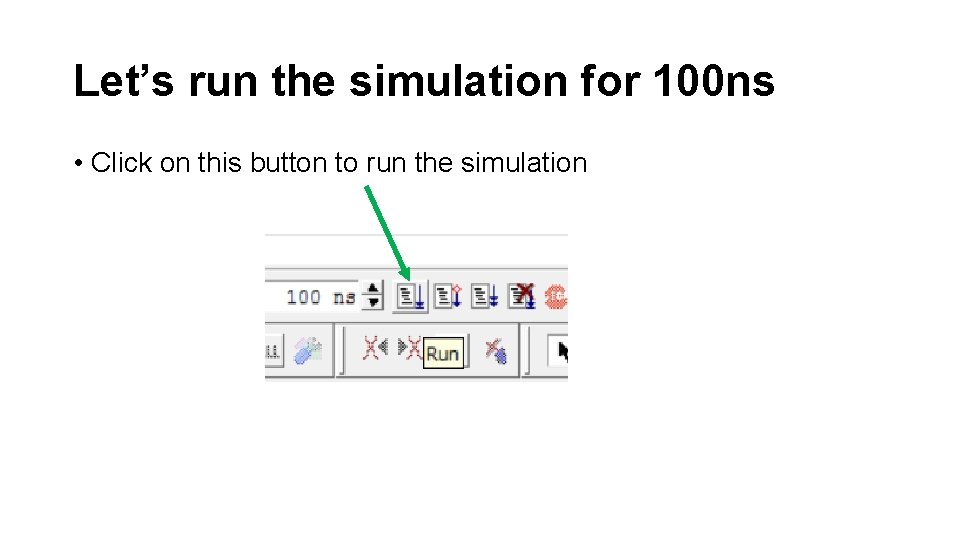
Let’s run the simulation for 100 ns • Click on this button to run the simulation
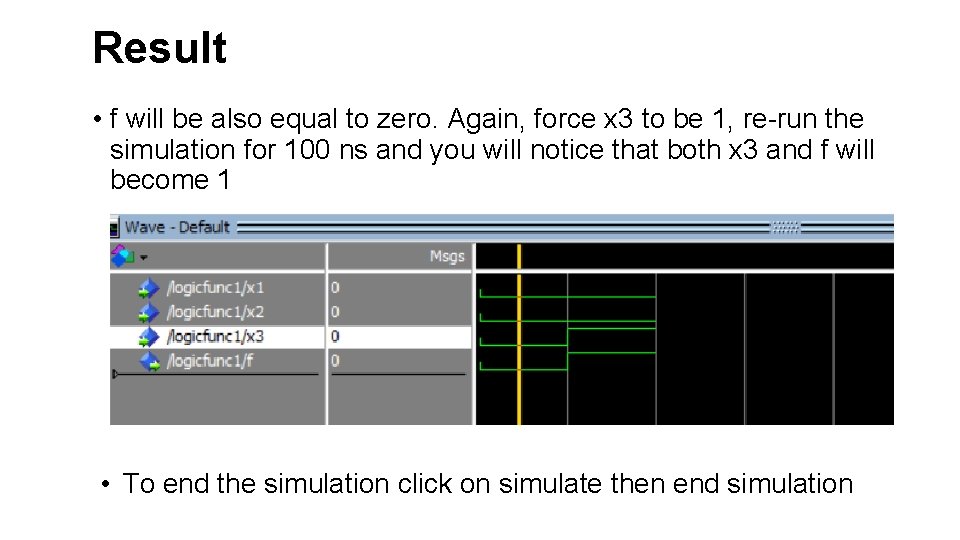
Result • f will be also equal to zero. Again, force x 3 to be 1, re-run the simulation for 100 ns and you will notice that both x 3 and f will become 1 • To end the simulation click on simulate then end simulation