
Mobile View for Operators Basic User Guide What

Mobile View for Operators Basic User Guide
What is mobile view Job. Flow? • You will see your tasks on your mobile or tablet. • You will be able to record your time against a task. • You will be able to record actual job size (eg. ha or bales). • You will be able to confirm products or materials used on a job.

Launch On your mobile or tablet • select “Job. Flow” shortcut to launch mobile view.
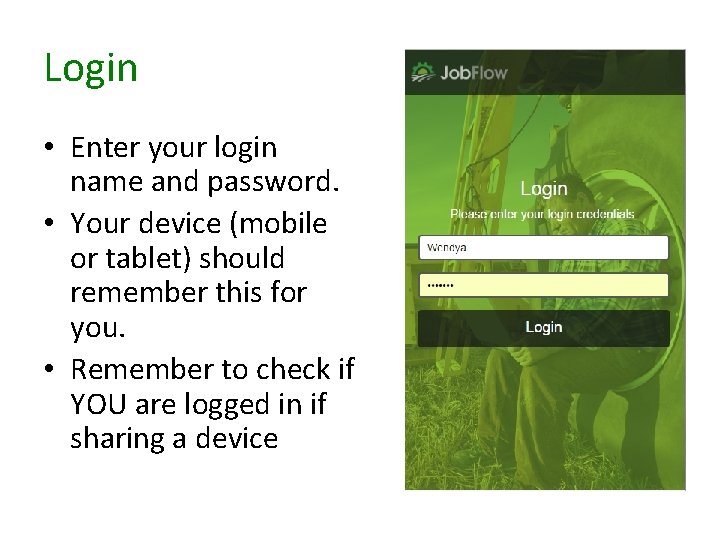
Login • Enter your login name and password. • Your device (mobile or tablet) should remember this for you. • Remember to check if YOU are logged in if sharing a device
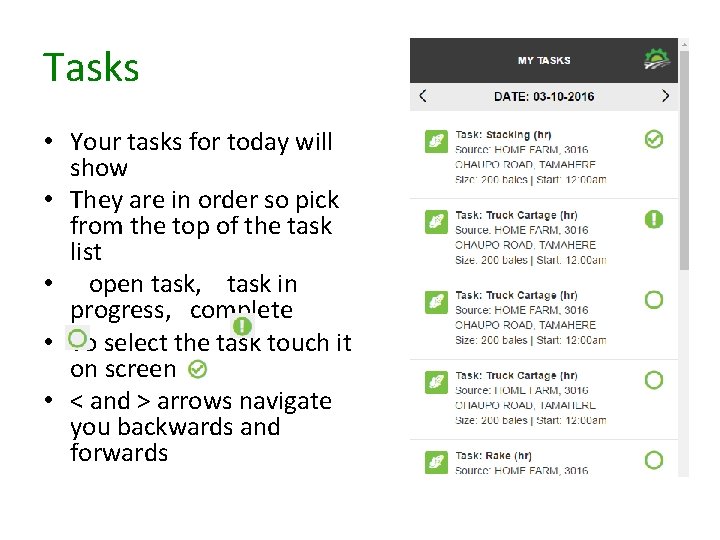
Tasks • Your tasks for today will show • They are in order so pick from the top of the task list • open task, task in progress, complete • To select the task touch it on screen • < and > arrows navigate you backwards and forwards
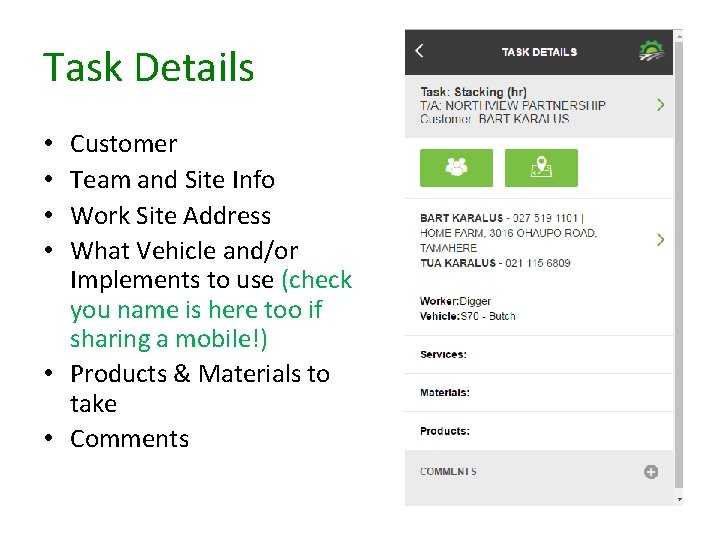
Task Details Customer Team and Site Info Work Site Address What Vehicle and/or Implements to use (check you name is here too if sharing a mobile!) • Products & Materials to take • Comments • •
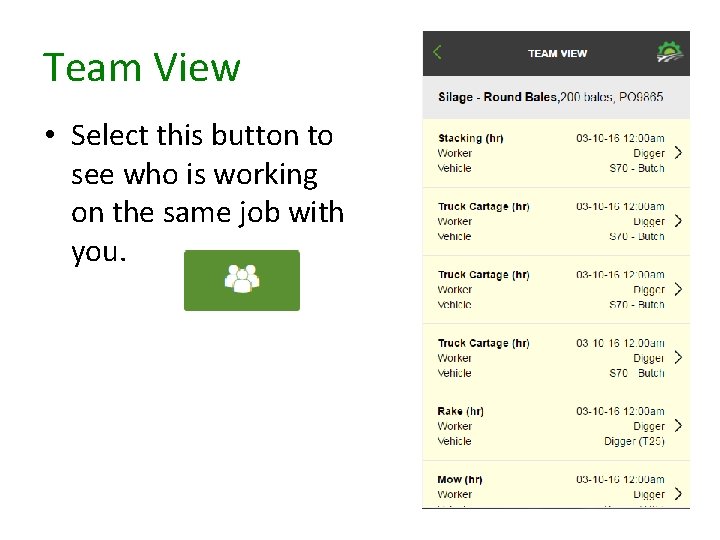
Team View • Select this button to see who is working on the same job with you.
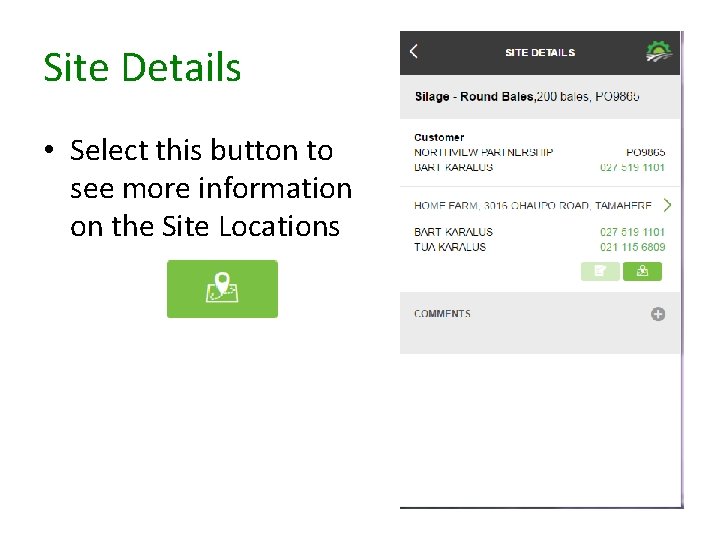
Site Details • Select this button to see more information on the Site Locations
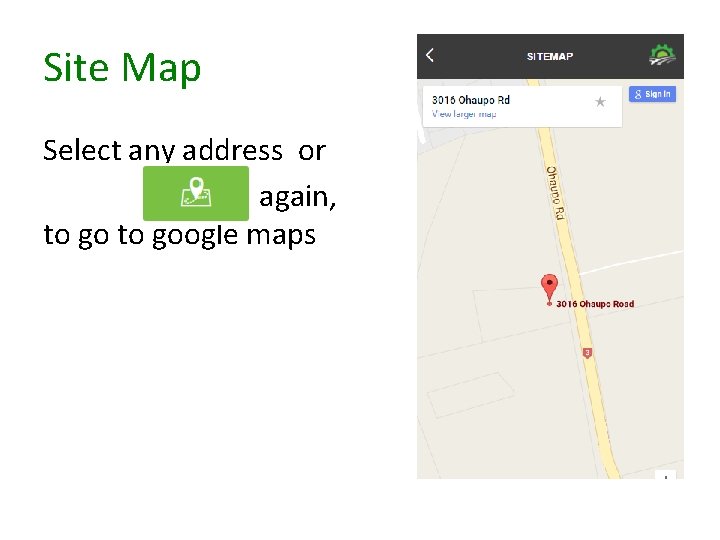
Site Map Select any address or again, to google maps
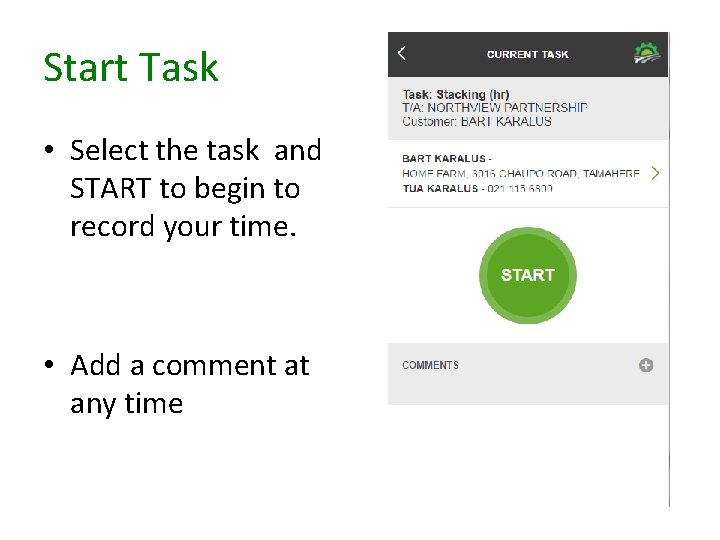
Start Task • Select the task and START to begin to record your time. • Add a comment at any time
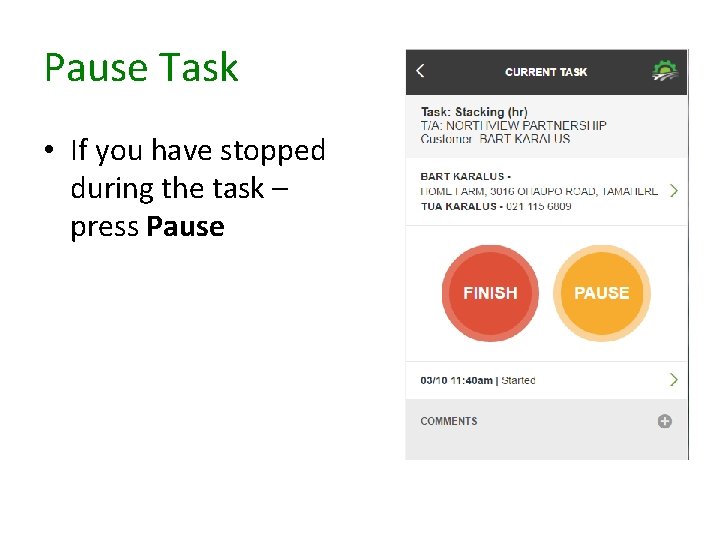
Pause Task • If you have stopped during the task – press Pause
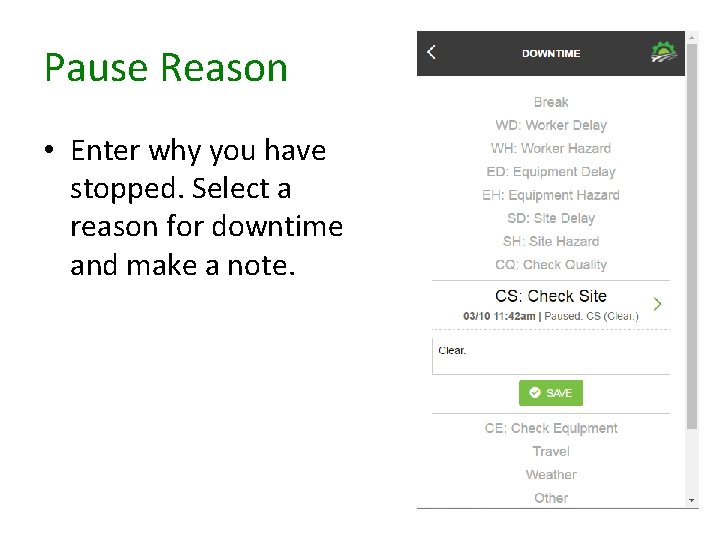
Pause Reason • Enter why you have stopped. Select a reason for downtime and make a note.
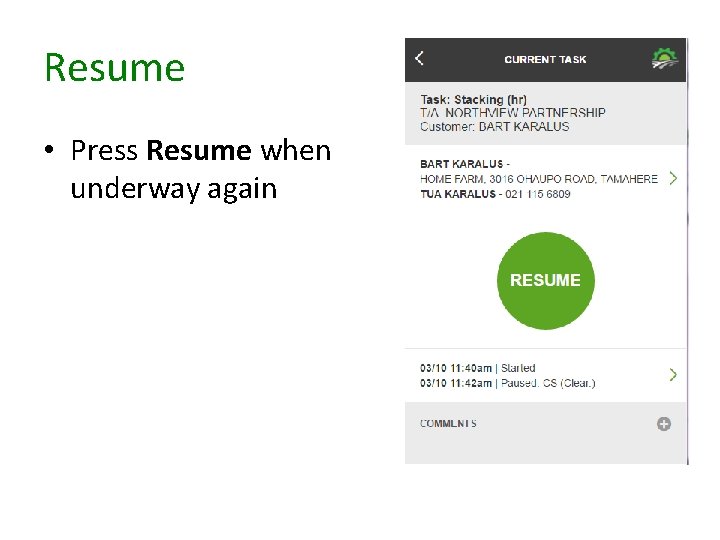
Resume • Press Resume when underway again
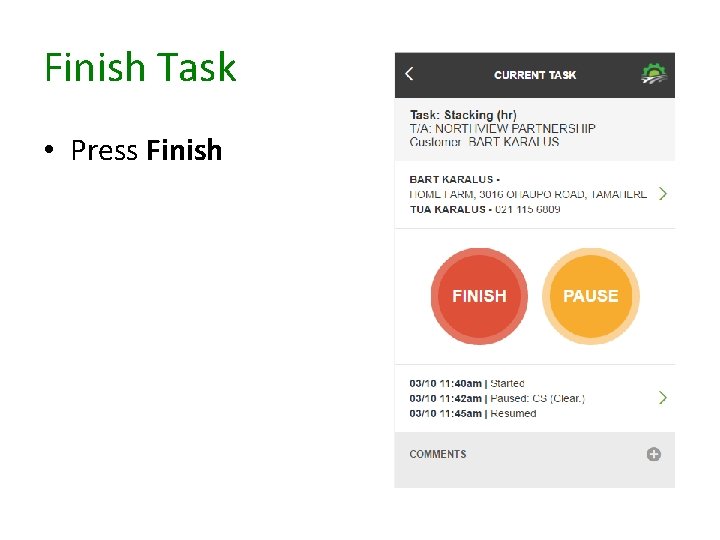
Finish Task • Press Finish
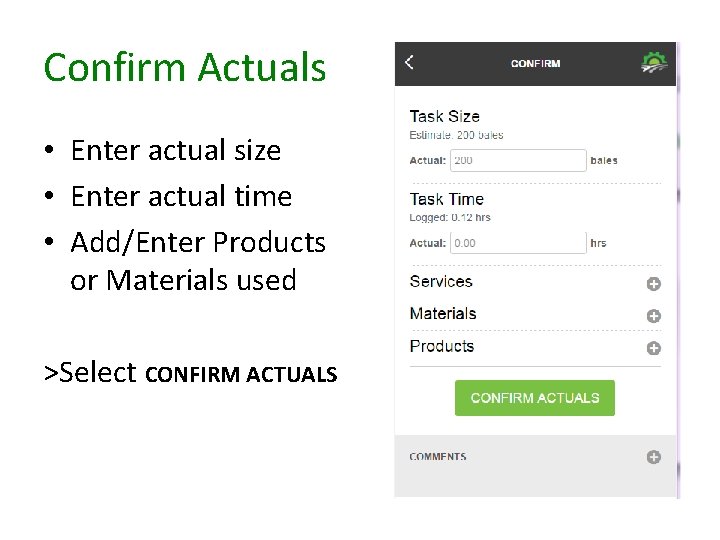
Confirm Actuals • Enter actual size • Enter actual time • Add/Enter Products or Materials used >Select CONFIRM ACTUALS
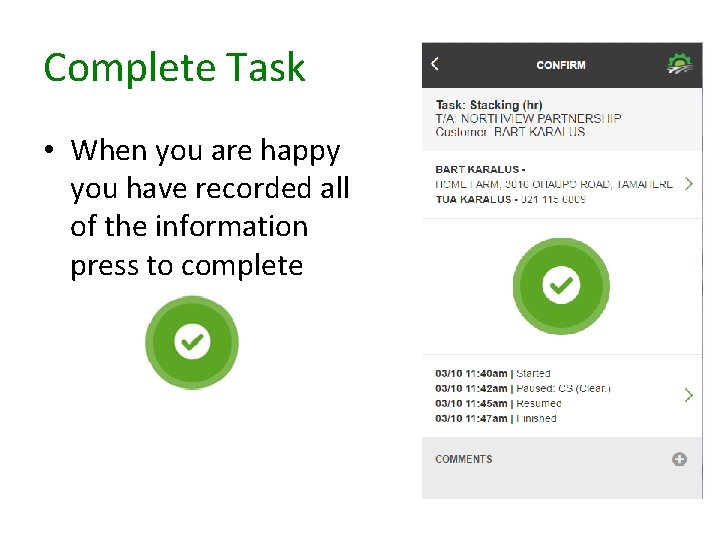
Complete Task • When you are happy you have recorded all of the information press to complete
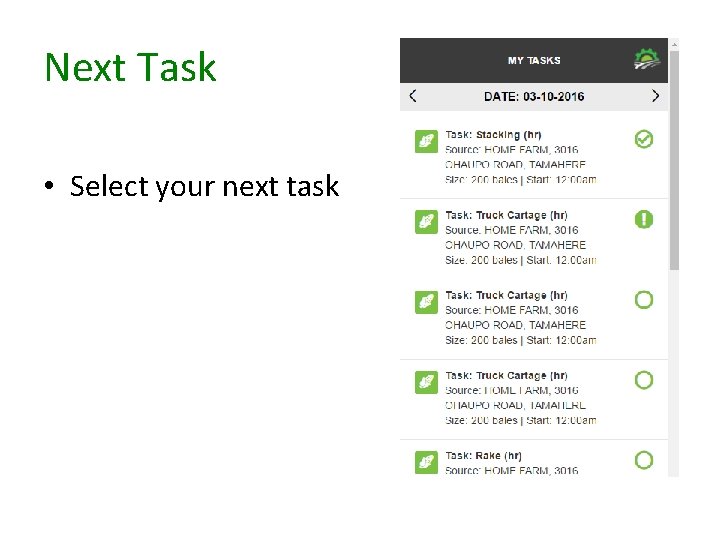
Next Task • Select your next task

FAQ’s 1. What happens if I don’t have mobile coverage? The screen you are on will stay there until you go forward (enter and submit) or backward, then it will go blank lose your entry. Note your time at this point manually.
- Slides: 18