
Mobile Softphone Step by step May 2018 Mobile
Mobile Softphone - Step by step May 2018

Mobile Softphone Overview Server-less solution for mobile with secure connection for remote users Mobile Softphone on Smart Phone/Tablet NSX 1000/2000 NS 1000 Only for Panasonic PBX NS 700 Free download from: App. Store Panasonic Mobile Softphone for NS 700/1000 V 5. 0 - NSX V 3. 0 Supported with i. OS (10. 0 or later) and Android mobile (4. 4 or later) Google. Play

System Structure Mobile Softphone is enabled by a combination of Activation Key binding to a specific PBX MPR-ID and an authentication check made when the application attempts to connect to a PBX through SIP. - Binding is controlled at the Key Management System (KMS) server by a KMS user (A). - Authentication is automatic and is a direct communication between the Mobile Softphone and the Panasonic Authentication Server over the internet (B). GCM Push Notification is delivered through the Panasonic Push Server also over the internet (C). Mobile Softphone IPPT PC 3 G/4 G Network KMS Server (A) PBX Local APNS Panasonic Authentication Server (B) Mobile Softphone Panasonic Push Server (C) Remote Notification to Mobile Softphone: GCM : Google Cloud Messaging APNS : Apple Push Notification Service With Push Server (Push Notify from GCM/APNS is best effort type service).
Activating Mobile Softphone

Activation Keys are required on both the PBX (as a P-SIP Extension) and for binding on the KMS server. NS Series PBX NS 700 NS 1000 Minimum Version PBX Activation Key V 5. 0 KX-NSM 5 xx IP-PT Extension AK (same as NT 5 xx or “P-SIP” HDV/TGP 600) Mobile Softphone AK* Client AK KX-UCMA 0 xx NSX Series PBX NSX 1000 NSX 2000 Minimum Version V 3. 0 Device Usage PBX Activation Key Mobile Softphone as Main Device Normal User AK: KX-NSUN***W Mobile Softphone as Sub-Device Normal User AK: KX-NSUN***W + Mobile User AK: KX-NSUM***W Mobile Softphone AK* Client AK KX-UCMA 0 xx *Mobile Softphone AK is registered through binding to an MPR ID on the KMS server instead of an AK license file on the PBX.
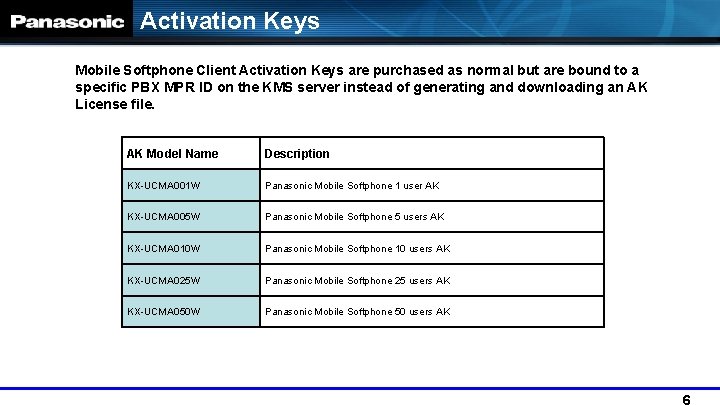
Activation Keys Mobile Softphone Client Activation Keys are purchased as normal but are bound to a specific PBX MPR ID on the KMS server instead of generating and downloading an AK License file. AK Model Name Description KX-UCMA 001 W Panasonic Mobile Softphone 1 user AK KX-UCMA 005 W Panasonic Mobile Softphone 5 users AK KX-UCMA 010 W Panasonic Mobile Softphone 10 users AK KX-UCMA 025 W Panasonic Mobile Softphone 25 users AK KX-UCMA 050 W Panasonic Mobile Softphone 50 users AK
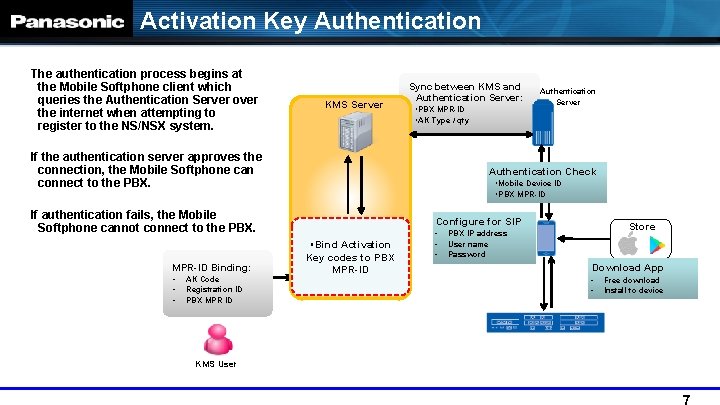
Activation Key Authentication The authentication process begins at the Mobile Softphone client which queries the Authentication Server over the internet when attempting to register to the NS/NSX system. KMS Server Sync between KMS and Authentication Server: ・PBX MPR-ID ・AK Type / qty If the authentication server approves the connection, the Mobile Softphone can connect to the PBX. Authentication Check ・Mobile Device ID ・PBX MPR-ID If authentication fails, the Mobile Softphone cannot connect to the PBX. MPR-ID Binding: • • • AK Code Registration ID PBX MPR ID KMS User Authentication Server Configure for SIP ・Bind Activation Key codes to PBX MPR-ID • • • Store PBX IP address User name Password Download App • • Free download Install to device
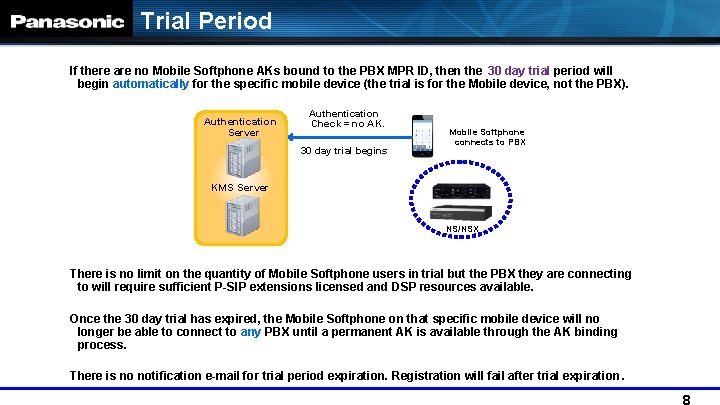
Trial Period If there are no Mobile Softphone AKs bound to the PBX MPR ID, then the 30 day trial period will begin automatically for the specific mobile device (the trial is for the Mobile device, not the PBX). Authentication Server Authentication Check = no AK. 30 day trial begins Mobile Softphone connects to PBX KMS Server NS/NSX There is no limit on the quantity of Mobile Softphone users in trial but the PBX they are connecting to will require sufficient P-SIP extensions licensed and DSP resources available. Once the 30 day trial has expired, the Mobile Softphone on that specific mobile device will no longer be able to connect to any PBX until a permanent AK is available through the AK binding process. There is no notification e-mail for trial period expiration. Registration will fail after trial expiration.
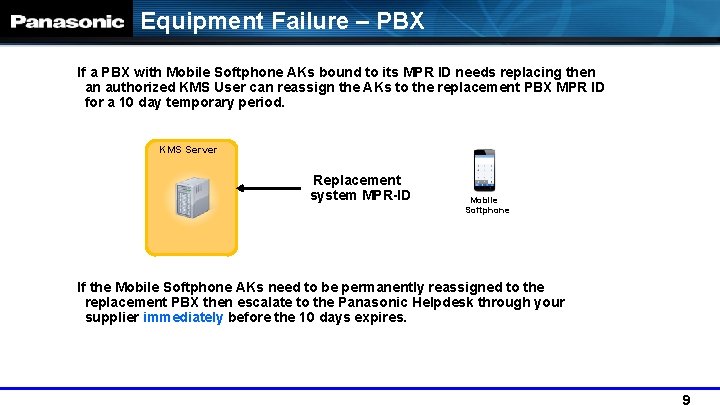
Equipment Failure – PBX If a PBX with Mobile Softphone AKs bound to its MPR ID needs replacing then an authorized KMS User can reassign the AKs to the replacement PBX MPR ID for a 10 day temporary period. KMS Server Replacement system MPR-ID Mobile Softphone If the Mobile Softphone AKs need to be permanently reassigned to the replacement PBX then escalate to the Panasonic Helpdesk through your supplier immediately before the 10 days expires.
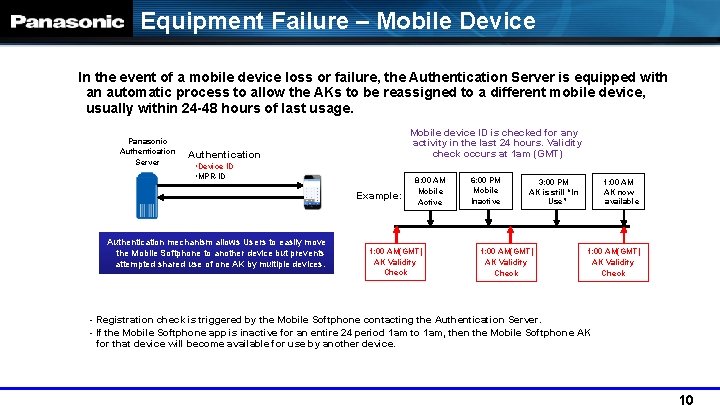
Equipment Failure – Mobile Device In the event of a mobile device loss or failure, the Authentication Server is equipped with an automatic process to allow the AKs to be reassigned to a different mobile device, usually within 24 -48 hours of last usage. Panasonic Authentication Server Mobile device ID is checked for any activity in the last 24 hours. Validity check occurs at 1 am (GMT) Authentication ・Device ID ・MPR-ID Example: Authentication mechanism allows Users to easily move the Mobile Softphone to another device but prevents attempted shared use of one AK by multiple devices. 8: 00 AM Mobile Active 1: 00 AM(GMT) AK Validity Check 6: 00 PM Mobile Inactive 1: 00 AM AK now available 3: 00 PM AK is still “In Use” 1: 00 AM(GMT) AK Validity Check - Registration check is triggered by the Mobile Softphone contacting the Authentication Server. - If the Mobile Softphone app is inactive for an entire 24 period 1 am to 1 am, then the Mobile Softphone AK for that device will become available for use by another device.

KMS User Mobile Softphone Binding KMS Server Guidance To enable the Mobile Softphone Activation Keys for a particular PBX, the AK codes needs to be associated with the MPR ID of the system through the Mobile Softphone MPR ID Binding process. Purchase appropriate Ext/User Activation Keys for PBX and generate AK License file to install to PBX Purchase appropriate Mobile Softphone Activation Keys and bind AK codes to PBX MPR ID (NSM 5 xx for NS Series, Normal/Mobile User for NSX) (KX-UCMA 0 xx Mobile Softphone Users)
PBX MPR ID Binding in Multi-site network Mobile Softphone user AK binding must use the correct PBX MPR ID in a multi-site network For NS 1000 One-Look Networking: Use the MPR ID of the NS 1000 or NS 700 cabinet that the Mobile Softphone client is registering to – Master or Slave. Cannot split a Mobile Softphone AK between two different MPR IDs so take care to order the correct model and quantity of Mobile Softphone AKs across multiple systems. NSX Multi-Connection Networking: Always use MPR ID of NSX controller for AK Binding even if registering to Expansion. GW slave cabinet. NSX Hotstandby Redundancy: Always use Primary NSX MPR-ID for AK binding.
Network Requirements
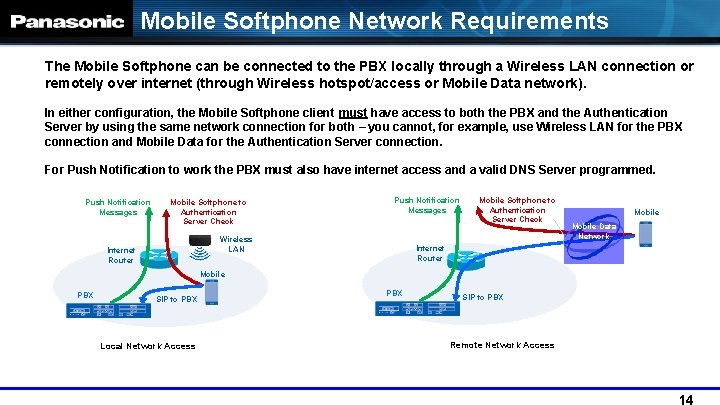
Mobile Softphone Network Requirements The Mobile Softphone can be connected to the PBX locally through a Wireless LAN connection or remotely over internet (through Wireless hotspot/access or Mobile Data network). In either configuration, the Mobile Softphone client must have access to both the PBX and the Authentication Server by using the same network connection for both – you cannot, for example, use Wireless LAN for the PBX connection and Mobile Data for the Authentication Server connection. For Push Notification to work the PBX must also have internet access and a valid DNS Server programmed. Push Notification Messages Mobile Softphone to Authentication Server Check Push Notification Messages Wireless LAN Internet Router Mobile Softphone to Authentication Server Check Internet Router Mobile PBX SIP to PBX Local Network Access PBX SIP to PBX Remote Network Access Mobile Data Network
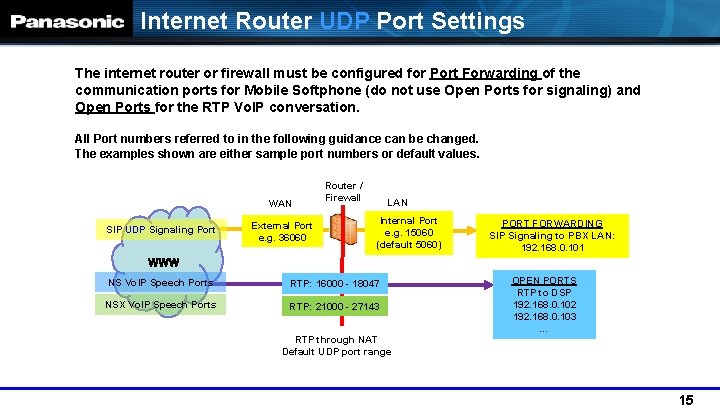
Internet Router UDP Port Settings The internet router or firewall must be configured for Port Forwarding of the communication ports for Mobile Softphone (do not use Open Ports for signaling) and Open Ports for the RTP Vo. IP conversation. All Port numbers referred to in the following guidance can be changed. The examples shown are either sample port numbers or default values. WAN SIP UDP Signaling Port External Port e. g. 36060 Router / Firewall LAN Internal Port e. g. 15060 (default 5060) www NS Vo. IP Speech Ports RTP: 16000 - 18047 NSX Vo. IP Speech Ports RTP: 21000 - 27143 RTP through NAT Default UDP port range PORT FORWARDING SIP Signaling to PBX LAN: 192. 168. 0. 101 OPEN PORTS RTP to DSP 192. 168. 0. 102 192. 168. 0. 103 …
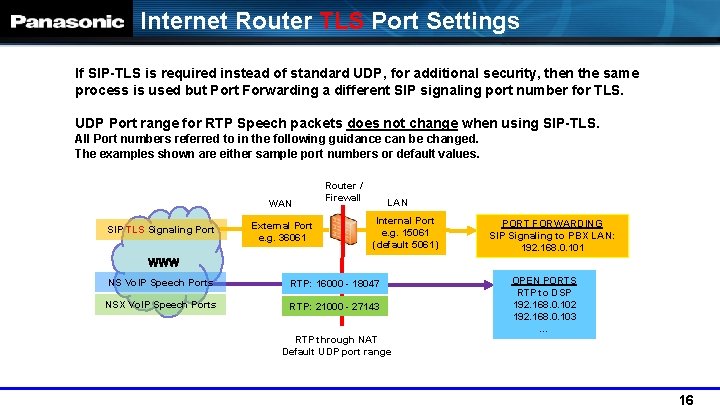
Internet Router TLS Port Settings If SIP-TLS is required instead of standard UDP, for additional security, then the same process is used but Port Forwarding a different SIP signaling port number for TLS. UDP Port range for RTP Speech packets does not change when using SIP-TLS. All Port numbers referred to in the following guidance can be changed. The examples shown are either sample port numbers or default values. WAN SIP TLS Signaling Port External Port e. g. 36061 Router / Firewall LAN Internal Port e. g. 15061 (default 5061) www NS Vo. IP Speech Ports RTP: 16000 - 18047 NSX Vo. IP Speech Ports RTP: 21000 - 27143 RTP through NAT Default UDP port range PORT FORWARDING SIP Signaling to PBX LAN: 192. 168. 0. 101 OPEN PORTS RTP to DSP 192. 168. 0. 102 192. 168. 0. 103 …
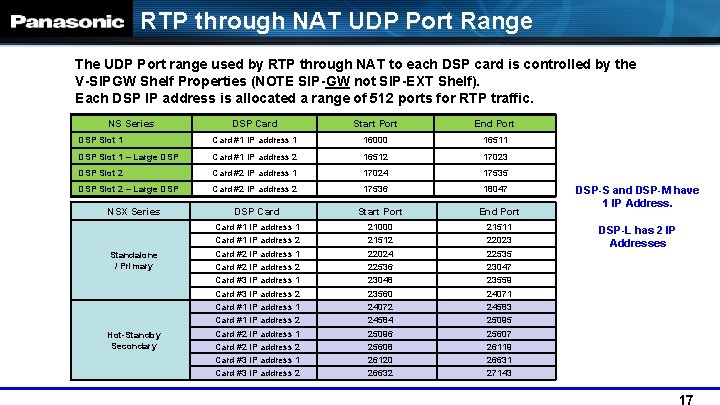
RTP through NAT UDP Port Range The UDP Port range used by RTP through NAT to each DSP card is controlled by the V-SIPGW Shelf Properties (NOTE SIP-GW not SIP-EXT Shelf). Each DSP IP address is allocated a range of 512 ports for RTP traffic. NS Series DSP Card Start Port End Port DSP Slot 1 Card #1 IP address 1 16000 16511 DSP Slot 1 – Large DSP Card #1 IP address 2 16512 17023 DSP Slot 2 Card #2 IP address 1 17024 17535 DSP Slot 2 – Large DSP Card #2 IP address 2 17536 18047 NSX Series Standalone / Primary Hot-Standby Secondary DSP Card Start Port End Port Card #1 IP address 1 Card #1 IP address 2 Card #2 IP address 1 Card #2 IP address 2 Card #3 IP address 1 Card #3 IP address 2 21000 21512 22024 22536 23048 23560 24072 24584 25096 25608 26120 26632 21511 22023 22535 23047 23559 24071 24583 25095 25607 26119 26631 27143 DSP-S and DSP-M have 1 IP Address. DSP-L has 2 IP Addresses
Configure Router/Firewall
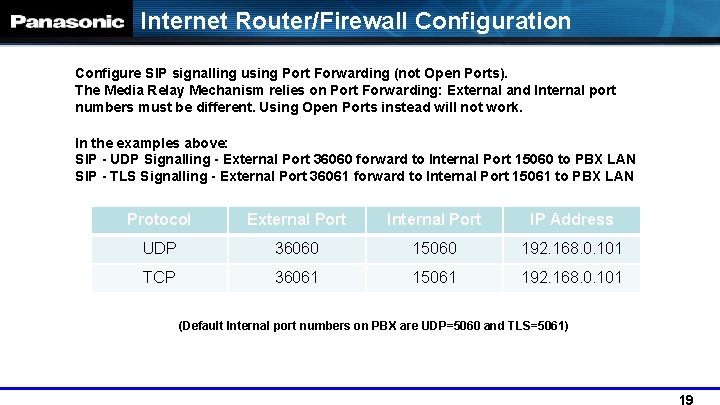
Internet Router/Firewall Configuration Configure SIP signalling using Port Forwarding (not Open Ports). The Media Relay Mechanism relies on Port Forwarding: External and Internal port numbers must be different. Using Open Ports instead will not work. In the examples above: SIP - UDP Signalling - External Port 36060 forward to Internal Port 15060 to PBX LAN SIP - TLS Signalling - External Port 36061 forward to Internal Port 15061 to PBX LAN Protocol External Port Internal Port IP Address UDP 36060 15060 192. 168. 0. 101 TCP 36061 15061 192. 168. 0. 101 (Default Internal port numbers on PBX are UDP=5060 and TLS=5061)
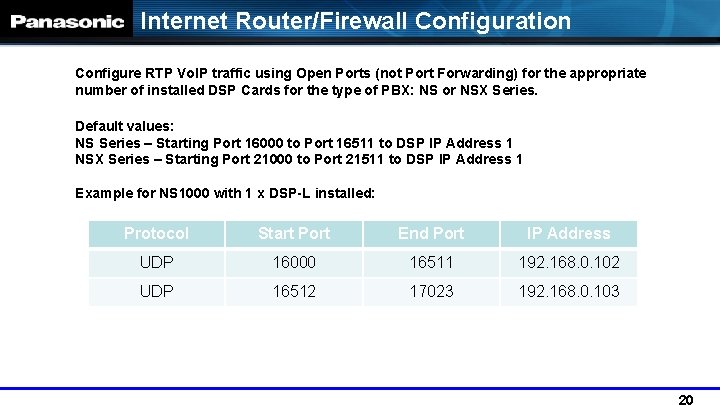
Internet Router/Firewall Configuration Configure RTP Vo. IP traffic using Open Ports (not Port Forwarding) for the appropriate number of installed DSP Cards for the type of PBX: NS or NSX Series. Default values: NS Series – Starting Port 16000 to Port 16511 to DSP IP Address 1 NSX Series – Starting Port 21000 to Port 21511 to DSP IP Address 1 Example for NS 1000 with 1 x DSP-L installed: Protocol Start Port End Port IP Address UDP 16000 16511 192. 168. 0. 102 UDP 16512 17023 192. 168. 0. 103
Configure PBX
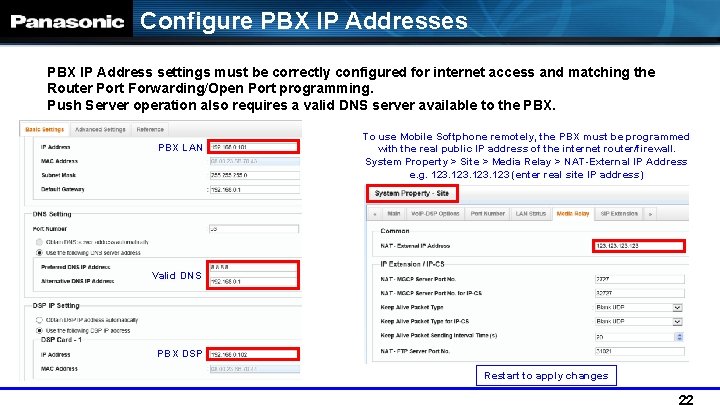
Configure PBX IP Addresses PBX IP Address settings must be correctly configured for internet access and matching the Router Port Forwarding/Open Port programming. Push Server operation also requires a valid DNS server available to the PBX LAN To use Mobile Softphone remotely, the PBX must be programmed with the real public IP address of the internet router/firewall. System Property > Site > Media Relay > NAT-External IP Address e. g. 123 (enter real site IP address) Valid DNS PBX DSP Restart to apply changes
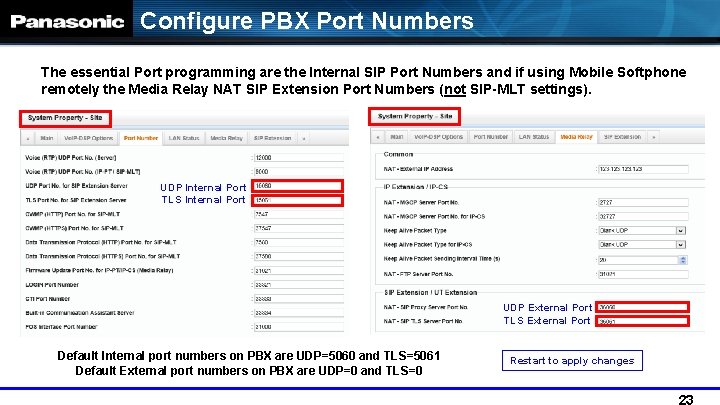
Configure PBX Port Numbers The essential Port programming are the Internal SIP Port Numbers and if using Mobile Softphone remotely the Media Relay NAT SIP Extension Port Numbers (not SIP-MLT settings). UDP Internal Port TLS Internal Port UDP External Port TLS External Port Default Internal port numbers on PBX are UDP=5060 and TLS=5061 Default External port numbers on PBX are UDP=0 and TLS=0 Restart to apply changes
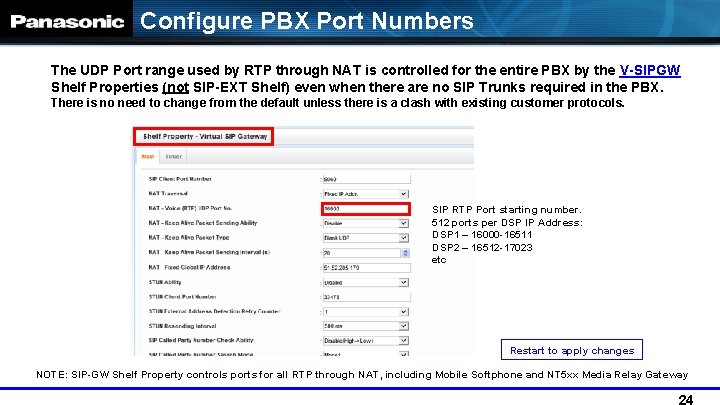
Configure PBX Port Numbers The UDP Port range used by RTP through NAT is controlled for the entire PBX by the V-SIPGW Shelf Properties (not SIP-EXT Shelf) even when there are no SIP Trunks required in the PBX. There is no need to change from the default unless there is a clash with existing customer protocols. SIP RTP Port starting number. 512 ports per DSP IP Address: DSP 1 – 16000 -16511 DSP 2 – 16512 -17023 etc Restart to apply changes NOTE: SIP-GW Shelf Property controls ports for all RTP through NAT, including Mobile Softphone and NT 5 xx Media Relay Gateway
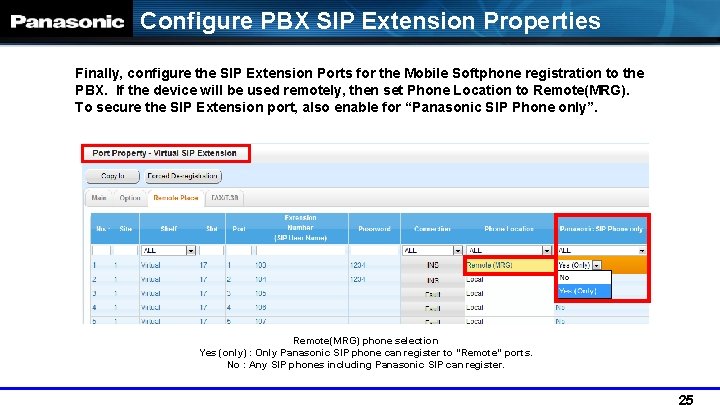
Configure PBX SIP Extension Properties Finally, configure the SIP Extension Ports for the Mobile Softphone registration to the PBX. If the device will be used remotely, then set Phone Location to Remote(MRG). To secure the SIP Extension port, also enable for “Panasonic SIP Phone only”. Remote(MRG) phone selection Yes (only) : Only Panasonic SIP phone can register to “Remote” ports. No : Any SIP phones including Panasonic SIP can register.
Configuring Mobile Softphone
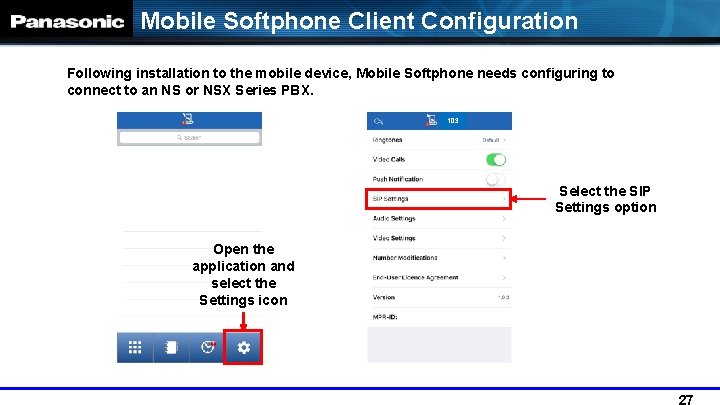
Mobile Softphone Client Configuration Following installation to the mobile device, Mobile Softphone needs configuring to connect to an NS or NSX Series PBX. 103 Select the SIP Settings option Open the application and select the Settings icon
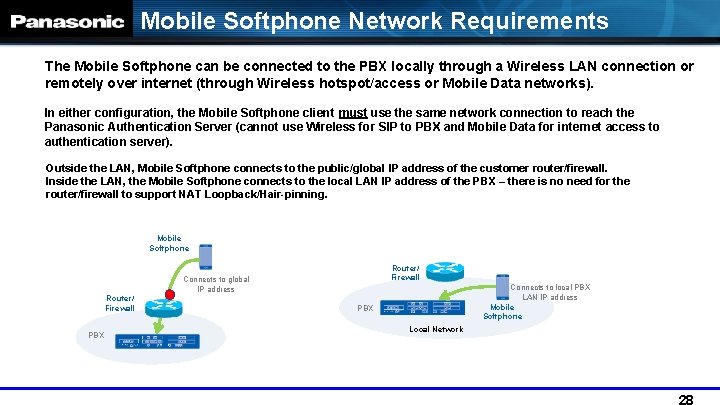
Mobile Softphone Network Requirements The Mobile Softphone can be connected to the PBX locally through a Wireless LAN connection or remotely over internet (through Wireless hotspot/access or Mobile Data networks). In either configuration, the Mobile Softphone client must use the same network connection to reach the Panasonic Authentication Server (cannot use Wireless for SIP to PBX and Mobile Data for internet access to authentication server). Outside the LAN, Mobile Softphone connects to the public/global IP address of the customer router/firewall. Inside the LAN, the Mobile Softphone connects to the local LAN IP address of the PBX – there is no need for the router/firewall to support NAT Loopback/Hair-pinning. Mobile Softphone Router/ Firewall Connects to global IP address Router/ Firewall PBX Connects to local PBX LAN IP address Mobile Softphone PBX Local Network
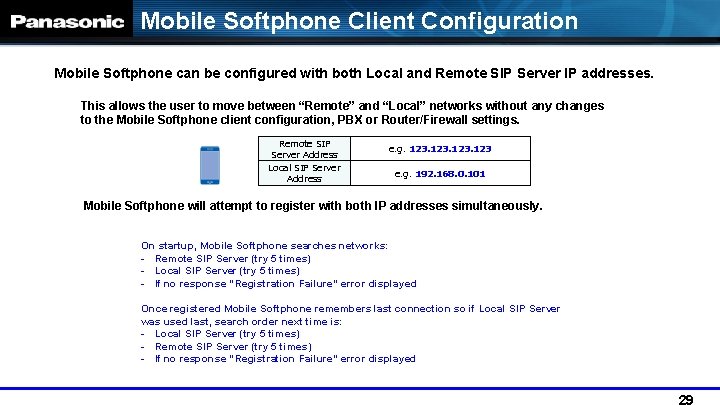
Mobile Softphone Client Configuration Mobile Softphone can be configured with both Local and Remote SIP Server IP addresses. This allows the user to move between “Remote” and “Local” networks without any changes to the Mobile Softphone client configuration, PBX or Router/Firewall settings. Remote SIP Server Address e. g. 123 Local SIP Server Address e. g. 192. 168. 0. 101 Mobile Softphone will attempt to register with both IP addresses simultaneously. On startup, Mobile Softphone searches networks: - Remote SIP Server (try 5 times) - Local SIP Server (try 5 times) - If no response “Registration Failure” error displayed Once registered Mobile Softphone remembers last connection so if Local SIP Server was used last, search order next time is: - Local SIP Server (try 5 times) - Remote SIP Server (try 5 times) - If no response “Registration Failure” error displayed
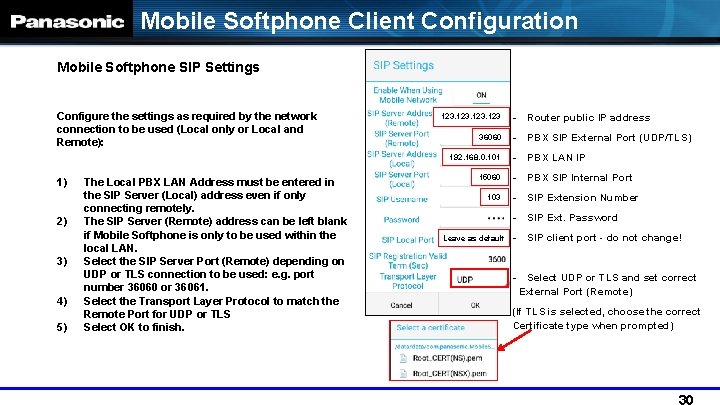
Mobile Softphone Client Configuration Mobile Softphone SIP Settings Configure the settings as required by the network connection to be used (Local only or Local and Remote): 123 36060 192. 168. 0. 101 1) 2) 3) 4) 5) The Local PBX LAN Address must be entered in the SIP Server (Local) address even if only connecting remotely. The SIP Server (Remote) address can be left blank if Mobile Softphone is only to be used within the local LAN. Select the SIP Server Port (Remote) depending on UDP or TLS connection to be used: e. g. port number 36060 or 36061. Select the Transport Layer Protocol to match the Remote Port for UDP or TLS Select OK to finish. 15060 103 - Router public IP address - PBX SIP External Port (UDP/TLS) - PBX LAN IP - PBX SIP Internal Port - SIP Extension Number - SIP Ext. Password Leave as default - SIP client port - do not change! - Select UDP or TLS and set correct External Port (Remote) (If TLS is selected, choose the correct Certificate type when prompted)
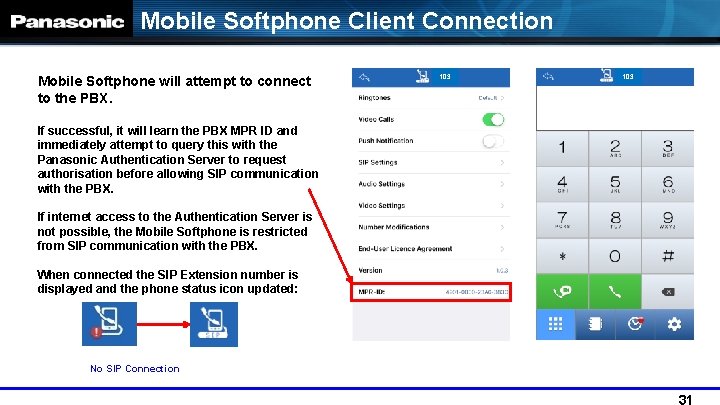
Mobile Softphone Client Connection Mobile Softphone will attempt to connect to the PBX. If successful, it will learn the PBX MPR ID and immediately attempt to query this with the Panasonic Authentication Server to request authorisation before allowing SIP communication with the PBX. If internet access to the Authentication Server is not possible, the Mobile Softphone is restricted from SIP communication with the PBX. When connected the SIP Extension number is displayed and the phone status icon updated: No SIP Connection 103
Mobile Softphone Additional Setup
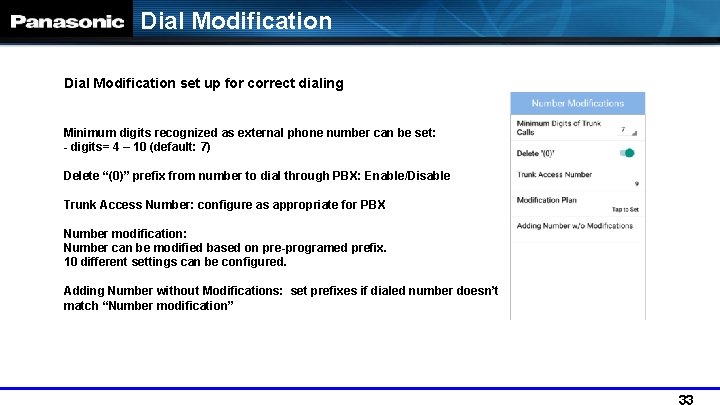
Dial Modification set up for correct dialing Minimum digits recognized as external phone number can be set: - digits= 4 – 10 (default: 7) Delete “(0)” prefix from number to dial through PBX: Enable/Disable Trunk Access Number: configure as appropriate for PBX Number modification: Number can be modified based on pre-programed prefix. 10 different settings can be configured. Adding Number without Modifications: set prefixes if dialed number doesn’t match “Number modification”
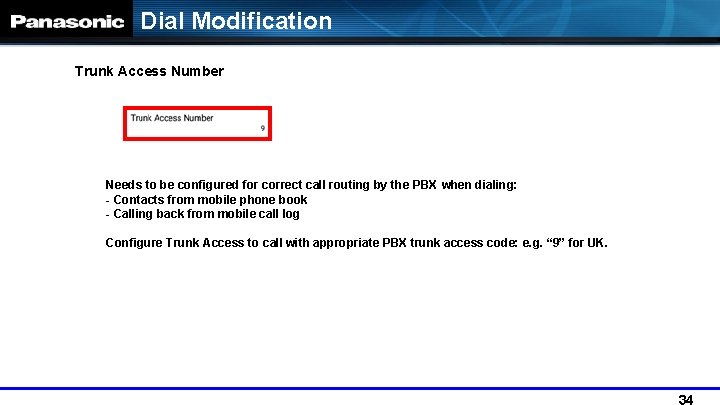
Dial Modification Trunk Access Number Needs to be configured for correct call routing by the PBX when dialing: - Contacts from mobile phone book - Calling back from mobile call log Configure Trunk Access to call with appropriate PBX trunk access code: e. g. “ 9” for UK.
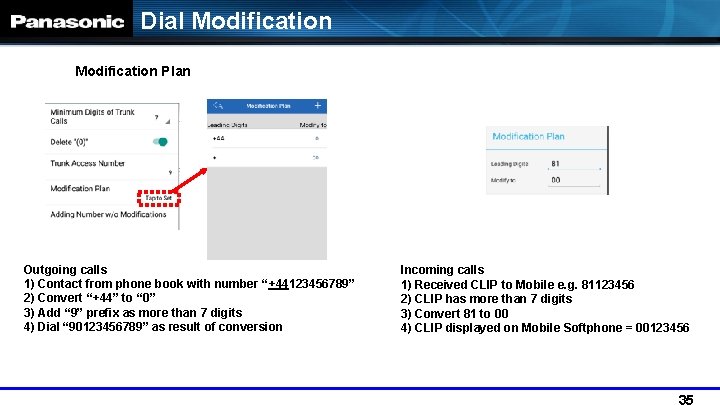
Dial Modification Plan Outgoing calls 1) Contact from phone book with number “+44123456789” 2) Convert “+44” to “ 0” 3) Add “ 9” prefix as more than 7 digits 4) Dial “ 90123456789” as result of conversion Incoming calls 1) Received CLIP to Mobile e. g. 81123456 2) CLIP has more than 7 digits 3) Convert 81 to 00 4) CLIP displayed on Mobile Softphone = 00123456
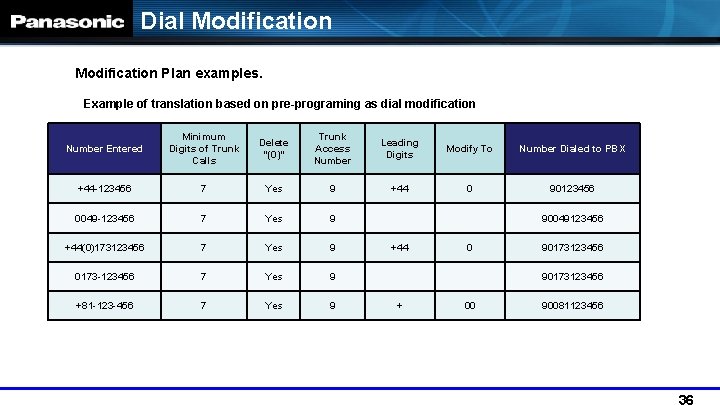
Dial Modification Plan examples. Example of translation based on pre-programing as dial modification Number Entered Minimum Digits of Trunk Calls Delete “(0)” Trunk Access Number Leading Digits Modify To Number Dialed to PBX +44 -123456 7 Yes 9 +44 0 90123456 0049 -123456 7 Yes 9 +44(0)173123456 7 Yes 9 0173 -123456 7 Yes 9 +81 -123 -456 7 Yes 9 90049123456 +44 0 90173123456 + 00 90081123456
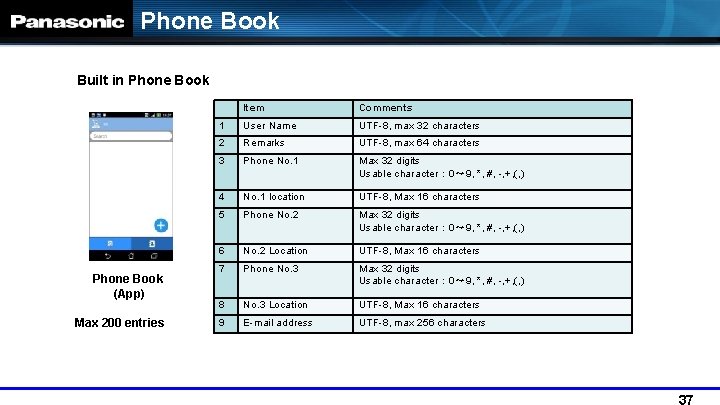
Phone Book Built in Phone Book (App) Max 200 entries Item Comments 1 User Name UTF-8, max 32 characters 2 Remarks UTF-8, max 64 characters 3 Phone No. 1 Max 32 digits Usable character : 0~ 9, *, #, -, +, (, ) 4 No. 1 location UTF-8, Max 16 characters 5 Phone No. 2 Max 32 digits Usable character : 0~ 9, *, #, -, +, (, ) 6 No. 2 Location UTF-8, Max 16 characters 7 Phone No. 3 Max 32 digits Usable character : 0~ 9, *, #, -, +, (, ) 8 No. 3 Location UTF-8, Max 16 characters 9 E-mail address UTF-8, max 256 characters
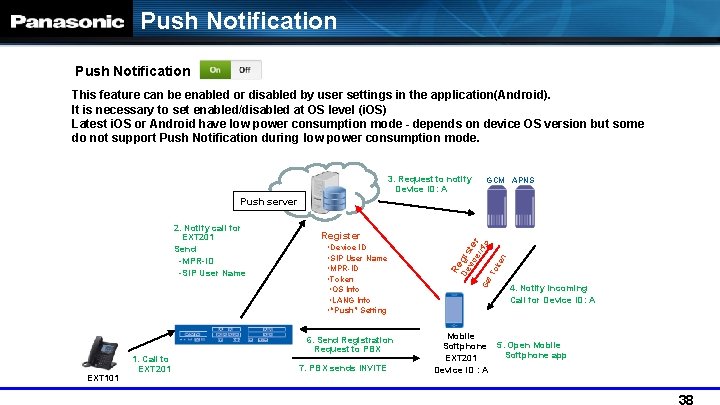
Push Notification This feature can be enabled or disabled by user settings in the application(Android). It is necessary to set enabled/disabled at OS level (i. OS) Latest i. OS or Android have low power consumption mode - depends on device OS version but some do not support Push Notification during low power consumption mode. 3. Request to notify Device ID: A GCM APNS EXT 101 1. Call to EXT 201 6. Send Registration Request to PBX 7. PBX sends INVITE g ・Device ID ・SIP User Name ・MPR-ID ・Token ・OS Info ・LANG Info ・“Push” Setting Re Register De 2. Notify call for EXT 201 Send -MPR-ID -SIP User Name vic iste ei r nf Ge o t. T ok en Push server 4. Notify incoming Call for Device ID: A Mobile Softphone 5. Open Mobile Softphone app EXT 201 Device ID : A
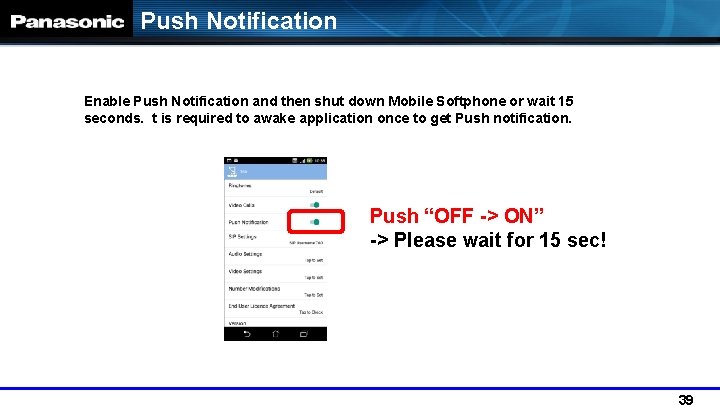
Push Notification Enable Push Notification and then shut down Mobile Softphone or wait 15 seconds. t is required to awake application once to get Push notification. Push “OFF -> ON” -> Please wait for 15 sec!
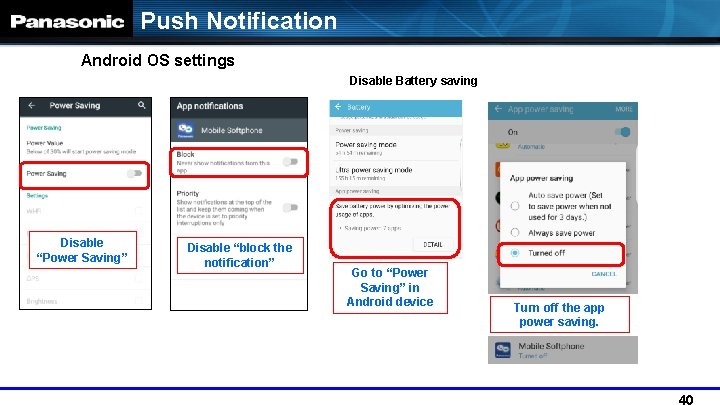
Push Notification Android OS settings Disable Battery saving Disable “Power Saving” Disable “block the notification” Go to “Power Saving” in Android device Turn off the app power saving.
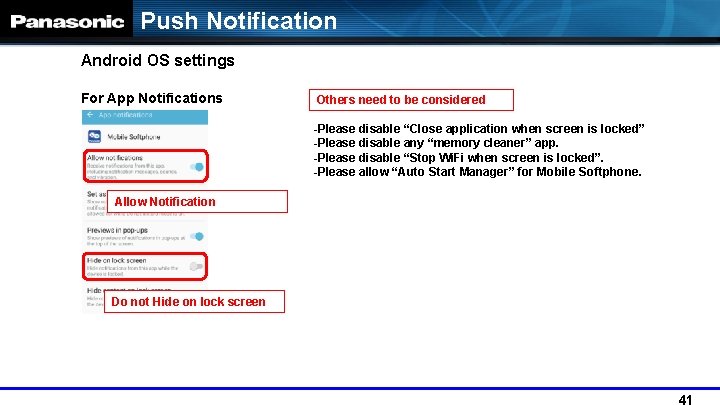
Push Notification Android OS settings For App Notifications Others need to be considered -Please disable “Close application when screen is locked” -Please disable any “memory cleaner” app. -Please disable “Stop Wi. Fi when screen is locked”. -Please allow “Auto Start Manager” for Mobile Softphone. Allow Notification Do not Hide on lock screen
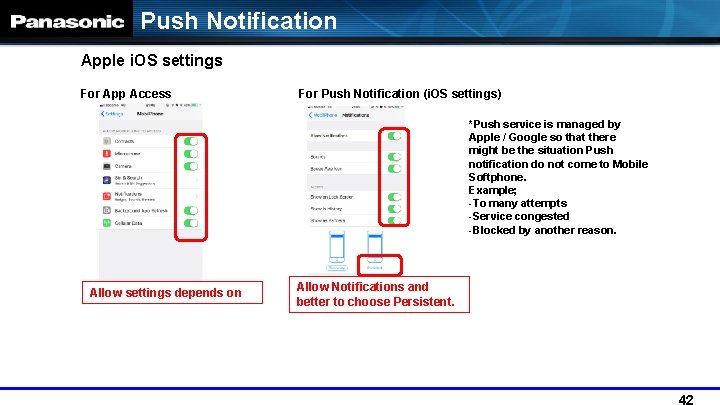
Push Notification Apple i. OS settings For App Access For Push Notification (i. OS settings) *Push service is managed by Apple / Google so that there might be the situation Push notification do not come to Mobile Softphone. Example; -To many attempts -Service congested -Blocked by another reason. Allow settings depends on Allow Notifications and better to choose Persistent.
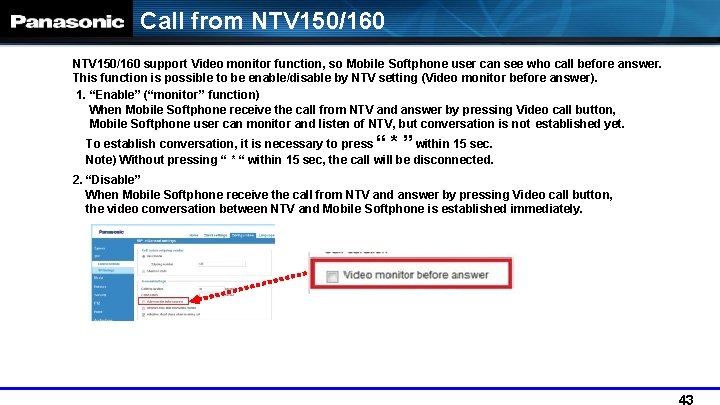
Call from NTV 150/160 support Video monitor function, so Mobile Softphone user can see who call before answer. This function is possible to be enable/disable by NTV setting (Video monitor before answer). 1. “Enable” (“monitor” function) When Mobile Softphone receive the call from NTV and answer by pressing Video call button, Mobile Softphone user can monitor and listen of NTV, but conversation is not established yet. To establish conversation, it is necessary to press “ * ” within 15 sec. Note) Without pressing “ * “ within 15 sec, the call will be disconnected. 2. “Disable” When Mobile Softphone receive the call from NTV and answer by pressing Video call button, the video conversation between NTV and Mobile Softphone is established immediately.
About SIP-ALG Please disable SIP-ALG, how to disable, please check following article https: //icomplete. freshdesk. com/support/solutions/articles/11000006588 -how-to-disable-sipalg-on-some-popular-routers- Also please check following article the reason to disable https: //support. icomplete. com/support/solutions/articles/1000165155 -what-isthe-sip-alg-setting-on-my-router-and-how-can-this-affect-my-voip-service-
Mobile Softphone Behaviour
Receiving Calls Mobile Softphone operation Receiving calls at Smartphone during conversation on Mobile Softphone: Call to the smartphone while talking on Mobile Softphone then the phone app will notify you have call as usual. If user selects Answer call then Mobile Softphone call is automatically put on hold. BT Headset Tx/Rx voice through headset is possible. No support for On/Off-hook button at headset. Ring back tone (Non selectable) Until receiving “ 180 Ringing” : Search Tone After receiving “ 180 Ringing” : Ring back tone
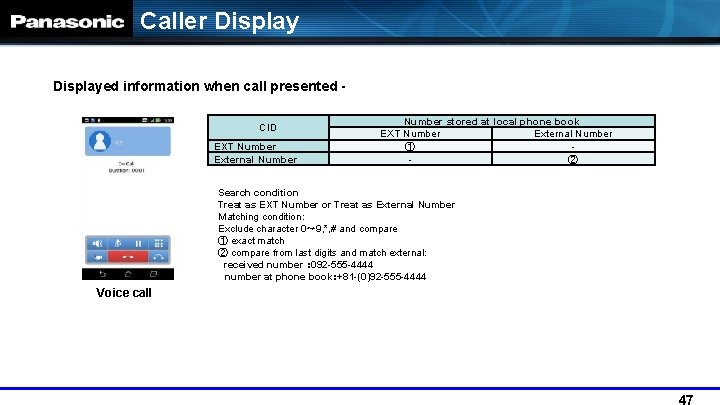
Caller Displayed information when call presented CID EXT Number External Number stored at local phone book EXT Number External Number ① ② Search condition Treat as EXT Number or Treat as External Number Matching condition: Exclude character 0~ 9, *, # and compare ① exact match ② compare from last digits and match external: received number : 092 -555 -4444 number at phone book:+81 -(0)92 -555 -4444 Voice call
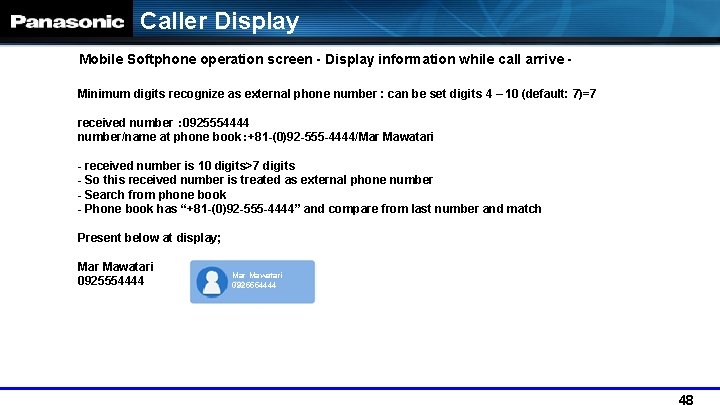
Caller Display Mobile Softphone operation screen - Display information while call arrive Minimum digits recognize as external phone number : can be set digits 4 – 10 (default: 7)=7 received number : 0925554444 number/name at phone book:+81 -(0)92 -555 -4444/Mar Mawatari - received number is 10 digits>7 digits - So this received number is treated as external phone number - Search from phone book - Phone book has “+81 -(0)92 -555 -4444” and compare from last number and match Present below at display; Mar Mawatari 0925554444
Operational difference of Mobile Softphone between Android vs i. OS version
i. OS Limitations Summary • • • User needs to tap the notification to Answer the incoming call when Mobile Softphone is running in the background. User cannot Answer the incoming call if the i. Phone is locked – must unlock the i. Phone first and then Answer. If a normal mobile call is received by the i. Phone while connected on a call through the Mobile Softphone app, the Mobile Softphone call is immediately placed on hold, even before the normal mobile call is answered.
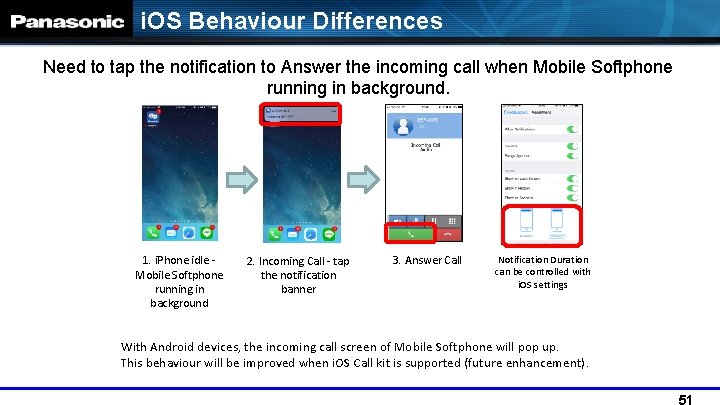
i. OS Behaviour Differences Need to tap the notification to Answer the incoming call when Mobile Softphone running in background. 1. i. Phone idle Mobile Softphone running in background 2. Incoming Call - tap the notification banner 3. Answer Call Notification Duration can be controlled with i. OS settings With Android devices, the incoming call screen of Mobile Softphone will pop up. This behaviour will be improved when i. OS Call kit is supported (future enhancement).
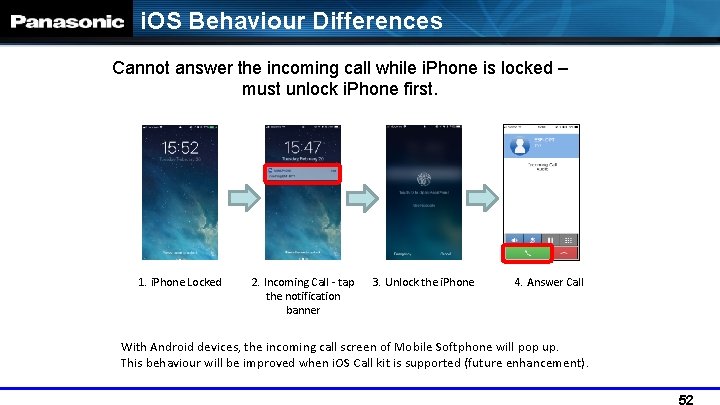
i. OS Behaviour Differences Cannot answer the incoming call while i. Phone is locked – must unlock i. Phone first. 1. i. Phone Locked 2. Incoming Call - tap the notification banner 3. Unlock the i. Phone 4. Answer Call With Android devices, the incoming call screen of Mobile Softphone will pop up. This behaviour will be improved when i. OS Call kit is supported (future enhancement).
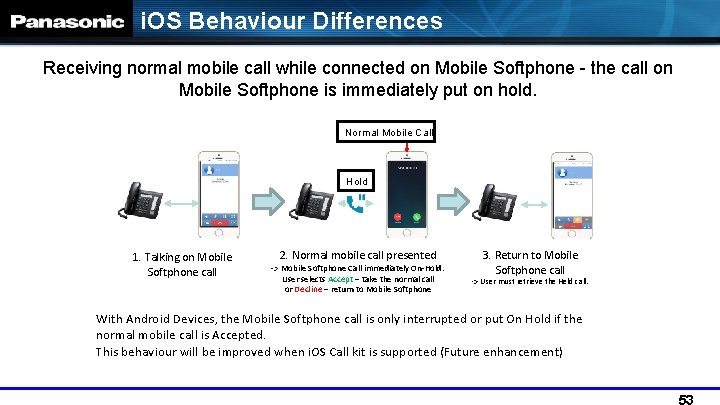
i. OS Behaviour Differences Receiving normal mobile call while connected on Mobile Softphone - the call on Mobile Softphone is immediately put on hold. Normal Mobile Call Hold 1. Talking on Mobile Softphone call 2. Normal mobile call presented -> Mobile Softphone Call immediately On-Hold. User selects Accept – take the normal call or Decline – return to Mobile Softphone 3. Return to Mobile Softphone call -> User must retrieve the Held call. With Android Devices, the Mobile Softphone call is only interrupted or put On Hold if the normal mobile call is Accepted. This behaviour will be improved when i. OS Call kit is supported (Future enhancement)
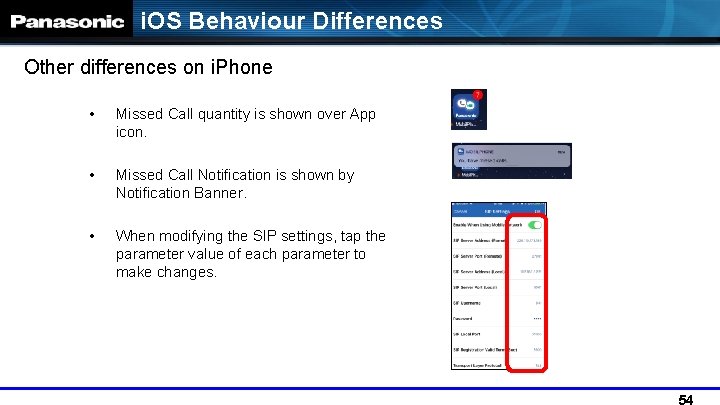
i. OS Behaviour Differences Other differences on i. Phone • Missed Call quantity is shown over App icon. • Missed Call Notification is shown by Notification Banner. • When modifying the SIP settings, tap the parameter value of each parameter to make changes.

Appendix
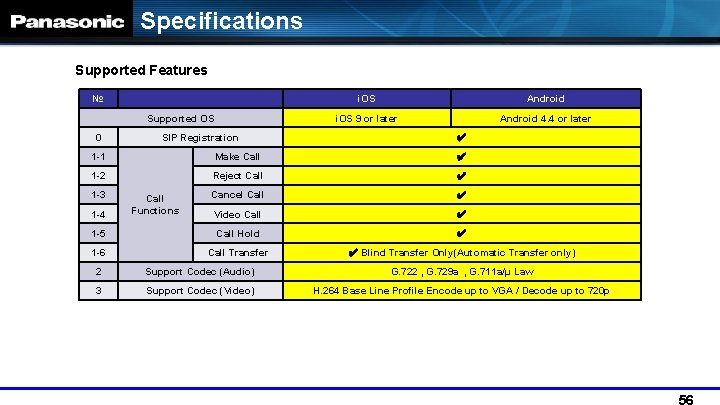
Specifications Supported Features № Supported OS 0 SIP Registration i. OS Android i. OS 9 or later Android 4. 4 or later ✔ 1 -1 Make Call ✔ 1 -2 Reject Call ✔ Cancel Call ✔ Video Call ✔ 1 -5 Call Hold ✔ 1 -6 Call Transfer ✔ Blind Transfer Only(Automatic Transfer only) 1 -3 1 -4 Call Functions 2 Support Codec (Audio) G. 722 , G. 729 a , G. 711 a/μ Law 3 Support Codec (Video) H. 264 Base Line Profile Encode up to VGA / Decode up to 720 p
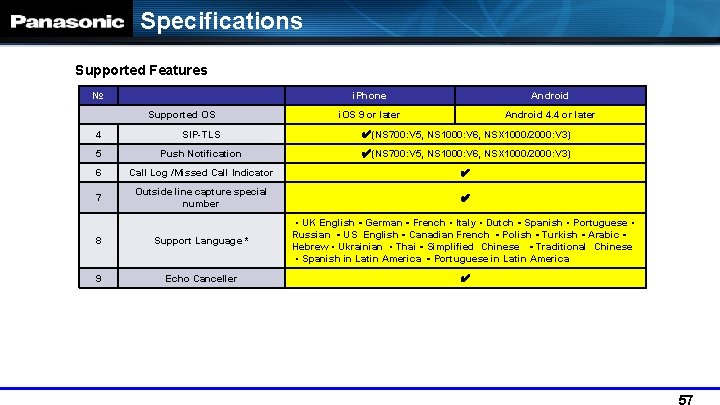
Specifications Supported Features № Supported OS i. Phone Android i. OS 9 or later Android 4. 4 or later 4 SIP-TLS ✔(NS 700: V 5, NS 1000: V 6, NSX 1000/2000: V 3) 5 Push Notification ✔(NS 700: V 5, NS 1000: V 6, NSX 1000/2000: V 3) 6 Call Log /Missed Call Indicator ✔ 7 Outside line capture special number ✔ 8 Support Language * ・UK English・German・French・Italy・Dutch・Spanish・Portuguese・ Russian ・US English・Canadian French ・Polish・Turkish・Arabic・ Hebrew・Ukrainian ・Thai・Simplified Chinese ・Traditional Chinese ・Spanish in Latin America ・Portuguese in Latin America 9 Echo Canceller ✔
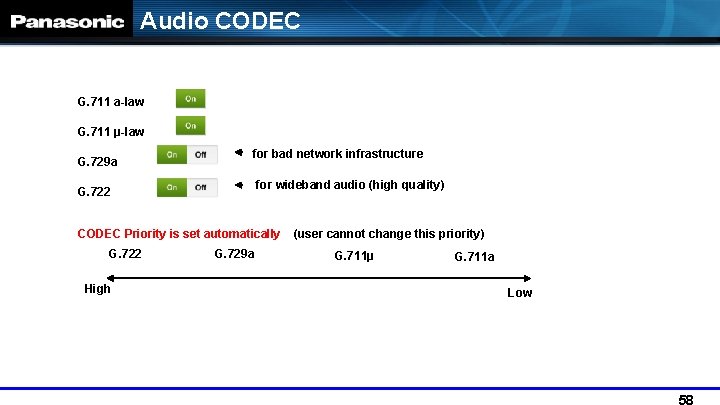
Audio CODEC G. 711 a-law G. 711 μ-law G. 729 a for bad network infrastructure for wideband audio (high quality) G. 722 CODEC Priority is set automatically G. 722 High G. 729 a (user cannot change this priority) G. 711μ G. 711 a Low
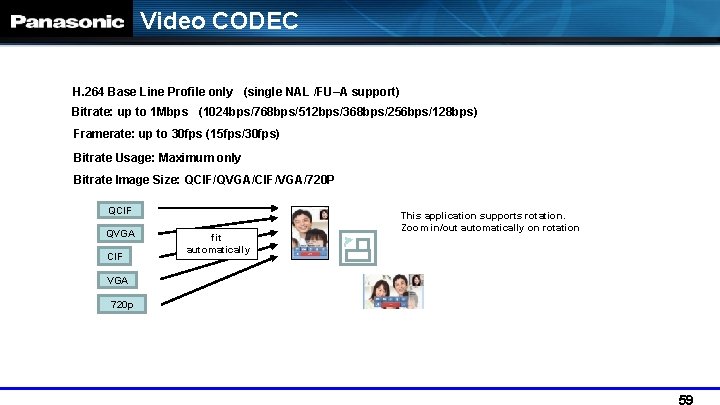
Video CODEC H. 264 Base Line Profile only (single NAL /FU–A support) Bitrate: up to 1 Mbps (1024 bps/768 bps/512 bps/368 bps/256 bps/128 bps) Framerate: up to 30 fps (15 fps/30 fps) Bitrate Usage: Maximum only Bitrate Image Size: QCIF/QVGA/CIF/VGA/720 P QCIF QVGA CIF VGA 720 p fit automatically This application supports rotation. Zoom in/out automatically on rotation
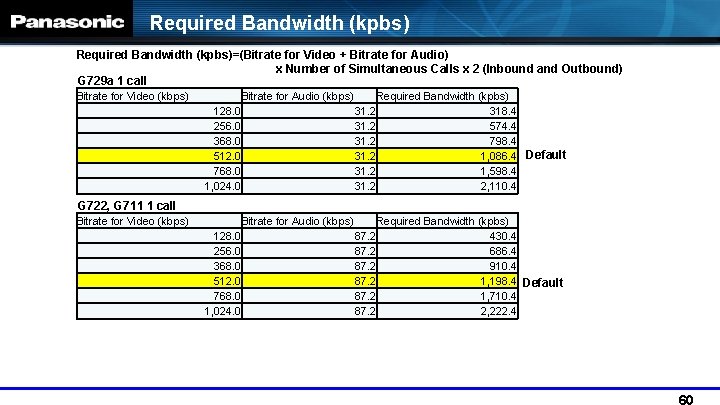
Required Bandwidth (kpbs)=(Bitrate for Video + Bitrate for Audio) x Number of Simultaneous Calls x 2 (Inbound and Outbound) G 729 a 1 call Bitrate for Video (kbps) Bitrate for Audio (kbps) Required Bandwidth (kpbs) 128. 0 31. 2 318. 4 256. 0 31. 2 574. 4 368. 0 31. 2 798. 4 512. 0 31. 2 1, 086. 4 Default 768. 0 31. 2 1, 598. 4 1, 024. 0 31. 2 2, 110. 4 G 722, G 711 1 call Bitrate for Video (kbps) Bitrate for Audio (kbps) Required Bandwidth (kpbs) 128. 0 87. 2 430. 4 256. 0 87. 2 686. 4 368. 0 87. 2 910. 4 512. 0 87. 2 1, 198. 4 Default 768. 0 87. 2 1, 710. 4 1, 024. 0 87. 2 2, 222. 4
Wireless. LAN Vo. IP Roaming Mobile Softphone Wireless LAN Roaming Behaviour Please note the following information is for reference only and does not provide any guarantee of performance of Panasonic products used in a customer Wireless LAN environment. The results are only to be used as a guide for how a Wireless Network should be configured to provide the best possibility of Mobile Softphone handover operation.
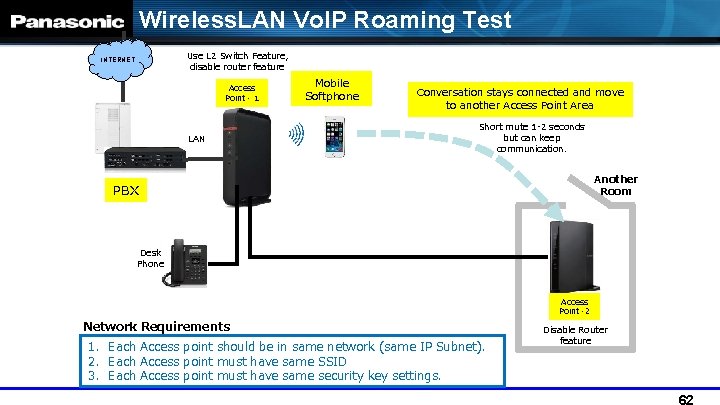
Wireless. LAN Vo. IP Roaming Test Use L 2 Switch Feature, disable router feature INTERNET Access Point - 1 LAN Mobile Softphone Conversation stays connected and move to another Access Point Area Short mute 1 -2 seconds but can keep communication. Another Room PBX Desk Phone Access Point -2 Network Requirements 1. Each Access point should be in same network (same IP Subnet). 2. Each Access point must have same SSID 3. Each Access point must have same security key settings. Disable Router feature
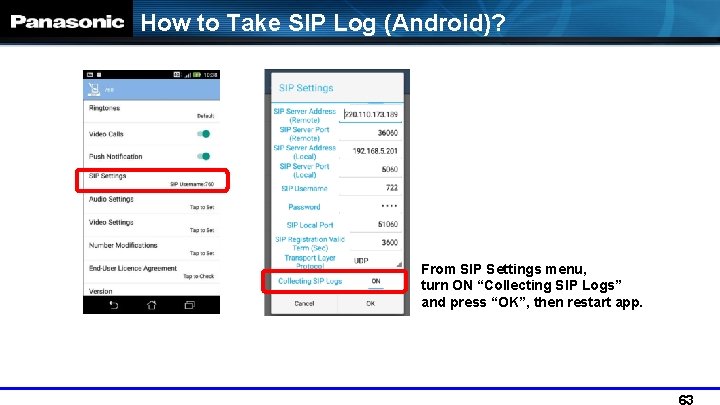
How to Take SIP Log (Android)? From SIP Settings menu, turn ON “Collecting SIP Logs” and press “OK”, then restart app.
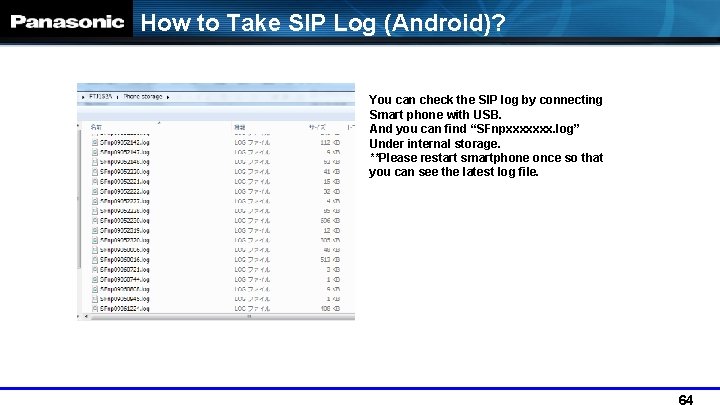
How to Take SIP Log (Android)? You can check the SIP log by connecting Smart phone with USB. And you can find “SFnpxxxxxxx. log” Under internal storage. **Please restart smartphone once so that you can see the latest log file.
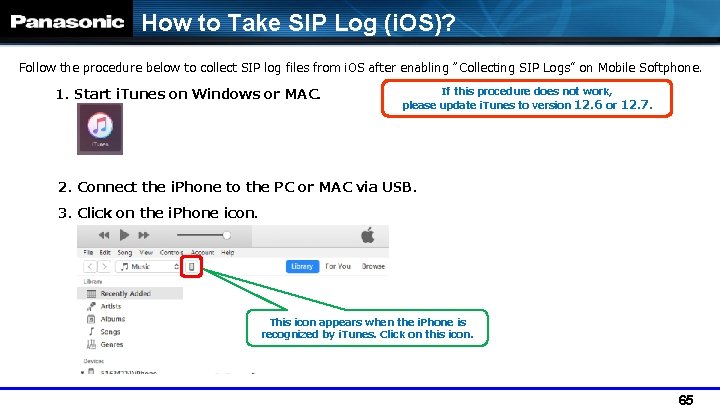
How to Take SIP Log (i. OS)? Follow the procedure below to collect SIP log files from i. OS after enabling “Collecting SIP Logs” on Mobile Softphone. 1. Start i. Tunes on Windows or MAC. If this procedure does not work, please update i. Tunes to version 12. 6 or 2. Connect the i. Phone to the PC or MAC via USB. 3. Click on the i. Phone icon. This icon appears when the i. Phone is recognized by i. Tunes. Click on this icon. 12. 7.
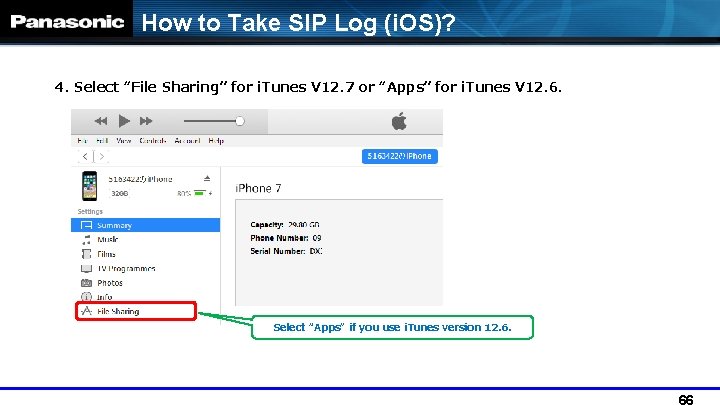
How to Take SIP Log (i. OS)? 4. Select “File Sharing” for i. Tunes V 12. 7 or “Apps” for i. Tunes V 12. 6. Select “Apps” if you use i. Tunes version 12. 6.
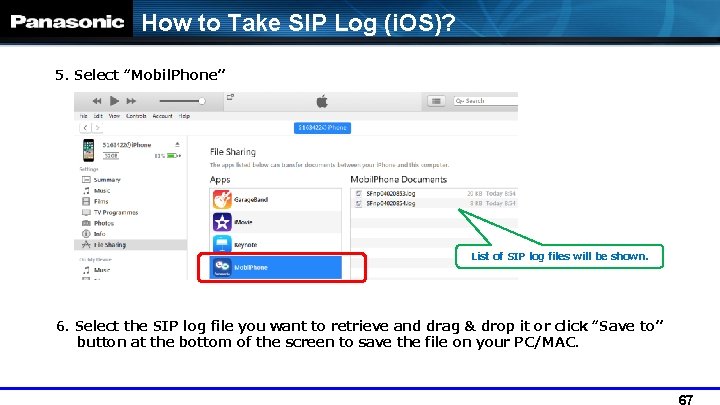
How to Take SIP Log (i. OS)? 5. Select “Mobil. Phone” List of SIP log files will be shown. 6. Select the SIP log file you want to retrieve and drag & drop it or click “Save to” button at the bottom of the screen to save the file on your PC/MAC.

END
- Slides: 68