
Mobile Programming Lecture 3 Debugging Lecture 2 Review
Mobile Programming Lecture 3 Debugging
Lecture 2 Review • • • What widget would you use to allow the user to enter o a yes/no value o a range of values from 1 to 100 What's the benefit of a Relative. Layout over Linear. Layout? How many ways can you set an event listener?
Lecture 2 Review • • • How do you make the android: input. Type attribute of an Edit. Text both text. Cap. Characters and text. Multi. Line? Why should you use a @string resource for Text. Views instead of hardcoding the string? If you use the same android: on. Click value for multiple views, how do you determine which one was clicked?

Agenda • Debugging using Toast. . . • Log. Cat • Debug Perspective • Importing existing projects into Eclipse • Lab debugging assignment
Debugging using Toast. . . • A Toast is an easy way to debug your app • . . . sometimes

Try not to debug using Toast! • it's slower o especially if you're using multiple Toasts • it doesn't persist o after the Toast is gone, you may not have seen all of the debug information, then you'll have to run it again • sometimes the code for a Toast will be correct, but the Toast just won't show! o depends on the state of the application
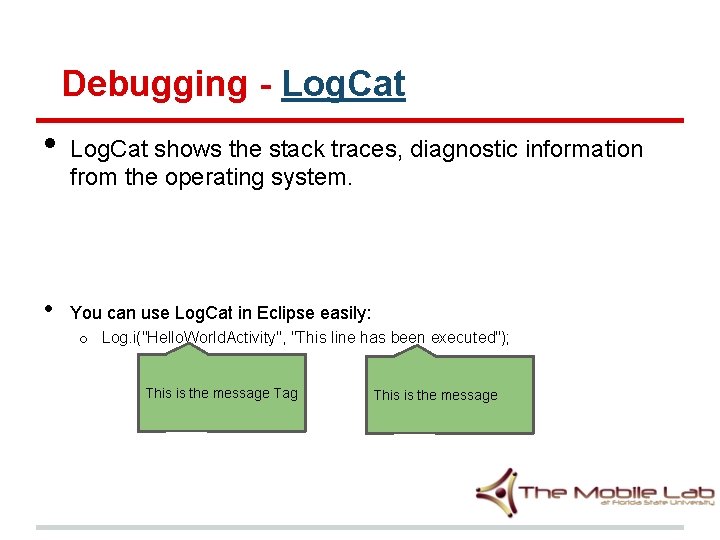
Debugging - Log. Cat • • Log. Cat shows the stack traces, diagnostic information from the operating system. You can use Log. Cat in Eclipse easily: o Log. i("Hello. World. Activity", "This line has been executed"); This is the message Tag This is the message

Debugging - Log. Cat Log. i("Hello. World. Activity", "This line has been executed"); Log. i("Hello. World. Activity", "Value of x = " + x);

Debugging - Log. Cat Log. i("Hello. World. Activity", "This line has been executed"); Log. i("Hello. World. Activity", "Value of x = " + x); This is the message. Prints the value of x to the Log
Debugging - Log. Cat A good convention is to declare a TAG constant in your class
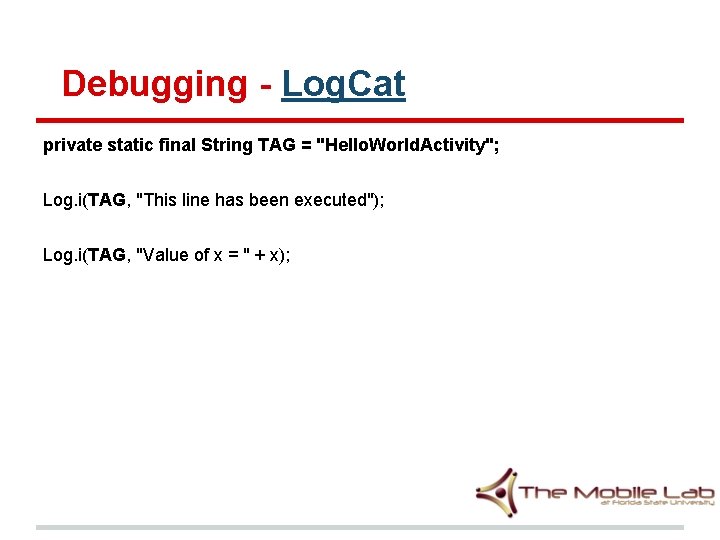
Debugging - Log. Cat private static final String TAG = "Hello. World. Activity"; Log. i(TAG, "This line has been executed"); Log. i(TAG, "Value of x = " + x);
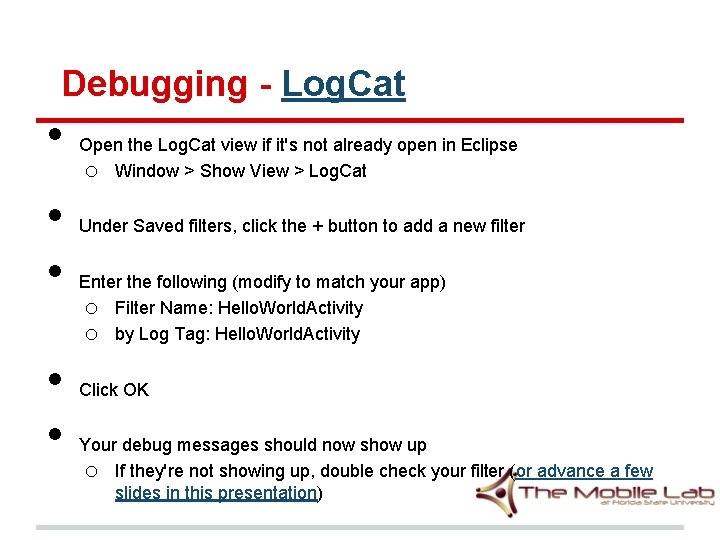
Debugging - Log. Cat • • • Open the Log. Cat view if it's not already open in Eclipse o Window > Show View > Log. Cat Under Saved filters, click the + button to add a new filter Enter the following (modify to match your app) o Filter Name: Hello. World. Activity o by Log Tag: Hello. World. Activity Click OK Your debug messages should now show up o If they're not showing up, double check your filter (or advance a few slides in this presentation)
Debugging - Log. Cat You can view Log. Cat information up until you close Eclipse (or probably until you run out of memory dedicated to Log. Cat)
Debugging - Debug Perspective Another way to debug is by using breakpoints, which you may already be familiar with from an IDE other than Eclipse • Add breakpoints to lines in your code where you want to pause your program • To start debugging, you can do one of the following o press F 11 o Run > Debug If your application gets to your breakpoint, it will pause there
Debugging - Debug Perspective • • If it asks whether you want to switch to Debug Perspective, say yes In the Expressions View of the Debug Perspective, you can add variables to see what their values are at the breakpoint o • e. g. , if you have int x somewhere in your code, try adding x to You may have to open the view first § • Window > Show View > Expressions Buttons in the Debug View allow you to continue or step through the rest of the code o Resume, Step Into, Step Over, etc
Exporting projects from Eclipse To export a project from Eclipse • Right click your project > Export > General > Archive File • Next • Select your project if necessary • Options > Save in tar format preferably (zip will work as well) • Browse. . . • Finish Submit your homework assignments and projects in these formats
Importing projects into Eclipse Most code examples that I post will be. tar (or. zip) archive files To import an existing project into Eclipse • Download the archive file • Navigate to File > Import. . . > General > Existing Project into workspace • Choose "Select archive file" • Browse for the downloaded file and select it • Finish I may include a README file in the root directory with instructions that you need to follow
References • The Busy Coder's Guide to Android Development - Mark Murphy • Android Developers • The Mobile Lab at Florida State University
- Slides: 18