
Mobile Programming Lecture 2 Layouts Widgets Toasts and
Mobile Programming Lecture 2 Layouts, Widgets, Toasts, and Event Handling
Lecture 1 Review • • • How to edit XML files in Eclipse? What holds all elements (Views) that appear to the user in an Activity? When should you make changes to R. java? Give an example of a View (something in Android that extends View) How to add a new XML Layout file?
Today's Agenda • Widgets o • Text. View, Edit. Text, Buttons, Seek. Bar, Number. Picker Layouts o Linear. Layout, Relative. Layout, Table. Layout • Toasts • Event Handling
Widgets - Finding available Widgets • • • To see some of the available Widgets, open one of the XML files in res/layout View the XML file as Graphical Layout using the tabs at the bottom of the window Select a category in the left pane if necessary (e. g. Form Widgets)
Widgets • • All of these widgets are subclasses of the View class (i. e. , View is the base class for widgets) Try to avoid modifying XML files directly if you can o use Forms or WYSIWYG "wizzy wig" instead

Widgets - Examples • • • Text. Views o displays text in your Activity Edit. Text o allows the user to enter some text Button Can be pressed by the user to perform an action o Check. Box o Radio. Group o Toggle. Button o
Widgets - id's • • Id's are not required for each widget R. java stores the id's for your widgets. How does the id's set and get? o Remember, don't edit the R. java file!
Widgets - id's • 2 ways to add a widget and set its android: id value • Using the Graphical Layout editor o Drag and drop a widget onto the canvas o Right click on the widget and select "Edit ID. . . " • Using the XML editor o type the XML code needed for the widget that you want o add android: id="@+id/id_name“ to its attributes
Widgets - id's Save your file, and the id will automatically be added R. java • android: id="@+id/id_name" @ tells the XML parser to expand the rest of the id string and treat it as an ID resource + is what causes the id to be added to R. java o o
Widgets As you may have noticed, you can do this for attributes other than the android: id attribute You can explore your options by right clicking on anything on the canvas
Widgets - layout_height/width Always set the android: layout_height android: layout_width attributes in the XML file for your widgets. • NOT doing so is an easy way to get Force close • Drag and drop onto the canvas so that you don't have to worry about this
Widgets - layout_height/width Values for android: layout_height android: layout_width • • • "wrap_content" o big enough to hold it's contents "match_parent" o make the specified dimension as big as its parent "fill_parent" o being deprecated, replaced by "match_parent"
Widgets - Text. View We will experiment with some of the attributes for the Text. View widget • android: text o e. g. "Hello World!" • android: text. Size o e. g. "20 dp" o android: text. Size should be specified in dp (density-pixels), so that phones with different pixels-per-inch can be supported • android: text. Style o e. g. "italic" • android: text. Color o e. g. #FFFFFF
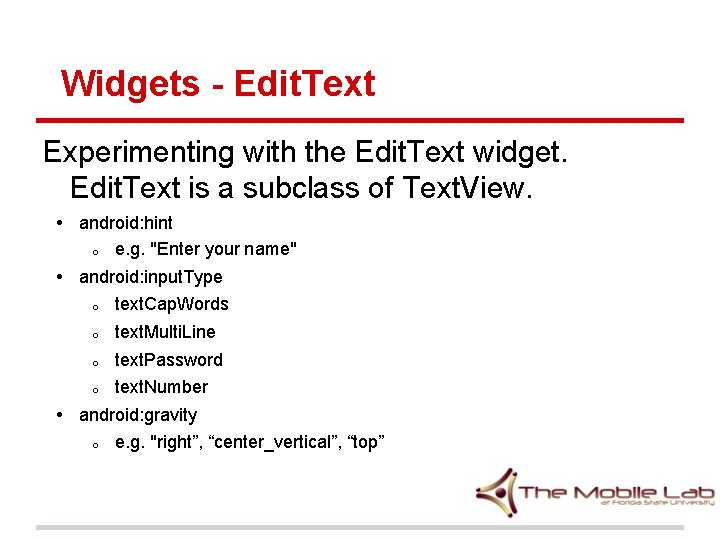
Widgets - Edit. Text Experimenting with the Edit. Text widget. Edit. Text is a subclass of Text. View. • android: hint o e. g. "Enter your name" • android: input. Type o text. Cap. Words o text. Multi. Line o text. Password o text. Number • android: gravity o e. g. "right”, “center_vertical”, “top”
Widgets - Gravity • • Android: gravity sets the gravity of the content of the View its used on. Android: layout_gravity sets the gravity of the View or Layout in its parent.
Widgets - Button Experimenting with the Button widget. Button is a subclass of Text. View. • android: input. Type • android: gravity
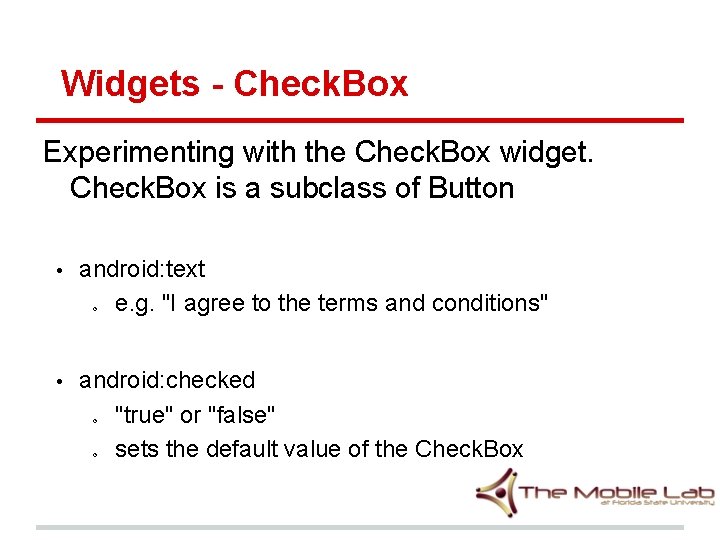
Widgets - Check. Box Experimenting with the Check. Box widget. Check. Box is a subclass of Button • android: text e. g. "I agree to the terms and conditions" o • android: checked "true" or "false" sets the default value of the Check. Box o o
Widgets - Radio. Group / Radio. Button • • You usually want to drag a Radio. Group onto the canvas first It's easy to drag and drop or remove Radio. Buttons to the Radio. Group
Widgets - Radio. Button Experimenting with the Radio. Button widget. Radio. Button is a subclass of Button • android: text o e. g. "Female" • android: checked o "true" or "false" o sets the default value of the Radio. Button
Widgets - Toggle. Button Experimenting with the Toggle. Button widget. Toggle. Button is a subclass of Button • android: text. On o e. g. "GPS Enabled" default value is "On" android: text. Off e. g. "GPS Disabled" default value is "Off" android: checked o "true" or "false" o sets the default value of the Toggle. Button o • o o •
Widgets - Seek. Bar Experimenting with the Seek. Bar widget. • android: max e. g. "100" you can't set the min, it's always 0 o o • android: progress e. g. "50" sets the current position of the slider on the Seek. Bar o o
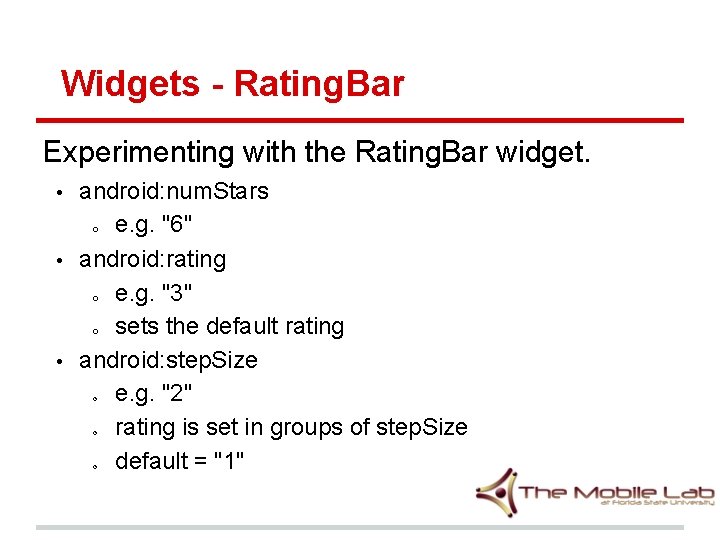
Widgets - Rating. Bar Experimenting with the Rating. Bar widget. • • • android: num. Stars o e. g. "6" android: rating o e. g. "3" o sets the default rating android: step. Size e. g. "2" rating is set in groups of step. Size default = "1" o o o
Layouts You can add multiple Layouts to the canvas!
Layouts • Linear. Layout • Relative. Layout • Table. Layout
Layouts - Linear. Layout Review Only allows you to arrange widgets in a linear direction • horizontally or vertically • sometimes this is all you need!
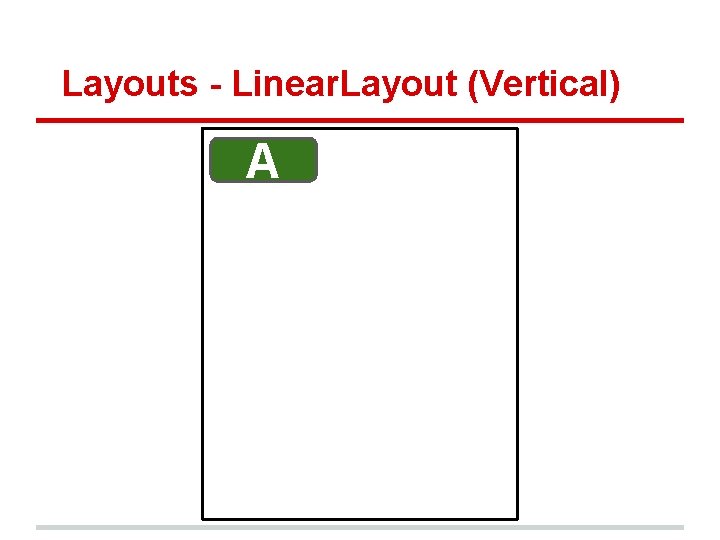
Layouts - Linear. Layout (Vertical) A
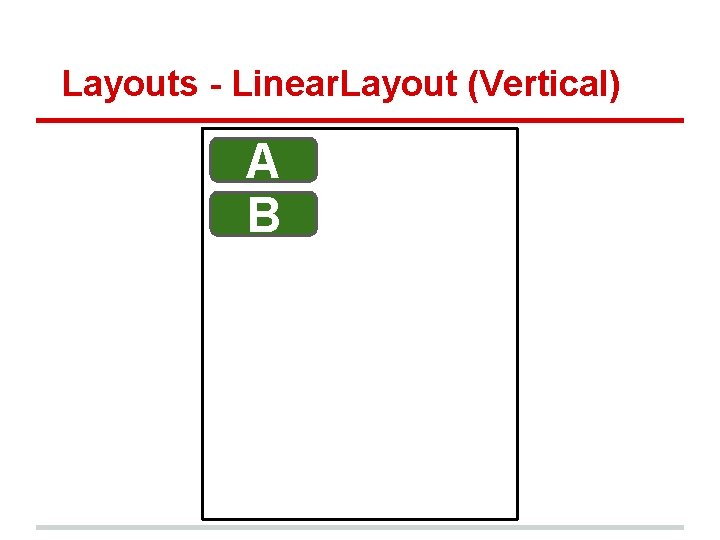
Layouts - Linear. Layout (Vertical) A B
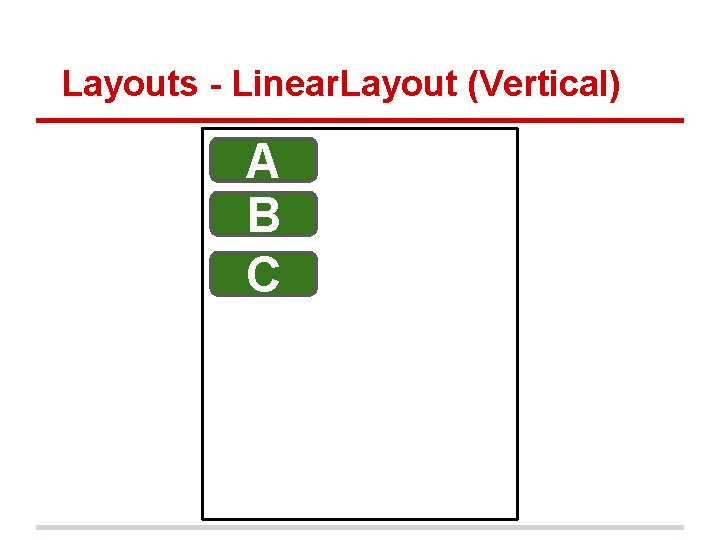
Layouts - Linear. Layout (Vertical) A B C
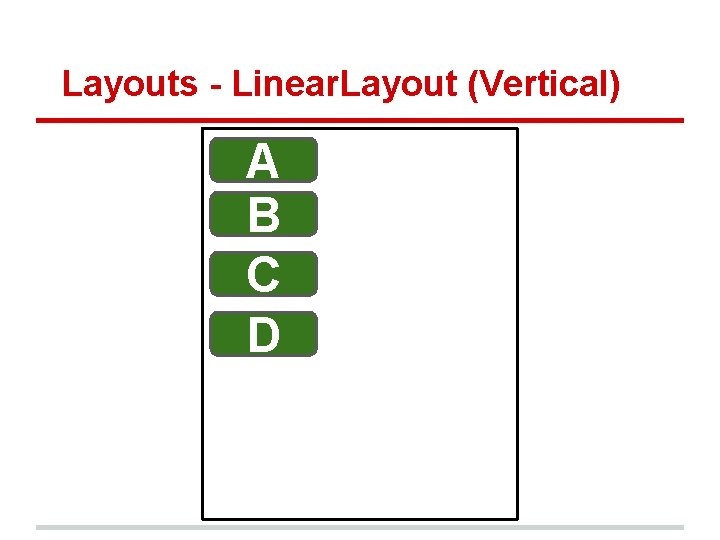
Layouts - Linear. Layout (Vertical) A B C D
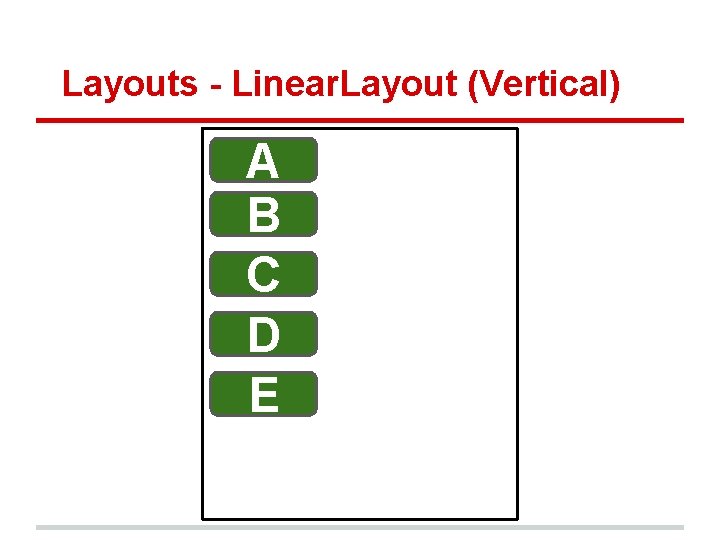
Layouts - Linear. Layout (Vertical) A B C D E
Layouts - Linear. Layout • • • Nesting Linear. Layouts can degrade performance http: //developer. android. com/training/improvi ng-layouts/optimizing-layout. html For your homeworks and projects, only use Linear. Layout when you have good reason to do so
Layouts • • Try not to waste too much time on editing the Layout in the XML editor If you want to switch from Linear. Layout to another Layout Right click canvas o Change Layout. . . o Select a different Layout o
Layouts • • Want to add an entirely new UI? Right click your project > New > Android XML File o Resource Type: Layout o File: xml_file_name. xml o Root Element: e. g. Relative. Layout o This stores the new XML file in res/layout
Layouts - Relative. Layout • Allows you to specify the position of one view B relative to another view A
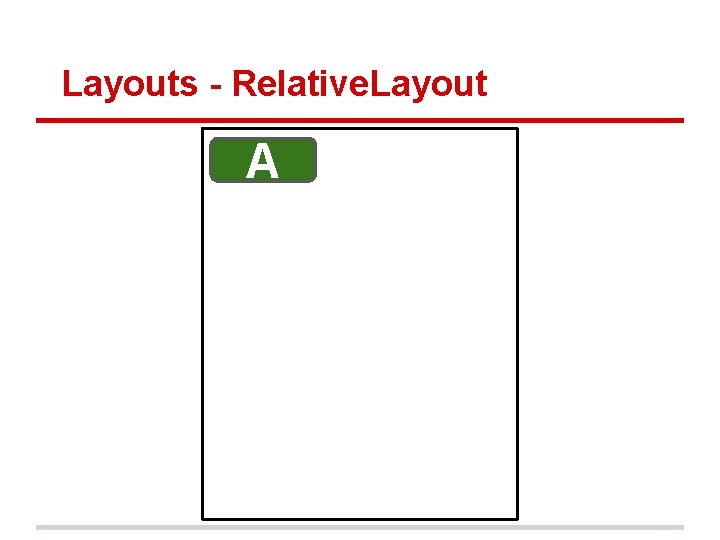
Layouts - Relative. Layout A
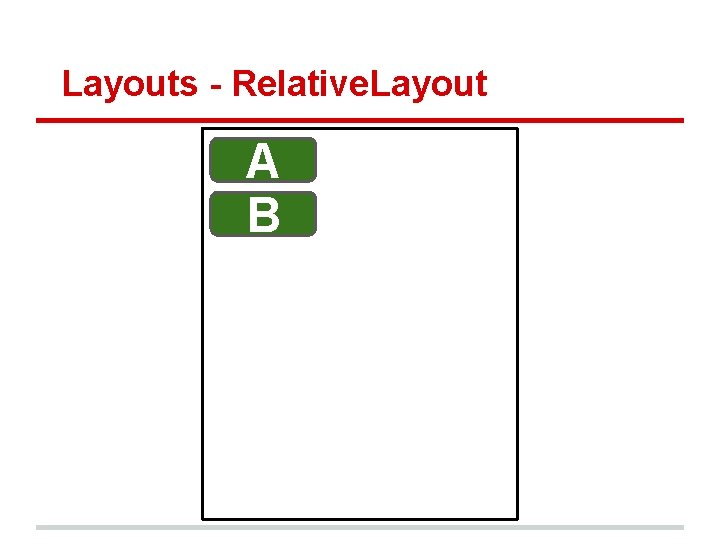
Layouts - Relative. Layout A B
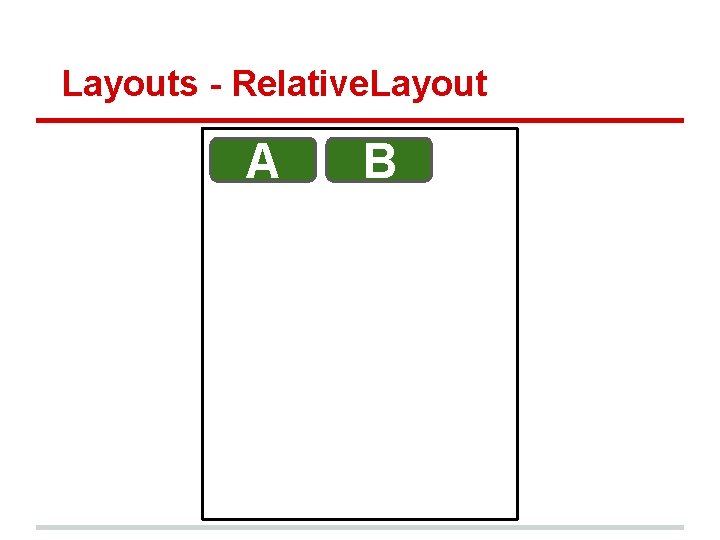
Layouts - Relative. Layout A B
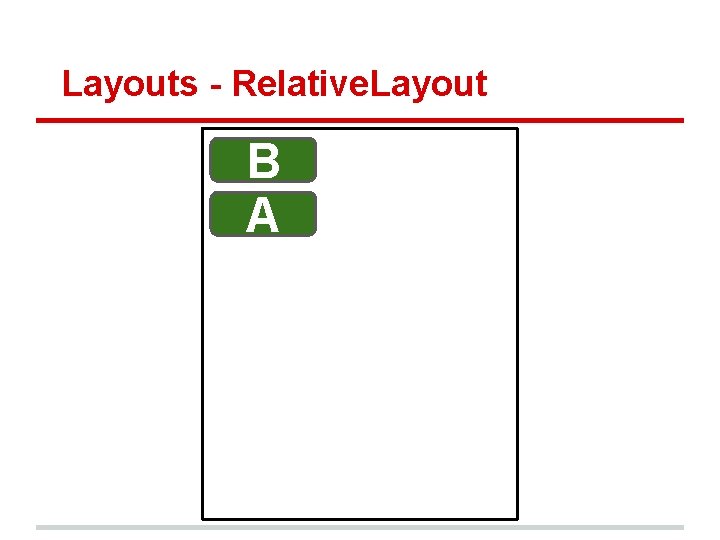
Layouts - Relative. Layout B A
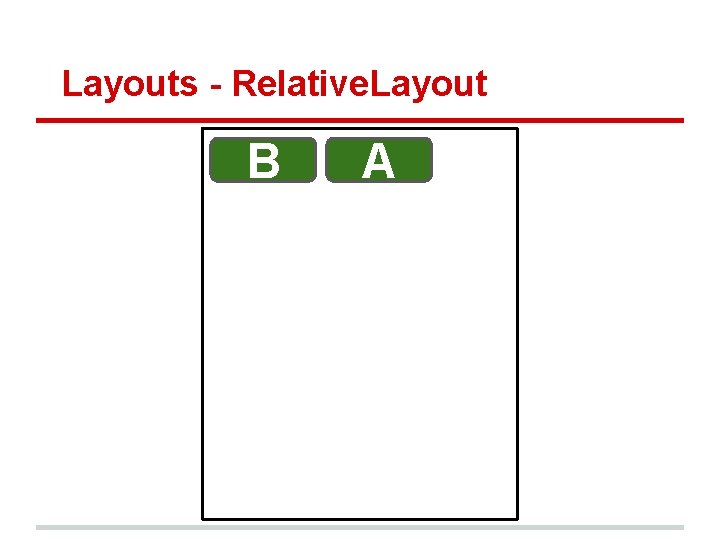
Layouts - Relative. Layout B A
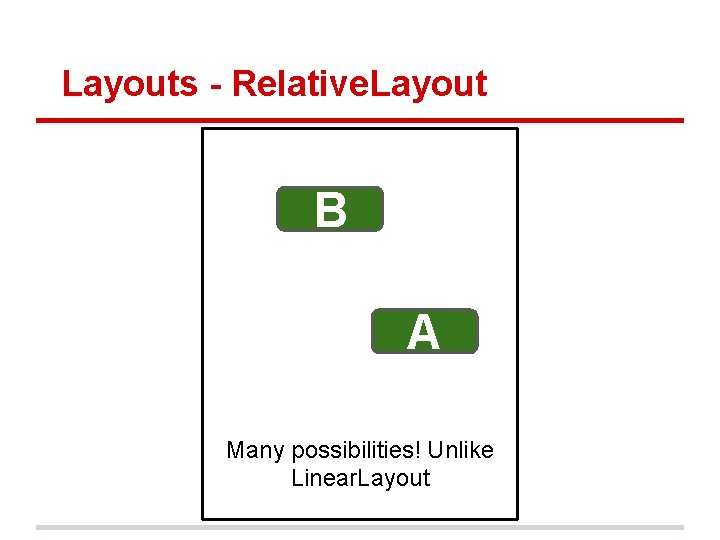
Layouts - Relative. Layout B A Many possibilities! Unlike Linear. Layout
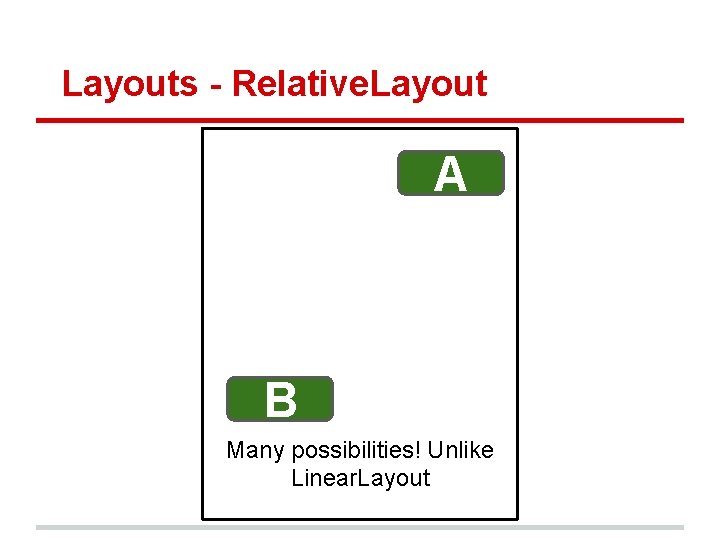
Layouts - Relative. Layout A B Many possibilities! Unlike Linear. Layout
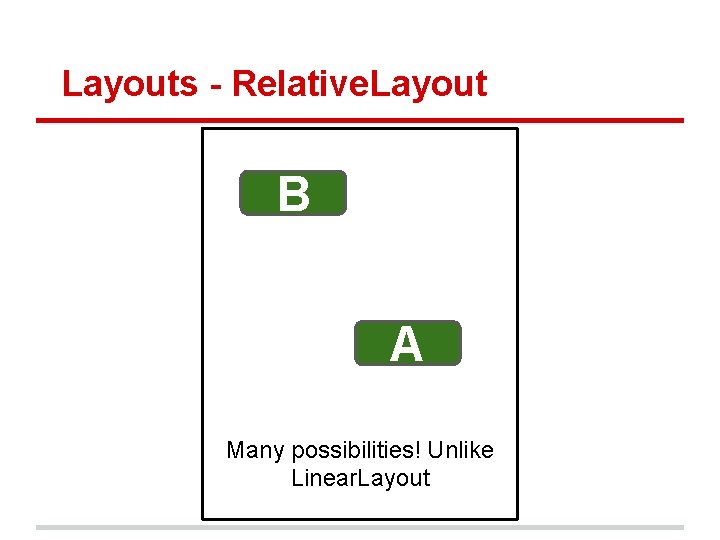
Layouts - Relative. Layout B A Many possibilities! Unlike Linear. Layout
Layouts - Relative. Layout • • • Many more possibilities for arranging your widgets, unlike Linear. Layout. Relative. Layout > Linear. Layout http: //developer. android. com/guide/topics/ui/l ayout/relative. html
Layouts - Table. Layout • • Displays widgets in rows and columns similar to HTML tables Your Table. Layout usually consists of Table. Rows, which lay their children out horizontally layout_width attribute of Table. Layout's children are forced to be match_parent (even if you set it yourself) Likewise, layout_height of a Table. Row is forced to be wrap_content
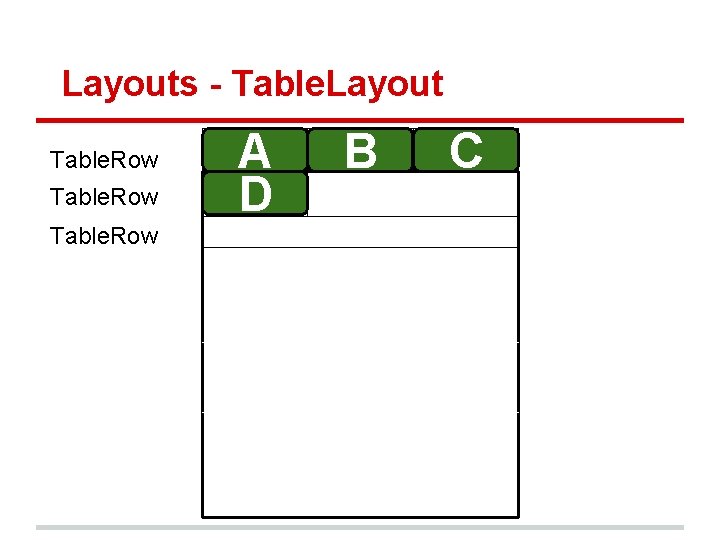
Layouts - Table. Layout Table. Row A D B C
Layouts - Oversized Layouts • • If you have some widgets that aren't being displayed on the screen, it could be because there isn't enough space on the screen to show them all You won't be able to scroll by default
Layouts - Scroll. View To solve this: • • Add a Scroll. View view to the root of your root layout (can be Linear. Layout) Move your main Layout to root of the Scroll. View (e. g. Relative. Layout)
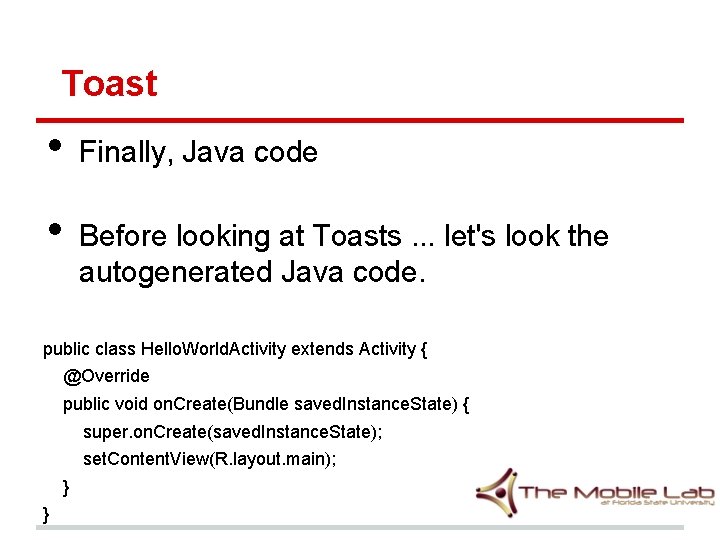
Toast • • Finally, Java code Before looking at Toasts. . . let's look the autogenerated Java code. public class Hello. World. Activity extends Activity { @Override public void on. Create(Bundle saved. Instance. State) { super. on. Create(saved. Instance. State); set. Content. View(R. layout. main); } }
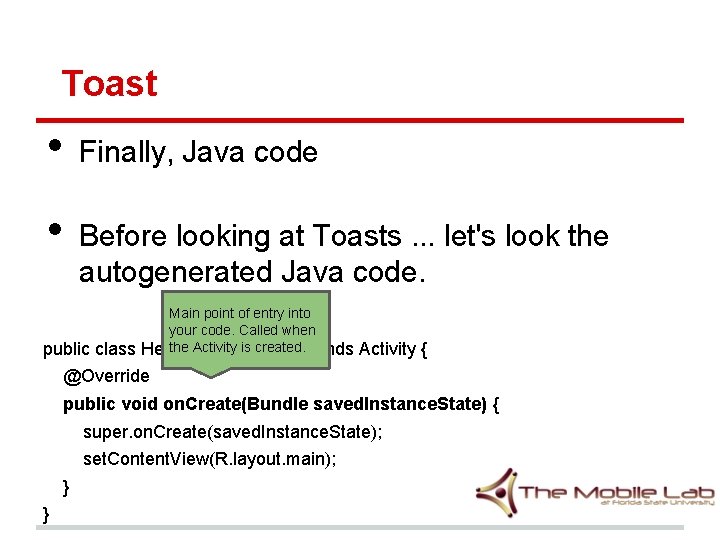
Toast • • Finally, Java code Before looking at Toasts. . . let's look the autogenerated Java code. public class Main point of entry into your code. Called when the Activity is created. Hello. World. Activity extends Activity { @Override public void on. Create(Bundle saved. Instance. State) { super. on. Create(saved. Instance. State); set. Content. View(R. layout. main); } }
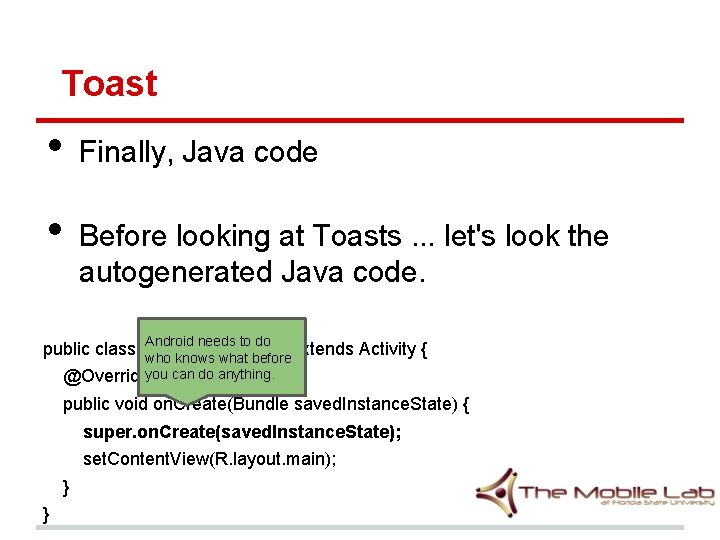
Toast • • Finally, Java code Before looking at Toasts. . . let's look the autogenerated Java code. Android needs to do public class Hello. World. Activity extends Activity { who knows what before @Overrideyou can do anything. public void on. Create(Bundle saved. Instance. State) { super. on. Create(saved. Instance. State); set. Content. View(R. layout. main); } }
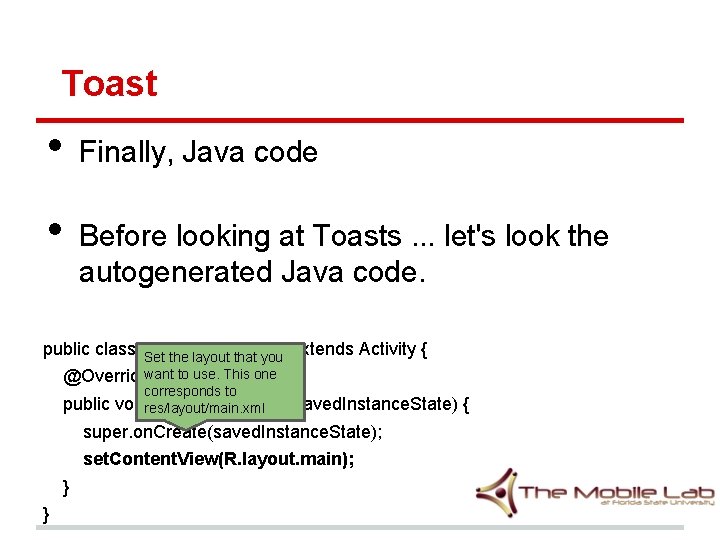
Toast • • Finally, Java code Before looking at Toasts. . . let's look the autogenerated Java code. public class Hello. World. Activity extends Activity { Set the layout that you @Overridewant to use. This one public corresponds to voidres/layout/main. xml on. Create(Bundle saved. Instance. State) { super. on. Create(saved. Instance. State); set. Content. View(R. layout. main); } }
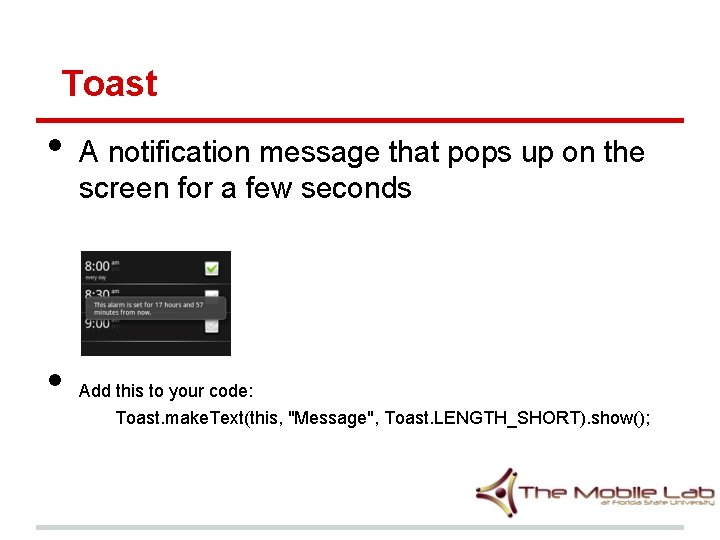
Toast • • A notification message that pops up on the screen for a few seconds Add this to your code: Toast. make. Text(this, "Message", Toast. LENGTH_SHORT). show();
Toast • • There are several reasons why your Toast won't show up on the screen One reason is that you probably forgot the. show() part of the Toast code.
Events - Event driven programming • • • Android is event-driven The flow of code depends on events, unlike programs you normally write in C++ If you've written Java. Script code before then you've probably done event-driven programming
Events - examples events • • Call a method when the user o clicks a button o checks a checkbox o pulls back on and lets go of slingshot in Angry Birds Call a method when the system receives an SMS o receives a phone call o completely loads a web page in the browser o
Events - View • Every View can react to the on. Click event • Layouts are also Views!
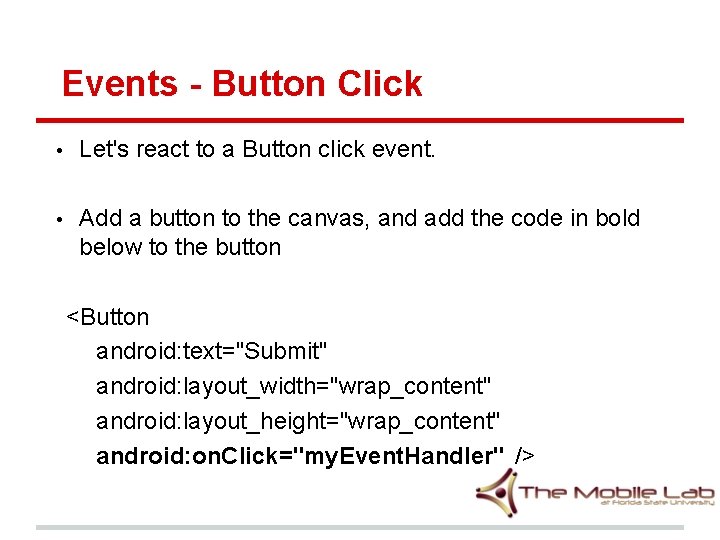
Events - Button Click • Let's react to a Button click event. • Add a button to the canvas, and add the code in bold below to the button <Button android: text="Submit" android: layout_width="wrap_content" android: layout_height="wrap_content" android: on. Click="my. Event. Handler" />
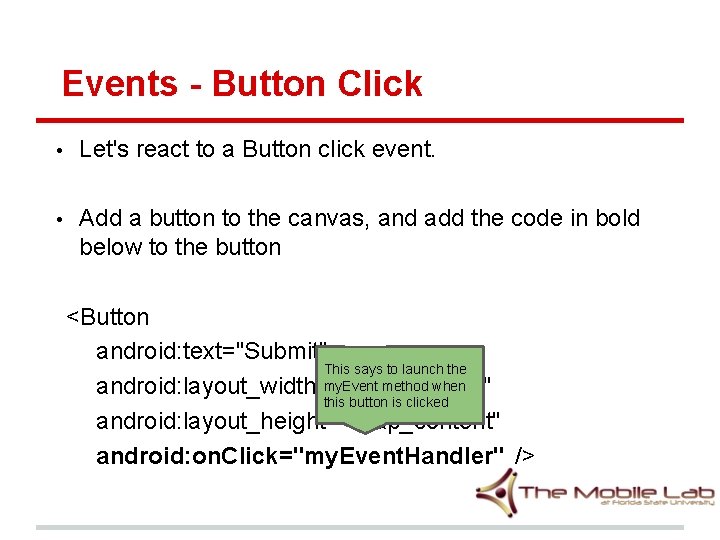
Events - Button Click • Let's react to a Button click event. • Add a button to the canvas, and add the code in bold below to the button <Button android: text="Submit" This says to launch the my. Event method when android: layout_width="wrap_content" this button is clicked android: layout_height="wrap_content" android: on. Click="my. Event. Handler" />
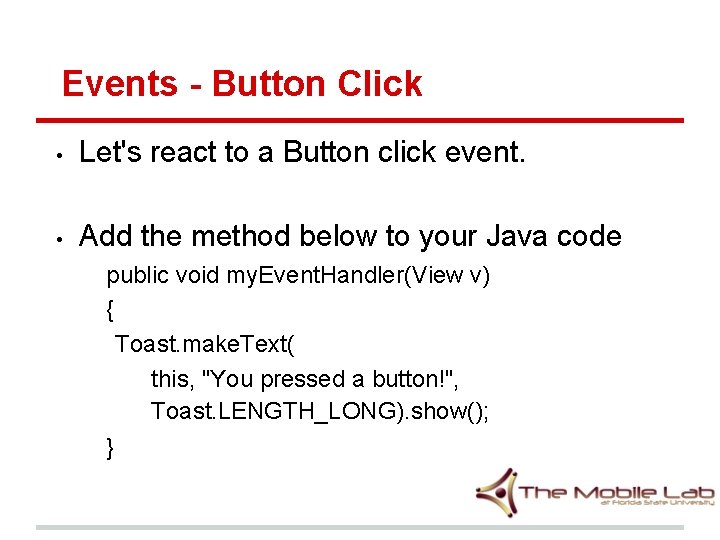
Events - Button Click • Let's react to a Button click event. • Add the method below to your Java code public void my. Event. Handler(View v) { Toast. make. Text( this, "You pressed a button!", Toast. LENGTH_LONG). show(); }
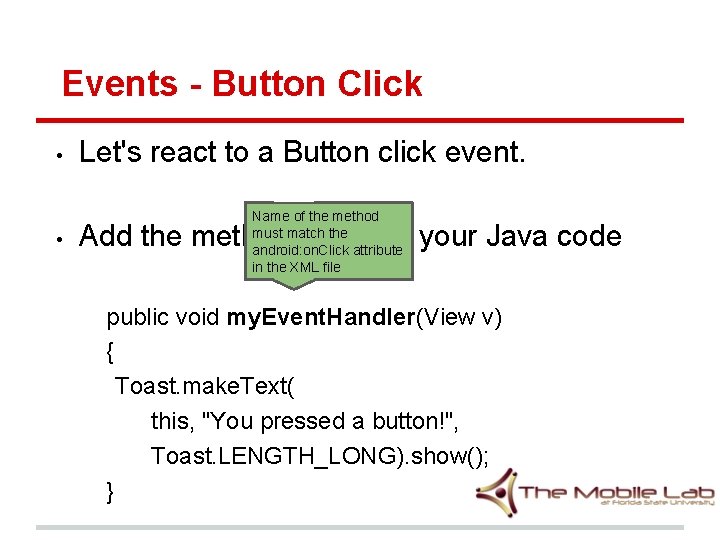
Events - Button Click • • Let's react to a Button click event. Name of the method must match the android: on. Click attribute in the XML file Add the method below to your Java code public void my. Event. Handler(View v) { Toast. make. Text( this, "You pressed a button!", Toast. LENGTH_LONG). show(); }
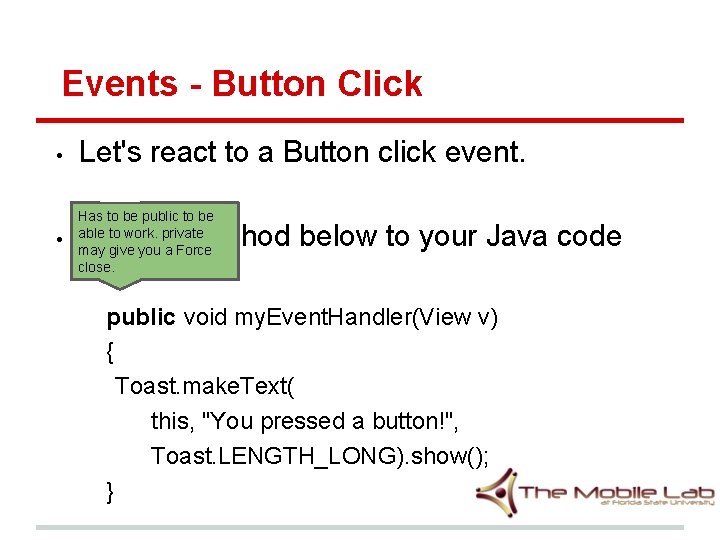
Events - Button Click • Let's react to a Button click event. • Has to be public to be able to work. private may give you a Force close. Add the method below to your Java code public void my. Event. Handler(View v) { Toast. make. Text( this, "You pressed a button!", Toast. LENGTH_LONG). show(); }
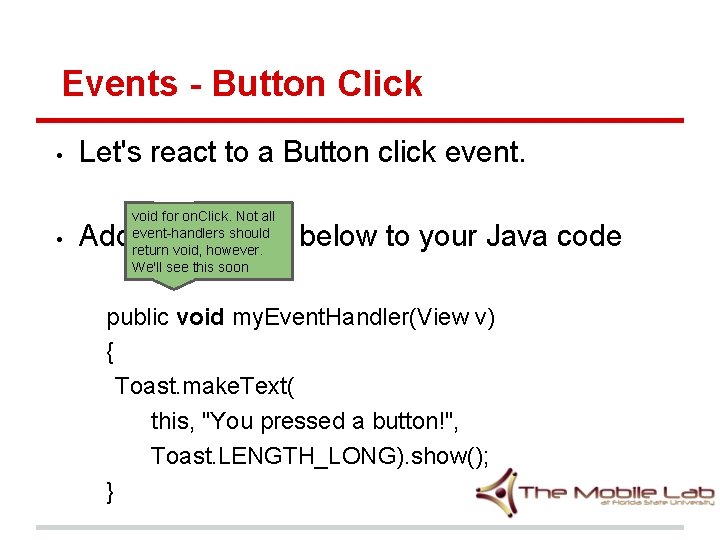
Events - Button Click • • Let's react to a Button click event. void for on. Click. Not all event-handlers should return void, however. We'll see this soon Add the method below to your Java code public void my. Event. Handler(View v) { Toast. make. Text( this, "You pressed a button!", Toast. LENGTH_LONG). show(); }
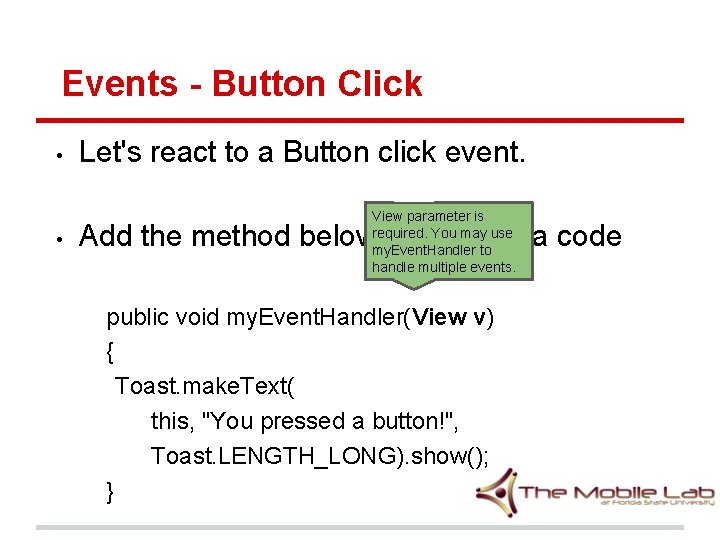
Events - Button Click • • Let's react to a Button click event. View parameter is required. You may use my. Event. Handler to handle multiple events. Add the method below to your Java code public void my. Event. Handler(View v) { Toast. make. Text( this, "You pressed a button!", Toast. LENGTH_LONG). show(); }
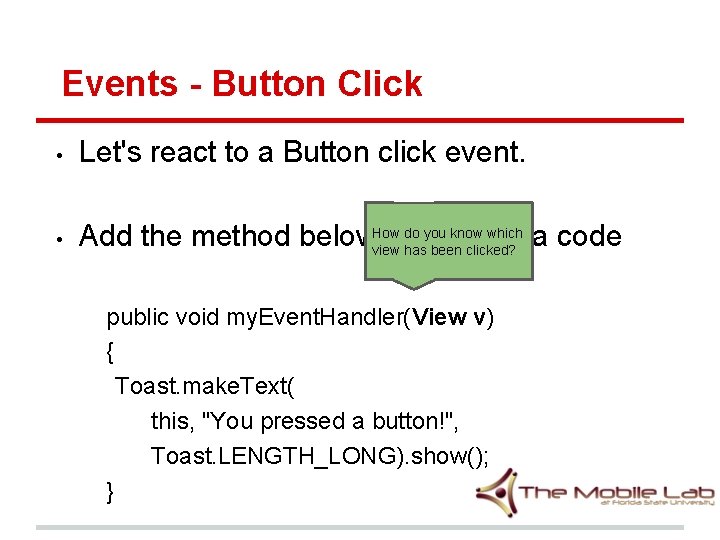
Events - Button Click • Let's react to a Button click event. • do you know which Add the method below. How to your Java code view has been clicked? public void my. Event. Handler(View v) { Toast. make. Text( this, "You pressed a button!", Toast. LENGTH_LONG). show(); }
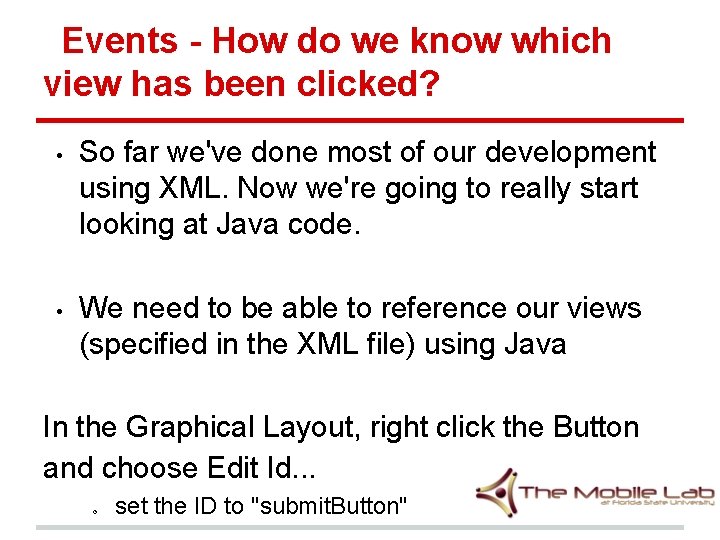
Events - How do we know which view has been clicked? • • So far we've done most of our development using XML. Now we're going to really start looking at Java code. We need to be able to reference our views (specified in the XML file) using Java In the Graphical Layout, right click the Button and choose Edit Id. . . o set the ID to "submit. Button"
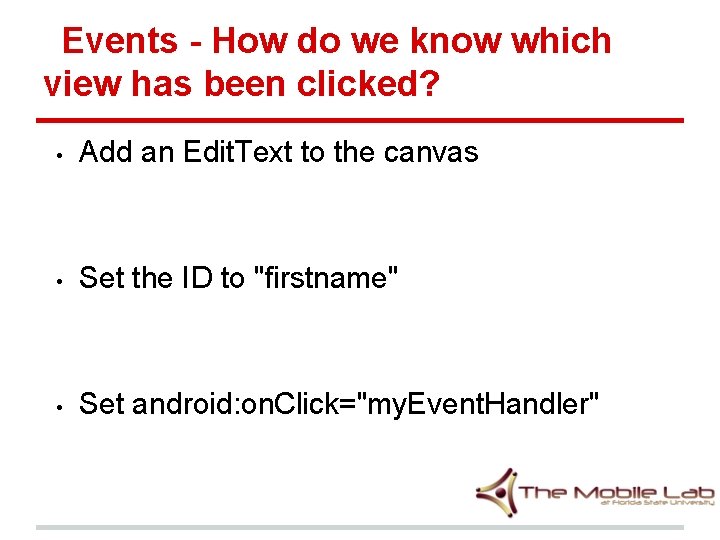
Events - How do we know which view has been clicked? • Add an Edit. Text to the canvas • Set the ID to "firstname" • Set android: on. Click="my. Event. Handler"
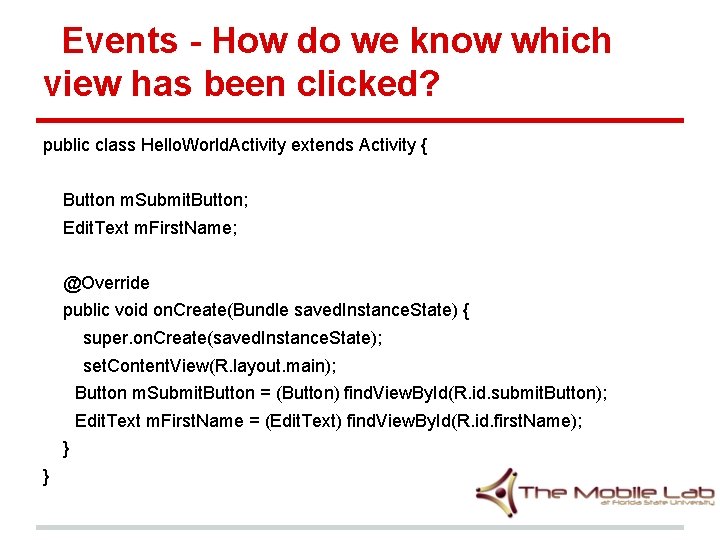
Events - How do we know which view has been clicked? public class Hello. World. Activity extends Activity { Button m. Submit. Button; Edit. Text m. First. Name; @Override public void on. Create(Bundle saved. Instance. State) { super. on. Create(saved. Instance. State); set. Content. View(R. layout. main); Button m. Submit. Button = (Button) find. View. By. Id(R. id. submit. Button); Edit. Text m. First. Name = (Edit. Text) find. View. By. Id(R. id. first. Name); } }
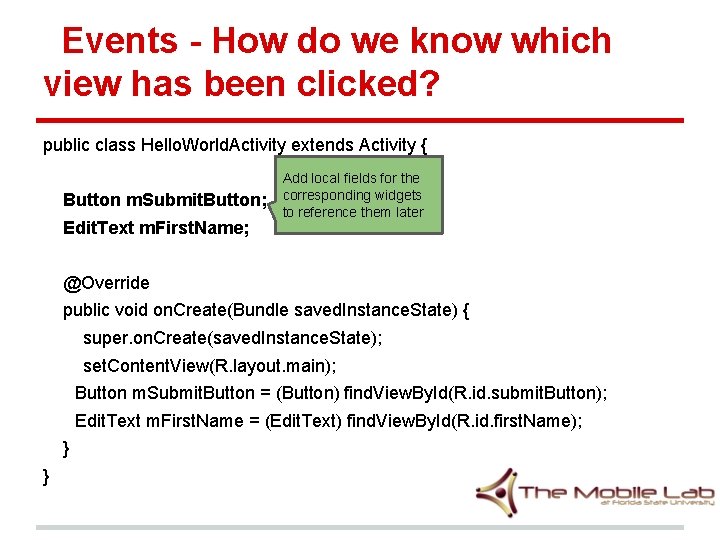
Events - How do we know which view has been clicked? public class Hello. World. Activity extends Activity { Button m. Submit. Button; Edit. Text m. First. Name; Add local fields for the corresponding widgets to reference them later @Override public void on. Create(Bundle saved. Instance. State) { super. on. Create(saved. Instance. State); set. Content. View(R. layout. main); Button m. Submit. Button = (Button) find. View. By. Id(R. id. submit. Button); Edit. Text m. First. Name = (Edit. Text) find. View. By. Id(R. id. first. Name); } }
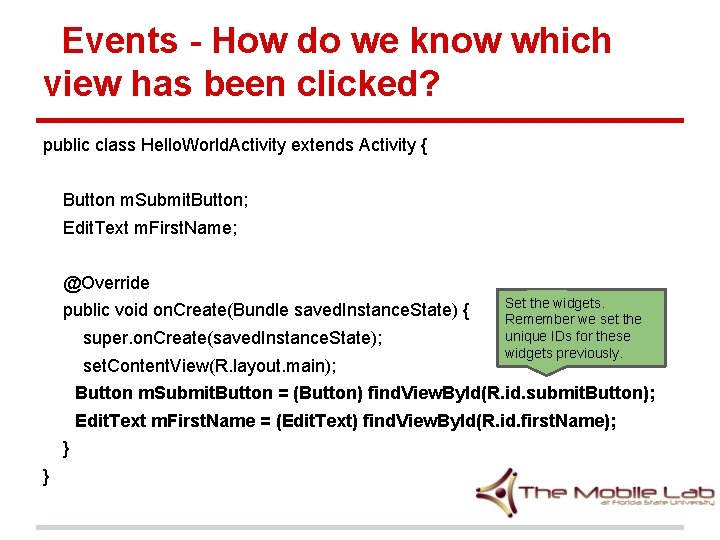
Events - How do we know which view has been clicked? public class Hello. World. Activity extends Activity { Button m. Submit. Button; Edit. Text m. First. Name; @Override public void on. Create(Bundle saved. Instance. State) { super. on. Create(saved. Instance. State); set. Content. View(R. layout. main); Set the widgets. Remember we set the unique IDs for these widgets previously. Button m. Submit. Button = (Button) find. View. By. Id(R. id. submit. Button); Edit. Text m. First. Name = (Edit. Text) find. View. By. Id(R. id. first. Name); } }
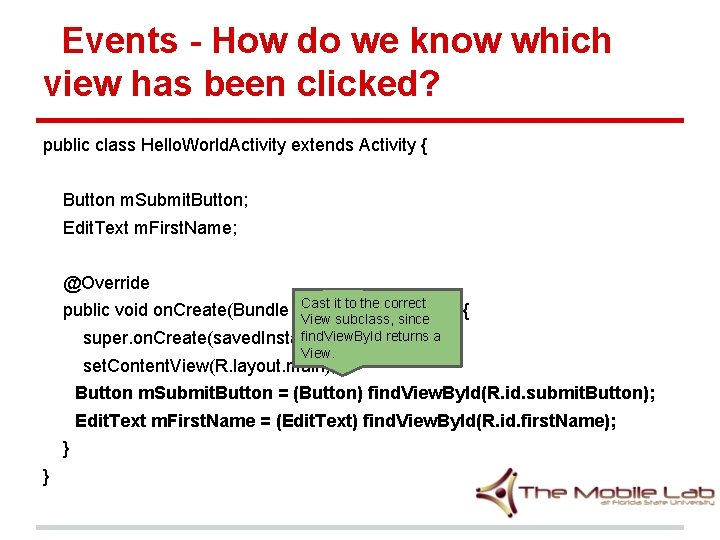
Events - How do we know which view has been clicked? public class Hello. World. Activity extends Activity { Button m. Submit. Button; Edit. Text m. First. Name; @Override Cast it to the correct public void on. Create(Bundle saved. Instance. State) { View subclass, since find. View. By. Id returns a super. on. Create(saved. Instance. State); View. set. Content. View(R. layout. main); Button m. Submit. Button = (Button) find. View. By. Id(R. id. submit. Button); Edit. Text m. First. Name = (Edit. Text) find. View. By. Id(R. id. first. Name); } }
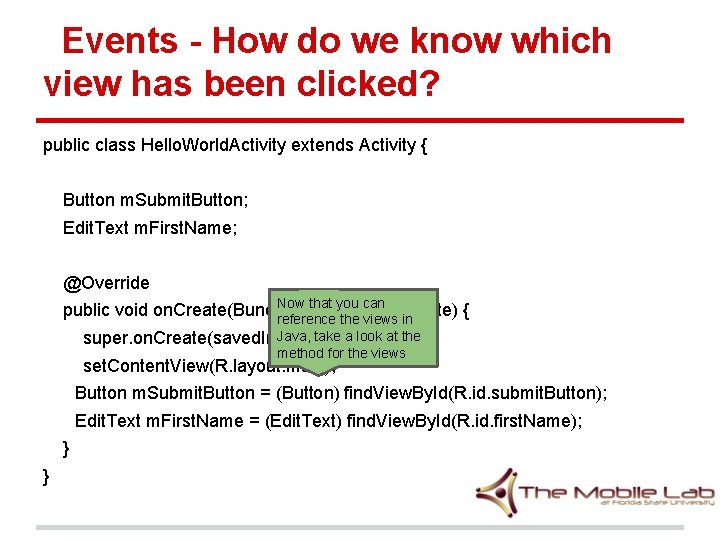
Events - How do we know which view has been clicked? public class Hello. World. Activity extends Activity { Button m. Submit. Button; Edit. Text m. First. Name; @Override Now that you can public void on. Create(Bundle saved. Instance. State) { reference the views in Java, take a look at the super. on. Create(saved. Instance. State); method for the views set. Content. View(R. layout. main); Button m. Submit. Button = (Button) find. View. By. Id(R. id. submit. Button); Edit. Text m. First. Name = (Edit. Text) find. View. By. Id(R. id. first. Name); } }
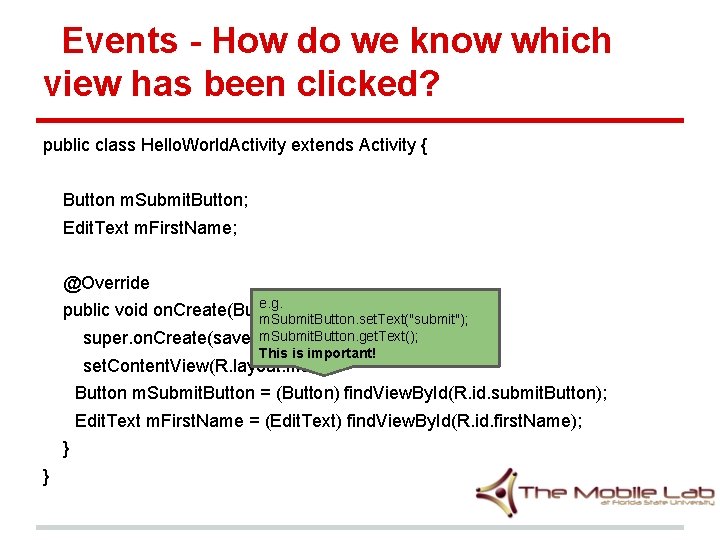
Events - How do we know which view has been clicked? public class Hello. World. Activity extends Activity { Button m. Submit. Button; Edit. Text m. First. Name; @Override e. g. public void on. Create(Bundle saved. Instance. State) { m. Submit. Button. set. Text("submit"); m. Submit. Button. get. Text(); super. on. Create(saved. Instance. State); This is important! set. Content. View(R. layout. main); Button m. Submit. Button = (Button) find. View. By. Id(R. id. submit. Button); Edit. Text m. First. Name = (Edit. Text) find. View. By. Id(R. id. first. Name); } }
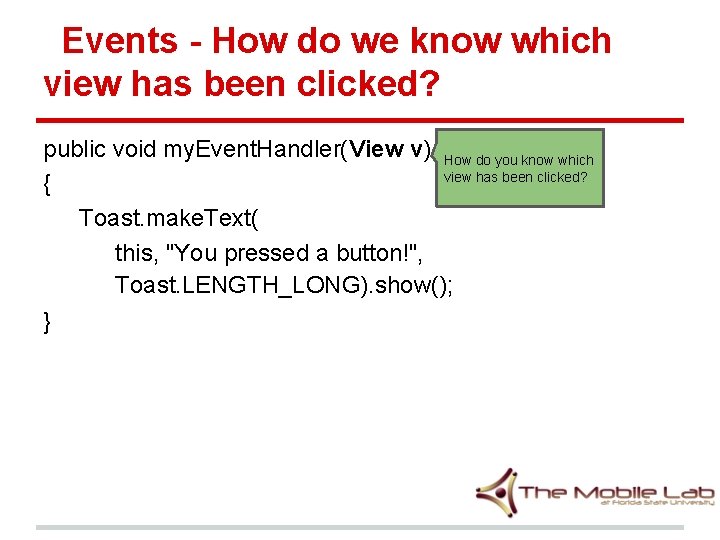
Events - How do we know which view has been clicked? public void my. Event. Handler(View v) How do you know which view has been clicked? { Toast. make. Text( this, "You pressed a button!", Toast. LENGTH_LONG). show(); }
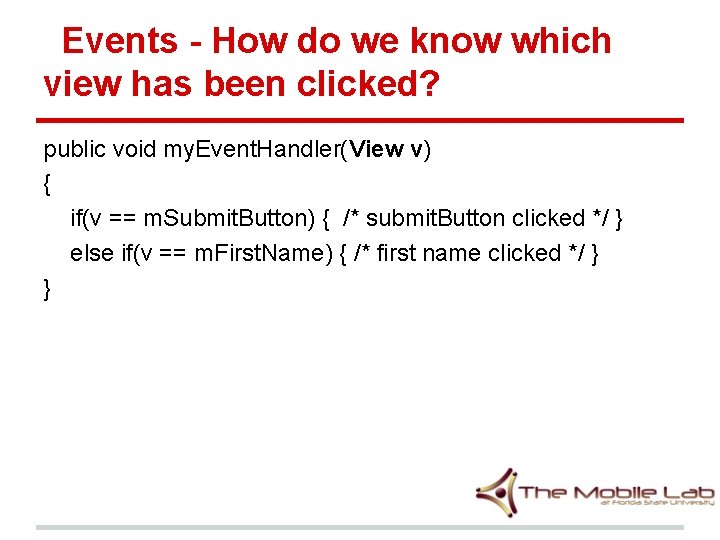
Events - How do we know which view has been clicked? public void my. Event. Handler(View v) { if(v == m. Submit. Button) { /* submit. Button clicked */ } else if(v == m. First. Name) { /* first name clicked */ } }
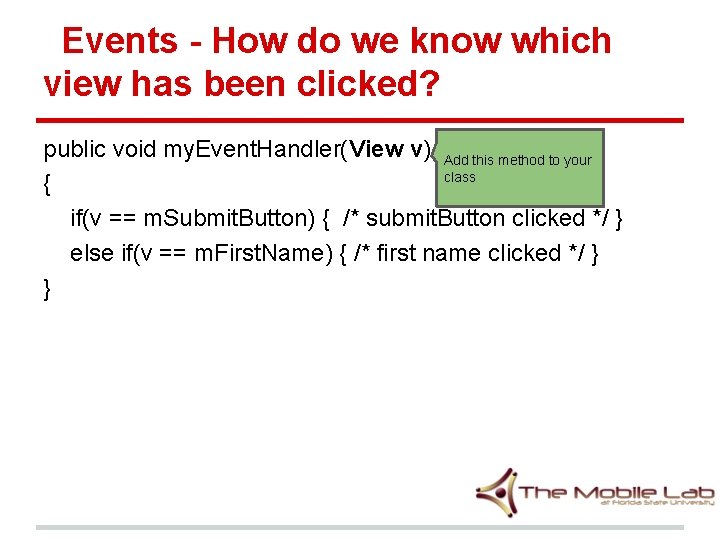
Events - How do we know which view has been clicked? public void my. Event. Handler(View v) Add this method to your class { if(v == m. Submit. Button) { /* submit. Button clicked */ } else if(v == m. First. Name) { /* first name clicked */ } }
Events You can also create a different method to handle events for different views if you want to.
Events - Handling Events There are 3 ways to incorporate Event. Listeners: 1. Specify the name of the method to handle the event in XML. We just did this. 2. Have your Activity implement an Event. Listener 3. Create an anonymous implementation of the Event. Listener
Events - Handling Events There are 3 ways to incorporate Event. Listeners: 1. Specify the name of the method to handle the event in XML. We just did this. 2. Have your Activity implement an Event. Listener 3. Create an anonymous implementation of the Event. Listener
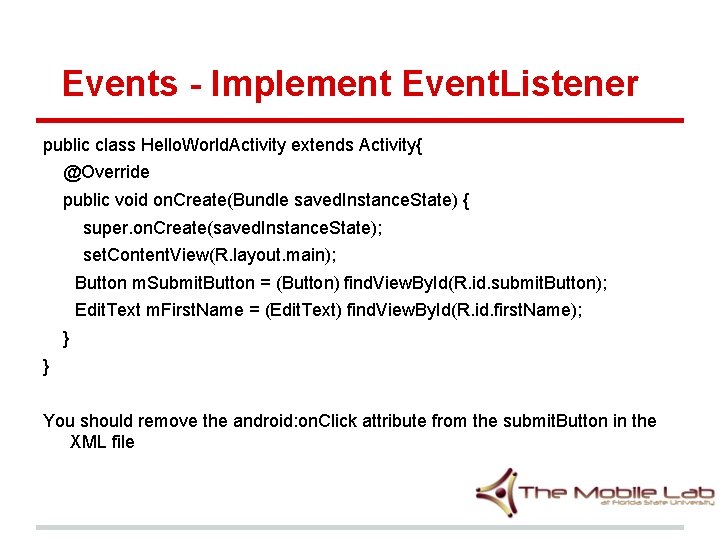
Events - Implement Event. Listener public class Hello. World. Activity extends Activity{ @Override public void on. Create(Bundle saved. Instance. State) { super. on. Create(saved. Instance. State); set. Content. View(R. layout. main); Button m. Submit. Button = (Button) find. View. By. Id(R. id. submit. Button); Edit. Text m. First. Name = (Edit. Text) find. View. By. Id(R. id. first. Name); } } You should remove the android: on. Click attribute from the submit. Button in the XML file
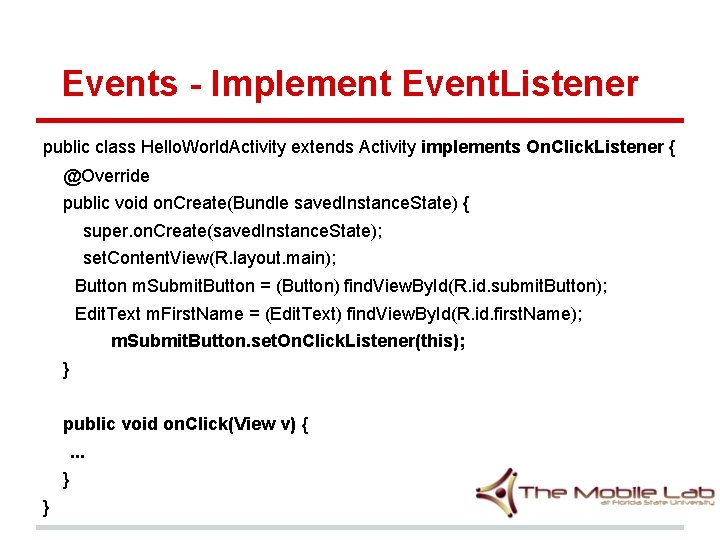
Events - Implement Event. Listener public class Hello. World. Activity extends Activity implements On. Click. Listener { @Override public void on. Create(Bundle saved. Instance. State) { super. on. Create(saved. Instance. State); set. Content. View(R. layout. main); Button m. Submit. Button = (Button) find. View. By. Id(R. id. submit. Button); Edit. Text m. First. Name = (Edit. Text) find. View. By. Id(R. id. first. Name); m. Submit. Button. set. On. Click. Listener(this); } public void on. Click(View v) {. . . } }
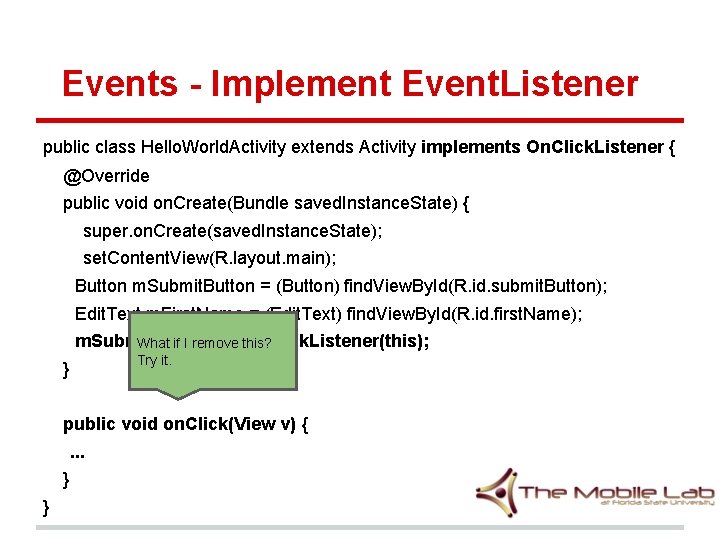
Events - Implement Event. Listener public class Hello. World. Activity extends Activity implements On. Click. Listener { @Override public void on. Create(Bundle saved. Instance. State) { super. on. Create(saved. Instance. State); set. Content. View(R. layout. main); Button m. Submit. Button = (Button) find. View. By. Id(R. id. submit. Button); Edit. Text m. First. Name = (Edit. Text) find. View. By. Id(R. id. first. Name); m. Submit. Button. set. On. Click. Listener(this); What if I remove this? Try it. } public void on. Click(View v) {. . . } }
Events - Handling Events There are 3 ways to incorporate Event. Listeners: 1. Specify the name of the method to handle the event in XML. We just did this. 2. Have your Activity implement an Event. Listener 3. Create an anonymous implementation of the Event. Listener
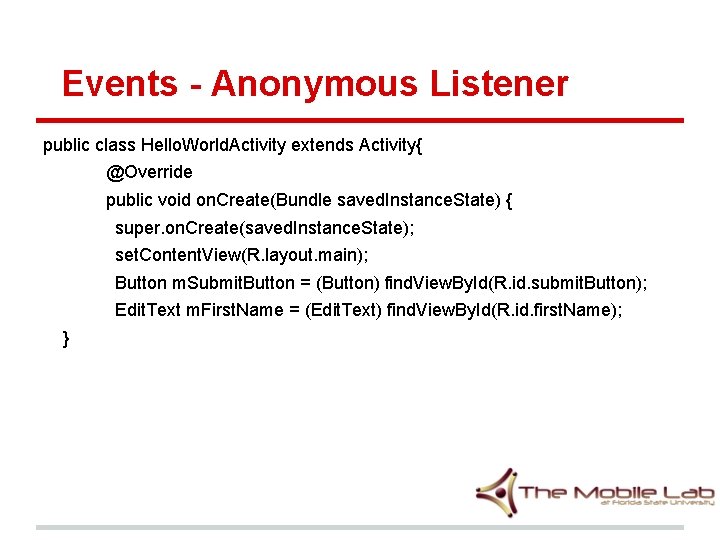
Events - Anonymous Listener public class Hello. World. Activity extends Activity{ @Override public void on. Create(Bundle saved. Instance. State) { super. on. Create(saved. Instance. State); set. Content. View(R. layout. main); Button m. Submit. Button = (Button) find. View. By. Id(R. id. submit. Button); Edit. Text m. First. Name = (Edit. Text) find. View. By. Id(R. id. first. Name); }
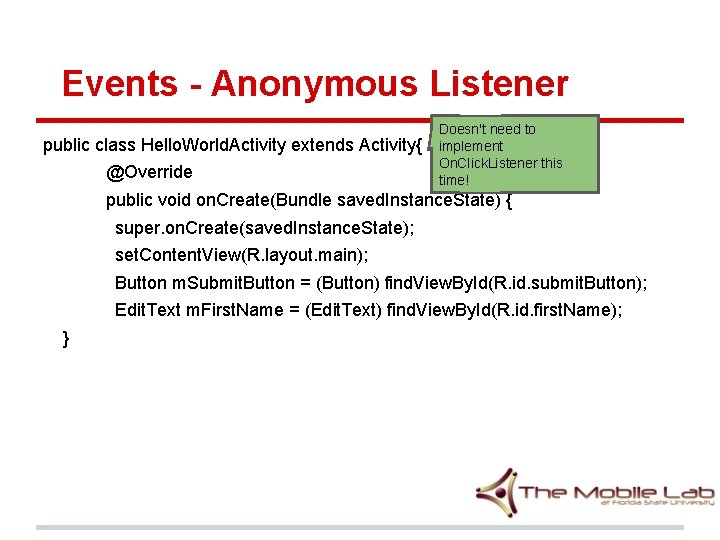
Events - Anonymous Listener public class Hello. World. Activity extends Activity{ @Override Doesn't need to implement On. Click. Listener this time! public void on. Create(Bundle saved. Instance. State) { super. on. Create(saved. Instance. State); set. Content. View(R. layout. main); Button m. Submit. Button = (Button) find. View. By. Id(R. id. submit. Button); Edit. Text m. First. Name = (Edit. Text) find. View. By. Id(R. id. first. Name); }
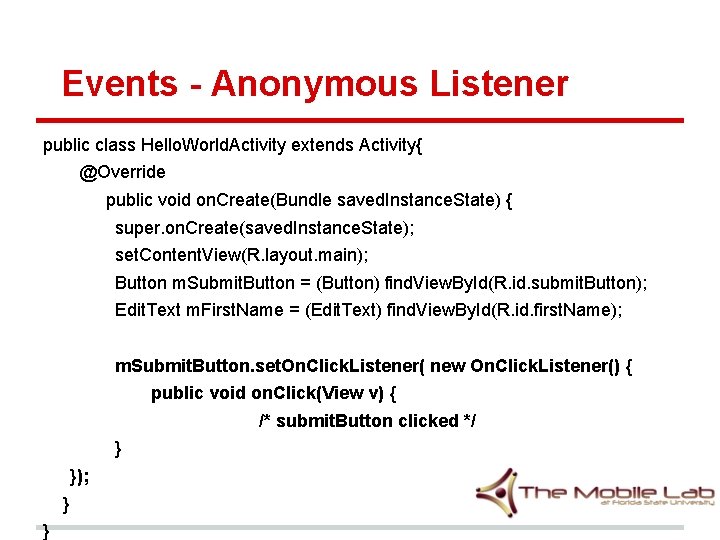
Events - Anonymous Listener public class Hello. World. Activity extends Activity{ @Override public void on. Create(Bundle saved. Instance. State) { super. on. Create(saved. Instance. State); set. Content. View(R. layout. main); Button m. Submit. Button = (Button) find. View. By. Id(R. id. submit. Button); Edit. Text m. First. Name = (Edit. Text) find. View. By. Id(R. id. first. Name); m. Submit. Button. set. On. Click. Listener( new On. Click. Listener() { public void on. Click(View v) { /* submit. Button clicked */ } }); } }
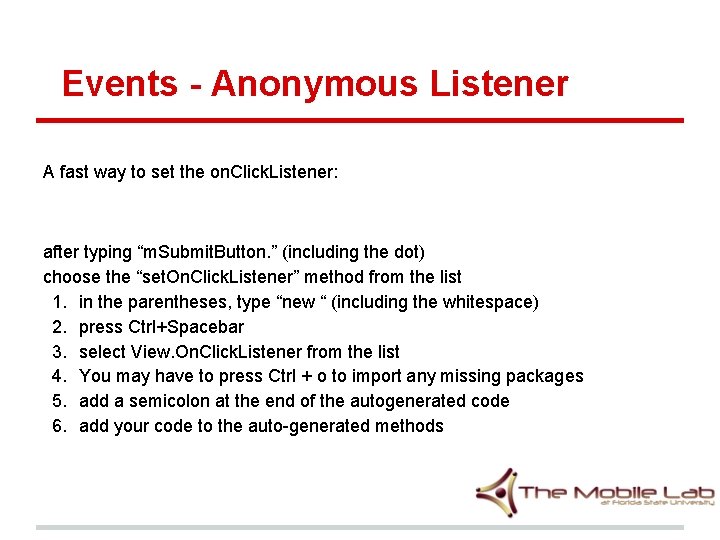
Events - Anonymous Listener A fast way to set the on. Click. Listener: after typing “m. Submit. Button. ” (including the dot) choose the “set. On. Click. Listener” method from the list 1. in the parentheses, type “new “ (including the whitespace) 2. press Ctrl+Spacebar 3. select View. On. Click. Listener from the list 4. You may have to press Ctrl + o to import any missing packages 5. add a semicolon at the end of the autogenerated code 6. add your code to the auto-generated methods
Widgets - Number. Picker • • Number. Picker is in Honey. Comb or later (Android 3. 0) You may get Force close if you try to manipulate it in an earlier version
Widgets - Number. Picker For some reason, it doesn't seem like Number. Picker attributes can be set in XML. . .
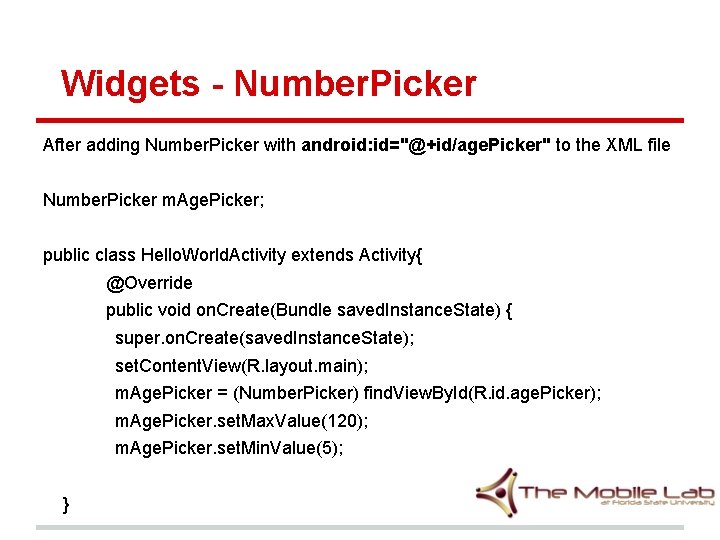
Widgets - Number. Picker After adding Number. Picker with android: id="@+id/age. Picker" to the XML file Number. Picker m. Age. Picker; public class Hello. World. Activity extends Activity{ @Override public void on. Create(Bundle saved. Instance. State) { super. on. Create(saved. Instance. State); set. Content. View(R. layout. main); m. Age. Picker = (Number. Picker) find. View. By. Id(R. id. age. Picker); m. Age. Picker. set. Max. Value(120); m. Age. Picker. set. Min. Value(5); }
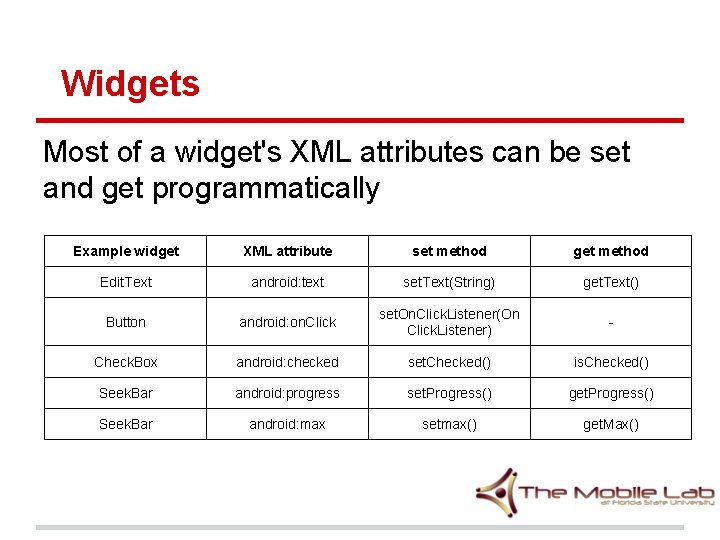
Widgets Most of a widget's XML attributes can be set and get programmatically Example widget XML attribute set method get method Edit. Text android: text set. Text(String) get. Text() Button android: on. Click set. On. Click. Listener(On Click. Listener) - Check. Box android: checked set. Checked() is. Checked() Seek. Bar android: progress set. Progress() get. Progress() Seek. Bar android: max setmax() get. Max()
Homework 2 • Homework 2 is posted on my website: http: //ww 2. cs. fsu. edu/~tian/mobile. Programming. php • It is due on May 24 th, next Friday, in class. • Please just demo to me.
References • The Busy Coder's Guide to Android Development - Mark Murphy • Android Developers • The Mobile Lab at Florida State University
- Slides: 92