
Mobile Phone ODT Operation Guide V 1 0

Mobile Phone ODT Operation Guide V 1. 0 Presented by Huawei Network Information Dept HUAWEI TECHNOLOGIES CO. , LTD. www. huawei. com
Contents 1 General Process 2 Deployment Preparations 3 Deployment Implementation 4 FAQs
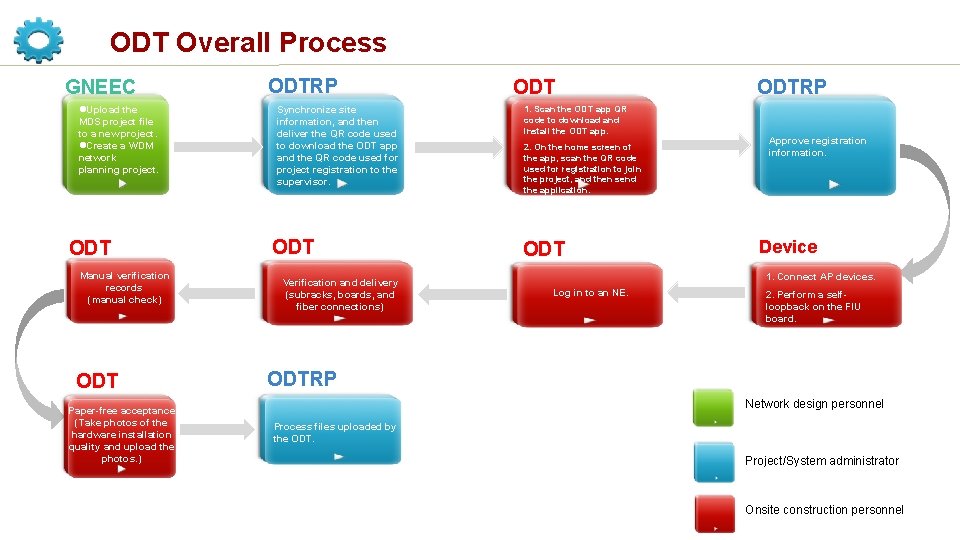
ODT Overall Process GNEEC l. Upload the MDS project file to a new project. l. Create a WDM network planning project. ODT Manual verification records (manual check) ODT Paper-free acceptance (Take photos of the hardware installation quality and upload the photos. ) ODTRP Synchronize site information, and then deliver the QR code used to download the ODT app and the QR code used for project registration to the supervisor. ODT Verification and delivery (subracks, boards, and fiber connections) ODT 1. Scan the ODT app QR code to download and install the ODT app. 2. On the home screen of the app, scan the QR code used for registration to join the project, and then send the application. ODTRP Approve registration information. Device 1. Connect AP devices. Log in to an NE. 2. Perform a selfloopback on the FIU board. ODTRP Network design personnel Process files uploaded by the ODT. Project/System administrator Onsite construction personnel

Contents 1 General Process 2 Deployment Preparations 3 Deployment Implementation 4 FAQs

Deployment Preparations No. Restrictions Version Mapping Prerequisites Scenarios Restricted by the Hardware Preparations for ODT Download and Installation the Site Visit Symptom Constraint Type Terminal Registration Project Data Download Solution 1 Phones that run Android 4. 0. 0 and later are supported. Phones that run other operating systems are not supported. Non-Android operating systems are not supported. 2 The tablet and i. Phone are not supported. Only Huawei Honor, P, and Mate series are supported. Some phone models are not supported. Hardware Use an Android phone. 3 Scan the QR code by using a browser to download the app. We. Chat and mobile app shop are not supported. The app cannot be downloaded. Software Scan the QR code by using a browser to download the app. During fiber connection verification, do not end the Wi-Fi connection nor The verification environment cannot be end the app process. restored. Software Restart the fiber connection verification. 4 Software Use an Android phone.
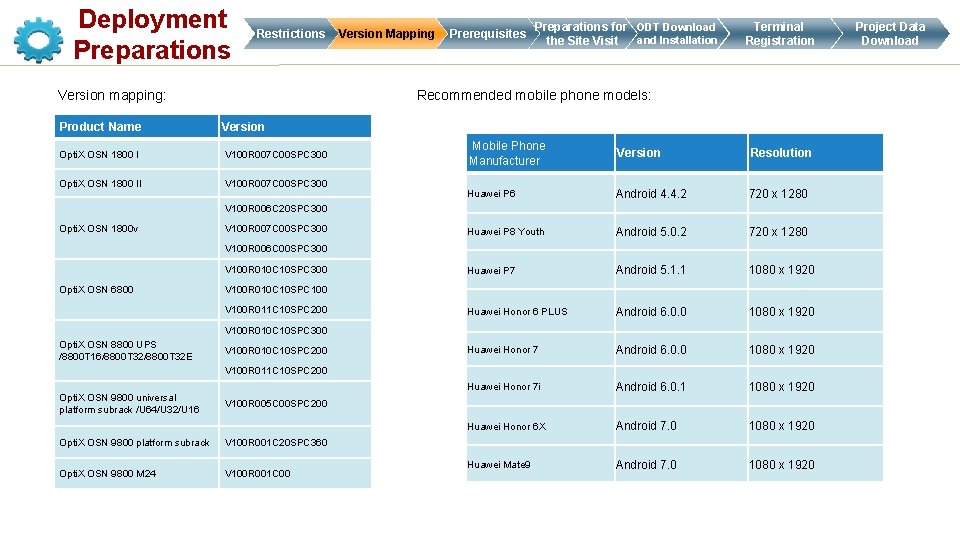
Deployment Preparations Restrictions Version mapping: Version Mapping Prerequisites Preparations for ODT Download and Installation the Site Visit Terminal Registration Recommended mobile phone models: Product Name Version Opti. X OSN 1800 I V 100 R 007 C 00 SPC 300 Opti. X OSN 1800 II V 100 R 007 C 00 SPC 300 Mobile Phone Manufacturer Version Resolution Huawei P 6 Android 4. 4. 2 720 x 1280 Huawei P 8 Youth Android 5. 0. 2 720 x 1280 Huawei P 7 Android 5. 1. 1 1080 x 1920 Huawei Honor 6 PLUS Android 6. 0. 0 1080 x 1920 Huawei Honor 7 i Android 6. 0. 1 1080 x 1920 Huawei Honor 6 X Android 7. 0 1080 x 1920 Huawei Mate 9 Android 7. 0 1080 x 1920 V 100 R 006 C 20 SPC 300 Opti. X OSN 1800 v V 100 R 007 C 00 SPC 300 V 100 R 006 C 00 SPC 300 V 100 R 010 C 10 SPC 300 Opti. X OSN 6800 V 100 R 010 C 10 SPC 100 V 100 R 011 C 10 SPC 200 V 100 R 010 C 10 SPC 300 Opti. X OSN 8800 UPS /8800 T 16/8800 T 32 E V 100 R 010 C 10 SPC 200 V 100 R 011 C 10 SPC 200 Opti. X OSN 9800 universal platform subrack /U 64/U 32/U 16 V 100 R 005 C 00 SPC 200 Opti. X OSN 9800 platform subrack V 100 R 001 C 20 SPC 360 Opti. X OSN 9800 M 24 V 100 R 001 C 00 Project Data Download

Deployment Preparations Restrictions Version Mapping Prerequisites Preparations for ODT Download and Installation the Site Visit Terminal Registration Mobile phone: Android 4. 0. 0 and later (i. OS is not supported). 5 -inch screen or larger. 1080 x 1920 resolution or higher. A higher resolution indicates a clearer UI. 8 -megapixel camera or higher. 2 GB memory or larger. App installation: Scan the QR code using a mobile browser to download the latest ODT app. (You can obtain the QR code from the ODTRP Management Office. ) Application scenario: The ODT is applicable only to new sites, which have no services. Project scripts: MDS project files are ready on the MDS 6600. Project Data Download
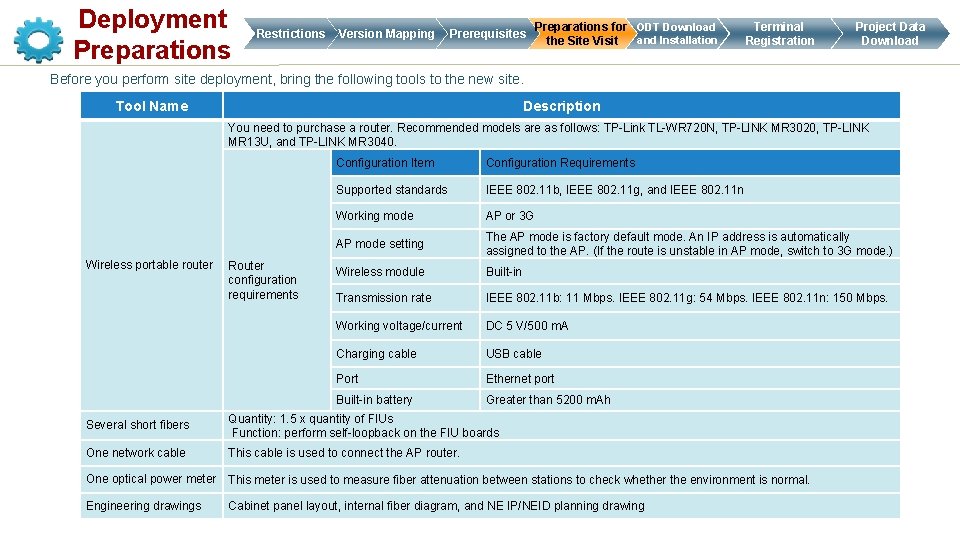
Deployment Preparations Restrictions Version Mapping Prerequisites Preparations for ODT Download and Installation the Site Visit Terminal Registration Project Data Download Before you perform site deployment, bring the following tools to the new site. Tool Name Description You need to purchase a router. Recommended models are as follows: TP-Link TL-WR 720 N, TP-LINK MR 3020, TP-LINK MR 13 U, and TP-LINK MR 3040. Wireless portable router Router configuration requirements Configuration Item Configuration Requirements Supported standards IEEE 802. 11 b, IEEE 802. 11 g, and IEEE 802. 11 n Working mode AP or 3 G AP mode setting The AP mode is factory default mode. An IP address is automatically assigned to the AP. (If the route is unstable in AP mode, switch to 3 G mode. ) Wireless module Built-in Transmission rate IEEE 802. 11 b: 11 Mbps. IEEE 802. 11 g: 54 Mbps. IEEE 802. 11 n: 150 Mbps. Working voltage/current DC 5 V/500 m. A Charging cable USB cable Port Ethernet port Built-in battery Greater than 5200 m. Ah Several short fibers Quantity: 1. 5 x quantity of FIUs Function: perform self-loopback on the FIU boards One network cable This cable is used to connect the AP router. One optical power meter This meter is used to measure fiber attenuation between stations to check whether the environment is normal. Engineering drawings Cabinet panel layout, internal fiber diagram, and NE IP/NEID planning drawing
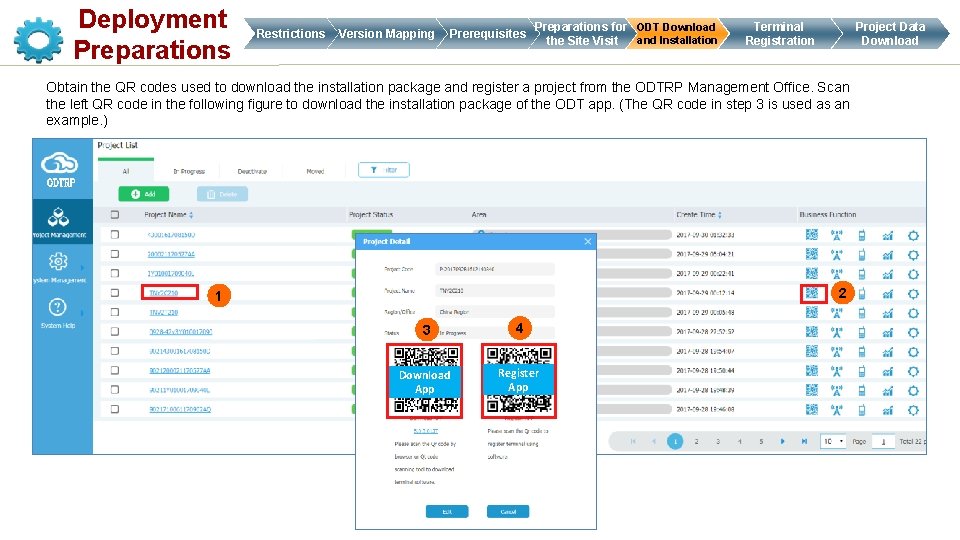
Deployment Preparations Restrictions Version Mapping Prerequisites Preparations for ODT Download and Installation the Site Visit Terminal Registration Project Data Download Obtain the QR codes used to download the installation package and register a project from the ODTRP Management Office. Scan the left QR code in the following figure to download the installation package of the ODT app. (The QR code in step 3 is used as an example. ) 2 1 3 4 Download App Register App

Deployment Preparations Restrictions Version Mapping Prerequisites Preparations for ODT Download and Installation the Site Visit Terminal Registration Project Data Download On the home screen of the app, scan the QR code used for registration to join the project, and then send the application. After the administrator of the ODTRP project approves the application, touch Update. Touch here to set the GUI language. 2 Download App 4 ODT Register App 3 5 1

Deployment Preparations Restrictions Version Mapping Prerequisites Preparations Terminal Registration Project Data Download The ODT home page displays the codes and names of all projects that you have permission to view. For demonstration and training, touch Demo. Then, NEs are not involved in the operations. 2 4 1 The app takes a couple of seconds to start each time. Wait until the environment data is initialized. You are advised to download project data by using Wi-Fi because the data volume is large. 3 If you need to obtain more permission, contact Huawei engineers for help. For details, see FAQs: Permission Allocation. Preparations for the Site Visit
Contents 1 General Process 2 Deployment Preparations 3 Deployment Implementation 4 FAQs
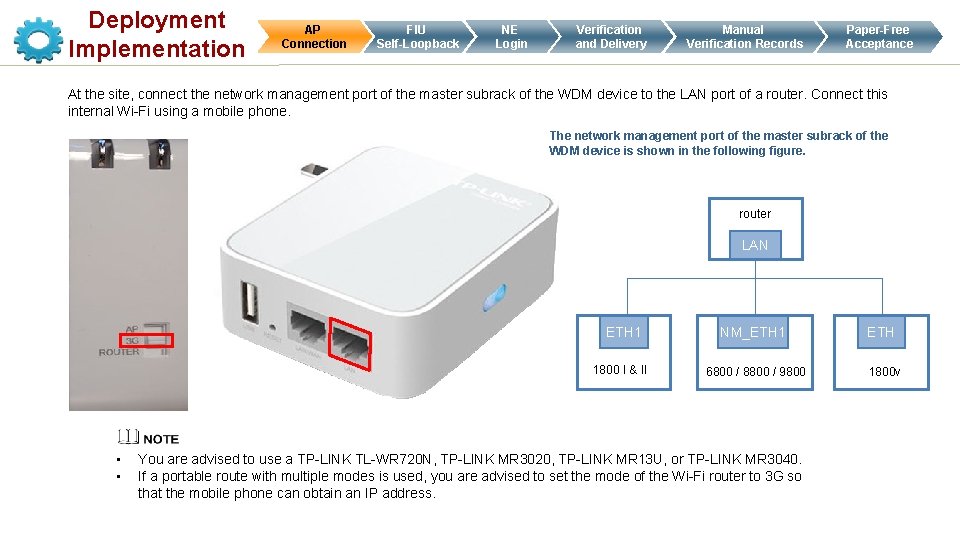
Deployment Implementation AP Connection FIU Self-Loopback NE Login Verification and Delivery Manual Verification Records Paper-Free Acceptance At the site, connect the network management port of the master subrack of the WDM device to the LAN port of a router. Connect this internal Wi-Fi using a mobile phone. The network management port of the master subrack of the WDM device is shown in the following figure. router LAN ETH 1 1800 I & II • • NM_ETH 1 ETH 6800 / 8800 / 9800 1800 v You are advised to use a TP-LINK TL-WR 720 N, TP-LINK MR 3020, TP-LINK MR 13 U, or TP-LINK MR 3040. If a portable route with multiple modes is used, you are advised to set the mode of the Wi-Fi router to 3 G so that the mobile phone can obtain an IP address.
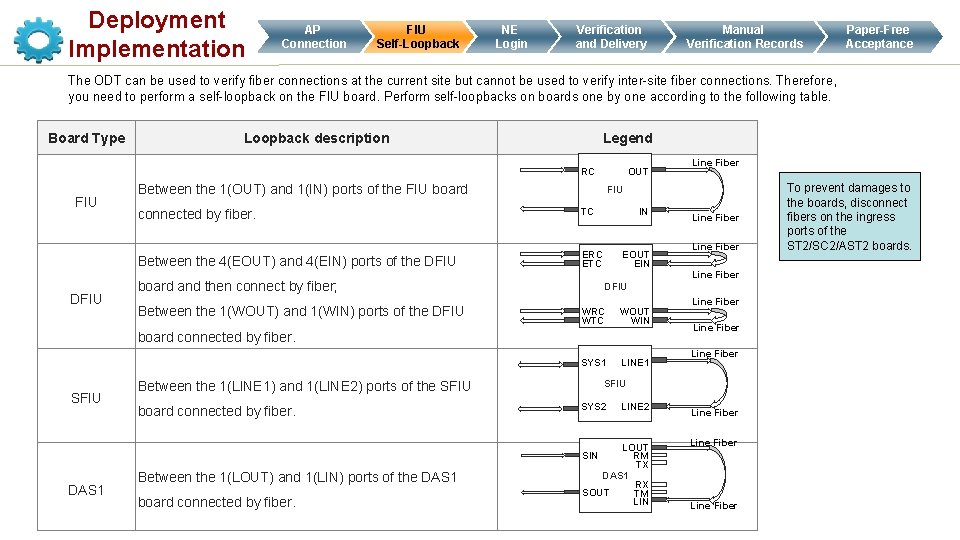
Deployment Implementation AP Connection FIU Self-Loopback NE Login Verification and Delivery Manual Verification Records Paper-Free Acceptance The ODT can be used to verify fiber connections at the current site but cannot be used to verify inter-site fiber connections. Therefore, you need to perform a self-loopback on the FIU board. Perform self-loopbacks on boards one by one according to the following table. Board Type Loopback description Legend RC FIU DFIU OUT Between the 1(OUT) and 1(IN) ports of the FIU board FIU connected by fiber. TC Between the 4(EOUT) and 4(EIN) ports of the DFIU ERC ETC board and then connect by fiber; Between the 1(WOUT) and 1(WIN) ports of the DFIU IN EOUT EIN WRC WTC WOUT WIN SYS 1 LINE 1 Between the 1(LINE 1) and 1(LINE 2) ports of the SFIU board connected by fiber. Line Fiber DFIU board connected by fiber. SFIU Line Fiber SFIU SYS 2 LINE 2 LOUT RM TX DAS 1 RX SOUT TM LIN Line Fiber SIN DAS 1 Between the 1(LOUT) and 1(LIN) ports of the DAS 1 board connected by fiber. Line Fiber To prevent damages to the boards, disconnect fibers on the ingress ports of the ST 2/SC 2/AST 2 boards.
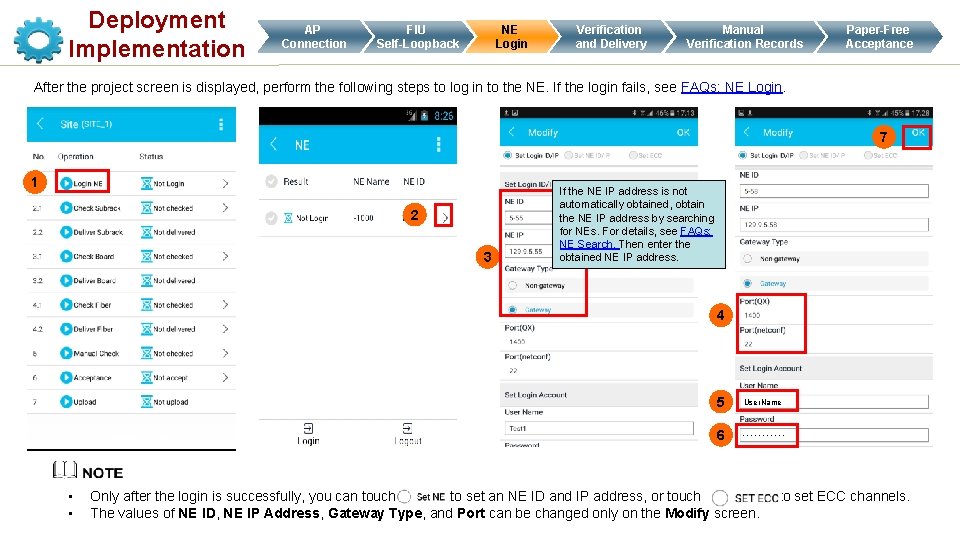
Deployment Implementation AP Connection NE Login FIU Self-Loopback Verification and Delivery Manual Verification Records Paper-Free Acceptance After the project screen is displayed, perform the following steps to log in to the NE. If the login fails, see FAQs: NE Login. 7 1 2 3 If the NE IP address is not automatically obtained, obtain the NE IP address by searching for NEs. For details, see FAQs: NE Search. Then enter the obtained NE IP address. 4 • • 5 User. Name 6 ………. . Only after the login is successfully, you can touch to set an NE ID and IP address, or touch to set ECC channels. The values of NE ID, NE IP Address, Gateway Type, and Port can be changed only on the Modify screen.
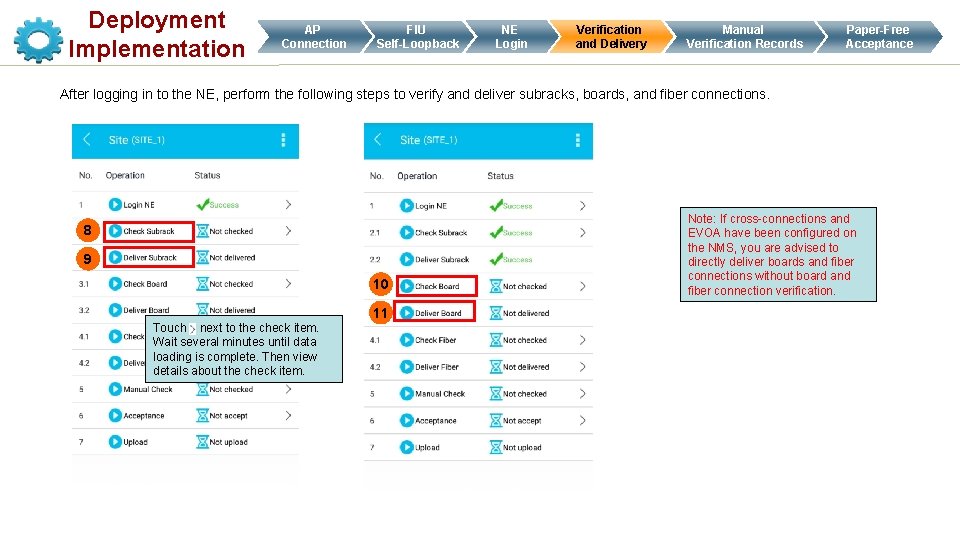
Deployment Implementation AP Connection FIU Self-Loopback NE Login Verification and Delivery Manual Verification Records Paper-Free Acceptance After logging in to the NE, perform the following steps to verify and deliver subracks, boards, and fiber connections. 8 9 10 11 Touch next to the check item. Wait several minutes until data loading is complete. Then view details about the check item. Note: If cross-connections and EVOA have been configured on the NMS, you are advised to directly deliver boards and fiber connections without board and fiber connection verification.
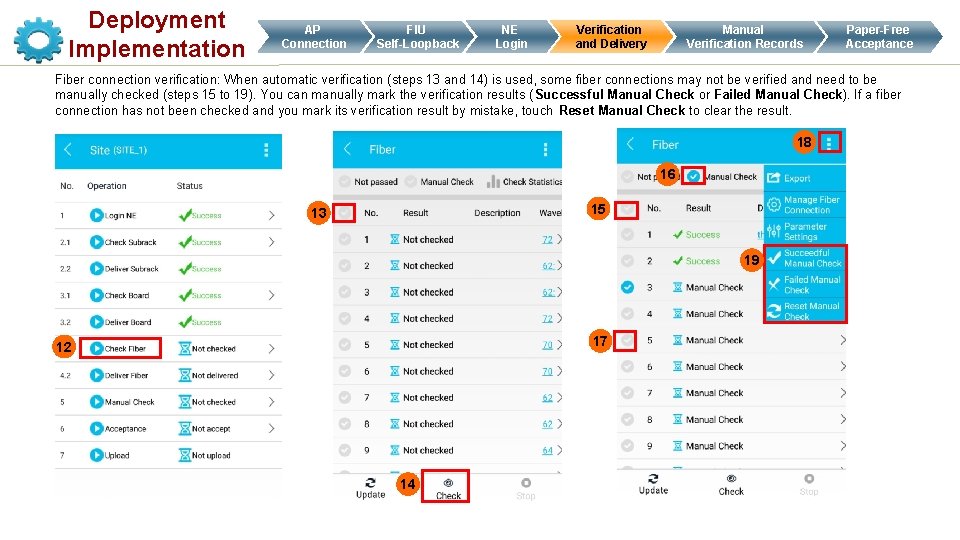
Deployment Implementation AP Connection FIU Self-Loopback NE Login Verification and Delivery Manual Verification Records Paper-Free Acceptance Fiber connection verification: When automatic verification (steps 13 and 14) is used, some fiber connections may not be verified and need to be manually checked (steps 15 to 19). You can manually mark the verification results ( Successful Manual Check or Failed Manual Check). If a fiber connection has not been checked and you mark its verification result by mistake, touch Reset Manual Check to clear the result. 18 16 15 13 19 17 12 14
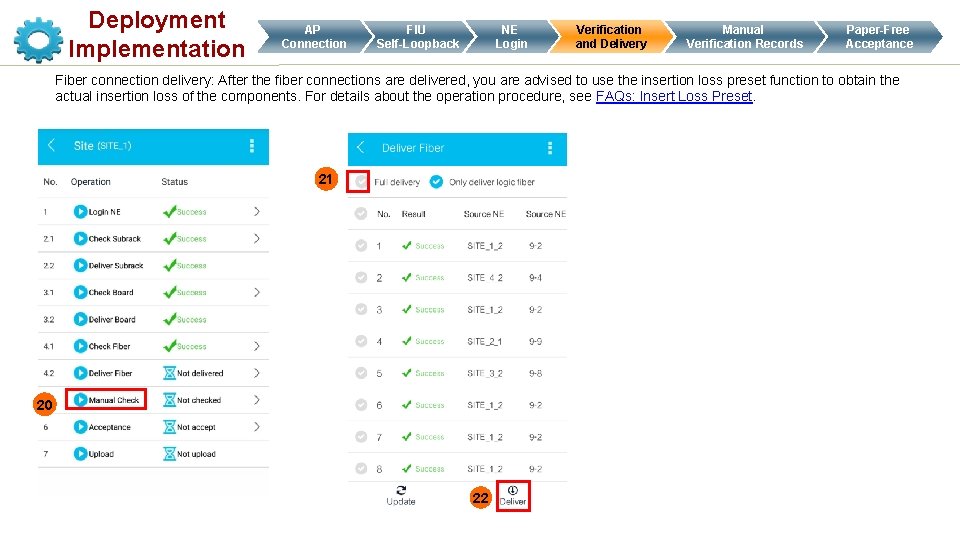
Deployment Implementation AP Connection NE Login FIU Self-Loopback Verification and Delivery Manual Verification Records Paper-Free Acceptance Fiber connection delivery: After the fiber connections are delivered, you are advised to use the insertion loss preset function to obtain the actual insertion loss of the components. For details about the operation procedure, see FAQs: Insert Loss Preset. 21 20 22
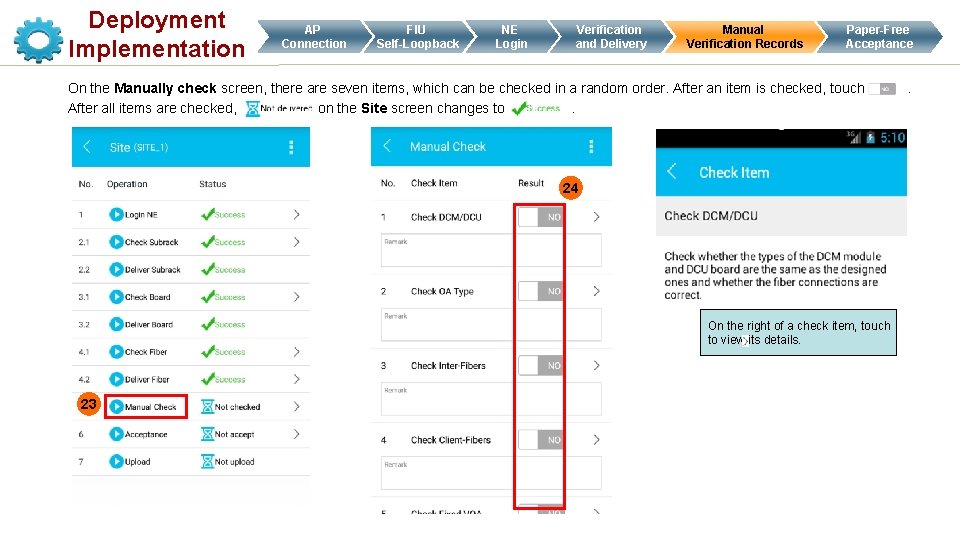
Deployment Implementation AP Connection FIU Self-Loopback NE Login Verification and Delivery Manual Verification Records Paper-Free Acceptance On the Manually check screen, there are seven items, which can be checked in a random order. After an item is checked, touch . After all items are checked, on the Site screen changes to . 24 On the right of a check item, touch to view its details. 23
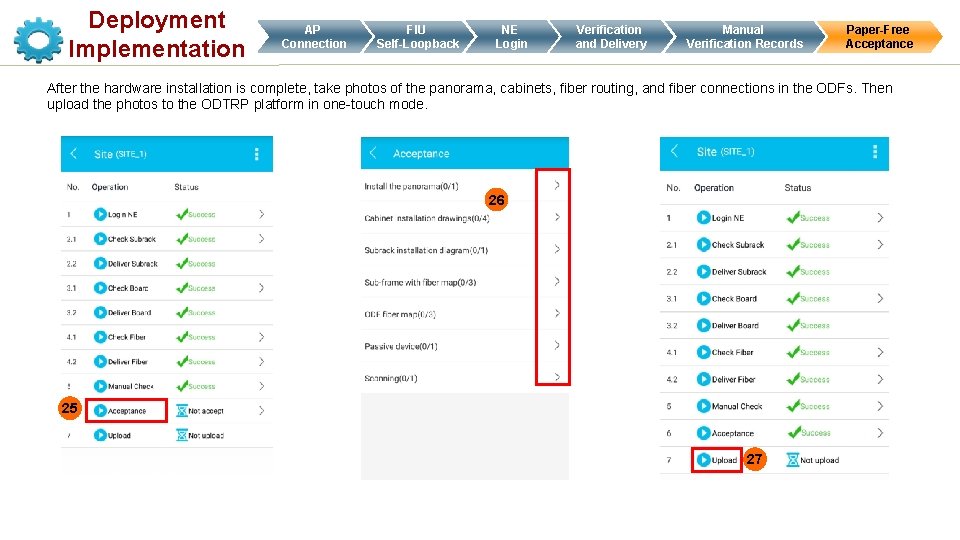
Deployment Implementation AP Connection FIU Self-Loopback NE Login Verification and Delivery Manual Verification Records Paper-Free Acceptance After the hardware installation is complete, take photos of the panorama, cabinets, fiber routing, and fiber connections in the ODFs. Then upload the photos to the ODTRP platform in one-touch mode. 26 25 27
Contents 1 General Process 2 Deployment Preparations 3 Deployment Implementation 4 FAQs
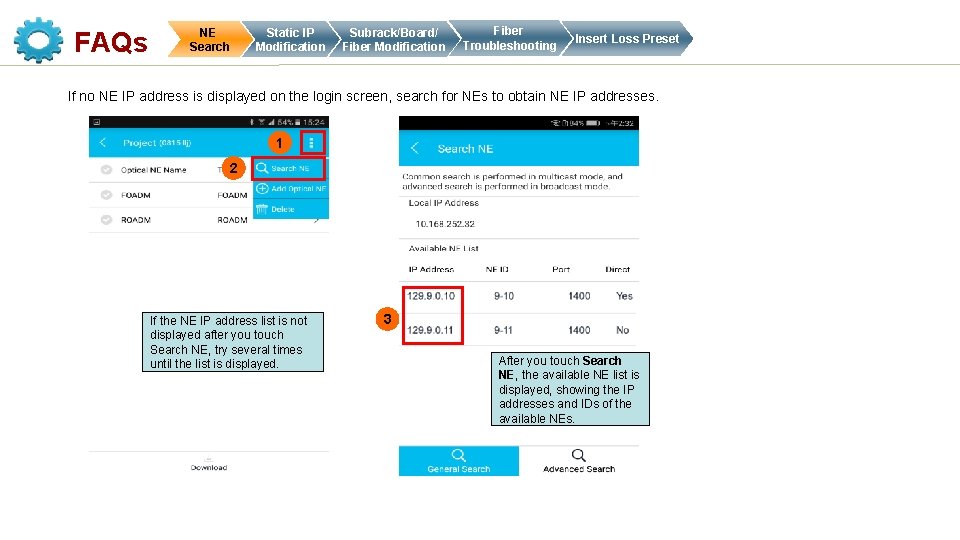
FAQs NE Search Static IP Modification Subrack/Board/ Fiber Modification Fiber Troubleshooting Insert Loss Preset If no NE IP address is displayed on the login screen, search for NEs to obtain NE IP addresses. 1 2 If the NE IP address list is not displayed after you touch Search NE, try several times until the list is displayed. 3 After you touch Search NE, the available NE list is displayed, showing the IP addresses and IDs of the available NEs.
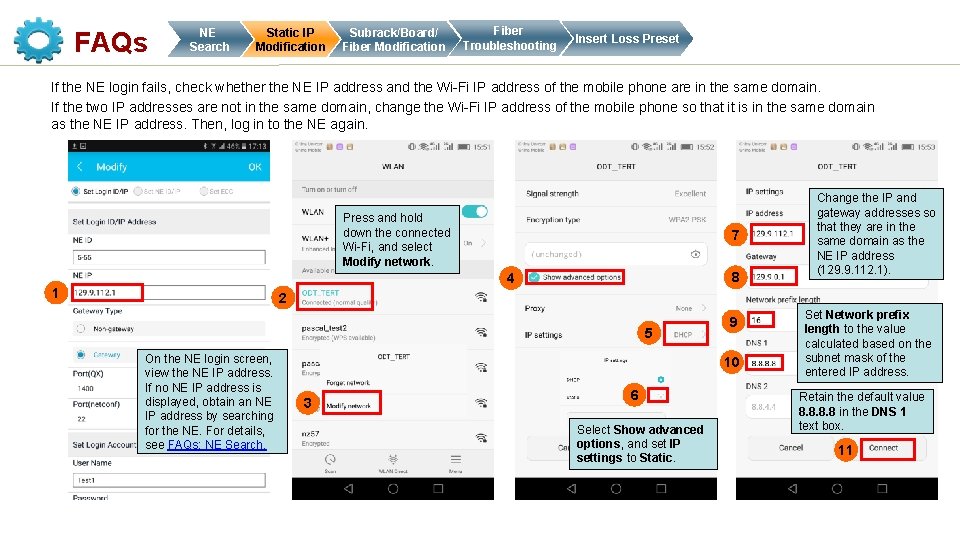
FAQs NE Search Static IP Modification Subrack/Board/ Fiber Modification Fiber Troubleshooting Insert Loss Preset If the NE login fails, check whether the NE IP address and the Wi-Fi IP address of the mobile phone are in the same domain. If the two IP addresses are not in the same domain, change the Wi-Fi IP address of the mobile phone so that it is in the same domain as the NE IP address. Then, log in to the NE again. Press and hold down the connected Wi-Fi, and select Modify network. 7 8 4 1 Change the IP and gateway addresses so that they are in the same domain as the NE IP address (129. 9. 112. 1). 2 5 On the NE login screen, view the NE IP address. If no NE IP address is displayed, obtain an NE IP address by searching for the NE. For details, see FAQs: NE Search. 9 10 3 6 Select Show advanced options, and set IP settings to Static. Set Network prefix length to the value calculated based on the subnet mask of the entered IP address. Retain the default value 8. 8 in the DNS 1 text box. 11

FAQs NE Search Static IP Modification Subrack/Board/ Fiber Modification Fiber Troubleshooting Insert Loss Preset Subrack Modification Modify subrack information, as shown in the following figures. 5 1 3 2 4
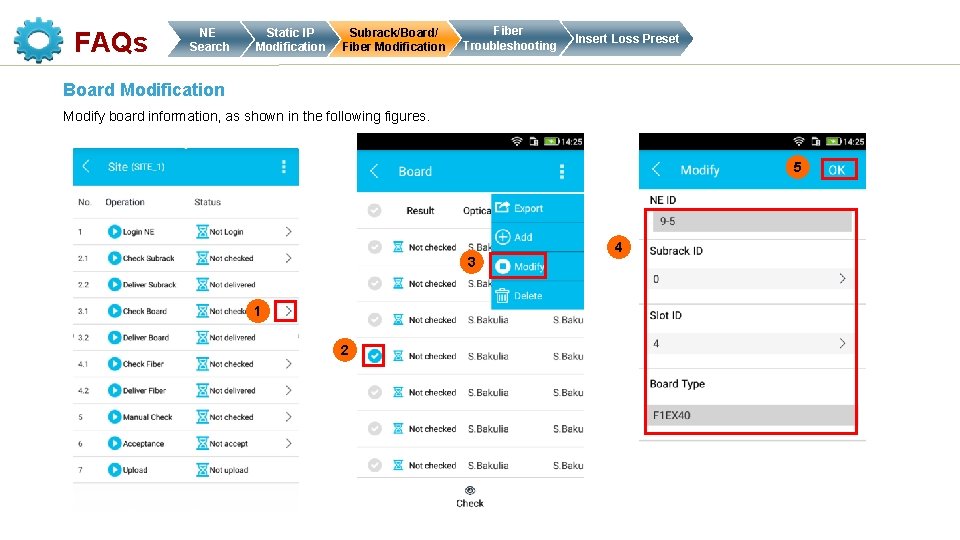
FAQs NE Search Static IP Modification Subrack/Board/ Fiber Modification Fiber Troubleshooting Insert Loss Preset Board Modification Modify board information, as shown in the following figures. 5 3 1 2 4
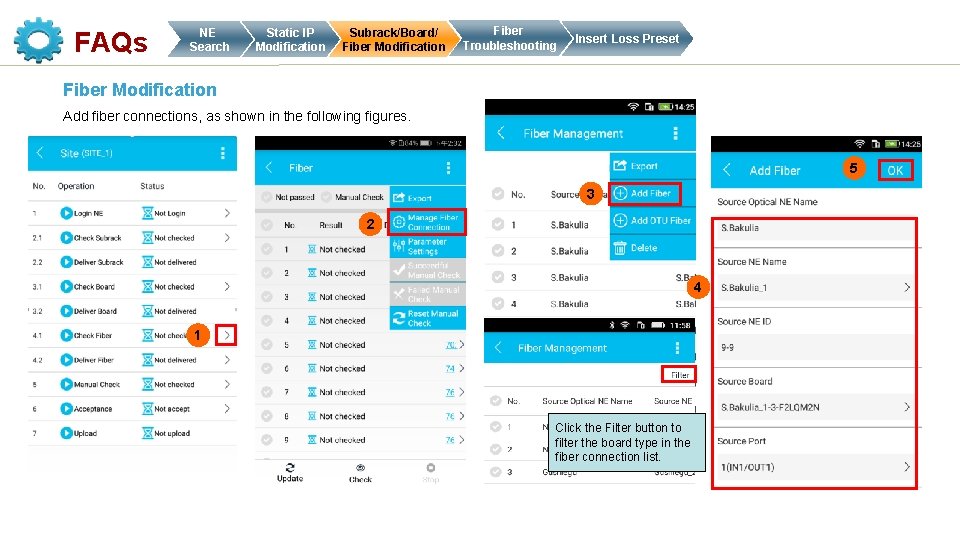
FAQs NE Search Static IP Modification Subrack/Board/ Fiber Modification Fiber Troubleshooting Insert Loss Preset Fiber Modification Add fiber connections, as shown in the following figures. 5 3 2 4 1 Click the Filter button to filter the board type in the fiber connection list.
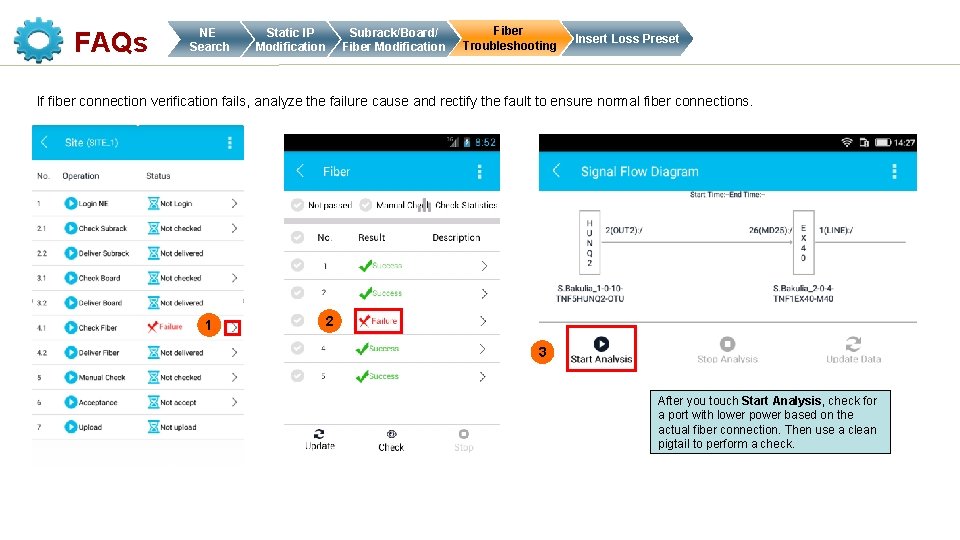
FAQs NE Search Static IP Modification Subrack/Board/ Fiber Modification Fiber Troubleshooting Insert Loss Preset If fiber connection verification fails, analyze the failure cause and rectify the fault to ensure normal fiber connections. 1 2 3 After you touch Start Analysis, check for a port with lower power based on the actual fiber connection. Then use a clean pigtail to perform a check.
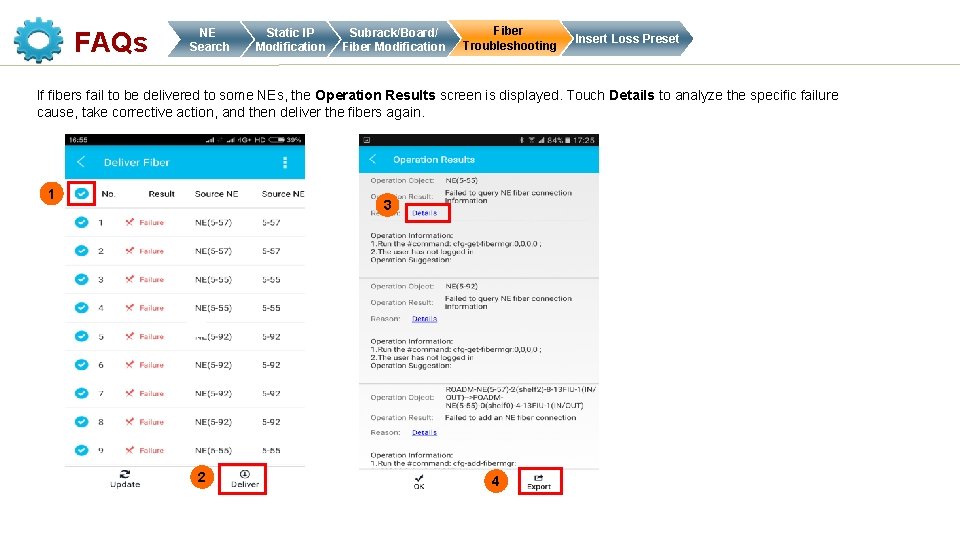
FAQs NE Search Static IP Modification Subrack/Board/ Fiber Modification Fiber Troubleshooting Insert Loss Preset If fibers fail to be delivered to some NEs, the Operation Results screen is displayed. Touch Details to analyze the specific failure cause, take corrective action, and then deliver the fibers again. 1 3 2 4
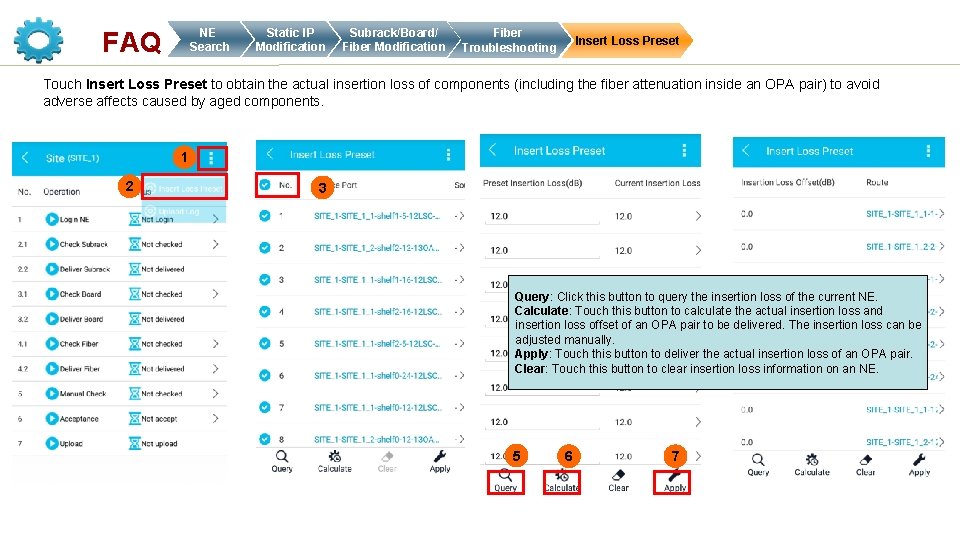
NE Search FAQ Static IP Modification Subrack/Board/ Fiber Modification Fiber Troubleshooting Insert Loss Preset Touch Insert Loss Preset to obtain the actual insertion loss of components (including the fiber attenuation inside an OPA pair) to avoid adverse affects caused by aged components. 1 2 3 Query: Click this button to query the insertion loss of the current NE. Calculate: Touch this button to calculate the actual insertion loss and insertion loss offset of an OPA pair to be delivered. The insertion loss can be adjusted manually. Apply: Touch this button to deliver the actual insertion loss of an OPA pair. Clear: Touch this button to clear insertion loss information on an NE. 5 6 7
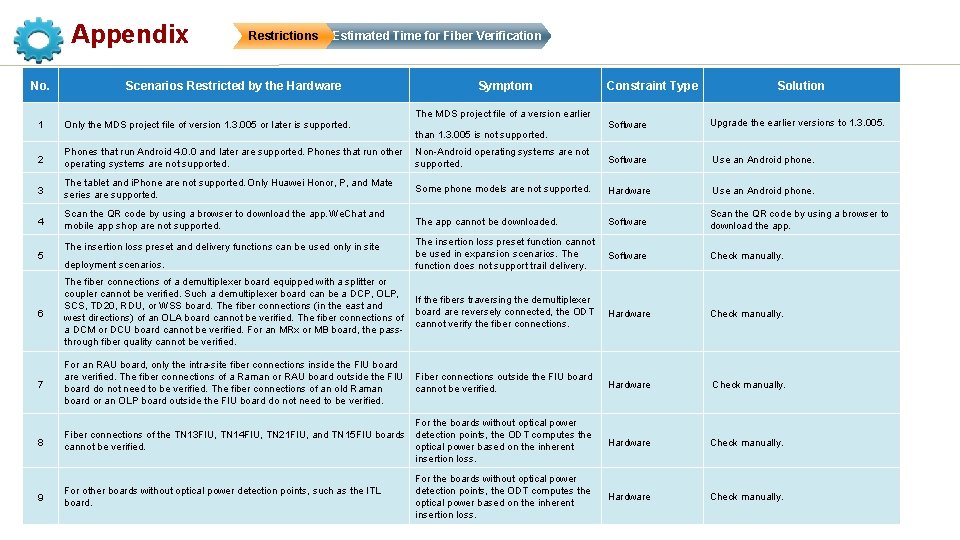
Appendix No. Restrictions Estimated Time for Fiber Verification Scenarios Restricted by the Hardware Symptom The MDS project file of a version earlier Constraint Type Solution Software Upgrade the earlier versions to 1. 3. 005. Phones that run Android 4. 0. 0 and later are supported. Phones that run other Non-Android operating systems are not supported. Software Use an Android phone. 3 The tablet and i. Phone are not supported. Only Huawei Honor, P, and Mate series are supported. Some phone models are not supported. Hardware Use an Android phone. 4 Scan the QR code by using a browser to download the app. We. Chat and mobile app shop are not supported. The app cannot be downloaded. Software Scan the QR code by using a browser to download the app. The insertion loss preset function cannot be used in expansion scenarios. The function does not support trail delivery. Software Check manually. 6 The fiber connections of a demultiplexer board equipped with a splitter or coupler cannot be verified. Such a demultiplexer board can be a DCP, OLP, If the fibers traversing the demultiplexer SCS, TD 20, RDU, or WSS board. The fiber connections (in the east and board are reversely connected, the ODT west directions) of an OLA board cannot be verified. The fiber connections of cannot verify the fiber connections. a DCM or DCU board cannot be verified. For an MRx or MB board, the passthrough fiber quality cannot be verified. Hardware Check manually. 7 For an RAU board, only the intra-site fiber connections inside the FIU board are verified. The fiber connections of a Raman or RAU board outside the FIU Fiber connections outside the FIU board cannot be verified. board do not need to be verified. The fiber connections of an old Raman board or an OLP board outside the FIU board do not need to be verified. Hardware Check manually. 8 For the boards without optical power Fiber connections of the TN 13 FIU, TN 14 FIU, TN 21 FIU, and TN 15 FIU boards detection points, the ODT computes the cannot be verified. optical power based on the inherent insertion loss. Hardware Check manually. 9 For other boards without optical power detection points, such as the ITL board. For the boards without optical power detection points, the ODT computes the optical power based on the inherent insertion loss. Hardware Check manually. 1 Only the MDS project file of version 1. 3. 005 or later is supported. 2 5 The insertion loss preset and delivery functions can be used only in site deployment scenarios. than 1. 3. 005 is not supported.
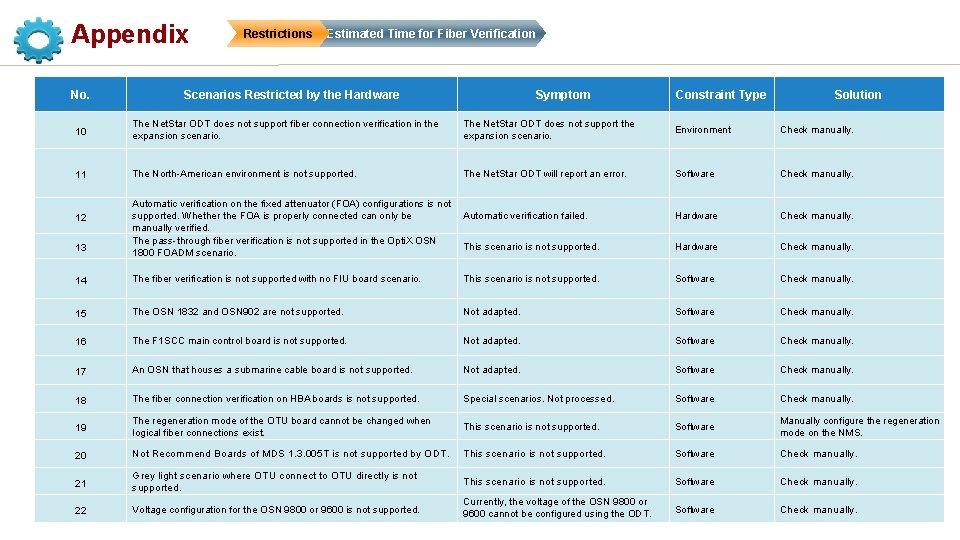
Appendix No. Restrictions Estimated Time for Fiber Verification Scenarios Restricted by the Hardware Symptom Constraint Type Solution 10 The Net. Star ODT does not support fiber connection verification in the expansion scenario. The Net. Star ODT does not support the expansion scenario. Environment Check manually. 11 The North-American environment is not supported. The Net. Star ODT will report an error. Software Check manually. Hardware Check manually. 13 Automatic verification on the fixed attenuator (FOA) configurations is not supported. Whether the FOA is properly connected can only be Automatic verification failed. manually verified. The pass-through fiber verification is not supported in the Opti. X OSN This scenario is not supported. 1800 FOADM scenario. 14 The fiber verification is not supported with no FIU board scenario. This scenario is not supported. Software Check manually. 15 The OSN 1832 and OSN 902 are not supported. Not adapted. Software Check manually. 16 The F 1 SCC main control board is not supported. Not adapted. Software Check manually. 17 An OSN that houses a submarine cable board is not supported. Not adapted. Software Check manually. 18 The fiber connection verification on HBA boards is not supported. Special scenarios. Not processed. Software Check manually. 19 The regeneration mode of the OTU board cannot be changed when logical fiber connections exist. This scenario is not supported. Software Manually configure the regeneration mode on the NMS. 20 Not Recommend Boards of MDS 1. 3. 005 T is not supported by ODT. This scenario is not supported. Software Check manually. 21 Grey light scenario where OTU connect to OTU directly is not supported. This scenario is not supported. Software Check manually. 22 Voltage configuration for the OSN 9800 or 9600 is not supported. Currently, the voltage of the OSN 9800 or 9600 cannot be configured using the ODT. Software Check manually. 12
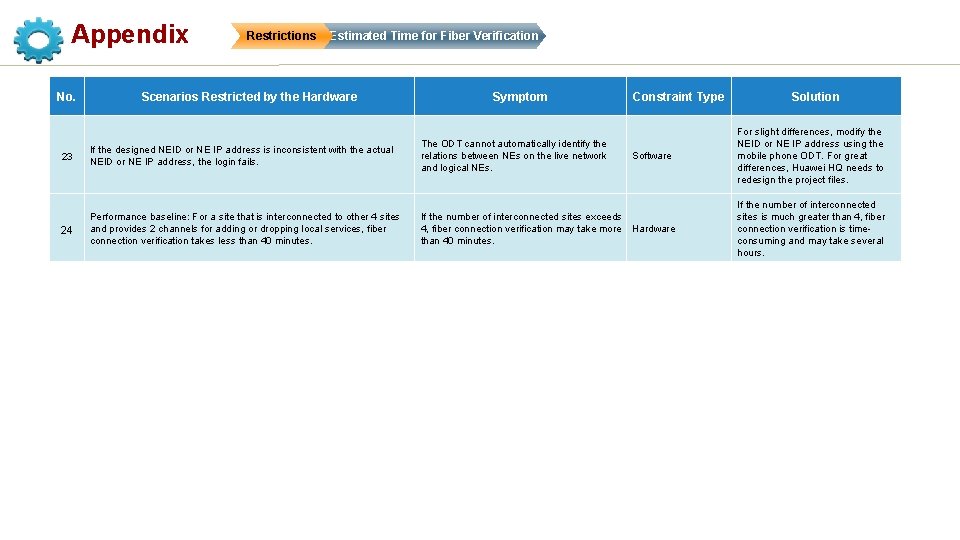
Appendix No. Restrictions Estimated Time for Fiber Verification Scenarios Restricted by the Hardware Symptom Constraint Type 23 If the designed NEID or NE IP address is inconsistent with the actual NEID or NE IP address, the login fails. The ODT cannot automatically identify the relations between NEs on the live network and logical NEs. 24 Performance baseline: For a site that is interconnected to other 4 sites and provides 2 channels for adding or dropping local services, fiber connection verification takes less than 40 minutes. If the number of interconnected sites exceeds 4, fiber connection verification may take more Hardware than 40 minutes. Software Solution For slight differences, modify the NEID or NE IP address using the mobile phone ODT. For great differences, Huawei HQ needs to redesign the project files. If the number of interconnected sites is much greater than 4, fiber connection verification is timeconsuming and may take several hours.

Appendix Restrictions Estimated Time for Fiber Verification Estimated time for fiber verification: Site Scale Number of OUTs Number of Estimated Time Estimated OPA Pairs 4 line degrees + 2 local degrees 2 20 25 minutes 6 line degrees + 2 local degrees 2 40 65 minutes 9 line degrees + 2 local degrees 2 80 140 minutes 14 line degrees + 2 local degrees 2 160 300 minutes 20 line degrees + 2 local degrees 2 300 540 minutes

Thank you!
- Slides: 34