
Mobile Information Literacy Stacey Wedlake and Karah Lothian
Mobile Information Literacy Stacey Wedlake and Karah Lothian March 2018 Nakuru, Kenya
Technology & Social Change Group explores the design, use, and effects of information and communication technologies in communities facing social and economic challenges. Ø ICT Information & Communication Technologies Ø Development social, economic, political Ø Global Research 50+ countries Ø Making a difference Improving policy and practice
Overview of course Day 1 § Module 1: Introduction to the mobile internet § Module 2: Security and information searching Day 2 § Module 3: Making smartphones work for you § Module 4: Using library resources on mobile
Module 1: Introduction to the mobile internet and smartphones 15 minutes Introduction 20 minutes Icebreaker and Learning Objectives 15 minutes Applying prior knowledge 20 minutes Internet and WWW 30 minutes Mobile Internet: Data vs Wi-Fi 15 minutes Break 25 minutes Activity: Perform the Internet 15 minutes Apps vs browsers 35 minutes Activity: Exploring the Internet 5 minutes Debrief
Icebreaker § In groups, each person should think of five ways they use their phone and write it down. § After everyone finishes, each person will share their five things with their group.
Smartphone experiences § I used a smartphone for Whats. App. § I used a smartphone to withdraw money from my account. § I used a smartphone to record a movie. § I used a smartphone to pay my bills. § I used a smartphone to apply for jobs. § I used a smartphone to access library resources. § I used a smartphone to search for information.
§ What is the internet? § What do people do with the internet? § What do you use the internet for?
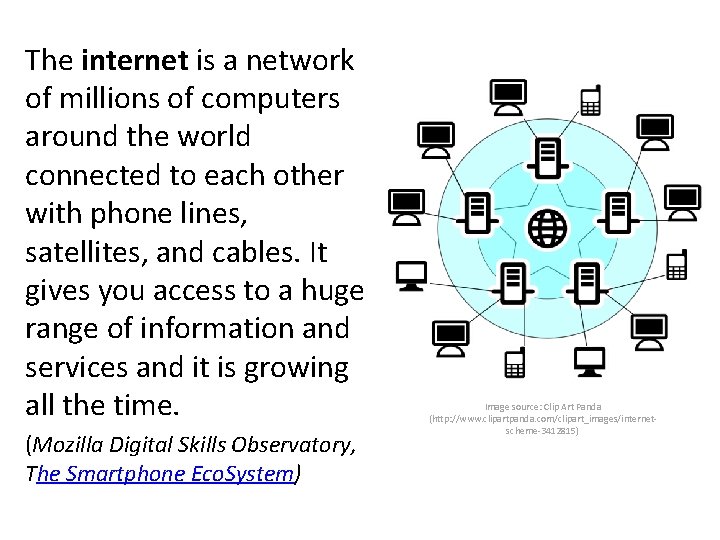
The internet is a network of millions of computers around the world connected to each other with phone lines, satellites, and cables. It gives you access to a huge range of information and services and it is growing all the time. (Mozilla Digital Skills Observatory, The Smartphone Eco. System) Image source: Clip Art Panda (http: //www. clipartpanda. com/clipart_images/internetscheme-3412815)
§ What is the World Wide Web (WWW)? The Web is a way of accessing and visualizing information on the internet. The Web is just a small part of the internet. The World Wide Web, or WWW or just “the Web” is a set of interconnected multimedia documents and resources. A web page is one location on the Web, and a series of web pages is a website.
§ How do people in your community access the Internet? § Who can use the Internet? § What restricts people's access?
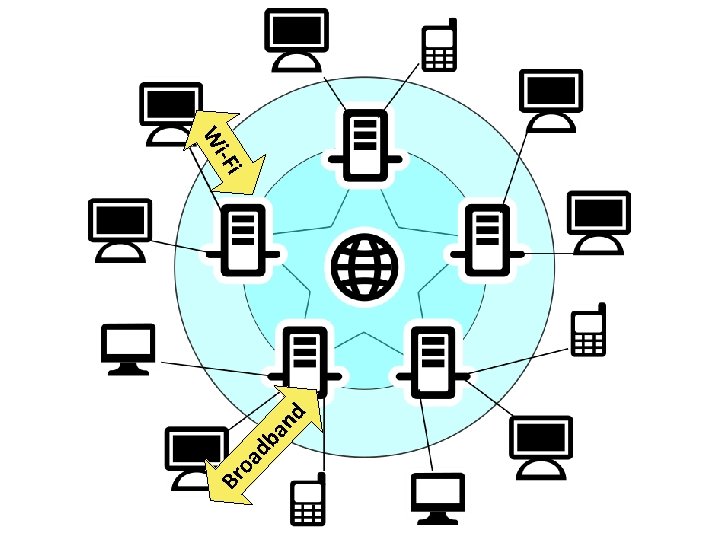
nd db a Br oa -Fi Wi
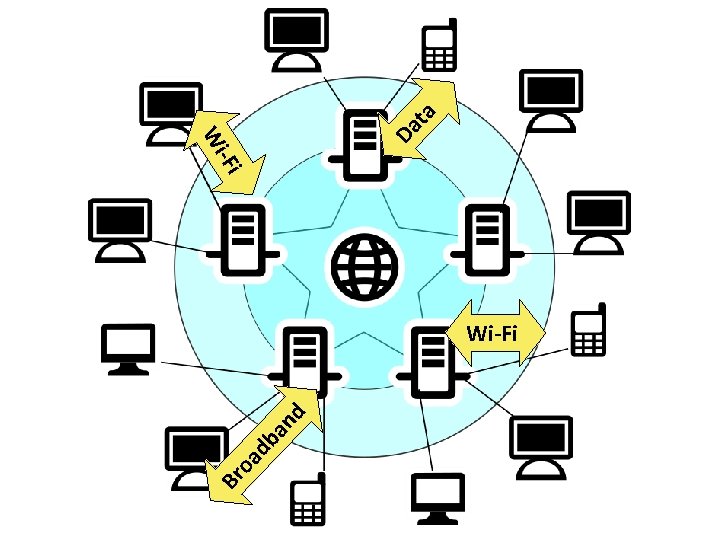
nd db a Br oa -Fi ta Da Wi Wi-Fi
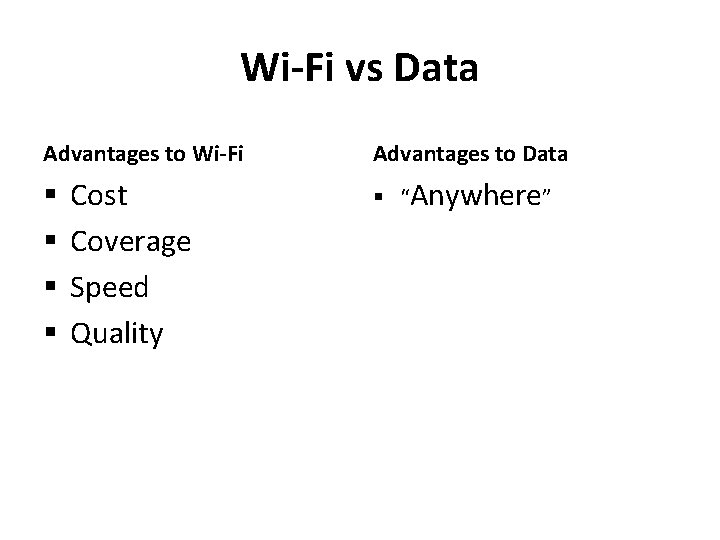
Wi-Fi vs Data Advantages to Wi-Fi § § Cost Coverage Speed Quality Advantages to Data § “Anywhere”
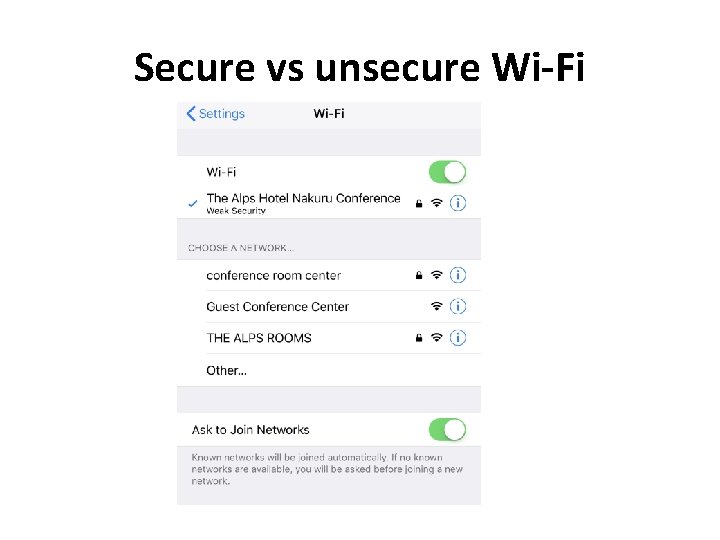
Secure vs unsecure Wi-Fi
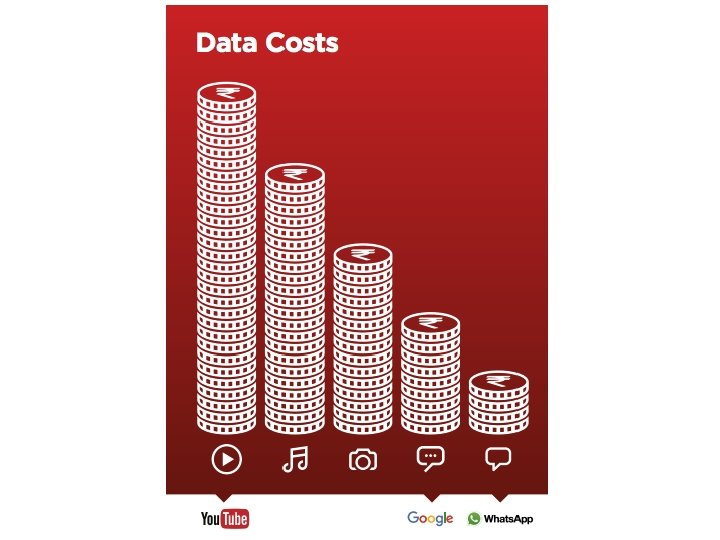
Android To monitor your data usage go to settings > Wireless & Networks > Data Usage i. OS Cellular > Cellular Data Usage
Perform the Internet In groups, spend 10 minutes to create a short skit that shows how either the Internet or cellular network functions. Groups should show, rather than tell, how one of the technology platforms works. Use any of the available materials for your skit.
Browser A browser allows you to do just that, browse the internet for websites. Firefox (Mozilla) Chrome (Google) Tor (Tor Project) Opera (Opera) Safari (Apple) Edge (Microsoft)
Activity: Exploring with Smartphones § In groups, get connected to center’s Wi-Fi.
Activity: Exploring with Smartphones § What’s the difference between a browser and an app? § What apps do you have on your device? § What do you use them for?
Activity: Exploring with Smartphones § Be aware of when assessing apps: • • Number of downloads Company or Creator Reviews Last updated
Activity: Exploring with Smartphones § What are some options available in settings? What do they do? § Which settings options do you think are important for protecting your information? Why?
Activity: Exploring with Smartphones § Properly close apps – otherwise you might deplete your data, memory, and battery § Deleting apps – always remove apps you no longer use
Activity: Exploring with Smartphones § How can you use what you learned to interact with apps in the future? § How can you share what you have learned with others?
What did you learn?
End of Module 1
Module 2: Mobile Security and Information Searching 20 minutes 30 minutes 15 minutes 20 minutes 30 minutes 5 minutes Icebreaker and Learning Objectives Creating accounts Activity: Password guessing game Break Searching for information on smartphones Investigating what we find online Activity: Identifying Mobile Scams Debrief
Icebreaker § Each group will choose one of the ways they use their phone from the first module icebreaker and then they will act it out. • Choose at least 1 narrator and 1 actor (can have more) • Skits should be short - no more than 1 minute.
Creating accounts
Creating accounts
Creating accounts
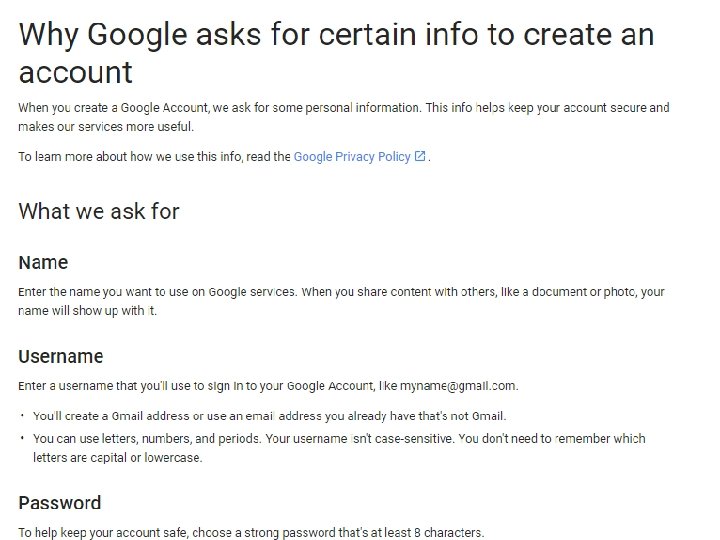
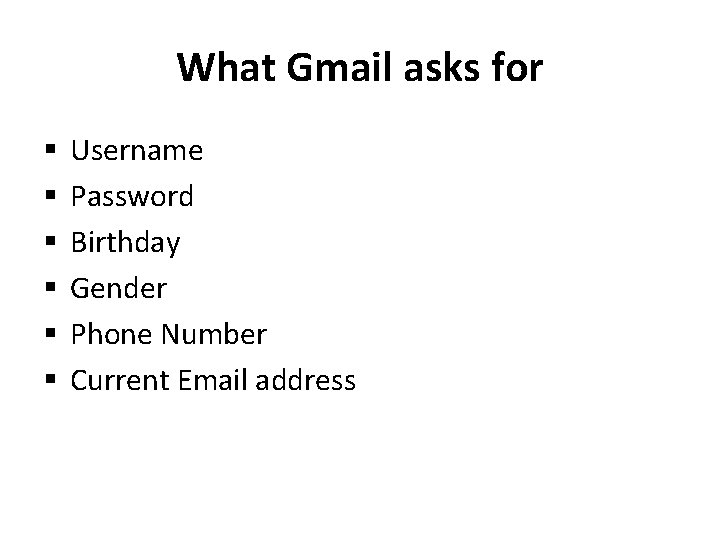
What Gmail asks for § § § Username Password Birthday Gender Phone Number Current Email address
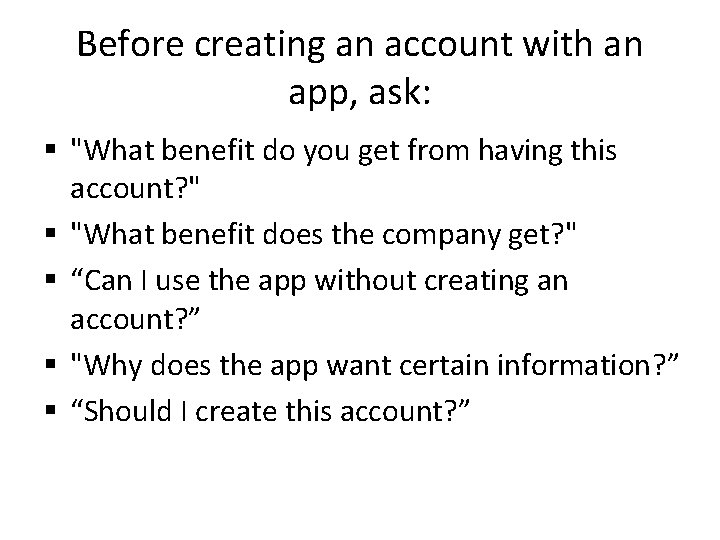
Before creating an account with an app, ask: § "What benefit do you get from having this account? " § "What benefit does the company get? " § “Can I use the app without creating an account? ” § "Why does the app want certain information? ” § “Should I create this account? ”
Activity: Password game Make up a password for each app and write it on the back of the app. DON’T USE YOUR REAL PASSWORDS!
How to create stronger passwords? § keep passwords simple, long, and memorable § phrases, lowercase letters and typical English (or your local language) words work well.
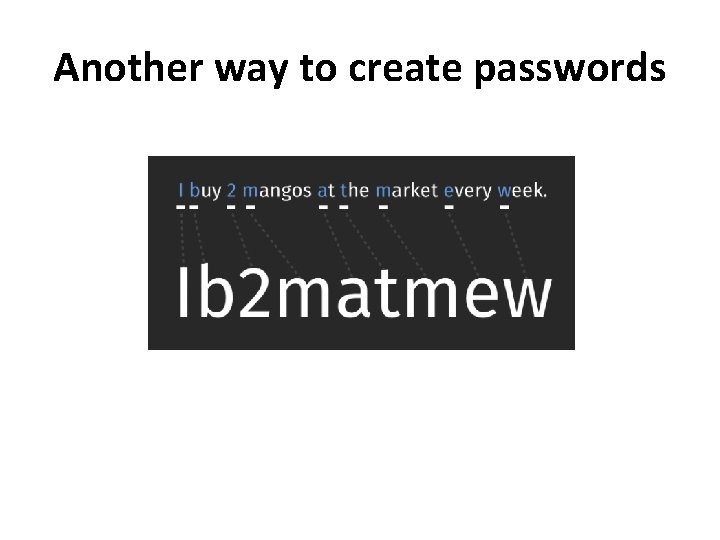
Another way to create passwords
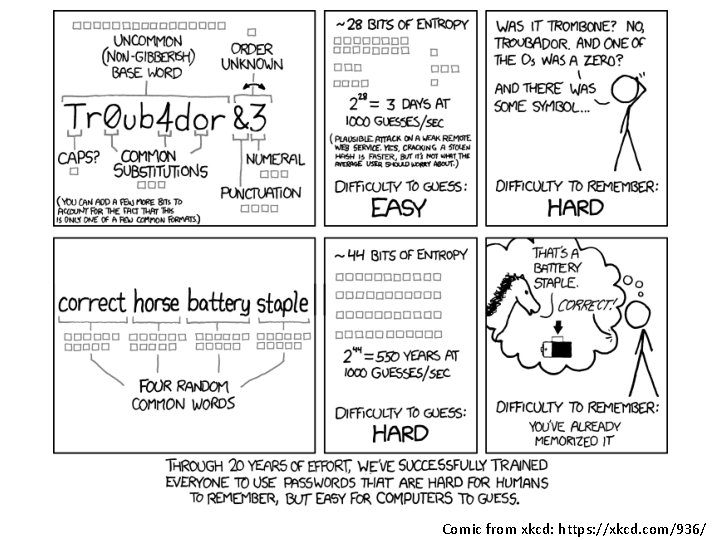
Comic from xkcd: https: //xkcd. com/936/
Searching for information Using only my phone, how would I find the population of Nairobi?
What search engines have you used?
Investigating what we find online § What are some popular internet stories that you wonder about? § How can you figure out if a story is true?

Resources for checking fake news § Africa Check: africacheck. org § Snopes: snopes. org § Images • • www. tineye. com Images. google. com App: Fake Image Detector (Andriod) App: Veracity – Reverse Image Search (i. OS)
Activity: Online scams § What is a scam? § What are examples of offline scams?

Two types of scams § Mobile Spam • Junk email, calls, texts that you didn’t request • Can include fake links for you to click • May ask you to call a fake phone number • May ask you to transfer money § Mobile Phishing • Claims to be from an organization that you’ve heard to win your trust • If includes a link - leads you to a fake website • Asks for your personal information Sort into three categories: spam, phishing and legitimate
“Think more, share less” -Jevin West, University of Washington Information School http: //callingbullshit. org/
What did you learn?
End of Module 2
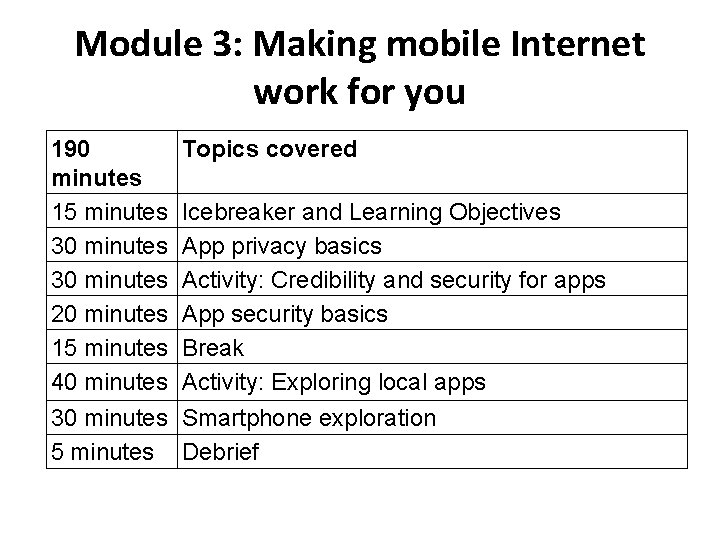
Module 3: Making mobile Internet work for you 190 minutes 15 minutes 30 minutes 20 minutes 15 minutes 40 minutes Topics covered Icebreaker and Learning Objectives App privacy basics Activity: Credibility and security for apps App security basics Break Activity: Exploring local apps 30 minutes Smartphone exploration 5 minutes Debrief
Icebreaker § Each group chooses a fake news story § On large piece of paper, answer the following questions: • In your experience, how does a fake story spread across the internet in Kenya? (Who shares it first? Where does it go? etc. ) • What apps, websites, people, or traditional media might be involved in its dissemination? • What strategies do you use to determine if the news is real or fake?
App security basics § Review: • Before you create an account what should you do? § When you download an app, you agree to share information with the app – even if you don’t create an account.
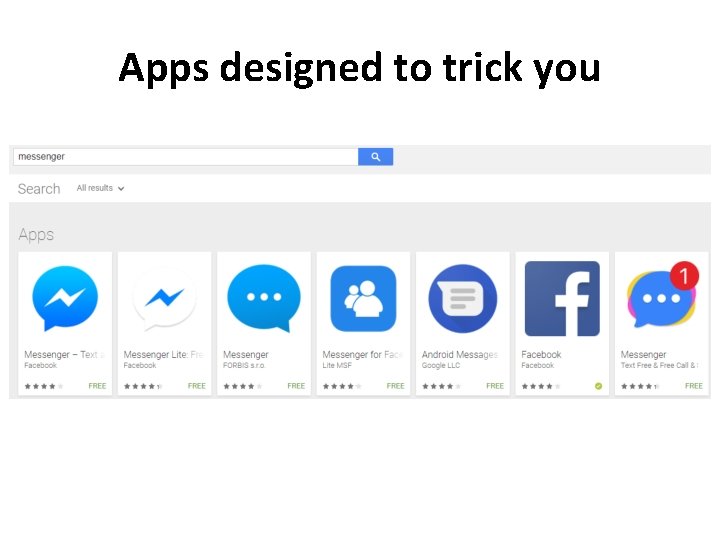
Apps designed to trick you
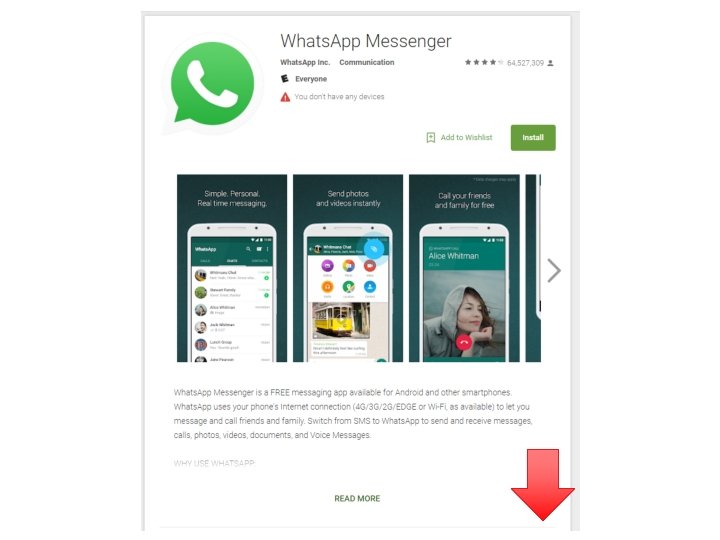
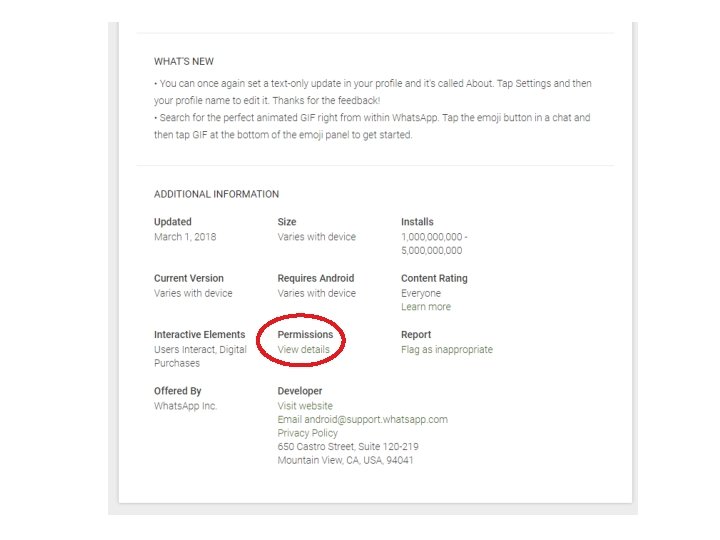
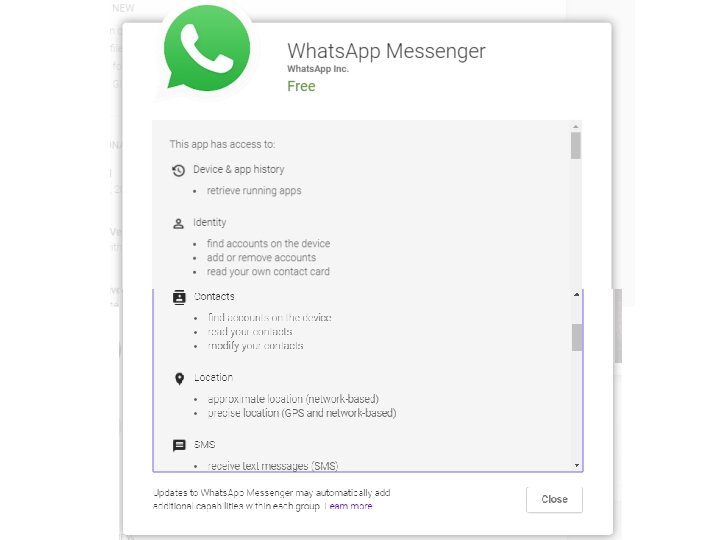
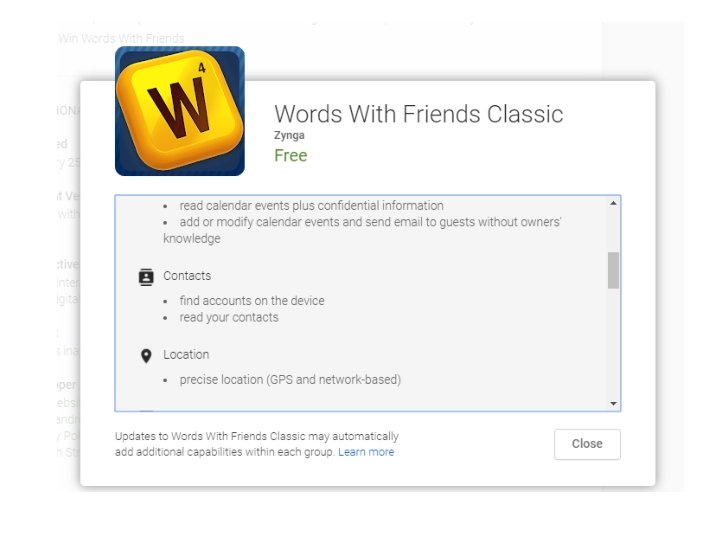
Activity: Evaluating an app for credibility and security § In groups of 2 -3, search for a ledger app to keep daily records of sales on the Play store. (Look at several options. ) § Check the description, comments, and ratings to help in decision. § Look for any safety or privacy concerns in permissions. § Choose the app that you think is the best based on its description, features, ratings, and size. § Once you find a safe app, download the app. § Install and try it out.
Activity § How did they choose their app? § Did it work the way they expected from its description and ratings, or was it better or worse than they expected? § Was the app difficult or easy to install and use? § Could the participants use an app like this in their own lives or work? If so, how would they use it?
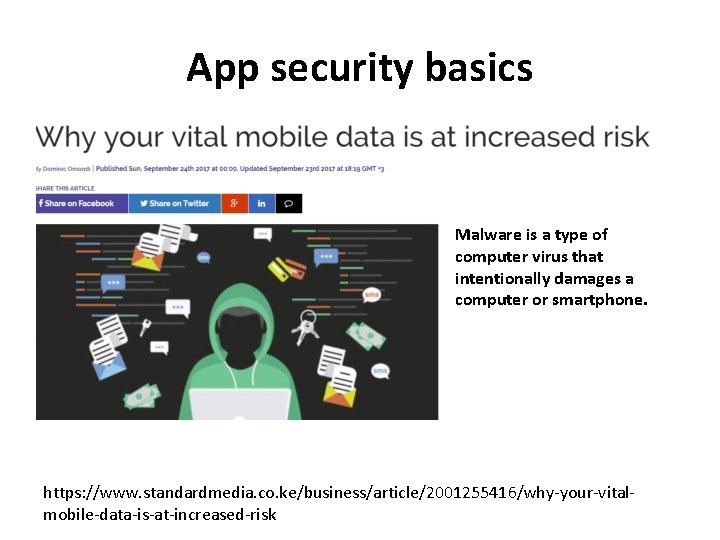
App security basics Malware is a type of computer virus that intentionally damages a computer or smartphone. https: //www. standardmedia. co. ke/business/article/2001255416/why-your-vitalmobile-data-is-at-increased-risk
Google Play Protect § Only download apps from the Google Play Store § Check for Google Play Protect • Settings > Google > Security > Google Play Protect.
Keep apps up-to-date § Google Play Store • Menu > Settings > Auto-update apps § Windows • Settings > Applications > Store > App updates § Apple • Settings > [your name] > i. Tunes & App Store. Auto-update apps over Wi-Fi only
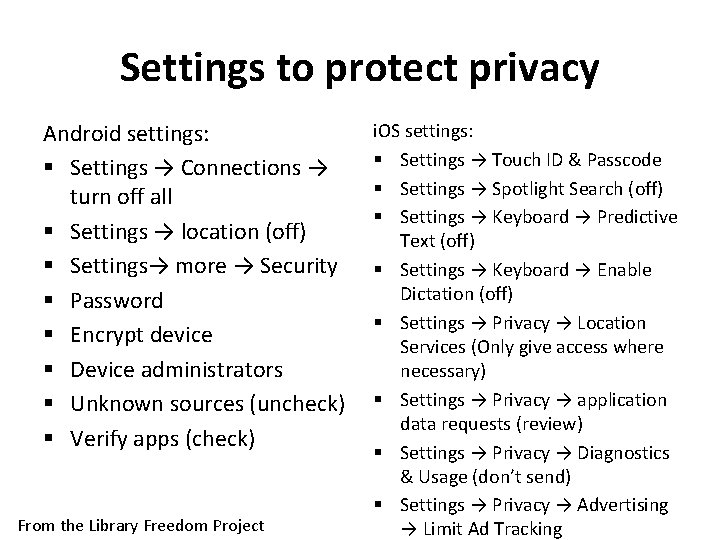
Settings to protect privacy Android settings: § Settings → Connections → turn off all § Settings → location (off) § Settings→ more → Security § Password § Encrypt device § Device administrators § Unknown sources (uncheck) § Verify apps (check) From the Library Freedom Project i. OS settings: § Settings → Touch ID & Passcode § Settings → Spotlight Search (off) § Settings → Keyboard → Predictive Text (off) § Settings → Keyboard → Enable Dictation (off) § Settings → Privacy → Location Services (Only give access where necessary) § Settings → Privacy → application data requests (review) § Settings → Privacy → Diagnostics & Usage (don’t send) § Settings → Privacy → Advertising → Limit Ad Tracking

Activity: Exploring local apps § Kenya Traffic offences guide § Kenya Map § Okoa Loan § Mdundo free music § Date Kenyans § Mbegu choice § mkulima young § National Anthem of Kenya § Kenya Constitution § § § § § M-farm i-cow Mpesa NTSA i-Tax OLX Kilimall Jumia online shopping Mshwari mobile loan Akili’s Alphabet kids app
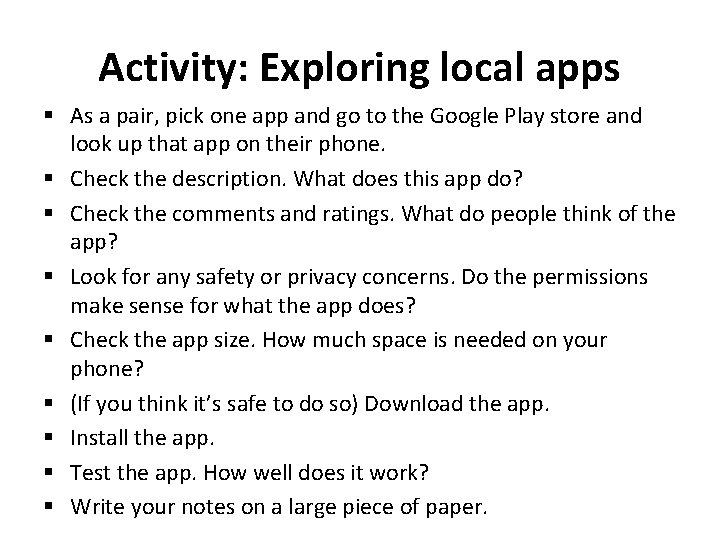
Activity: Exploring local apps § As a pair, pick one app and go to the Google Play store and look up that app on their phone. § Check the description. What does this app do? § Check the comments and ratings. What do people think of the app? § Look for any safety or privacy concerns. Do the permissions make sense for what the app does? § Check the app size. How much space is needed on your phone? § (If you think it’s safe to do so) Download the app. § Install the app. § Test the app. How well does it work? § Write your notes on a large piece of paper.
Smartphone exploration § What do you want to accomplish using your phone using an app?
What did you learn?
End of Module 3
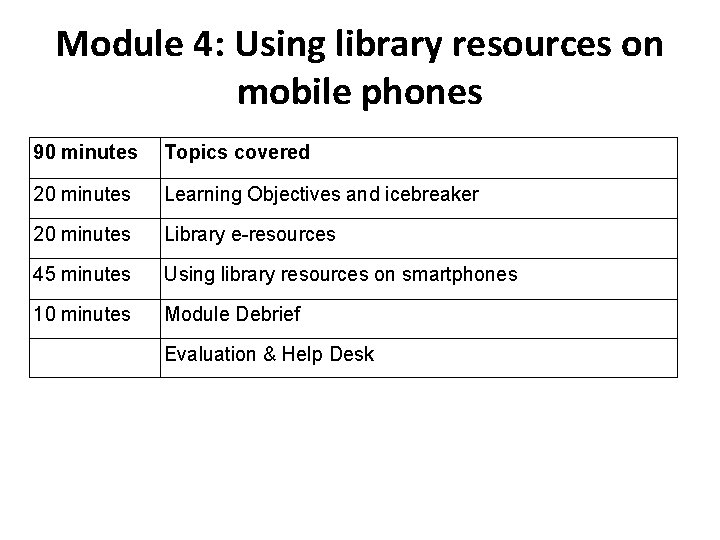
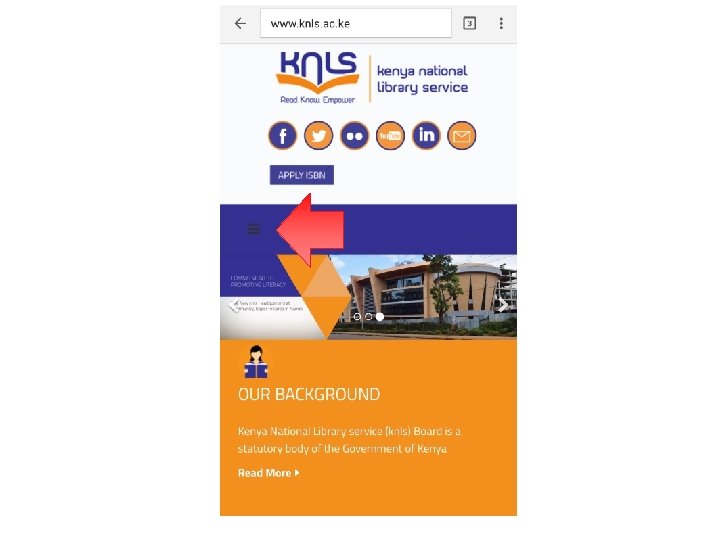
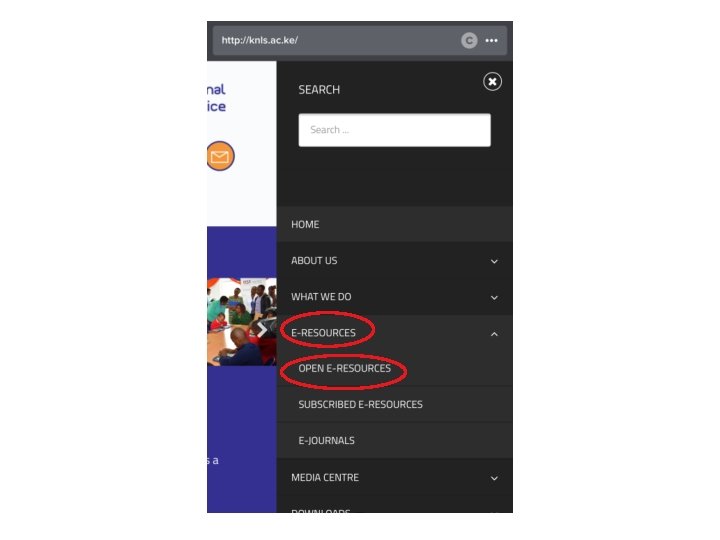
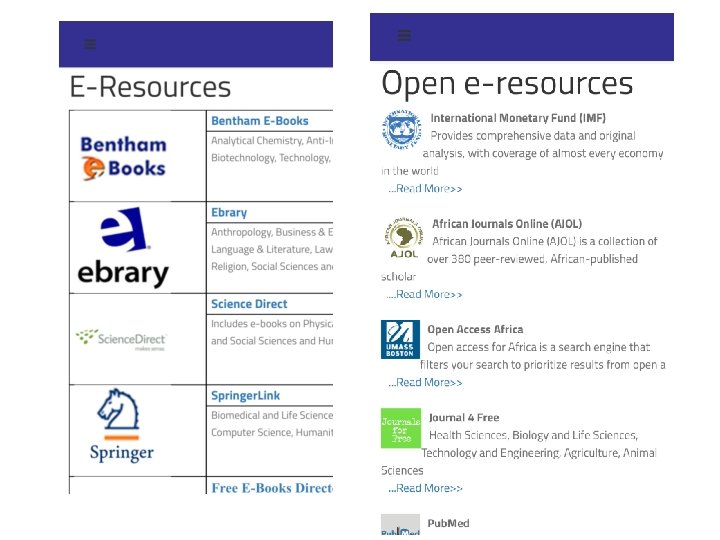
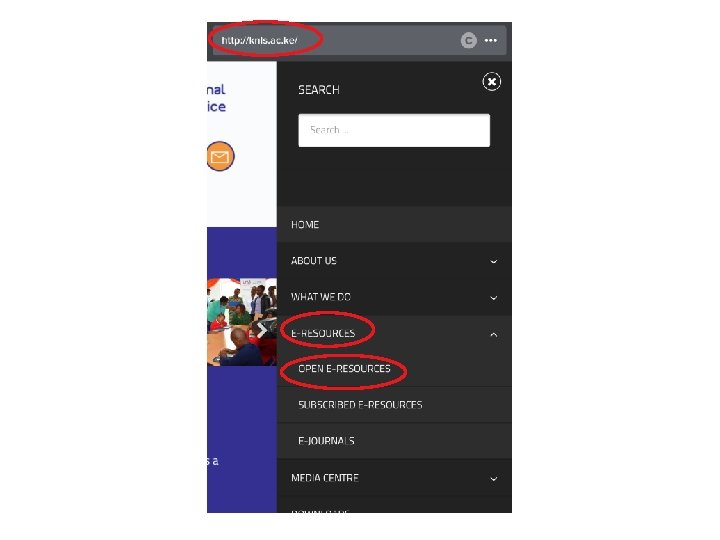
Module 4: Using library resources on mobile phones 90 minutes Topics covered 20 minutes Learning Objectives and icebreaker 20 minutes Library e-resources 45 minutes Using library resources on smartphones 10 minutes Module Debrief Evaluation & Help Desk
Icebreaker § In groups of 2 or 3, explain one thing you’ve done with their smartphone since the yesterday without speaking, drawing, or writing (singing is allowed). § After one group acts, everyone can try to guess what they did.
Database: a collection of information that is organized so it can easily be accessed, managed, and updated.
What is a library database? § § § Contain information from published works Searchable Provide citation information Often contain full-text articles Different databases for different subject areas Library pays subscription for some others are “open access” or free from Enoch Pratt Free Library, Databases)
How is a library database different from a website? Library databases § Get their information from professionals or experts in the field. § Contain published works where facts are checked. § Updated frequently and include the date of publication. § May have restricted access. (from Enoch Pratt Free Library, Databases) Website § Can be written by anyone regardless of expertise. § May not indicate when a page is updated. § Anyone can access anywhere with a Internet connection.


What did you learn?
Debrief Thinking about the entire Mobile Information Literacy curriculum, write down • Something you learned • Something you’ll do in the next three months using what you learned Label the paper with your name and email address. We will follow up!
Evaluation & help desk
Thank You! Stacey: staceyaw@uw. edu Karah: karah. Lothian@gmail. com Twitter: @TASCHAGroup Facebook: Technology & Social Change Group tascha. uw. edu +1. 206. 616. 9101 Email: tascha@uw. edu
- Slides: 83