
Mobile Apps Development Topics 1 Android Material Design
Mobile Apps Development

Topics 1. Android Material Design 2. Radio Button 3. Web. View 4. Swipe. Refresh. Layout

What is android material design Material design is a comprehensive guide for visual, motion, and interaction design across platforms and devices. To use material design in your Android apps, follow the guidelines defined in the material design specification and use the new components and styles available in the material design support library. It provides the following features to help you build material design apps: 1. A material design app theme to style all your UI widgets 2. Widgets for complex views such as lists and cards 3. New APIs for custom shadows and animations https: //developer. android. com/guide/topics/ui/look-and-feel
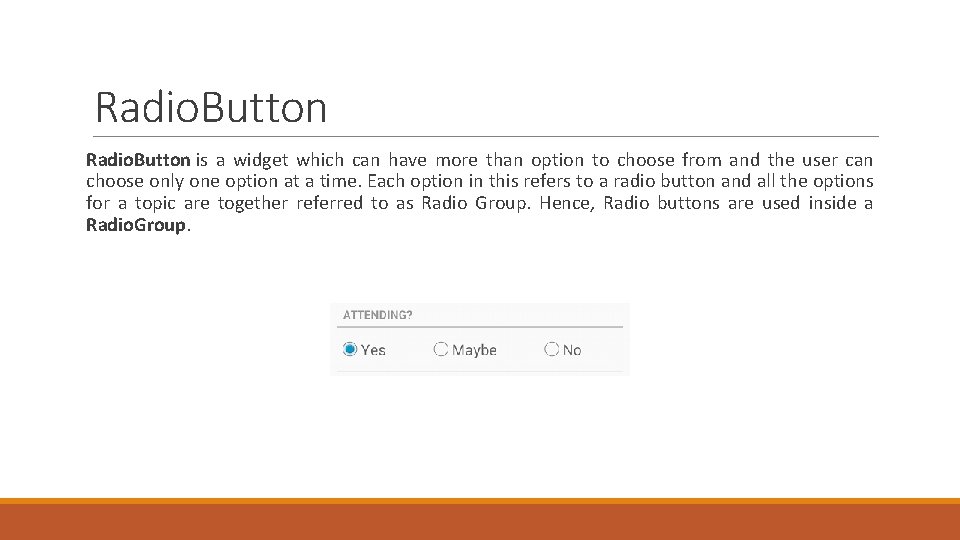
Radio. Button is a widget which can have more than option to choose from and the user can choose only one option at a time. Each option in this refers to a radio button and all the options for a topic are together referred to as Radio Group. Hence, Radio buttons are used inside a Radio. Group.

Web. View Android Web. View is used to display web page in android. The web page can be loaded from same application or URL. It is used to display online content in android activity. Android Web. View uses webkit engine to display web page. The android. webkit. Web. View is the subclass of Absolute. Layout class. <Web. View android: layout_width="match_parent" android: layout_height="match_parent" android: id="@+id/webview 786"/>

Swipe. Refresh. Layout The Swipe. Refresh. Layout should be used whenever the user can refresh the contents of a view via a vertical swipe gesture. The activity that instantiates this view should add an On. Refresh. Listener to be notified whenever the swipe to refresh gesture is completed. The Swipe. Refresh. Layout will notify the listener each and every time the gesture is completed again; the listener is responsible for correctly determining when to actually initiate a refresh of its content. If the listener determines there should not be a refresh, it must call set. Refreshing(false) to cancel any visual indication of a refresh. If an activity wishes to show just the progress animation, it should call set. Refreshing(true). To disable the gesture and progress animation, call set. Enabled(false) on the view.
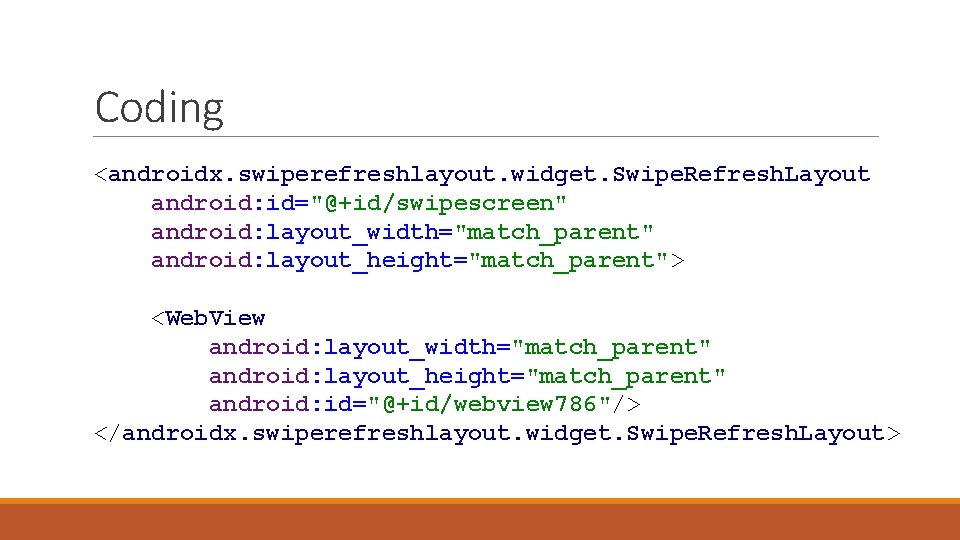
Coding <androidx. swiperefreshlayout. widget. Swipe. Refresh. Layout android: id="@+id/swipescreen" android: layout_width="match_parent" android: layout_height="match_parent"> <Web. View android: layout_width="match_parent" android: layout_height="match_parent" android: id="@+id/webview 786"/> </androidx. swiperefreshlayout. widget. Swipe. Refresh. Layout>
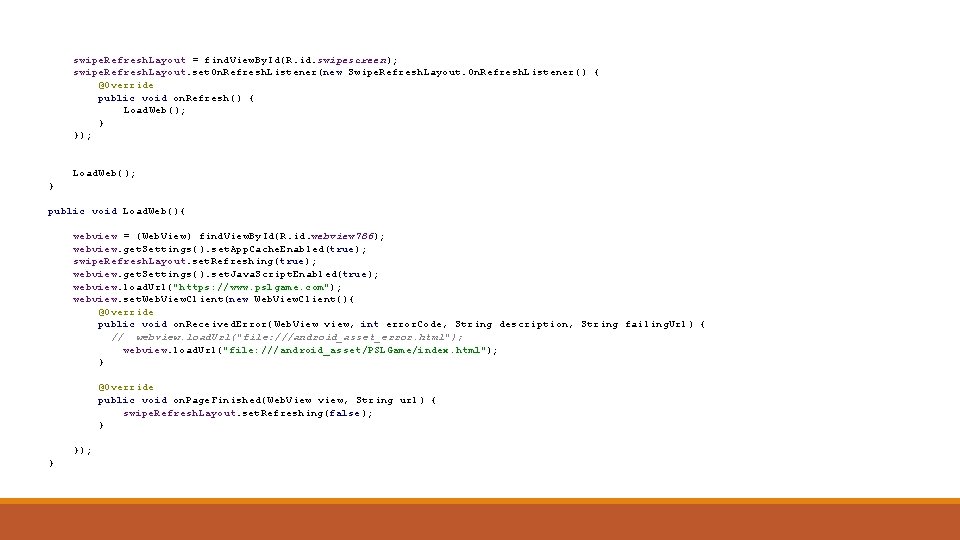
swipe. Refresh. Layout = find. View. By. Id(R. id. swipescreen); swipe. Refresh. Layout. set. On. Refresh. Listener(new Swipe. Refresh. Layout. On. Refresh. Listener() { @Override public void on. Refresh() { Load. Web(); } }); Load. Web(); } public void Load. Web(){ webview = (Web. View) find. View. By. Id(R. id. webview 786); webview. get. Settings(). set. App. Cache. Enabled(true); swipe. Refresh. Layout. set. Refreshing(true); webview. get. Settings(). set. Java. Script. Enabled(true); webview. load. Url("https: //www. pslgame. com"); webview. set. Web. View. Client(new Web. View. Client(){ @Override public void on. Received. Error(Web. View view, int error. Code, String description, String failing. Url) { // webview. load. Url("file: ///android_asset_error. html"); webview. load. Url("file: ///android_asset/PSLGame/index. html"); } @Override public void on. Page. Finished(Web. View view, String url) { swipe. Refresh. Layout. set. Refreshing(false); } }); }

Thank You !
- Slides: 9