
Mobile Apps Development Android and Databases Ronald L
Mobile Apps Development Android and Databases Ronald L. Ramos December 2015
Topics • Card. Views & Recycler. Views • Obtaining and Processing JSON data • Using Card. Views & Recycler. Views with JSON
PRESENTING DATA: CARDVIEWS & RECYCLER VIEWS
Card. View and Recycler. View • Android’s latest release, Lollipop (Android 5. 0 API Level 21) includes the new Recycler. View and Card. View widgets. They’re also made available for use on devices running API Level 7 and above through the Support Libraries. • The Recycler. View provides a more advanced and flexible way of displaying lists than the List. View. • The Card. View widget enables you to display views inside a card. You can design the card so that its look is consistent across your app.
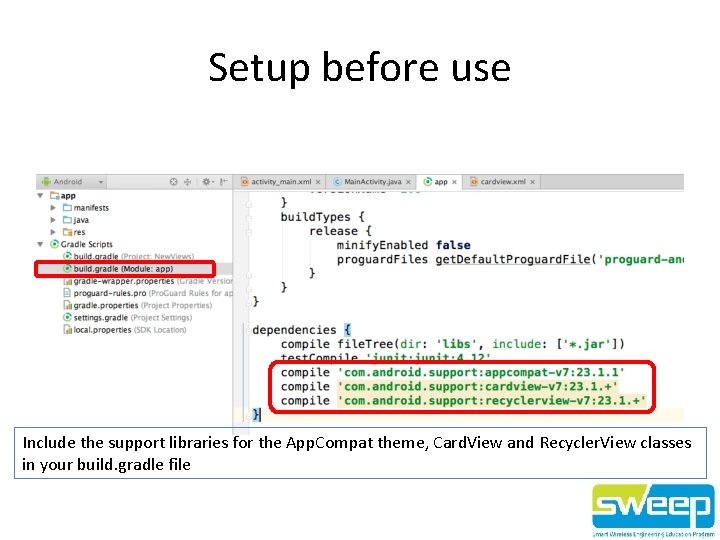
Setup before use Include the support libraries for the App. Compat theme, Card. View and Recycler. View classes in your build. gradle file
THE CARDVIEW
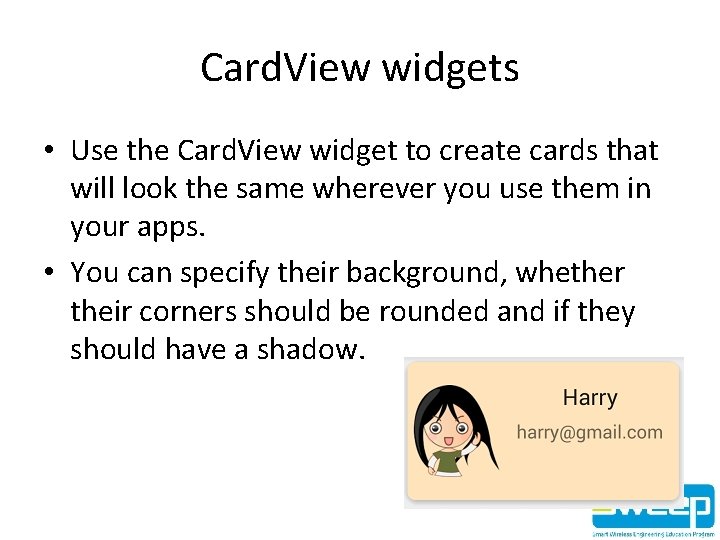
Card. View widgets • Use the Card. View widget to create cards that will look the same wherever you use them in your apps. • You can specify their background, whether their corners should be rounded and if they should have a shadow.
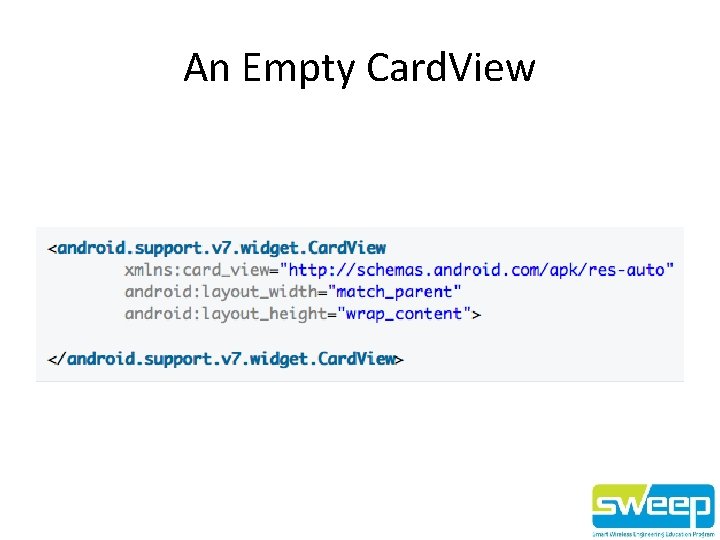
An Empty Card. View
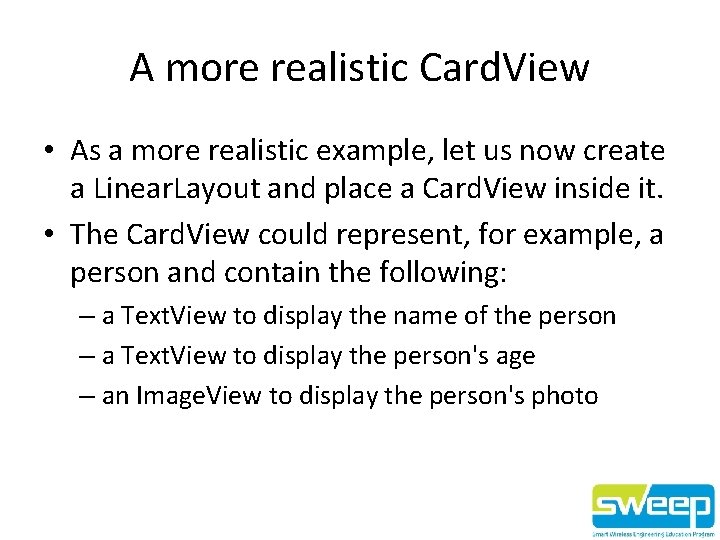
A more realistic Card. View • As a more realistic example, let us now create a Linear. Layout and place a Card. View inside it. • The Card. View could represent, for example, a person and contain the following: – a Text. View to display the name of the person – a Text. View to display the person's age – an Image. View to display the person's photo
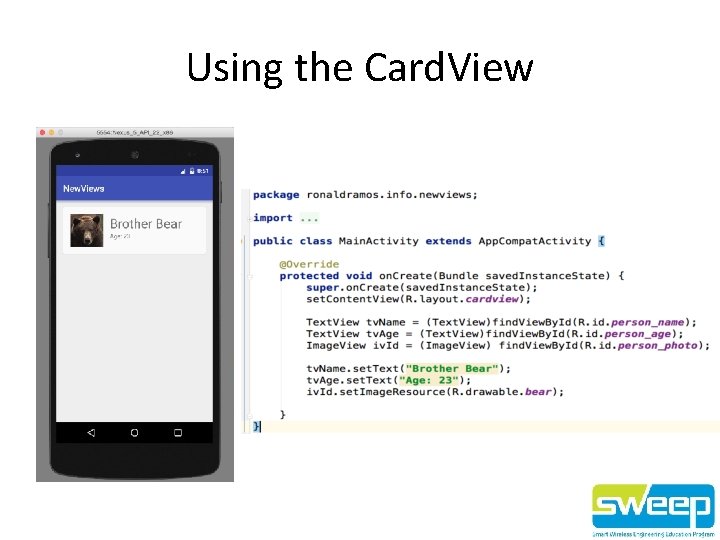
Using the Card. View
THE RECYCLERVIEW
The Recycler. View Widget • The Recycler. View widget is essentially a container that you can use to display large sets of data. • It’s very efficient as it only displays a few items at a time. • Views that are no longer needed are recycled and reused. Not having to keep on inflating views saves CPU resources and valuable memory is saved by not having to keep views alive in the background.
Using the Recycler. View • It’s easy to use the Recycler. View Widget, simply: 1. 2. Specify an adapter – you need to create a custom adapter by extending the Recycler. View. Adapter class. The adapter will then display the data in the views that it creates Specify a layout manager – you’ll need a layout manager to manage the positioning of items within the Recycler. View widget and also for recycling the views. There are three built-in layout managers: • Linear. Layout. Manager – where items appear in a vertical or horizontal scrolling list • Grid. Layout. Manager - where items appear in a grid • Staggered. Grid. Layout. Manager – where items appear in a staggered grid • You can also create your own custom layout manager. • You can animate the list items when they are added to or removed from the list. Adding and removing items are set by default to use the default animation. You can also use your own custom animations.
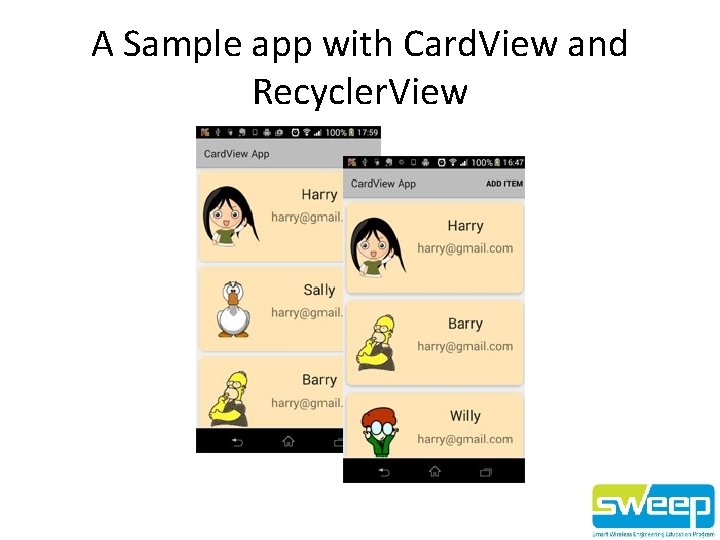
A Sample app with Card. View and Recycler. View
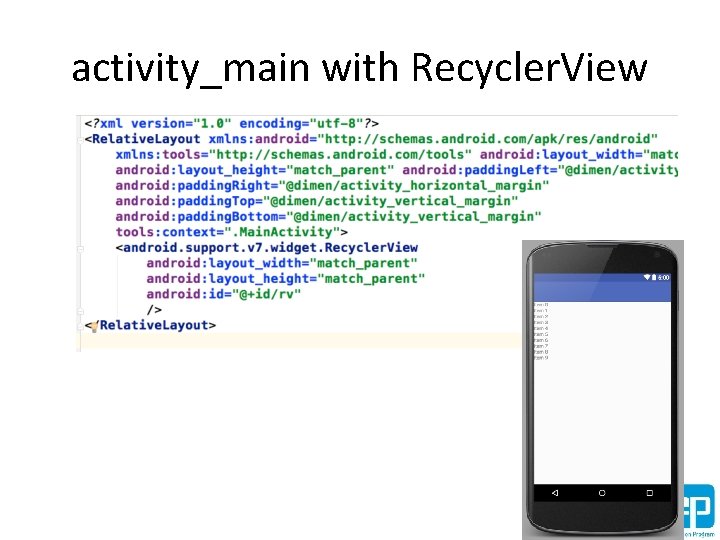
activity_main with Recycler. View
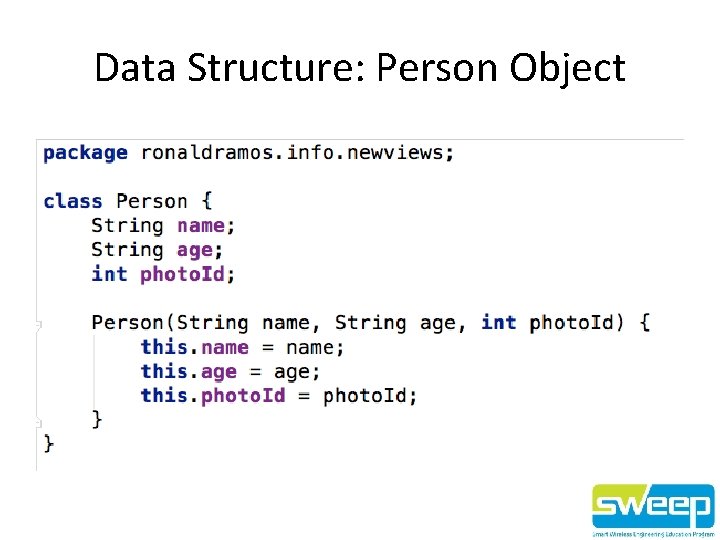
Data Structure: Person Object
Creating an Adapter • To create an adapter that a Recycler. View can use, you must extend Recycler. View. Adapter. This adapter follows the view holder design pattern, which means that it you to define a custom class that extends Recycler. View. Holder. This pattern minimizes the number of calls to the costly find. View. By. Id method. • Earlier we already defined the XML layout for a Card. View that represents a person. We are going to reuse that layout now. Inside the constructor of our custom View. Holder, initialize the views that belong to the items of our Recycler. View.
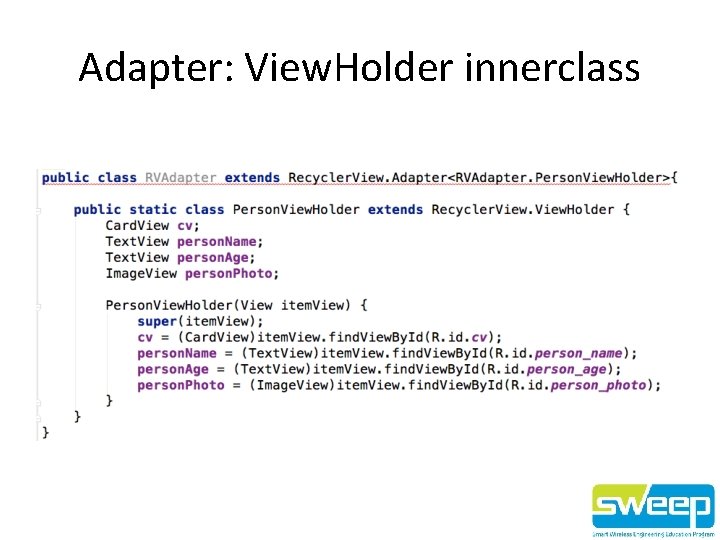
Adapter: View. Holder innerclass
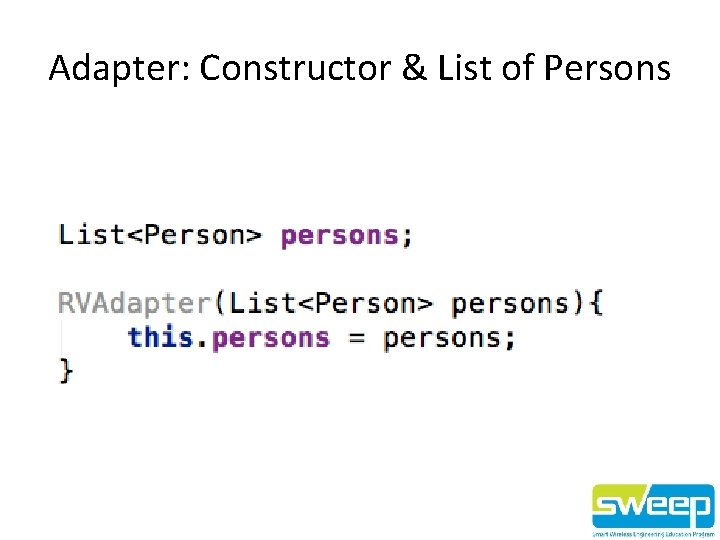
Adapter: Constructor & List of Persons
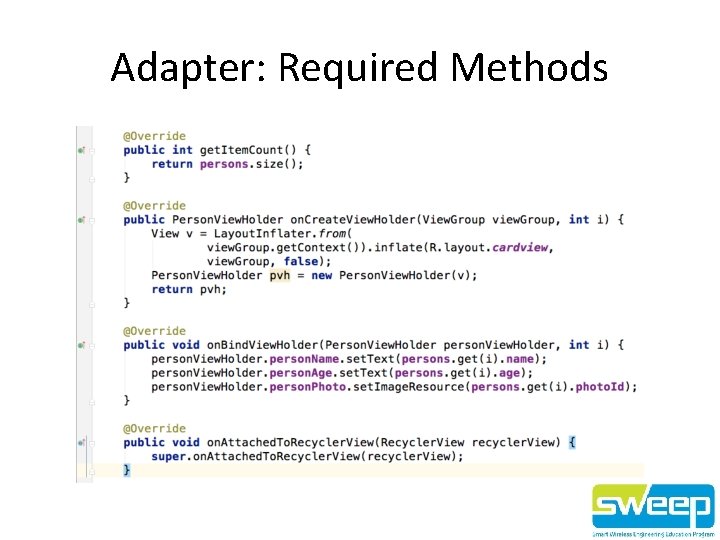
Adapter: Required Methods
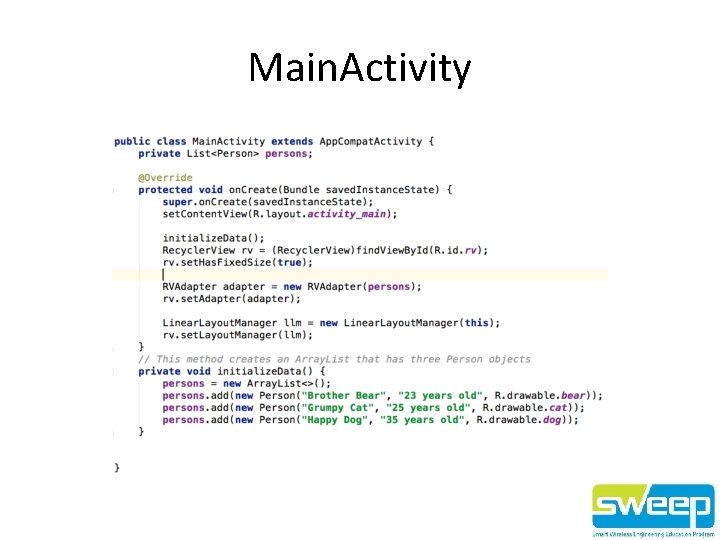
Main. Activity
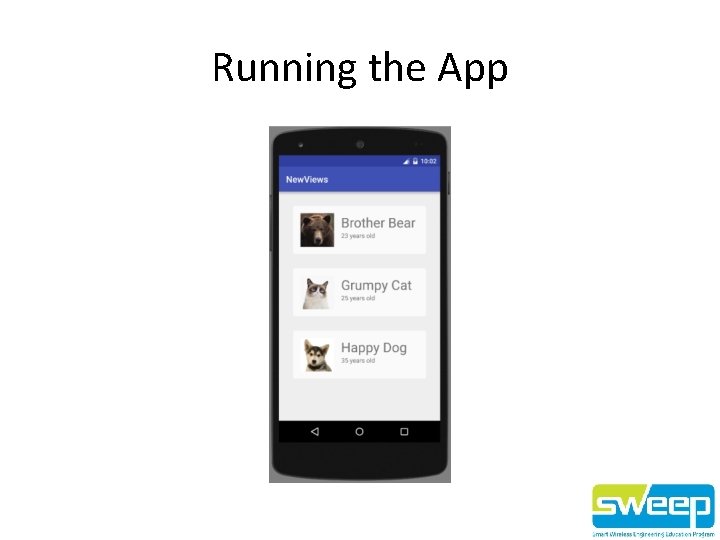
Running the App
A LITTLE BIT OF JSON ON OUR MINDS
What is JSON? • JSON (Java. Script Object Notation) is a lightweight data-interchange format. It is easy for humans to read and write. It is easy for machines to parse and generate. • It is based on a subset of the Java. Script Programming Language, Standard ECMA-262 3 rd Edition - December 1999.
Why JSON? • You should use JSON in your projects instead of XML because: – it is lightweight – easier to parse – supported by most programming languages.
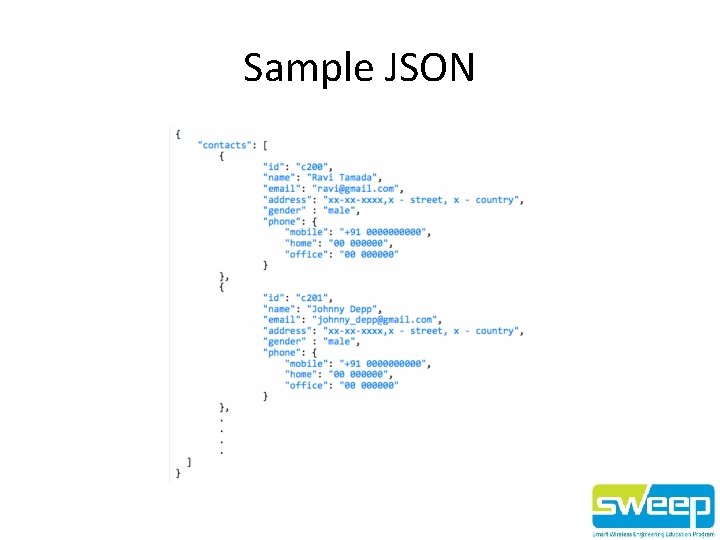
Sample JSON
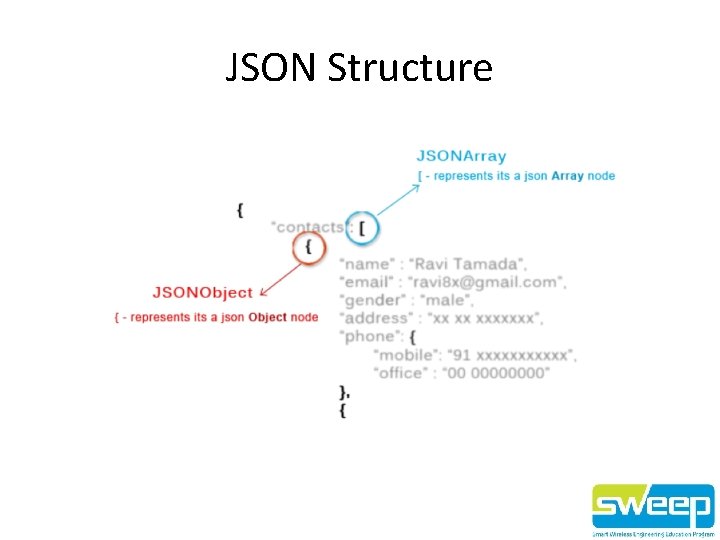
JSON Structure
HOW TO EXPOSE YOUR DATA
RESTful APIs • REpresentational State Transfer, an architectural style that can be used in building networked applications, is becoming increasingly popular nowadays. • Many leading vendors have opened the doors of their services to developers, providing them with restful accesses to different web services.
HTTP Methods to Facilitate REST • • GET to retrieve and search data POST to add data PUT to update data DELETE to delete data
AN APP THAT ACCESSES JSON
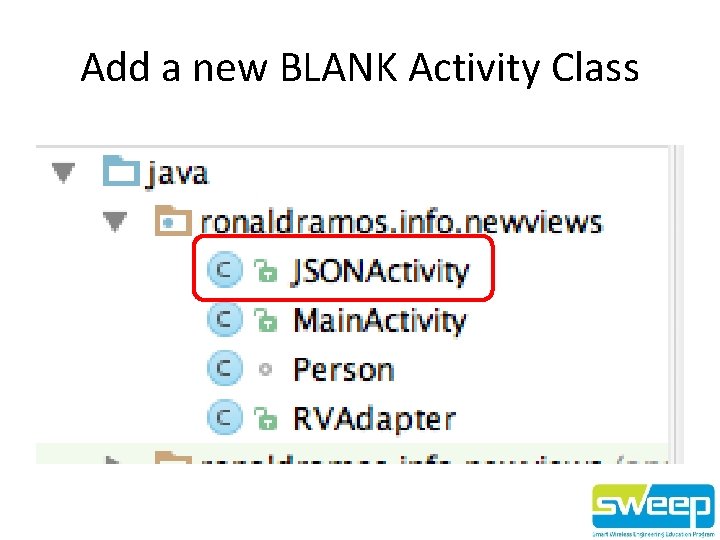
Add a new BLANK Activity Class
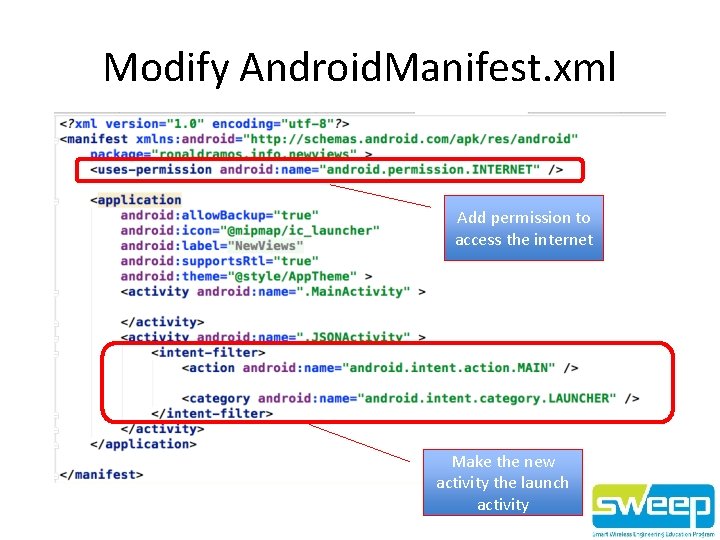
Modify Android. Manifest. xml Add permission to access the internet Make the new activity the launch activity
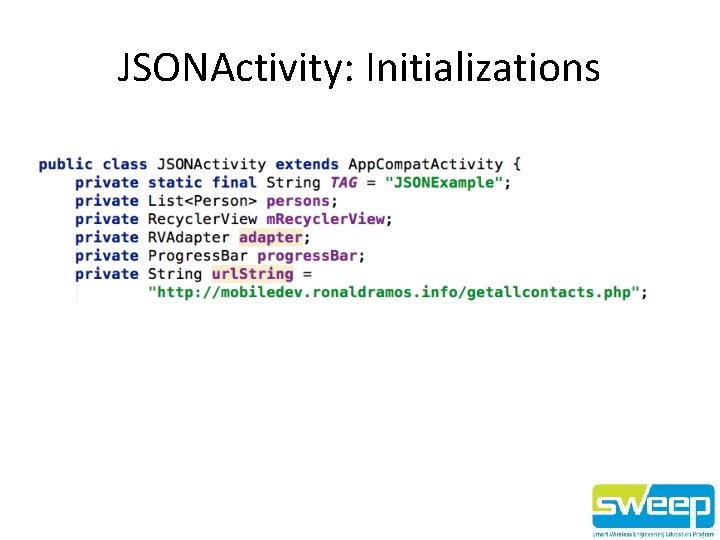
JSONActivity: Initializations
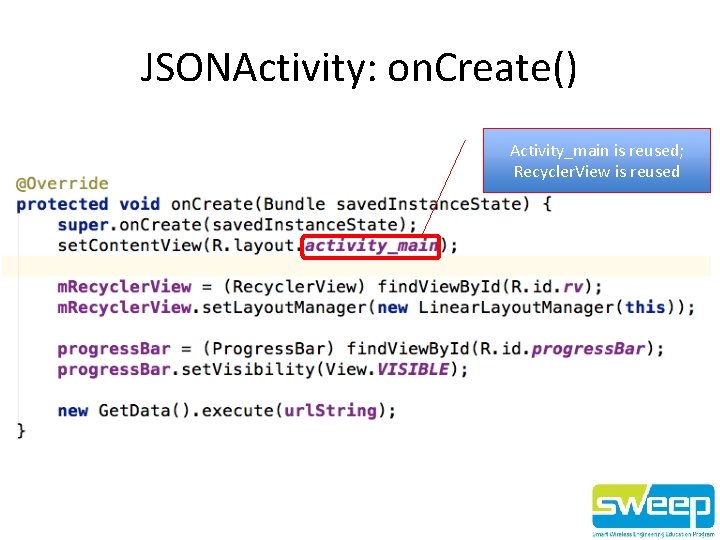
JSONActivity: on. Create() Activity_main is reused; Recycler. View is reused
Get. Data inner Async. Task class • Async. Task is an abstract class provided by Android which helps us to use the UI thread properly. • This class allows us to perform long/background operations and show its result on the UI thread without having to manipulate threads.
Why Async. Task? • Android implements a single thread model and whenever an android application is launched, a thread is created. • Assuming we are doing network operation on a button click in our application. On button click a request would be made to the server and response will be awaited. • Due to the single thread model of android, till the time response is complete our screen is non-responsive. • So we should avoid performing long running operations on the main UI thread. • This includes file and network access. To overcome this we can create new thread using an Async. Task and implement run method to perform this network call, so that the UI remains responsive.
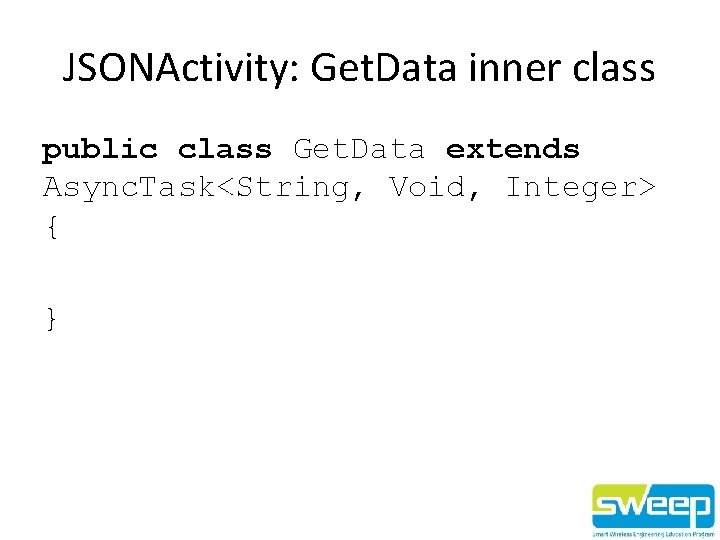
JSONActivity: Get. Data inner class public class Get. Data extends Async. Task<String, Void, Integer> { }
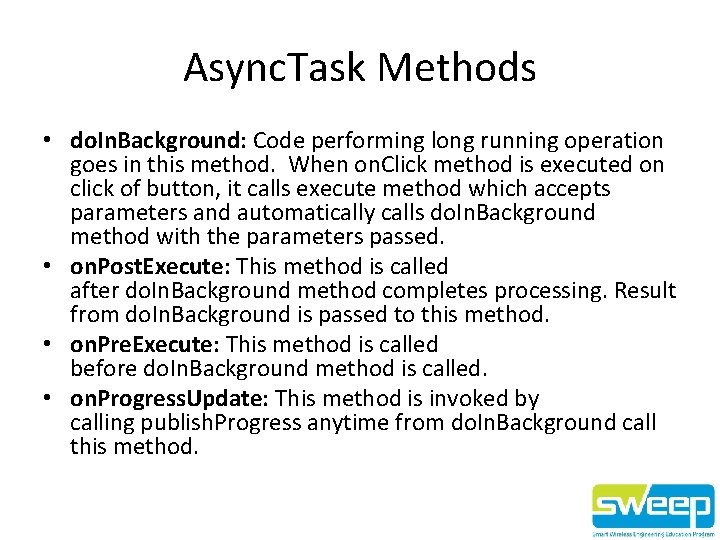
Async. Task Methods • do. In. Background: Code performing long running operation goes in this method. When on. Click method is executed on click of button, it calls execute method which accepts parameters and automatically calls do. In. Background method with the parameters passed. • on. Post. Execute: This method is called after do. In. Background method completes processing. Result from do. In. Background is passed to this method. • on. Pre. Execute: This method is called before do. In. Background method is called. • on. Progress. Update: This method is invoked by calling publish. Progress anytime from do. In. Background call this method.
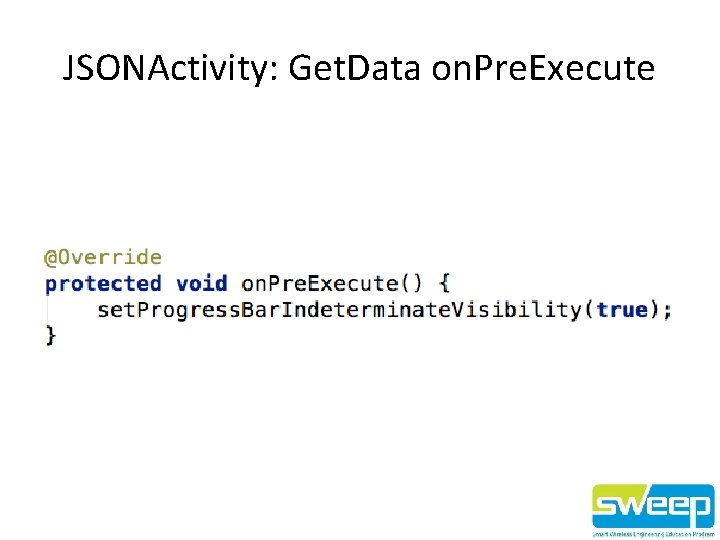
JSONActivity: Get. Data on. Pre. Execute
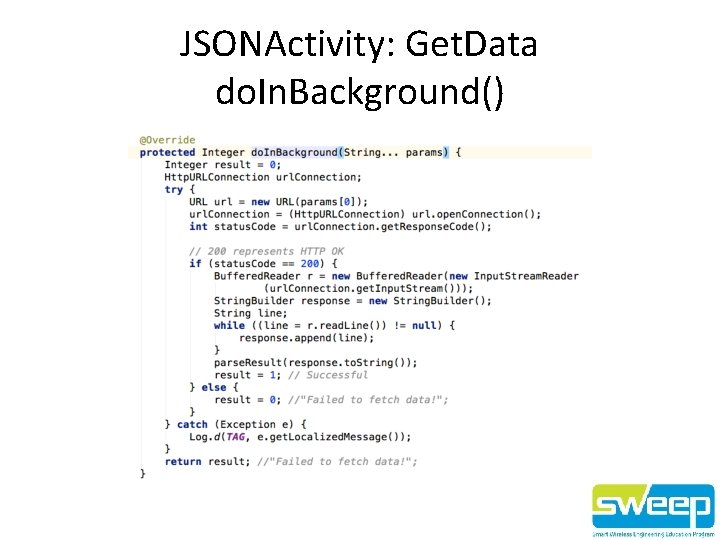
JSONActivity: Get. Data do. In. Background()
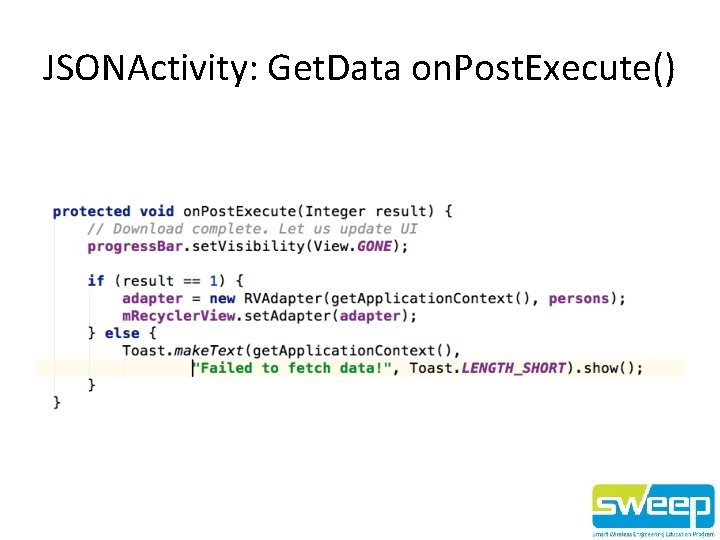
JSONActivity: Get. Data on. Post. Execute()
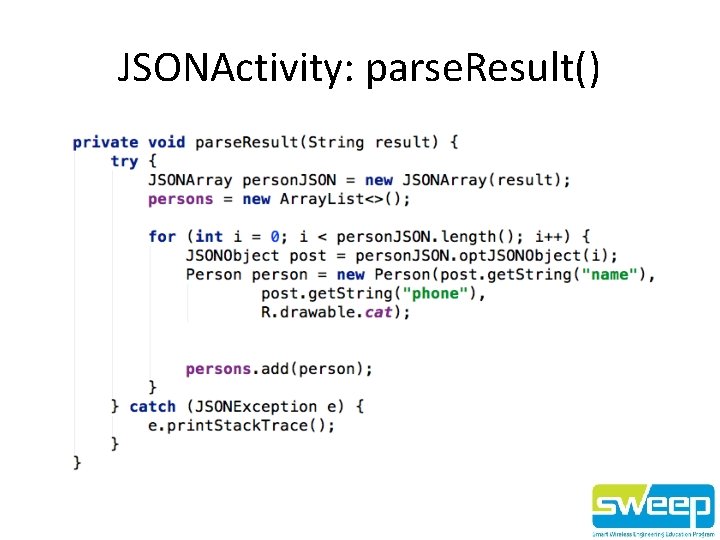
JSONActivity: parse. Result()
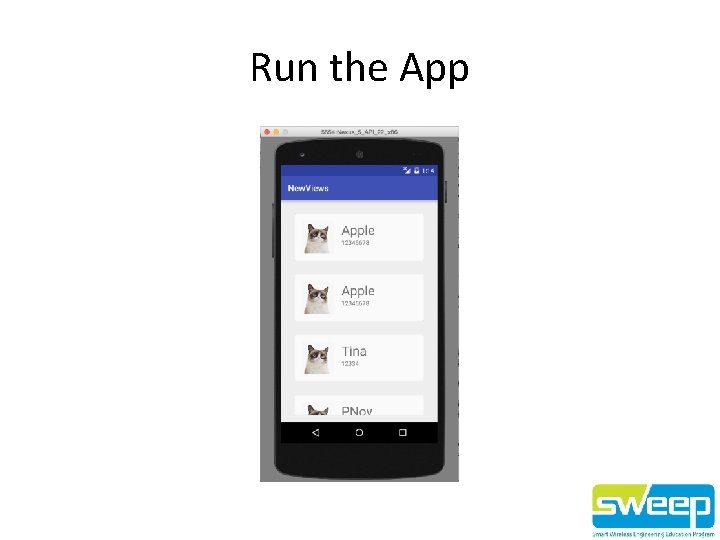
Run the App
END OF DAY 2
- Slides: 45