
Mobile Application Development Chapter 9 Using Xcode for
![Mobile Application Development Chapter 9 [Using Xcode for i. OS Development] IT 448 -Fall](https://slidetodoc.com/presentation_image/b3540369fc487b3b9df8ab2360e9ba03/image-1.jpg "Mobile Application Development Chapter 9 [Using Xcode for i. OS Development] IT 448 -Fall")
Mobile Application Development Chapter 9 [Using Xcode for i. OS Development] IT 448 -Fall 2017
Contents § Creating the Xcode Project § Creating the User Interface § Running the App in the Simulator § Adding App Behavior § Dismissing the Keyboard
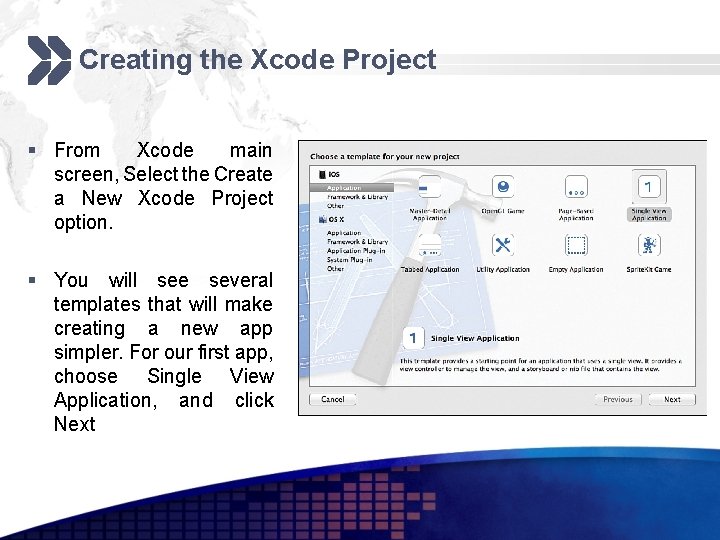
Creating the Xcode Project § From Xcode main screen, Select the Create a New Xcode Project option. § You will see several templates that will make creating a new app simpler. For our first app, choose Single View Application, and click Next
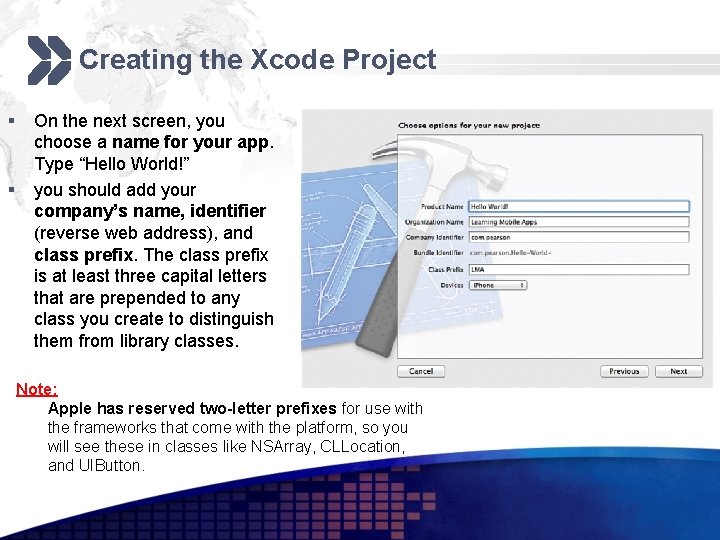
Creating the Xcode Project § § On the next screen, you choose a name for your app. Type “Hello World!” you should add your company’s name, identifier (reverse web address), and class prefix. The class prefix is at least three capital letters that are prepended to any class you create to distinguish them from library classes. Note: Apple has reserved two-letter prefixes for use with the frameworks that come with the platform, so you will see these in classes like NSArray, CLLocation, and UIButton.
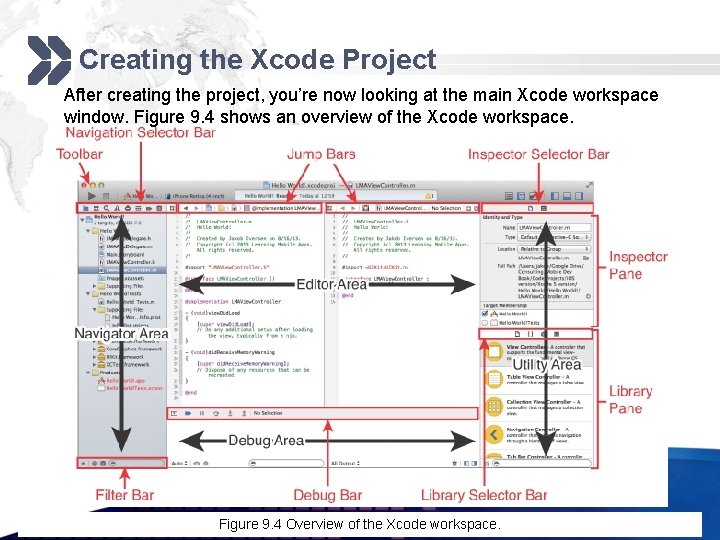
Creating the Xcode Project After creating the project, you’re now looking at the main Xcode workspace window. Figure 9. 4 shows an overview of the Xcode workspace. Figure 9. 4 Overview of the Xcode workspace.
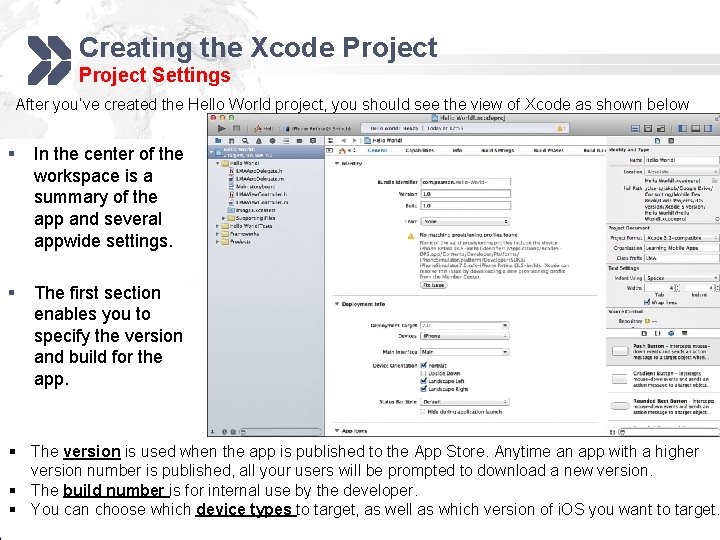
Creating the Xcode Project Settings After you’ve created the Hello World project, you should see the view of Xcode as shown below § § In the center of the workspace is a summary of the app and several appwide settings. The first section enables you to specify the version and build for the app. § The version is used when the app is published to the App Store. Anytime an app with a higher version number is published, all your users will be prompted to download a new version. § The build number is for internal use by the developer. § You can choose which device types to target, as well as which version of i. OS you want to target.
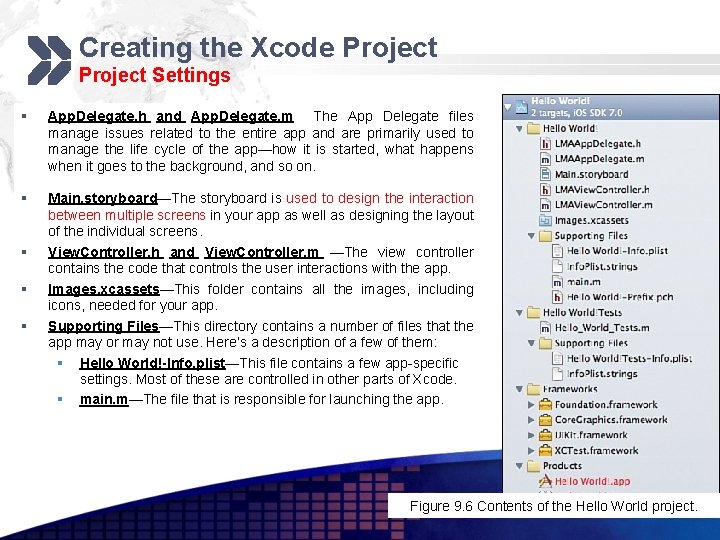
Creating the Xcode Project Settings § App. Delegate. h and App. Delegate. m The App Delegate files manage issues related to the entire app and are primarily used to manage the life cycle of the app—how it is started, what happens when it goes to the background, and so on. § Main. storyboard—The storyboard is used to design the interaction between multiple screens in your app as well as designing the layout of the individual screens. View. Controller. h and View. Controller. m —The view controller contains the code that controls the user interactions with the app. Images. xcassets—This folder contains all the images, including icons, needed for your app. Supporting Files—This directory contains a number of files that the app may or may not use. Here’s a description of a few of them: § Hello World!-Info. plist—This file contains a few app-specific settings. Most of these are controlled in other parts of Xcode. § main. m—The file that is responsible for launching the app. § § § Figure 9. 6 Contents of the Hello World project.
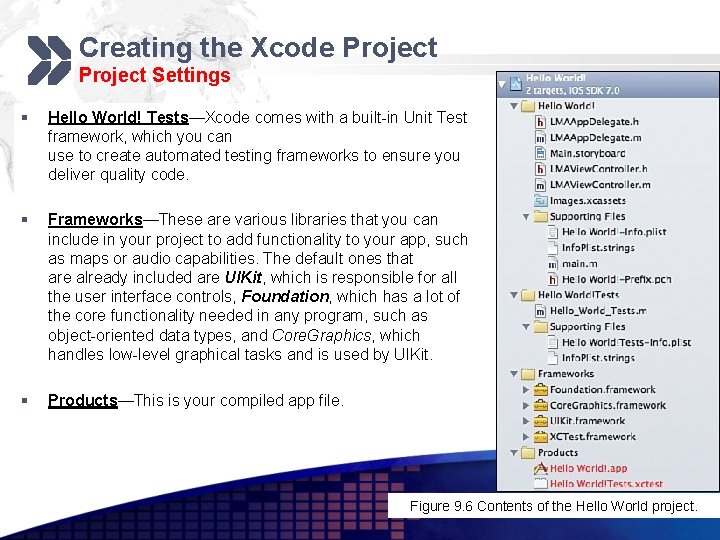
Creating the Xcode Project Settings § Hello World! Tests—Xcode comes with a built-in Unit Test framework, which you can use to create automated testing frameworks to ensure you deliver quality code. § Frameworks—These are various libraries that you can include in your project to add functionality to your app, such as maps or audio capabilities. The default ones that are already included are UIKit, which is responsible for all the user interface controls, Foundation, which has a lot of the core functionality needed in any program, such as object-oriented data types, and Core. Graphics, which handles low-level graphical tasks and is used by UIKit. § Products—This is your compiled app file. Figure 9. 6 Contents of the Hello World project.
Creating the User Interface § To open a file for editing in Xcode, you need to click it only once. § Double-clicking will open it in a separate window. § Click once on the Main. storyboard file. § This opens the file in Interface Builder (see Figure 9. 7 ), where you can easily create the user interface for your app. § With the storyboard open, you can drag user interface elements from the Utility Pane on the bottom right and control a range of settings on the top of the utility pane.
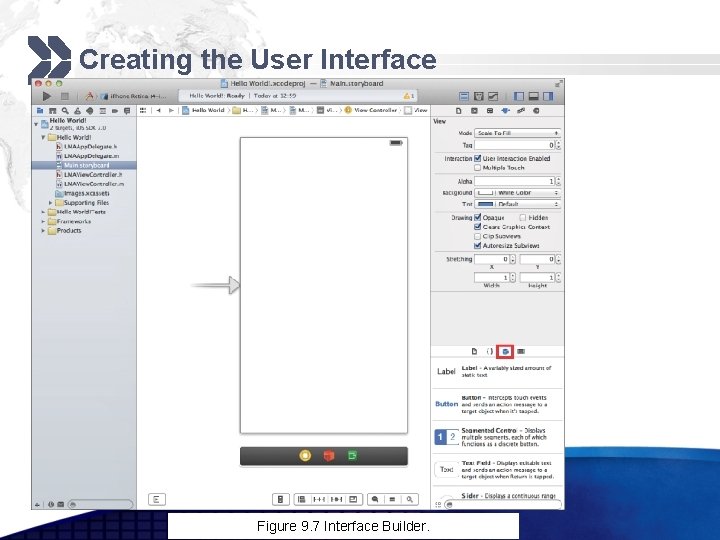
Creating the User Interface Figure 9. 7 Interface Builder.
Creating the User Interface § In the lower right of the utility area, you should see the Object Library, which contains all the user interface elements you can use in your app. If you don’t see the Object Library, click the cube-shaped icon highlighted in Figure 9. 7. § Start by dragging a label onto the user interface canvas (see Figure 9. 8 ). § You may have to scroll down the list of controls to find the label. You can also use the Search bar below the controls and type in label. § Notice that you get blue dotted guidelines as you drag the label around. Drag it to the middle left of the screen and let go when both guidelines appear.
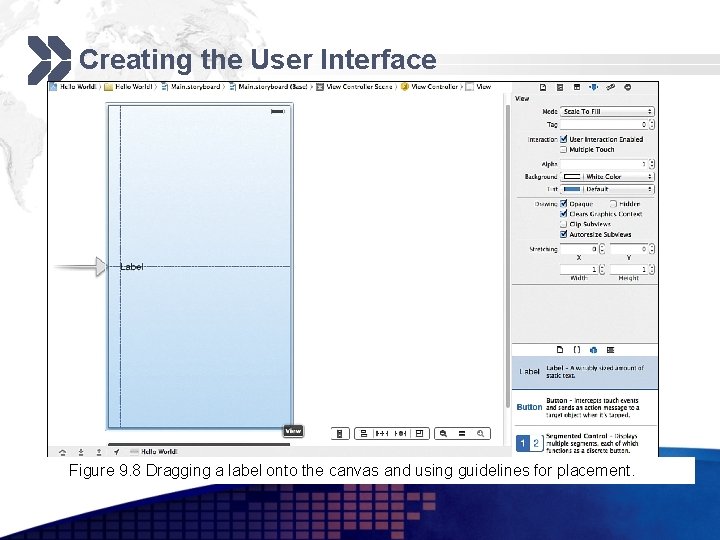
Creating the User Interface Figure 9. 8 Dragging a label onto the canvas and using guidelines for placement.
Creating the User Interface § Double-click the label to change the text of it to “Hello World!” and then press Enter. § Expand the label by clicking the right side of it and dragging it to the right side until the blue dotted guidelines appear. § Above the utility area on the right, you have a little menu bar of five items. The fourth one from the right should be selected. This is the Attributes Inspector, which enables you to set many properties for the currently selected user interface element. § For the label, you can change its appearance quite a bit. Feel free to play around, but you just need to center the text of the label.
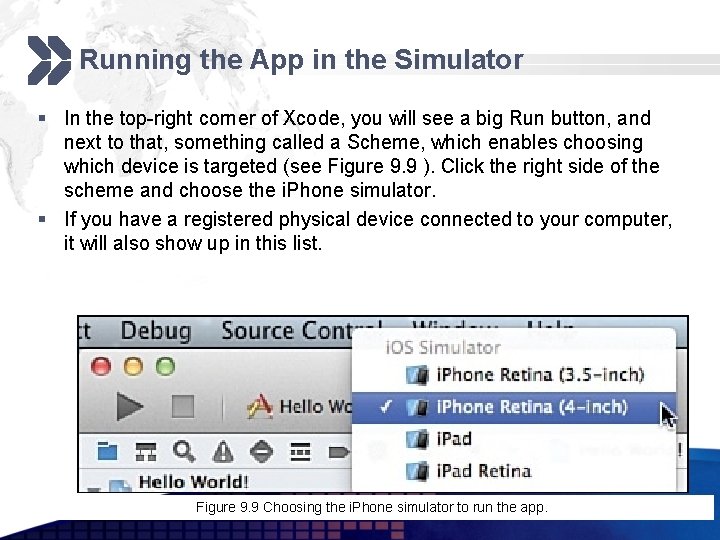
Running the App in the Simulator § In the top-right corner of Xcode, you will see a big Run button, and next to that, something called a Scheme, which enables choosing which device is targeted (see Figure 9. 9 ). Click the right side of the scheme and choose the i. Phone simulator. § If you have a registered physical device connected to your computer, it will also show up in this list. Figure 9. 9 Choosing the i. Phone simulator to run the app.
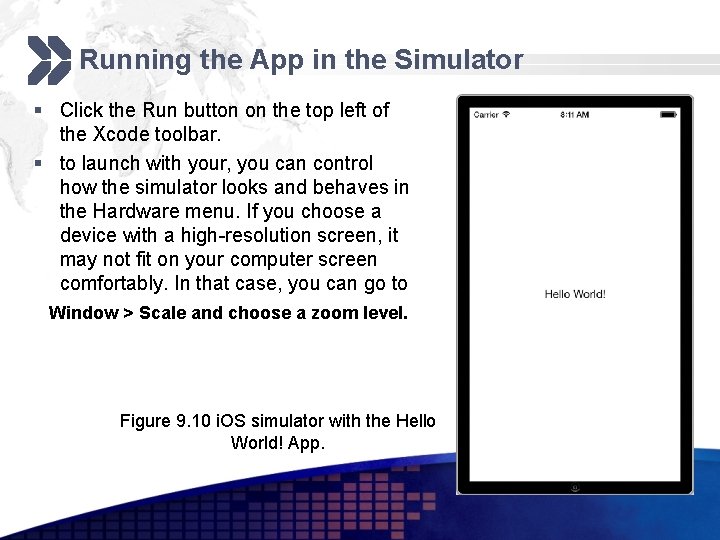
Running the App in the Simulator § Click the Run button on the top left of the Xcode toolbar. § to launch with your, you can control how the simulator looks and behaves in the Hardware menu. If you choose a device with a high-resolution screen, it may not fit on your computer screen comfortably. In that case, you can go to Window > Scale and choose a zoom level. Figure 9. 10 i. OS simulator with the Hello World! App.
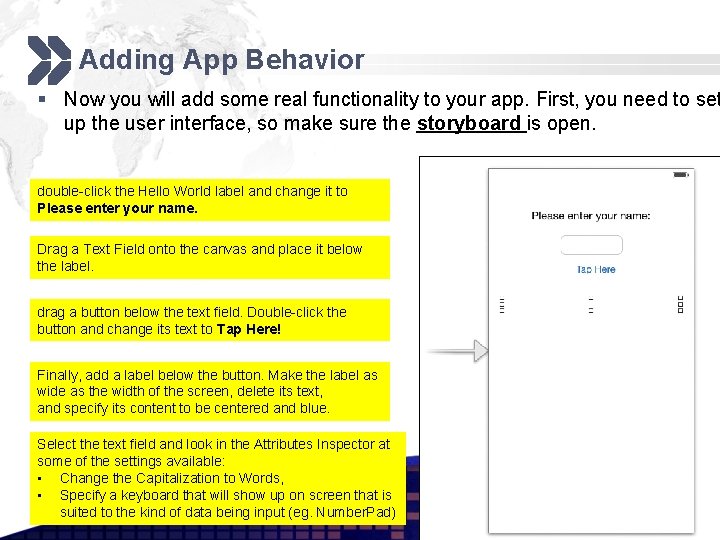
Adding App Behavior § Now you will add some real functionality to your app. First, you need to set up the user interface, so make sure the storyboard is open. double-click the Hello World label and change it to Please enter your name. Drag a Text Field onto the canvas and place it below the label. drag a button below the text field. Double-click the button and change its text to Tap Here! Finally, add a label below the button. Make the label as wide as the width of the screen, delete its text, and specify its content to be centered and blue. Select the text field and look in the Attributes Inspector at some of the settings available: • Change the Capitalization to Words, • Specify a keyboard that will show up on screen that is suited to the kind of data being input (eg. Number. Pad)
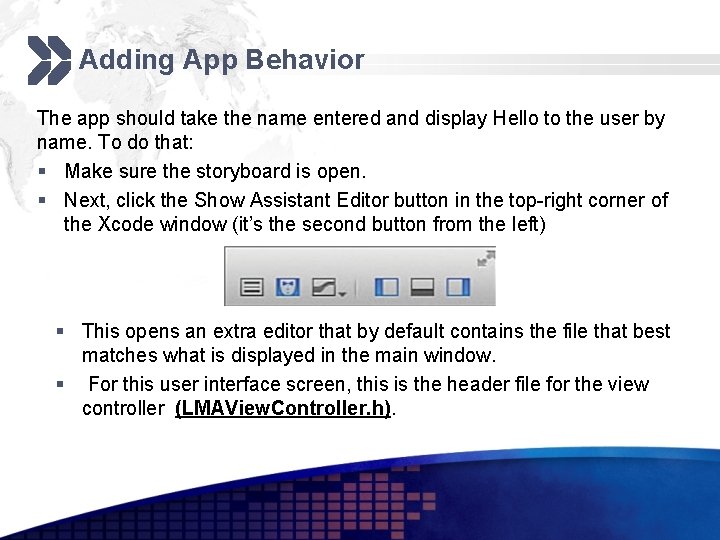
Adding App Behavior The app should take the name entered and display Hello to the user by name. To do that: § Make sure the storyboard is open. § Next, click the Show Assistant Editor button in the top-right corner of the Xcode window (it’s the second button from the left) § This opens an extra editor that by default contains the file that best matches what is displayed in the main window. § For this user interface screen, this is the header file for the view controller (LMAView. Controller. h).
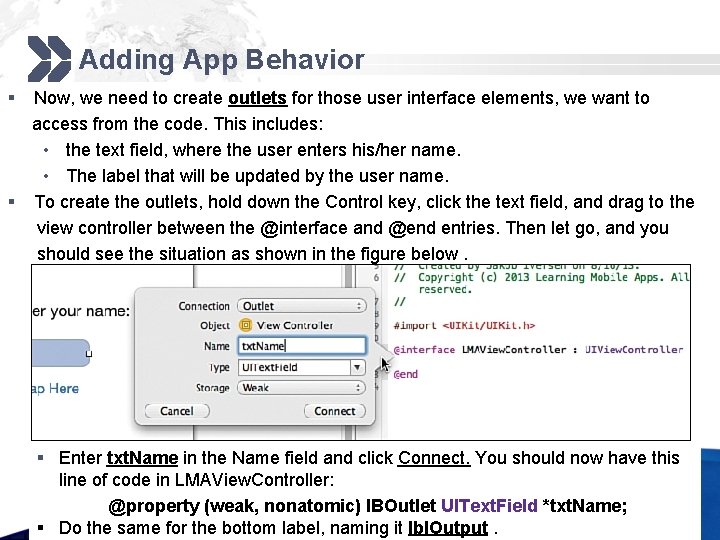
Adding App Behavior § Now, we need to create outlets for those user interface elements, we want to access from the code. This includes: • the text field, where the user enters his/her name. • The label that will be updated by the user name. § To create the outlets, hold down the Control key, click the text field, and drag to the view controller between the @interface and @end entries. Then let go, and you should see the situation as shown in the figure below. § Enter txt. Name in the Name field and click Connect. You should now have this line of code in LMAView. Controller: @property (weak, nonatomic) IBOutlet UIText. Field *txt. Name; § Do the same for the bottom label, naming it lbl. Output.
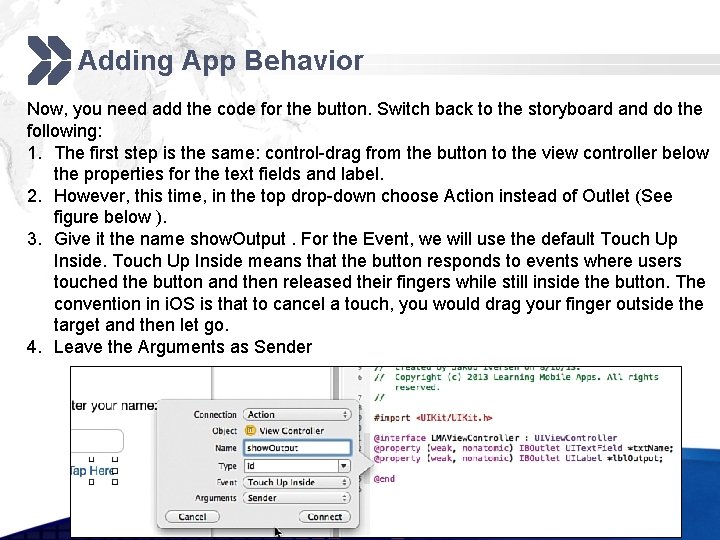
Adding App Behavior Now, you need add the code for the button. Switch back to the storyboard and do the following: 1. The first step is the same: control-drag from the button to the view controller below the properties for the text fields and label. 2. However, this time, in the top drop-down choose Action instead of Outlet (See figure below ). 3. Give it the name show. Output. For the Event, we will use the default Touch Up Inside means that the button responds to events where users touched the button and then released their fingers while still inside the button. The convention in i. OS is that to cancel a touch, you would drag your finger outside the target and then let go. 4. Leave the Arguments as Sender
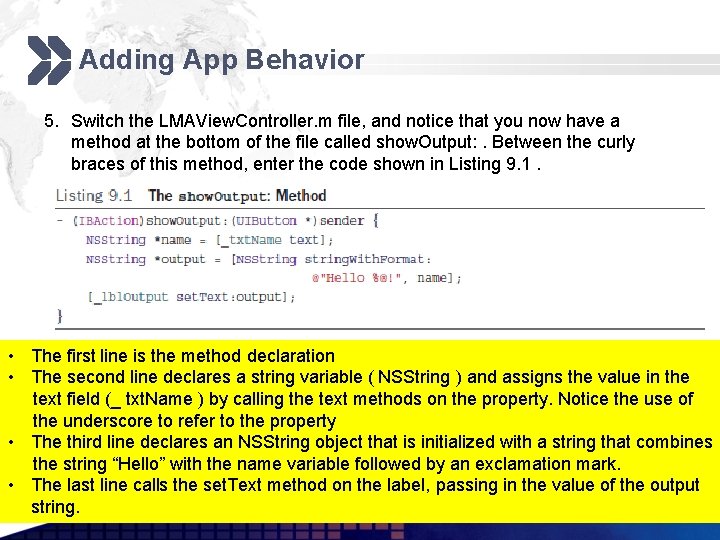
Adding App Behavior 5. Switch the LMAView. Controller. m file, and notice that you now have a method at the bottom of the file called show. Output: . Between the curly braces of this method, enter the code shown in Listing 9. 1. • The first line is the method declaration • The second line declares a string variable ( NSString ) and assigns the value in the text field (_ txt. Name ) by calling the text methods on the property. Notice the use of the underscore to refer to the property • The third line declares an NSString object that is initialized with a string that combines the string “Hello” with the name variable followed by an exclamation mark. • The last line calls the set. Text method on the label, passing in the value of the output string.
Adding App Behavior Connecting Code to UI—i. OS Versus Android § In both Android and i. OS, the user interface (UI) and the code that makes the UI work are stored in different files. This means that both types of app coding require that the code has to link to the UI in some way. § In i. OS, this is often referred to as “wiring up” the user interface. § However, in Android, connecting the UI to the code is done entirely in the code itself. § In i. OS and Android, we just provide names to those UI elements we will need to access in code. So, the static label at the top of our UI isn’t given a name. The same goes for the button, where we will need to intercept the event that happens when the user taps the button. § In Android, whenever some code needs a reference to a control, we use a special command that will find it by its ID. This requires extra coding but provides great flexibility. § Forgetting to connect the code to the UI widget needed in either operating system will result in a runtime error.
Adding App Behavior UI Design—i. OS Versus Android § UI design in i. OS is done through absolute positioning, where each UI item is held to a fixed position on the screen. § However, in Android, relative positioning is used. This enables creation of UI designs that are independent of the physical screen of the device. This means that app developers don’t have to worry (too much) about screen sizes of different devices. However, relative positioning also means that the position of one control affects other controls. Often in Android, moving one control changes the whole design. § In i. OS we need to provide a different UI layout for different screen sizes. If you want your app to run on both i. Pad and i. Phone, you have to create two separate storyboard files and corresponding view controllers. These screens all run on the same code, so during design the developer must be sure to be perfectly consistent between the different screens needed.
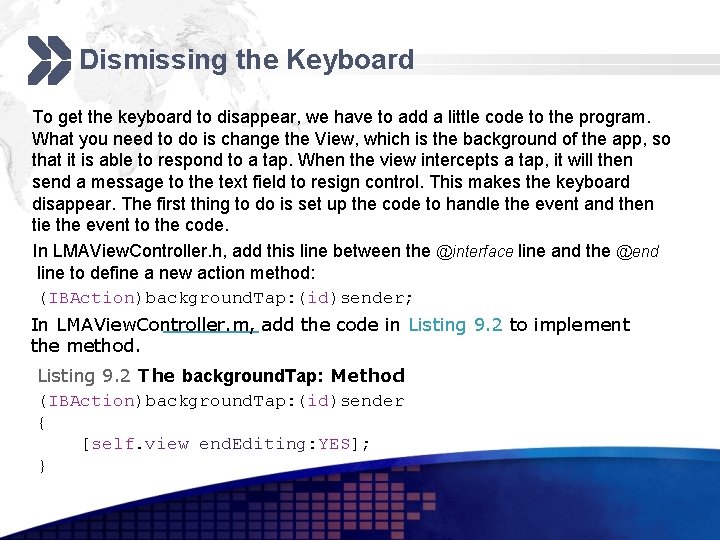
Dismissing the Keyboard To get the keyboard to disappear, we have to add a little code to the program. What you need to do is change the View, which is the background of the app, so that it is able to respond to a tap. When the view intercepts a tap, it will then send a message to the text field to resign control. This makes the keyboard disappear. The first thing to do is set up the code to handle the event and then tie the event to the code. In LMAView. Controller. h, add this line between the @interface line and the @end line to define a new action method: (IBAction)background. Tap: (id)sender; In LMAView. Controller. m, add the code in Listing 9. 2 to implement the method. Listing 9. 2 The background. Tap: Method (IBAction)background. Tap: (id)sender { [self. view end. Editing: YES]; }
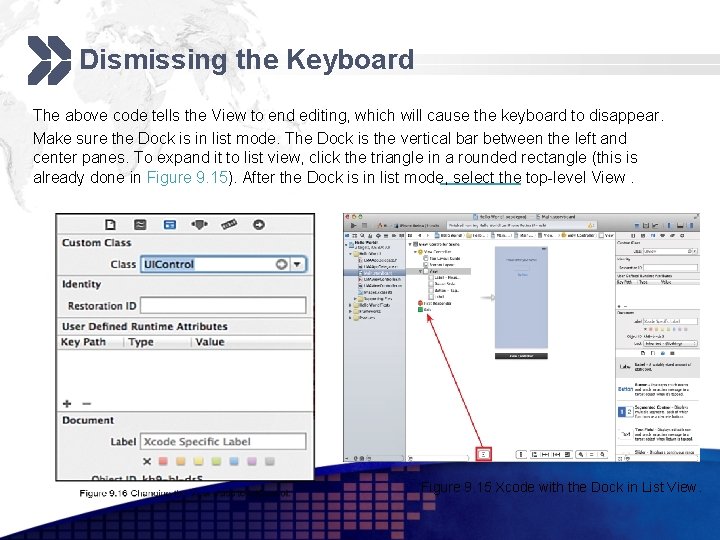
Dismissing the Keyboard The above code tells the View to end editing, which will cause the keyboard to disappear. Make sure the Dock is in list mode. The Dock is the vertical bar between the left and center panes. To expand it to list view, click the triangle in a rounded rectangle (this is already done in Figure 9. 15). After the Dock is in list mode, select the top-level View. Figure 9. 15 Xcode with the Dock in List View.
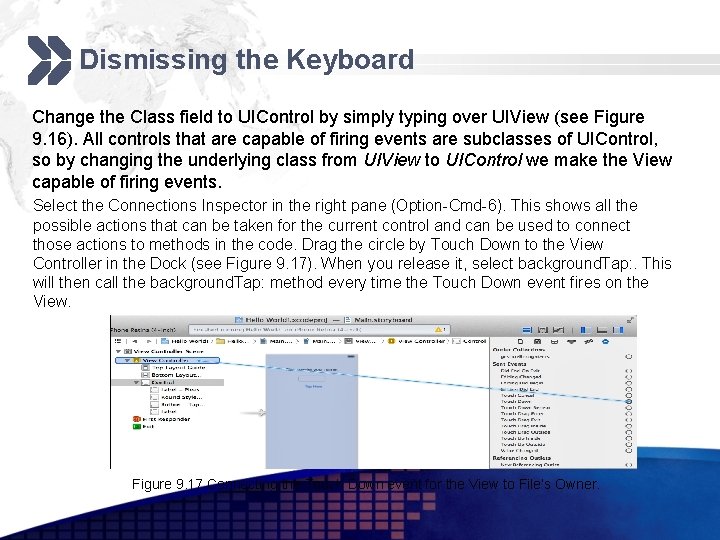
Dismissing the Keyboard Change the Class field to UIControl by simply typing over UIView (see Figure 9. 16). All controls that are capable of firing events are subclasses of UIControl, so by changing the underlying class from UIView to UIControl we make the View capable of firing events. Select the Connections Inspector in the right pane (Option-Cmd-6). This shows all the possible actions that can be taken for the current control and can be used to connect those actions to methods in the code. Drag the circle by Touch Down to the View Controller in the Dock (see Figure 9. 17). When you release it, select background. Tap: . This will then call the background. Tap: method every time the Touch Down event fires on the View. Figure 9. 17 Connecting the Touch Down event for the View to File’s Owner.
Quick Reference: Dismiss the Keyboard For future reference, here are the four steps needed to have the keyboard dismissed: 1. Make the View a control, by changing its class from UIView to UIControl. 2. Define the background. Tap: action method in the. h file. 3. Implement background. Tap: in the. m file to end editing (Listing 9. 2). 4. Control-drag from Touch Down in Connections Inspector with Control (formerly View) selected to View Controller in the expanded Dock. Choose the background. Tap: method.
App Icons and Launch Images § App Icons are graphical images that are used to indicate your app on the home screen of the i. OS device your app is running on. § On the home screen. § In Spotlight results when the user is searching on the device. § In the Settings app, where the user can change various settings for your app. § They are stored in the. xcassets folder called the Asset Catalog. § The Asset Catalog was introduced with Xcode 5 as a way to manage all the images needed for your app, including app icons and launch images.
App Icons and Launch Images § The App Icons are supplied in different resolutions, . § The resolutions differ between: § i. Pad and i. Phone, § whether the device is a regular display or a retina display. § Whether your app is targeting i. OS 7 or earlier versions. § The asset catalog makes it relatively simple to find out what you need. Click the images. xcassets folder and then App. Icon (Figure 9. 19).
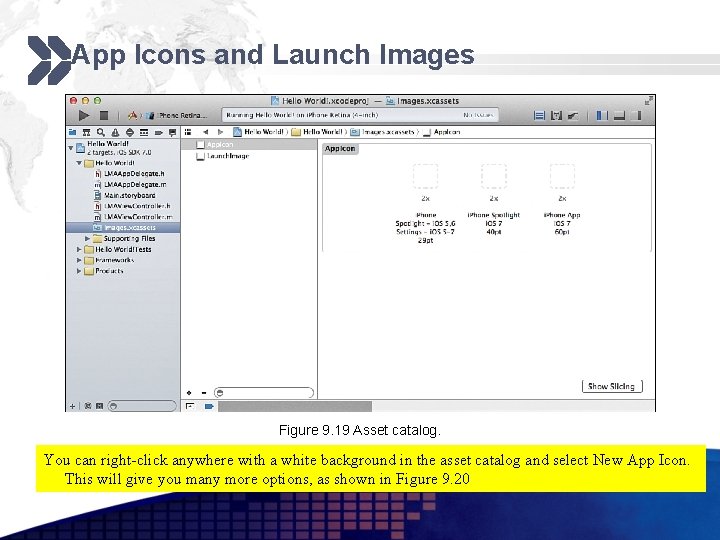
App Icons and Launch Images Figure 9. 19 Asset catalog. You can right-click anywhere with a white background in the asset catalog and select New App Icon. This will give you many more options, as shown in Figure 9. 20
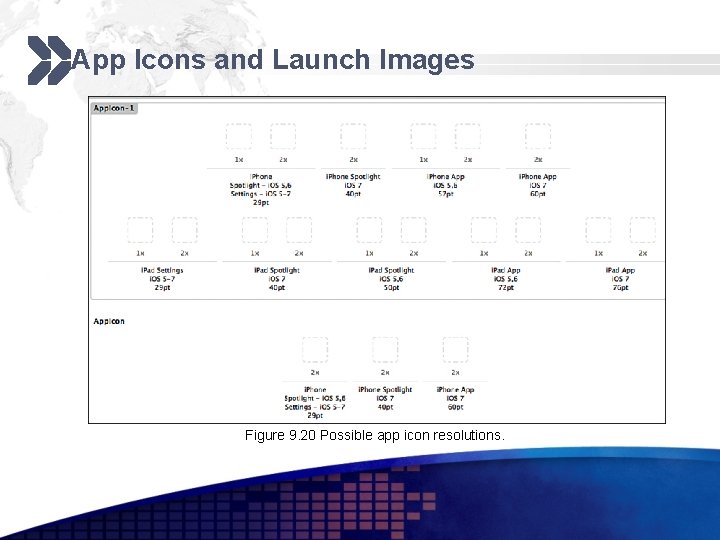
App Icons and Launch Images Figure 9. 20 Possible app icon resolutions.
Extra Resources § Developing i. OS apps with Swift: https: //developer. android. com/training/basics/intent s/index. html

IT 448 -Autumn 2017
- Slides: 32