
Mobile Application Development BSCS7 Lecture 8 Mobile Design
Mobile Application Development BSCS-7 Lecture # 8
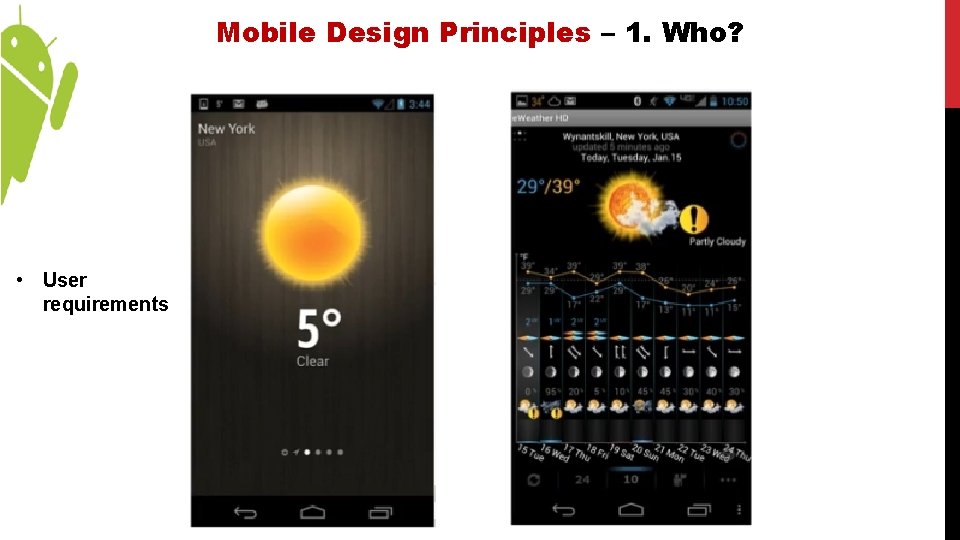
Mobile Design Principles – 1. Who? • User requirements
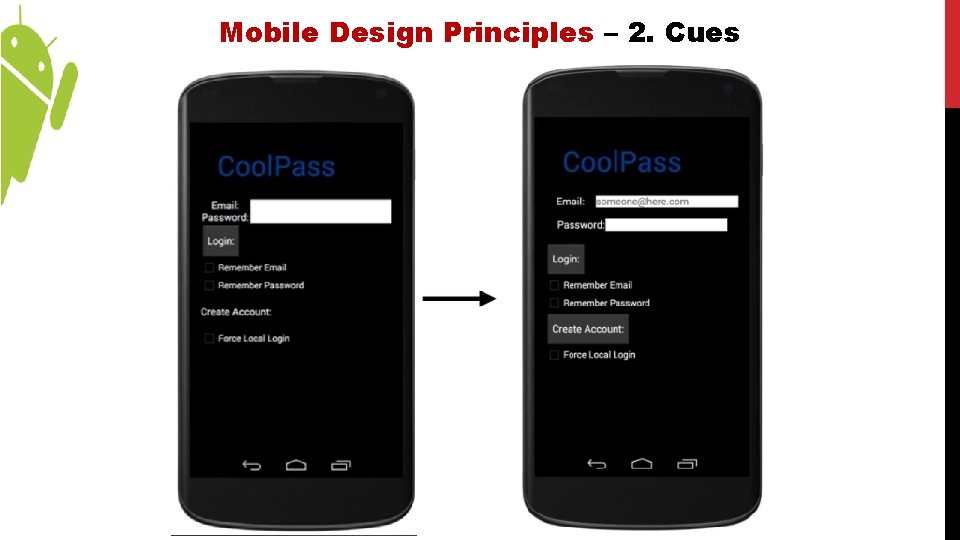
Mobile Design Principles – 2. Cues
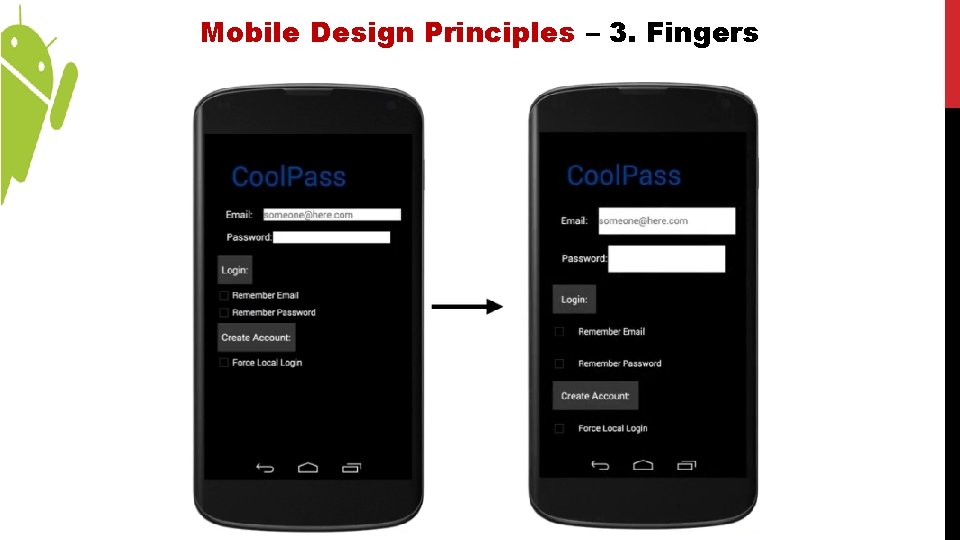
Mobile Design Principles – 3. Fingers
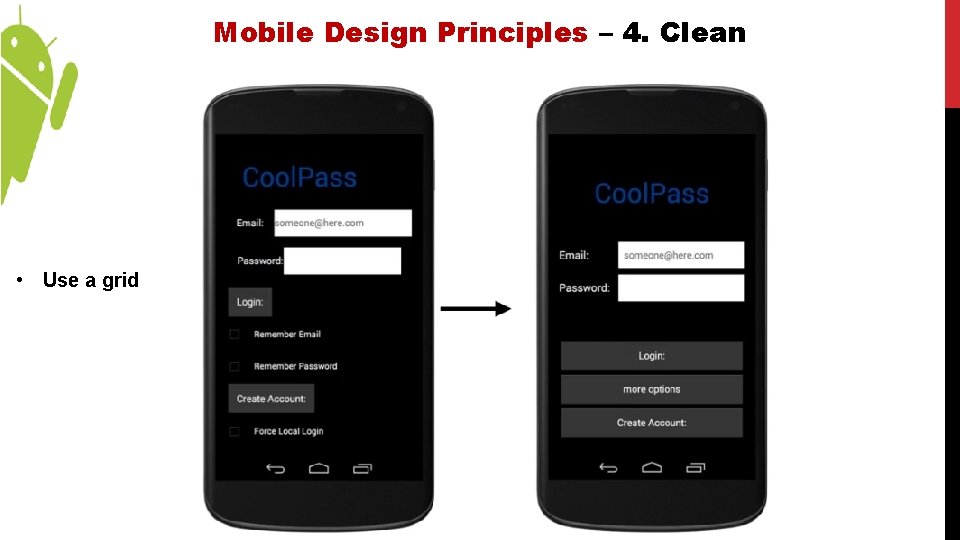
Mobile Design Principles – 4. Clean • Use a grid
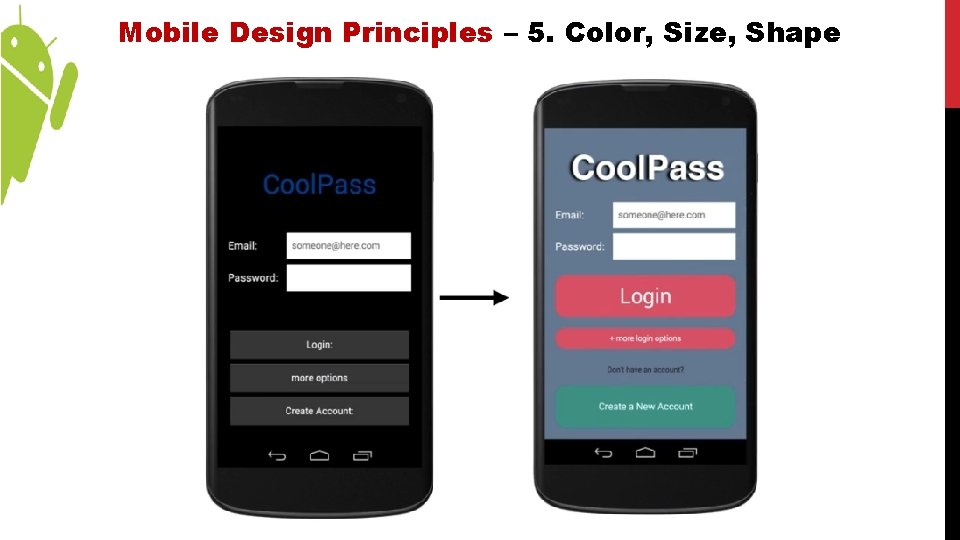
Mobile Design Principles – 5. Color, Size, Shape
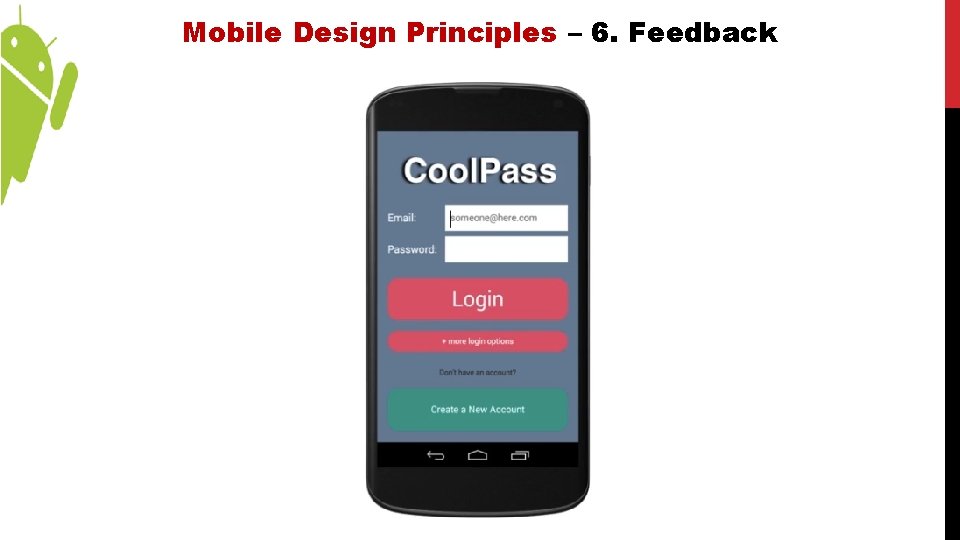
Mobile Design Principles – 6. Feedback
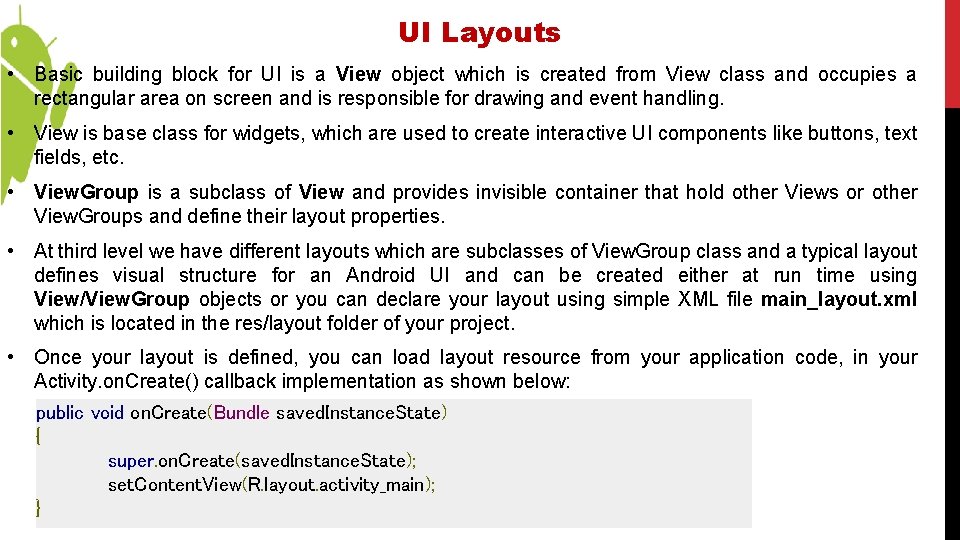
UI Layouts • Basic building block for UI is a View object which is created from View class and occupies a rectangular area on screen and is responsible for drawing and event handling. • View is base class for widgets, which are used to create interactive UI components like buttons, text fields, etc. • View. Group is a subclass of View and provides invisible container that hold other Views or other View. Groups and define their layout properties. • At third level we have different layouts which are subclasses of View. Group class and a typical layout defines visual structure for an Android UI and can be created either at run time using View/View. Group objects or you can declare your layout using simple XML file main_layout. xml which is located in the res/layout folder of your project. • Once your layout is defined, you can load layout resource from your application code, in your Activity. on. Create() callback implementation as shown below: public void on. Create(Bundle saved. Instance. State) { super. on. Create(saved. Instance. State); set. Content. View(R. layout. activity_main); }
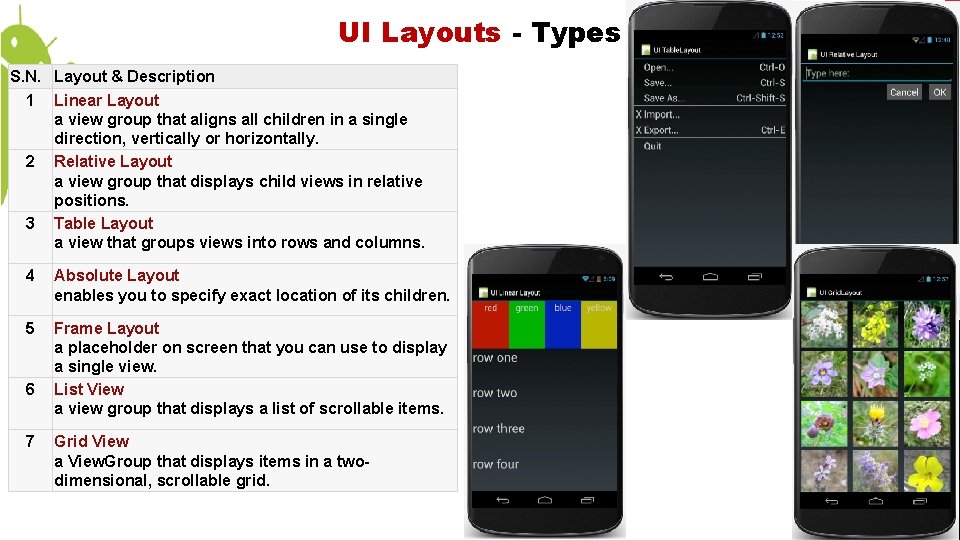
UI Layouts - Types S. N. Layout & Description 1 Linear Layout a view group that aligns all children in a single direction, vertically or horizontally. 2 Relative Layout a view group that displays child views in relative positions. 3 Table Layout a view that groups views into rows and columns. 4 Absolute Layout enables you to specify exact location of its children. 5 Frame Layout a placeholder on screen that you can use to display a single view. List View a view group that displays a list of scrollable items. 6 7 Grid View a View. Group that displays items in a twodimensional, scrollable grid.
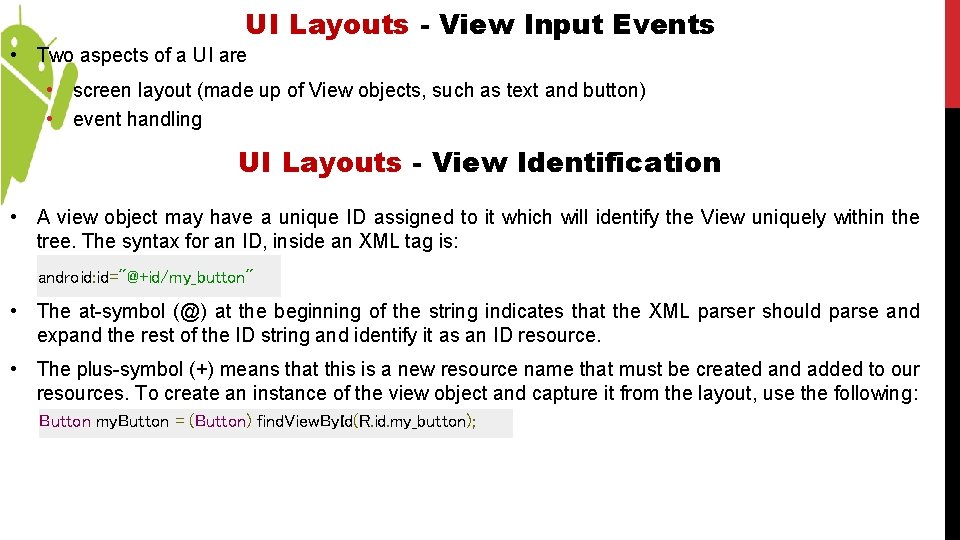
UI Layouts - View Input Events • Two aspects of a UI are • screen layout (made up of View objects, such as text and button) • event handling UI Layouts - View Identification • A view object may have a unique ID assigned to it which will identify the View uniquely within the tree. The syntax for an ID, inside an XML tag is: android: id="@+id/my_button" • The at-symbol (@) at the beginning of the string indicates that the XML parser should parse and expand the rest of the ID string and identify it as an ID resource. • The plus-symbol (+) means that this is a new resource name that must be created and added to our resources. To create an instance of the view object and capture it from the layout, use the following: Button my. Button = (Button) find. View. By. Id(R. id. my_button);
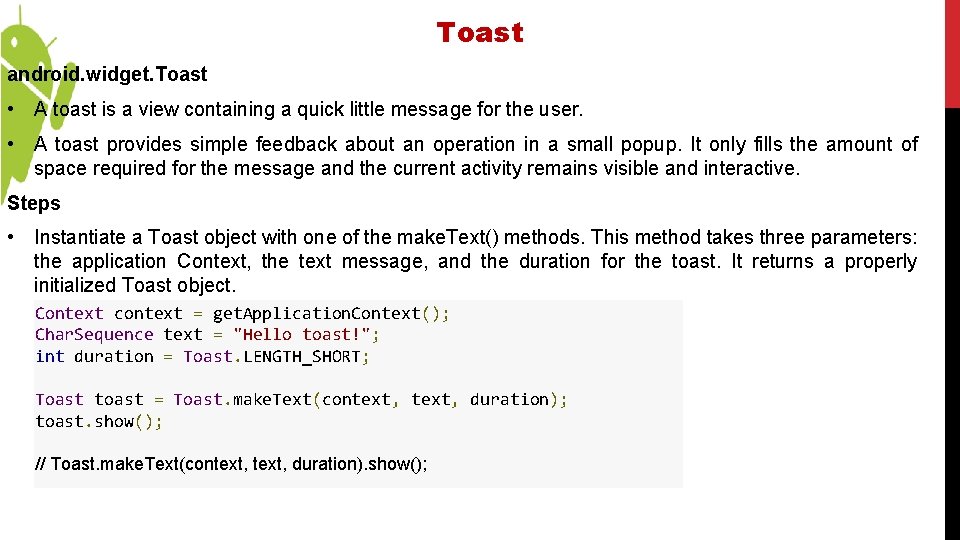
Toast android. widget. Toast • A toast is a view containing a quick little message for the user. • A toast provides simple feedback about an operation in a small popup. It only fills the amount of space required for the message and the current activity remains visible and interactive. Steps • Instantiate a Toast object with one of the make. Text() methods. This method takes three parameters: the application Context, the text message, and the duration for the toast. It returns a properly initialized Toast object. Context context = get. Application. Context(); Char. Sequence text = "Hello toast!"; int duration = Toast. LENGTH_SHORT; Toast toast = Toast. make. Text(context, duration); toast. show(); // Toast. make. Text(context, duration). show();
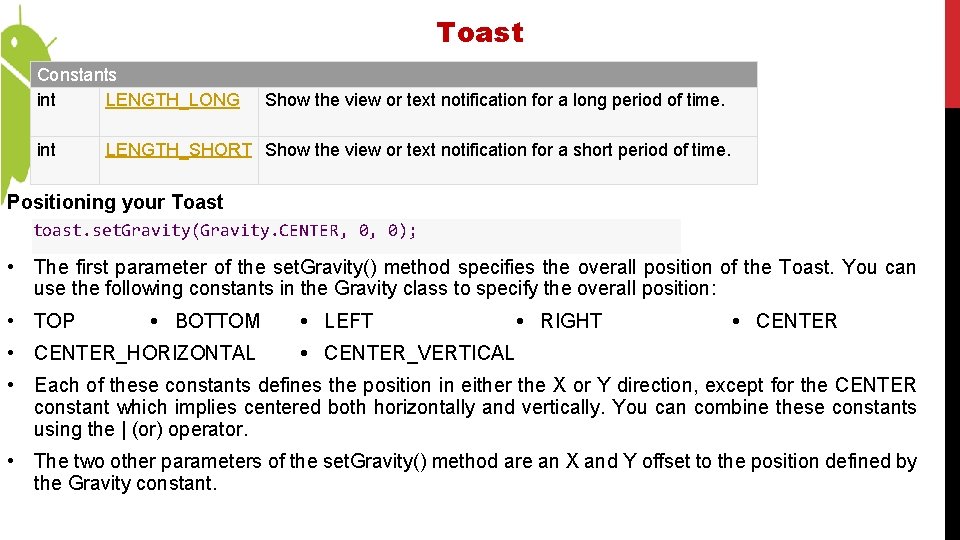
Toast Constants int LENGTH_LONG int Show the view or text notification for a long period of time. LENGTH_SHORT Show the view or text notification for a short period of time. Positioning your Toast toast. set. Gravity(Gravity. CENTER, 0, 0); • The first parameter of the set. Gravity() method specifies the overall position of the Toast. You can use the following constants in the Gravity class to specify the overall position: • TOP • BOTTOM • CENTER_HORIZONTAL • LEFT • RIGHT • CENTER_VERTICAL • Each of these constants defines the position in either the X or Y direction, except for the CENTER constant which implies centered both horizontally and vertically. You can combine these constants using the | (or) operator. • The two other parameters of the set. Gravity() method are an X and Y offset to the position defined by the Gravity constant.
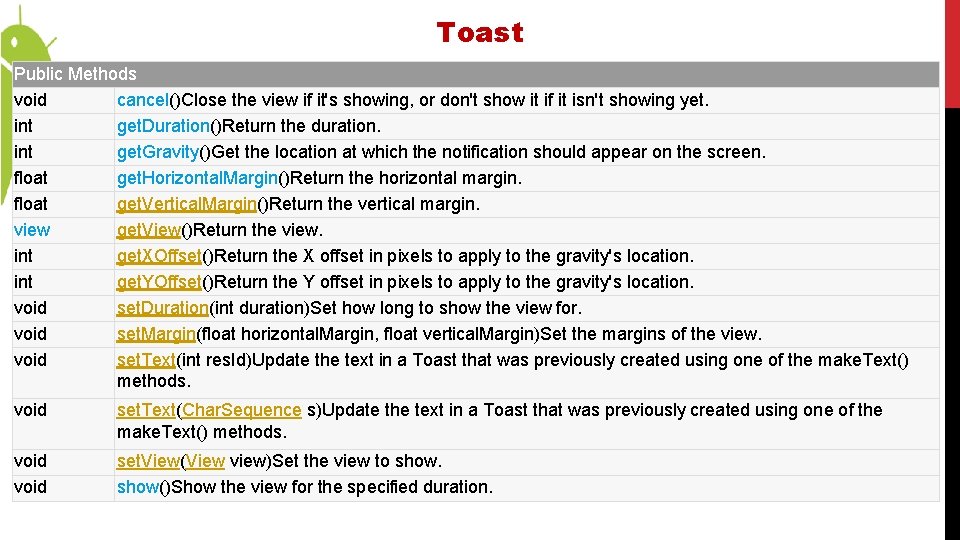
Toast Public Methods void cancel()Close the view if it's showing, or don't show it if it isn't showing yet. int get. Duration()Return the duration. int get. Gravity()Get the location at which the notification should appear on the screen. float get. Horizontal. Margin()Return the horizontal margin. float get. Vertical. Margin()Return the vertical margin. view get. View()Return the view. int get. XOffset()Return the X offset in pixels to apply to the gravity's location. int get. YOffset()Return the Y offset in pixels to apply to the gravity's location. void set. Duration(int duration)Set how long to show the view for. void set. Margin(float horizontal. Margin, float vertical. Margin)Set the margins of the view. void set. Text(int res. Id)Update the text in a Toast that was previously created using one of the make. Text() methods. void set. Text(Char. Sequence s)Update the text in a Toast that was previously created using one of the make. Text() methods. void set. View(View view)Set the view to show()Show the view for the specified duration.
Notification • a

- Slides: 15