
MITAITI 2004 Lecture 16 Introduction to Swing Lecture
![Exercise 1 continued. . . public static void main (String[] args){ Calc trial =](https://slidetodoc.com/presentation_image_h2/719f6a7872da378bcbbdb24f07b9b8b2/image-9.jpg "Exercise 1 continued. . . public static void main (String[] args){ Calc trial =")
- Slides: 38
MIT-AITI 2004 – Lecture 16 Introduction to Swing
Lecture Summary • Over the next 2 lectures, we will introduce you to the techniques necessary to build graphical user interfaces (GUI) for your applications. – Learning Swing basic concepts: components and containers, colors, layout; – Constructing Swing interfaces; – Using the Swing Event Model. • Style: Mixture of lecture and lab
WHAT IS SWING? § So far, our user interfaces have only been textual, meaning the user sees text and writes text at the command prompt. § Today we will learn to make our interfaces graphical, so we can use our programs through windows, click on buttons, etc. § Graphical User Interface (GUI) § Swing is Java's graphical user interface library § You MUST import the following packages: import java. awt. *; import javax. swing. *;
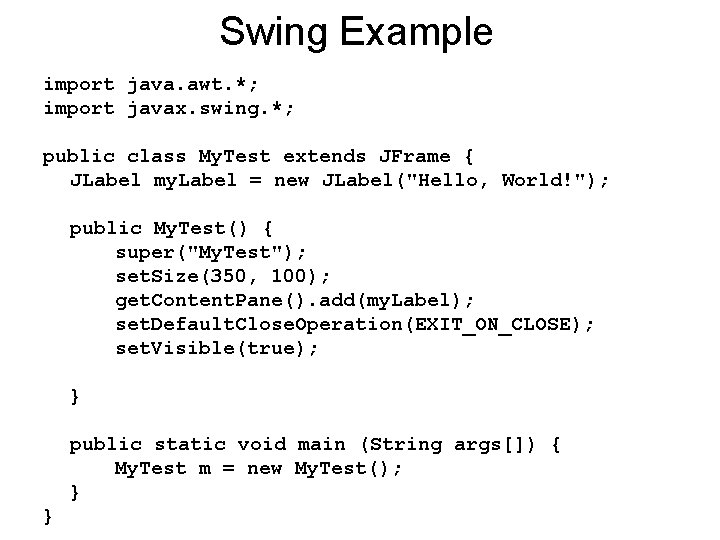
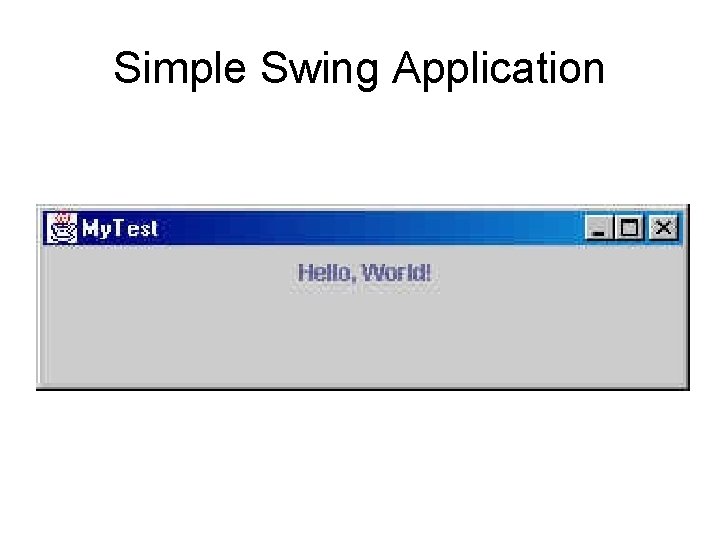
Swing Example import java. awt. *; import javax. swing. *; public class My. Test extends JFrame { JLabel my. Label = new JLabel("Hello, World!"); public My. Test() { super("My. Test"); set. Size(350, 100); get. Content. Pane(). add(my. Label); set. Default. Close. Operation(EXIT_ON_CLOSE); set. Visible(true); } public static void main (String args[]) { My. Test m = new My. Test(); } }
Simple Swing Application
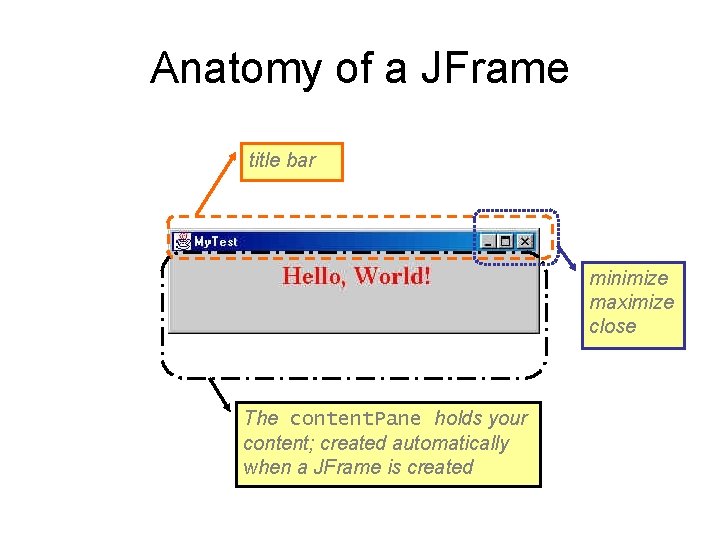
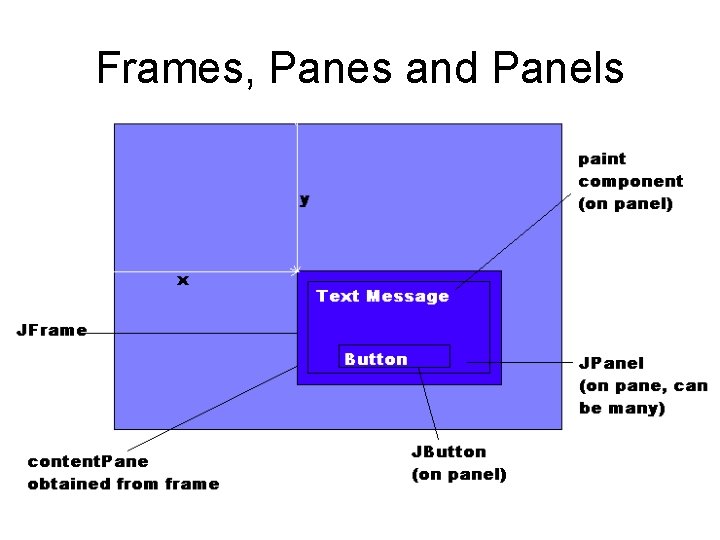
JFrame • JFrame is the application window class • It is special; it draws the window and interacts with the operating system • When a JFrame is created, an inner container called the content. Pane is automatically created • We don't draw graphics directly on JFrame; we draw on the content. Pane
Anatomy of a JFrame title bar minimize maximize close The content. Pane holds your content; created automatically when a JFrame is created
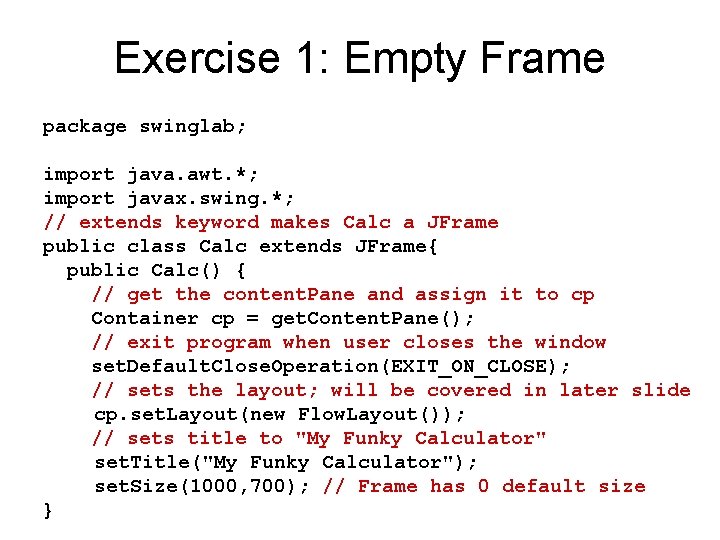
Exercise 1: Empty Frame package swinglab; import java. awt. *; import javax. swing. *; // extends keyword makes Calc a JFrame public class Calc extends JFrame{ public Calc() { // get the content. Pane and assign it to cp Container cp = get. Content. Pane(); // exit program when user closes the window set. Default. Close. Operation(EXIT_ON_CLOSE); // sets the layout; will be covered in later slide cp. set. Layout(new Flow. Layout()); // sets title to "My Funky Calculator" set. Title("My Funky Calculator"); set. Size(1000, 700); // Frame has 0 default size }
Exercise 1 continued. . . public static void main (String[] args){ Calc trial = new Calc(); // Frame is invisible by default trial. set. Visible(true); // main method exits but user interface // stays alive } }
Top Level Windows • Top Level Windows are containers that are not contained by any other containers • They can be iconified or dragged and interact with the native windowing system • Examples: JFrame, JDialog (not JComponents at all )
Categories of GUI classes • Swing has a large set of classes that inherit from a super and abstract class JComponent • JComponent: The base class for all Swing components except top-level containers • Its subclasses present information or interact with the user – Examples: labels(JLabels), buttons(JButtons), textfields(JText. Field) - Containers are some JComponents that are designed to hold other components (no interaction with the user) - Examples: JPanel, JScroll. Pane
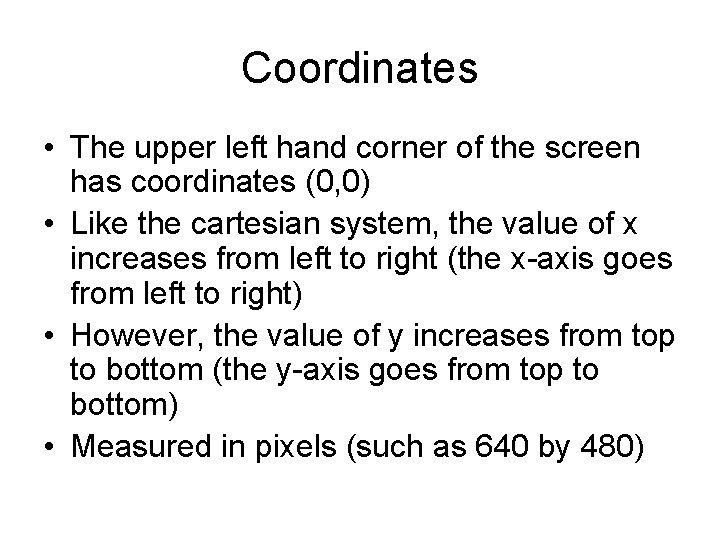
Coordinates • The upper left hand corner of the screen has coordinates (0, 0) • Like the cartesian system, the value of x increases from left to right (the x-axis goes from left to right) • However, the value of y increases from top to bottom (the y-axis goes from top to bottom) • Measured in pixels (such as 640 by 480)
Frames, Panes and Panels
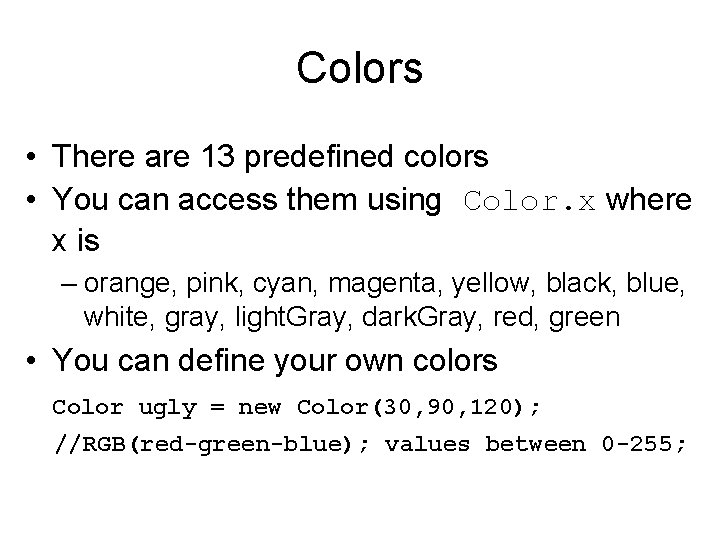
Colors • There are 13 predefined colors • You can access them using Color. x where x is – orange, pink, cyan, magenta, yellow, black, blue, white, gray, light. Gray, dark. Gray, red, green • You can define your own colors Color ugly = new Color(30, 90, 120); //RGB(red-green-blue); values between 0 -255;
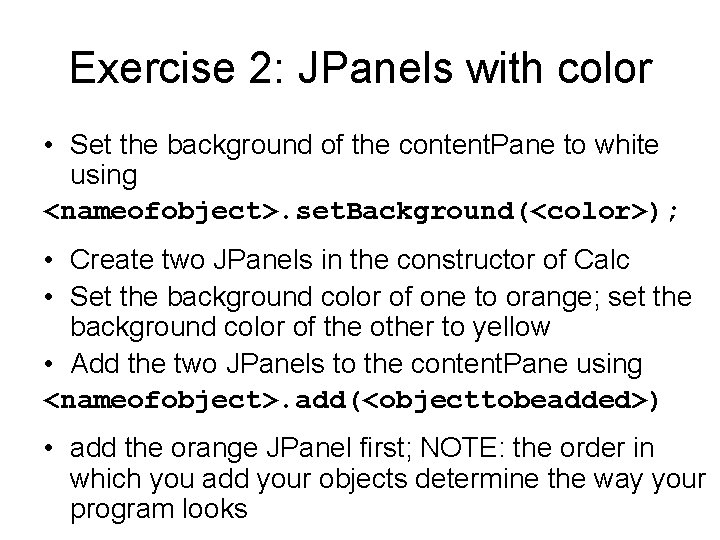
Exercise 2: JPanels with color • Set the background of the content. Pane to white using <nameofobject>. set. Background(<color>); • Create two JPanels in the constructor of Calc • Set the background color of one to orange; set the background color of the other to yellow • Add the two JPanels to the content. Pane using <nameofobject>. add(<objecttobeadded>) • add the orange JPanel first; NOTE: the order in which you add your objects determine the way your program looks
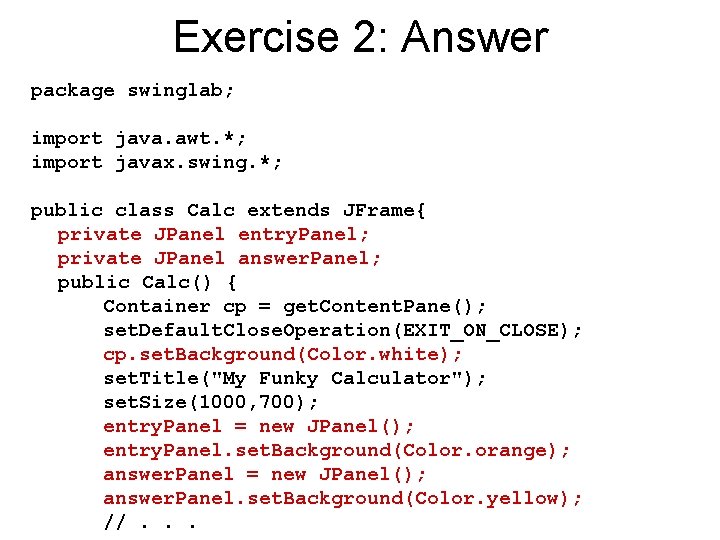
Exercise 2: Answer package swinglab; import java. awt. *; import javax. swing. *; public class Calc extends JFrame{ private JPanel entry. Panel; private JPanel answer. Panel; public Calc() { Container cp = get. Content. Pane(); set. Default. Close. Operation(EXIT_ON_CLOSE); cp. set. Background(Color. white); set. Title("My Funky Calculator"); set. Size(1000, 700); entry. Panel = new JPanel(); entry. Panel. set. Background(Color. orange); answer. Panel = new JPanel(); answer. Panel. set. Background(Color. yellow); //. . .
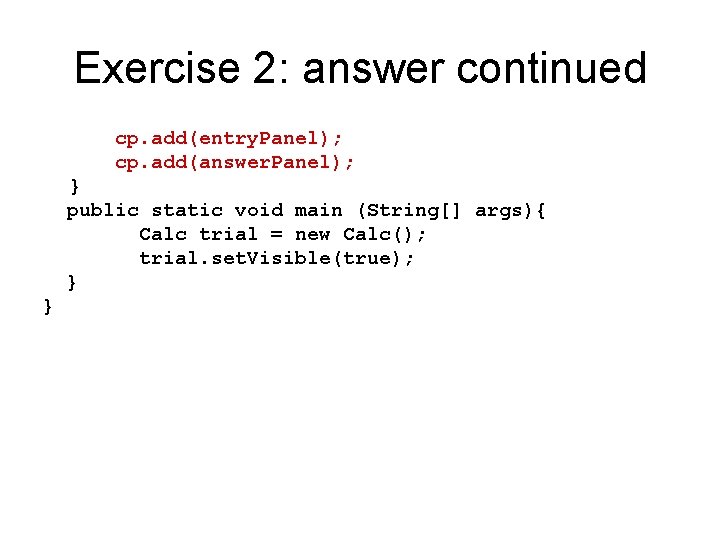
Exercise 2: answer continued cp. add(entry. Panel); cp. add(answer. Panel); } public static void main (String[] args){ Calc trial = new Calc(); trial. set. Visible(true); } }
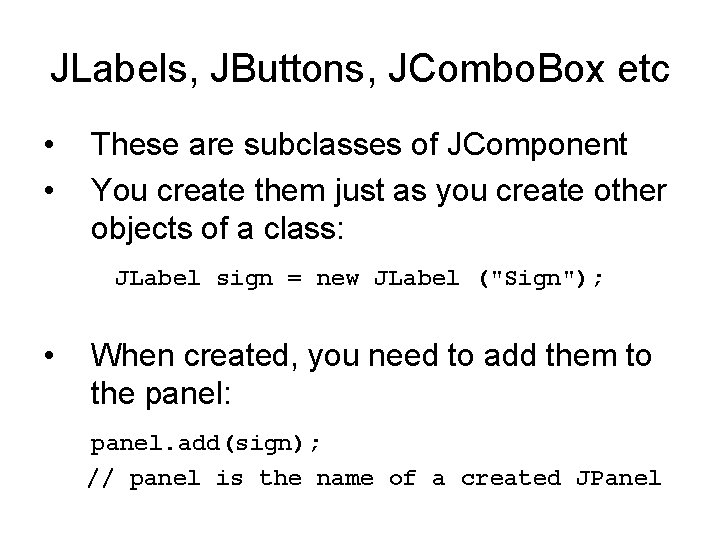
JLabels, JButtons, JCombo. Box etc • • These are subclasses of JComponent You create them just as you create other objects of a class: JLabel sign = new JLabel ("Sign"); • When created, you need to add them to the panel: panel. add(sign); // panel is the name of a created JPanel
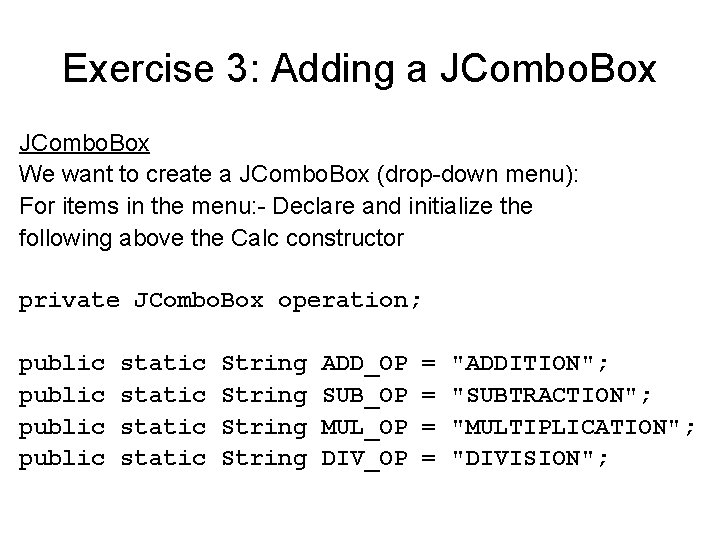
Exercise 3: Adding a JCombo. Box We want to create a JCombo. Box (drop-down menu): For items in the menu: - Declare and initialize the following above the Calc constructor private JCombo. Box operation; public static String ADD_OP SUB_OP MUL_OP DIV_OP = = "ADDITION"; "SUBTRACTION"; "MULTIPLICATION"; "DIVISION";
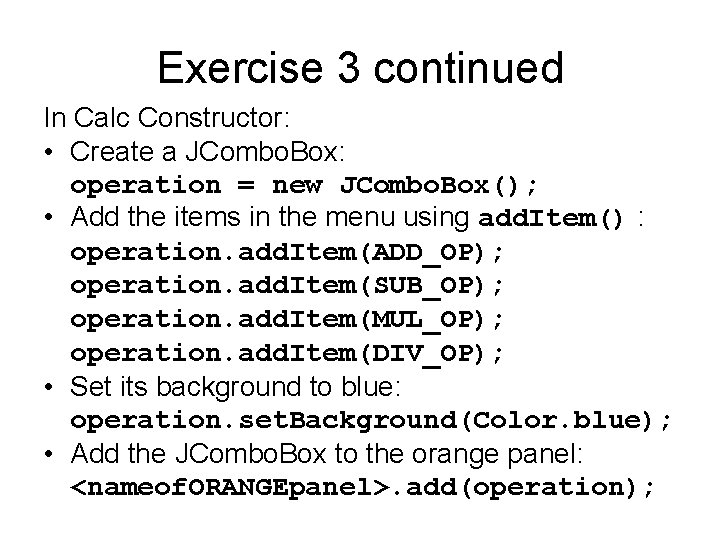
Exercise 3 continued In Calc Constructor: • Create a JCombo. Box: operation = new JCombo. Box(); • Add the items in the menu using add. Item() : operation. add. Item(ADD_OP); operation. add. Item(SUB_OP); operation. add. Item(MUL_OP); operation. add. Item(DIV_OP); • Set its background to blue: operation. set. Background(Color. blue); • Add the JCombo. Box to the orange panel: <nameof. ORANGEpanel>. add(operation);
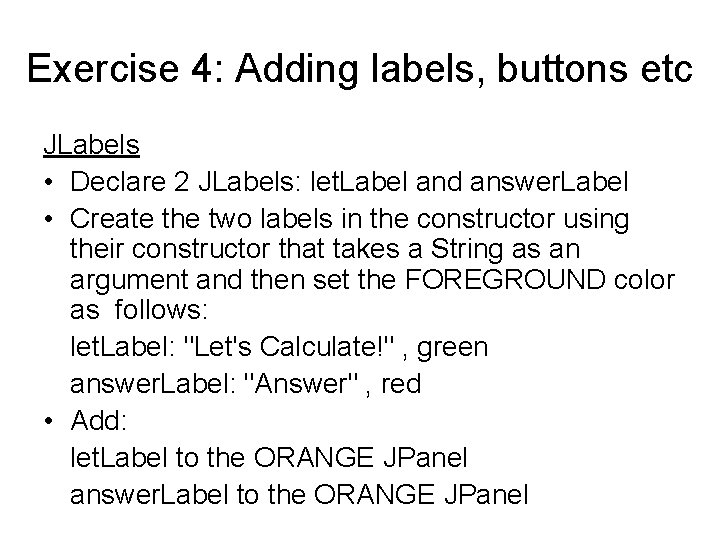
Exercise 4: Adding labels, buttons etc JLabels • Declare 2 JLabels: let. Label and answer. Label • Create the two labels in the constructor using their constructor that takes a String as an argument and then set the FOREGROUND color as follows: let. Label: "Let's Calculate!" , green answer. Label: "Answer" , red • Add: let. Label to the ORANGE JPanel answer. Label to the ORANGE JPanel
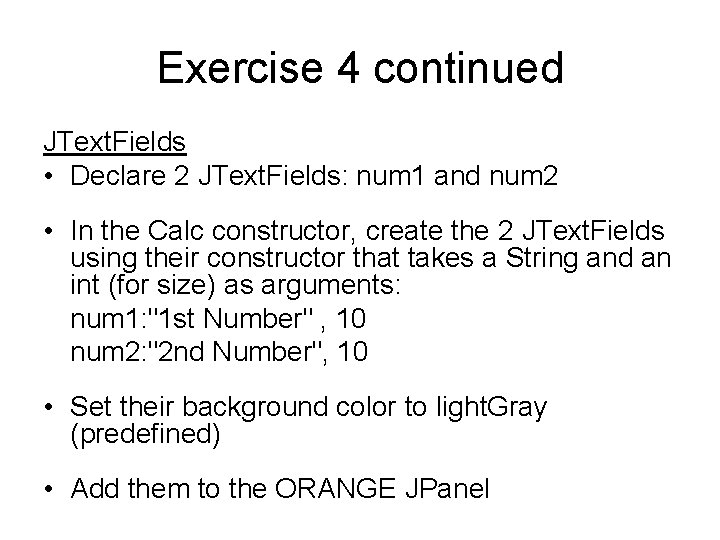
Exercise 4 continued JText. Fields • Declare 2 JText. Fields: num 1 and num 2 • In the Calc constructor, create the 2 JText. Fields using their constructor that takes a String and an int (for size) as arguments: num 1: "1 st Number" , 10 num 2: "2 nd Number", 10 • Set their background color to light. Gray (predefined) • Add them to the ORANGE JPanel
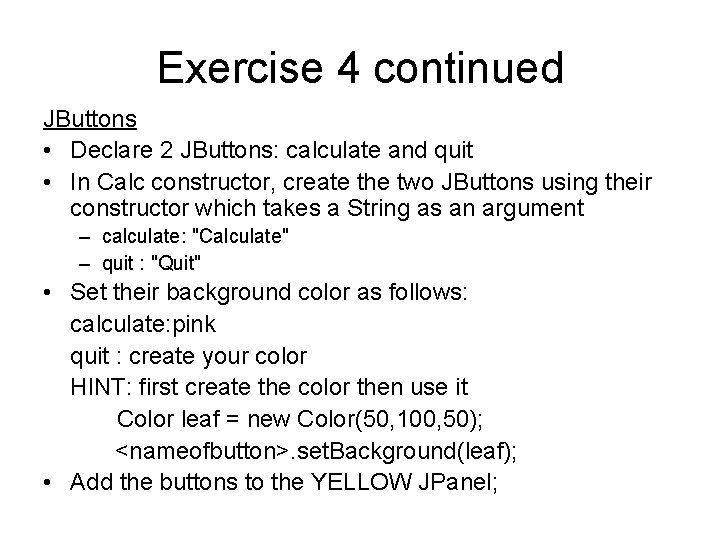
Exercise 4 continued JButtons • Declare 2 JButtons: calculate and quit • In Calc constructor, create the two JButtons using their constructor which takes a String as an argument – calculate: "Calculate" – quit : "Quit" • Set their background color as follows: calculate: pink quit : create your color HINT: first create the color then use it Color leaf = new Color(50, 100, 50); <nameofbutton>. set. Background(leaf); • Add the buttons to the YELLOW JPanel;
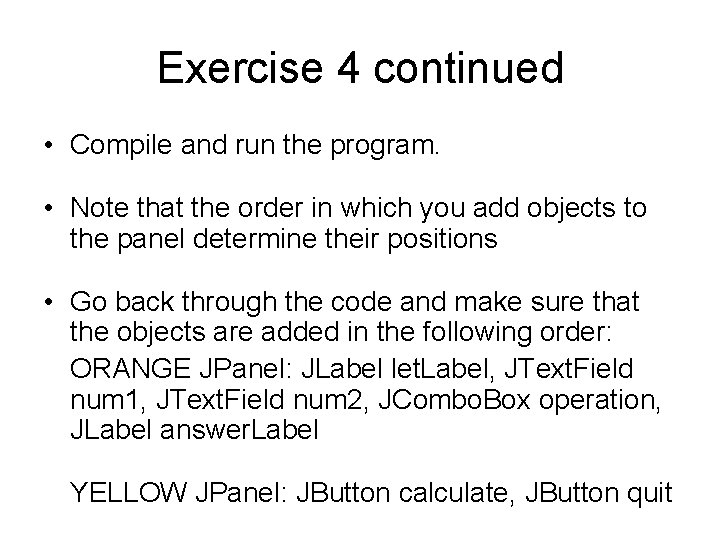
Exercise 4 continued • Compile and run the program. • Note that the order in which you add objects to the panel determine their positions • Go back through the code and make sure that the objects are added in the following order: ORANGE JPanel: JLabel let. Label, JText. Field num 1, JText. Field num 2, JCombo. Box operation, JLabel answer. Label YELLOW JPanel: JButton calculate, JButton quit
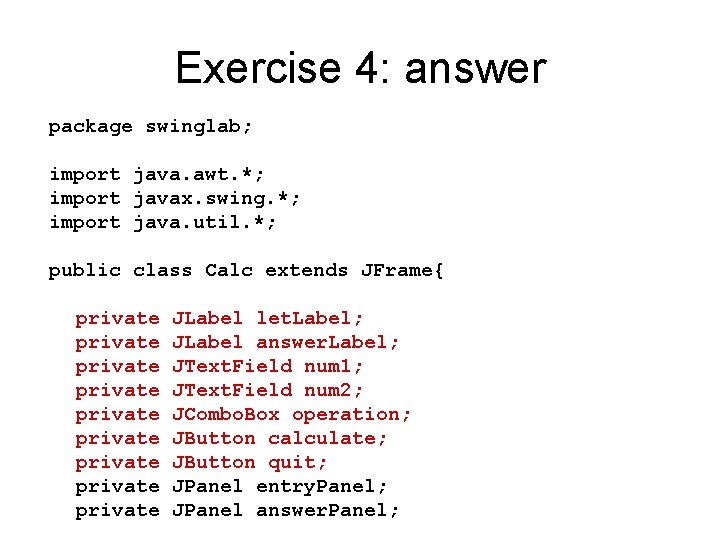
Exercise 4: answer package swinglab; import java. awt. *; import javax. swing. *; import java. util. *; public class Calc extends JFrame{ private private private JLabel let. Label; JLabel answer. Label; JText. Field num 1; JText. Field num 2; JCombo. Box operation; JButton calculate; JButton quit; JPanel entry. Panel; JPanel answer. Panel;
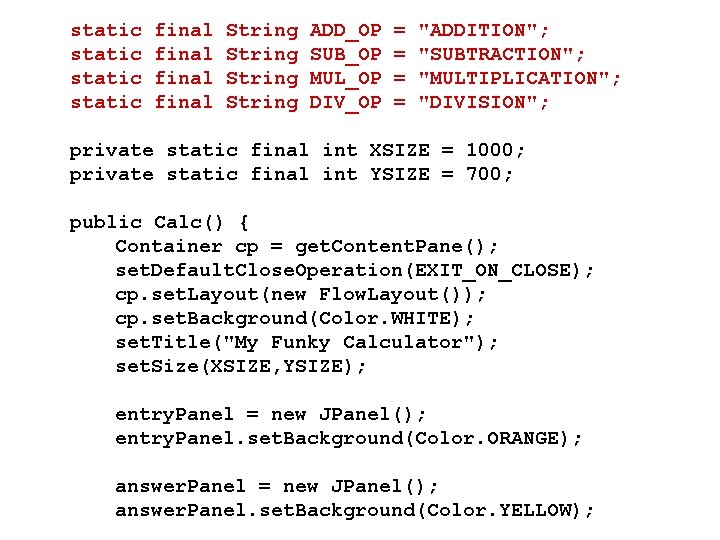
static final String ADD_OP SUB_OP MUL_OP DIV_OP = = "ADDITION"; "SUBTRACTION"; "MULTIPLICATION"; "DIVISION"; private static final int XSIZE = 1000; private static final int YSIZE = 700; public Calc() { Container cp = get. Content. Pane(); set. Default. Close. Operation(EXIT_ON_CLOSE); cp. set. Layout(new Flow. Layout()); cp. set. Background(Color. WHITE); set. Title("My Funky Calculator"); set. Size(XSIZE, YSIZE); entry. Panel = new JPanel(); entry. Panel. set. Background(Color. ORANGE); answer. Panel = new JPanel(); answer. Panel. set. Background(Color. YELLOW);
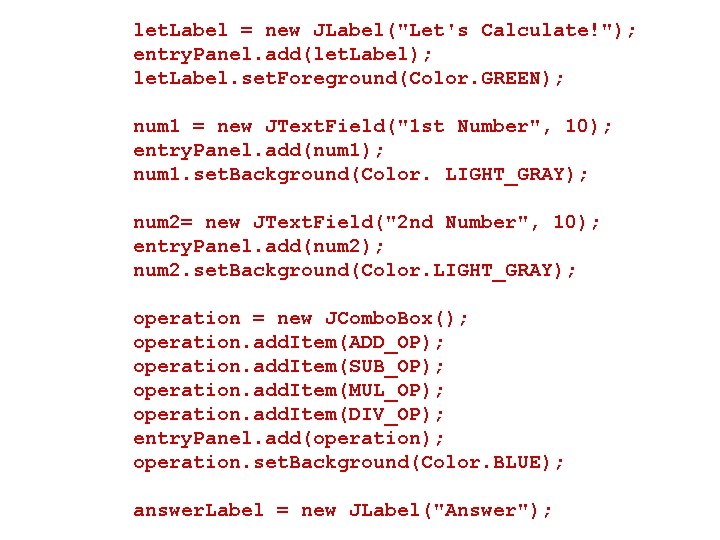
let. Label = new JLabel("Let's Calculate!"); entry. Panel. add(let. Label); let. Label. set. Foreground(Color. GREEN); num 1 = new JText. Field("1 st Number", 10); entry. Panel. add(num 1); num 1. set. Background(Color. LIGHT_GRAY); num 2= new JText. Field("2 nd Number", 10); entry. Panel. add(num 2); num 2. set. Background(Color. LIGHT_GRAY); operation = new JCombo. Box(); operation. add. Item(ADD_OP); operation. add. Item(SUB_OP); operation. add. Item(MUL_OP); operation. add. Item(DIV_OP); entry. Panel. add(operation); operation. set. Background(Color. BLUE); answer. Label = new JLabel("Answer");
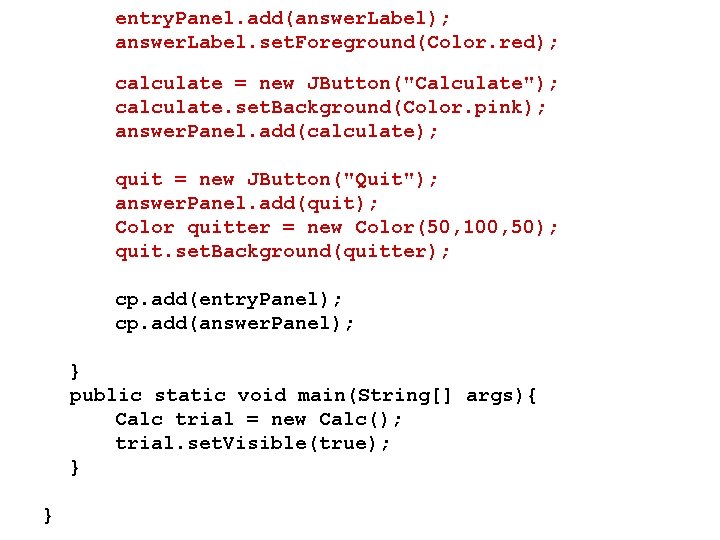
entry. Panel. add(answer. Label); answer. Label. set. Foreground(Color. red); calculate = new JButton("Calculate"); calculate. set. Background(Color. pink); answer. Panel. add(calculate); quit = new JButton("Quit"); answer. Panel. add(quit); Color quitter = new Color(50, 100, 50); quit. set. Background(quitter); cp. add(entry. Panel); cp. add(answer. Panel); } public static void main(String[] args){ Calc trial = new Calc(); trial. set. Visible(true); } }
Layout Manager • Layout management is the process of determining the size and location of a container's components. • Java containers do not handle their own layout. They delegate that task to their layout manager, an instance of another class. • If you do not like a container's default layout manager, you can change it. Container content = get. Content. Pane(); content. set. Layout( new Flow. Layout() );
Layout Managers • Layout management proceeds bosttom up through the containment hierarchy. • If a container encloses another container, the enclosing container can not position the inner container nor size itself until it knows how big the inner container needs to be. • And the inner container can not size itself until it queries its contents • Swing provides 6 Layout manager classes
Flow. Layout • Flow. Layout, the simplest of the managers, simply adds components left to right until it can fit no more within its container's width. • It then starts a second line of components, fills that, starts a third, etc. • Each line is centered in the container • Flow. Layout respects each component's preferred size and will use it to override a size set by set. Size. • Flow. Layout is the default layout manager for JPanel
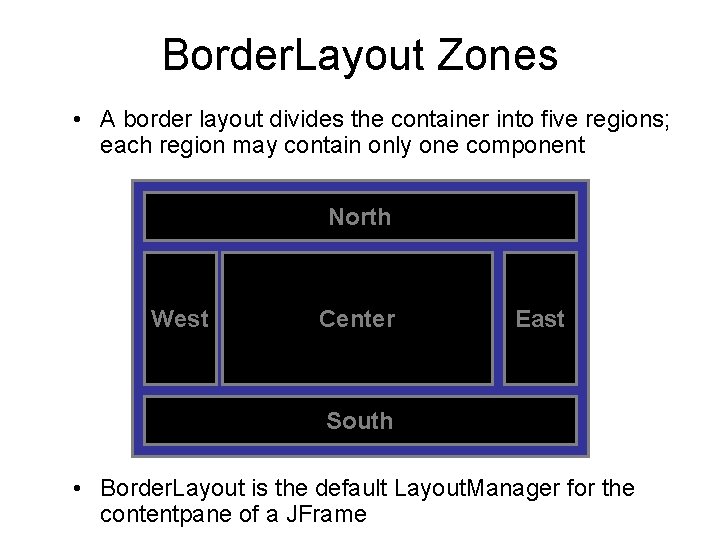
Border. Layout Zones • A border layout divides the container into five regions; each region may contain only one component North West Center East South • Border. Layout is the default Layout. Manager for the contentpane of a JFrame
Using Layout Managers Border. Layout <nameofcontainer>. set. Layout(new Border. Layout()); When adding components to the container: <nameofcontainer>. add(<nameofcomponent>, Border. Layout. REGION); where REGION is either NORTH, SOUTH, WEST, CENTER OR EAST. JPanel panel = new JPanel(); // default // Flow. Layout panel. set. Layout(new Border. Layout()); panel. add(button, Border. Layout. NORTH);
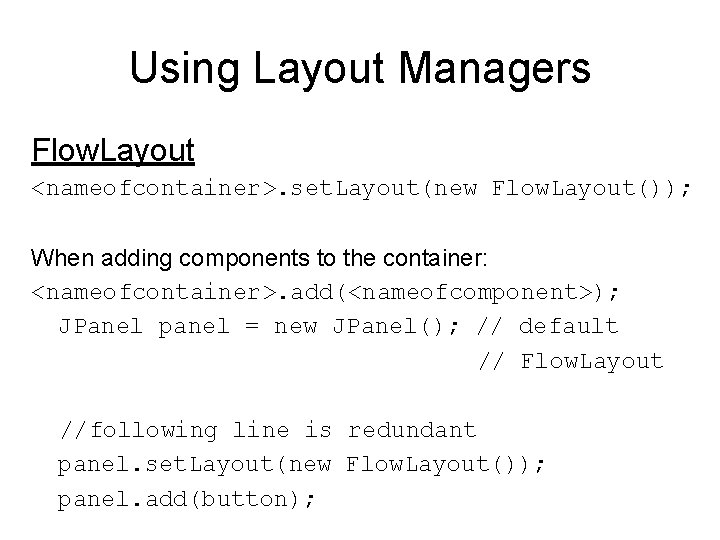
Using Layout Managers Flow. Layout <nameofcontainer>. set. Layout(new Flow. Layout()); When adding components to the container: <nameofcontainer>. add(<nameofcomponent>); JPanel panel = new JPanel(); // default // Flow. Layout //following line is redundant panel. set. Layout(new Flow. Layout()); panel. add(button);
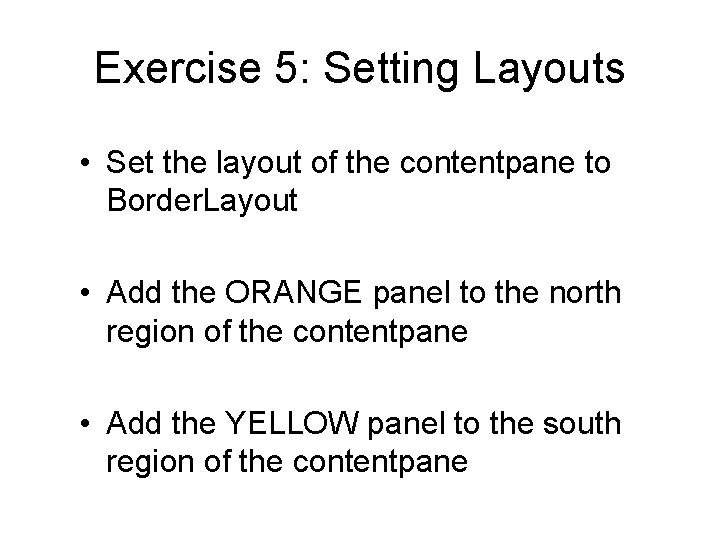
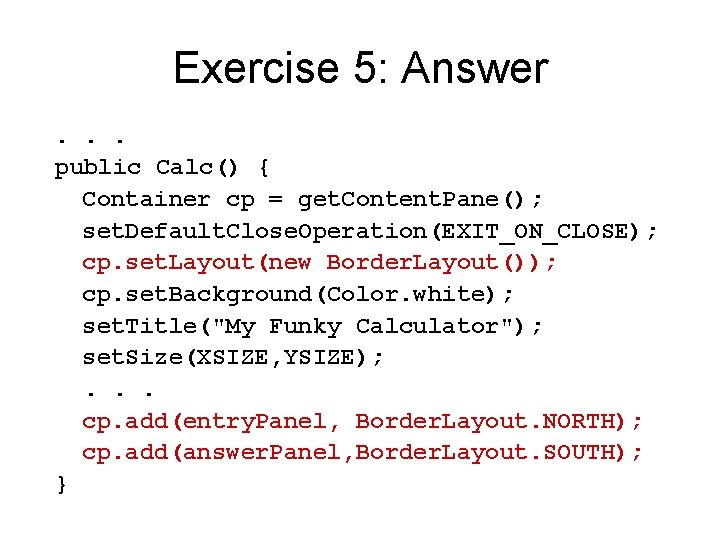
Exercise 5: Setting Layouts • Set the layout of the contentpane to Border. Layout • Add the ORANGE panel to the north region of the contentpane • Add the YELLOW panel to the south region of the contentpane
Exercise 5: Answer. . . public Calc() { Container cp = get. Content. Pane(); set. Default. Close. Operation(EXIT_ON_CLOSE); cp. set. Layout(new Border. Layout()); cp. set. Background(Color. white); set. Title("My Funky Calculator"); set. Size(XSIZE, YSIZE); . . . cp. add(entry. Panel, Border. Layout. NORTH); cp. add(answer. Panel, Border. Layout. SOUTH); }
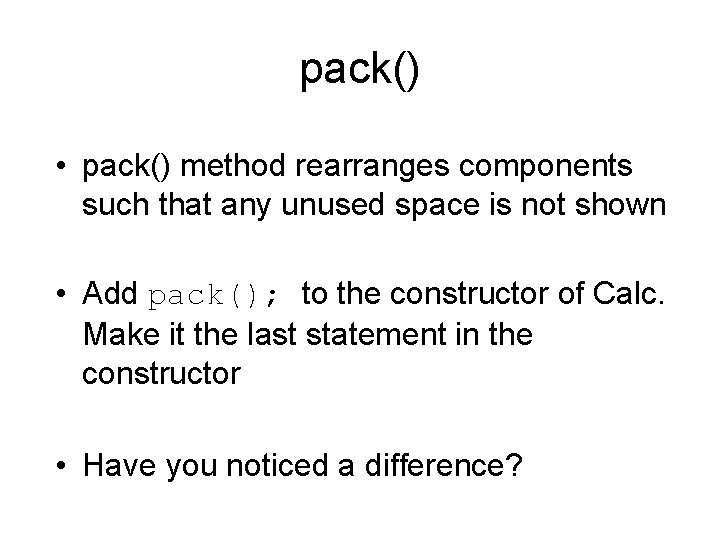
pack() • pack() method rearranges components such that any unused space is not shown • Add pack(); to the constructor of Calc. Make it the last statement in the constructor • Have you noticed a difference?
Summary • When creating GUI, a JFrame is used; it interacts with the native system • A content. Pane is automatically created when a JFrame is created. It has 5 zones where you can add a component (default layout is Border. Layout) • JPanel is the workhorse of most complicated interfaces. It is – a good all purpose container – the standard drawing surface • Swing containers have default layout managers but you can always change them • Swing is HUGE! You must explore it further.