
Missouri Department of Public Safety Office of the
Missouri Department of Public Safety Office of the Director Criminal Justice/Law Enforcement Unit 2018 Local Law Enforcement Block Grant (LLEBG) Compliance Training Repeat July 16, 2018
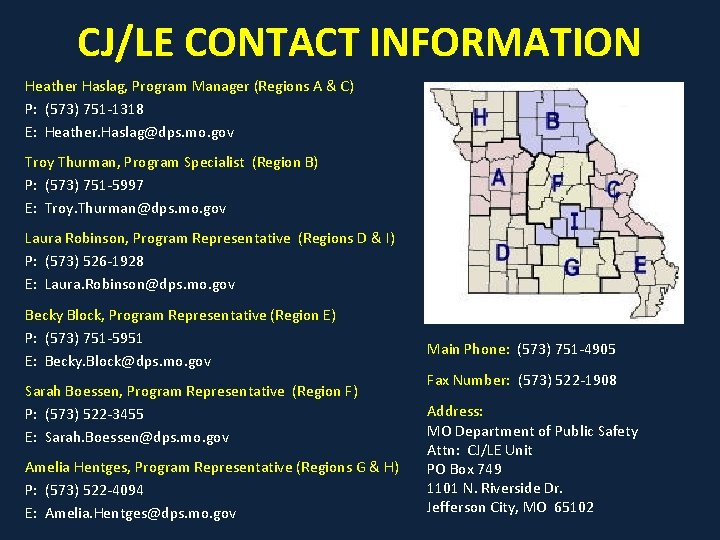
CJ/LE CONTACT INFORMATION Heather Haslag, Program Manager (Regions A & C) P: (573) 751 -1318 E: Heather. Haslag@dps. mo. gov Troy Thurman, Program Specialist (Region B) P: (573) 751 -5997 E: Troy. Thurman@dps. mo. gov Laura Robinson, Program Representative (Regions D & I) P: (573) 526 -1928 E: Laura. Robinson@dps. mo. gov Becky Block, Program Representative (Region E) P: (573) 751 -5951 E: Becky. Block@dps. mo. gov Sarah Boessen, Program Representative (Region F) P: (573) 522 -3455 E: Sarah. Boessen@dps. mo. gov Amelia Hentges, Program Representative (Regions G & H) P: (573) 522 -4094 E: Amelia. Hentges@dps. mo. gov Main Phone: (573) 751 -4905 Fax Number: (573) 522 -1908 Address: MO Department of Public Safety Attn: CJ/LE Unit PO Box 749 1101 N. Riverside Dr. Jefferson City, MO 65102
TRAINING OUTLINE 1. General Grant Information 2. Administrative & Financial Guidelines 3. Civil Rights Compliance 4. Monitoring 5. Web. Grants 6. Questions?

GENERAL GRANT INFORMATION
GENERAL GRANT GUIDELINES • Project Period: January 1, 2018 to June 30, 2018 REVISED: Jan. 1, 2018 to Dec. 31, 2018 (12 months) – 6 month project period – Extension to project period will not be granted – Approved items must be purchased within project period • No Local Match Requirement • Eligible Budget Category: Equipment – – Can purchase a different model or manufacturer Can purchase from a different vendor Limited to quantity approved Limited to type of item approved
EQUIPMENT COSTS • Subrecipients must adhere to most restrictive procurement policy • All equipment must be compatible with the current statewide system • Communication devices must adhere to the state’s interoperability plan – Portable radios, repeaters, and base stations have no specifications – Mobile radios must be P 25 compliant and operate in the trunked mode at the time of purchase – List of compliant communication devices available at https: //dps. mo. gov/dir/programs/cjle/llebg. php – Contact Missouri Interoperability Center before making purchase. Phone (573) 522 -1714, Fax (573) 526 -1632, Email moswin. sysadmin@dps. mo. gov, Help Desk 855 -4 -MOSWIN
SOURCE OF INFORMATION • DPS Website: https: //dps. mo. gov/dir/programs/cjle/llebg. php – – – – • LLEBG Fact Sheet Radio Interoperability Guidelines Web. Grants External User Manual DPS Financial & Administrative Guidelines Solicitation Pre-Bid Training & Audio Recording Compliance Training & Audio Recording Web. Grants: https: //dpsgrants. dps. mo. gov – – Opportunity (Funding Opportunity) Certified Assurances Solicitation Web. Grants External User Manual • • • Office of Justice Programs (OJP) Financial Guide: http: //ojp. gov/financialguide/DOJ/ Code of Federal Regulation (C. F. R. ): http: //www. ecfr. gov/ United States Code (U. S. C. ): http: //uscode. house. gov/ • Missouri State Statutes: http: //www. moga. mo. gov/
ADMINISTRATIVE AND FINANCIAL GUIDELINES
FUNDS • Checks in the amount of the award disbursed at beginning of project period • Subrecipients must report actual cash expenditures and any program income (interest) that was earned • Expenditures will be reported through a “Status Report” via Web. Grants • Funds must be obligated within the project period and expended within 60 days following the project period end date REVISED: – Project Period: January 1, 2018 to June 30, 2018 – 60 days following: August 29, 2018 Project Period: Jan. 1, 2018 to Dec. 31, 2018 60 days following: Mar. 1, 2019 • Funds are “obligated” when a legal liability to pay a determinable sum for services or goods is incurred and will require payment during the same or future period (e. g. purchase order date) • Funds are “expended” when payment is made
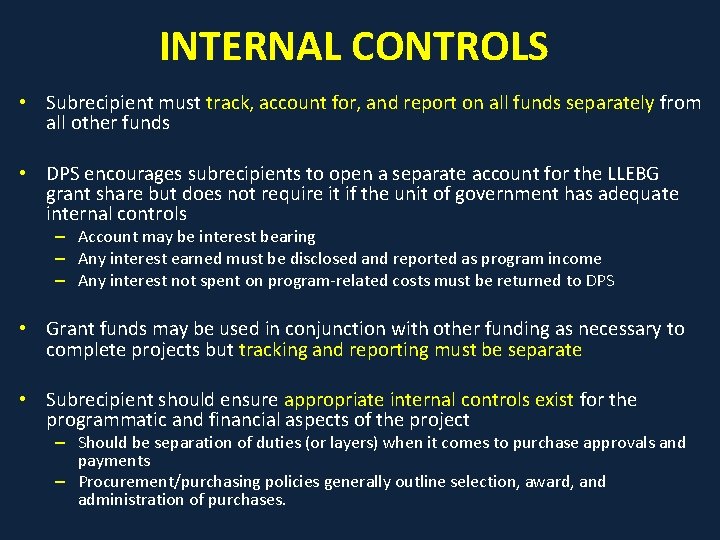
INTERNAL CONTROLS • Subrecipient must track, account for, and report on all funds separately from all other funds • DPS encourages subrecipients to open a separate account for the LLEBG grant share but does not require it if the unit of government has adequate internal controls – Account may be interest bearing – Any interest earned must be disclosed and reported as program income – Any interest not spent on program-related costs must be returned to DPS • Grant funds may be used in conjunction with other funding as necessary to complete projects but tracking and reporting must be separate • Subrecipient should ensure appropriate internal controls exist for the programmatic and financial aspects of the project – Should be separation of duties (or layers) when it comes to purchase approvals and payments – Procurement/purchasing policies generally outline selection, award, and administration of purchases.
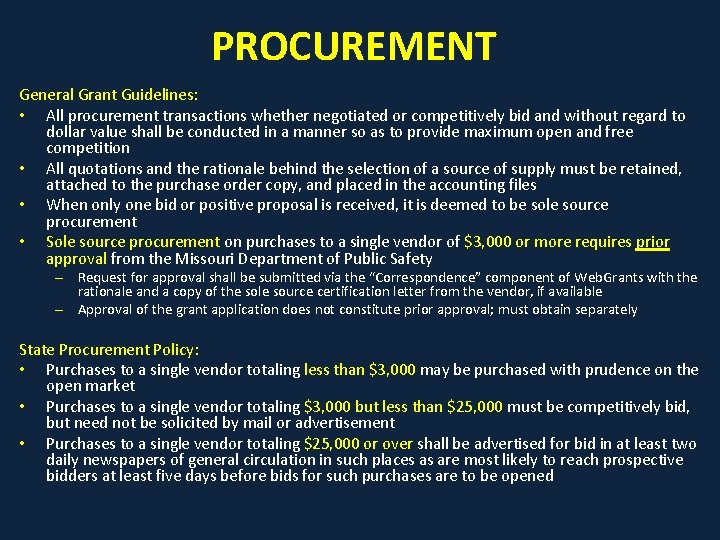
PROCUREMENT General Grant Guidelines: • All procurement transactions whether negotiated or competitively bid and without regard to dollar value shall be conducted in a manner so as to provide maximum open and free competition • All quotations and the rationale behind the selection of a source of supply must be retained, attached to the purchase order copy, and placed in the accounting files • When only one bid or positive proposal is received, it is deemed to be sole source procurement • Sole source procurement on purchases to a single vendor of $3, 000 or more requires prior approval from the Missouri Department of Public Safety – Request for approval shall be submitted via the “Correspondence” component of Web. Grants with the rationale and a copy of the sole source certification letter from the vendor, if available – Approval of the grant application does not constitute prior approval; must obtain separately State Procurement Policy: • Purchases to a single vendor totaling less than $3, 000 may be purchased with prudence on the open market • Purchases to a single vendor totaling $3, 000 but less than $25, 000 must be competitively bid, but need not be solicited by mail or advertisement • Purchases to a single vendor totaling $25, 000 or over shall be advertised for bid in at least two daily newspapers of general circulation in such places as are most likely to reach prospective bidders at least five days before bids for such purchases are to be opened
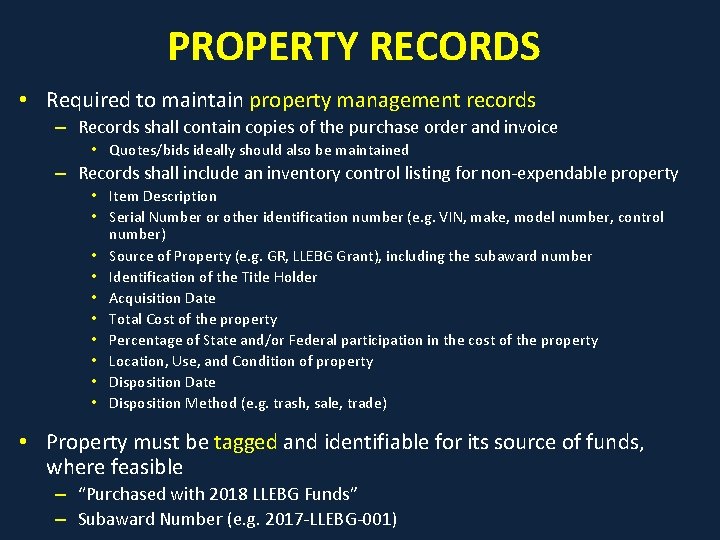
PROPERTY RECORDS • Required to maintain property management records – Records shall contain copies of the purchase order and invoice • Quotes/bids ideally should also be maintained – Records shall include an inventory control listing for non-expendable property • Item Description • Serial Number or other identification number (e. g. VIN, make, model number, control number) • Source of Property (e. g. GR, LLEBG Grant), including the subaward number • Identification of the Title Holder • Acquisition Date • Total Cost of the property • Percentage of State and/or Federal participation in the cost of the property • Location, Use, and Condition of property • Disposition Date • Disposition Method (e. g. trash, sale, trade) • Property must be tagged and identifiable for its source of funds, where feasible – “Purchased with 2018 LLEBG Funds” – Subaward Number (e. g. 2017 -LLEBG-001)
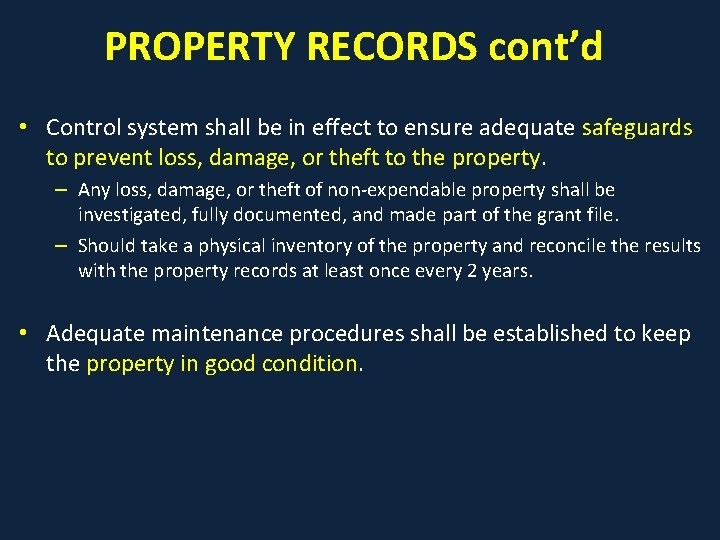
PROPERTY RECORDS cont’d • Control system shall be in effect to ensure adequate safeguards to prevent loss, damage, or theft to the property. – Any loss, damage, or theft of non-expendable property shall be investigated, fully documented, and made part of the grant file. – Should take a physical inventory of the property and reconcile the results with the property records at least once every 2 years. • Adequate maintenance procedures shall be established to keep the property in good condition.
AUDIT REQUIREMENTS • Comply with OJP Financial Guide, Chapter 3. 19, Audit Requirements in accordance with the provisions of Title 2 C. F. R. Subpart F (§ 200. 500 et seq. ) • Audit is required if the subrecipient expended $750, 000 or more in federal funds (including pass-thru subawards) within the organization’s fiscal year from any federal source • If the subrecipient is not required to have an audit, the agency is still responsible for monitoring activities to provide reasonable assurance that the agency administers federal awards in compliance with federal requirements • If the subrecipient is required to have an audit: • Audit must be performed organization-wide by an independent firm • Audit must be conducted with reasonable frequency, usually annually, but not less frequently than every two years – Doesn’t mean that the audit can include every other year though! • Must submit a copy of such audit to DPS via the “Correspondence” component of Web. Grants, where possible – Can mail a copy to DPS if unable to scan the audit report – DPS will start contacting agencies if not submitted by 9/1/18

CIVIL RIGHTS COMPLIANCE
EQUAL EMPLOYMENT OPPORTUNITY PLAN (EEOP) • A workforce report that some organizations must complete as a condition for receiving U. S. Department of Justice funding authorized by the Omnibus Crime Control and Safe Streets Act of 1968. • Intended to ensure recipients (and subrecipients) of federal funding are providing equal employment opportunities to men and women regardless of sex, race, or national origin. • U. S. Department of Justice regulations pertaining to the development of a comprehensive EEOP can be found at 28 C. F. R. § 42. 301 -42. 308. • The U. S. Department of Justice, Office for Civil Rights (OCR) is the federal branch that collects, reviews, and approves EEOPs. • Effective in December 2016, the OCR developed an Equal Employment Opportunity (EEO) Reporting Tool to streamline the EEO reporting process. The deployment of the EEO Reporting Tool, however, changed the reporting requirements for recipients of funding from the U. S. Department of Justice.
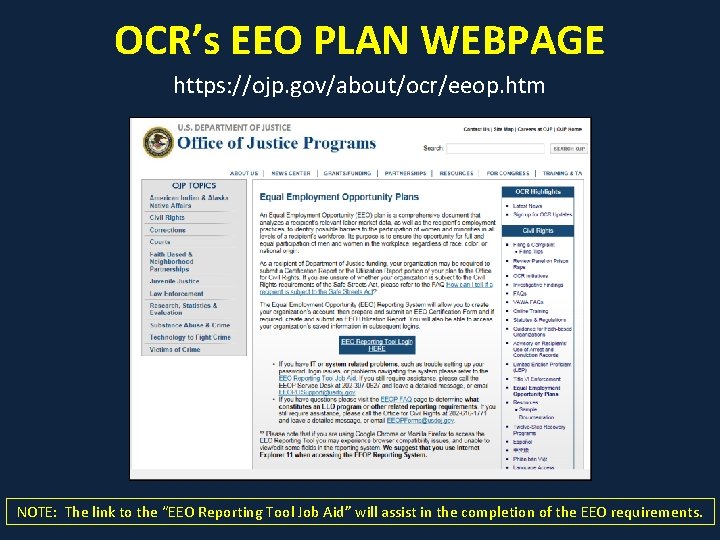
OCR’s EEO PLAN WEBPAGE https: //ojp. gov/about/ocr/eeop. htm NOTE: The link to the “EEO Reporting Tool Job Aid” will assist in the completion of the EEO requirements.
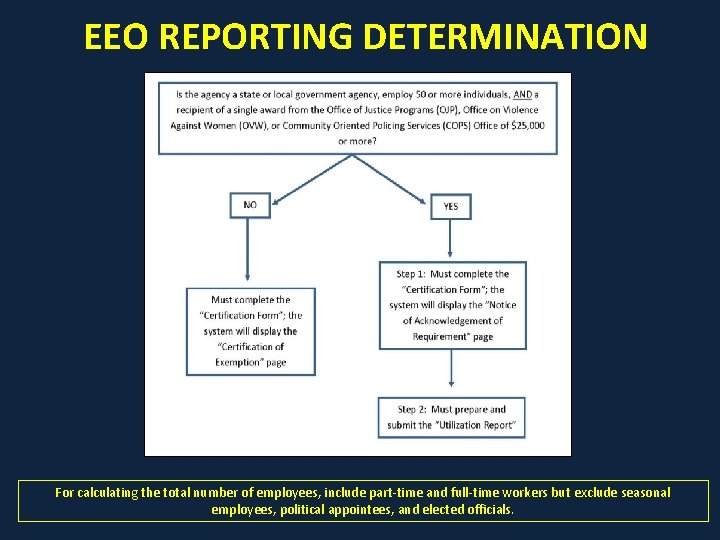
EEO REPORTING DETERMINATION For calculating the total number of employees, include part-time and full-time workers but exclude seasonal employees, political appointees, and elected officials.
EEO CERTIFICATION FORM • The Certification Form’s purpose is to identify the EEO reporting requirement (or lack thereof) of recipients of funding from the U. S. Department of Justice. • Recipients exempt from the EEO reporting requirements must claim such exemption. – Effective with the EEO Reporting Tool, a “Certification of Exemption” form will populate and be submitted to OCR. The Form must be submitted each calendar year for which DOJ funding is received (and be updated in the event a new award is received within the same calendar year that changes the status to no longer being exempt from the EEO reporting requirement). • Recipients required to prepare an EEO Plan must acknowledge such requirement. – Effective with the EEO Reporting Tool, a “Notice of Acknowledgement of Requirement” form will populate and be submitted to OCR. The Form must be submitted each calendar year for which DOJ funding is received. • Should be prepared for the recipient of the federal funding (i. e. county, city, or state department).
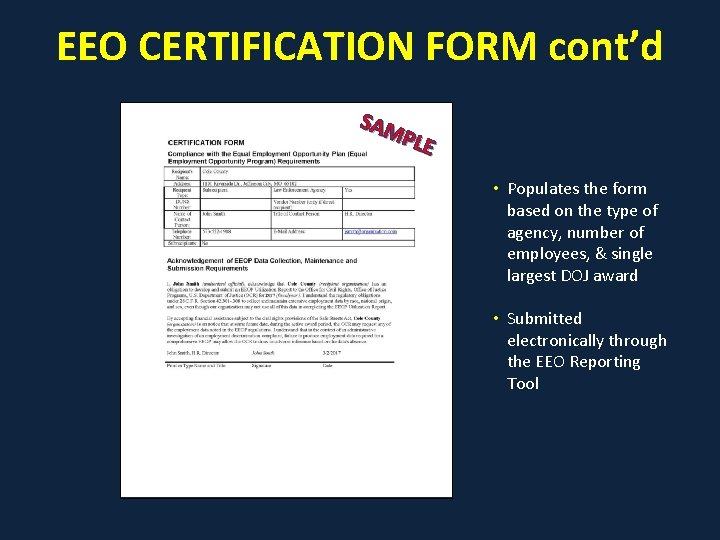
EEO CERTIFICATION FORM cont’d SAM PLE • Populates the form based on the type of agency, number of employees, & single largest DOJ award • Submitted electronically through the EEO Reporting Tool
EEO UTILIZATION REPORT • OCR developed the EEO Utilization Report to help recipients of funding from the U. S. Department of Justice comply with the EEOP regulations. • Instead of requiring recipients to report all of the employment data that federal regulations require them to keep (see 28 C. F. R. § 42. 301 -42. 308), OCR uses the EEO Utilization Report to prompt recipients to collect and analyze key employment data, organized by race, national origin, and sex. • Effective for a 2 -year period, commencing with the date of approval of the EEO Utilization Report from the OCR. – During previous years, written approval seemed to only be received by larger metropolitan organizations (i. e. larger award dollars triggered thorough review). – If written approval is not received, the EEO Utilization Report is effective for a 2 year period from the date of submission of the EEO Utilization Report. • Should be prepared for the recipient of the federal funding (i. e. county, city, or state department). Not the same as an EEO 4, which is required by the U. S. Equal Employment Opportunity Commission.
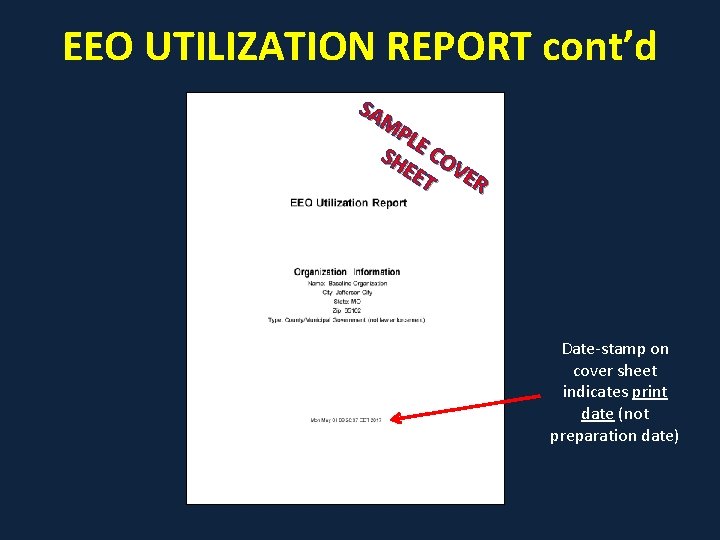
EEO UTILIZATION REPORT cont’d SA MP LE SH CO EE VE T R Date-stamp on cover sheet indicates print date (not preparation date)
NON-DISCRIMINATION • Subrecipient may not discriminate on the basis of race, color, national origin, religion, sex, or disability in its employment practices or in the delivery of services • If the subrecipient has 50 or more employees and receives OJP, OVW, or COPS funding of $25, 000 or more: – the subrecipient must have written policies or procedures in place to notify program participants and employees on how to file complaints alleging discrimination – the subrecipient must designate a person(s) to coordinate complaints alleging discrimination
FINDINGS OF DISCRIMINATION • Subrecipient must notify DPS of any findings of discrimination within 30 days of the court judgment • Submit the Court Judgment with a cover letter, which identifies your DPS-assigned subaward number, as indicated on the Subaward document Missouri Department of Public Safety Attn: Director of Public Safety PO Box 749 1101 Riverside Drive Jefferson City, MO 65102 • DPS must forward to the Office for Civil Rights (OCR)
LIMITED ENGLISH PROFICIENCY (LEP) • Subrecipient must take steps to provide meaningful access to its programs and activities to persons with LEP – Oral Interpretation – Written Interpretation • Recommended that the subrecipient develop a written policy on providing language access services to LEP persons • For more information on LEP, planning tools, or a sample law enforcement policy, go to https: //ojp. gov/about/ocr/lep. htm
STATE CIVIL RIGHTS LAWS • Section 213. 055 RSMo – Unlawful Employment Practices – Subrecipient may not discriminate on the basis of race, color, religion, national origin, sex, ancestry, age, or disability in its employment practices (e. g. hiring, compensation, conditions, or privileges) • Section 213. 065 RSMo – Discrimination in Public Accommodations – Subrecipient may not discriminate on the basis of race, color, religion, national origin, sex, ancestry, or disability in the use and enjoyment of any place of public accommodation – It is unlawful to refuse, withhold from, or deny any of the accommodations, advantages, facilities, services, or privileges made available in any place of public accommodations
MONITORING
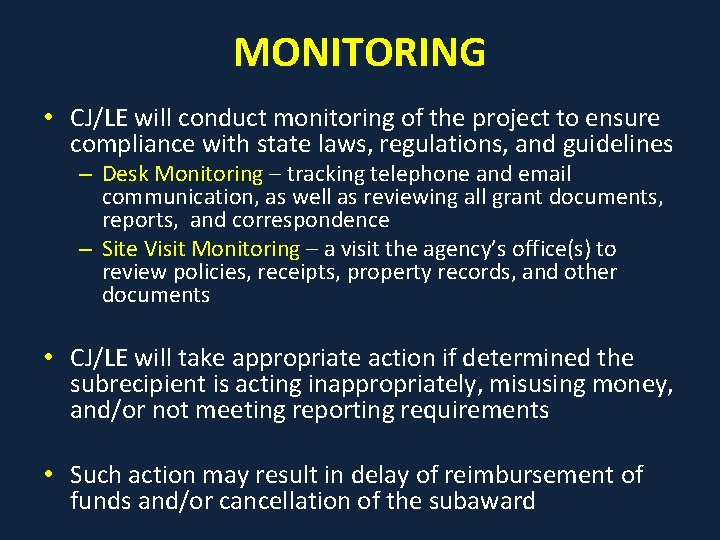
MONITORING • CJ/LE will conduct monitoring of the project to ensure compliance with state laws, regulations, and guidelines – Desk Monitoring – tracking telephone and email communication, as well as reviewing all grant documents, reports, and correspondence – Site Visit Monitoring – a visit the agency’s office(s) to review policies, receipts, property records, and other documents • CJ/LE will take appropriate action if determined the subrecipient is acting inappropriately, misusing money, and/or not meeting reporting requirements • Such action may result in delay of reimbursement of funds and/or cancellation of the subaward
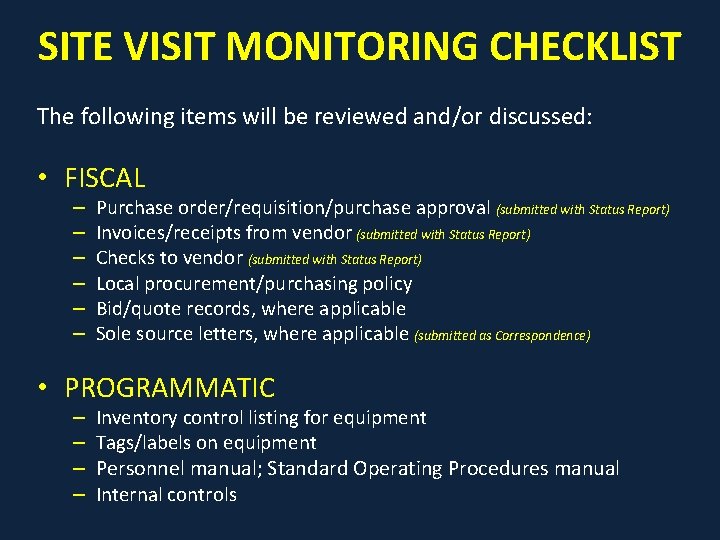
SITE VISIT MONITORING CHECKLIST The following items will be reviewed and/or discussed: • FISCAL – – – Purchase order/requisition/purchase approval (submitted with Status Report) Invoices/receipts from vendor (submitted with Status Report) Checks to vendor (submitted with Status Report) Local procurement/purchasing policy Bid/quote records, where applicable Sole source letters, where applicable (submitted as Correspondence) • PROGRAMMATIC – – Inventory control listing for equipment Tags/labels on equipment Personnel manual; Standard Operating Procedures manual Internal controls
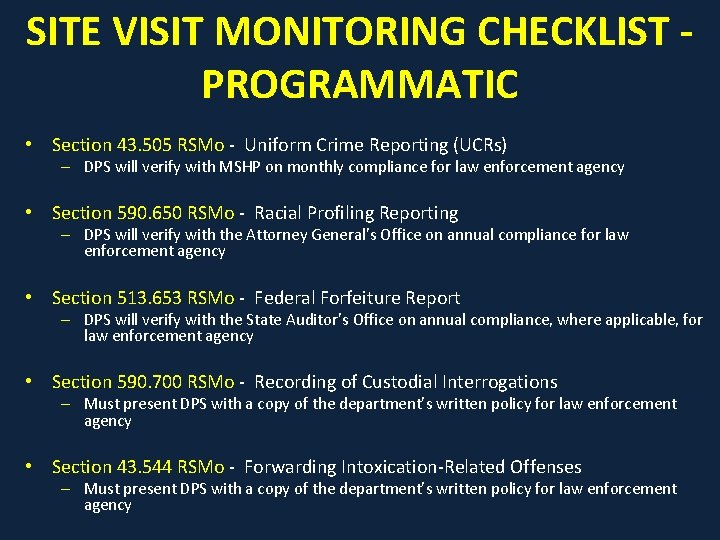
SITE VISIT MONITORING CHECKLIST PROGRAMMATIC • Section 43. 505 RSMo - Uniform Crime Reporting (UCRs) – DPS will verify with MSHP on monthly compliance for law enforcement agency • Section 590. 650 RSMo - Racial Profiling Reporting – DPS will verify with the Attorney General’s Office on annual compliance for law enforcement agency • Section 513. 653 RSMo - Federal Forfeiture Report – DPS will verify with the State Auditor’s Office on annual compliance, where applicable, for law enforcement agency • Section 590. 700 RSMo - Recording of Custodial Interrogations – Must present DPS with a copy of the department’s written policy for law enforcement agency • Section 43. 544 RSMo - Forwarding Intoxication-Related Offenses – Must present DPS with a copy of the department’s written policy for law enforcement agency
SITE VISIT MONITORING CHECKLIST – FEDERAL CIVIL RIGHTS • Equal Employment Opportunity (EEO) Plan – Is your agency required to prepare an EEO Plan? – If your agency is required to prepare an EEO Plan, has your agency prepared an EEO Utilization Report? – Regardless, if your agency is or is not required to prepare an EEO Plan, has your agency completed the appropriate Certification Form and submitted such form to OCR?
SITE VISIT MONITORING CHECKLIST – FEDERAL CIVIL RIGHTS cont’d • Non-Discrimination Policies and Procedures – How does your agency notify program beneficiaries that it will not discriminate in the delivery of services (e. g. posters, inclusion in brochures, or other program materials)? – How does your agency notify employees that it will not discriminate in employment (e. g. posters, dissemination of relevant orders or policies, inclusion in recruitment materials)? – Does your agency have written policies and procedures informing program beneficiaries and employees how to file a complaint if they feel like they’ve been discriminated against? – Has your agency designated a person(s) to coordinate complaints of discrimination? • Forwarding of Findings of Discrimination – Does your agency have court findings of discrimination within the project period? – If so, has your agency complied with the requirement to forward findings of discrimination to DPS, if applicable?
SITE VISIT MONITORING CHECKLIST – FEDERAL CIVIL RIGHTS cont’d • Access to services for LEP individuals – How does the subrecipient make meaningful access to persons with limited English proficiency (e. g. direct foreign language communication by fluent bilingual staff, interpretation conducted in-person or via telephone by qualified interpreters, translation by qualified translators, resources for hearing impaired individuals, etc. )? – Does the subrecipient have written policies or procedures on LEP services? • Civil Rights Training – Does the subrecipient provide civil rights training to its employees (e. g. cultural diversity, racial profiling, sexual harassment, etc. )? – How often does the subrecipient provide civil rights training to its employees (e. g. video and/or trainer; at the time of hire, annually, biannually, etc)?
SITE VISIT MONITORING CHECKLIST – STATE CIVIL RIGHTS • Section 213. 055 RSMo – Unlawful Employment Practices For example: – Does your agency’s job announcements and employment applications include an “Equal Opportunity Employer” statement? – Does your agency display the required labor law posters (https: //labor. mo. gov/posters)? – Does your agency maintain a written policy on non-discrimination and/or non-harassment in the workplace? – Does your agency maintain a written policy to notify employees on how to file complaints alleging discrimination?
SITE VISIT MONITORING CHECKLIST – STATE CIVIL RIGHTS cont’d • Section 213. 065 RSMo – Discrimination in Public Accommodations For example: – Does your agency display the required labor law posters (https: //labor. mo. gov/posters) (e. g. Discrimination in Housing and Discrimination in Places of Public Accommodations)? – Does your agency notify its citizens or program participants that it will not discriminate in the delivery of its services (e. g. brochures, posters, website, mission statement)? – Does your agency ensure its facilities are ADA accessible? – Does your agency maintain a written policy on ADA? – Does your agency maintain a written policy to notify employees and/or citizens on how to file complaints alleging discrimination in public accommodations?

WEBGRANTS https: //dpsgrants. dps. mo. gov
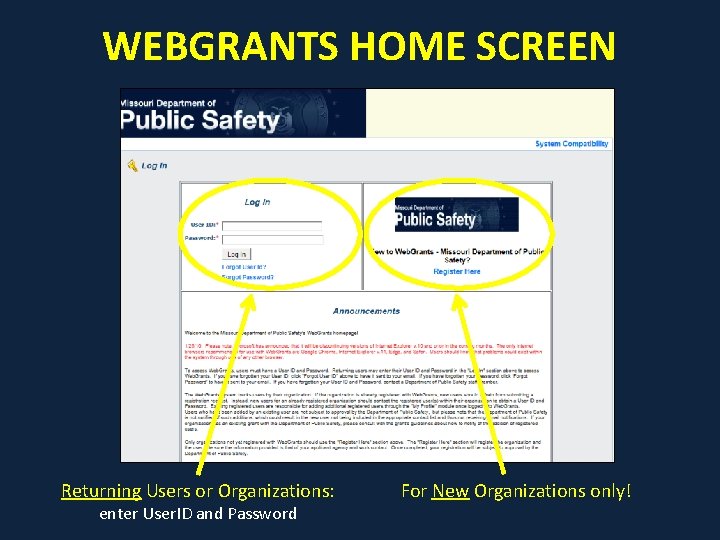
WEBGRANTS HOME SCREEN Returning Users or Organizations: enter User. ID and Password For New Organizations only!
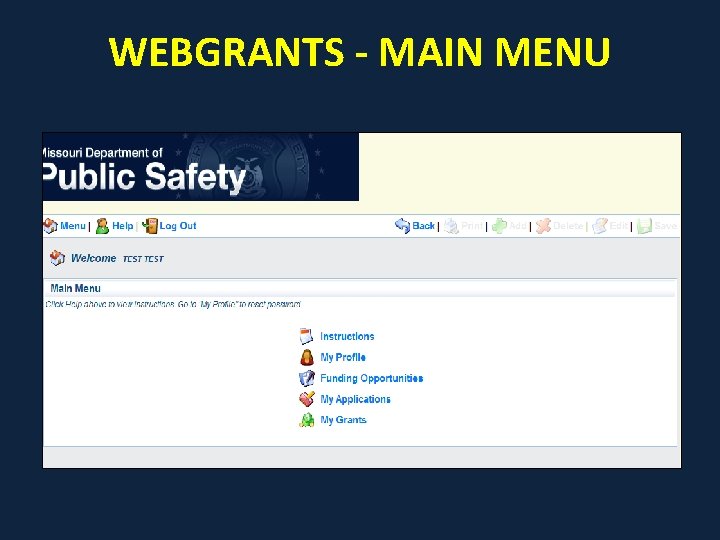
WEBGRANTS - MAIN MENU
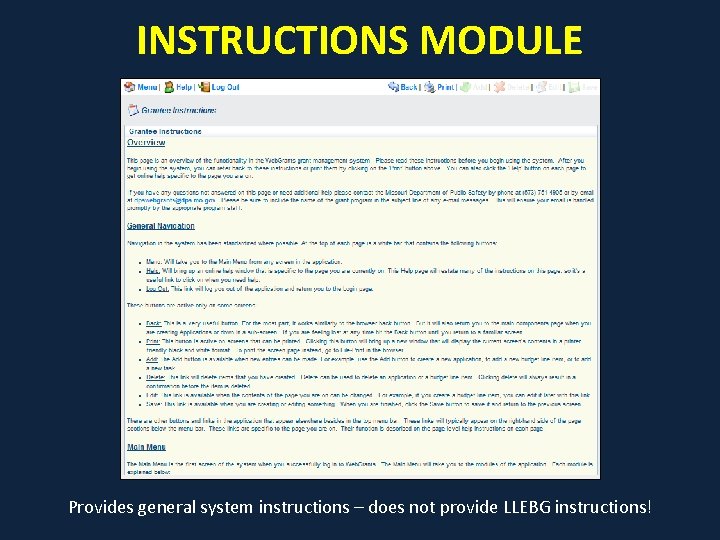
INSTRUCTIONS MODULE Provides general system instructions – does not provide LLEBG instructions!
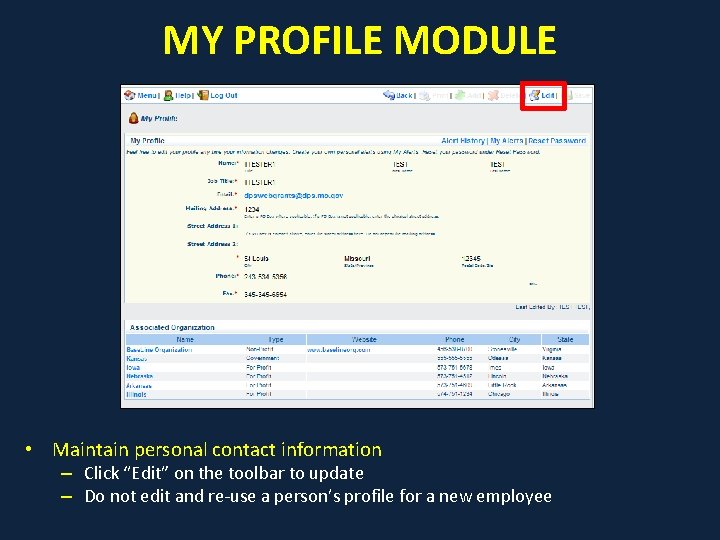
MY PROFILE MODULE • Maintain personal contact information – Click “Edit” on the toolbar to update – Do not edit and re-use a person’s profile for a new employee
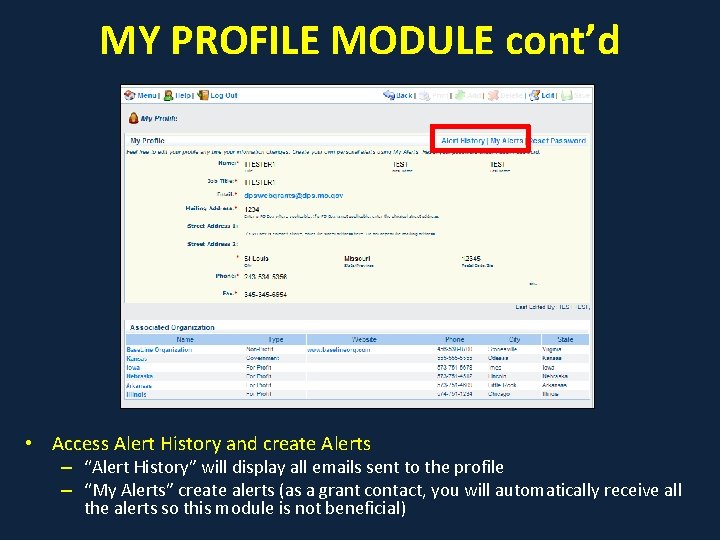
MY PROFILE MODULE cont’d • Access Alert History and create Alerts – “Alert History” will display all emails sent to the profile – “My Alerts” create alerts (as a grant contact, you will automatically receive all the alerts so this module is not beneficial)
ALERTS • Two types of notifications: – Automated alerts triggered on application and grant phases (e. g. status change, submission, negotiation, approval, not approved) – Mass distribution list emails from DPS staff (e. g. reminders, updates, training notices) • Alerts/Notifications are sent from dpswebgrants@dps. mo. gov – Add to safe sender list or a contact list to avoid being treated as junk/spam – Do not overlook these alerts as they can contain important and time-sensitive information • While the record is in the “My Applications” module, only the Primary Contact receives system-generated alerts • While the record is in the “My Grants” module, the Primary Contact and Additional Grantee Contacts, as applicable, receive systemgenerated alerts
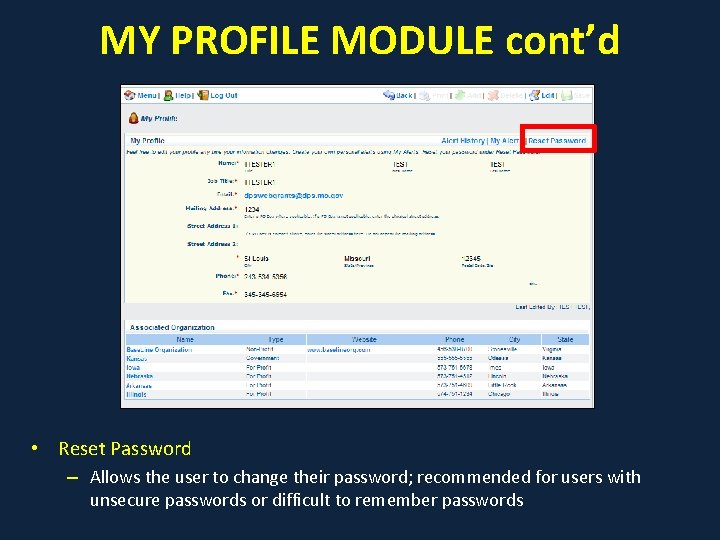
MY PROFILE MODULE cont’d • Reset Password – Allows the user to change their password; recommended for users with unsecure passwords or difficult to remember passwords
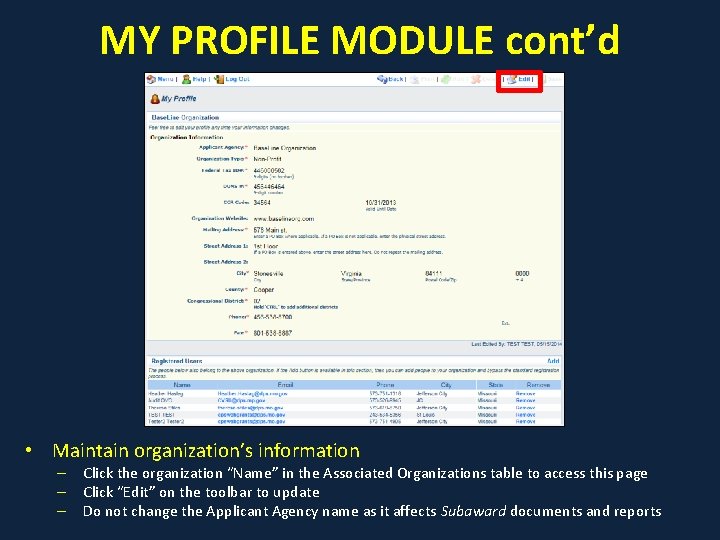
MY PROFILE MODULE cont’d • Maintain organization’s information – – – Click the organization “Name” in the Associated Organizations table to access this page Click “Edit” on the toolbar to update Do not change the Applicant Agency name as it affects Subaward documents and reports
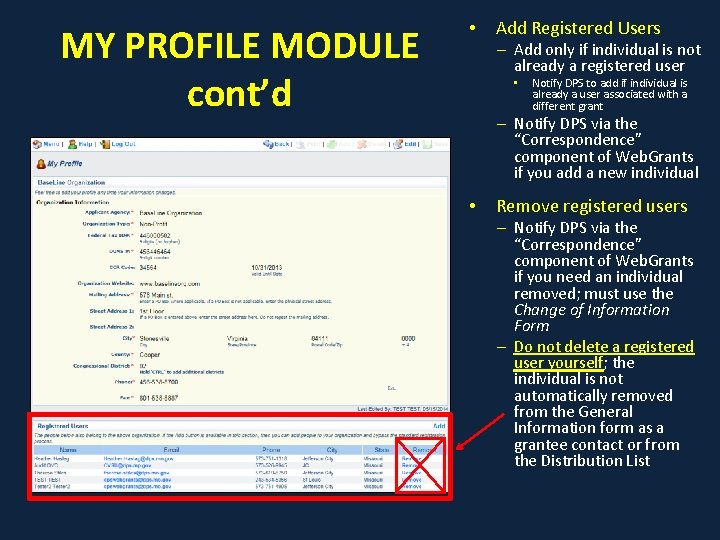
MY PROFILE MODULE cont’d • Add Registered Users – Add only if individual is not already a registered user • Notify DPS to add if individual is already a user associated with a different grant – Notify DPS via the “Correspondence” component of Web. Grants if you add a new individual • Remove registered users – Notify DPS via the “Correspondence” component of Web. Grants if you need an individual removed; must use the Change of Information Form – Do not delete a registered user yourself; the individual is not automatically removed from the General Information form as a grantee contact or from the Distribution List
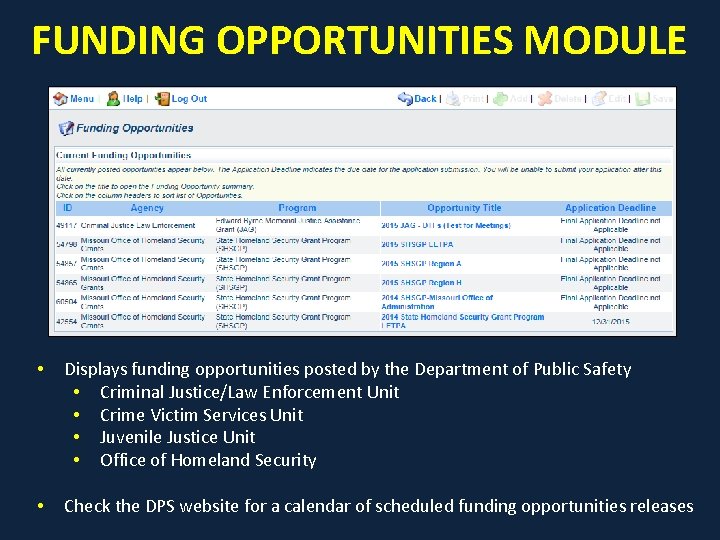
FUNDING OPPORTUNITIES MODULE • Displays funding opportunities posted by the Department of Public Safety • Criminal Justice/Law Enforcement Unit • Crime Victim Services Unit • Juvenile Justice Unit • Office of Homeland Security • Check the DPS website for a calendar of scheduled funding opportunities releases
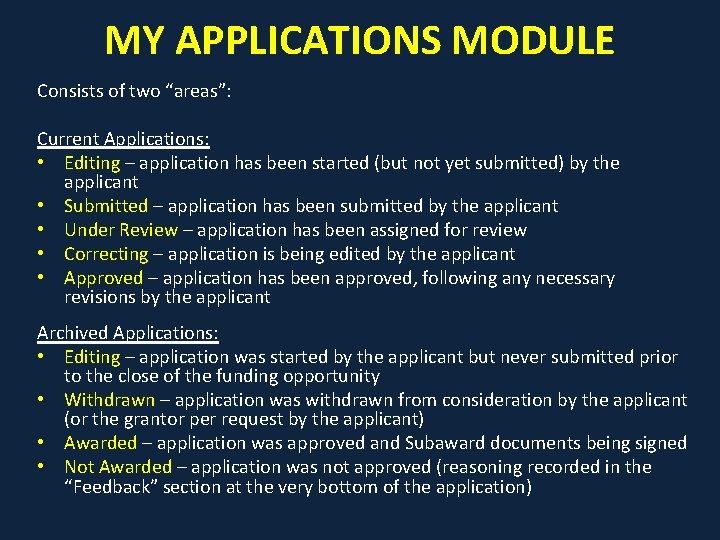
MY APPLICATIONS MODULE Consists of two “areas”: Current Applications: • Editing – application has been started (but not yet submitted) by the applicant • Submitted – application has been submitted by the applicant • Under Review – application has been assigned for review • Correcting – application is being edited by the applicant • Approved – application has been approved, following any necessary revisions by the applicant Archived Applications: • Editing – application was started by the applicant but never submitted prior to the close of the funding opportunity • Withdrawn – application was withdrawn from consideration by the applicant (or the grantor per request by the applicant) • Awarded – application was approved and Subaward documents being signed • Not Awarded – application was not approved (reasoning recorded in the “Feedback” section at the very bottom of the application)
MY GRANTS MODULE Consists of three “areas”: Current Grants: • Awarded – Subaward documents being signed by grantee and grantor • Underway – application officially becomes a grant • Suspended – grant has been “frozen” due to delinquent reporting and/or inappropriate activities Closed Grants: • Closed – grant has been closed by grantor • Archived – grant has been archived by grantor Claims: • Displays all Claims that have been created but not yet submitted (not applicable to LLEBG)
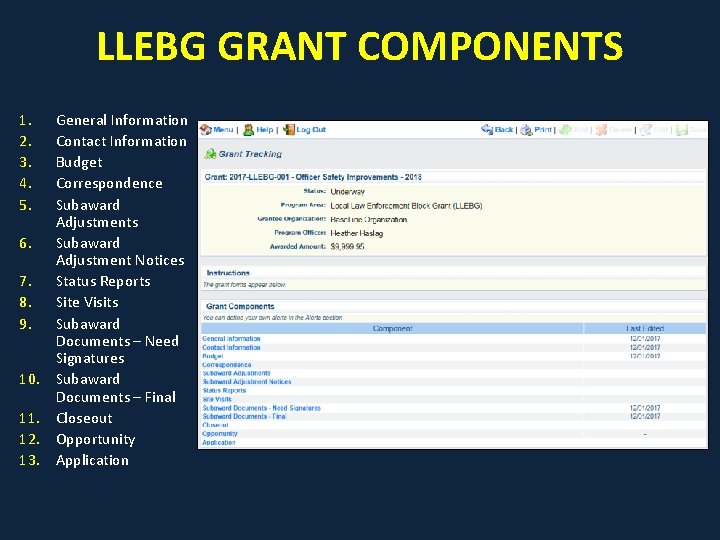
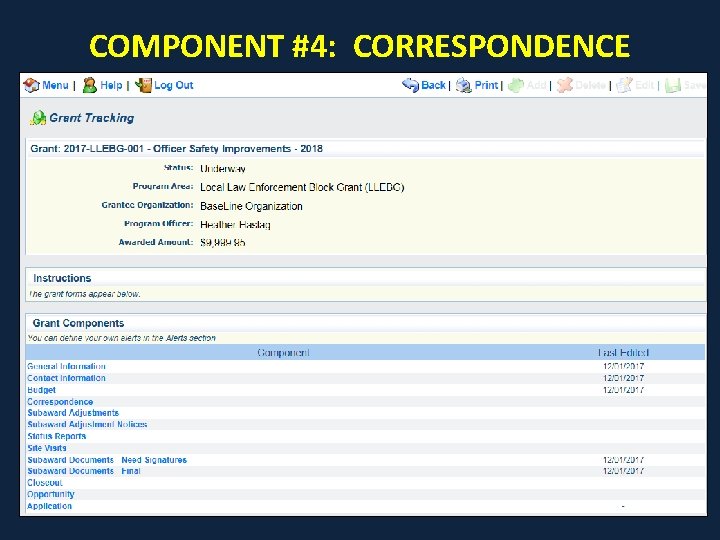
LLEBG GRANT COMPONENTS 1. 2. 3. 4. 5. 6. 7. 8. 9. 10. 11. 12. 13. General Information Contact Information Budget Correspondence Subaward Adjustments Subaward Adjustment Notices Status Reports Site Visits Subaward Documents – Need Signatures Subaward Documents – Final Closeout Opportunity Application
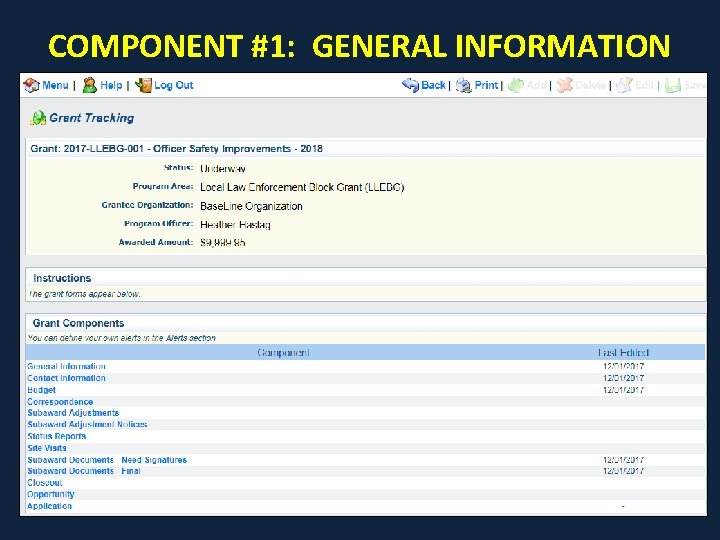
COMPONENT #1: GENERAL INFORMATION
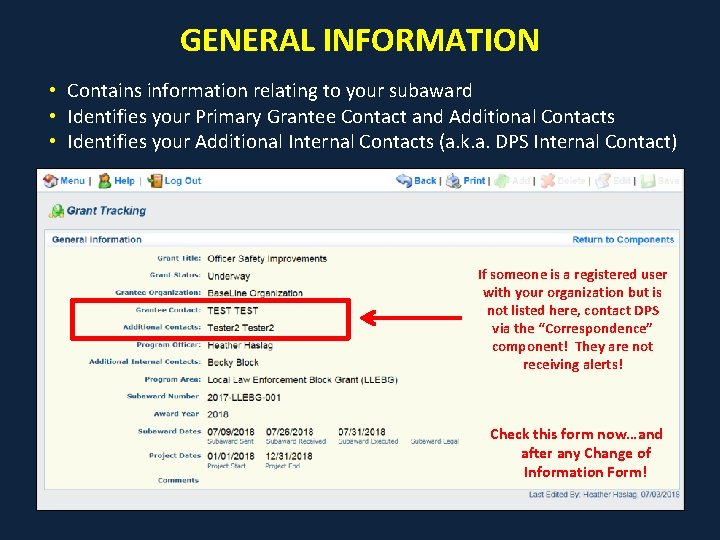
GENERAL INFORMATION • Contains information relating to your subaward • Identifies your Primary Grantee Contact and Additional Contacts • Identifies your Additional Internal Contacts (a. k. a. DPS Internal Contact) If someone is a registered user with your organization but is not listed here, contact DPS via the “Correspondence” component! They are not receiving alerts! Check this form now…and after any Change of Information Form!
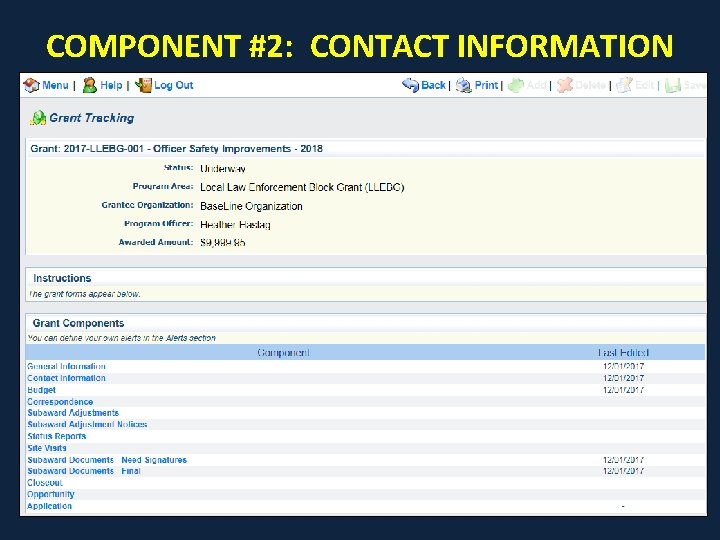
COMPONENT #2: CONTACT INFORMATION
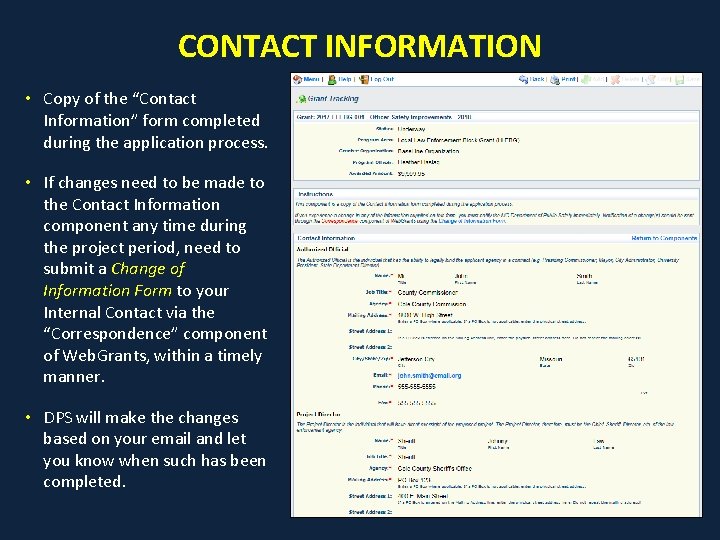
CONTACT INFORMATION • Copy of the “Contact Information” form completed during the application process. • If changes need to be made to the Contact Information component any time during the project period, need to submit a Change of Information Form to your Internal Contact via the “Correspondence” component of Web. Grants, within a timely manner. • DPS will make the changes based on your email and let you know when such has been completed.
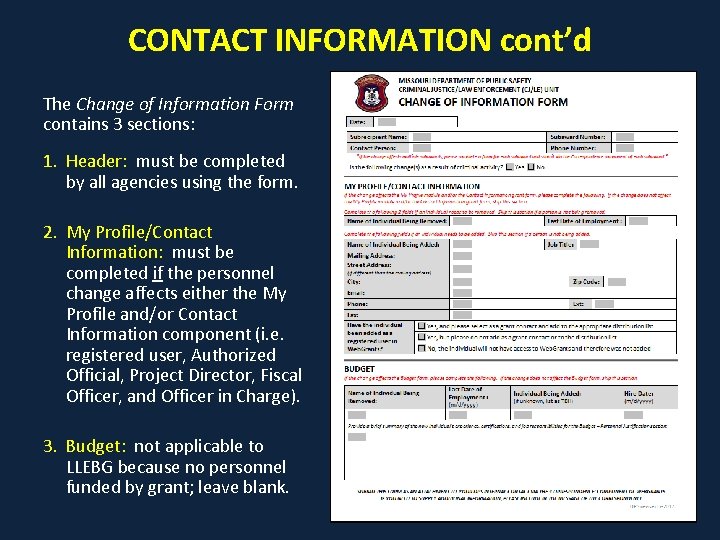
CONTACT INFORMATION cont’d The Change of Information Form contains 3 sections: 1. Header: must be completed by all agencies using the form. 2. My Profile/Contact Information: must be completed if the personnel change affects either the My Profile and/or Contact Information component (i. e. registered user, Authorized Official, Project Director, Fiscal Officer, and Officer in Charge). 3. Budget: not applicable to LLEBG because no personnel funded by grant; leave blank.
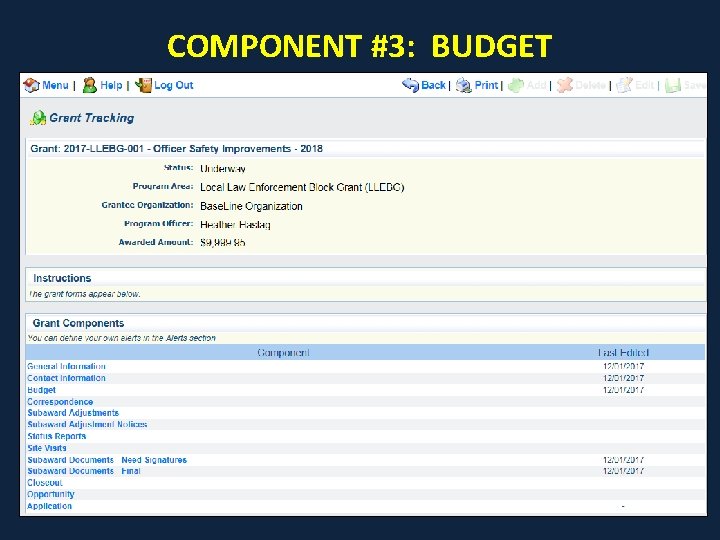
COMPONENT #3: BUDGET
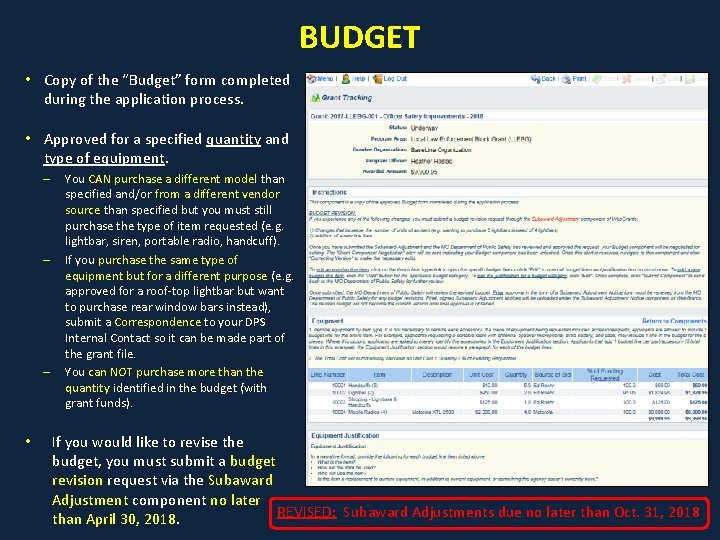
BUDGET • Copy of the “Budget” form completed during the application process. • Approved for a specified quantity and type of equipment. – – – • You CAN purchase a different model than specified and/or from a different vendor source than specified but you must still purchase the type of item requested (e. g. lightbar, siren, portable radio, handcuff). If you purchase the same type of equipment but for a different purpose (e. g. approved for a roof-top lightbar but want to purchase rear window bars instead), submit a Correspondence to your DPS Internal Contact so it can be made part of the grant file. You can NOT purchase more than the quantity identified in the budget (with grant funds). If you would like to revise the budget, you must submit a budget revision request via the Subaward Adjustment component no later REVISED: Subaward Adjustments due no later than Oct. 31, 2018 than April 30, 2018.
COMPONENT #4: CORRESPONDENCE
CORRESPONDENCE • For use in communicating to DPS matters of: – Changes to the “Contact Information” component • Must complete Change of Information Form and attach to email. – My Profile: Adding/deleting additional registered users • Must complete Change of Information Form and attach to email. – Submitting a copy of the organization’s audit • Subrecipients that have expended $750, 000 or more in federal funds within the organization’s fiscal year are required by grant guidelines to receive an independent audit and to submit a copy of such audit to DPS. – Requesting sole source procurement approval • Send rationale for sole source procurement and a copy of the sole source certification/letter from the vendor, where applicable. • Remember, approval during the application DOES NOT constitute prior approval for sole source procurements. – Notifying of changes in budget that would not require a Subaward Adjustment • Change in how the item will be used/mounted.
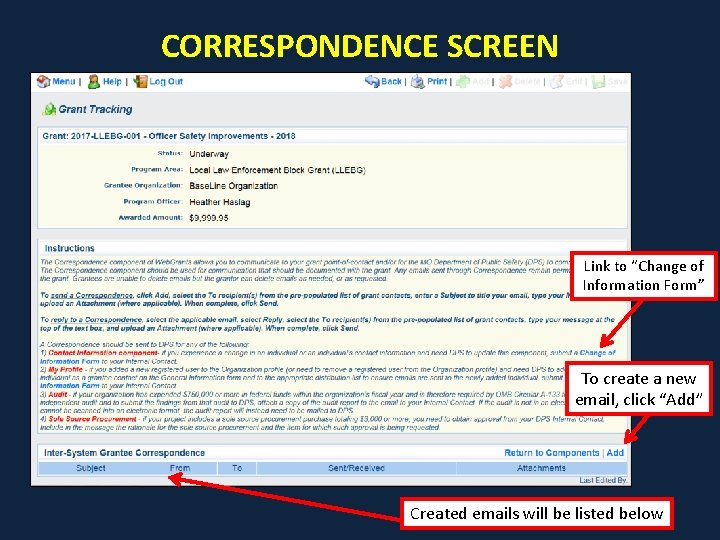
CORRESPONDENCE SCREEN Link to “Change of Information Form” To create a new email, click “Add” Created emails will be listed below
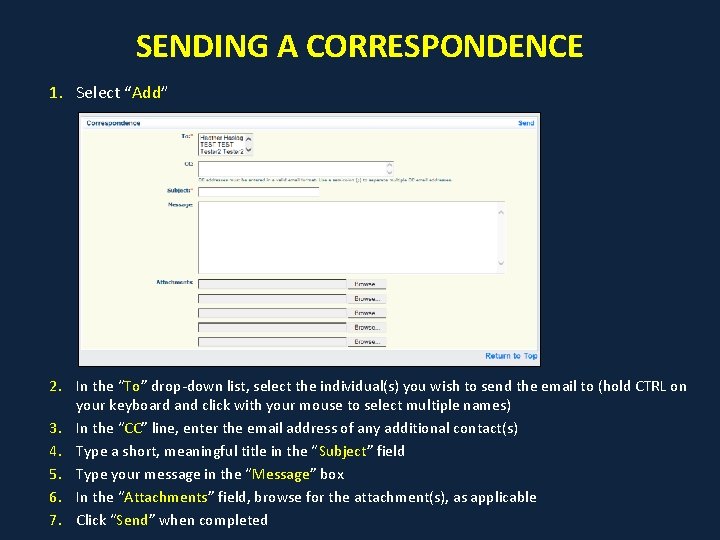
SENDING A CORRESPONDENCE 1. Select “Add” 2. In the “To” drop-down list, select the individual(s) you wish to send the email to (hold CTRL on your keyboard and click with your mouse to select multiple names) 3. In the “CC” line, enter the email address of any additional contact(s) 4. Type a short, meaningful title in the “Subject” field 5. Type your message in the “Message” box 6. In the “Attachments” field, browse for the attachment(s), as applicable 7. Click “Send” when completed
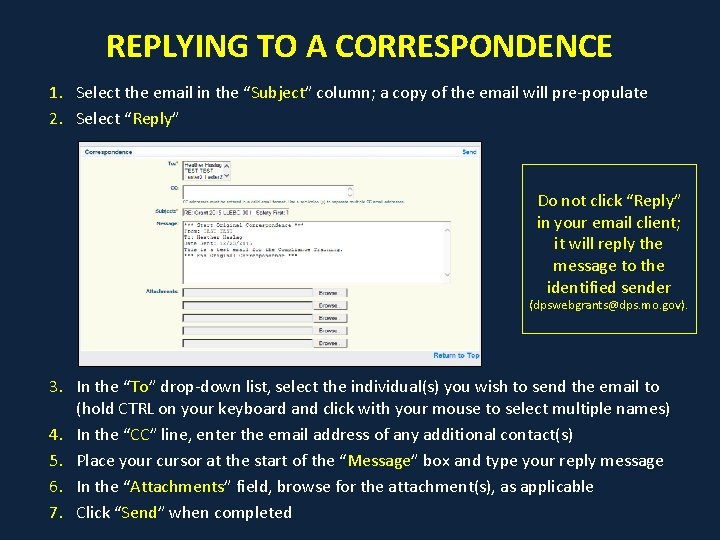
REPLYING TO A CORRESPONDENCE 1. Select the email in the “Subject” column; a copy of the email will pre-populate 2. Select “Reply” Do not click “Reply” in your email client; it will reply the message to the identified sender (dpswebgrants@dps. mo. gov). 3. In the “To” drop-down list, select the individual(s) you wish to send the email to (hold CTRL on your keyboard and click with your mouse to select multiple names) 4. In the “CC” line, enter the email address of any additional contact(s) 5. Place your cursor at the start of the “Message” box and type your reply message 6. In the “Attachments” field, browse for the attachment(s), as applicable 7. Click “Send” when completed
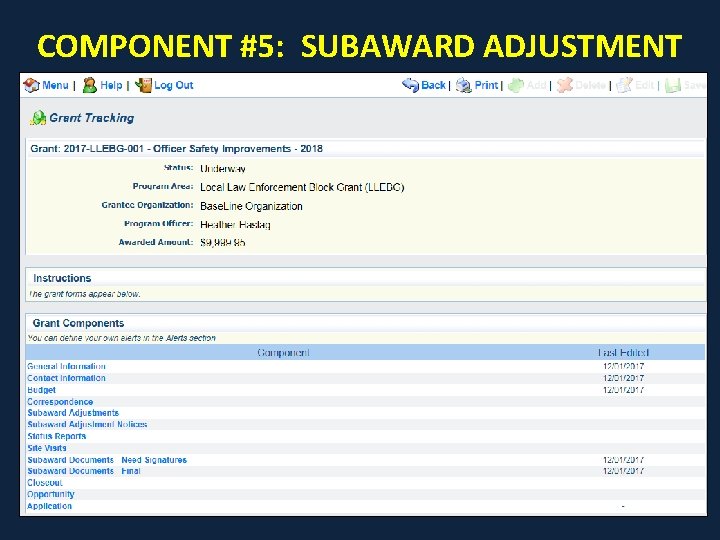
COMPONENT #5: SUBAWARD ADJUSTMENT
SUBAWARD ADJUSTMENTS - TYPES 1. Program Revisions (should not occur) • Change in legal name of your applicant agency • Change in project site or service area • Other changes that may affect the approved program 2. Budget Revisions • Need to add a line item that doesn’t exist in your current budget • Want to purchase a larger quantity of an item than what is approved in your current budget
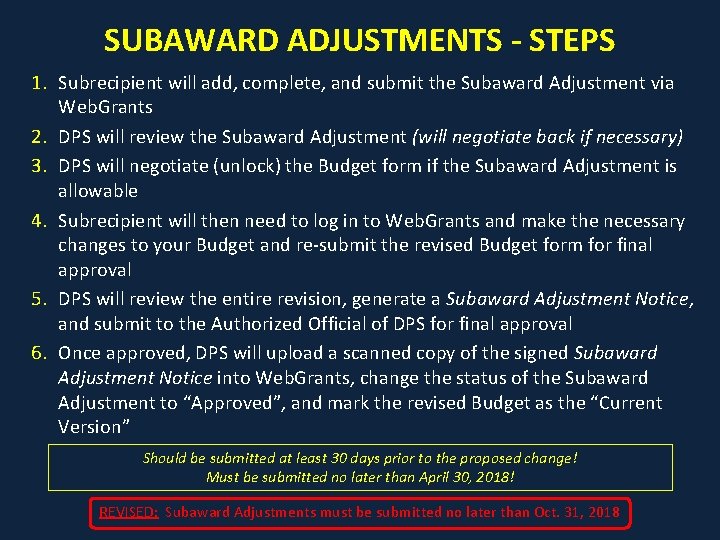
SUBAWARD ADJUSTMENTS - STEPS 1. Subrecipient will add, complete, and submit the Subaward Adjustment via Web. Grants 2. DPS will review the Subaward Adjustment (will negotiate back if necessary) 3. DPS will negotiate (unlock) the Budget form if the Subaward Adjustment is allowable 4. Subrecipient will then need to log in to Web. Grants and make the necessary changes to your Budget and re-submit the revised Budget form for final approval 5. DPS will review the entire revision, generate a Subaward Adjustment Notice, and submit to the Authorized Official of DPS for final approval 6. Once approved, DPS will upload a scanned copy of the signed Subaward Adjustment Notice into Web. Grants, change the status of the Subaward Adjustment to “Approved”, and mark the revised Budget as the “Current Version” Should be submitted at least 30 days prior to the proposed change! Must be submitted no later than April 30, 2018! REVISED: Subaward Adjustments must be submitted no later than Oct. 31, 2018
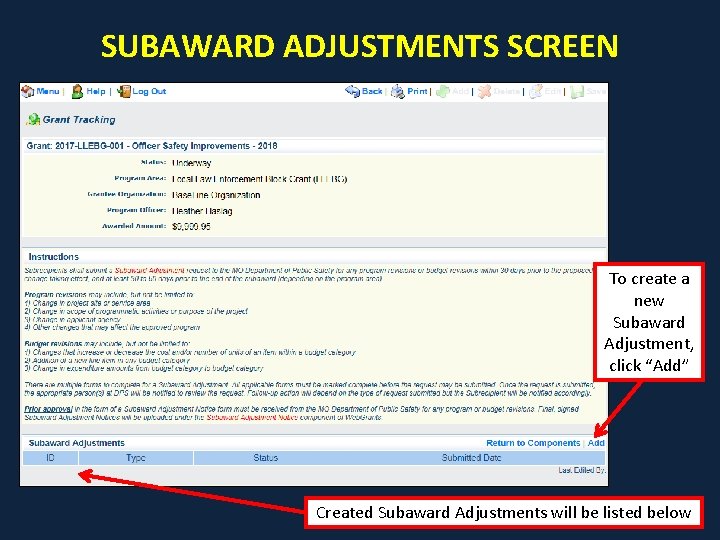
SUBAWARD ADJUSTMENTS SCREEN To create a new Subaward Adjustment, click “Add” Created Subaward Adjustments will be listed below
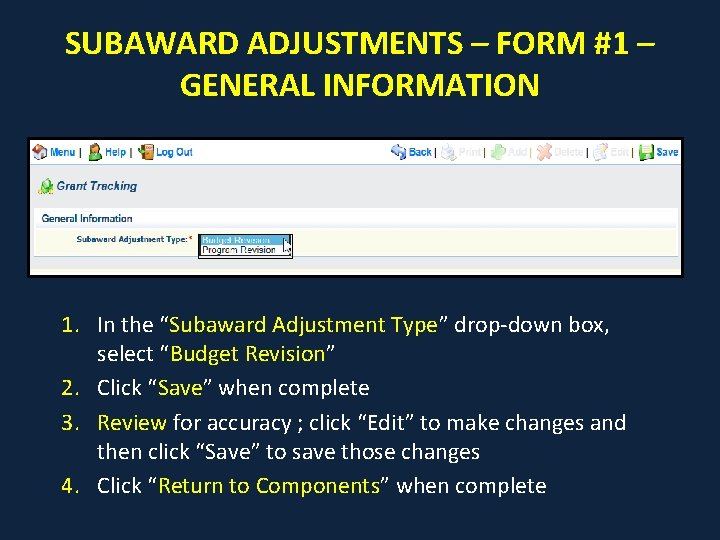
SUBAWARD ADJUSTMENTS – FORM #1 – GENERAL INFORMATION 1. In the “Subaward Adjustment Type” drop-down box, select “Budget Revision” 2. Click “Save” when complete 3. Review for accuracy ; click “Edit” to make changes and then click “Save” to save those changes 4. Click “Return to Components” when complete
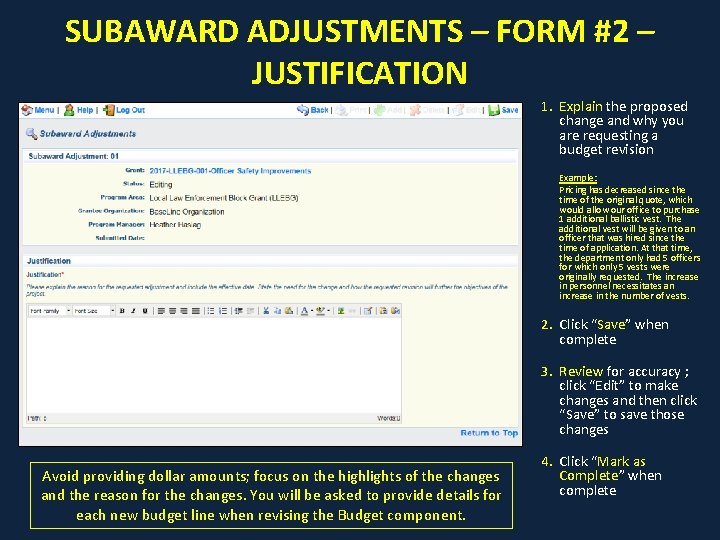
SUBAWARD ADJUSTMENTS – FORM #2 – JUSTIFICATION 1. Explain the proposed change and why you are requesting a budget revision Example: Pricing has decreased since the time of the original quote, which would allow our office to purchase 1 additional ballistic vest. The additional vest will be given to an officer that was hired since the time of application. At that time, the department only had 5 officers for which only 5 vests were originally requested. The increase in personnel necessitates an increase in the number of vests. 2. Click “Save” when complete 3. Review for accuracy ; click “Edit” to make changes and then click “Save” to save those changes Avoid providing dollar amounts; focus on the highlights of the changes and the reason for the changes. You will be asked to provide details for each new budget line when revising the Budget component. 4. Click “Mark as Complete” when complete
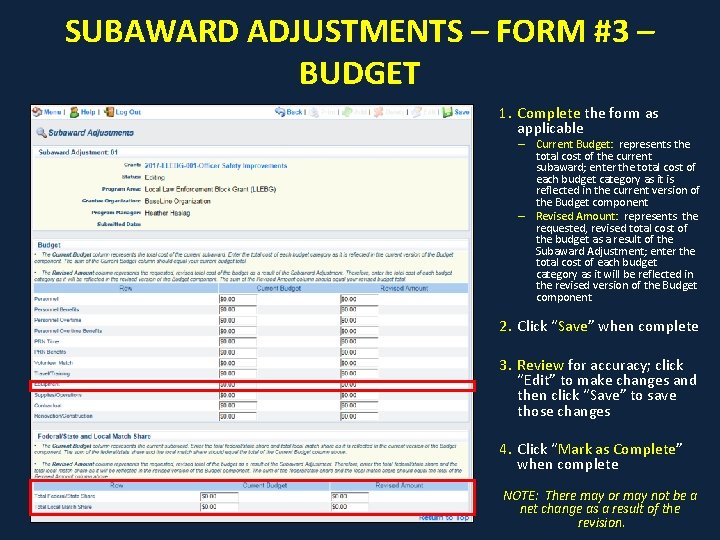
SUBAWARD ADJUSTMENTS – FORM #3 – BUDGET 1. Complete the form as applicable – Current Budget: represents the total cost of the current subaward; enter the total cost of each budget category as it is reflected in the current version of the Budget component – Revised Amount: represents the requested, revised total cost of the budget as a result of the Subaward Adjustment; enter the total cost of each budget category as it will be reflected in the revised version of the Budget component 2. Click “Save” when complete 3. Review for accuracy; click “Edit” to make changes and then click “Save” to save those changes 4. Click “Mark as Complete” when complete NOTE: There may or may not be a net change as a result of the revision.
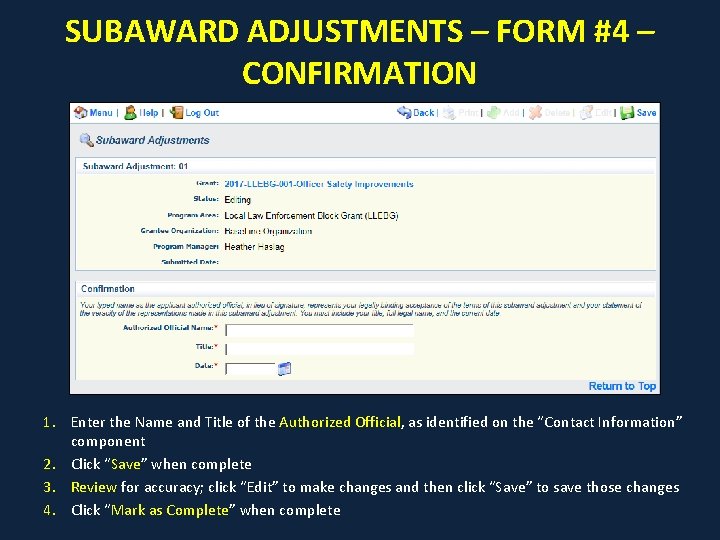
SUBAWARD ADJUSTMENTS – FORM #4 – CONFIRMATION 1. Enter the Name and Title of the Authorized Official, as identified on the “Contact Information” component 2. Click “Save” when complete 3. Review for accuracy; click “Edit” to make changes and then click “Save” to save those changes 4. Click “Mark as Complete” when complete
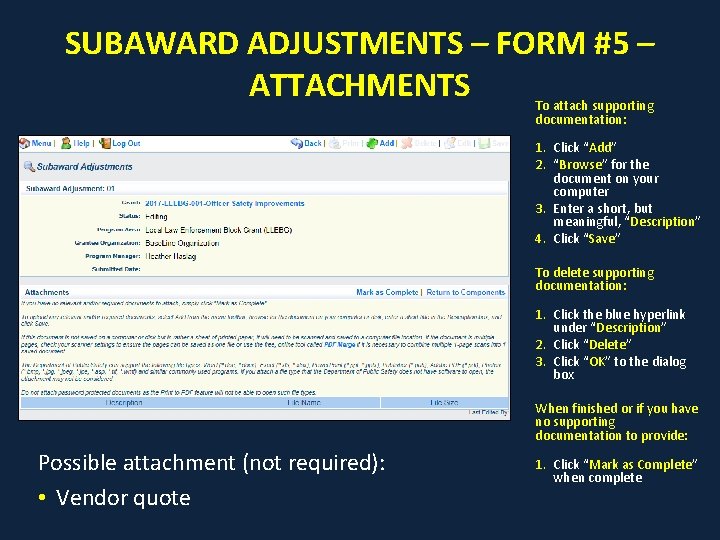
SUBAWARD ADJUSTMENTS – FORM #5 – ATTACHMENTS To attach supporting documentation: 1. Click “Add” 2. “Browse” for the document on your computer 3. Enter a short, but meaningful, “Description” 4. Click “Save” To delete supporting documentation: 1. Click the blue hyperlink under “Description” 2. Click “Delete” 3. Click “OK” to the dialog box When finished or if you have no supporting documentation to provide: Possible attachment (not required): • Vendor quote 1. Click “Mark as Complete” when complete
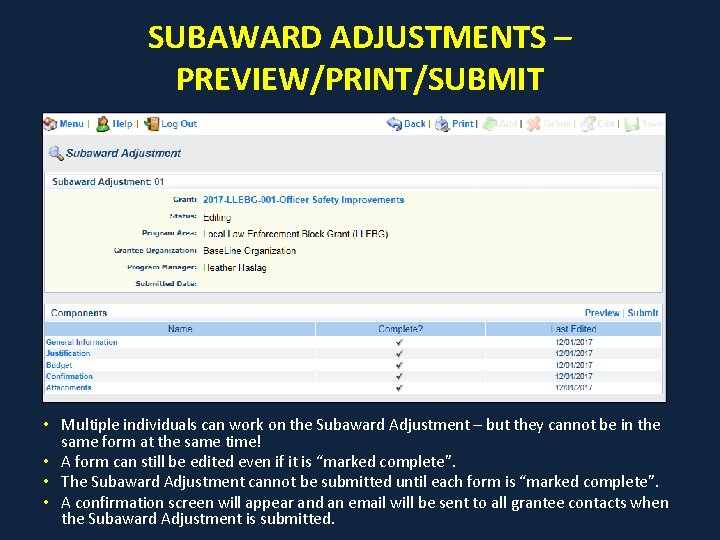
SUBAWARD ADJUSTMENTS – PREVIEW/PRINT/SUBMIT • Multiple individuals can work on the Subaward Adjustment – but they cannot be in the same form at the same time! • A form can still be edited even if it is “marked complete”. • The Subaward Adjustment cannot be submitted until each form is “marked complete”. • A confirmation screen will appear and an email will be sent to all grantee contacts when the Subaward Adjustment is submitted.
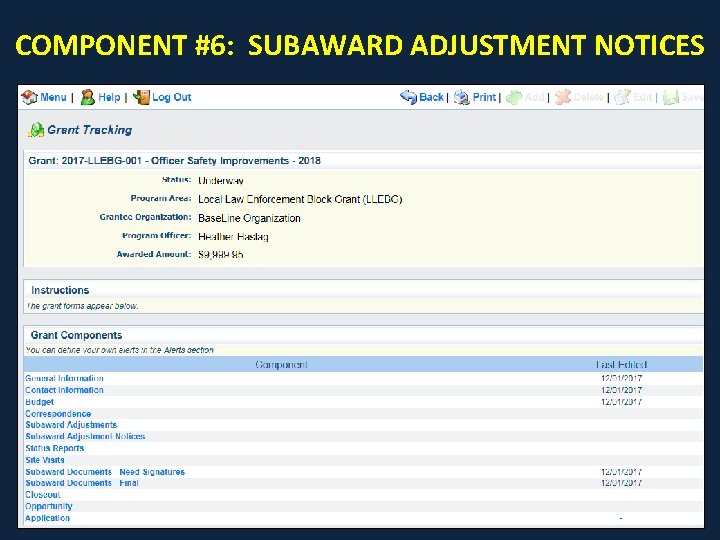
COMPONENT #6: SUBAWARD ADJUSTMENT NOTICES
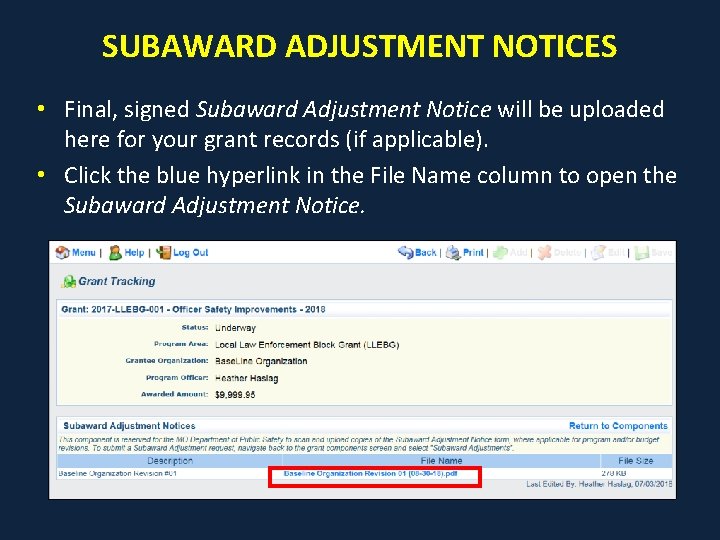
SUBAWARD ADJUSTMENT NOTICES • Final, signed Subaward Adjustment Notice will be uploaded here for your grant records (if applicable). • Click the blue hyperlink in the File Name column to open the Subaward Adjustment Notice.
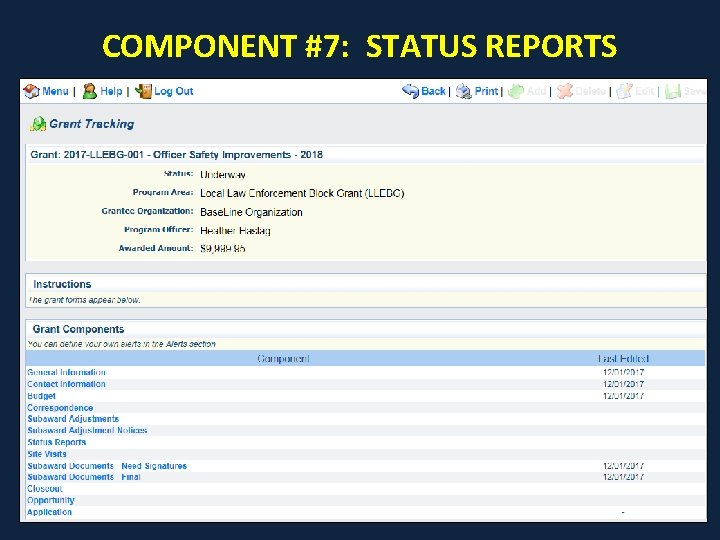
COMPONENT #7: STATUS REPORTS
STATUS REPORTS • Must submit a Status Report once the project is completed to report actual expenditures – Create and submit only 1 Status Report - - will be Report #01 – If you create too many Status Reports, you can Withdraw the extra report(s) or DPS will have to Withdraw them for you prior to closeout • Due no later than Monday, September 10, 2018 REVISED: Due no later than Friday, March 10, 2019 • Status Reports can be negotiated by DPS if determined revisions are necessary • If you determine that revisions are necessary once the report has been submitted, contact your DPS Internal Contact to unlock the specified report
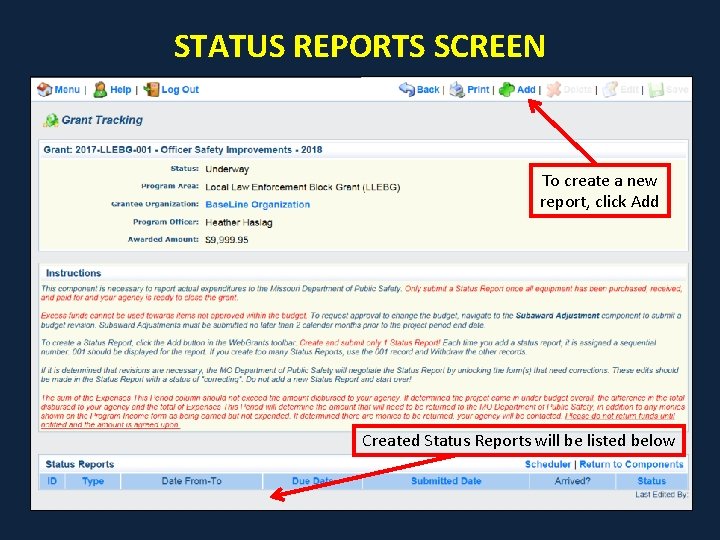
STATUS REPORTS SCREEN To create a new report, click Add Created Status Reports will be listed below
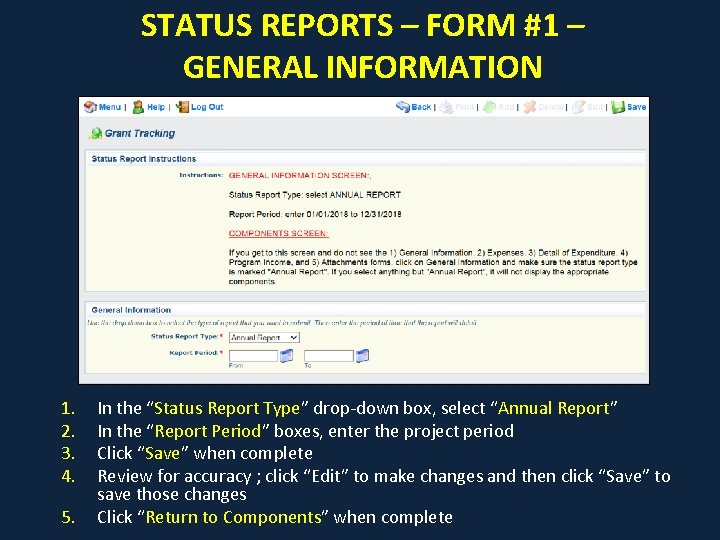
STATUS REPORTS – FORM #1 – GENERAL INFORMATION 1. 2. 3. 4. 5. In the “Status Report Type” drop-down box, select “Annual Report” In the “Report Period” boxes, enter the project period Click “Save” when complete Review for accuracy ; click “Edit” to make changes and then click “Save” to save those changes Click “Return to Components” when complete
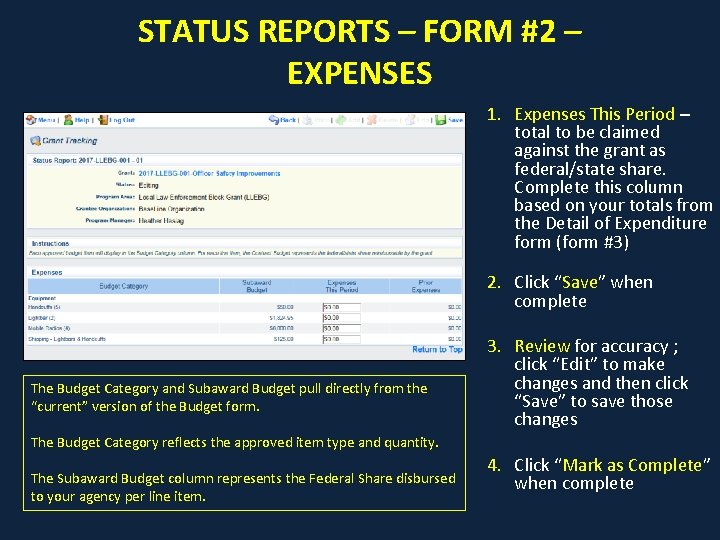
STATUS REPORTS – FORM #2 – EXPENSES 1. Expenses This Period – total to be claimed against the grant as federal/state share. Complete this column based on your totals from the Detail of Expenditure form (form #3) 2. Click “Save” when complete The Budget Category and Subaward Budget pull directly from the “current” version of the Budget form. 3. Review for accuracy ; click “Edit” to make changes and then click “Save” to save those changes The Budget Category reflects the approved item type and quantity. The Subaward Budget column represents the Federal Share disbursed to your agency per line item. 4. Click “Mark as Complete” when complete
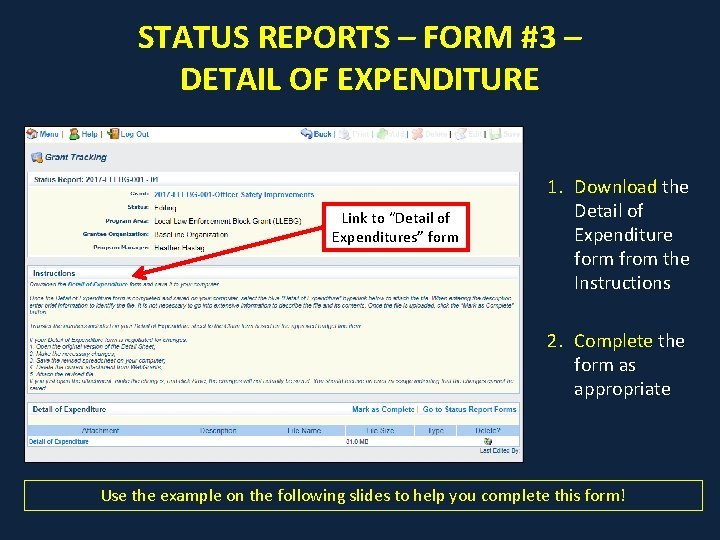
STATUS REPORTS – FORM #3 – DETAIL OF EXPENDITURE Link to “Detail of Expenditures” form 1. Download the Detail of Expenditure form from the Instructions 2. Complete the form as appropriate Use the example on the following slides to help you complete this form!
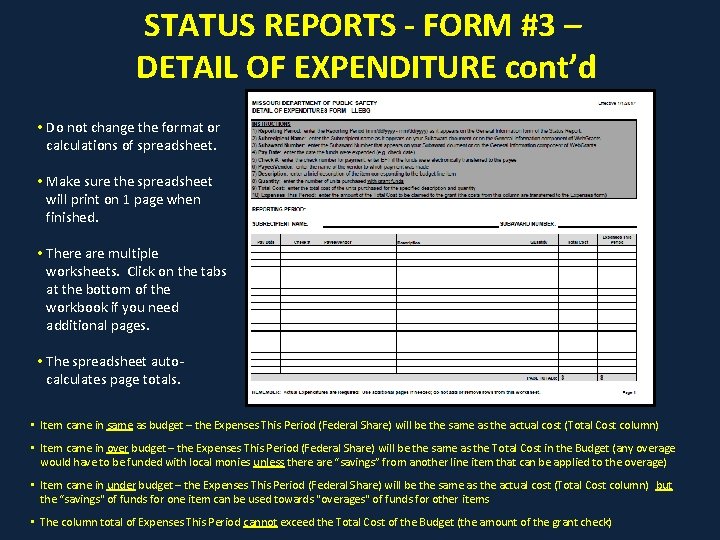
STATUS REPORTS - FORM #3 – DETAIL OF EXPENDITURE cont’d • Do not change the format or calculations of spreadsheet. • Make sure the spreadsheet will print on 1 page when finished. • There are multiple worksheets. Click on the tabs at the bottom of the workbook if you need additional pages. • The spreadsheet autocalculates page totals. • Item came in same as budget – the Expenses This Period (Federal Share) will be the same as the actual cost (Total Cost column) • Item came in over budget – the Expenses This Period (Federal Share) will be the same as the Total Cost in the Budget (any overage would have to be funded with local monies unless there are “savings” from another line item that can be applied to the overage) • Item came in under budget – the Expenses This Period (Federal Share) will be the same as the actual cost (Total Cost column) but the “savings" of funds for one item can be used towards "overages" of funds for other items • The column total of Expenses This Period cannot exceed the Total Cost of the Budget (the amount of the grant check)
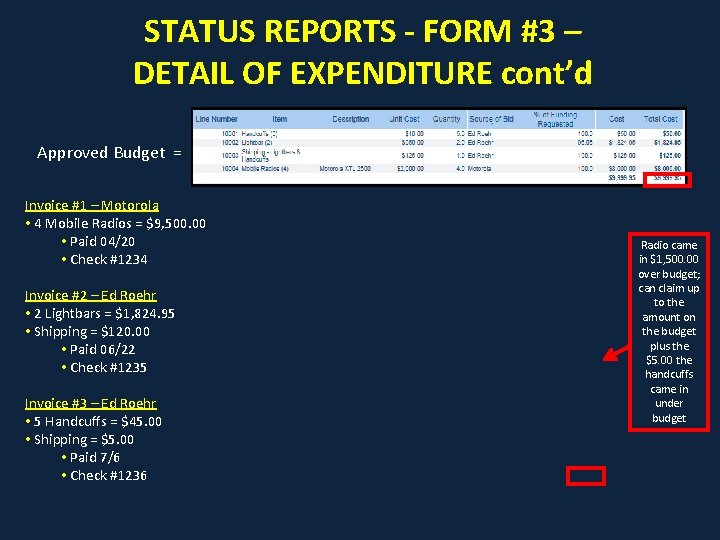
STATUS REPORTS - FORM #3 – DETAIL OF EXPENDITURE cont’d Approved Budget = Invoice #1 – Motorola • 4 Mobile Radios = $9, 500. 00 • Paid 04/20 • Check #1234 Invoice #2 – Ed Roehr • 2 Lightbars = $1, 824. 95 • Shipping = $120. 00 • Paid 06/22 • Check #1235 Invoice #3 – Ed Roehr • 5 Handcuffs = $45. 00 • Shipping = $5. 00 • Paid 7/6 • Check #1236 Radio came in $1, 500. 00 over budget; can claim up to the amount on the budget plus the $5. 00 the handcuffs came in under budget
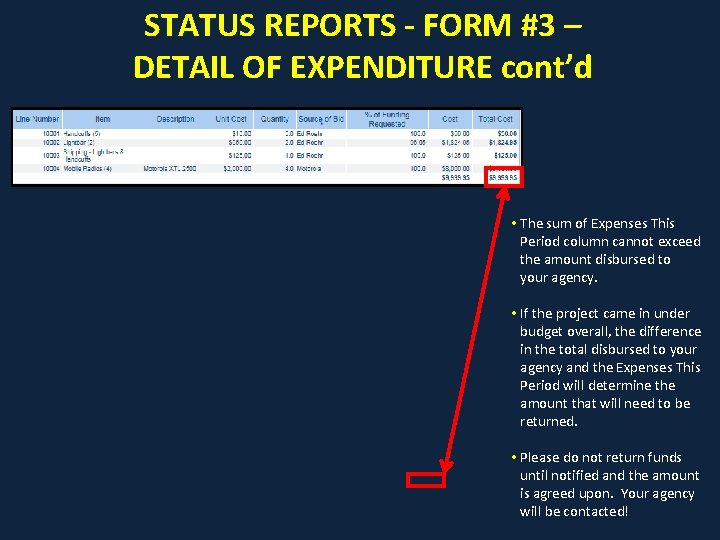
STATUS REPORTS - FORM #3 – DETAIL OF EXPENDITURE cont’d • The sum of Expenses This Period column cannot exceed the amount disbursed to your agency. • If the project came in under budget overall, the difference in the total disbursed to your agency and the Expenses This Period will determine the amount that will need to be returned. • Please do not return funds until notified and the amount is agreed upon. Your agency will be contacted!
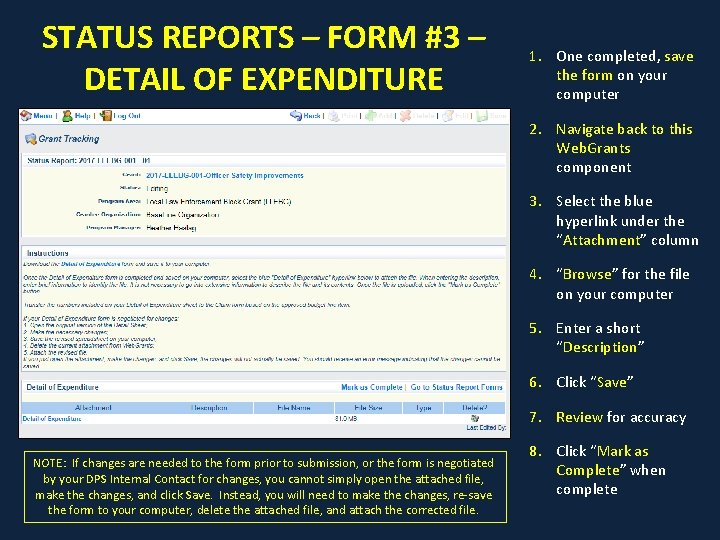
STATUS REPORTS – FORM #3 – DETAIL OF EXPENDITURE 1. One completed, save the form on your computer 2. Navigate back to this Web. Grants component 3. Select the blue hyperlink under the “Attachment” column 4. “Browse” for the file on your computer 5. Enter a short “Description” 6. Click “Save” 7. Review for accuracy NOTE: If changes are needed to the form prior to submission, or the form is negotiated by your DPS Internal Contact for changes, you cannot simply open the attached file, make the changes, and click Save. Instead, you will need to make the changes, re-save the form to your computer, delete the attached file, and attach the corrected file. 8. Click “Mark as Complete” when complete
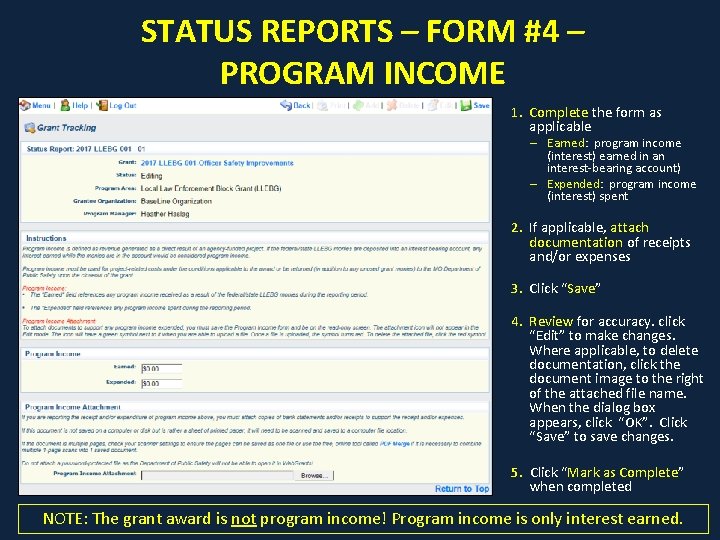
STATUS REPORTS – FORM #4 – PROGRAM INCOME 1. Complete the form as applicable – Earned: program income (interest) earned in an interest-bearing account) – Expended: program income (interest) spent 2. If applicable, attach documentation of receipts and/or expenses 3. Click “Save” 4. Review for accuracy. click “Edit” to make changes. Where applicable, to delete documentation, click the document image to the right of the attached file name. When the dialog box appears, click “OK”. Click “Save” to save changes. 5. Click “Mark as Complete” when completed NOTE: The grant award is not program income! Program income is only interest earned.
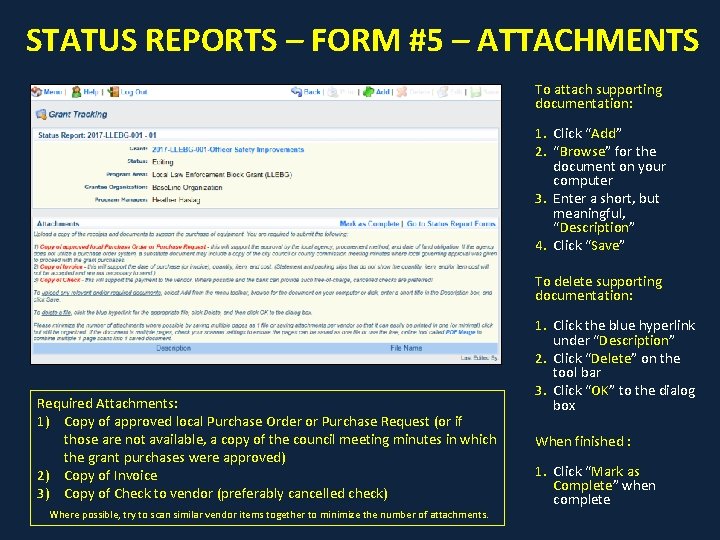
STATUS REPORTS – FORM #5 – ATTACHMENTS To attach supporting documentation: 1. Click “Add” 2. “Browse” for the document on your computer 3. Enter a short, but meaningful, “Description” 4. Click “Save” To delete supporting documentation: Required Attachments: 1) Copy of approved local Purchase Order or Purchase Request (or if those are not available, a copy of the council meeting minutes in which the grant purchases were approved) 2) Copy of Invoice 3) Copy of Check to vendor (preferably cancelled check) Where possible, try to scan similar vendor items together to minimize the number of attachments. 1. Click the blue hyperlink under “Description” 2. Click “Delete” on the tool bar 3. Click “OK” to the dialog box When finished : 1. Click “Mark as Complete” when complete
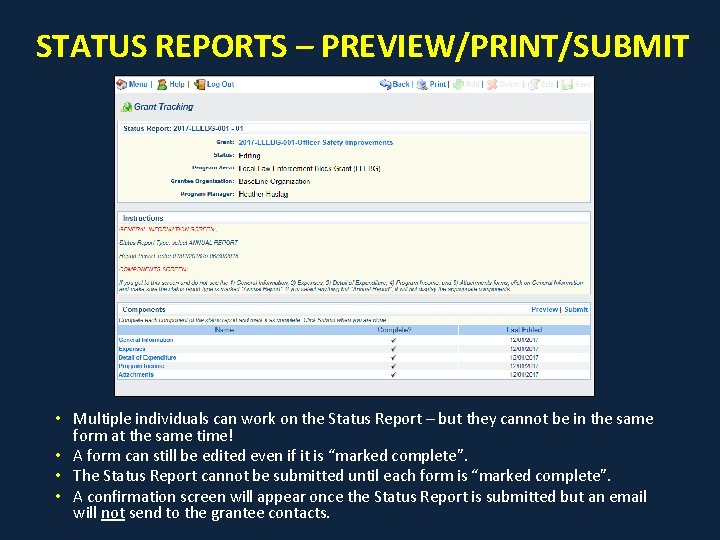
STATUS REPORTS – PREVIEW/PRINT/SUBMIT • Multiple individuals can work on the Status Report – but they cannot be in the same form at the same time! • A form can still be edited even if it is “marked complete”. • The Status Report cannot be submitted until each form is “marked complete”. • A confirmation screen will appear once the Status Report is submitted but an email will not send to the grantee contacts.
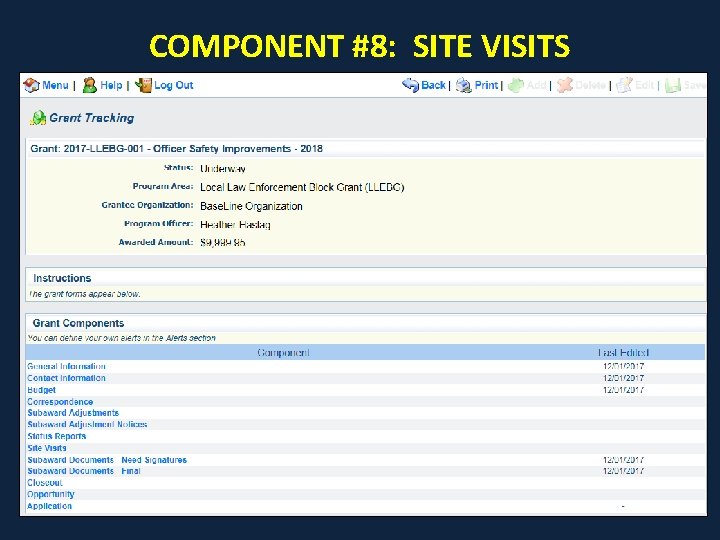
COMPONENT #8: SITE VISITS
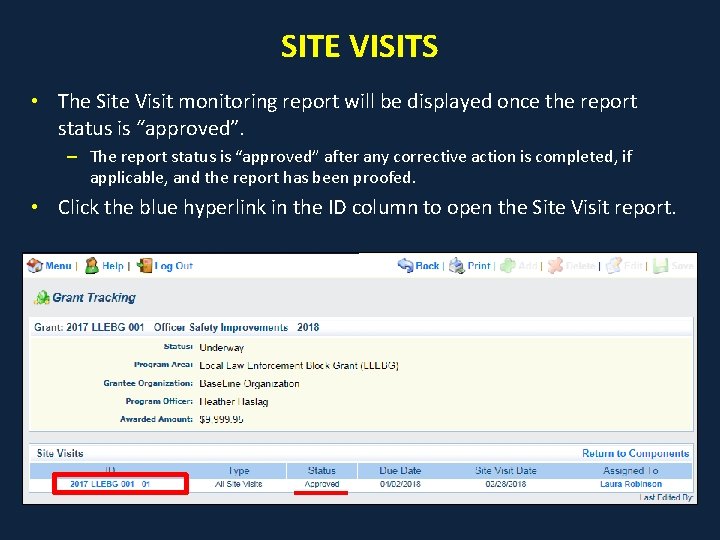
SITE VISITS • The Site Visit monitoring report will be displayed once the report status is “approved”. – The report status is “approved” after any corrective action is completed, if applicable, and the report has been proofed. • Click the blue hyperlink in the ID column to open the Site Visit report.
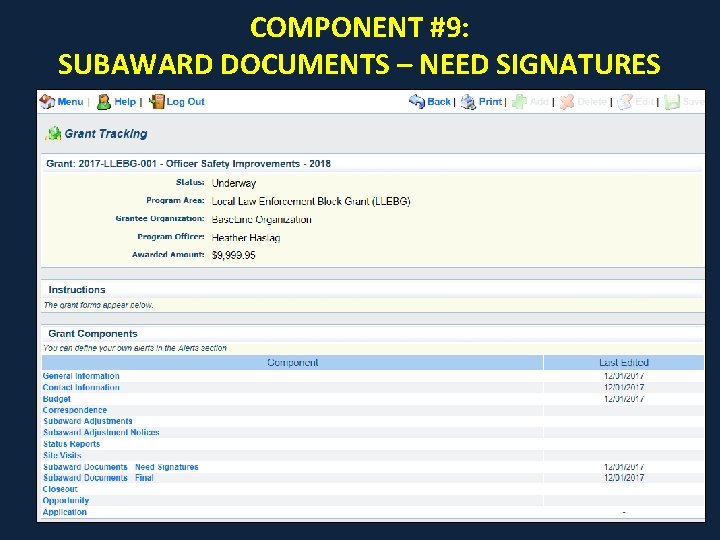
COMPONENT #9: SUBAWARD DOCUMENTS – NEED SIGNATURES
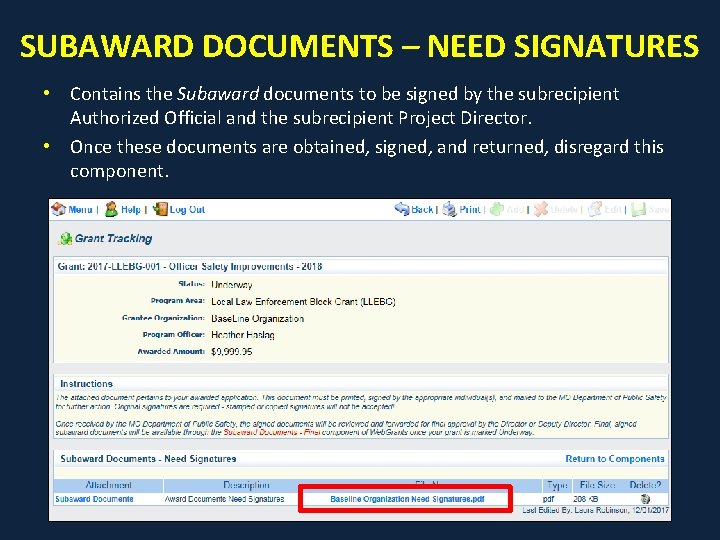
SUBAWARD DOCUMENTS – NEED SIGNATURES • Contains the Subaward documents to be signed by the subrecipient Authorized Official and the subrecipient Project Director. • Once these documents are obtained, signed, and returned, disregard this component.
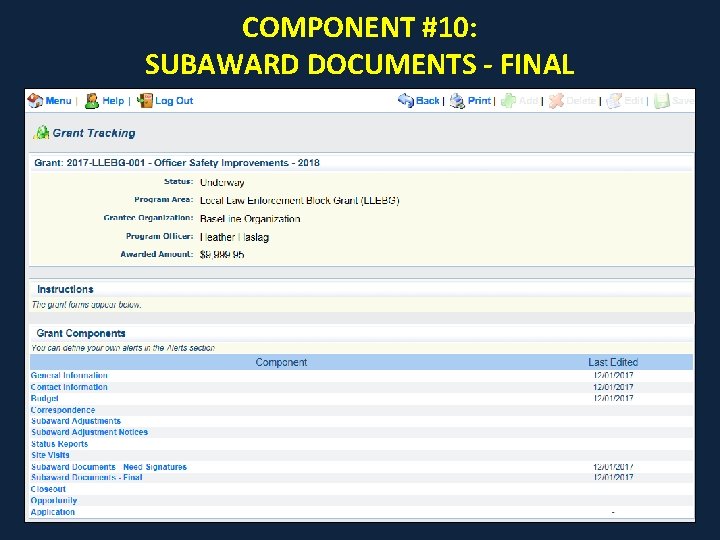
COMPONENT #10: SUBAWARD DOCUMENTS - FINAL
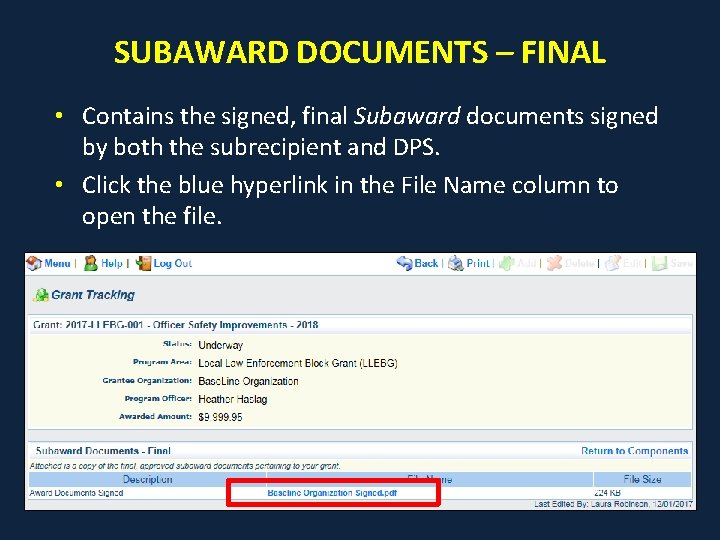
SUBAWARD DOCUMENTS – FINAL • Contains the signed, final Subaward documents signed by both the subrecipient and DPS. • Click the blue hyperlink in the File Name column to open the file.
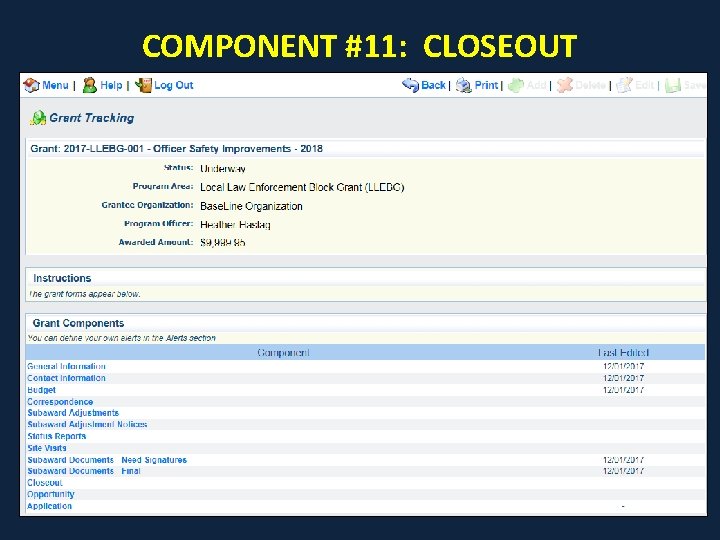
COMPONENT #11: CLOSEOUT
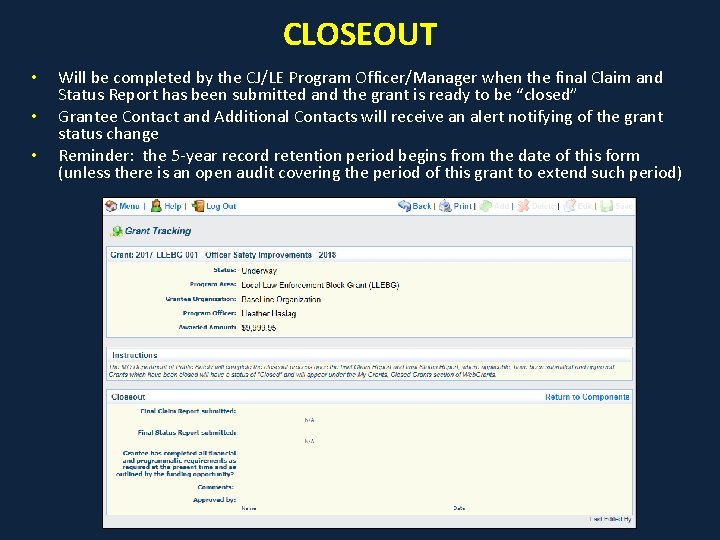
CLOSEOUT • • • Will be completed by the CJ/LE Program Officer/Manager when the final Claim and Status Report has been submitted and the grant is ready to be “closed” Grantee Contact and Additional Contacts will receive an alert notifying of the grant status change Reminder: the 5 -year record retention period begins from the date of this form (unless there is an open audit covering the period of this grant to extend such period)
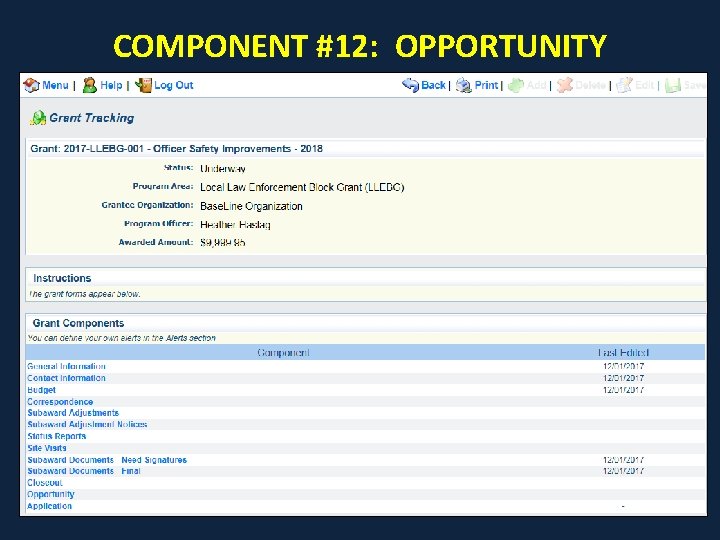
COMPONENT #12: OPPORTUNITY
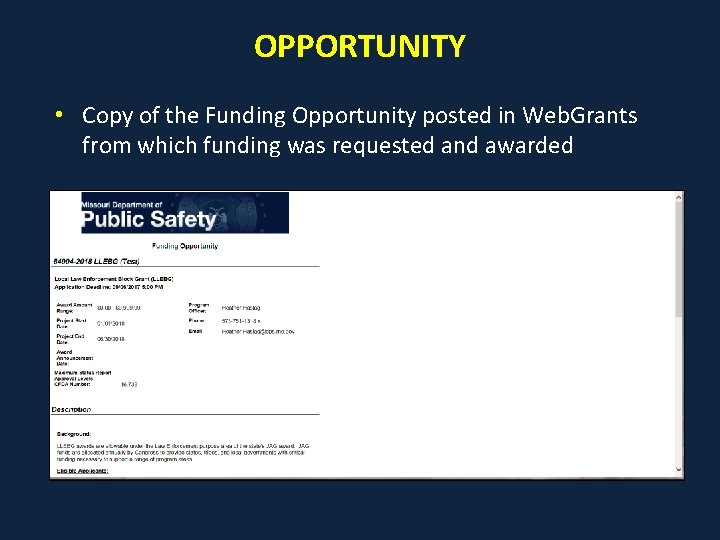
OPPORTUNITY • Copy of the Funding Opportunity posted in Web. Grants from which funding was requested and awarded
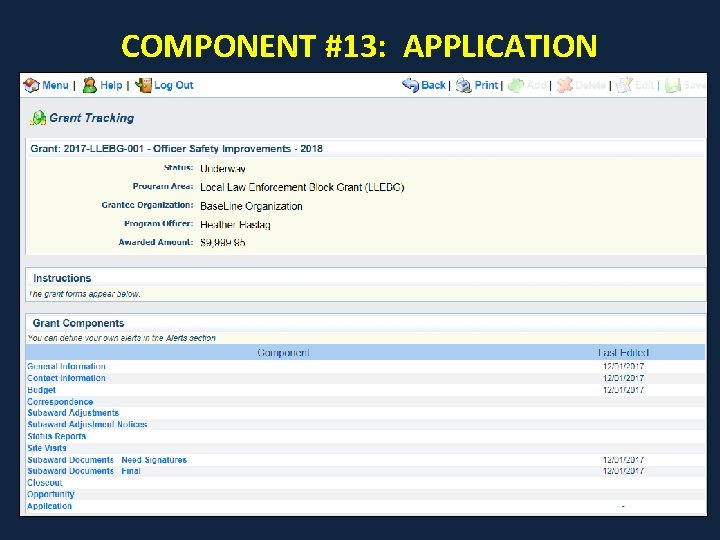
COMPONENT #13: APPLICATION
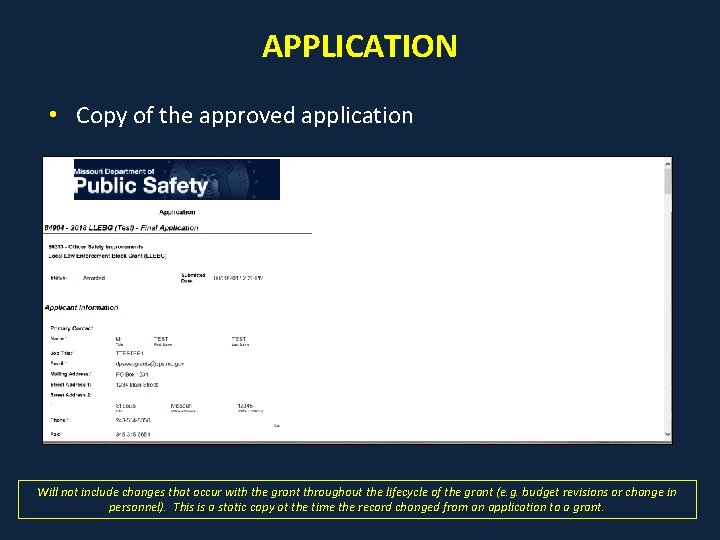
APPLICATION • Copy of the approved application Will not include changes that occur with the grant throughout the lifecycle of the grant (e. g. budget revisions or change in personnel). This is a static copy at the time the record changed from an application to a grant.

QUESTIONS?
- Slides: 99