
Minia University Faculty of Engineering Prod Eng Mechanical

![Note: You have to differentiate between two brackets [ ] and < >. a.](https://slidetodoc.com/presentation_image_h2/b669cce9690f64610f1480bb52b88eb3/image-10.jpg "Note: You have to differentiate between two brackets [ ] and < >. a.")


- Slides: 27
Minia University Faculty of Engineering Prod. Eng. & Mechanical Design Dept. Computer Applications in Engineering (Lecture 4) By/ Dr Ahmed Ibrahim E-mail: ahmedkhalifa@mu. edu. eg Tel: +201117400743
Learning Objectives 1. 2. 3. 4. How to draw ellipse. Draw Arcs and splines. Points and polylines. How to use status bar.
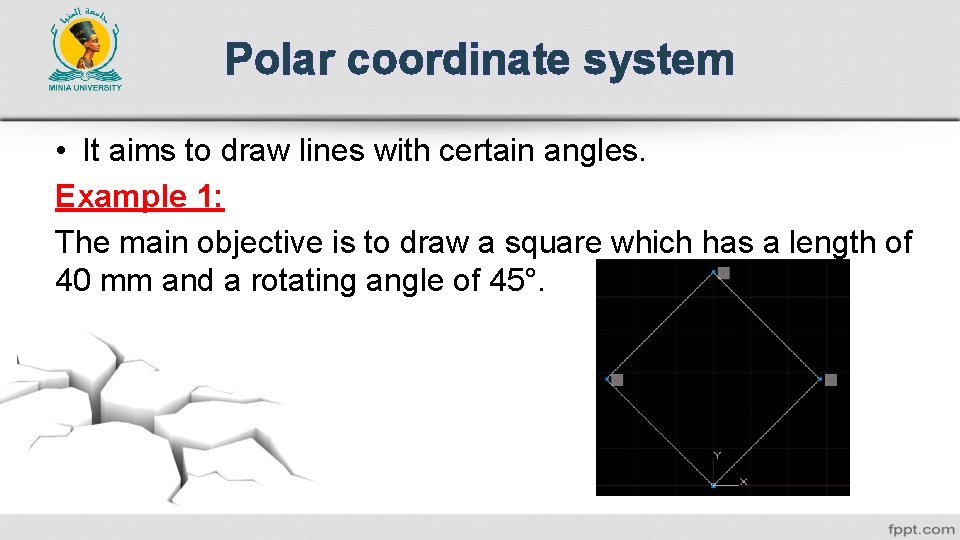
Polar coordinate system • It aims to draw lines with certain angles. Example 1: The main objective is to draw a square which has a length of 40 mm and a rotating angle of 45°.
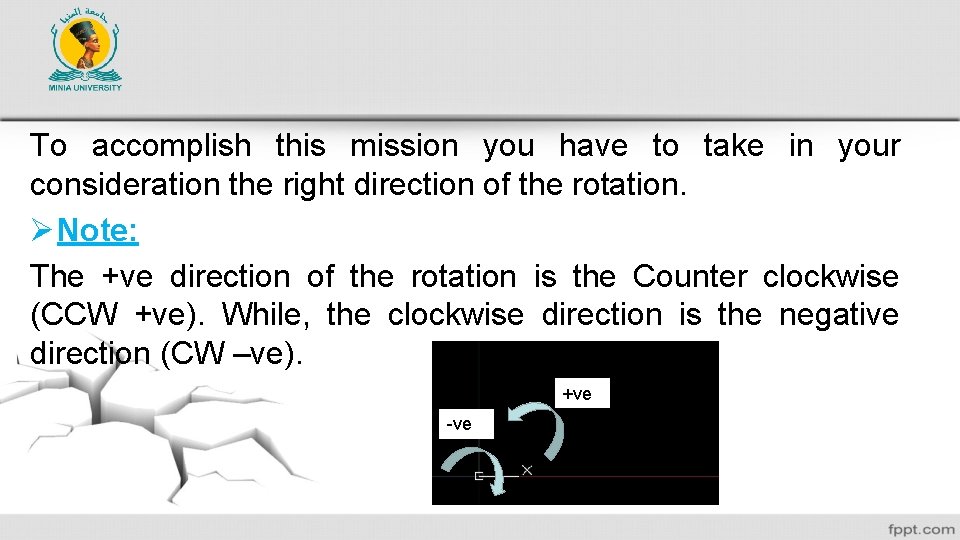
To accomplish this mission you have to take in your consideration the right direction of the rotation. Ø Note: The +ve direction of the rotation is the Counter clockwise (CCW +ve). While, the clockwise direction is the negative direction (CW –ve). +ve -ve
To complete your mission, you are asked to follow the following steps. 1 - Click on “Line” Command. 2 - Insert the starting point “ 0, 0”. 3 - Write “@40<45” in the command bar. 4 - Write”@40<135”. 5 - Write “@40<225”. 6 - Write”@40<315”. 7 - Escape to finish the command.
Student task Can you produce the same square with just –ve angles?
2. Circles To draw circles you can follow the next steps. 1 - Click “circle” from Draw panel at Home Tab, OR Write “circle” in the command bar, OR write “C” in the command bar. 2 - Specify the center point, i. e. , “x, y”. 3 - Specify the radius of the circle OR [Diameter].
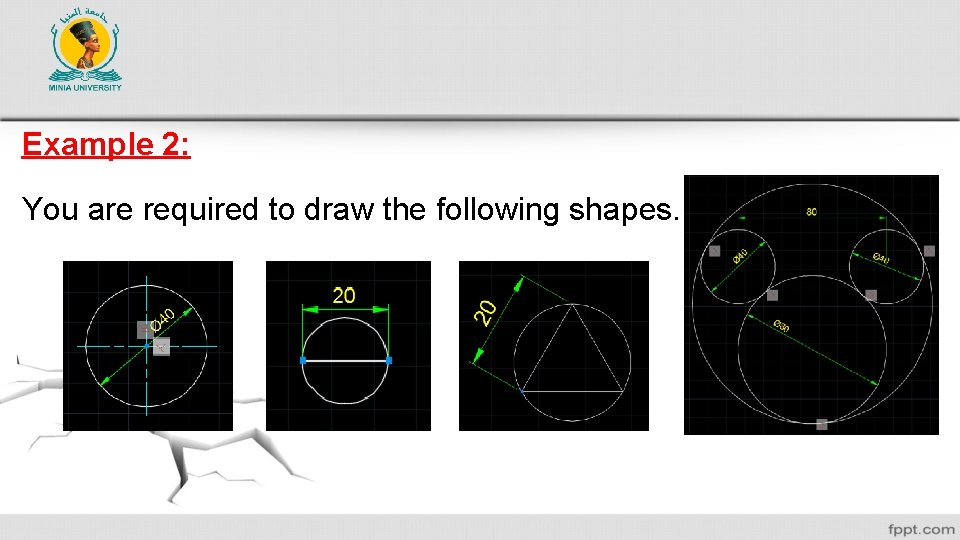
Example 2: You are required to draw the following shapes.
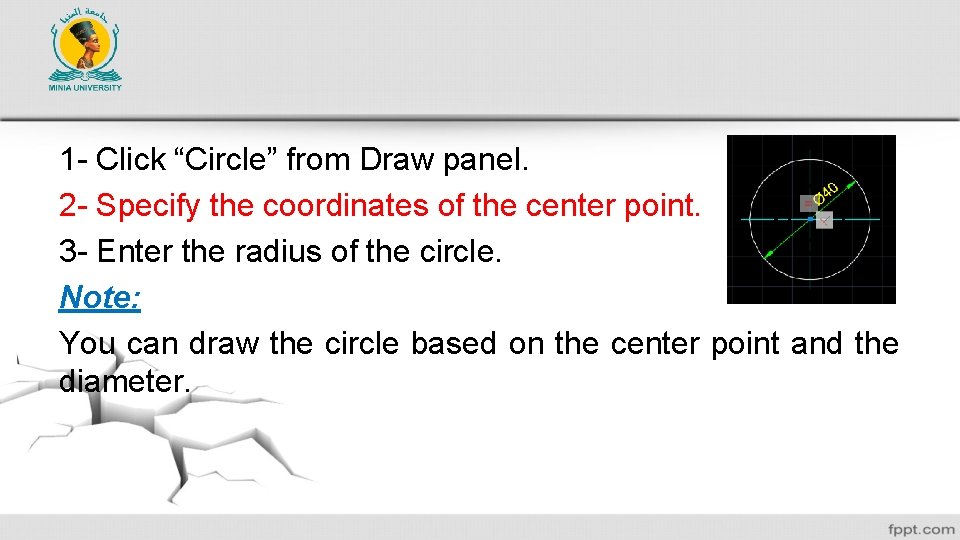
1 - Click “Circle” from Draw panel. 2 - Specify the coordinates of the center point. 3 - Enter the radius of the circle. Note: You can draw the circle based on the center point and the diameter.
Note: You have to differentiate between two brackets [ ] and < >. a. [ ] means that there are some options between these brackets. You can activate this option by direct click on the option or just write the first OR the capitalized letter of this suggestion. If you want to draw the circle using the diameter, then Click on Diameter Or write “D” in the command bar.
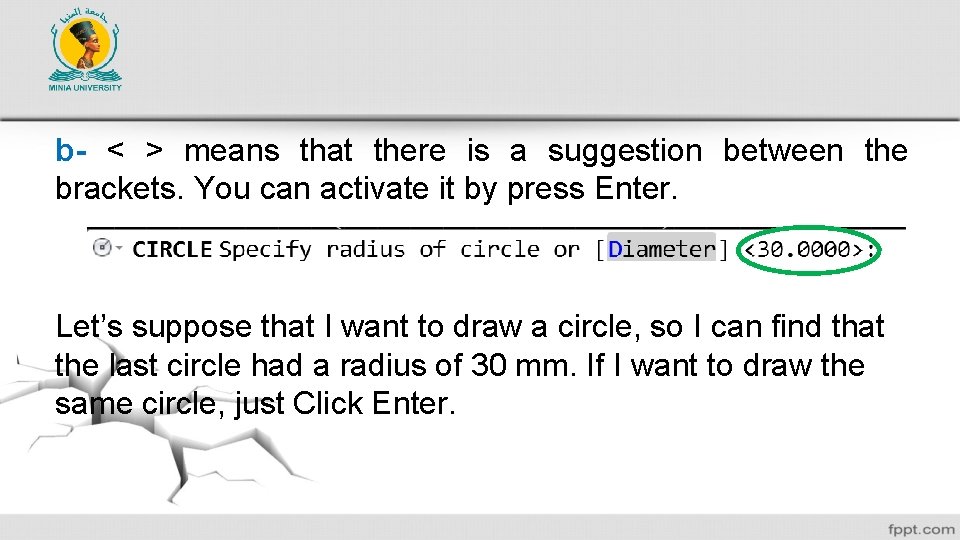
b- < > means that there is a suggestion between the brackets. You can activate it by press Enter. Let’s suppose that I want to draw a circle, so I can find that the last circle had a radius of 30 mm. If I want to draw the same circle, just Click Enter.
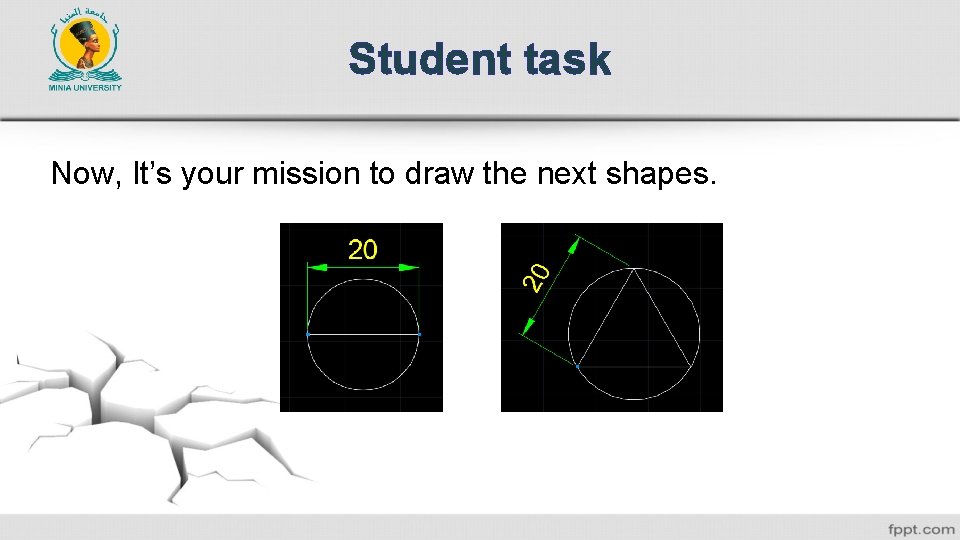
Student task Now, It’s your mission to draw the next shapes.
If you made the last shapes successfully. Congratulations you have reached the goal.
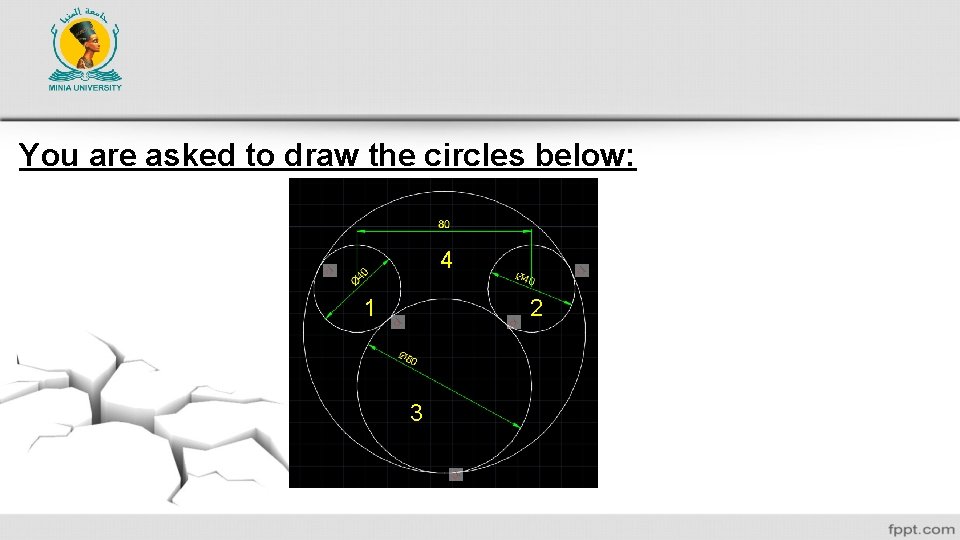
You are asked to draw the circles below: 4 2 1 3
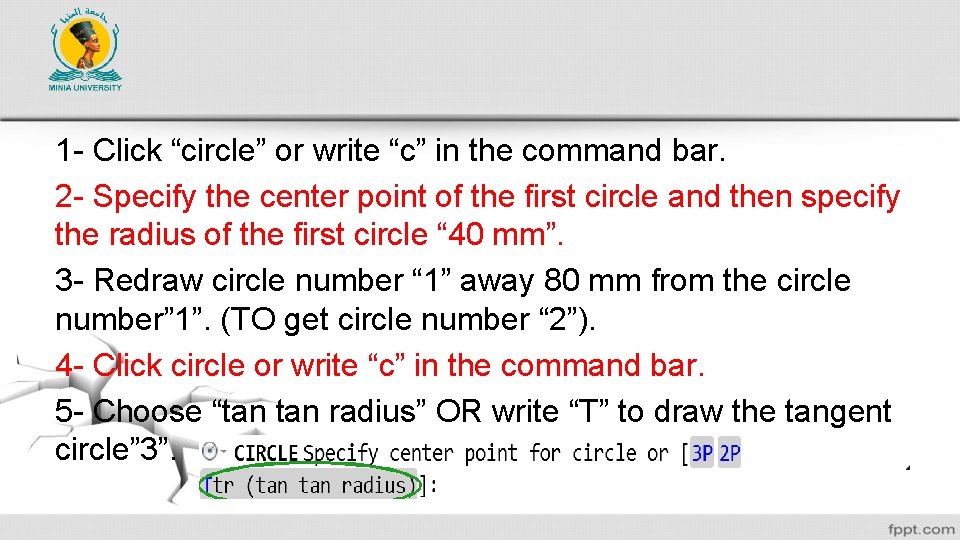
1 - Click “circle” or write “c” in the command bar. 2 - Specify the center point of the first circle and then specify the radius of the first circle “ 40 mm”. 3 - Redraw circle number “ 1” away 80 mm from the circle number” 1”. (TO get circle number “ 2”). 4 - Click circle or write “c” in the command bar. 5 - Choose “tan radius” OR write “T” to draw the tangent circle” 3”.
6 - Click on the circumference of circle number ” 1”. 7 - Click on the circumference of the circle number “ 2”. 8 - Enter the radius of circle number “ 3”. To draw circle number “ 4” just do the same as previous section of Circle number” 3”, but choose “Tan Tan” instead of “Tan Radius”.
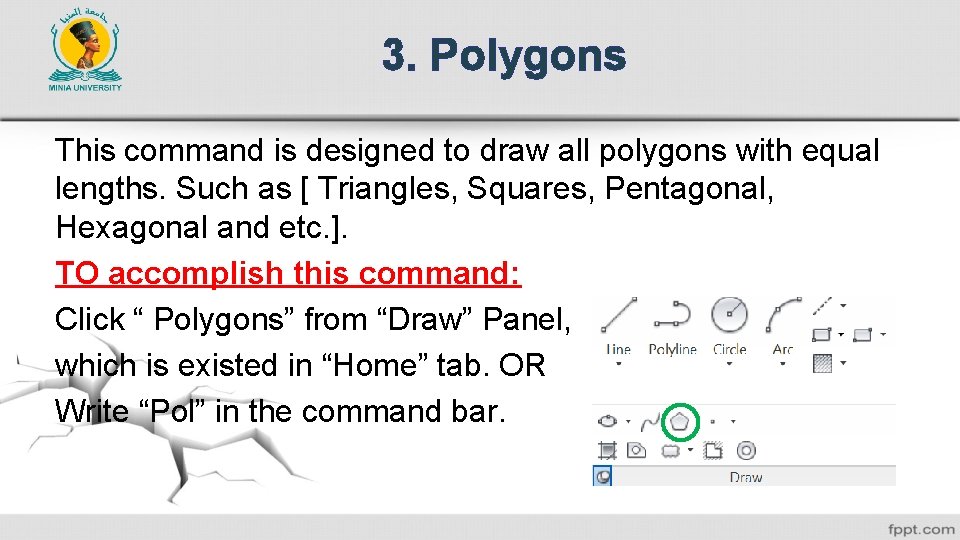
3. Polygons This command is designed to draw all polygons with equal lengths. Such as [ Triangles, Squares, Pentagonal, Hexagonal and etc. ]. TO accomplish this command: Click “ Polygons” from “Draw” Panel, which is existed in “Home” tab. OR Write “Pol” in the command bar.
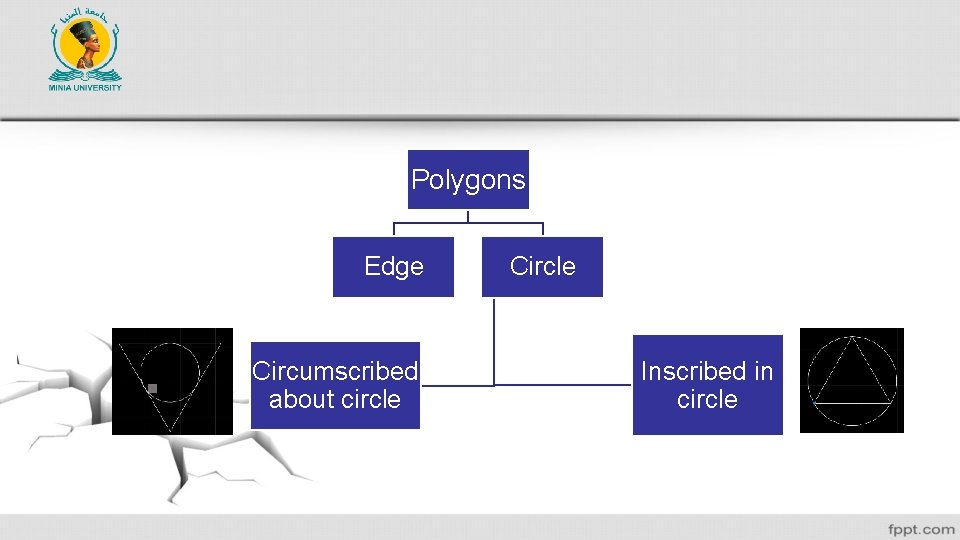
Polygons Edge Circumscribed about circle Circle Inscribed in circle
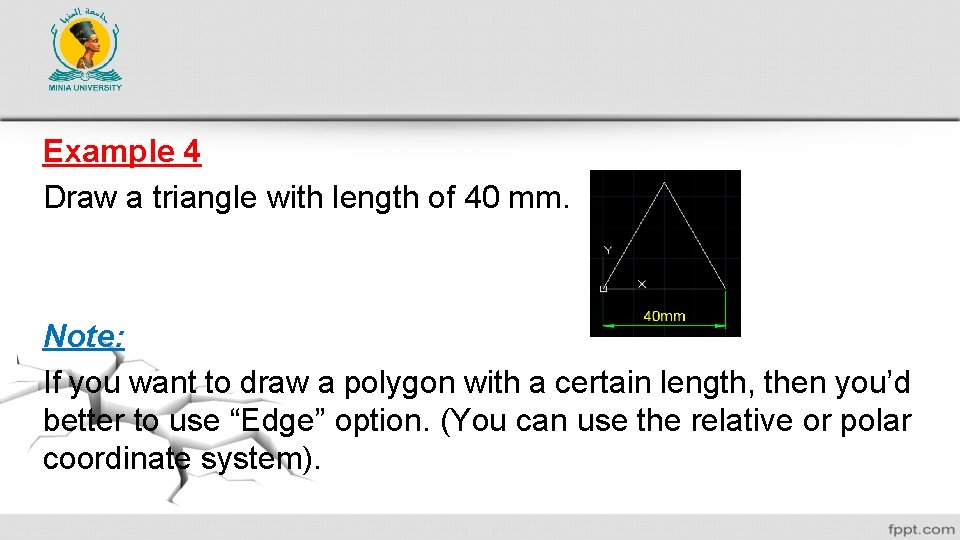
Example 4 Draw a triangle with length of 40 mm. Note: If you want to draw a polygon with a certain length, then you’d better to use “Edge” option. (You can use the relative or polar coordinate system).
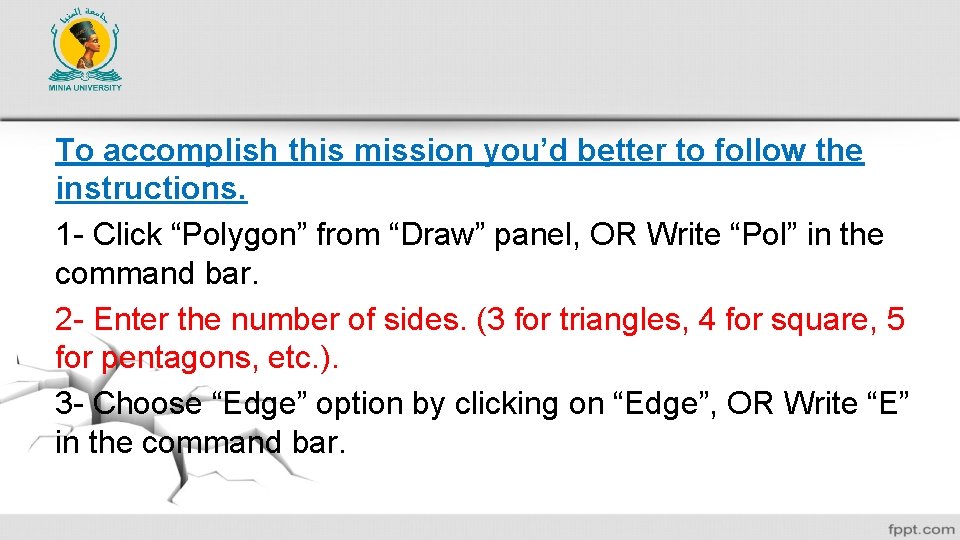
To accomplish this mission you’d better to follow the instructions. 1 - Click “Polygon” from “Draw” panel, OR Write “Pol” in the command bar. 2 - Enter the number of sides. (3 for triangles, 4 for square, 5 for pentagons, etc. ). 3 - Choose “Edge” option by clicking on “Edge”, OR Write “E” in the command bar.
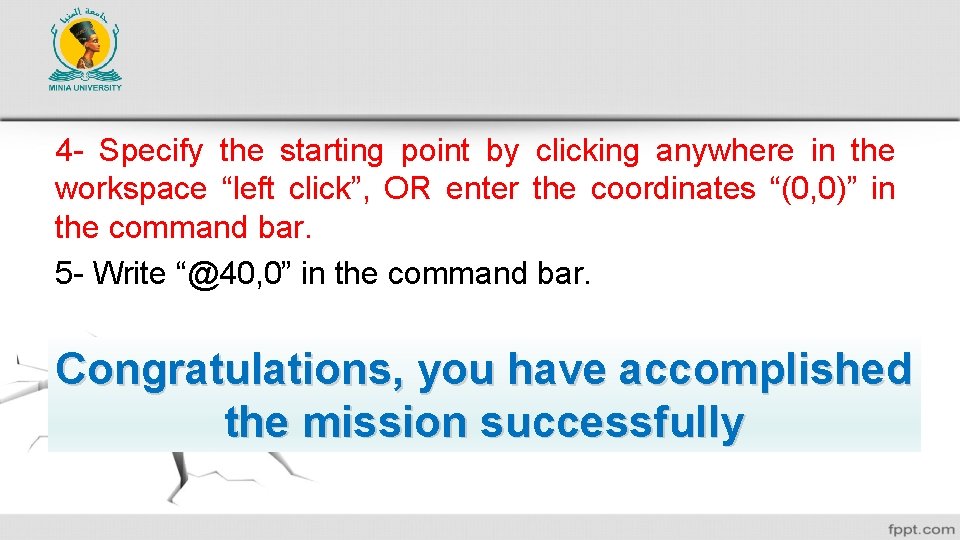
4 - Specify the starting point by clicking anywhere in the workspace “left click”, OR enter the coordinates “(0, 0)” in the command bar. 5 - Write “@40, 0” in the command bar. Congratulations, you have accomplished the mission successfully
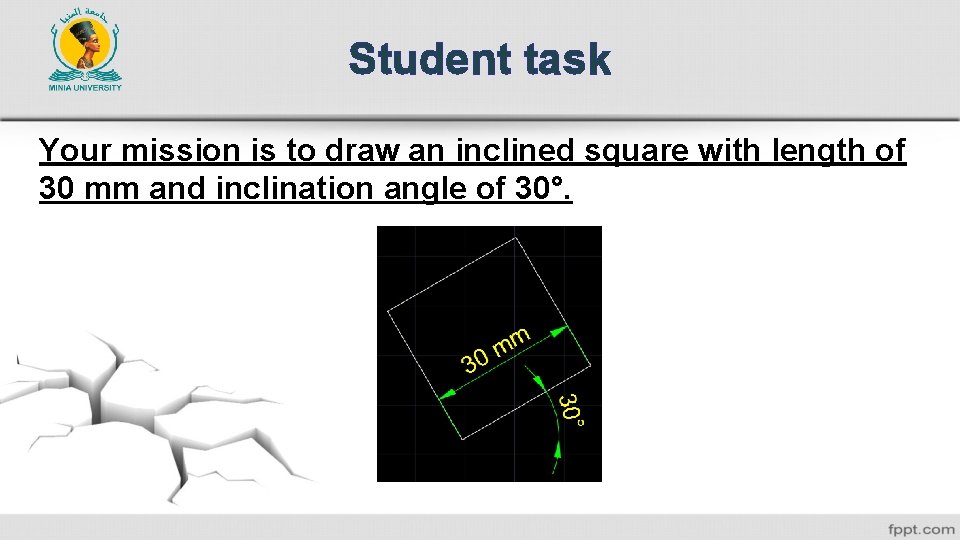
Student task Your mission is to draw an inclined square with length of 30 mm and inclination angle of 30°.
4. Rectangles This order aims to draw rectangles and (Squares? ? ? ). Note: Squares are rectangles with equal width and heights.
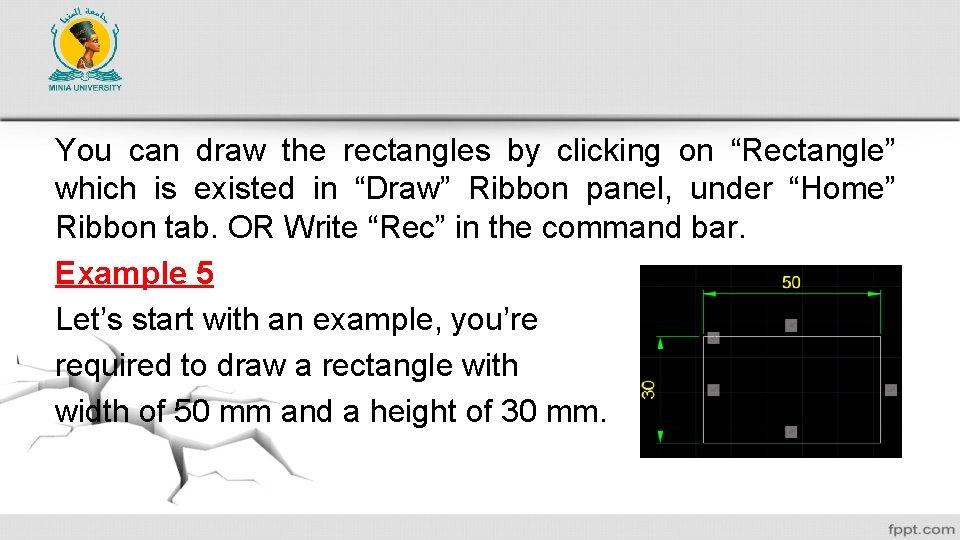
You can draw the rectangles by clicking on “Rectangle” which is existed in “Draw” Ribbon panel, under “Home” Ribbon tab. OR Write “Rec” in the command bar. Example 5 Let’s start with an example, you’re required to draw a rectangle with width of 50 mm and a height of 30 mm.
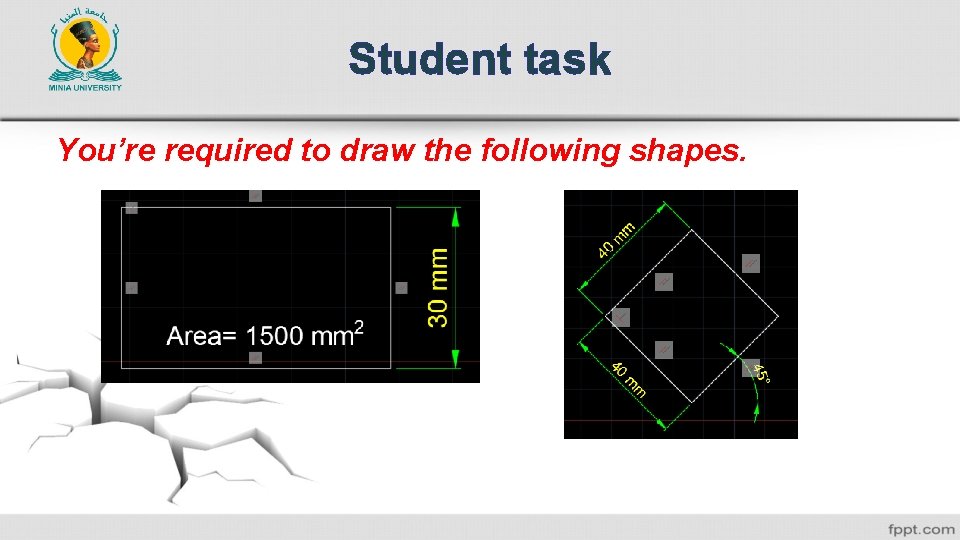
1 - Click on “Rectangle” from “Draw” panel, OR Write “Rec” in the command bar. 2 - Specify the first point, and then write “@50, 30”. Note: Keep watching the command bar. You can draw rectangles based on the area and knowing the dimension of one side (width or heights). OR you can draw a rotated rectangle.
Student task You’re required to draw the following shapes.
All Questions Are Warmly Welcome