
MINI CRM INTRODUCTION OBJECTIVE Objective of this miniature
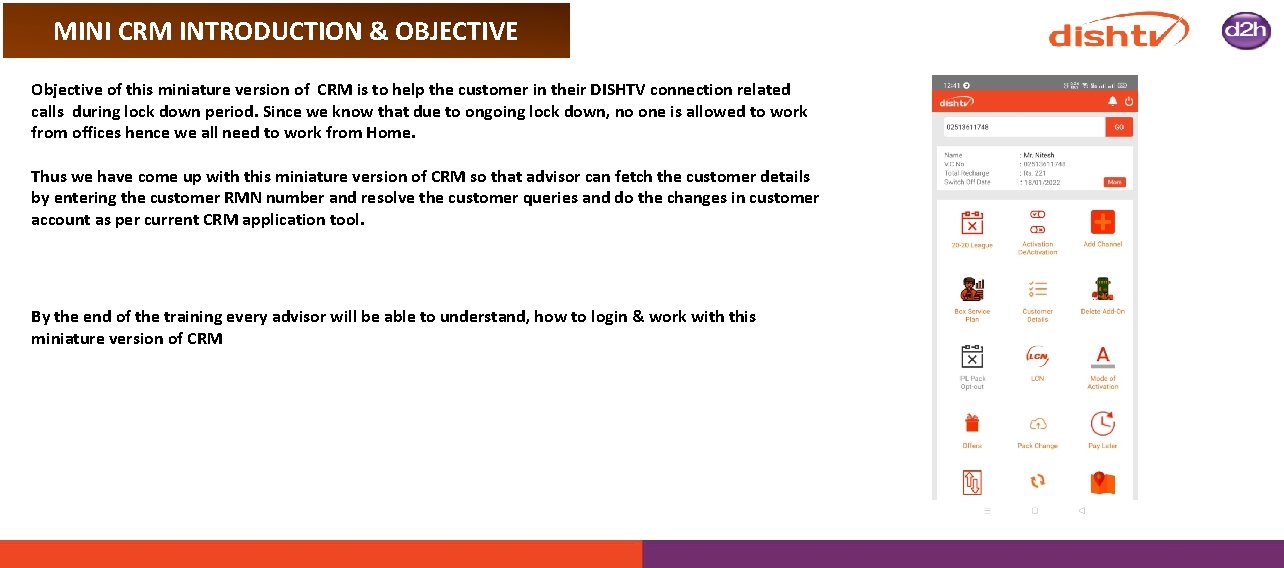
MINI CRM INTRODUCTION & OBJECTIVE Objective of this miniature version of CRM is to help the customer in their DISHTV connection related calls during lock down period. Since we know that due to ongoing lock down, no one is allowed to work from offices hence we all need to work from Home. Thus we have come up with this miniature version of CRM so that advisor can fetch the customer details by entering the customer RMN number and resolve the customer queries and do the changes in customer account as per current CRM application tool. By the end of the training every advisor will be able to understand, how to login & work with this miniature version of CRM
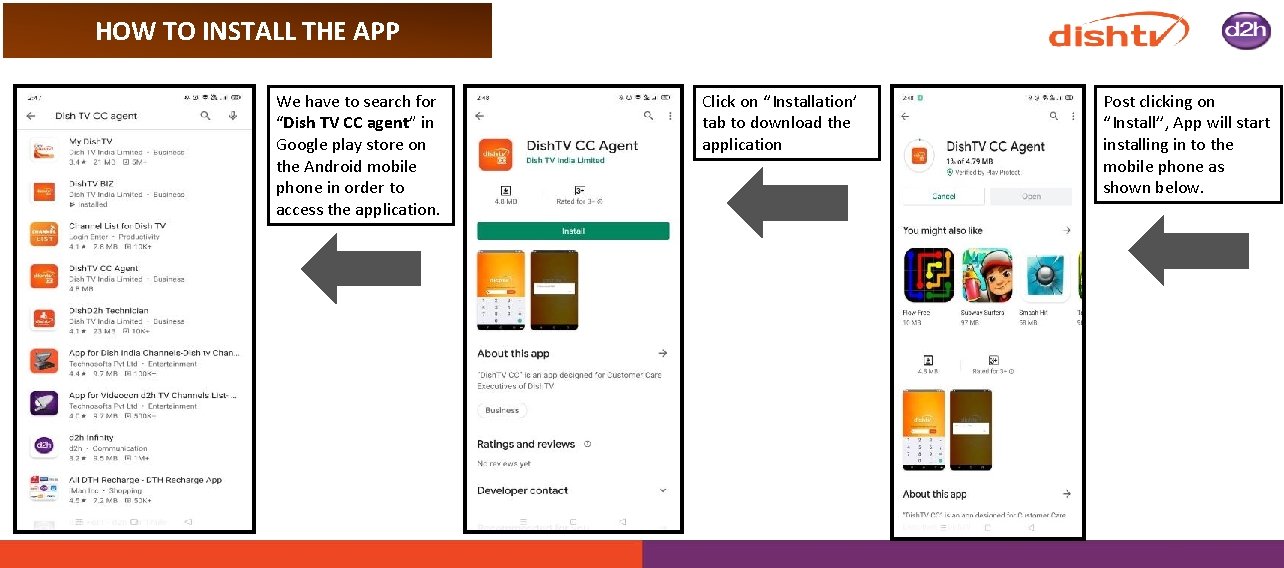
HOW TO INSTALL THE APP We have to search for “Dish TV CC agent” in Google play store on the Android mobile phone in order to access the application. Click on ‘’Installation’ tab to download the application Post clicking on ‘’Install’’, App will start installing in to the mobile phone as shown below.
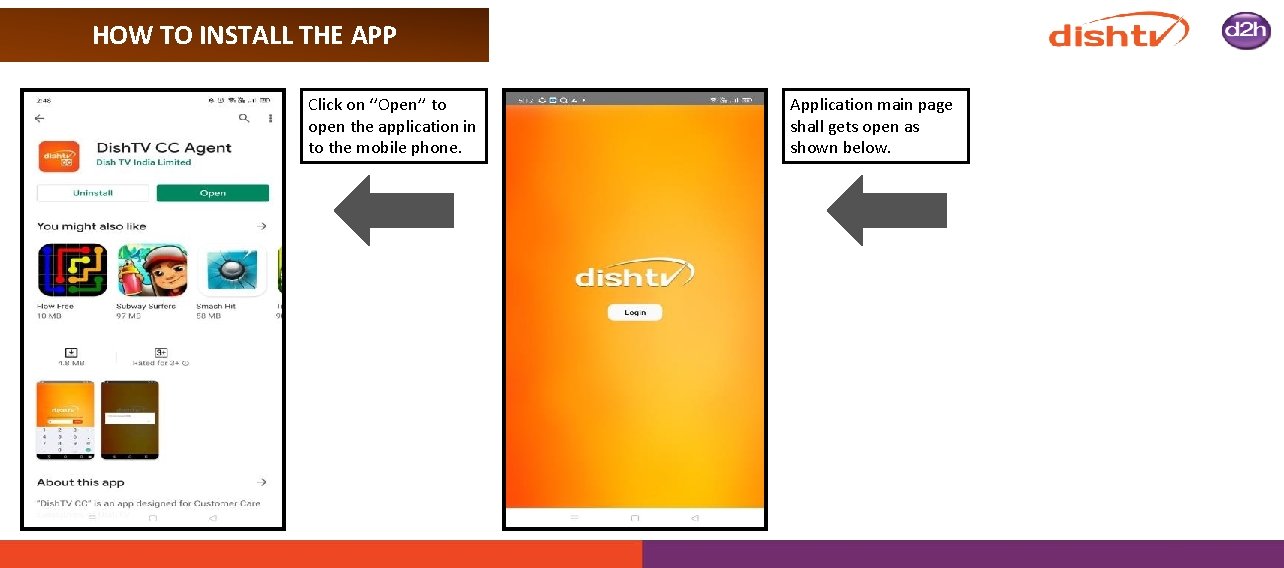
HOW TO INSTALL THE APP Click on ‘’Open’’ to open the application in to the mobile phone. Application main page shall gets open as shown below.
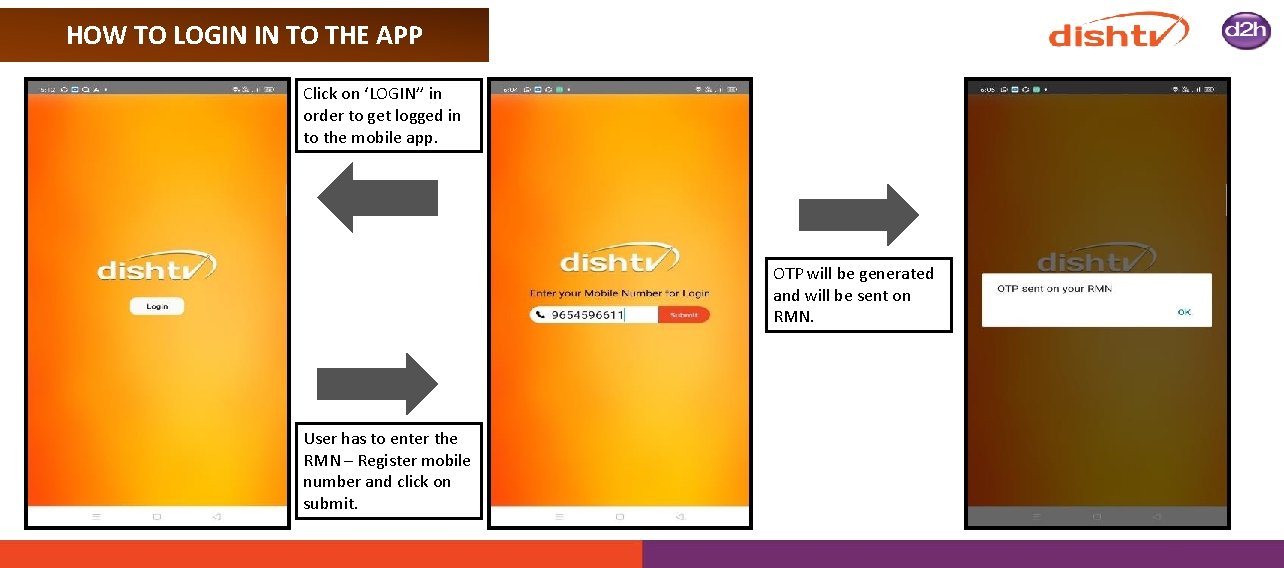
HOW TO LOGIN IN TO THE APP Click on ‘LOGIN’’ in order to get logged in to the mobile app. OTP will be generated and will be sent on RMN. User has to enter the RMN – Register mobile number and click on submit.
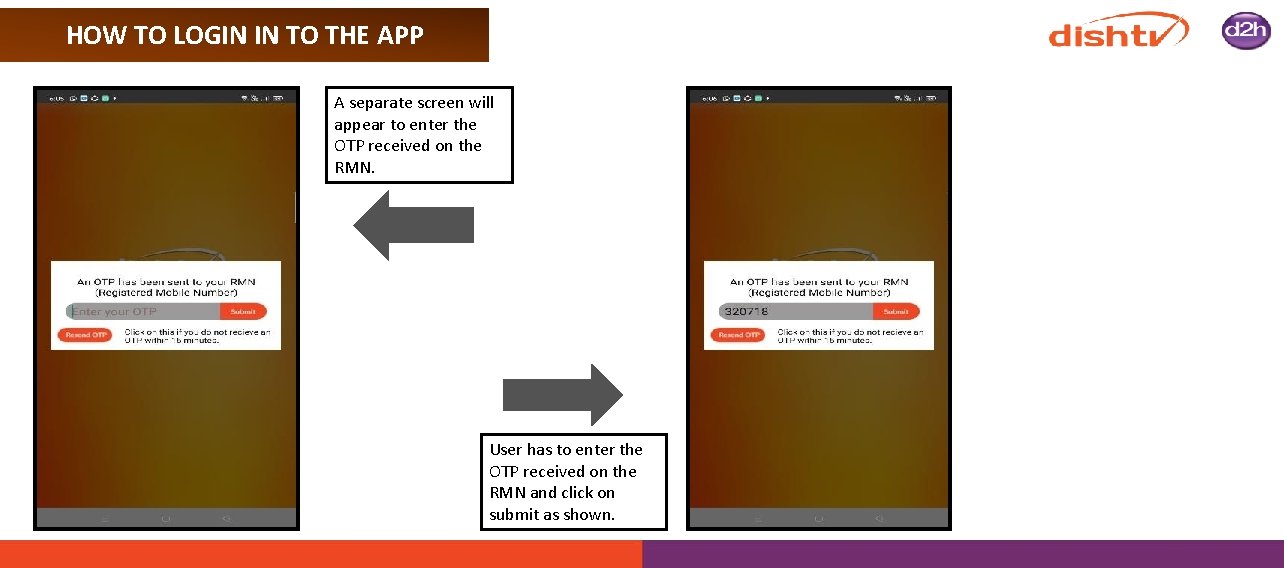
HOW TO LOGIN IN TO THE APP A separate screen will appear to enter the OTP received on the RMN. User has to enter the OTP received on the RMN and click on submit as shown.
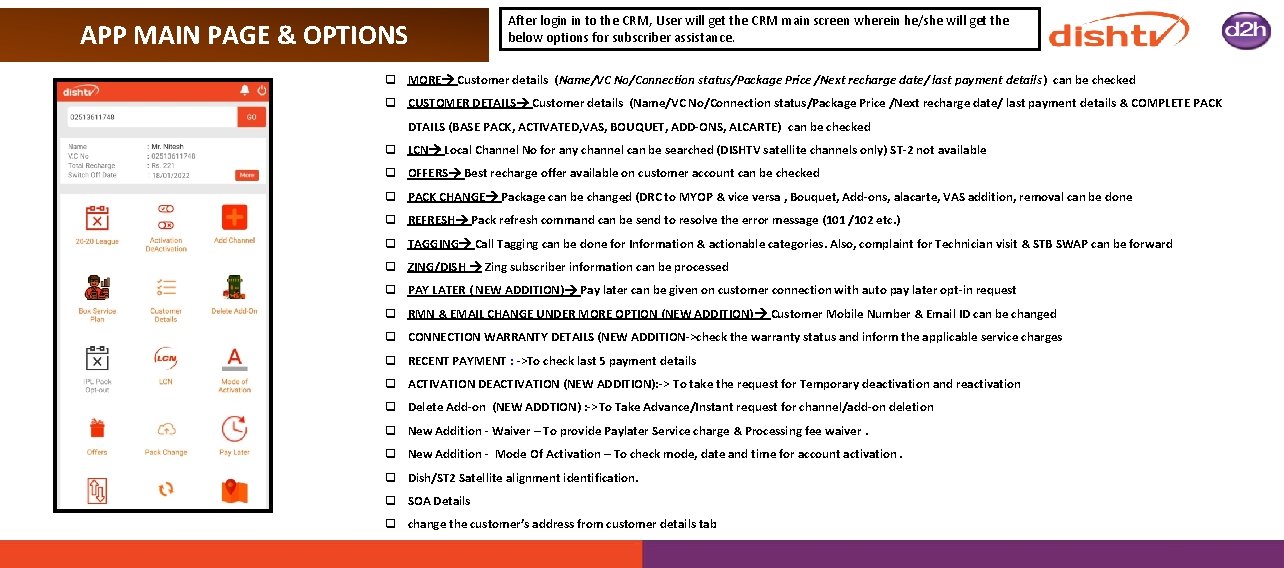
APP MAIN PAGE & OPTIONS After login in to the CRM, User will get the CRM main screen wherein he/she will get the below options for subscriber assistance. q MORE Customer details (Name/VC No/Connection status/Package Price /Next recharge date/ last payment details ) can be checked q CUSTOMER DETAILS Customer details (Name/VC No/Connection status/Package Price /Next recharge date/ last payment details & COMPLETE PACK DTAILS (BASE PACK, ACTIVATED, VAS, BOUQUET, ADD-ONS, ALCARTE) can be checked q LCN Local Channel No for any channel can be searched (DISHTV satellite channels only) ST-2 not available q OFFERS Best recharge offer available on customer account can be checked q PACK CHANGE Package can be changed (DRC to MYOP & vice versa , Bouquet, Add-ons, alacarte, VAS addition, removal can be done q REFRESH Pack refresh command can be send to resolve the error message (101 /102 etc. ) q TAGGING Call Tagging can be done for Information & actionable categories. Also, complaint for Technician visit & STB SWAP can be forward q ZING/DISH Zing subscriber information can be processed q PAY LATER ( NEW ADDITION) Pay later can be given on customer connection with auto pay later opt-in request q RMN & EMAIL CHANGE UNDER MORE OPTION (NEW ADDITION) Customer Mobile Number & Email ID can be changed q CONNECTION WARRANTY DETAILS (NEW ADDITION->check the warranty status and inform the applicable service charges q RECENT PAYMENT : ->To check last 5 payment details q ACTIVATION DEACTIVATION (NEW ADDITION): -> To take the request for Temporary deactivation and reactivation q Delete Add-on (NEW ADDTION) : ->To Take Advance/Instant request for channel/add-on deletion q New Addition - Waiver – To provide Paylater Service charge & Processing fee waiver. q New Addition - Mode Of Activation – To check mode, date and time for account activation. q Dish/ST 2 Satellite alignment identification. q SOA Details q change the customer’s address from customer details tab
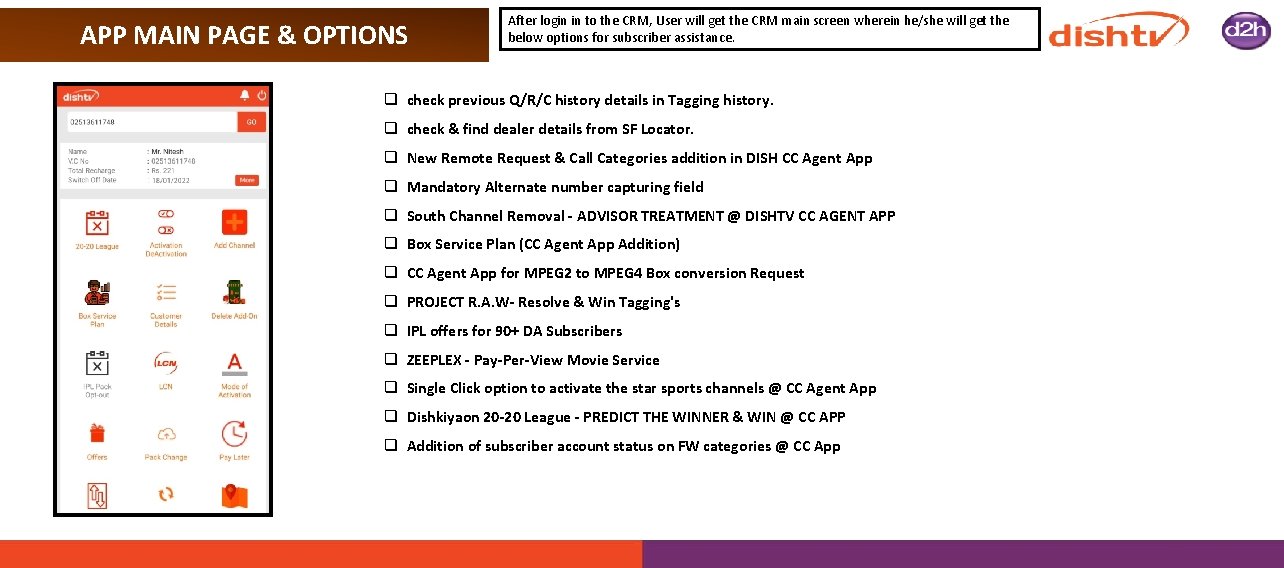
APP MAIN PAGE & OPTIONS After login in to the CRM, User will get the CRM main screen wherein he/she will get the below options for subscriber assistance. q check previous Q/R/C history details in Tagging history. q check & find dealer details from SF Locator. q New Remote Request & Call Categories addition in DISH CC Agent App q Mandatory Alternate number capturing field q South Channel Removal - ADVISOR TREATMENT @ DISHTV CC AGENT APP q Box Service Plan (CC Agent App Addition) q CC Agent App for MPEG 2 to MPEG 4 Box conversion Request q PROJECT R. A. W- Resolve & Win Tagging's q IPL offers for 90+ DA Subscribers q ZEEPLEX - Pay-Per-View Movie Service q Single Click option to activate the star sports channels @ CC Agent App q Dishkiyaon 20 -20 League - PREDICT THE WINNER & WIN @ CC APP q Addition of subscriber account status on FW categories @ CC App
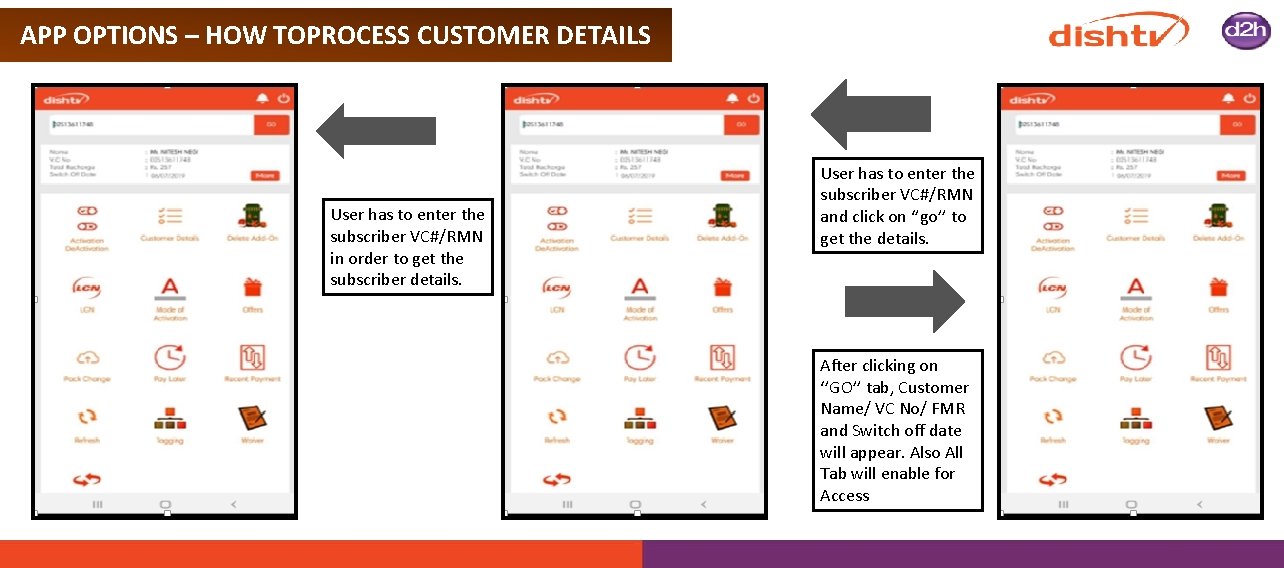
APP OPTIONS – HOW TOPROCESS CUSTOMER DETAILS User has to enter the subscriber VC#/RMN in order to get the subscriber details. User has to enter the subscriber VC#/RMN and click on ‘’go’’ to get the details. After clicking on ‘’GO’’ tab, Customer Name/ VC No/ FMR and Switch off date will appear. Also All Tab will enable for Access
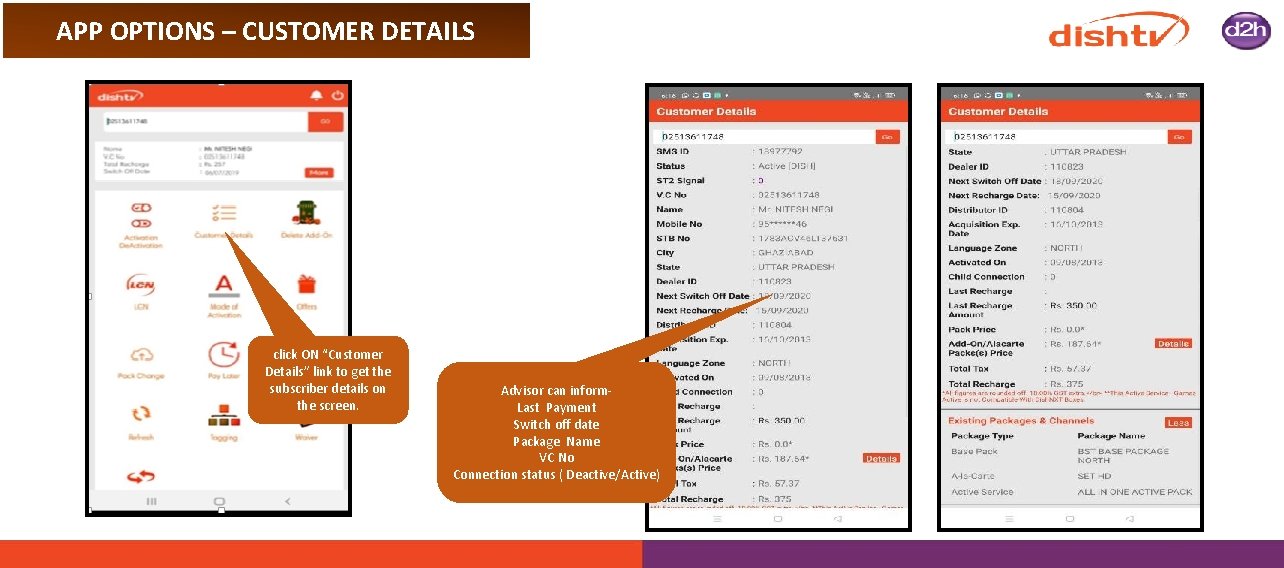
APP OPTIONS – CUSTOMER DETAILS click ON “Customer Details” link to get the subscriber details on the screen. Advisor can inform. Last Payment Switch off date Package Name VC No Connection status ( Deactive/Active)
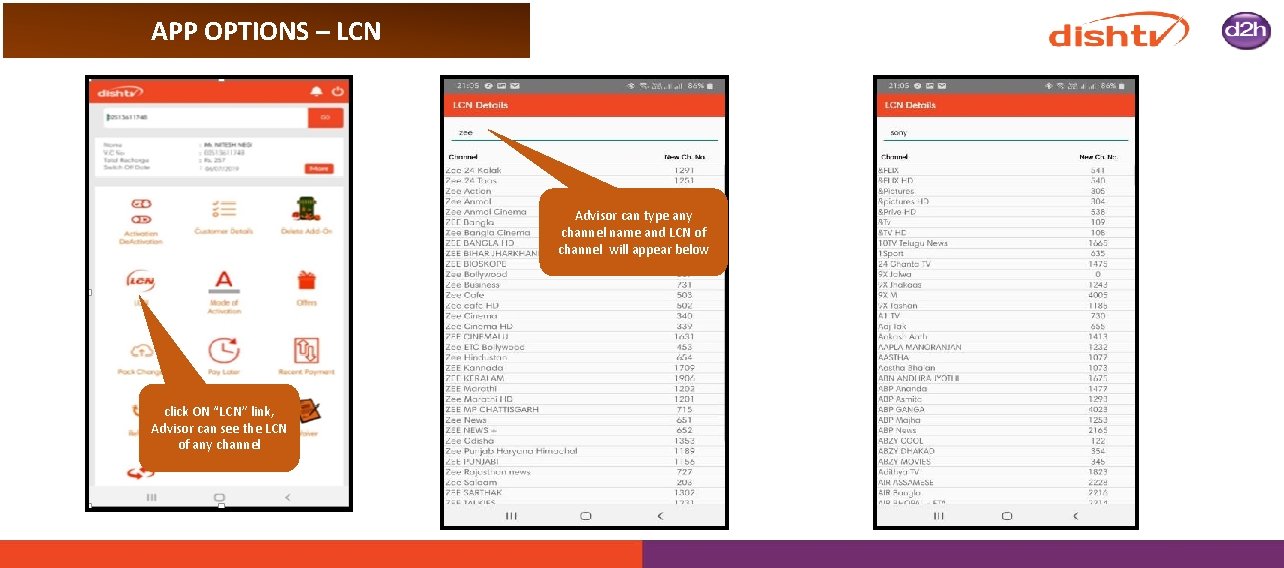
APP OPTIONS – LCN Advisor can type any channel name and LCN of channel will appear below click ON “LCN” link, Advisor can see the LCN of any channel
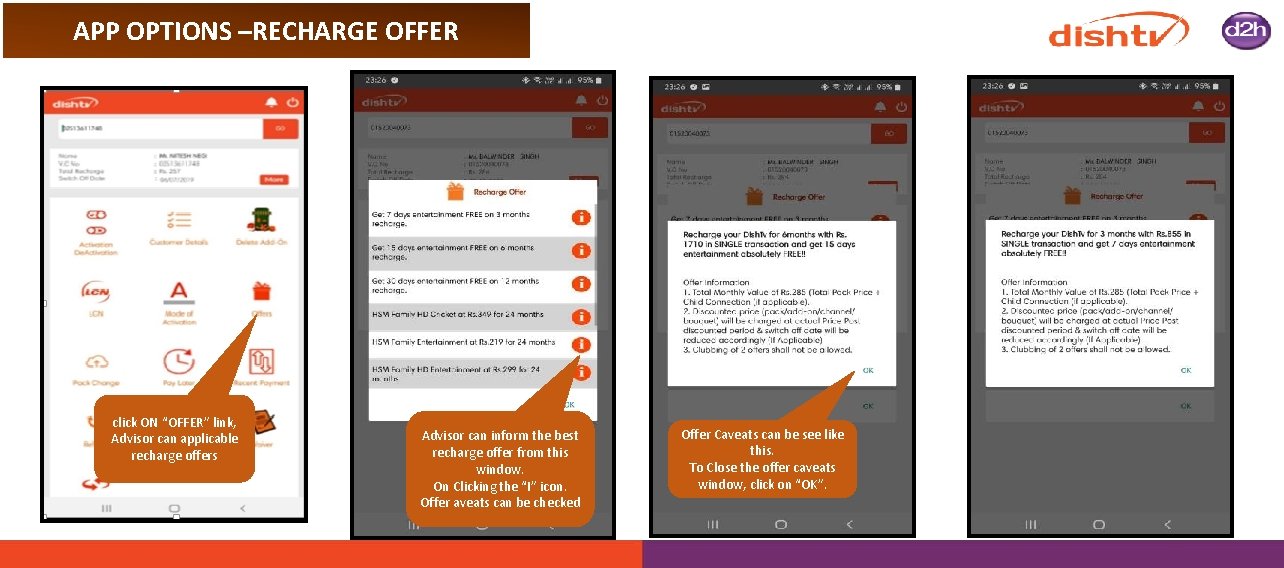
APP OPTIONS –RECHARGE OFFER click ON “OFFER” link, Advisor can applicable recharge offers Advisor can inform the best recharge offer from this window. On Clicking the “I” icon. Offer aveats can be checked Offer Caveats can be see like this. To Close the offer caveats window, click on “OK”.
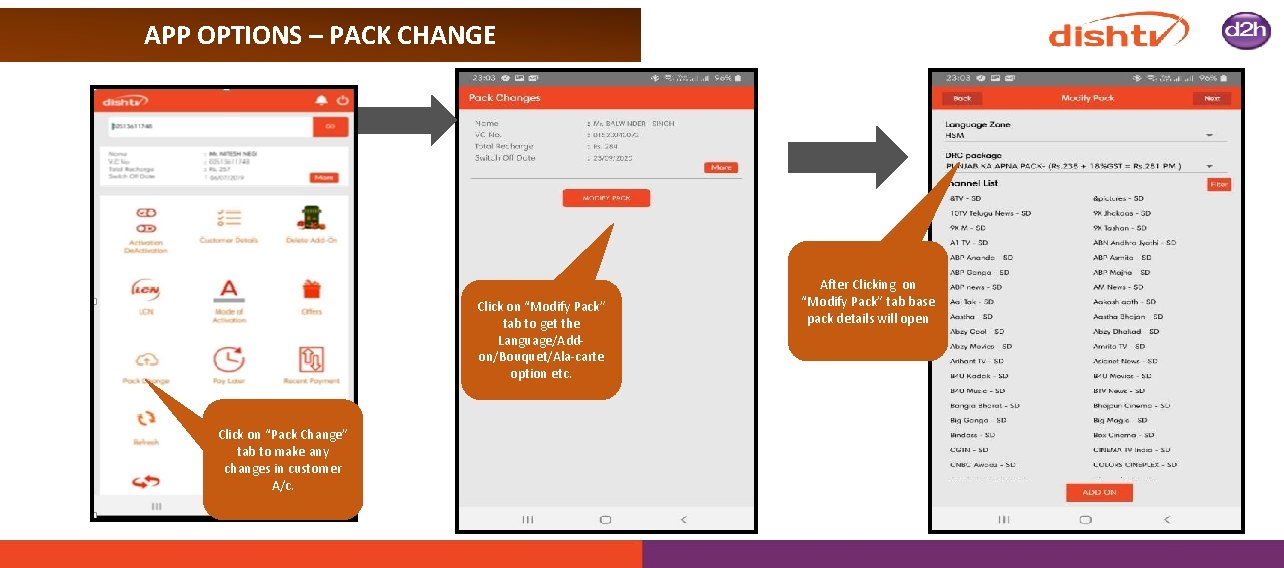
APP OPTIONS – PACK CHANGE Click on “Modify Pack” tab to get the Language/Addon/Bouquet/Ala-carte option etc. Click on “Pack Change” tab to make any changes in customer A/c. After Clicking on “Modify Pack” tab base pack details will open
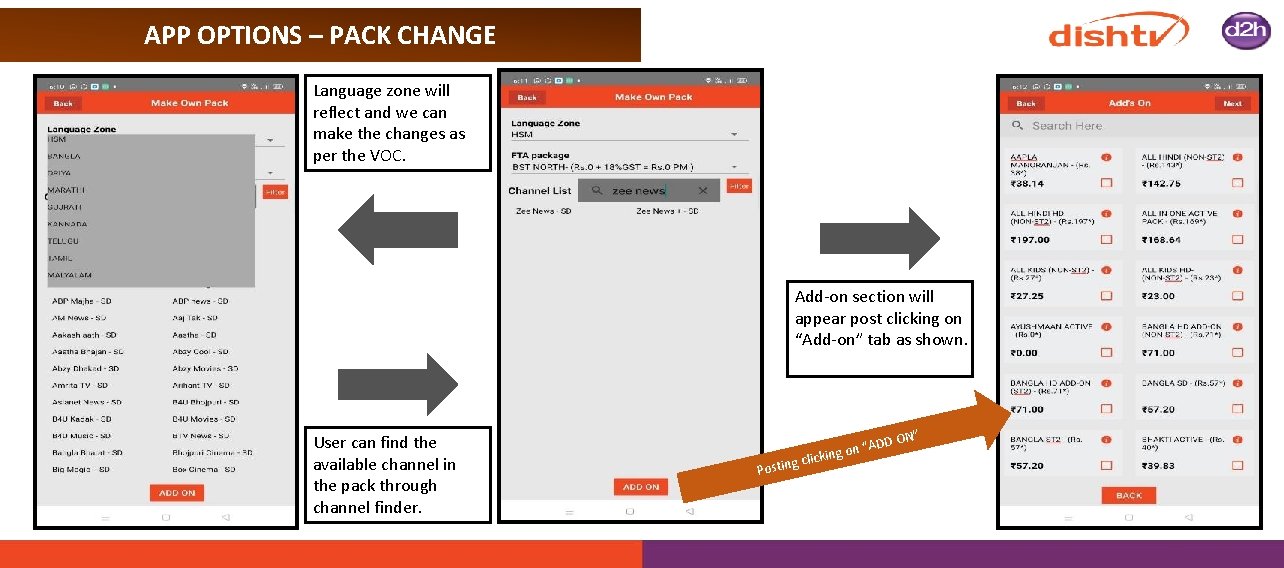
APP OPTIONS – PACK CHANGE Language zone will reflect and we can make the changes as per the VOC. Add-on section will appear post clicking on “Add-on” tab as shown. User can find the available channel in the pack through channel finder. ” DD ON Po on “A g n i k c i l sting c
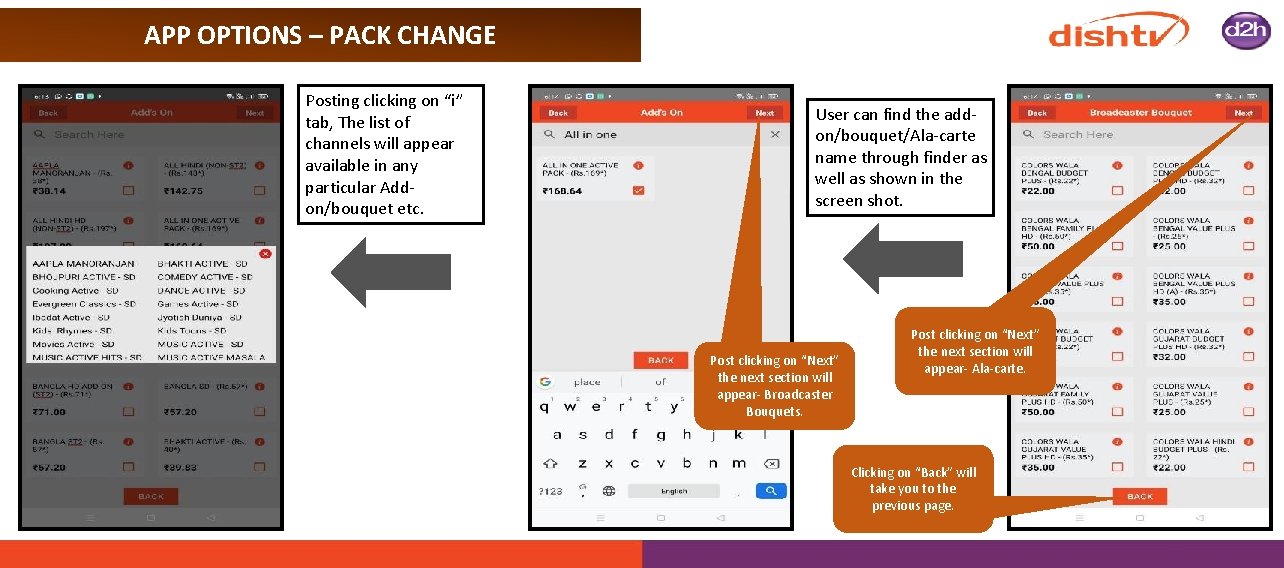
APP OPTIONS – PACK CHANGE Posting clicking on “i” tab, The list of channels will appear available in any particular Addon/bouquet etc. User can find the addon/bouquet/Ala-carte name through finder as well as shown in the screen shot. Post clicking on “Next” the next section will appear- Broadcaster Bouquets. Post clicking on “Next” the next section will appear- Ala-carte. Clicking on “Back” will take you to the previous page.
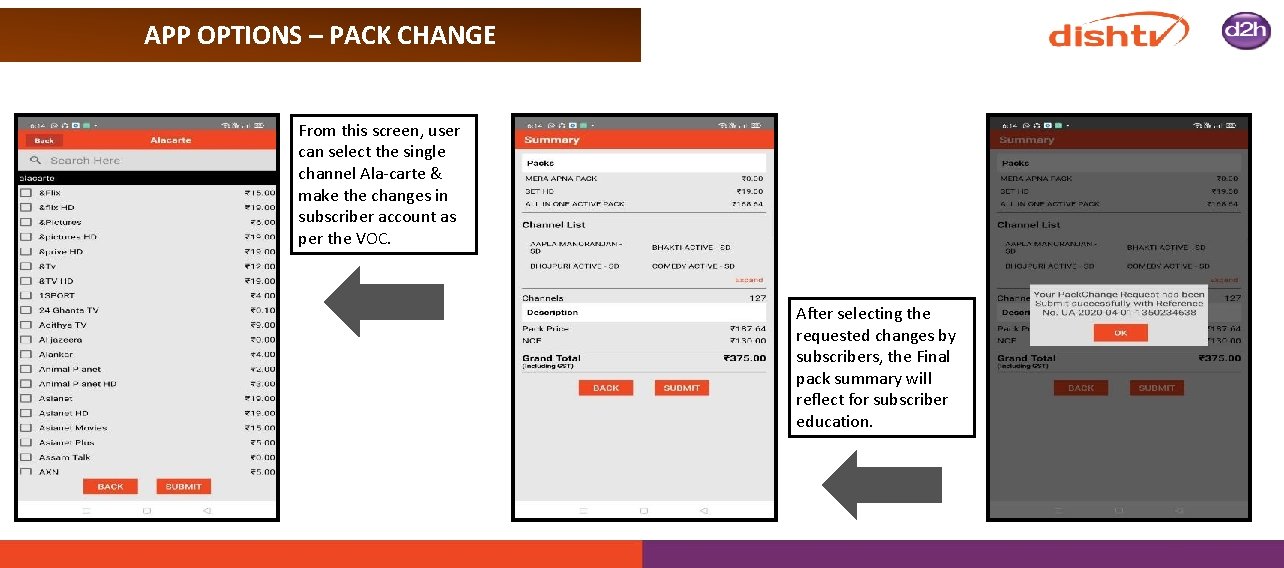
APP OPTIONS – PACK CHANGE From this screen, user can select the single channel Ala-carte & make the changes in subscriber account as per the VOC. After selecting the requested changes by subscribers, the Final pack summary will reflect for subscriber education.
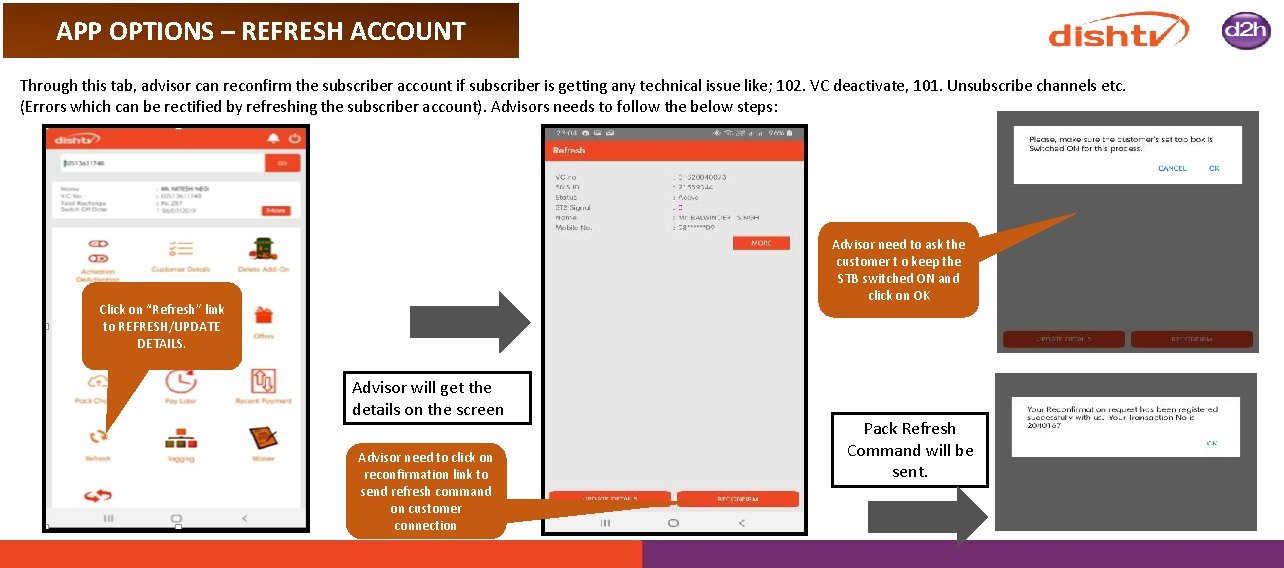
APP OPTIONS – REFRESH ACCOUNT Through this tab, advisor can reconfirm the subscriber account if subscriber is getting any technical issue like; 102. VC deactivate, 101. Unsubscribe channels etc. (Errors which can be rectified by refreshing the subscriber account). Advisors needs to follow the below steps: Advisor need to ask the customer t o keep the STB switched ON and click on OK Click on “Refresh” link to REFRESH/UPDATE DETAILS. Advisor will get the details on the screen Advisor need to click on reconfirmation link to send refresh command on customer connection Pack Refresh Command will be sent.
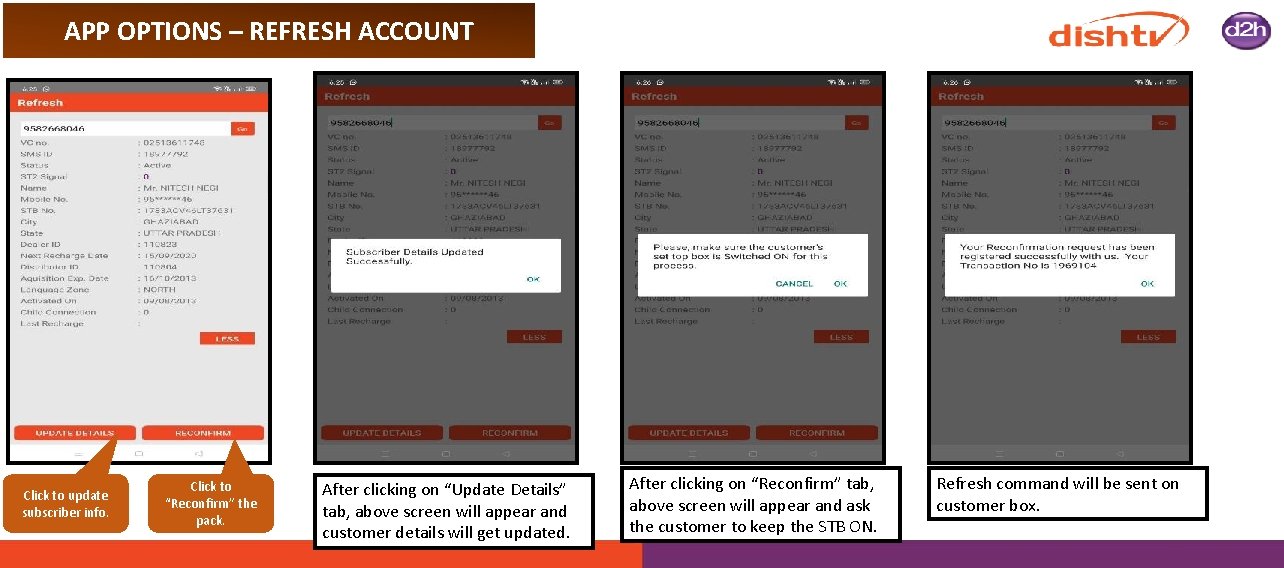
APP OPTIONS – REFRESH ACCOUNT Click to update subscriber info. Click to “Reconfirm” the pack. After clicking on “Update Details” tab, above screen will appear and customer details will get updated. After clicking on “Reconfirm” tab, above screen will appear and ask the customer to keep the STB ON. Refresh command will be sent on customer box.
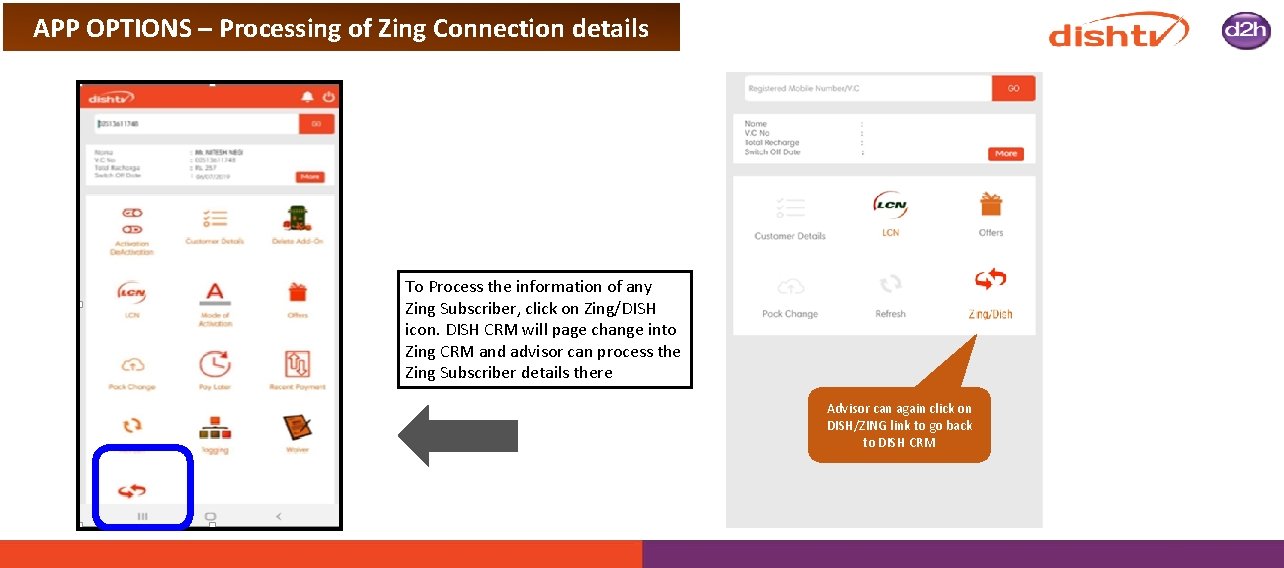
APP OPTIONS – Processing of Zing Connection details To Process the information of any Zing Subscriber, click on Zing/DISH icon. DISH CRM will page change into Zing CRM and advisor can process the Zing Subscriber details there Advisor can again click on DISH/ZING link to go back to DISH CRM
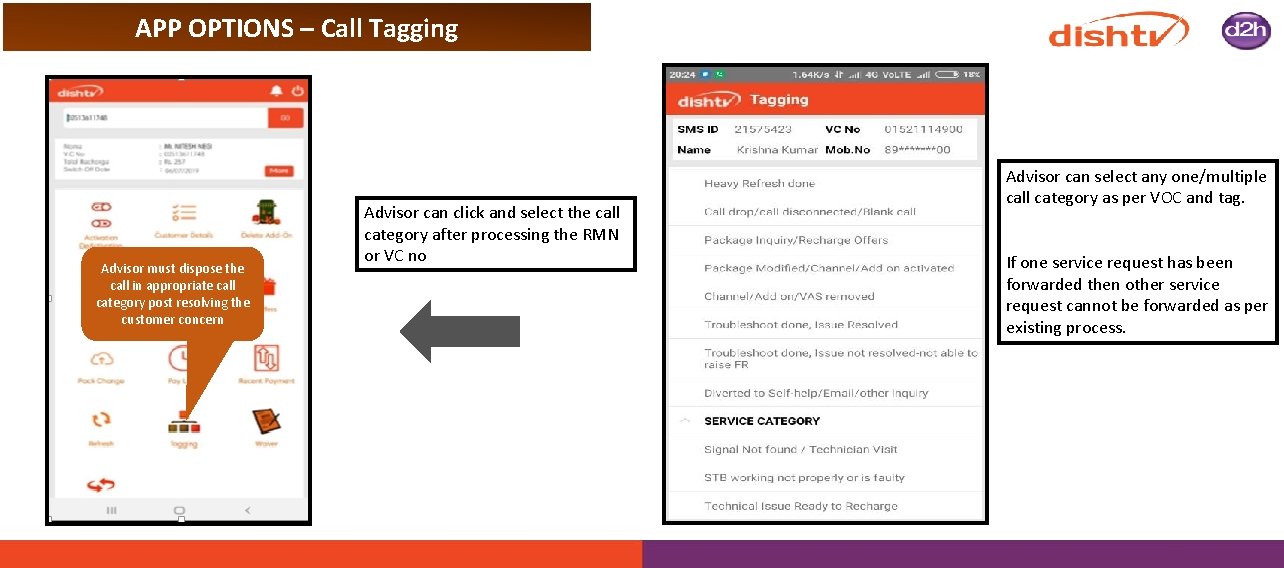
APP OPTIONS – Call Tagging Advisor must dispose the call in appropriate call category post resolving the customer concern Advisor can click and select the call category after processing the RMN or VC no Advisor can select any one/multiple call category as per VOC and tag. If one service request has been forwarded then other service request cannot be forwarded as per existing process.
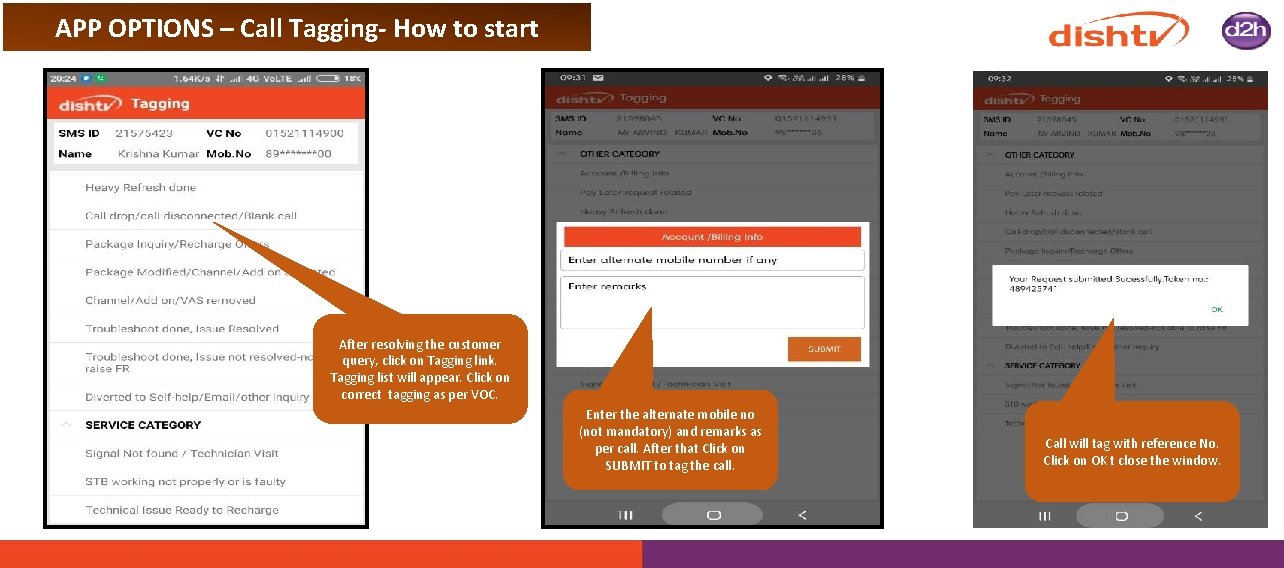
APP OPTIONS – Call Tagging- How to start After resolving the customer query, click on Tagging link. Tagging list will appear. Click on correct tagging as per VOC. Enter the alternate mobile no (not mandatory) and remarks as per call. After that Click on SUBMIT to tag the call. Call will tag with reference No. Click on OK t close the window.
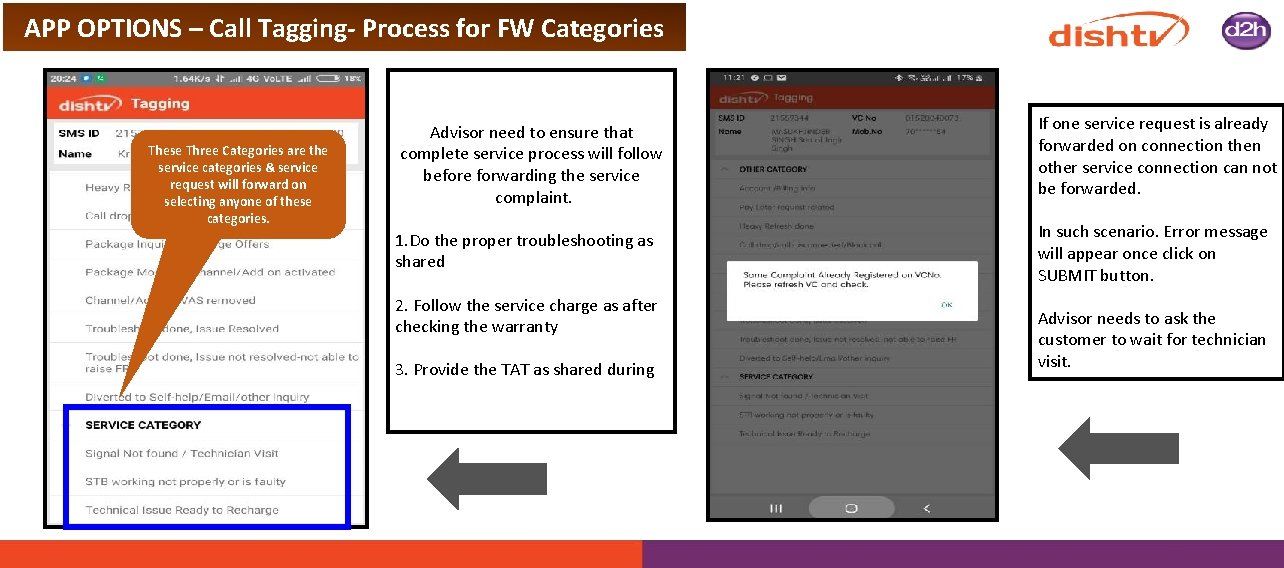
APP OPTIONS – Call Tagging- Process for FW Categories These Three Categories are the service categories & service request will forward on selecting anyone of these categories. Advisor need to ensure that complete service process will follow before forwarding the service complaint. If one service request is already forwarded on connection then other service connection can not be forwarded. 1. Do the proper troubleshooting as shared In such scenario. Error message will appear once click on SUBMIT button. 2. Follow the service charge as after checking the warranty 3. Provide the TAT as shared during Advisor needs to ask the customer to wait for technician visit.
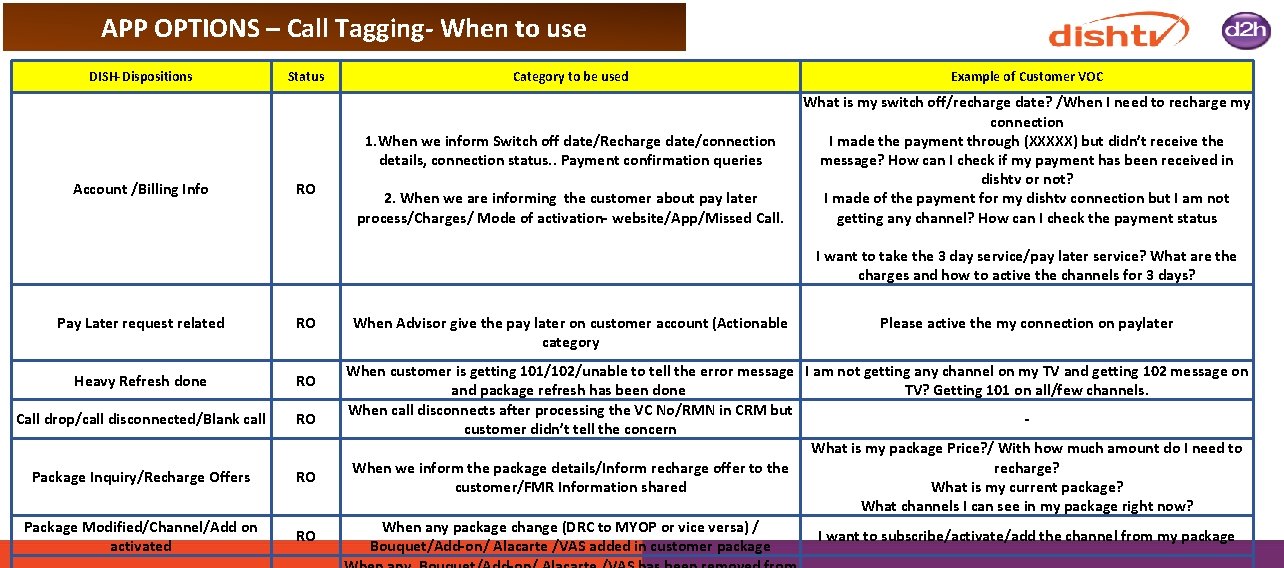
APP OPTIONS – Call Tagging- When to use DISH-Dispositions Status Category to be used 1. When we inform Switch off date/Recharge date/connection details, connection status. . Payment confirmation queries Account /Billing Info RO Pay Later request related RO Heavy Refresh done RO Call drop/call disconnected/Blank call RO Package Inquiry/Recharge Offers RO Package Modified/Channel/Add on activated RO 2. When we are informing the customer about pay later process/Charges/ Mode of activation- website/App/Missed Call. When Advisor give the pay later on customer account (Actionable category Example of Customer VOC What is my switch off/recharge date? /When I need to recharge my connection I made the payment through (XXXXX) but didn’t receive the message? How can I check if my payment has been received in dishtv or not? I made of the payment for my dishtv connection but I am not getting any channel? How can I check the payment status I want to take the 3 day service/pay later service? What are the charges and how to active the channels for 3 days? Please active the my connection on paylater When customer is getting 101/102/unable to tell the error message I am not getting any channel on my TV and getting 102 message on and package refresh has been done TV? Getting 101 on all/few channels. When call disconnects after processing the VC No/RMN in CRM but customer didn’t tell the concern What is my package Price? / With how much amount do I need to When we inform the package details/Inform recharge offer to the recharge? customer/FMR Information shared What is my current package? What channels I can see in my package right now? When any package change (DRC to MYOP or vice versa) / I want to subscribe/activate/add the channel from my package Bouquet/Add-on/ Alacarte /VAS added in customer package
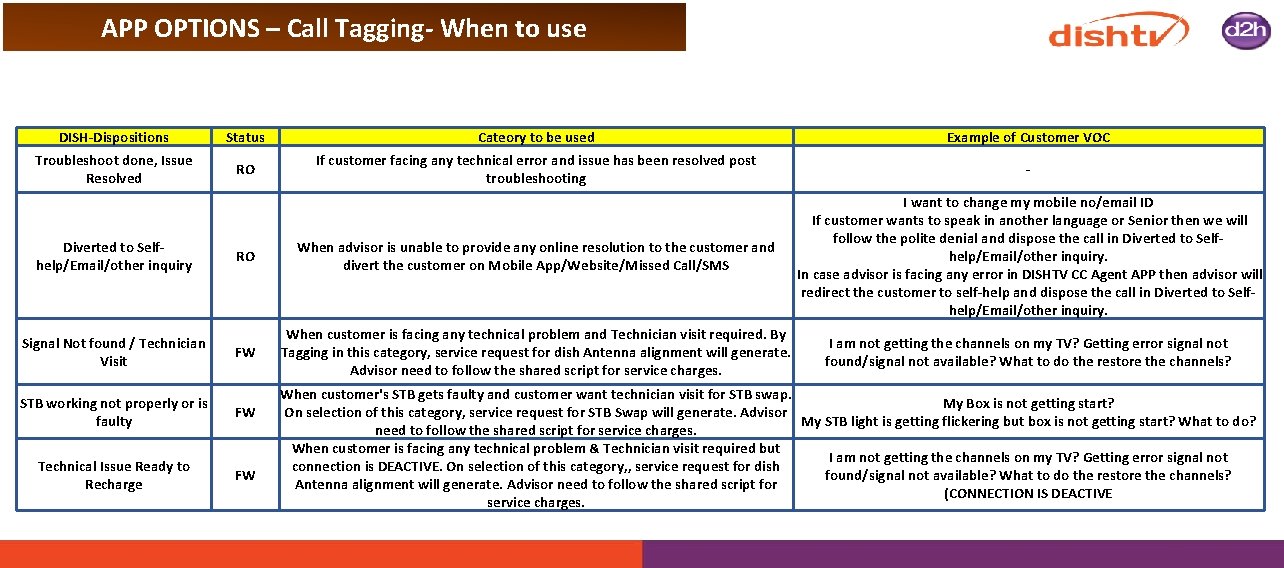
APP OPTIONS – Call Tagging- When to use DISH-Dispositions Status Cateory to be used Example of Customer VOC Troubleshoot done, Issue Resolved RO If customer facing any technical error and issue has been resolved post troubleshooting - RO When advisor is unable to provide any online resolution to the customer and divert the customer on Mobile App/Website/Missed Call/SMS I want to change my mobile no/email ID If customer wants to speak in another language or Senior then we will follow the polite denial and dispose the call in Diverted to Selfhelp/Email/other inquiry. In case advisor is facing any error in DISHTV CC Agent APP then advisor will redirect the customer to self-help and dispose the call in Diverted to Selfhelp/Email/other inquiry. FW When customer is facing any technical problem and Technician visit required. By Tagging in this category, service request for dish Antenna alignment will generate. Advisor need to follow the shared script for service charges. Diverted to Selfhelp/Email/other inquiry Signal Not found / Technician Visit STB working not properly or is faulty FW Technical Issue Ready to Recharge FW I am not getting the channels on my TV? Getting error signal not found/signal not available? What to do the restore the channels? When customer's STB gets faulty and customer want technician visit for STB swap. My Box is not getting start? On selection of this category, service request for STB Swap will generate. Advisor My STB light is getting flickering but box is not getting start? What to do? need to follow the shared script for service charges. When customer is facing any technical problem & Technician visit required but I am not getting the channels on my TV? Getting error signal not connection is DEACTIVE. On selection of this category, , service request for dish found/signal not available? What to do the restore the channels? Antenna alignment will generate. Advisor need to follow the shared script for (CONNECTION IS DEACTIVE service charges.
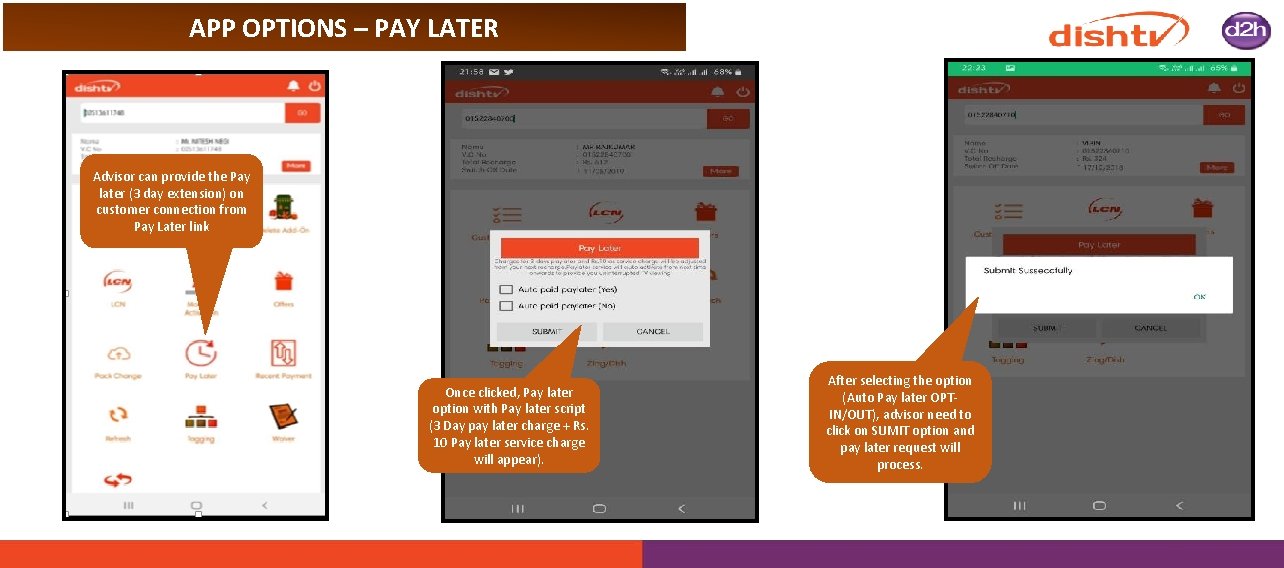
APP OPTIONS – PAY LATER Advisor can provide the Pay later (3 day extension) on customer connection from Pay Later link Once clicked, Pay later option with Pay later script (3 Day pay later charge + Rs. 10 Pay later service charge will appear). After selecting the option (Auto Pay later OPTIN/OUT), advisor need to click on SUMIT option and pay later request will process.
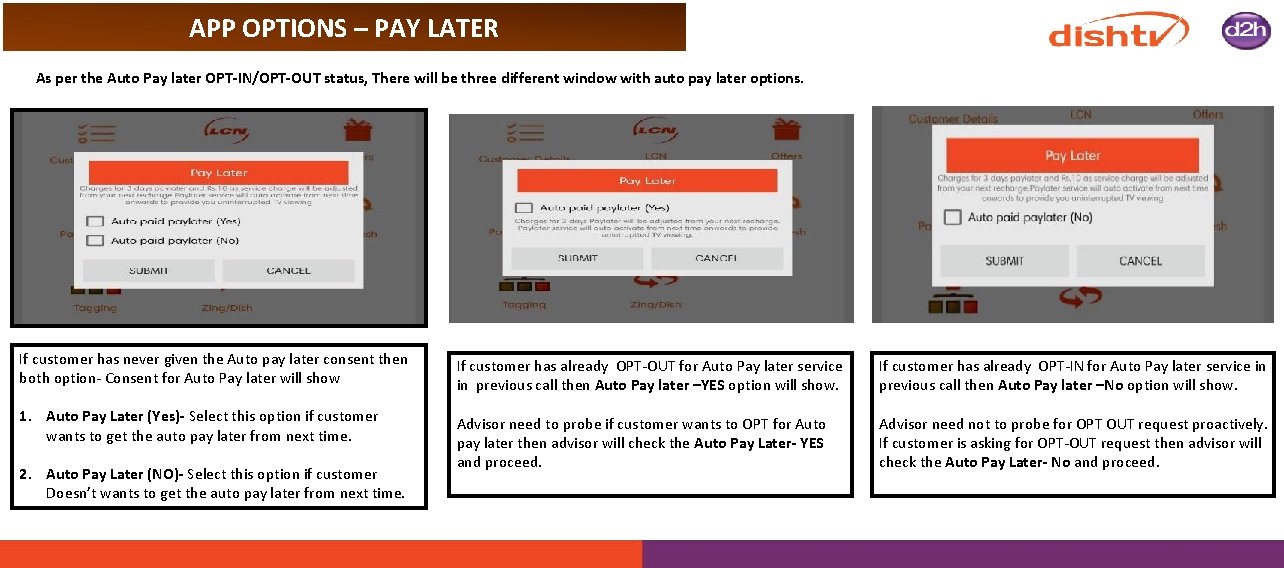
APP OPTIONS – PAY LATER As per the Auto Pay later OPT-IN/OPT-OUT status, There will be three different window with auto pay later options. If customer has never given the Auto pay later consent then both option- Consent for Auto Pay later will show If customer has already OPT-OUT for Auto Pay later service in previous call then Auto Pay later –YES option will show. If customer has already OPT-IN for Auto Pay later service in previous call then Auto Pay later –No option will show. 1. Auto Pay Later (Yes)- Select this option if customer wants to get the auto pay later from next time. Advisor need to probe if customer wants to OPT for Auto pay later then advisor will check the Auto Pay Later- YES and proceed. Advisor need not to probe for OPT OUT request proactively. If customer is asking for OPT-OUT request then advisor will check the Auto Pay Later- No and proceed. 2. Auto Pay Later (NO)- Select this option if customer Doesn’t wants to get the auto pay later from next time.
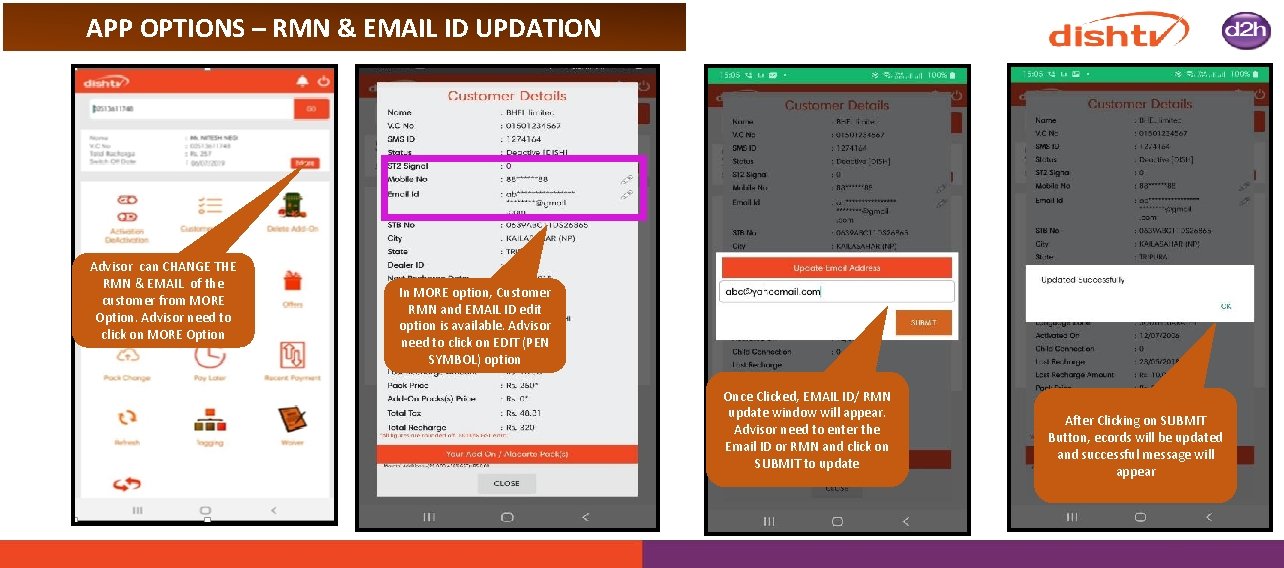
APP OPTIONS – RMN & EMAIL ID UPDATION Advisor can CHANGE THE RMN & EMAIL of the customer from MORE Option. Advisor need to click on MORE Option In MORE option, Customer RMN and EMAIL ID edit option is available. Advisor need to click on EDIT (PEN SYMBOL) option Once Clicked, EMAIL ID/ RMN update window will appear. Advisor need to enter the Email ID or RMN and click on SUBMIT to update After Clicking on SUBMIT Button, ecords will be updated and successful message will appear
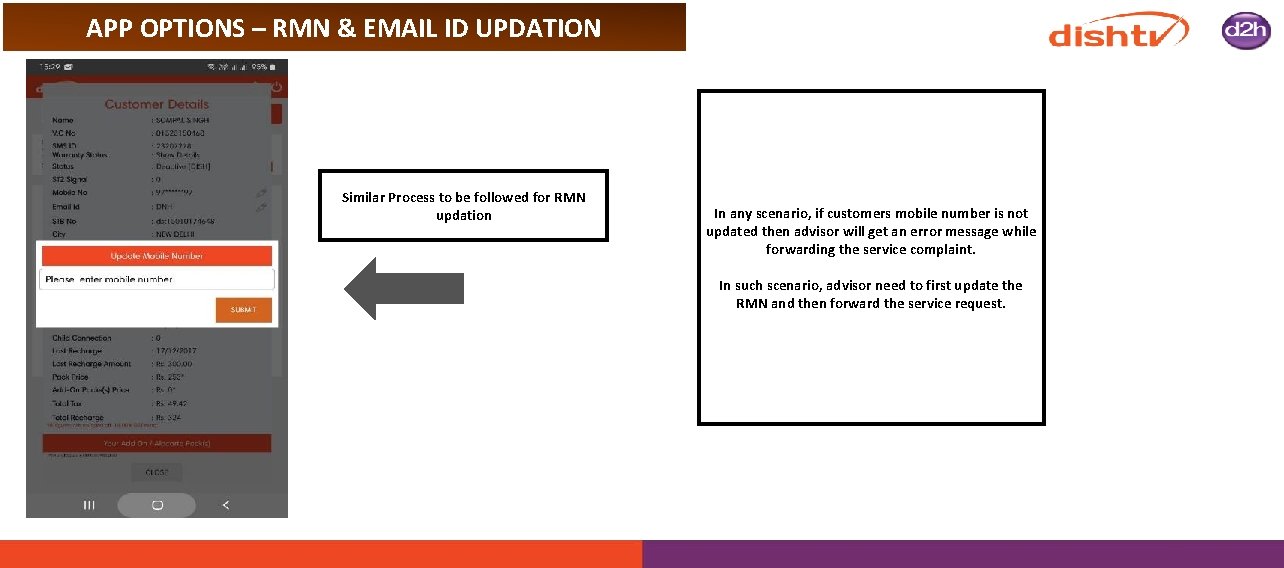
APP OPTIONS – RMN & EMAIL ID UPDATION Similar Process to be followed for RMN updation In any scenario, if customers mobile number is not updated then advisor will get an error message while forwarding the service complaint. In such scenario, advisor need to first update the RMN and then forward the service request.
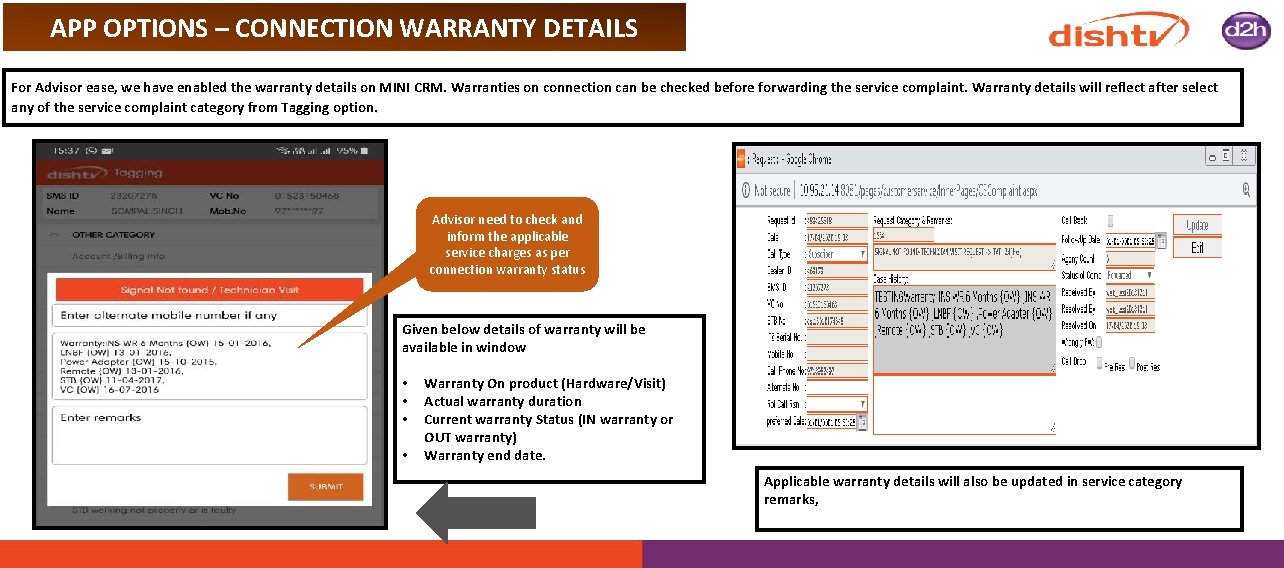
APP OPTIONS – CONNECTION WARRANTY DETAILS For Advisor ease, we have enabled the warranty details on MINI CRM. Warranties on connection can be checked before forwarding the service complaint. Warranty details will reflect after select any of the service complaint category from Tagging option. Advisor need to check and inform the applicable service charges as per connection warranty status Given below details of warranty will be available in window • • Warranty On product (Hardware/Visit) Actual warranty duration Current warranty Status (IN warranty or OUT warranty) Warranty end date. Applicable warranty details will also be updated in service category remarks,
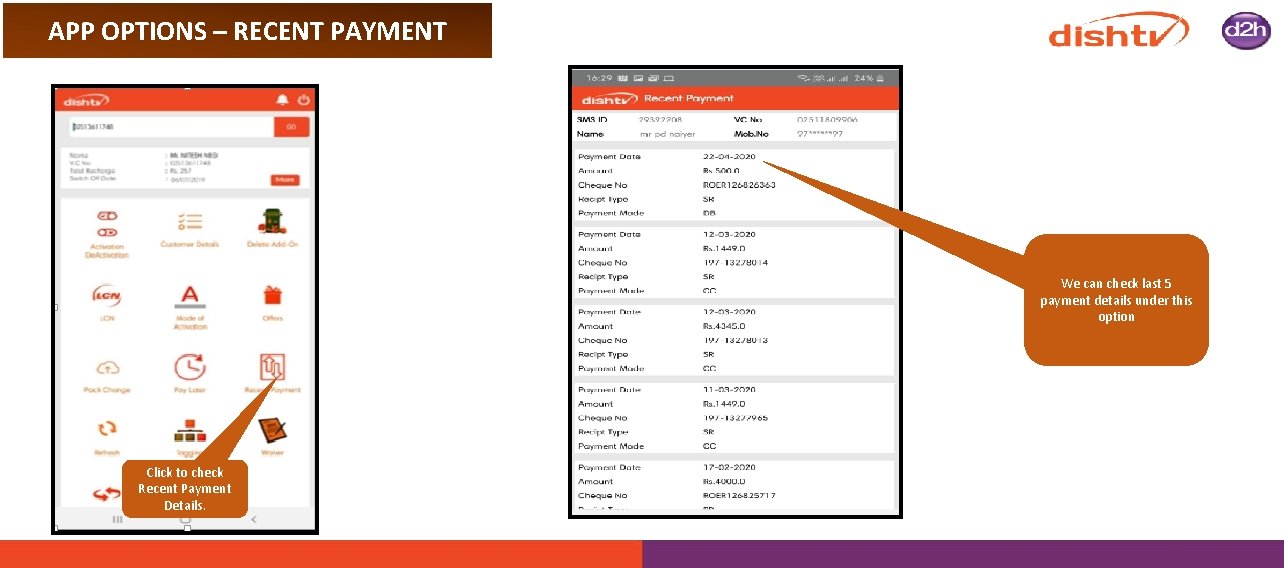
APP OPTIONS – RECENT PAYMENT We can check last 5 payment details under this option Click to check Recent Payment Details.
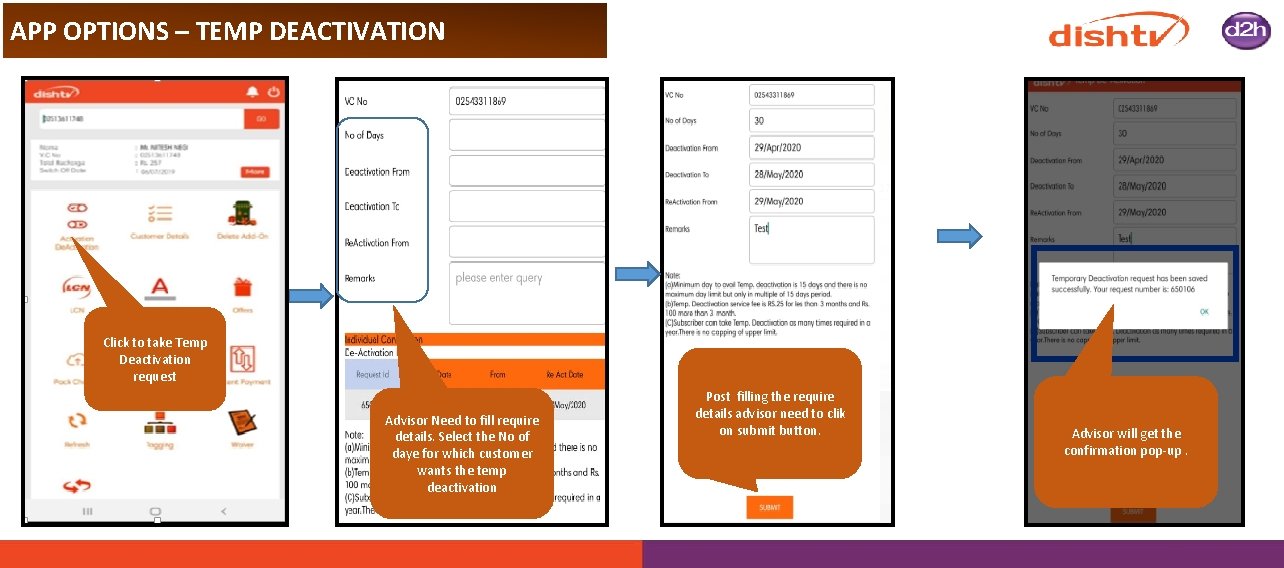
APP OPTIONS – TEMP DEACTIVATION Click to take Temp Deactivation request Advisor Need to fill require details. Select the No of daye for which customer wants the temp deactivation Post filling the require details advisor need to clik on submit button. Advisor will get the confirmation pop-up.
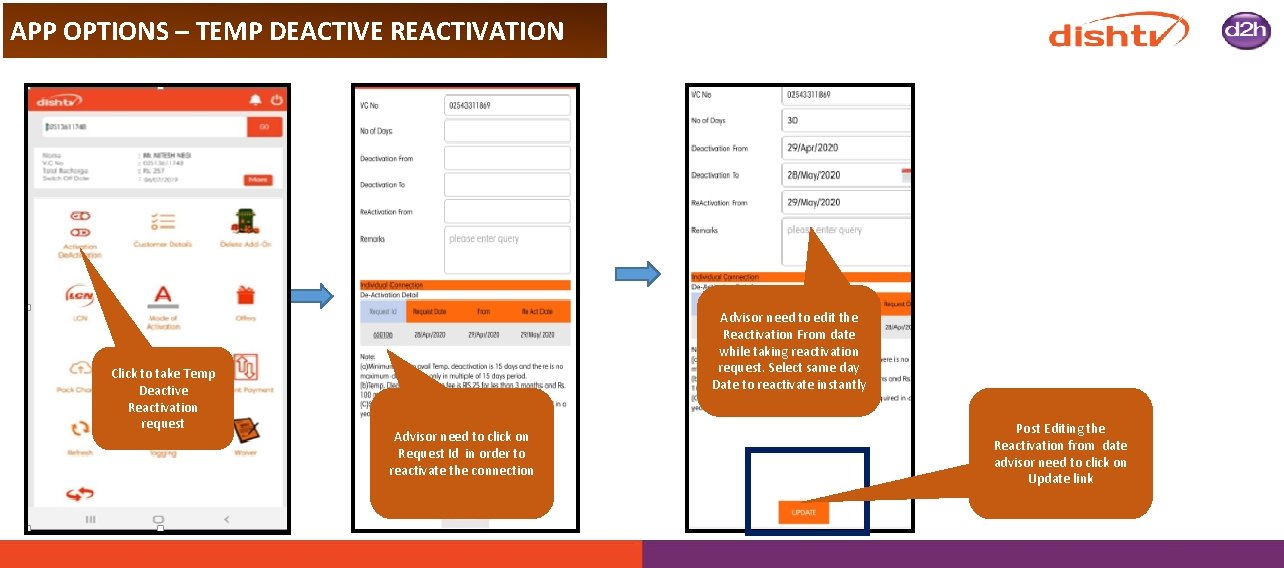
APP OPTIONS – TEMP DEACTIVE REACTIVATION Click to take Temp Deactive Reactivation request Advisor need to edit the Reactivation From date while taking reactivation request. Select same day Date to reactivate instantly Advisor need to click on Request Id in order to reactivate the connection Post Editing the Reactivation from date advisor need to click on Update link
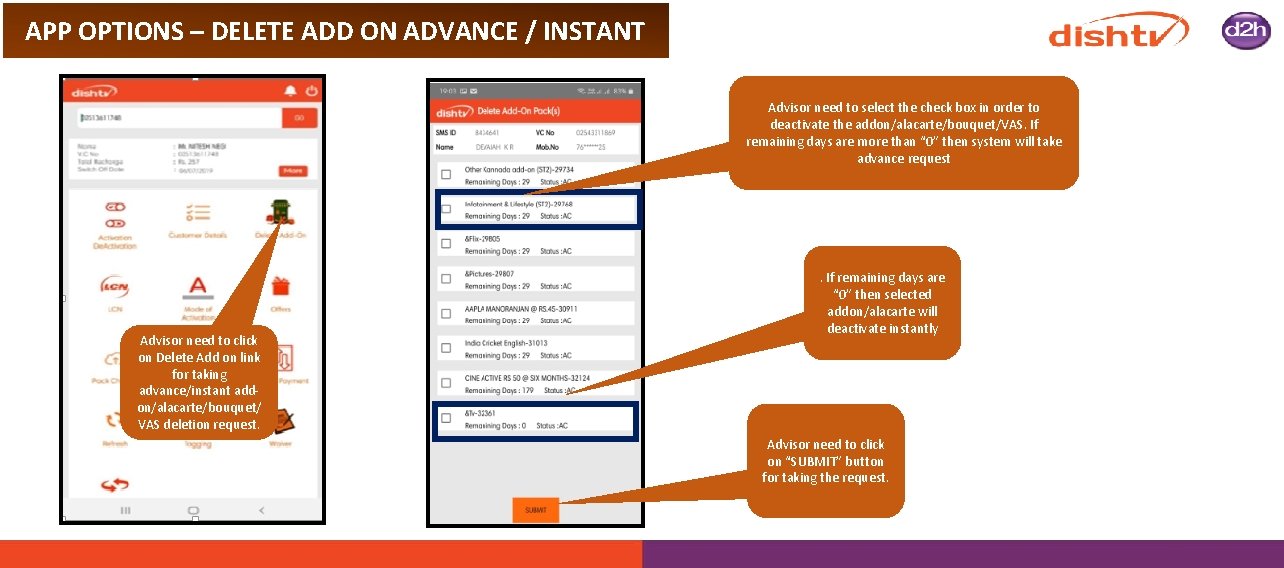
APP OPTIONS – DELETE ADD ON ADVANCE / INSTANT Advisor need to select the check box in order to deactivate the addon/alacarte/bouquet/VAS. If remaining days are more than “ 0” then system will take advance request Advisor need to click on Delete Add on link for taking advance/instant addon/alacarte/bouquet/ VAS deletion request. . If remaining days are “ 0” then selected addon/alacarte will deactivate instantly Advisor need to click on “SUBMIT” button for taking the request.
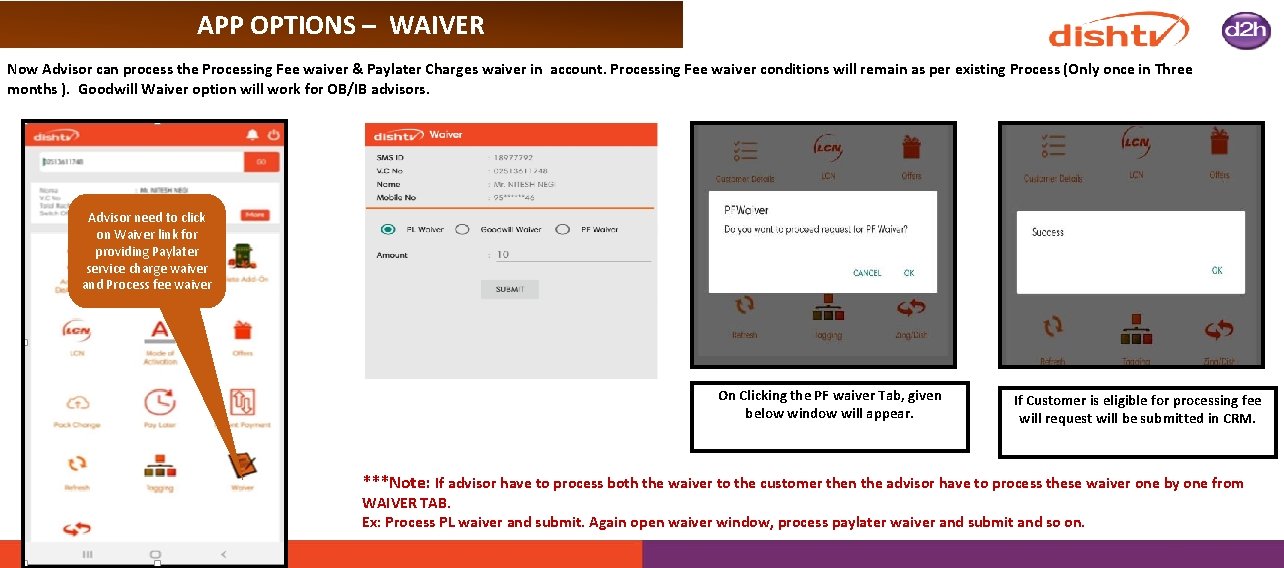
APP OPTIONS – WAIVER Now Advisor can process the Processing Fee waiver & Paylater Charges waiver in account. Processing Fee waiver conditions will remain as per existing Process (Only once in Three months ). Goodwill Waiver option will work for OB/IB advisors. Advisor need to click on Waiver link for providing Paylater service charge waiver and Process fee waiver On Clicking the PF waiver Tab, given below window will appear. If Customer is eligible for processing fee will request will be submitted in CRM. ***Note: If advisor have to process both the waiver to the customer then the advisor have to process these waiver one by one from WAIVER TAB. Ex: Process PL waiver and submit. Again open waiver window, process paylater waiver and submit and so on.
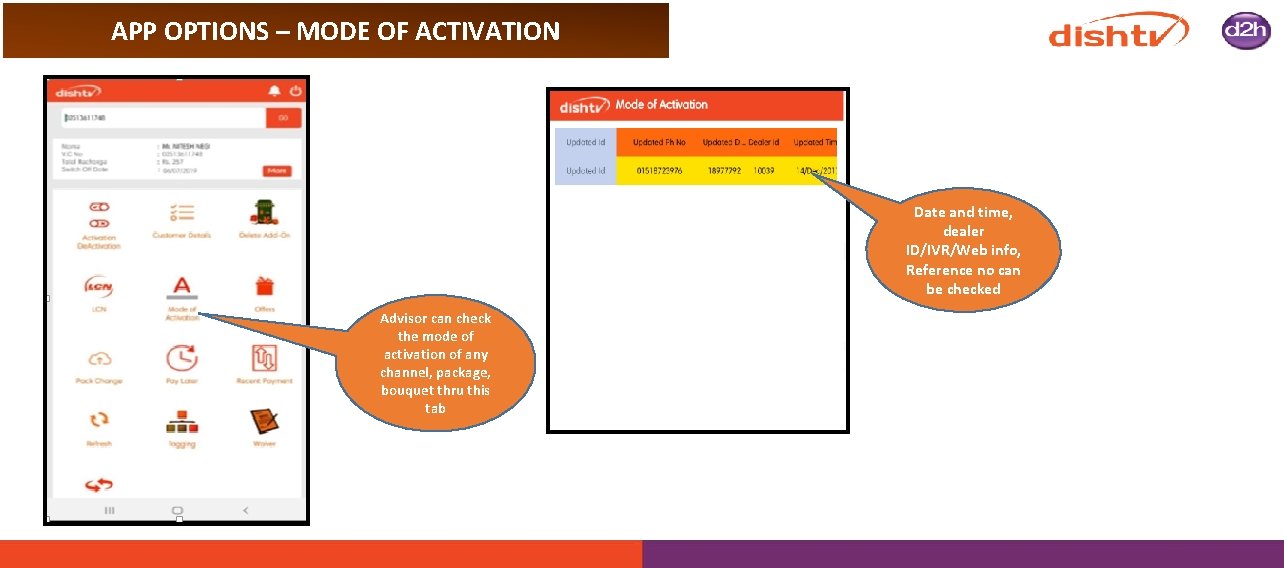
APP OPTIONS – MODE OF ACTIVATION Date and time, dealer ID/IVR/Web info, Reference no can be checked Advisor can check the mode of activation of any channel, package, bouquet thru this tab
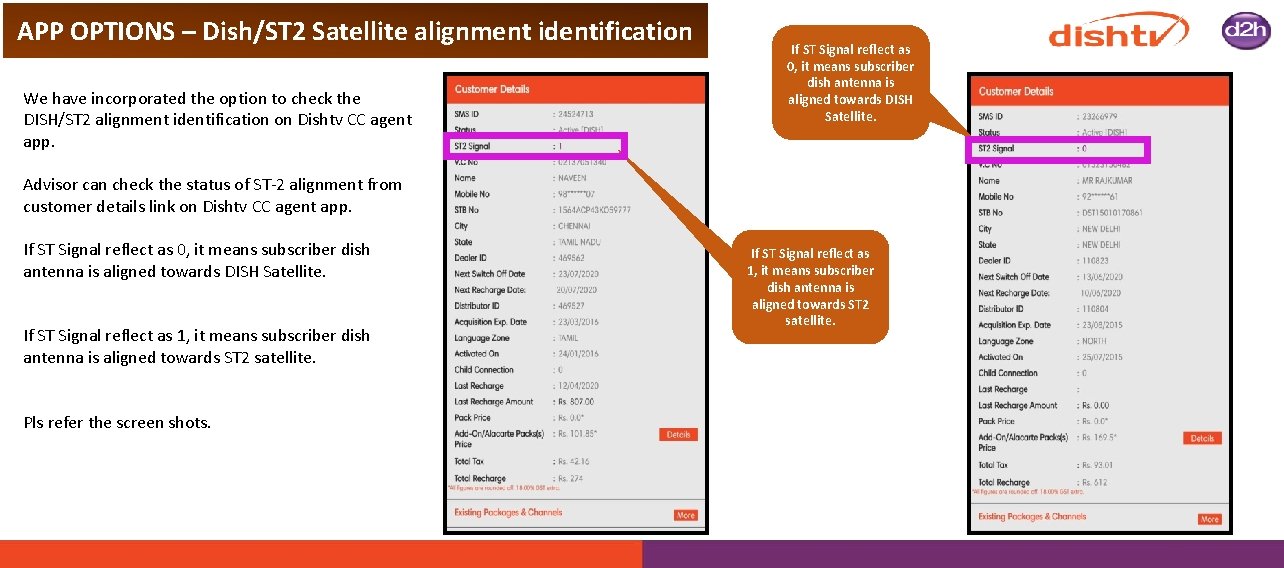
APP OPTIONS – Dish/ST 2 Satellite alignment identification We have incorporated the option to check the DISH/ST 2 alignment identification on Dishtv CC agent app. If ST Signal reflect as 0, it means subscriber dish antenna is aligned towards DISH Satellite. Advisor can check the status of ST-2 alignment from customer details link on Dishtv CC agent app. If ST Signal reflect as 0, it means subscriber dish antenna is aligned towards DISH Satellite. If ST Signal reflect as 1, it means subscriber dish antenna is aligned towards ST 2 satellite. Pls refer the screen shots. If ST Signal reflect as 1, it means subscriber dish antenna is aligned towards ST 2 satellite.
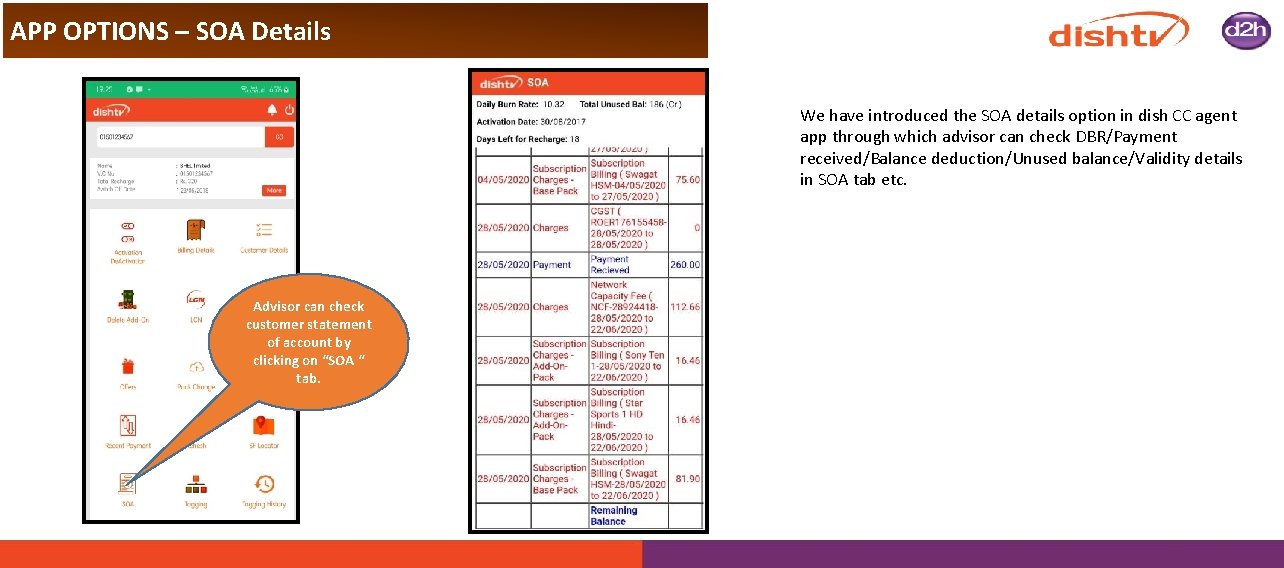
APP OPTIONS – SOA Details We have introduced the SOA details option in dish CC agent app through which advisor can check DBR/Payment received/Balance deduction/Unused balance/Validity details in SOA tab etc. Advisor can check customer statement of account by clicking on “SOA “ tab.
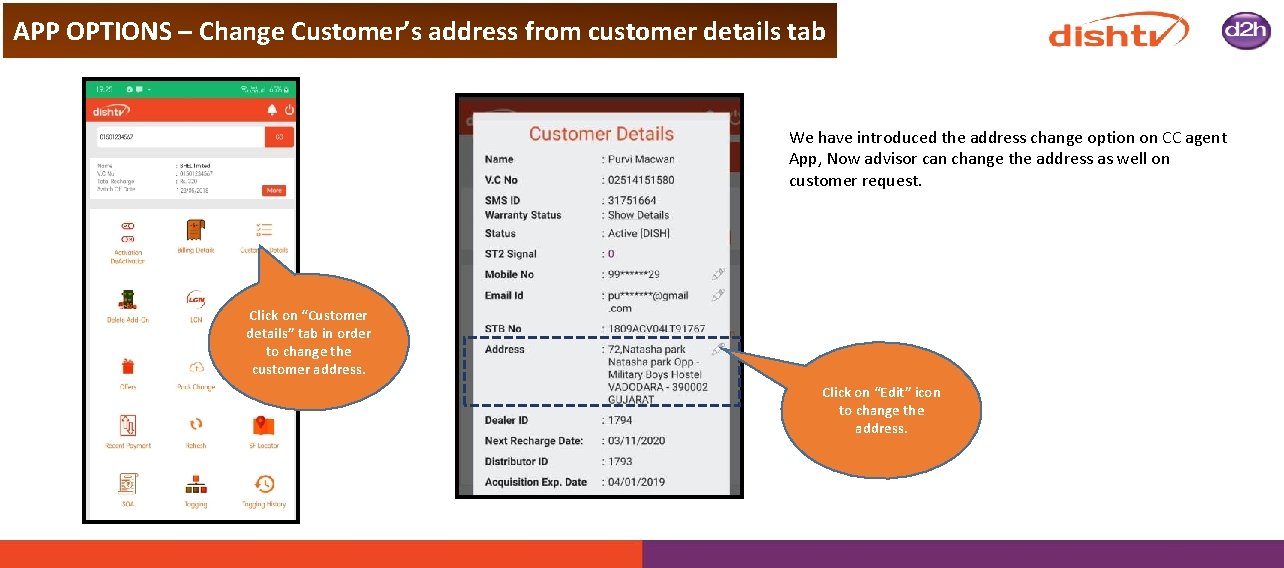
APP OPTIONS – Change Customer’s address from customer details tab We have introduced the address change option on CC agent App, Now advisor can change the address as well on customer request. Click on “Customer details” tab in order to change the customer address. Click on “Edit” icon to change the address.
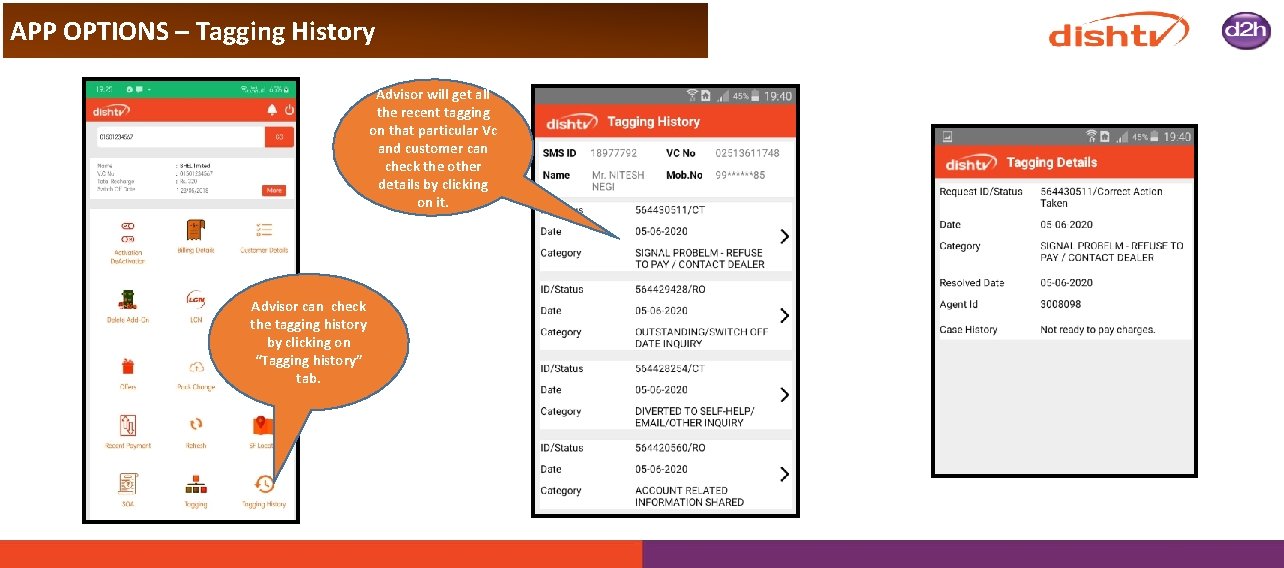
APP OPTIONS – Tagging History Advisor will get all the recent tagging on that particular Vc and customer can check the other details by clicking on it. Advisor can check the tagging history by clicking on “Tagging history” tab.
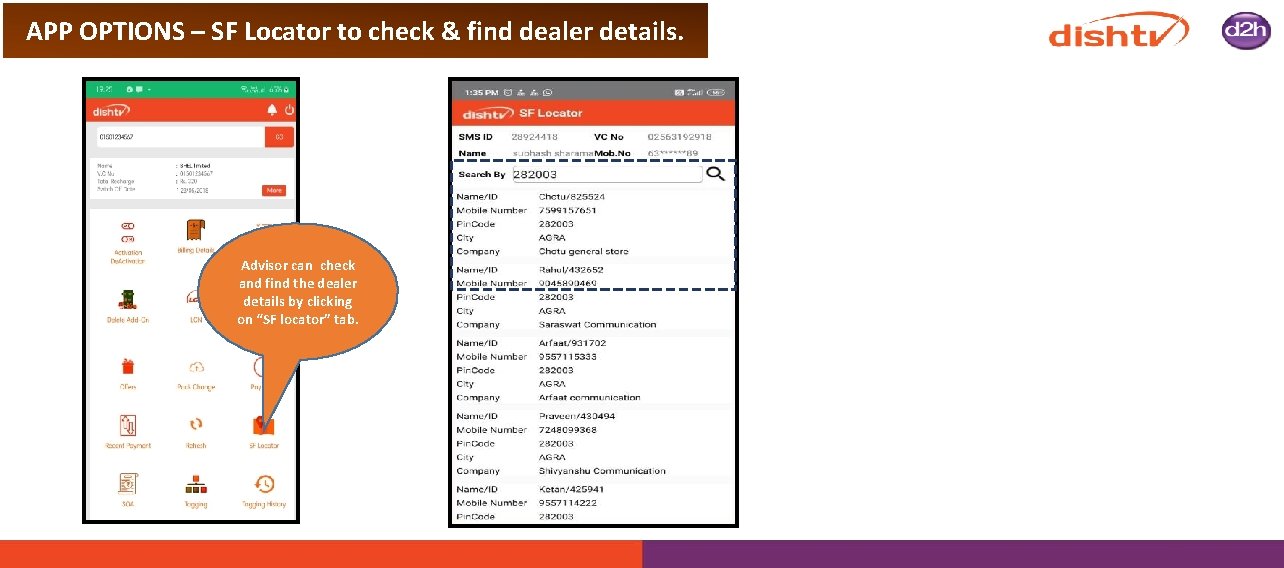
APP OPTIONS – SF Locator to check & find dealer details. Advisor can check and find the dealer details by clicking on “SF locator” tab.
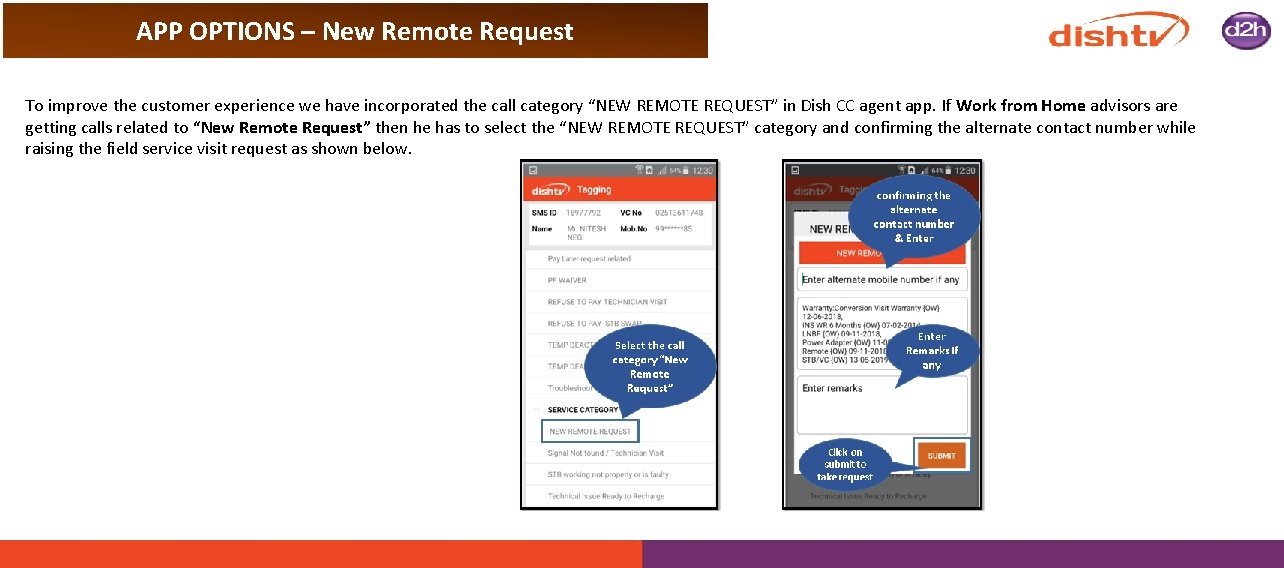
APP OPTIONS – New Remote Request To improve the customer experience we have incorporated the call category “NEW REMOTE REQUEST” in Dish CC agent app. If Work from Home advisors are getting calls related to “New Remote Request” then he has to select the “NEW REMOTE REQUEST” category and confirming the alternate contact number while raising the field service visit request as shown below.
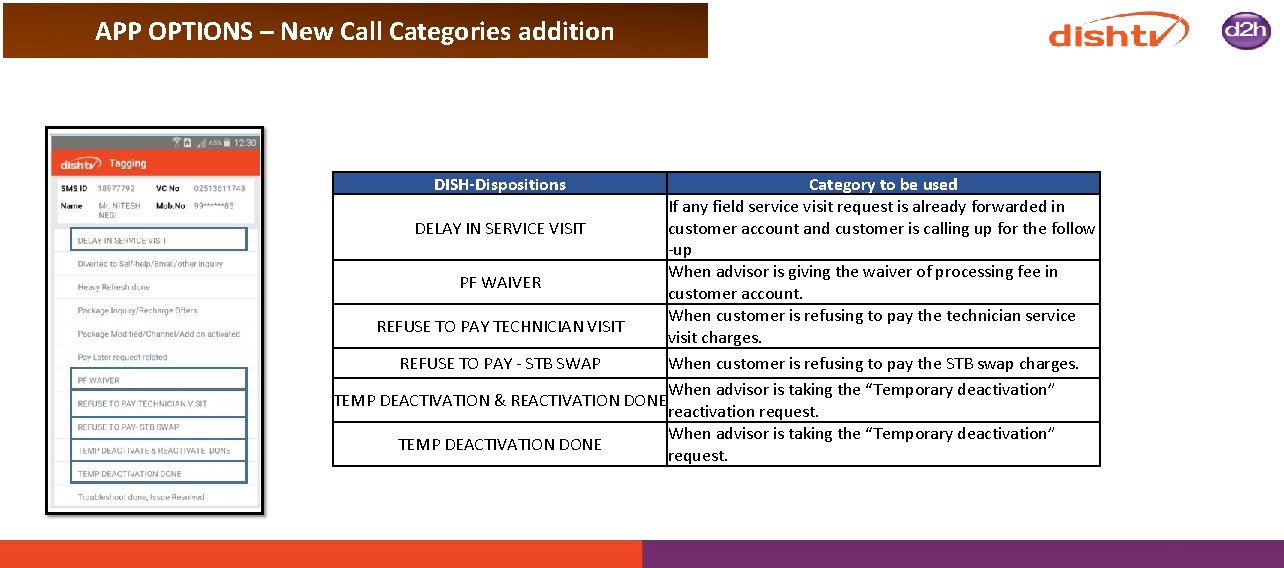
APP OPTIONS – New Call Categories addition DISH-Dispositions Category to be used If any field service visit request is already forwarded in DELAY IN SERVICE VISIT customer account and customer is calling up for the follow -up When advisor is giving the waiver of processing fee in PF WAIVER customer account. When customer is refusing to pay the technician service REFUSE TO PAY TECHNICIAN VISIT visit charges. REFUSE TO PAY - STB SWAP When customer is refusing to pay the STB swap charges. When advisor is taking the “Temporary deactivation” TEMP DEACTIVATION & REACTIVATION DONE reactivation request. When advisor is taking the “Temporary deactivation” TEMP DEACTIVATION DONE request.
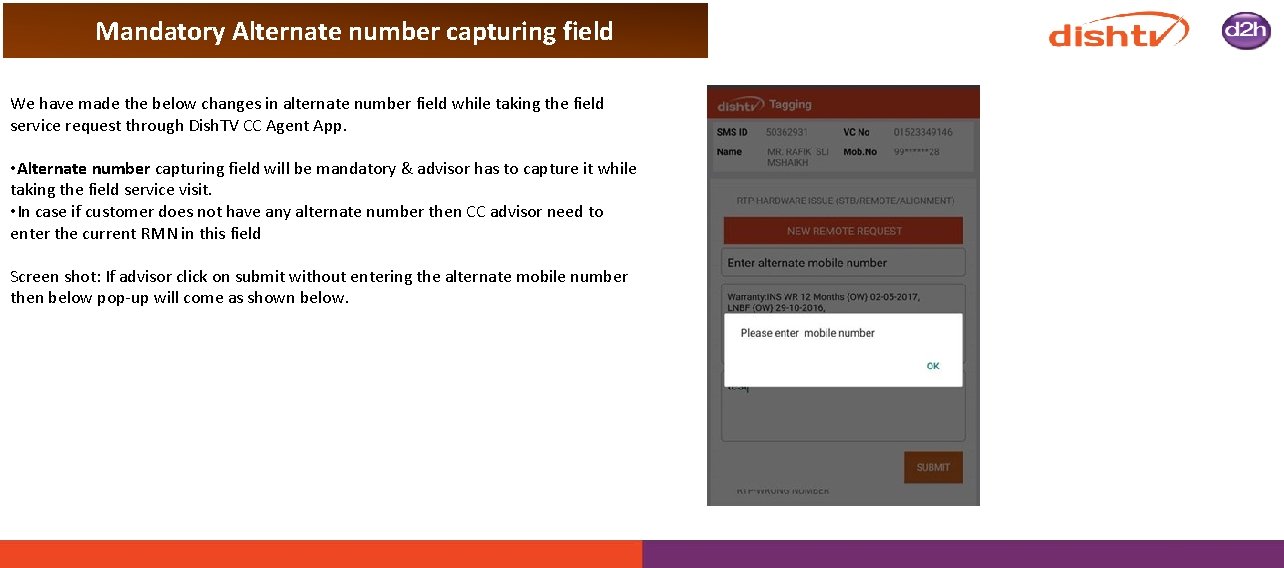
Mandatory Alternate number capturing field We have made the below changes in alternate number field while taking the field service request through Dish. TV CC Agent App. • Alternate number capturing field will be mandatory & advisor has to capture it while taking the field service visit. • In case if customer does not have any alternate number then CC advisor need to enter the current RMN in this field Screen shot: If advisor click on submit without entering the alternate mobile number then below pop-up will come as shown below.
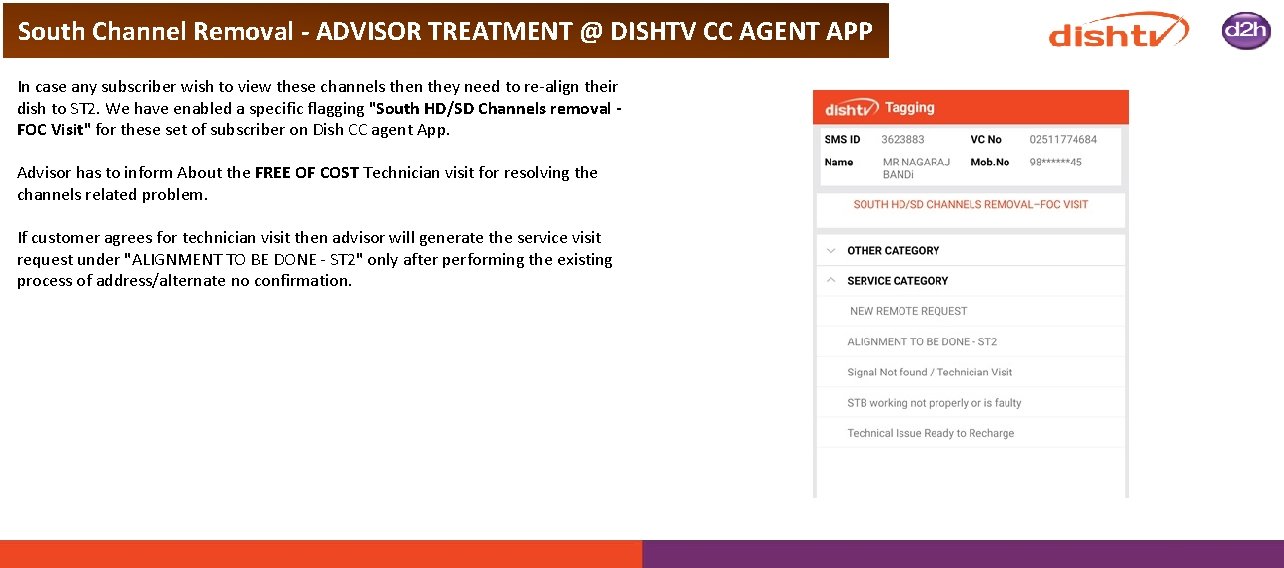
South Channel Removal - ADVISOR TREATMENT @ DISHTV CC AGENT APP In case any subscriber wish to view these channels then they need to re-align their dish to ST 2. We have enabled a specific flagging "South HD/SD Channels removal - FOC Visit" for these set of subscriber on Dish CC agent App. Advisor has to inform About the FREE OF COST Technician visit for resolving the channels related problem. If customer agrees for technician visit then advisor will generate the service visit request under "ALIGNMENT TO BE DONE - ST 2" only after performing the existing process of address/alternate no confirmation.
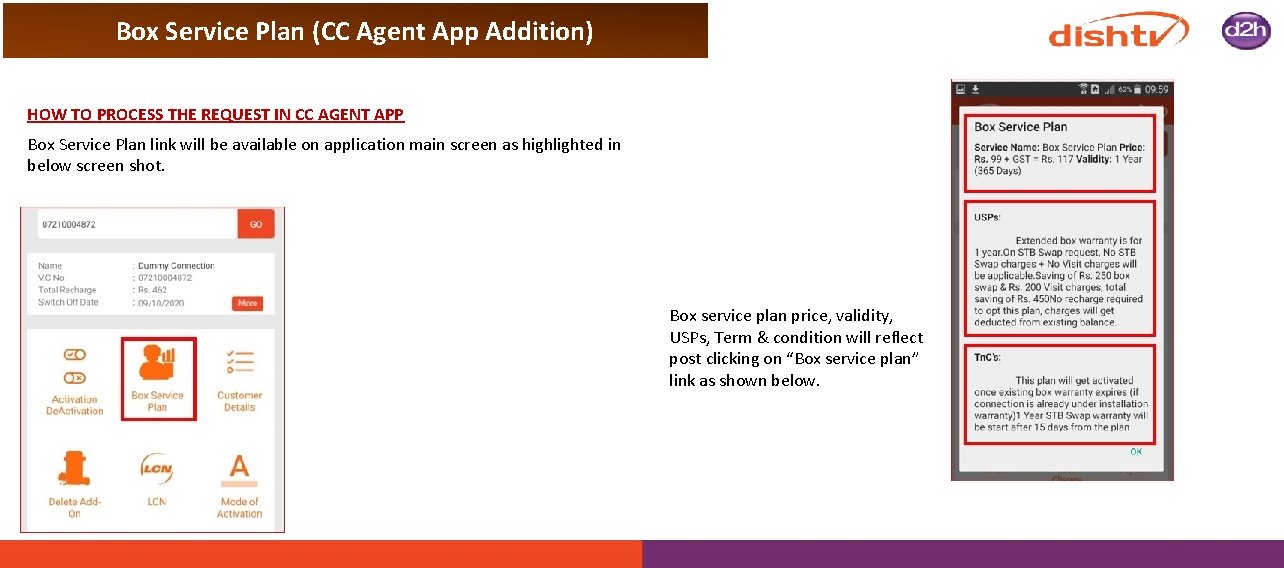
Box Service Plan (CC Agent App Addition) HOW TO PROCESS THE REQUEST IN CC AGENT APP Box Service Plan link will be available on application main screen as highlighted in below screen shot. Box service plan price, validity, USPs, Term & condition will reflect post clicking on “Box service plan” link as shown below.
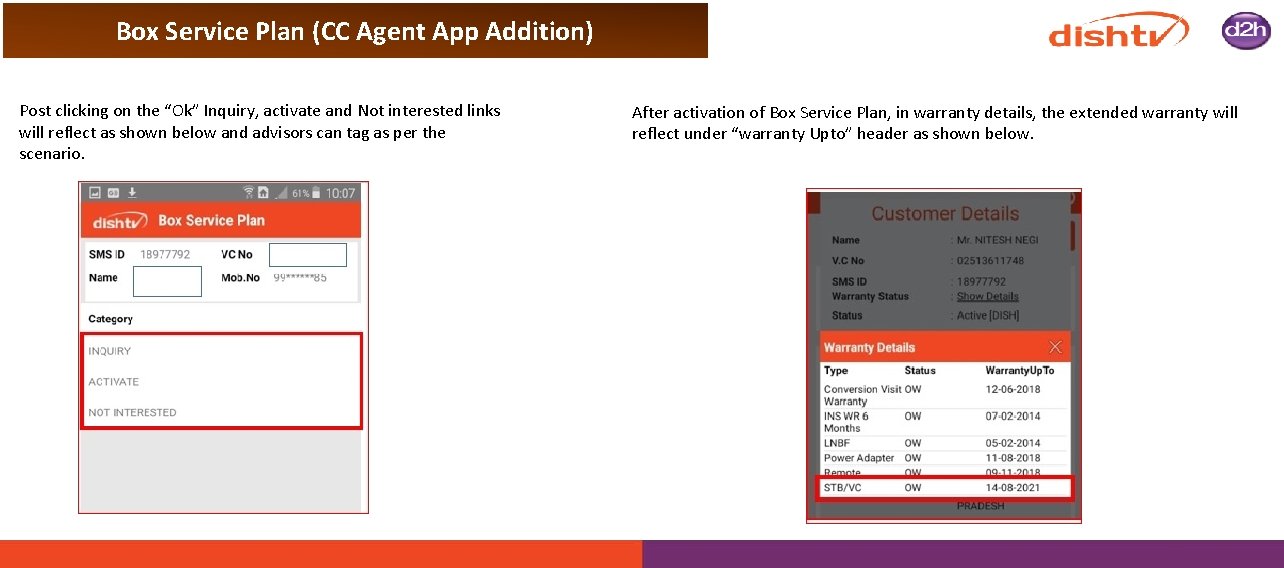
Box Service Plan (CC Agent App Addition) Post clicking on the “Ok” Inquiry, activate and Not interested links will reflect as shown below and advisors can tag as per the scenario. After activation of Box Service Plan, in warranty details, the extended warranty will reflect under “warranty Upto” header as shown below.
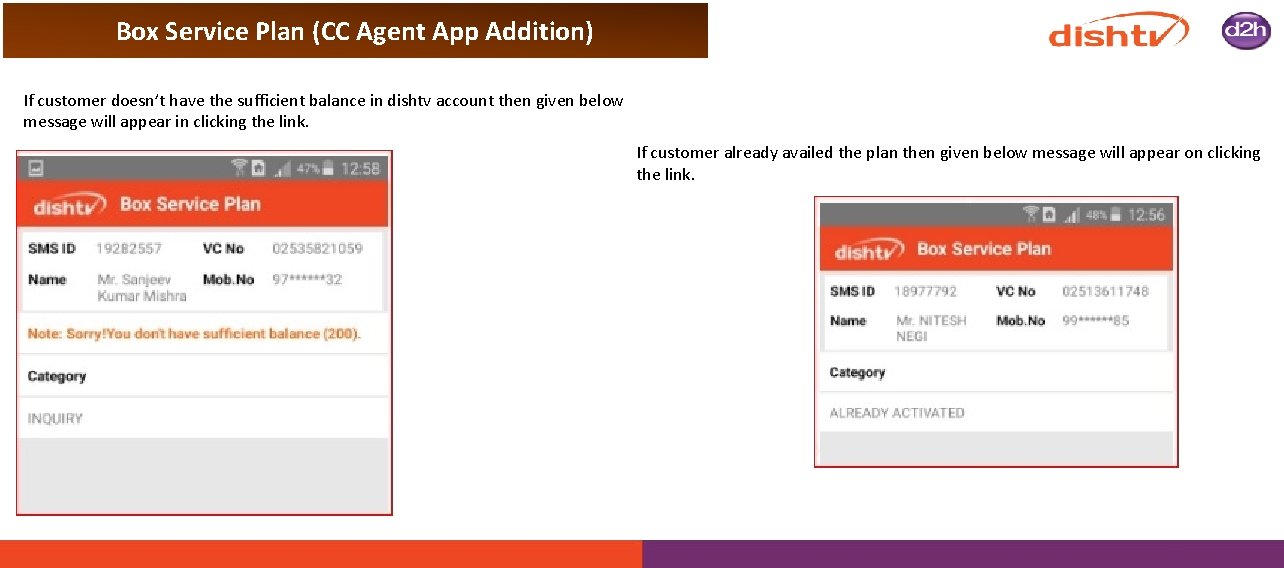
Box Service Plan (CC Agent App Addition) If customer doesn’t have the sufficient balance in dishtv account then given below message will appear in clicking the link. If customer already availed the plan then given below message will appear on clicking the link.
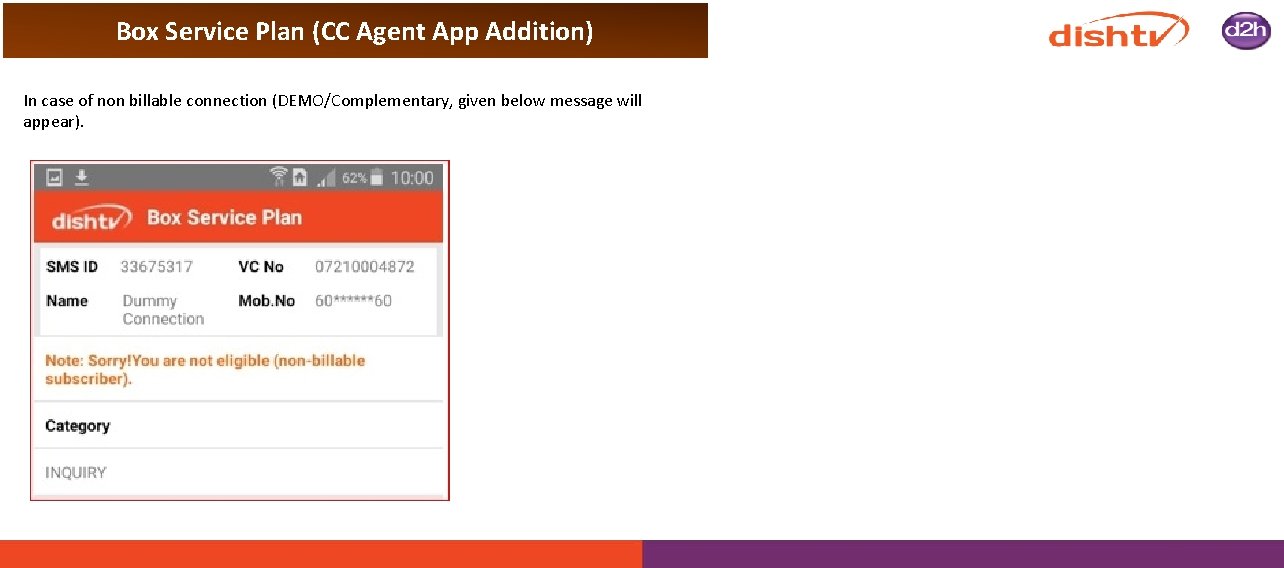
Box Service Plan (CC Agent App Addition) In case of non billable connection (DEMO/Complementary, given below message will appear).
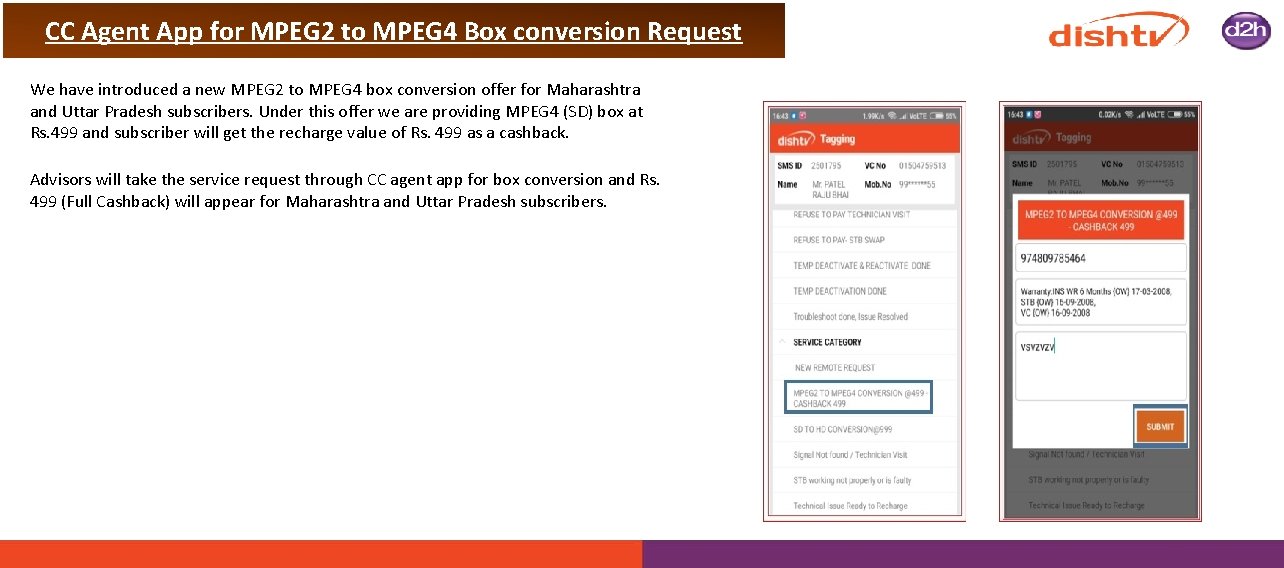
CC Agent App for MPEG 2 to MPEG 4 Box conversion Request We have introduced a new MPEG 2 to MPEG 4 box conversion offer for Maharashtra and Uttar Pradesh subscribers. Under this offer we are providing MPEG 4 (SD) box at Rs. 499 and subscriber will get the recharge value of Rs. 499 as a cashback. Advisors will take the service request through CC agent app for box conversion and Rs. 499 (Full Cashback) will appear for Maharashtra and Uttar Pradesh subscribers.
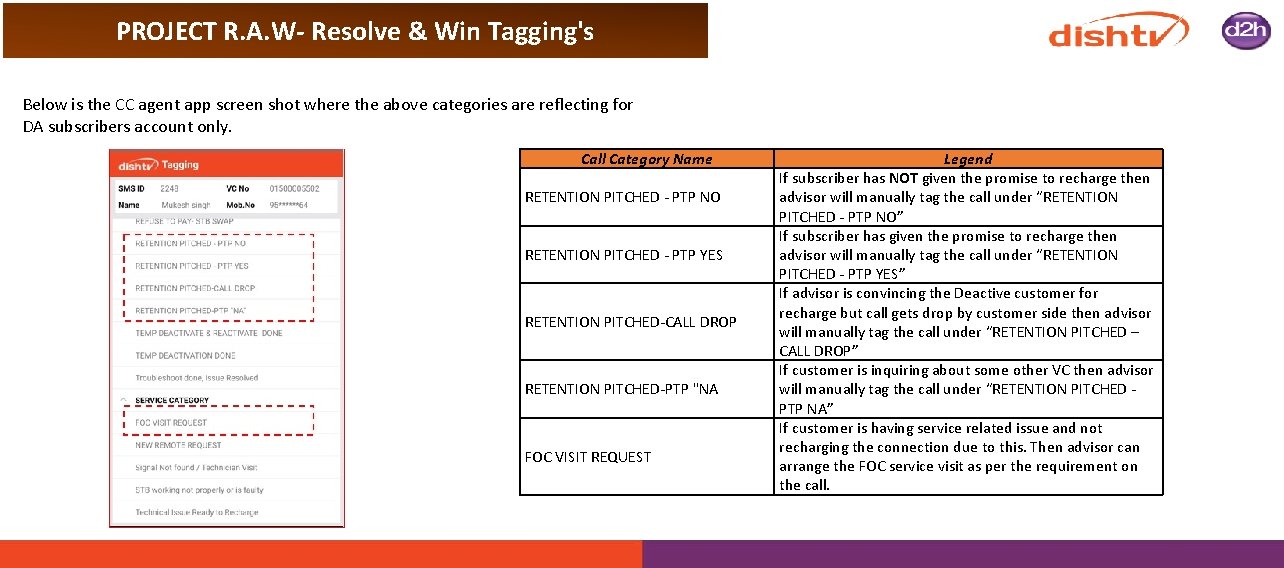
PROJECT R. A. W- Resolve & Win Tagging's Below is the CC agent app screen shot where the above categories are reflecting for DA subscribers account only. Call Category Name RETENTION PITCHED - PTP NO RETENTION PITCHED - PTP YES RETENTION PITCHED-CALL DROP RETENTION PITCHED-PTP "NA FOC VISIT REQUEST Legend If subscriber has NOT given the promise to recharge then advisor will manually tag the call under “RETENTION PITCHED - PTP NO” If subscriber has given the promise to recharge then advisor will manually tag the call under “RETENTION PITCHED - PTP YES” If advisor is convincing the Deactive customer for recharge but call gets drop by customer side then advisor will manually tag the call under “RETENTION PITCHED – CALL DROP” If customer is inquiring about some other VC then advisor will manually tag the call under “RETENTION PITCHED - PTP NA” If customer is having service related issue and not recharging the connection due to this. Then advisor can arrange the FOC service visit as per the requirement on the call.
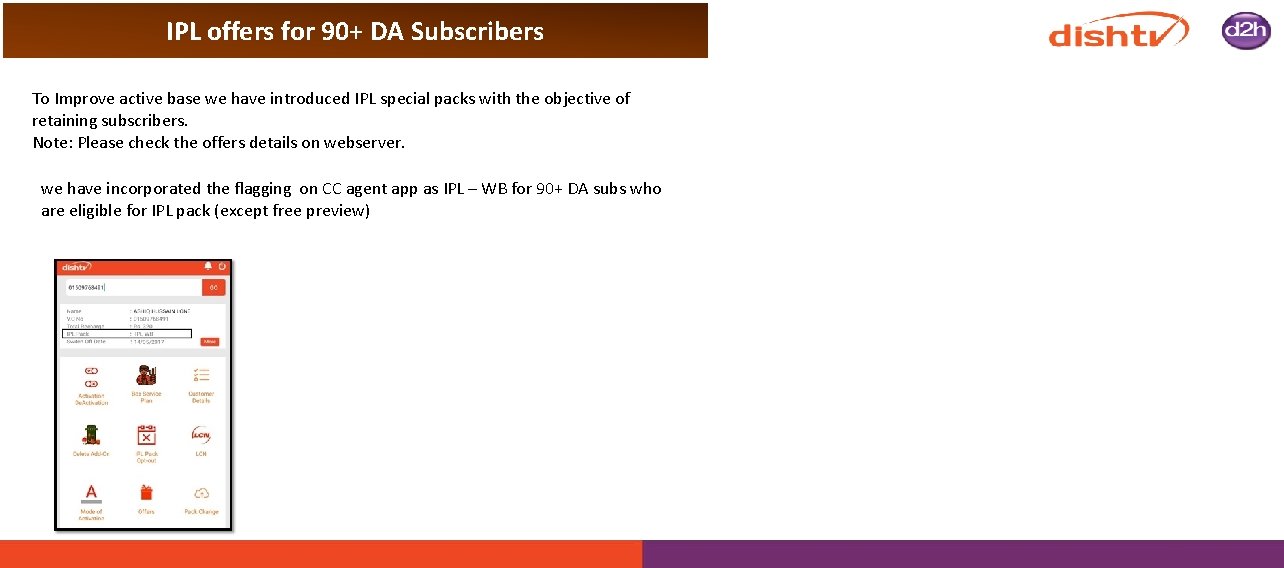
IPL offers for 90+ DA Subscribers To Improve active base we have introduced IPL special packs with the objective of retaining subscribers. Note: Please check the offers details on webserver. we have incorporated the flagging on CC agent app as IPL – WB for 90+ DA subs who are eligible for IPL pack (except free preview)
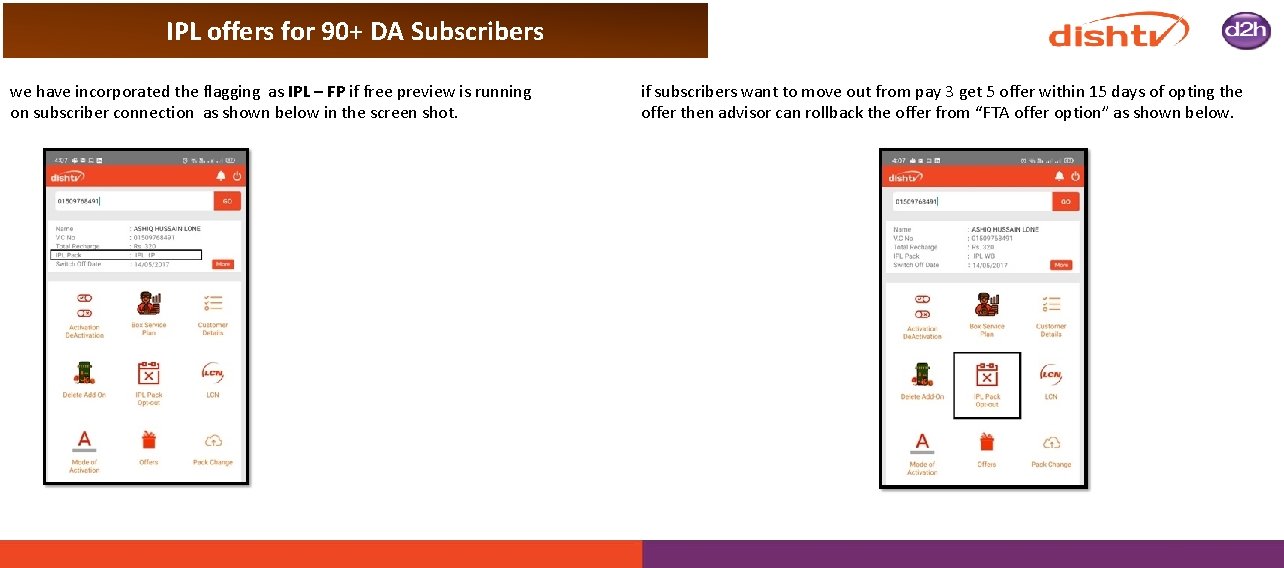
IPL offers for 90+ DA Subscribers we have incorporated the flagging as IPL – FP if free preview is running on subscriber connection as shown below in the screen shot. if subscribers want to move out from pay 3 get 5 offer within 15 days of opting the offer then advisor can rollback the offer from “FTA offer option” as shown below.
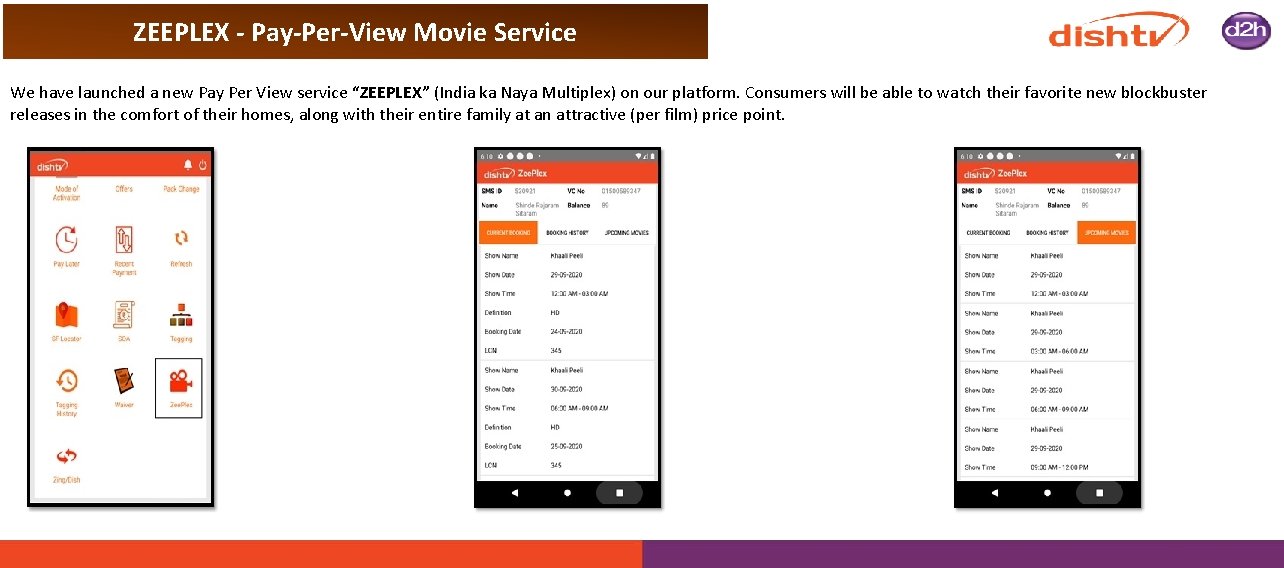
ZEEPLEX - Pay-Per-View Movie Service We have launched a new Pay Per View service “ZEEPLEX” (India ka Naya Multiplex) on our platform. Consumers will be able to watch their favorite new blockbuster releases in the comfort of their homes, along with their entire family at an attractive (per film) price point.
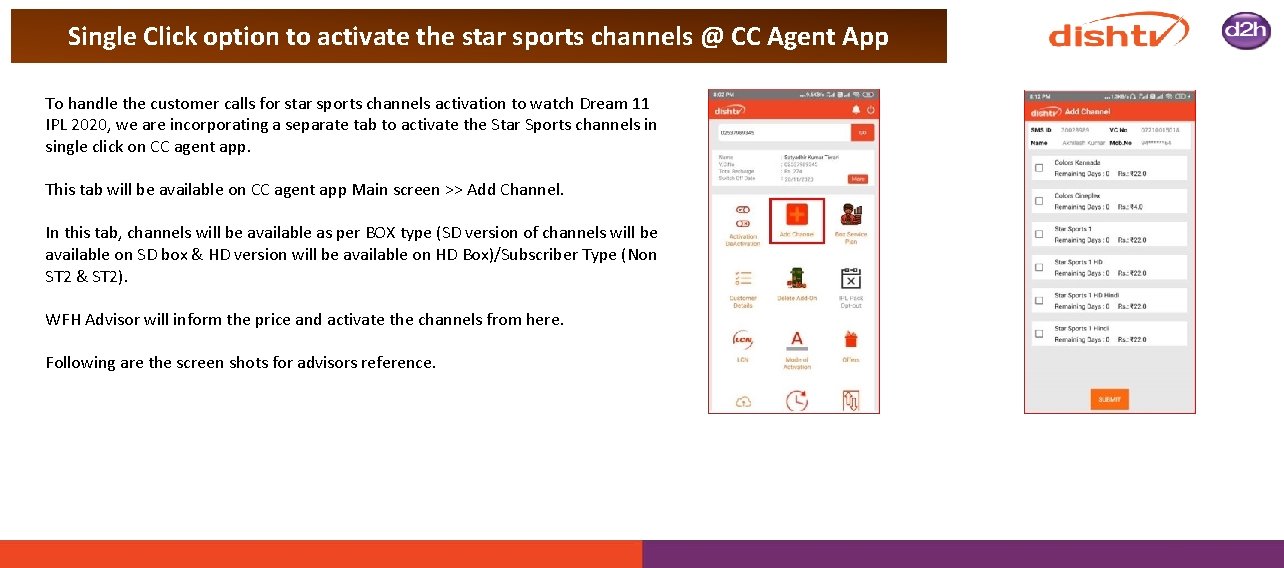
Single Click option to activate the star sports channels @ CC Agent App To handle the customer calls for star sports channels activation to watch Dream 11 IPL 2020, we are incorporating a separate tab to activate the Star Sports channels in single click on CC agent app. This tab will be available on CC agent app Main screen >> Add Channel. In this tab, channels will be available as per BOX type (SD version of channels will be available on SD box & HD version will be available on HD Box)/Subscriber Type (Non ST 2 & ST 2). WFH Advisor will inform the price and activate the channels from here. Following are the screen shots for advisors reference.
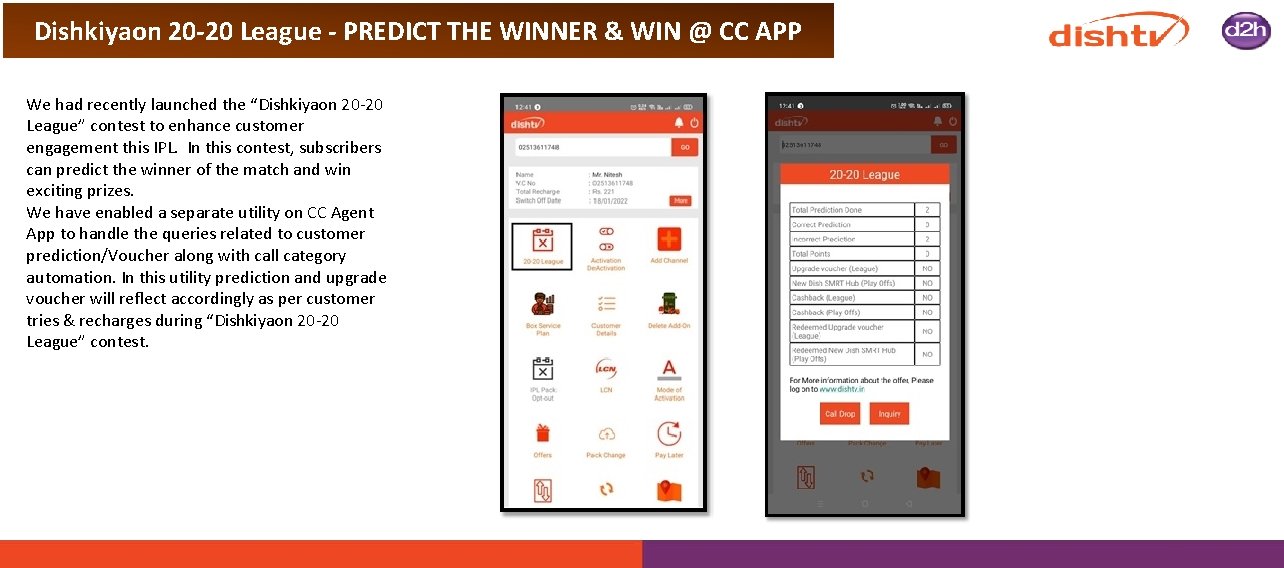
Dishkiyaon 20 -20 League - PREDICT THE WINNER & WIN @ CC APP We had recently launched the “Dishkiyaon 20 -20 League” contest to enhance customer engagement this IPL. In this contest, subscribers can predict the winner of the match and win exciting prizes. We have enabled a separate utility on CC Agent App to handle the queries related to customer prediction/Voucher along with call category automation. In this utility prediction and upgrade voucher will reflect accordingly as per customer tries & recharges during “Dishkiyaon 20 -20 League” contest.
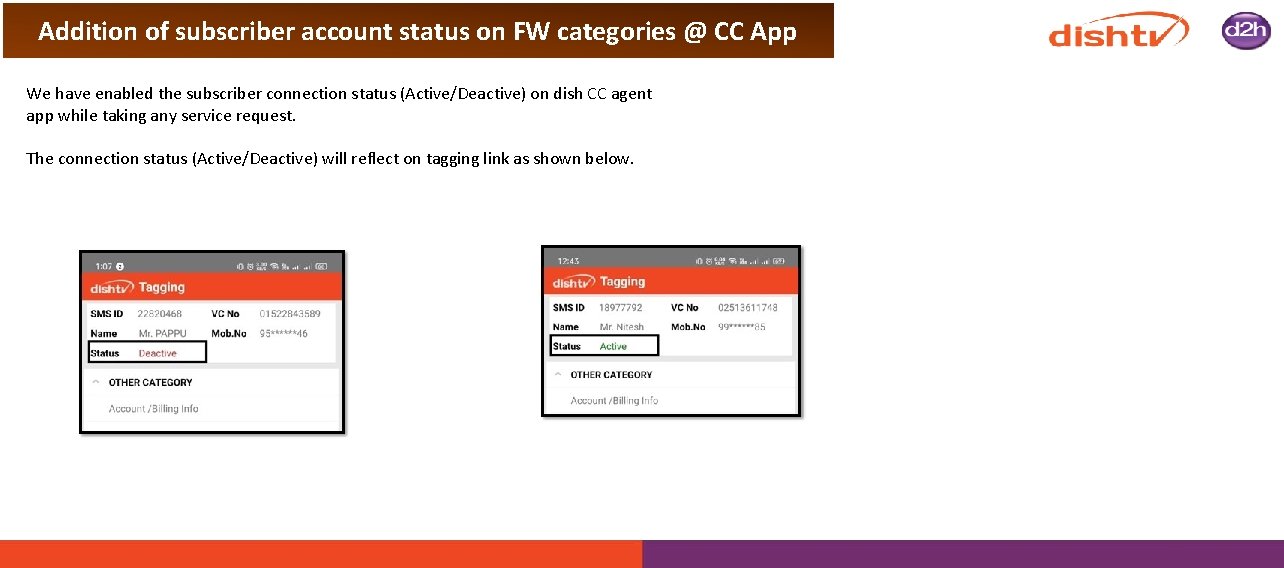
Addition of subscriber account status on FW categories @ CC App We have enabled the subscriber connection status (Active/Deactive) on dish CC agent app while taking any service request. The connection status (Active/Deactive) will reflect on tagging link as shown below.
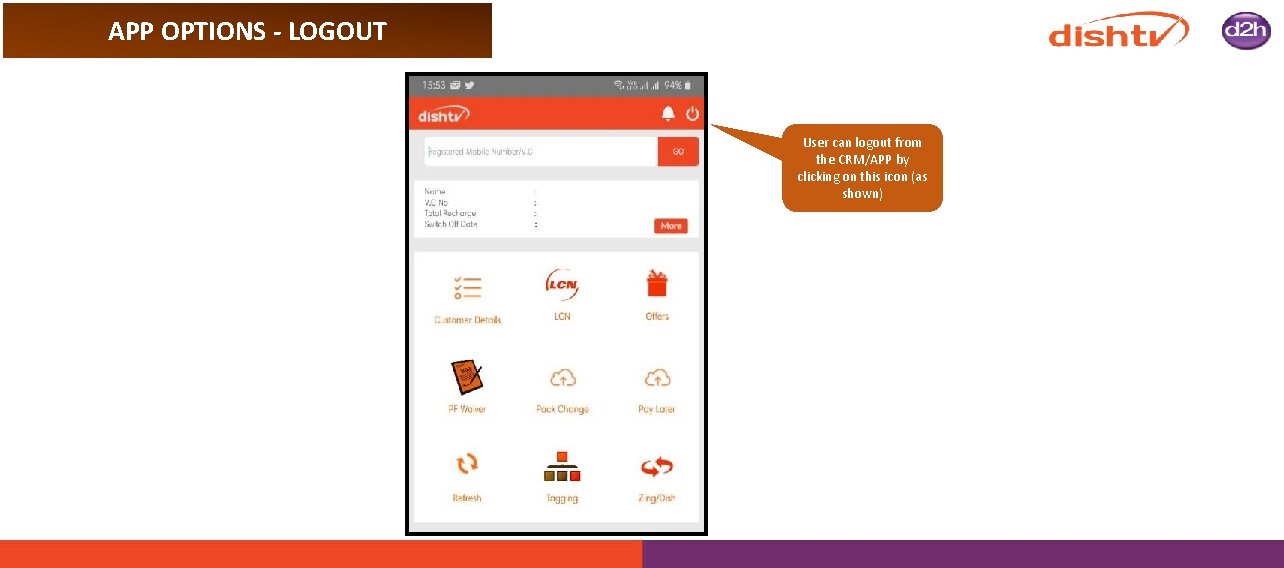
APP OPTIONS - LOGOUT User can logout from the CRM/APP by clicking on this icon (as shown)
- Slides: 57