
Mind mapping using Kumu https kumu io Kumu

- Slides: 9
Mind mapping using Kumu https: //kumu. io/
Kumu - advantages • Create maps by hand or import existing data • ‘Easy to learn’ • No downloads • Free access if ok to be in public domain • Create an account at https: //kumu. io/join • Works best on desktops/laptops rather than ipads etc
Kumu works with the latest versions of: • Chrome • Safari • Firefox • IE 11 • Microsoft Edge Kumu doesn't work with: • IE 10 and under • Other browsers not listed above
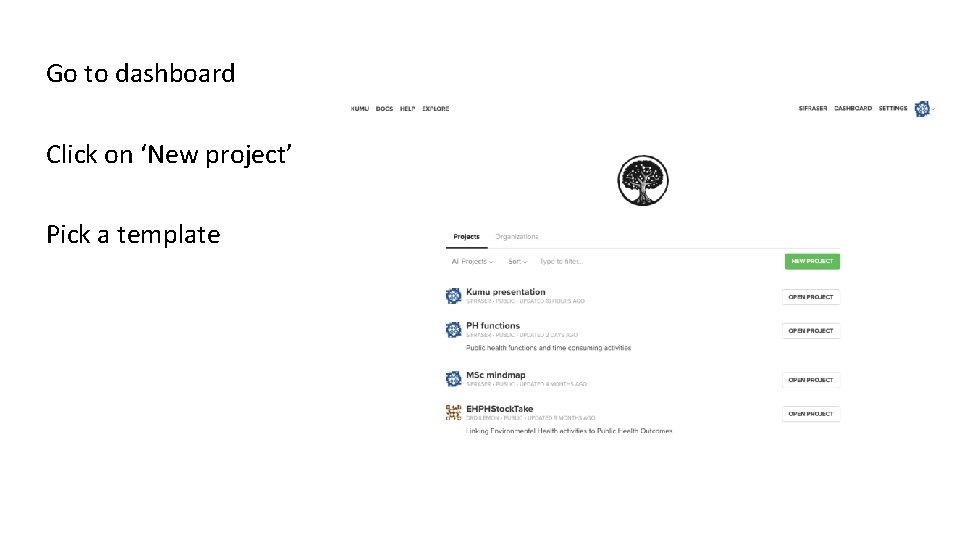
Go to dashboard Click on ‘New project’ Pick a template
Create new map by hand https: //kumu. io/sifraser/kumu-presentation • Useful hint – top left menu has help function – the I’m new section with ‘Read the docs’ is v helpful Click on 3 dots in centre to clear workspace Kumu calls things ‘elements’ and ‘connections’ Click on green plus sign to add Sketch mode – can add by clicking on the map - instructions bottom right are helpful • Note that, behind the scenes, Kumu is building a table – click on grid bottom right • Can see both elements and connections by choosing from drop down list revealed with settings icon top right • •
Create new map by importing a spreadsheet • Drag a spreadsheet onto the map or click the green "+" button at the bottom of the map. Make sure your spreadsheet (. xlsx or. csv) includes the following columns: • For elements: Label, Type (optional), Description (optional) • For connections: From, To, Type (optional), Label (optional) • Additional fields can be imported by including extra columns in your spreadsheet. Make sure to read the import guide to learn how to structure your spreadsheet correctly. • Explore settings – cluster quite interesting
Decorating elements and connections Kumu tends to encourage creating decoration ‘rules’ so not completely intuitive Go to decorate on the right – add element rule Shift click to select particular elements Select add element rule Choose ‘Decorate selected elements’ from the drop down list Choose change size / colour / add etc To undo something – click the red cross by the code on the right You can use the ‘a’ key to select all elements
To edit imported elements position etc Click on the 3 dots to the left again Click on an element and its information shows up here Use the pin logo to ‘anchor’ the element so it stays where you move it – this allows you to arrange your mind map how you want it You'll see an option in the map settings to change the default behaviour (fixed or floating). Choose fixed to have them pinned by default. ‘p’ key also pins Depending on the template you selected, elements will either be fixed (manually positioned by you) or floating (automatically positioned using theirlayout algorithm) – choose ‘System’, ‘a’ key and pin
See example maps https: //kumu. io/drdjlemon/ehphstocktake https: //kumu. io/sifraser/msc-mindmap Note how you can focus on specific connections and pathways