
Microsoft Word Fundamentals Unit 1 Introduction to Microsoft
- Slides: 23
Microsoft Word Fundamentals
Unit 1: Introduction to Microsoft Word
Lesson 1: Microsoft Word Tour Objectives: • Identify the location, parts, and function of the Ribbon • Identify the Document Area and Status Bar • Determine methods of selecting text • Demonstrate use of Spelling & Grammar and Thesaurus buttons
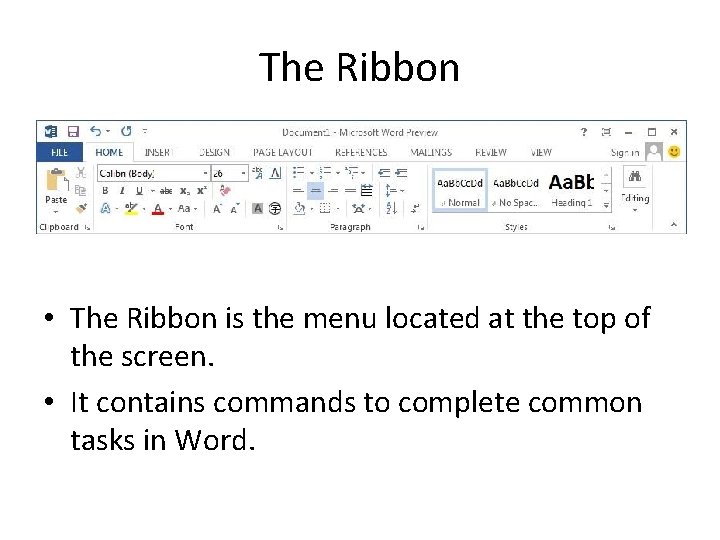
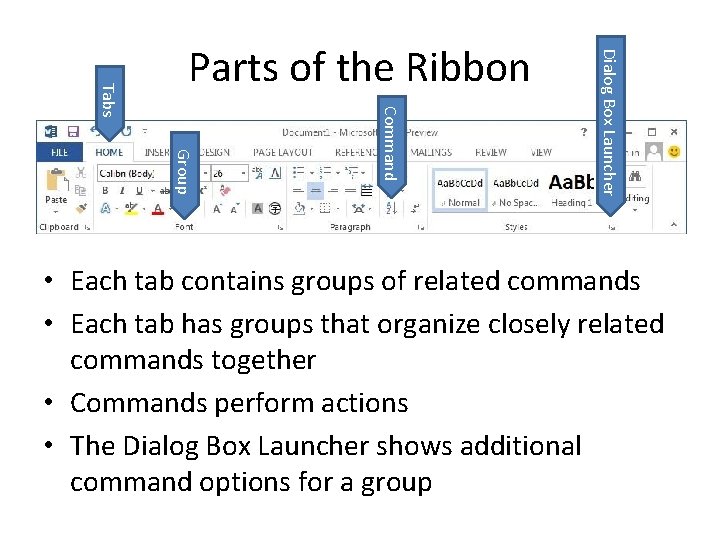
The Ribbon • The Ribbon is the menu located at the top of the screen. • It contains commands to complete common tasks in Word.
Dialog Box Launcher Group Command Tabs Parts of the Ribbon • Each tab contains groups of related commands • Each tab has groups that organize closely related commands together • Commands perform actions • The Dialog Box Launcher shows additional command options for a group
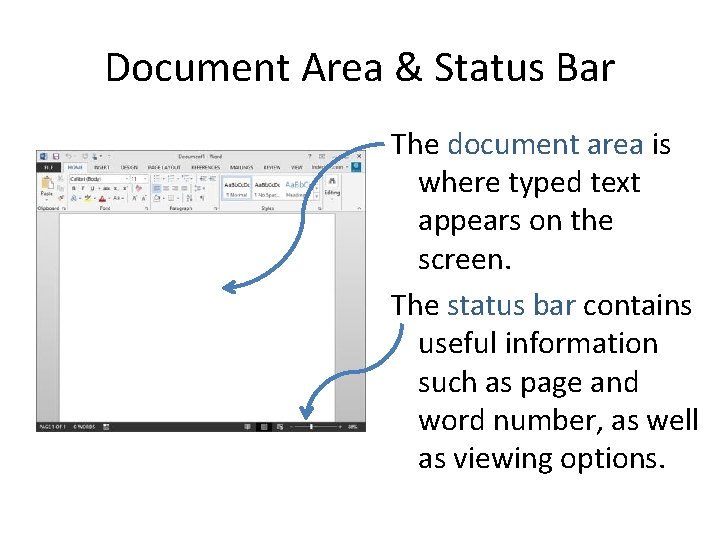
Document Area & Status Bar The document area is where typed text appears on the screen. The status bar contains useful information such as page and word number, as well as viewing options.
Methods of Selecting Text • Click and drag the mouse over the text • Click at the start of a selection, hold shift, then click at the end of the selection • Double-click on a word • Triple-click on a paragraph • Hold Ctrl and click on a sentence
Spelling & Grammar • Located under Review tab • Checks document for errors • Red underlines indicate spelling • Green underlines indicate grammatical mistakes • Blue underlines indicate misused words
Thesaurus • Located under the Review tab • Finds words that are the same as a highlighted word in the document
Lesson 2: Fun with Fonts Objectives: • Define font, font style, and font effect • Learn how to use different fonts change the appearance of text
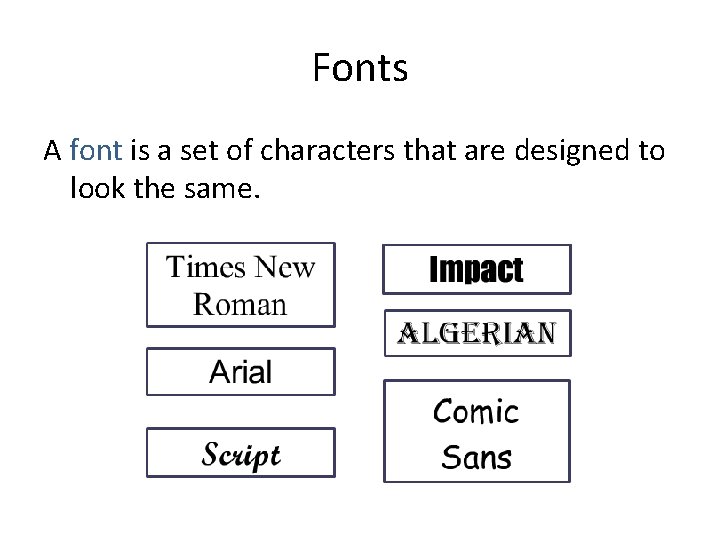
Fonts A font is a set of characters that are designed to look the same.
Font Styles Font styles are used to make text stand out to the reader. Common examples include: • Bold • Underline • Italics • Color
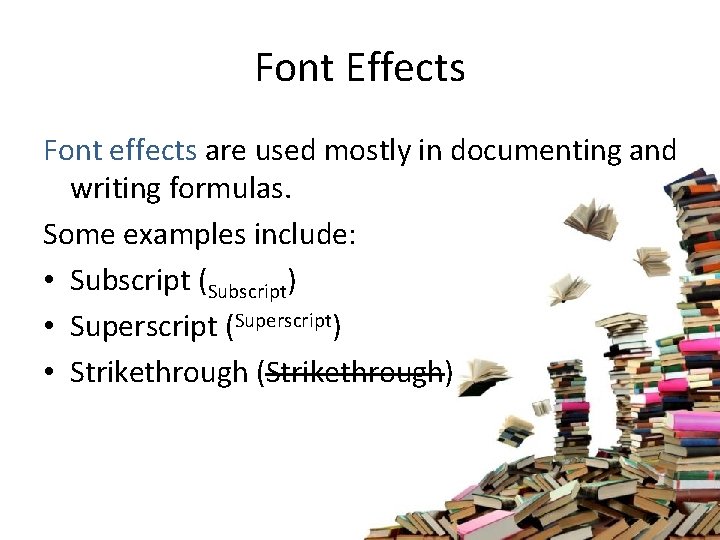
Font Effects Font effects are used mostly in documenting and writing formulas. Some examples include: • Subscript (Subscript) • Superscript (Superscript) • Strikethrough (Strikethrough)
Unit 2: Paragraph & Document Formatting
Lesson 3: Creating Lists Objectives: • Identify the difference between numbered and bulleted lists • Define styles, header, and theme • Learn how to access these using commands on the Ribbon
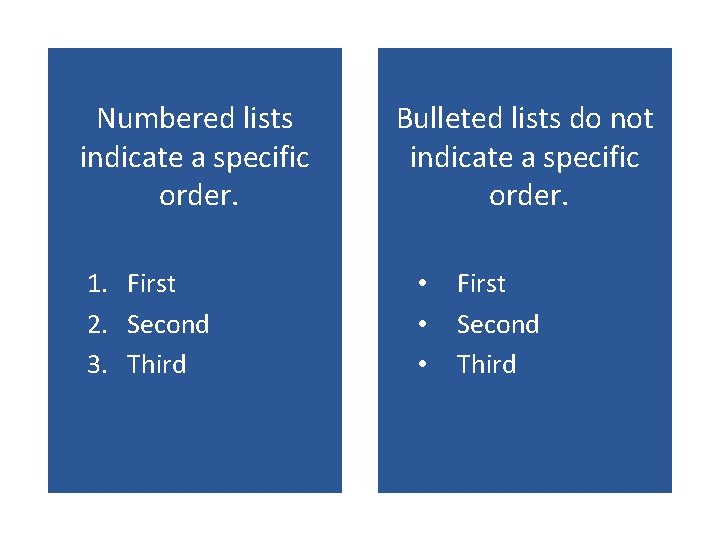
Numbered lists indicate a specific order. 1. First 2. Second 3. Third Bulleted lists do not indicate a specific order. • • • First Second Third
Titles & Styles • Microsoft Word Styles change the appearance of text • Styles can make important information such as titles stand out • To use a style, choose one from the Styles group on the Home tab
Document Formatting • Headers are located at the top of each page and are a good location for name, date, and other identifying information. • Themes change the appearance of the document.
Lesson 4: Make a Quiz Objectives: • Use formatting tools such as footers, paragraph spacing, and page breaks • Learn how to copy and paste text in a document
Formatting • A footer is located at the bottom of each page and can contain information such as page number. • Paragraph spacing changes the distance between different paragraphs of text. • Page breaks cause all new text to go on the next page of the document.
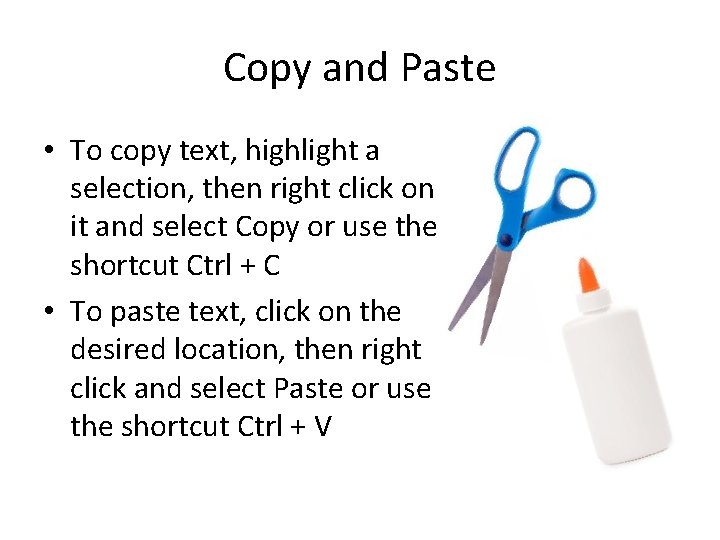
Copy and Paste • To copy text, highlight a selection, then right click on it and select Copy or use the shortcut Ctrl + C • To paste text, click on the desired location, then right click and select Paste or use the shortcut Ctrl + V
Lesson 5: Create an Invitation Objectives: • Learn how to change the document layout • Determine the best layouts for different situations
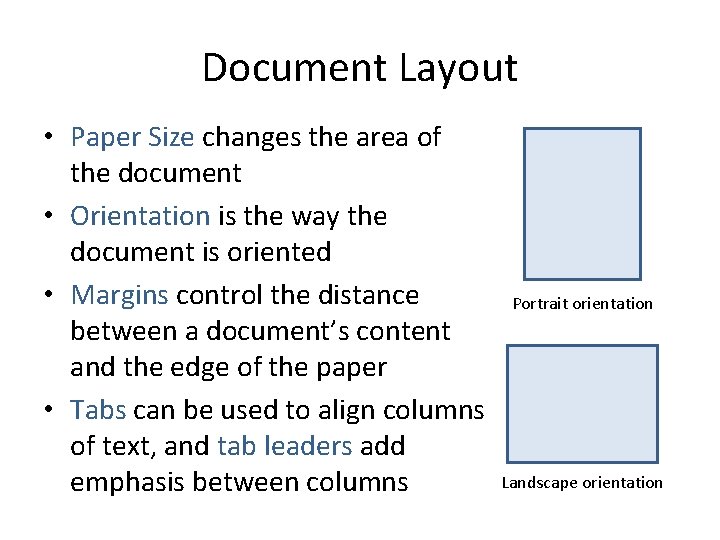
Document Layout • Paper Size changes the area of the document • Orientation is the way the document is oriented • Margins control the distance between a document’s content and the edge of the paper • Tabs can be used to align columns of text, and tab leaders add emphasis between columns Portrait orientation Landscape orientation