
Microsoft Word 2013 Chapter 3 Creating a Business
Microsoft Word 2013 Chapter 3 Creating a Business Letter with a Letterhead and Table
Objectives • • Change margins Insert and format a shape Change text wrapping Insert and format a clip art image Insert a symbol Add a border to a paragraph Clear formatting Convert a hyperlink to regular text Creating a Business Letter with a Letterhead and Table 2
Objectives Apply a style Set and use tab stops Insert the current date Create, modify, and insert a building block Insert a Word table, enter data in the table, and format the table • Address and print an envelope • • • Creating a Business Letter with a Letterhead and Table 3
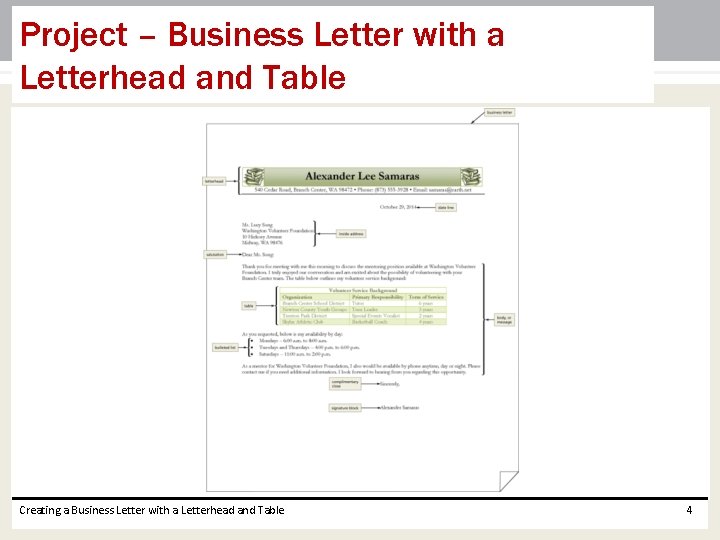
Project – Business Letter with a Letterhead and Table Creating a Business Letter with a Letterhead and Table 4
Roadmap • Create and format a letterhead with graphics • Specify the letter formats according to business letter guidelines • Insert a table in the letter • Format the table in the letter • Insert a bulleted list in the letter • Address an envelope for the letter Creating a Business Letter with a Letterhead and Table 5
Changing Margin Settings • Display the PAGE LAYOUT tab • Tap or click the Adjust Margins button to display the Adjust Margins gallery • Tap or click the desired setting in the Margins gallery to change the margins Creating a Business Letter with a Letterhead and Table 6
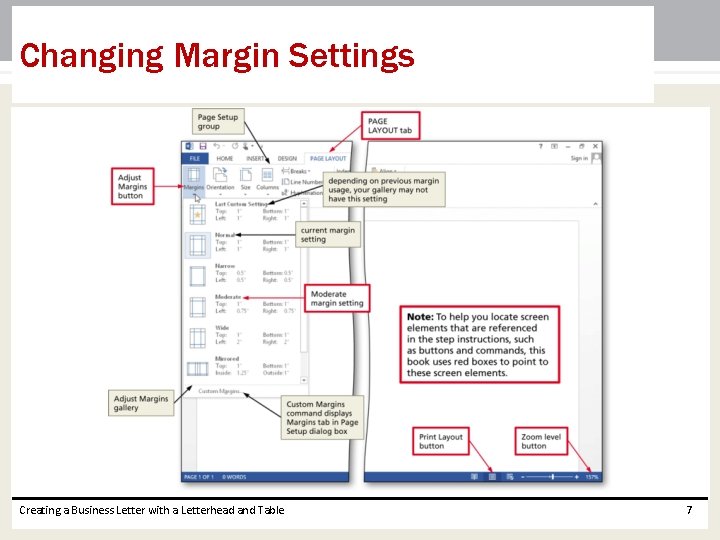
Changing Margin Settings Creating a Business Letter with a Letterhead and Table 7
Inserting a Shape • Display the INSERT tab • Tap or click the ‘Draw a Shape’ button to display the Draw a Shape gallery • Tap or click the desired shape, which removes the gallery. If you are using a touch screen, the shape is inserted in the document window; if you are using a mouse, the pointer changes to the shape of a crosshair in the document window • If you are using a mouse, position the pointer (a crosshair) in the approximate location for the upper-left corner of the desired shape • Drag the mouse to the right and downward to form the boundaries of the shape Creating a Business Letter with a Letterhead and Table 8
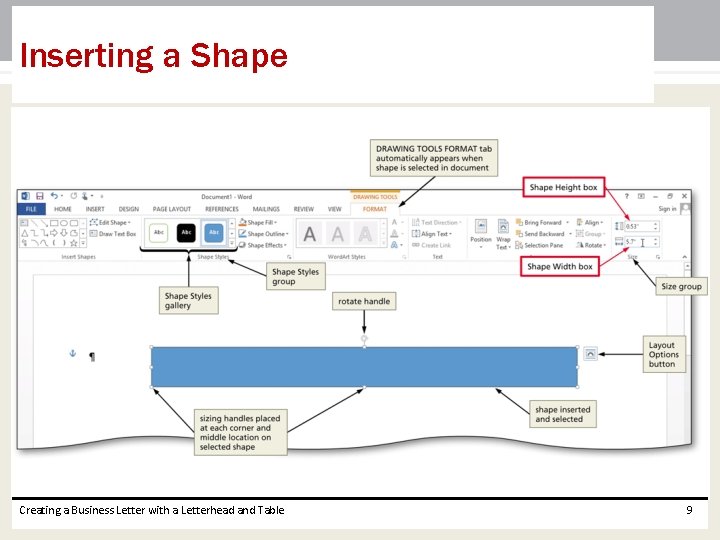
Inserting a Shape Creating a Business Letter with a Letterhead and Table 9
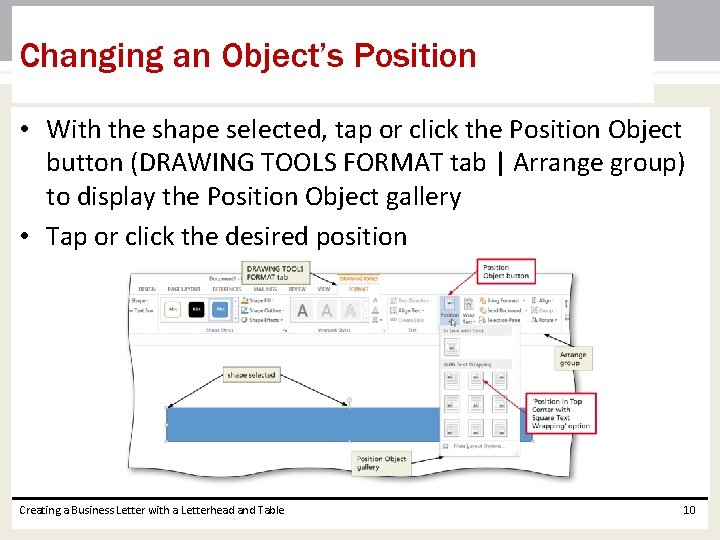
Changing an Object’s Position • With the shape selected, tap or click the Position Object button (DRAWING TOOLS FORMAT tab | Arrange group) to display the Position Object gallery • Tap or click the desired position Creating a Business Letter with a Letterhead and Table 10
Changing an Object’s Text Wrapping • With the shape still selected, tap or click the Layout Options button attached to the graphic to display the Layout Options gallery • Tap or click the desired option in the Layout Options gallery • Tap or click the Close button in the Layout Options gallery to close the gallery Creating a Business Letter with a Letterhead and Table 11
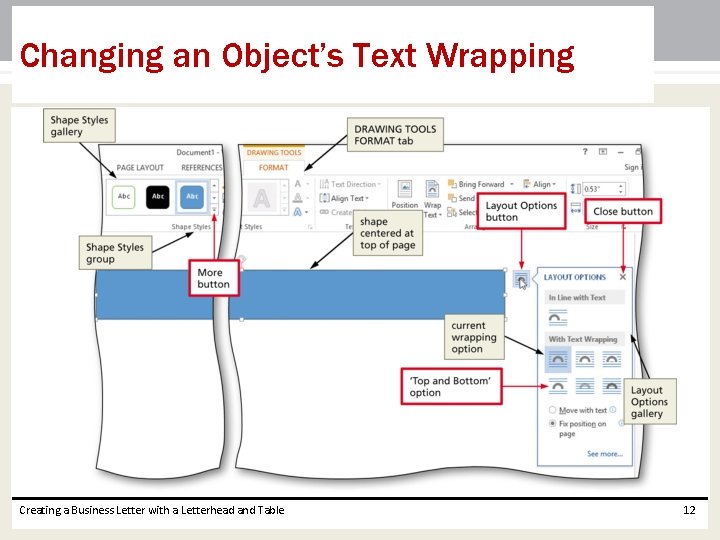
Changing an Object’s Text Wrapping Creating a Business Letter with a Letterhead and Table 12
Applying a Shape Style • Select the shape, and tap or click the More button in the Shape Styles gallery to expand the gallery • Tap or click the desired style to apply the selected style to the shape Creating a Business Letter with a Letterhead and Table 13
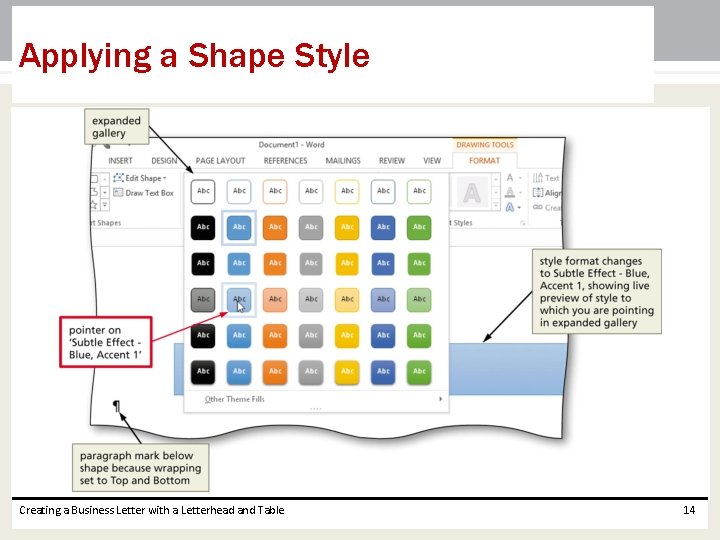
Applying a Shape Style Creating a Business Letter with a Letterhead and Table 14
Adding Text to a Shape • Press and hold or right-click the shape to display a mini toolbar and/or shortcut menu • If you are using a touch screen, tap the Edit Text button on the mini toolbar; if you are using a mouse, click Add Text on the shortcut menu to place an insertion point in the shape • Type the desired text in the shape Creating a Business Letter with a Letterhead and Table 15
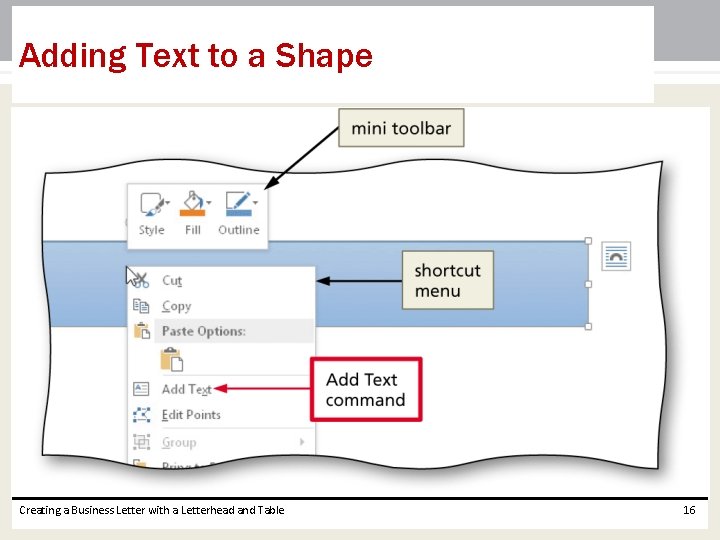
Adding Text to a Shape Creating a Business Letter with a Letterhead and Table 16
Using the ‘Increase Font Size’ Button • Select the text of which you wish to increase the font size • Display the HOME tab • Repeatedly tap or click the ‘Increase Font Size’ button until the text is the desired font size Creating a Business Letter with a Letterhead and Table 17
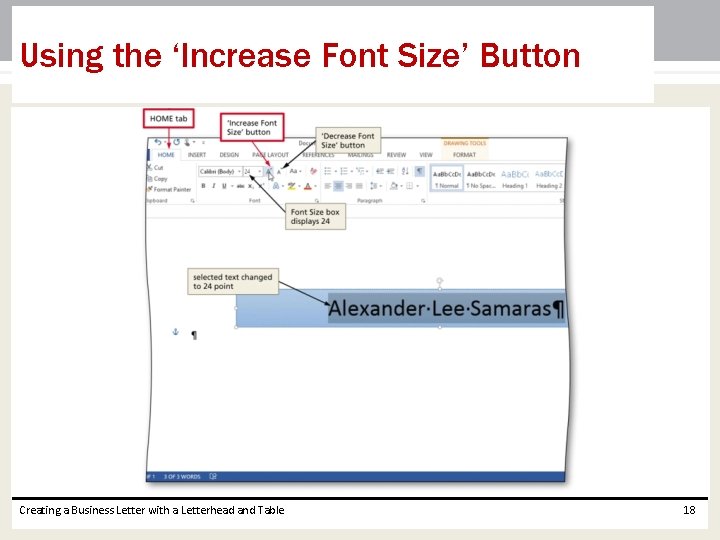
Using the ‘Increase Font Size’ Button Creating a Business Letter with a Letterhead and Table 18
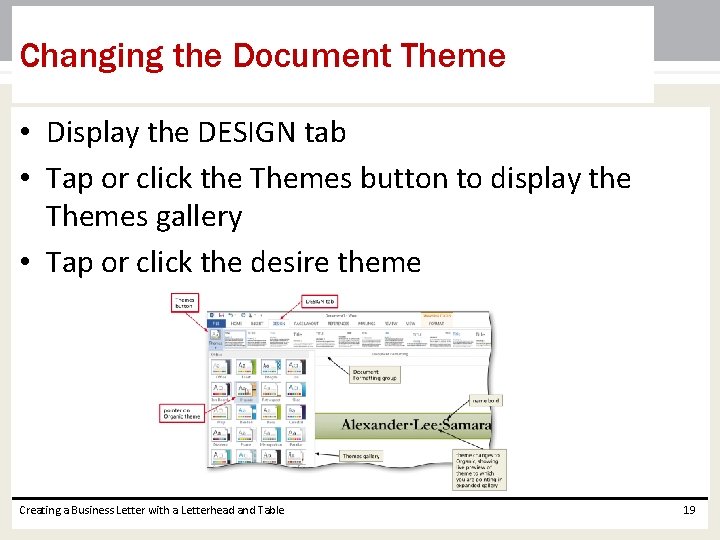
Changing the Document Theme • Display the DESIGN tab • Tap or click the Themes button to display the Themes gallery • Tap or click the desire theme Creating a Business Letter with a Letterhead and Table 19
Inserting Clip Art • Position the insertion point where you want to insert the clip art image • Display the INSERT tab • Click the Online Pictures button to display the Insert Pictures dialog box • Type the desired search text in the Search box • Tap or click the Search button to display a list of clip art that matches the entered search text Creating a Business Letter with a Letterhead and Table 20
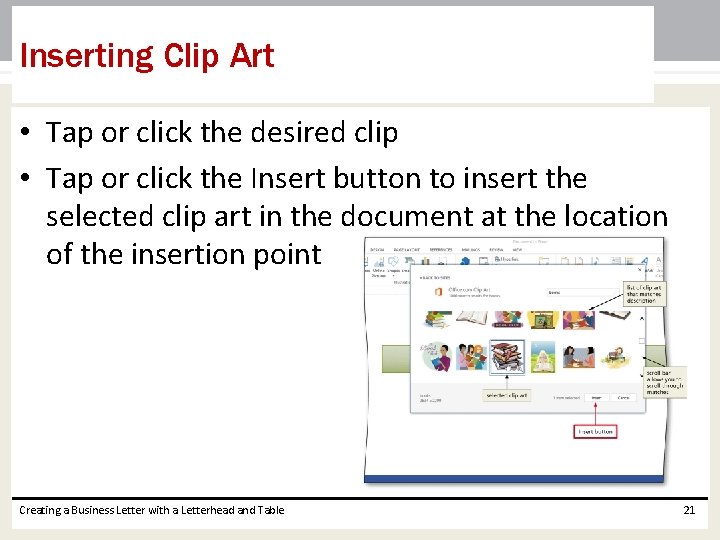
Inserting Clip Art • Tap or click the desired clip • Tap or click the Insert button to insert the selected clip art in the document at the location of the insertion point Creating a Business Letter with a Letterhead and Table 21
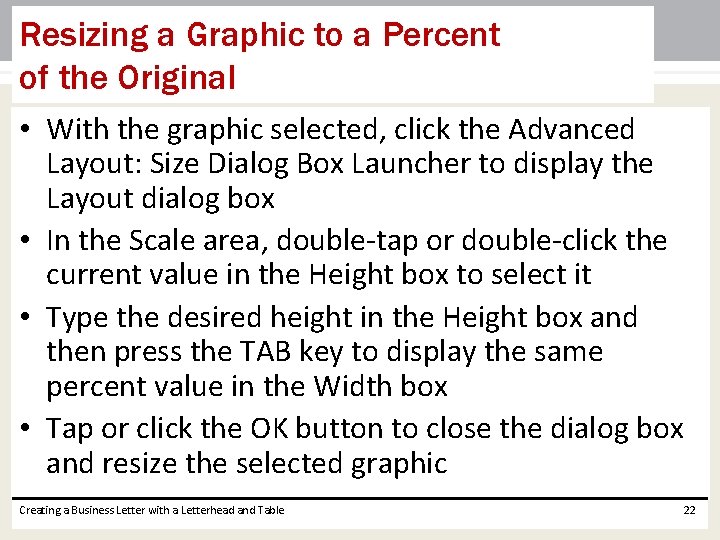
Resizing a Graphic to a Percent of the Original • With the graphic selected, click the Advanced Layout: Size Dialog Box Launcher to display the Layout dialog box • In the Scale area, double-tap or double-click the current value in the Height box to select it • Type the desired height in the Height box and then press the TAB key to display the same percent value in the Width box • Tap or click the OK button to close the dialog box and resize the selected graphic Creating a Business Letter with a Letterhead and Table 22
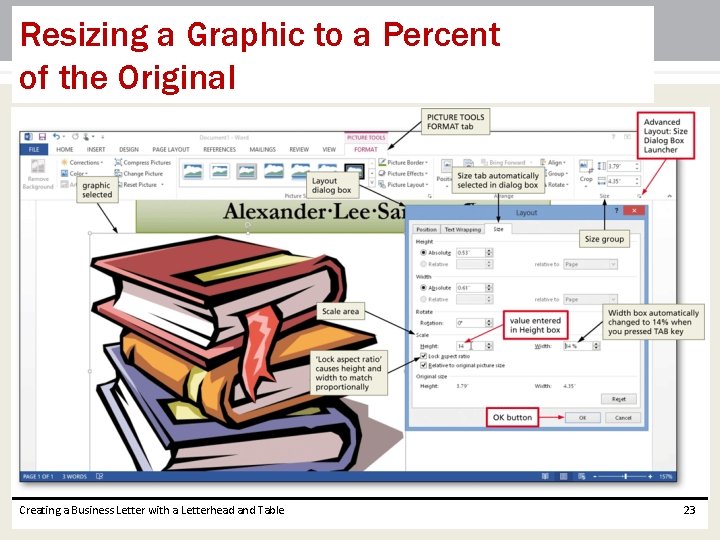
Resizing a Graphic to a Percent of the Original Creating a Business Letter with a Letterhead and Table 23
Changing the Color of a Graphic • With the graphic selected, click the Color button to display the Color gallery • Tap or click the color to change the color of the selected graphic Creating a Business Letter with a Letterhead and Table 24
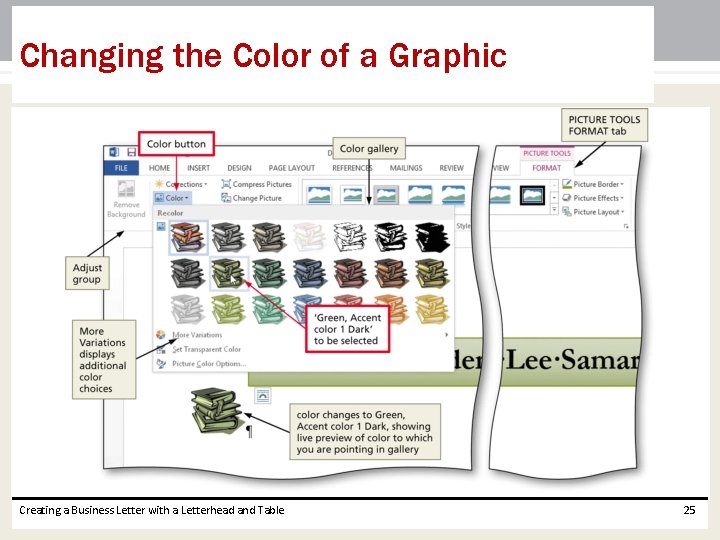
Changing the Color of a Graphic Creating a Business Letter with a Letterhead and Table 25
Setting a Transparent Color in a Graphic • With the graphic selected, tap or click the Color button to display the Color gallery • Tap or click ‘Set Transparent Color’ in the Color gallery to display a pen pointer in the document window • Tap or click the location of the graphic where you want the color to be transparent Creating a Business Letter with a Letterhead and Table 26
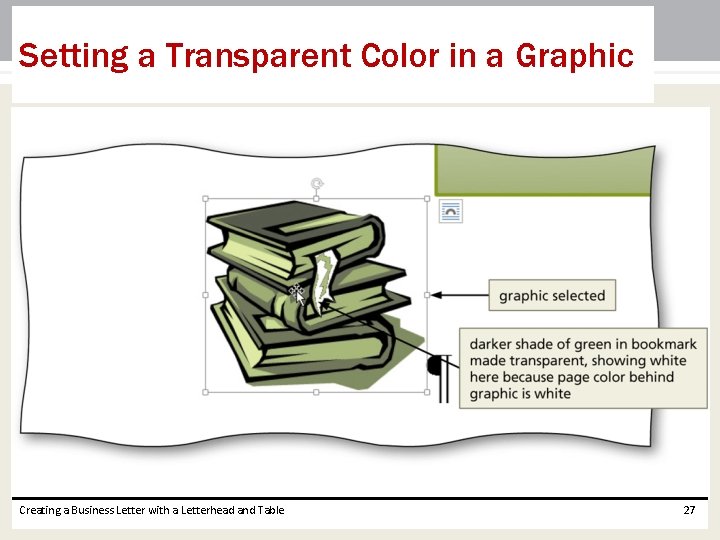
Setting a Transparent Color in a Graphic Creating a Business Letter with a Letterhead and Table 27
Adjusting the Brightness and Contrast of a Graphic • With the graphic selected, tap or click the Corrections button to display the Corrections gallery • Tap or click the desired correction to change the brightness and contrast of the selected graphic Creating a Business Letter with a Letterhead and Table 28
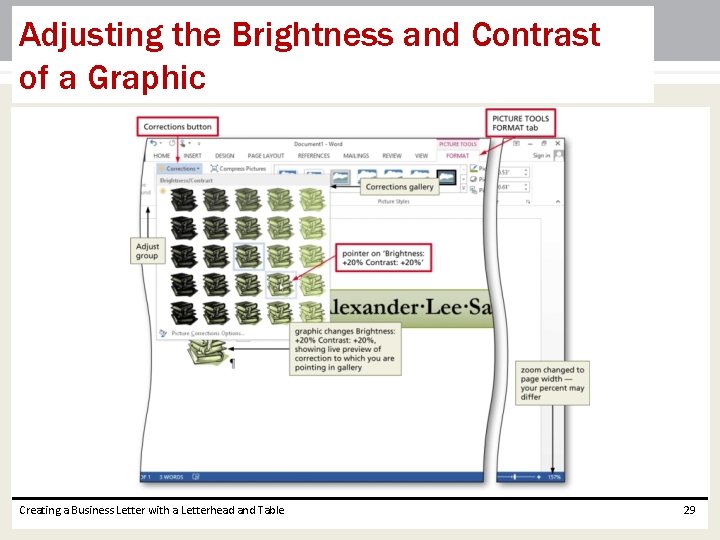
Adjusting the Brightness and Contrast of a Graphic Creating a Business Letter with a Letterhead and Table 29
Changing the Border Color on a Graphic • With the picture selected, tap or click the Picture Border button arrow to display the Picture Border gallery • Tap or click the border color in the Picture Border gallery to change the picture border color Creating a Business Letter with a Letterhead and Table 30
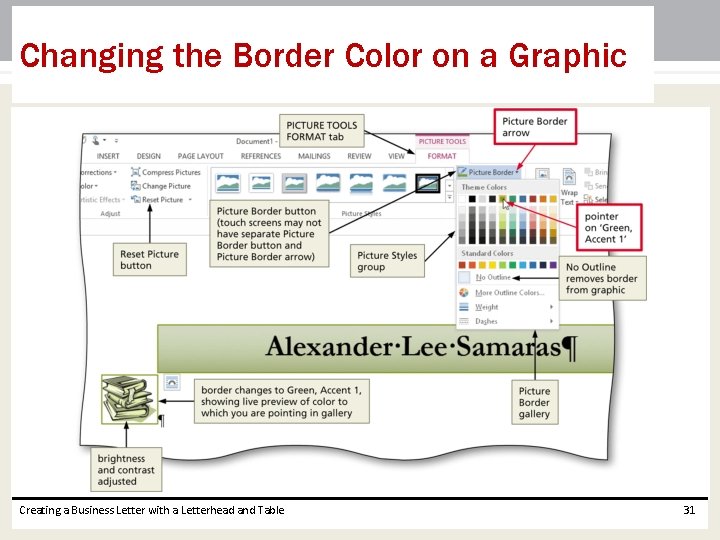
Changing the Border Color on a Graphic Creating a Business Letter with a Letterhead and Table 31
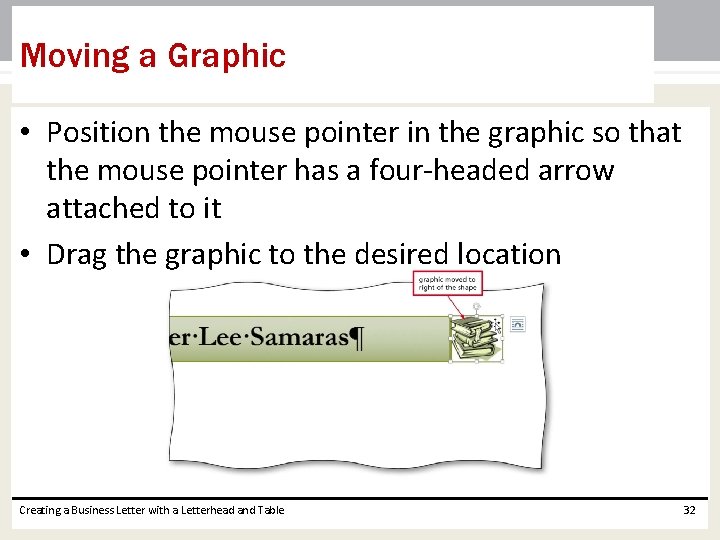
Moving a Graphic • Position the mouse pointer in the graphic so that the mouse pointer has a four-headed arrow attached to it • Drag the graphic to the desired location Creating a Business Letter with a Letterhead and Table 32
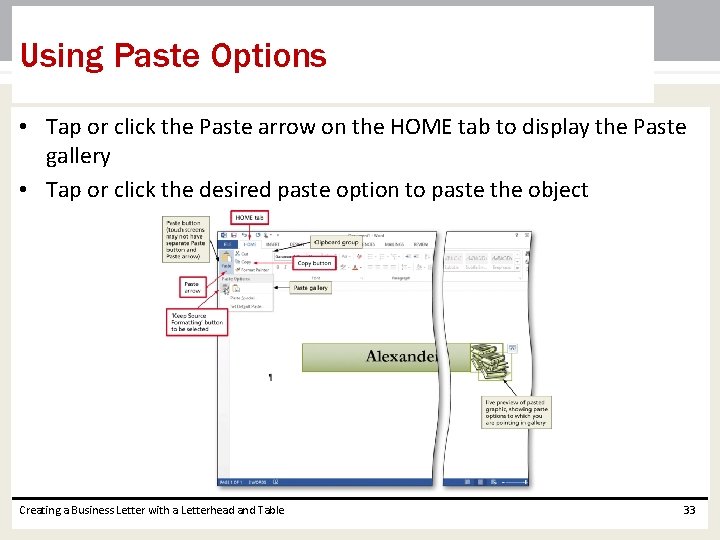
Using Paste Options • Tap or click the Paste arrow on the HOME tab to display the Paste gallery • Tap or click the desired paste option to paste the object Creating a Business Letter with a Letterhead and Table 33
Flipping a Graphic • With the graphic selected, tap or click the Rotate Objects button to display the Rotate Objects gallery • Tap or click the desired rotate option Creating a Business Letter with a Letterhead and Table 34
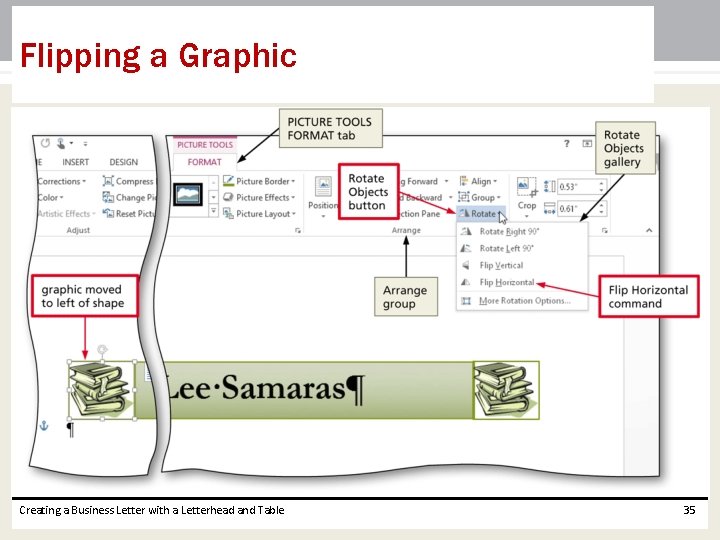
Flipping a Graphic Creating a Business Letter with a Letterhead and Table 35
Inserting a Symbol from the Symbol Dialog Box • Display the INSERT tab • Tap or click the Insert Symbol button to display the Insert Symbol gallery • Tap or click More Symbols in the Insert Symbol gallery to display the Symbol dialog box • Select the desired font and subset • Tap or click the desired symbol to select it, and then tap or click the Insert button to place the selected symbol in the document to the left of the insertion point • Tap or click the Close button to close the dialog box Creating a Business Letter with a Letterhead and Table 36
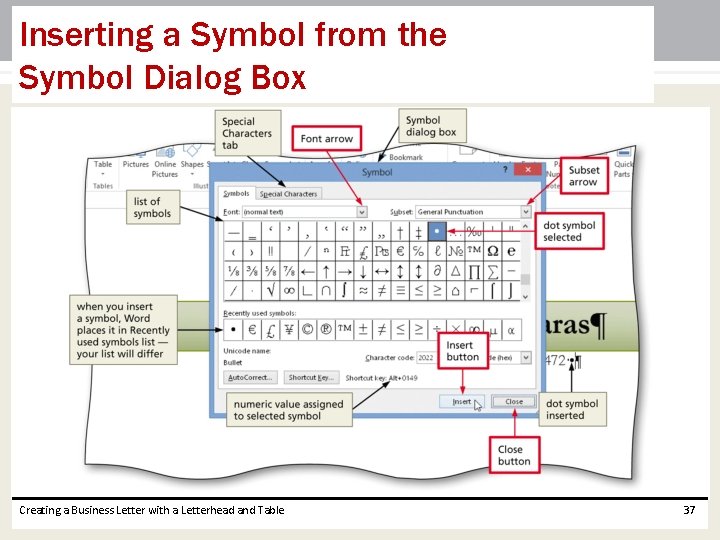
Inserting a Symbol from the Symbol Dialog Box Creating a Business Letter with a Letterhead and Table 37
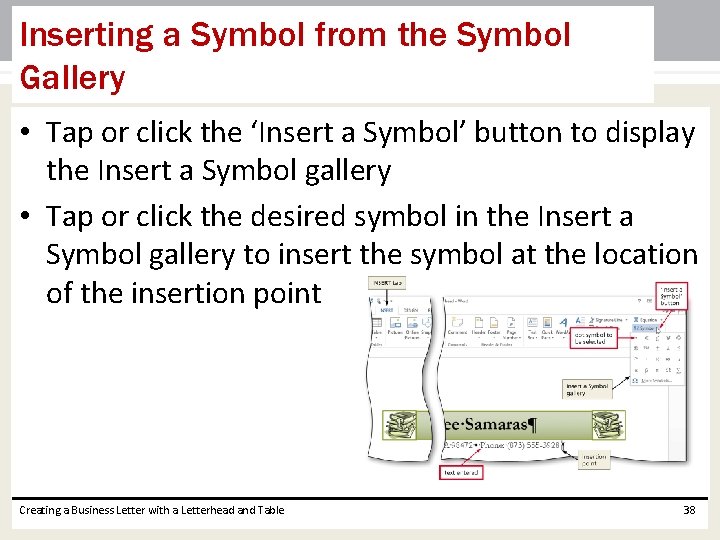
Inserting a Symbol from the Symbol Gallery • Tap or click the ‘Insert a Symbol’ button to display the Insert a Symbol gallery • Tap or click the desired symbol in the Insert a Symbol gallery to insert the symbol at the location of the insertion point Creating a Business Letter with a Letterhead and Table 38
Bottom Bordering a Paragraph • Display the HOME tab • With the insertion point in the paragraph to border, tap or click the Borders arrow to display the Borders gallery • Tap or click Bottom Border in the Border gallery to place a border below the paragraph containing the insertion point Creating a Business Letter with a Letterhead and Table 39
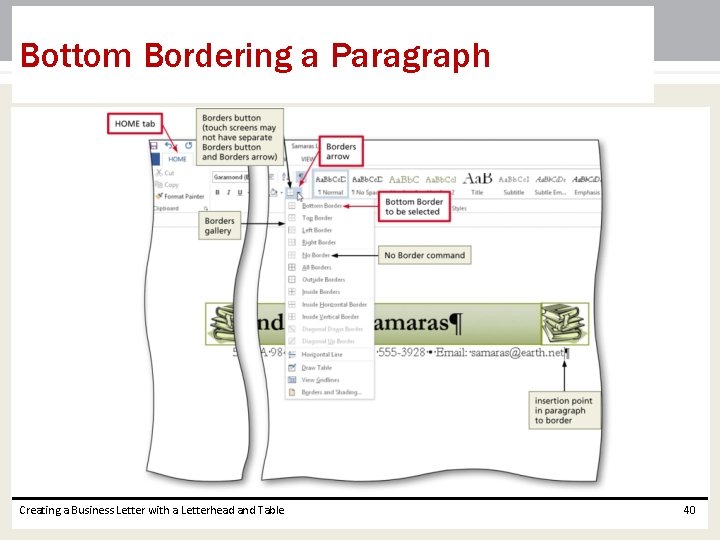
Bottom Bordering a Paragraph Creating a Business Letter with a Letterhead and Table 40
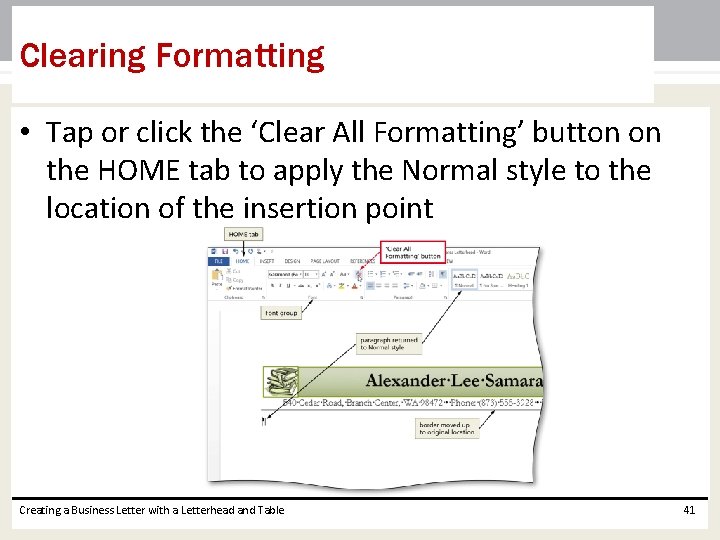
Clearing Formatting • Tap or click the ‘Clear All Formatting’ button on the HOME tab to apply the Normal style to the location of the insertion point Creating a Business Letter with a Letterhead and Table 41
Converting a Hyperlink to Regular Text • If you are using a touch screen, press and hold the hyperlink and then tap the ‘Show Context Menu’ button on the mini toolbar; if you are using a mouse, right-click the hyperlink to display a shortcut menu • Tap or click Remove Hyperlink on the shortcut menu to remove the hyperlink format from the text Creating a Business Letter with a Letterhead and Table 42
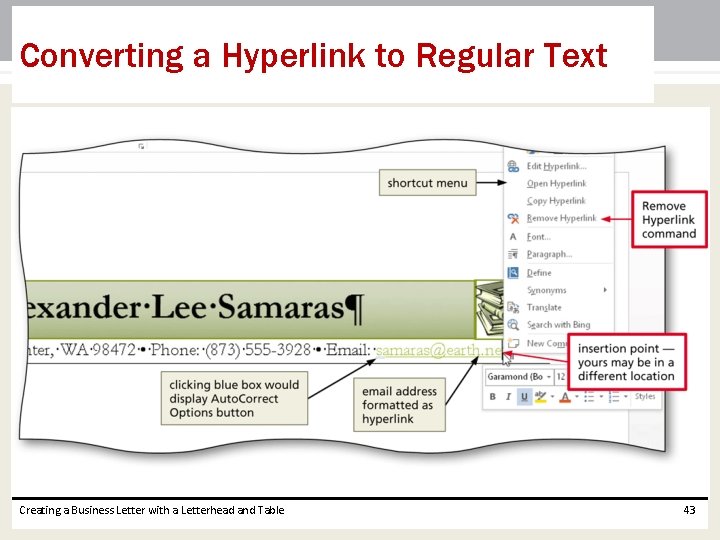
Converting a Hyperlink to Regular Text Creating a Business Letter with a Letterhead and Table 43
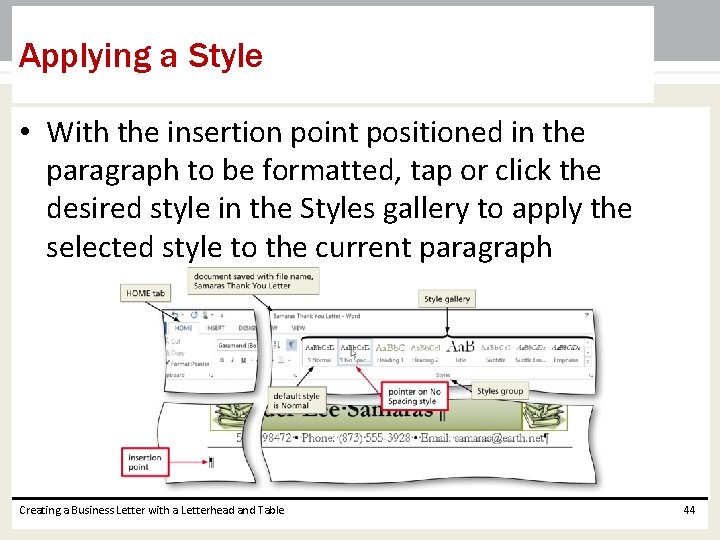
Applying a Style • With the insertion point positioned in the paragraph to be formatted, tap or click the desired style in the Styles gallery to apply the selected style to the current paragraph Creating a Business Letter with a Letterhead and Table 44
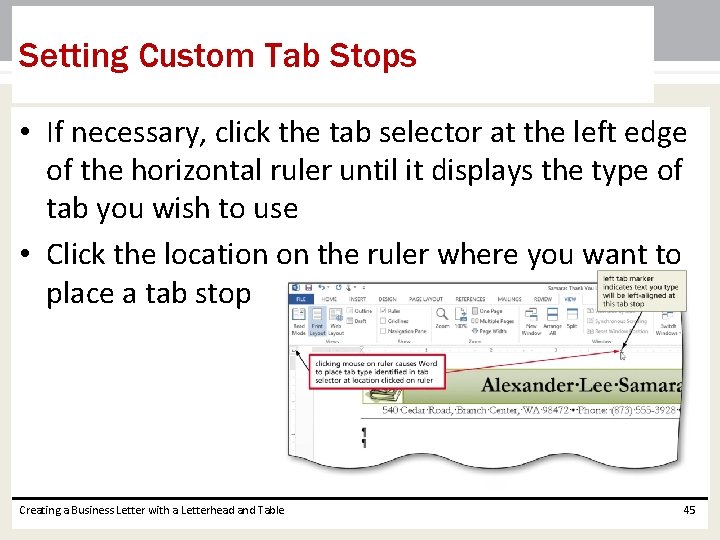
Setting Custom Tab Stops • If necessary, click the tab selector at the left edge of the horizontal ruler until it displays the type of tab you wish to use • Click the location on the ruler where you want to place a tab stop Creating a Business Letter with a Letterhead and Table 45
Inserting the Current Date in a Document • Display the INSERT tab • Tap or click the ‘Insert Date and Time’ button to display the Date and Time dialog box • Select the desired format • If desired, tap or click the Update automatically check box • Tap or click the OK button to insert the current date at the location of the insertion point Creating a Business Letter with a Letterhead and Table 46
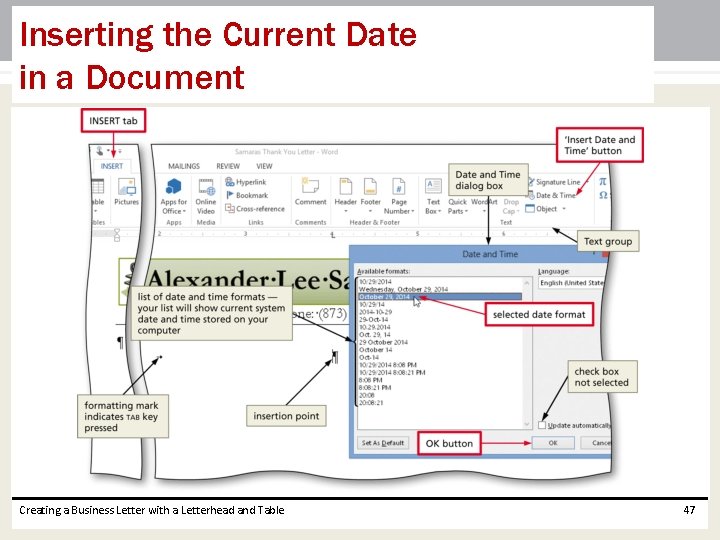
Inserting the Current Date in a Document Creating a Business Letter with a Letterhead and Table 47
Creating a Building Block • Select the text to be a building block • Tap or click the ‘Explore Quick Parts’ button on the INSERT tab to display the Explore Quick Parts gallery • Tap or click ‘Save Selection to Quick Part Gallery’ in the Explore Quick Parts gallery to display the Create New Building Block dialog box • Type the name of the building block in the Name text box • Tap or click the OK button to store the building block entry and close the dialog box Creating a Business Letter with a Letterhead and Table 48
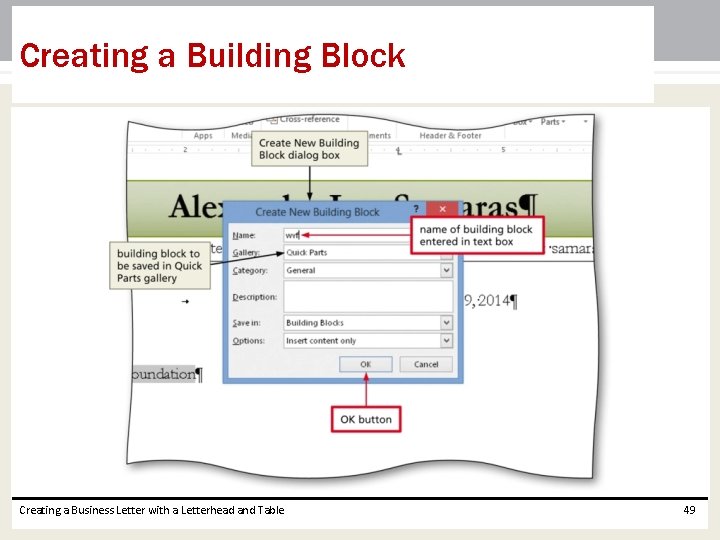
Creating a Building Block Creating a Business Letter with a Letterhead and Table 49
Modifying a Building Block • Tap or click the ‘Explore Quick Parts’ button on the INSERT tab to display the Explore Quick Parts gallery • Press and hold or right-click the building block to display a shortcut menu • Tap or click Edit Properties on the shortcut menu to display the Modify Building Block dialog box • Make the desired changes in the Modify Building Block dialog box • Tap or click the OK button to store the building block entry and close the dialog box • Tap or click the Yes button when asked if you want to redefine the building block entry Creating a Business Letter with a Letterhead and Table 50
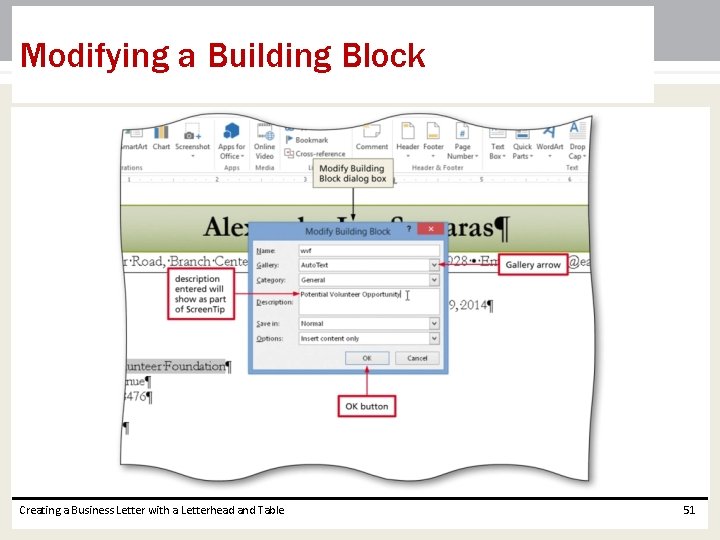
Modifying a Building Block Creating a Business Letter with a Letterhead and Table 51
Inserting a Building Block • Position the insertion point where you wish to insert the building block • Type the desired text, including the building block name • Press the F 3 key to instruct Word to replace the building block name with the stored building block entry Creating a Business Letter with a Letterhead and Table 52
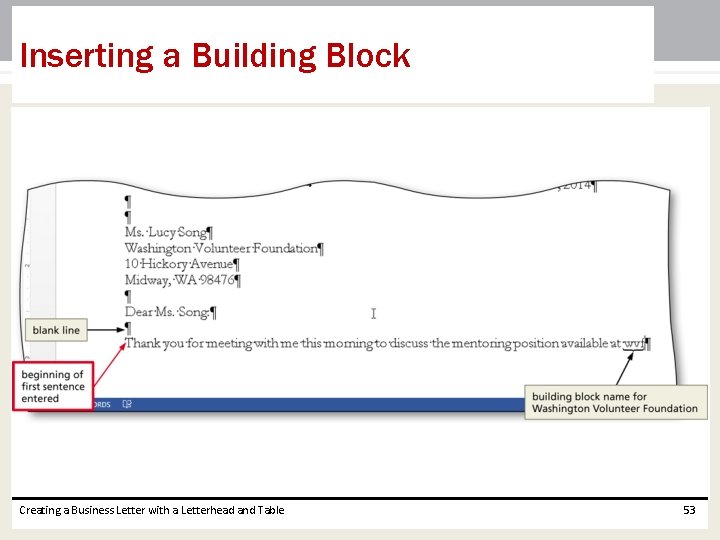
Inserting a Building Block Creating a Business Letter with a Letterhead and Table 53
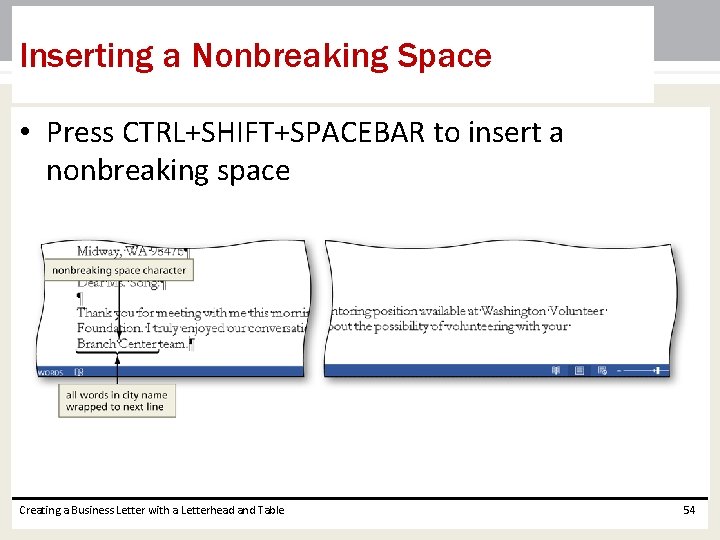
Inserting a Nonbreaking Space • Press CTRL+SHIFT+SPACEBAR to insert a nonbreaking space Creating a Business Letter with a Letterhead and Table 54
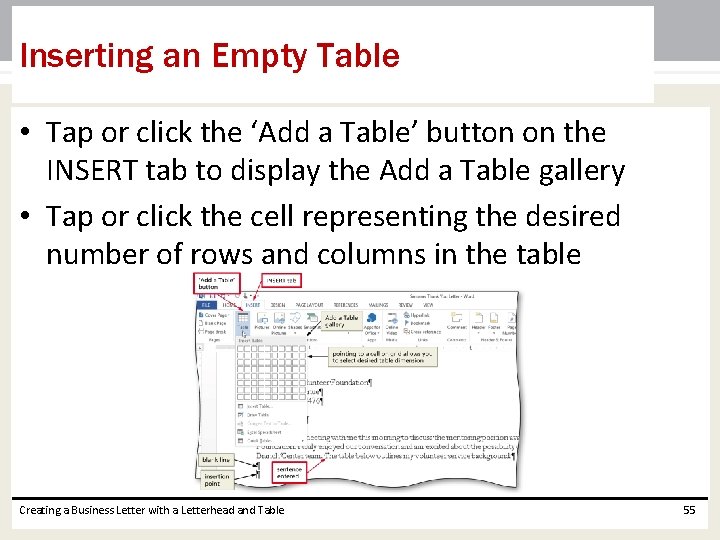
Inserting an Empty Table • Tap or click the ‘Add a Table’ button on the INSERT tab to display the Add a Table gallery • Tap or click the cell representing the desired number of rows and columns in the table Creating a Business Letter with a Letterhead and Table 55
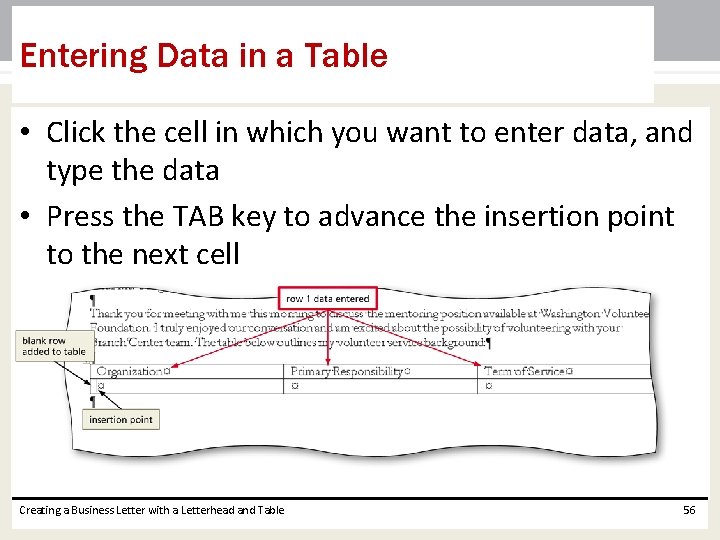
Entering Data in a Table • Click the cell in which you want to enter data, and type the data • Press the TAB key to advance the insertion point to the next cell Creating a Business Letter with a Letterhead and Table 56
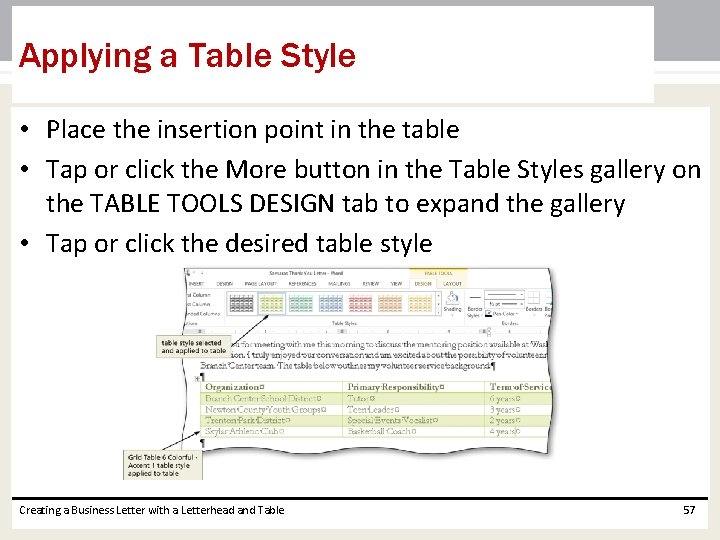
Applying a Table Style • Place the insertion point in the table • Tap or click the More button in the Table Styles gallery on the TABLE TOOLS DESIGN tab to expand the gallery • Tap or click the desired table style Creating a Business Letter with a Letterhead and Table 57
Resizing Table Columns to Fit Table Contents • With the insertion point in the table, display the TABLE TOOLS LAYOUT tab • Tap or click the Auto. Fit button to display the Auto. Fit menu • Tap or click Auto. Fit Contents on the Auto. Fit menu, so that Word automatically adjusts the widths of the columns based on the text in the table Creating a Business Letter with a Letterhead and Table 58
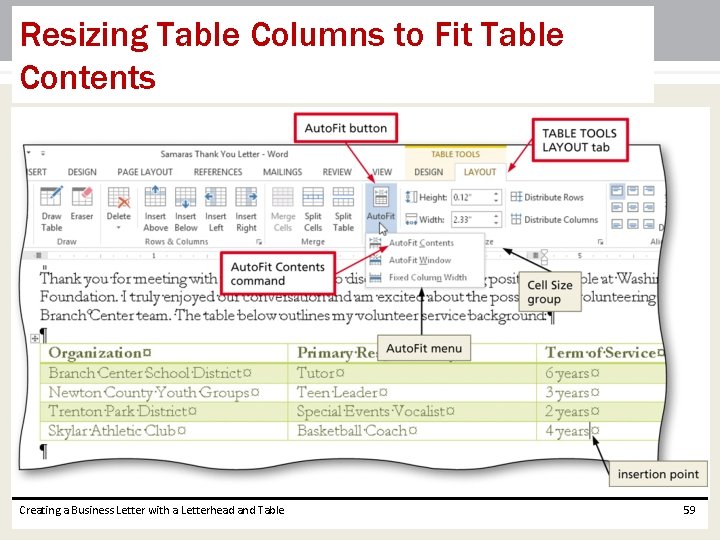
Resizing Table Columns to Fit Table Contents Creating a Business Letter with a Letterhead and Table 59
Selecting a Column • If you are using a mouse, position the pointer at the boundary above the column to be selected so that the pointer changes to a downward pointing arrow and then click to select the column • If you are using a touch screen, position the insertion point in the desired column and then tap the Select Table button and then tap Select Column on the Select Table menu Creating a Business Letter with a Letterhead and Table 60
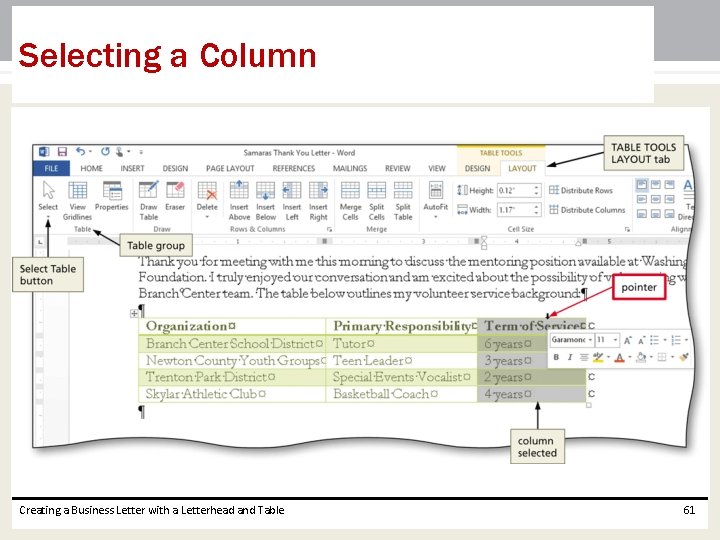
Selecting a Column Creating a Business Letter with a Letterhead and Table 61
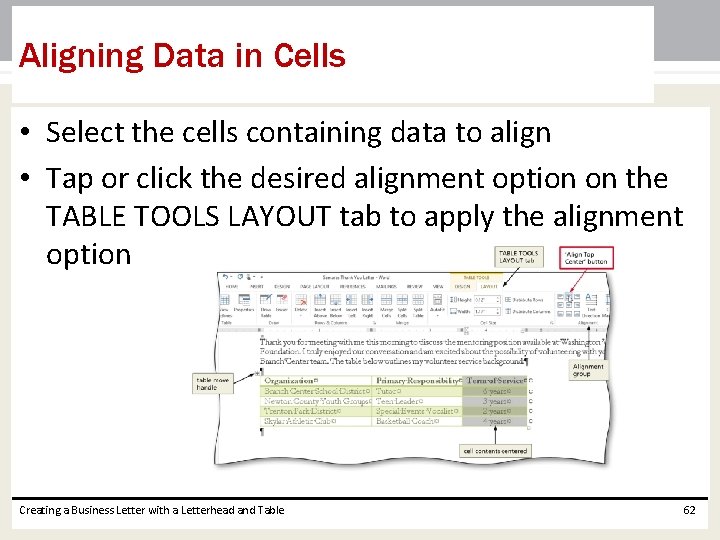
Aligning Data in Cells • Select the cells containing data to align • Tap or click the desired alignment option on the TABLE TOOLS LAYOUT tab to apply the alignment option Creating a Business Letter with a Letterhead and Table 62
Centering a Table • Position the mouse pointer in the table so that the table move handle appears • If you are using a mouse, click the table move handle to select the entire table • If you are using a touch screen, tap the Select Table button (TABLE TOOLS LAYOUT tab | Table group) and then tap Select Table on the Select Table menu to select the table • If you are using a mouse, click the Center button on the mini toolbar to center the selected table between the left and right margins • If you are using a touch screen, display the HOME tab and then tap or click the Center button to center the table Creating a Business Letter with a Letterhead and Table 63
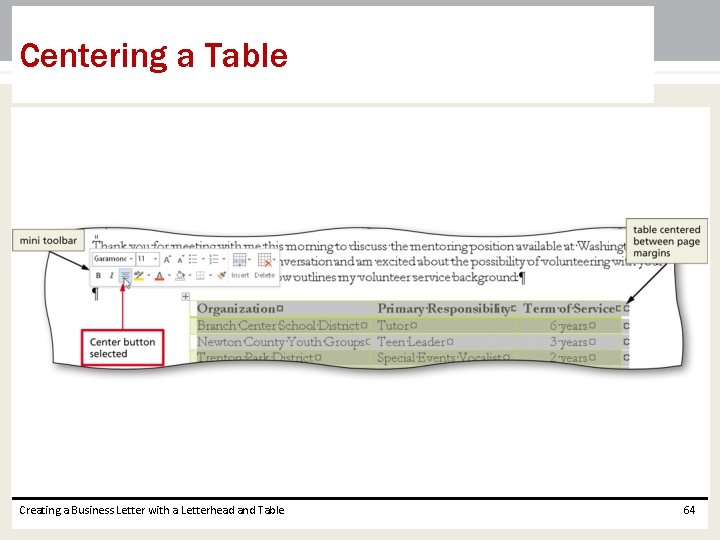
Centering a Table Creating a Business Letter with a Letterhead and Table 64
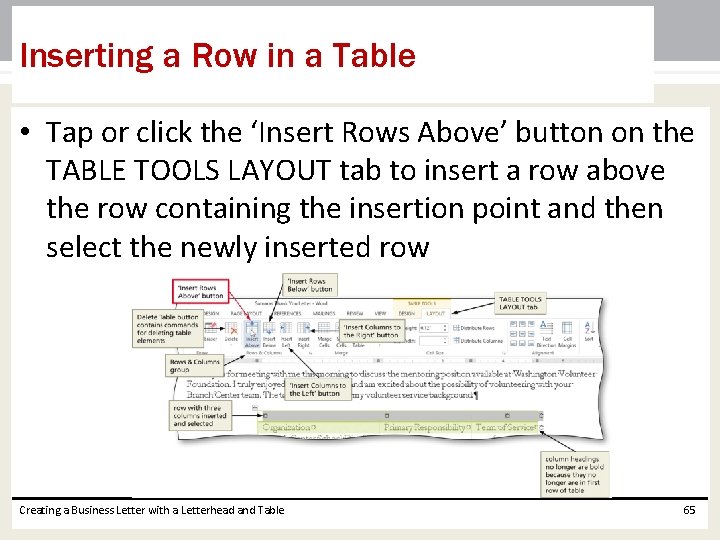
Inserting a Row in a Table • Tap or click the ‘Insert Rows Above’ button on the TABLE TOOLS LAYOUT tab to insert a row above the row containing the insertion point and then select the newly inserted row Creating a Business Letter with a Letterhead and Table 65
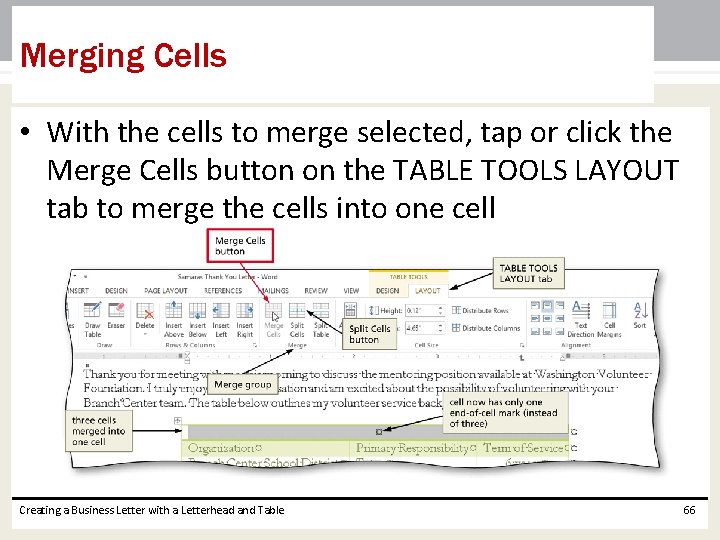
Merging Cells • With the cells to merge selected, tap or click the Merge Cells button on the TABLE TOOLS LAYOUT tab to merge the cells into one cell Creating a Business Letter with a Letterhead and Table 66
Bulleting a List as You Type • Press the ASTERISK key (*) as the first character on the line • Press the SPACEBAR to convert the asterisk to a bullet character • Type the text for the list item • Press the ENTER key to place another bullet character at the beginning of the next line • Repeat the previous two steps for the remainder of the list • After typing the last list item, press the ENTER key two times to turn off automatic bullets as you type Creating a Business Letter with a Letterhead and Table 67
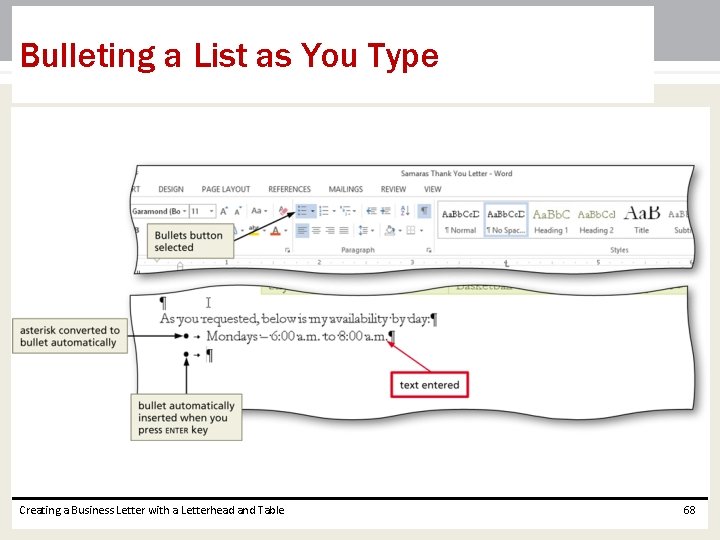
Bulleting a List as You Type Creating a Business Letter with a Letterhead and Table 68
Addressing and Printing Envelopes • Drag through the address in the letter to select it • Display the MAILINGS tab • Tap or click the Create Envelopes button to display the Envelopes and Labels dialog box • If necessary, tap or click the Envelopes tab • Type the desired address • Insert an envelope in your printer • Tap or click the Print button to print the envelope Creating a Business Letter with a Letterhead and Table 69
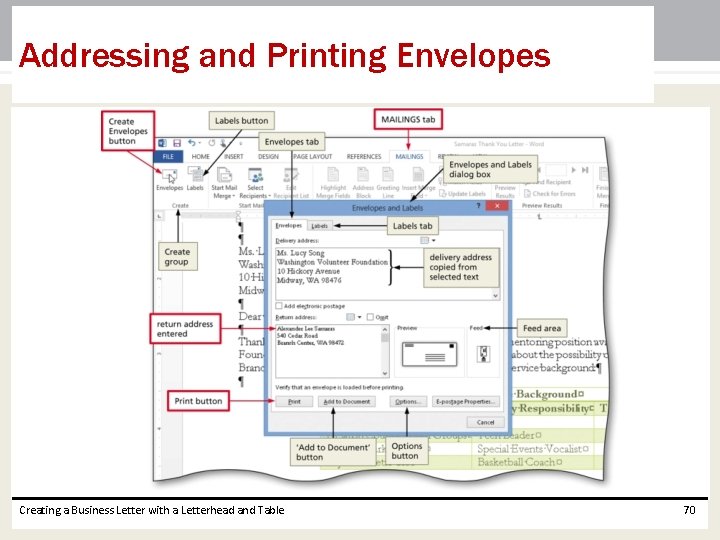
Addressing and Printing Envelopes Creating a Business Letter with a Letterhead and Table 70
Chapter Summary • • Change margins Insert and format a shape Change text wrapping Insert and format a clip art image Insert a symbol Add a border to a paragraph Clear formatting Convert a hyperlink to regular text Creating a Business Letter with a Letterhead and Table 71
Chapter Summary Apply a style Set and use tab stops Insert the current date Create, modify, and insert a building block Insert a Word table, enter data in the table, and format the table • Address and print an envelope • • • Creating a Business Letter with a Letterhead and Table 72
Microsoft Word 2013 Chapter 3 Complete
- Slides: 73