
Microsoft Word 2013 Chapter 1 Creating Formatting and




















- Slides: 64
Microsoft Word 2013 Chapter 1 Creating, Formatting, and Editing a Word Document with a Picture
Objectives • • • Enter text in a Word document Check spelling as you type Format paragraphs Format text Undo and redo commands or actions Change theme colors Creating, Formatting, and Editing a Word Document with a Picture 2
Objectives • • Insert digital pictures in a Word document Format pictures Add a page border Adjust spacing Change document properties Correct errors and revise a document Print and read a document Creating, Formatting, and Editing a Word Document with a Picture 3
Project – Flyer with a Picture Creating, Formatting, and Editing a Word Document with a Picture 4
Roadmap • • Enter text in a new document Format the text in the flyer Insert a picture, called Mountain Trail, in the flyer Format the picture in the flyer Enhance the page with a border and spacing Correct errors and revise text in the flyer Print or read the flyer Creating, Formatting, and Editing a Word Document with a Picture 5
Typing Text • Type the text in the Word document • To move the insertion point to the beginning of the next line, press the ENTER key Creating, Formatting, and Editing a Word Document with a Picture 6
Typing Text Creating, Formatting, and Editing a Word Document with a Picture 7
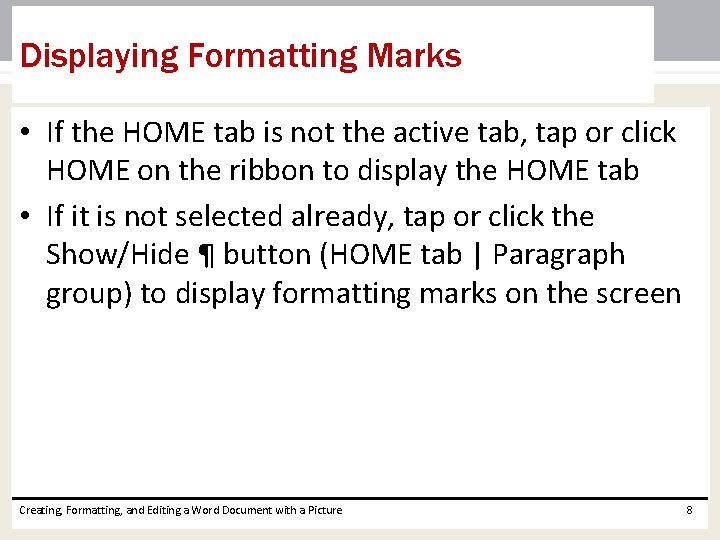
Displaying Formatting Marks • If the HOME tab is not the active tab, tap or click HOME on the ribbon to display the HOME tab • If it is not selected already, tap or click the Show/Hide ¶ button (HOME tab | Paragraph group) to display formatting marks on the screen Creating, Formatting, and Editing a Word Document with a Picture 8
Displaying Formatting Marks Creating, Formatting, and Editing a Word Document with a Picture 9
Inserting a Blank Line • Press the ENTER key to insert a blank line in the document Creating, Formatting, and Editing a Word Document with a Picture 10
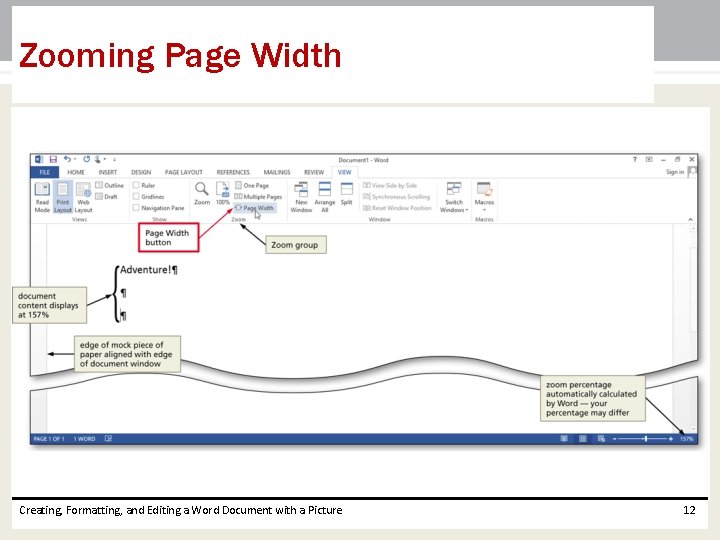
Zooming Page Width • Tap or click VIEW on the ribbon to display the VIEW tab • Tap or click the Page Width button (VIEW tab | Zoom group) to display the page the same width as the document window Creating, Formatting, and Editing a Word Document with a Picture 11
Zooming Page Width Creating, Formatting, and Editing a Word Document with a Picture 12
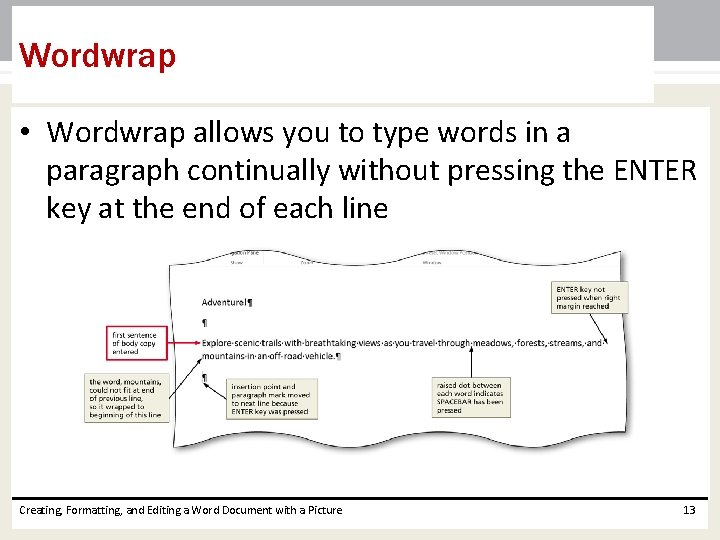
Wordwrap • Wordwrap allows you to type words in a paragraph continually without pressing the ENTER key at the end of each line Creating, Formatting, and Editing a Word Document with a Picture 13
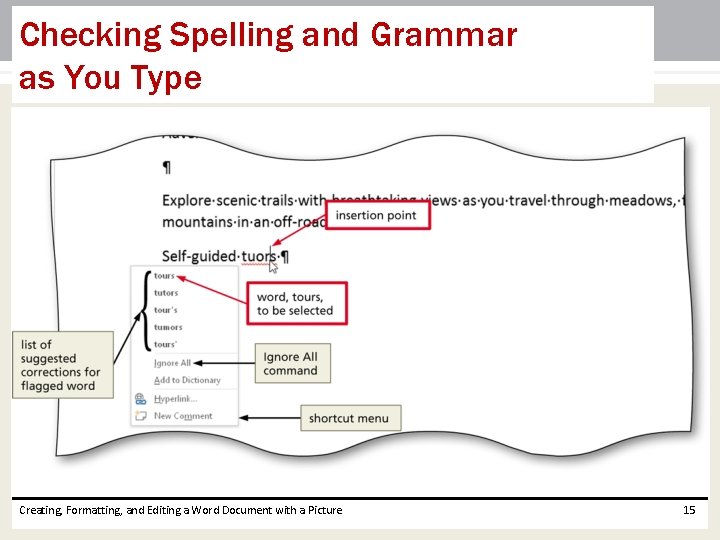
Checking Spelling and Grammar as You Type • Type the misspelled text and then press the SPACEBAR so that a red wavy line appears below the misspelled word • Press and hold or right-click the flagged word to display a shortcut menu that presents a list of suggested spelling corrections for the flagged word • Tap or click the correct word on the shortcut menu Creating, Formatting, and Editing a Word Document with a Picture 14
Checking Spelling and Grammar as You Type Creating, Formatting, and Editing a Word Document with a Picture 15
Navigating a Document Creating, Formatting, and Editing a Word Document with a Picture 16
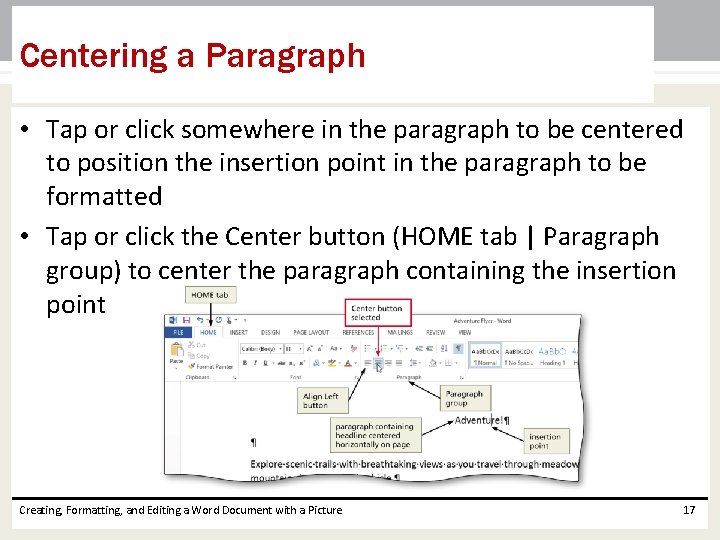
Centering a Paragraph • Tap or click somewhere in the paragraph to be centered to position the insertion point in the paragraph to be formatted • Tap or click the Center button (HOME tab | Paragraph group) to center the paragraph containing the insertion point Creating, Formatting, and Editing a Word Document with a Picture 17
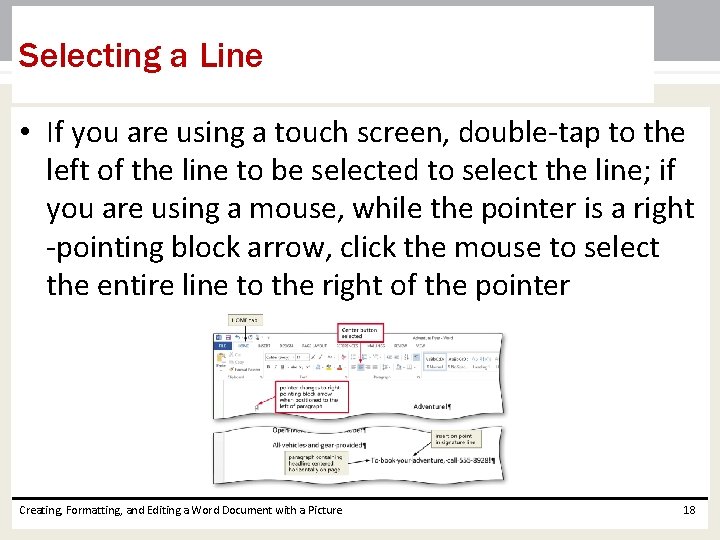
Selecting a Line • If you are using a touch screen, double-tap to the left of the line to be selected to select the line; if you are using a mouse, while the pointer is a right -pointing block arrow, click the mouse to select the entire line to the right of the pointer Creating, Formatting, and Editing a Word Document with a Picture 18
Changing the Font Size of Selected Text • With the text selected, tap or click the Font Size arrow (HOME tab | Font group) to display the Font Size gallery • If you are using a mouse, point to the desired point size in the Font Size gallery to display a live preview of the selected text at the selected point size • Tap or click the desired point size to change the font size of the selected text Creating, Formatting, and Editing a Word Document with a Picture 19
Changing the Font Size of Selected Text Creating, Formatting, and Editing a Word Document with a Picture 20
Changing the Font of Selected Text • With the text selected, tap or click the Font arrow (HOME tab | Font group) to display the Font gallery • Scroll through the Font gallery, and then if you are using a mouse, point to the desired font to display a live preview of the selected text in the selected font • Tap or click the font to change the font of the selected text Creating, Formatting, and Editing a Word Document with a Picture 21
Changing the Font of Selected Text Creating, Formatting, and Editing a Word Document with a Picture 22
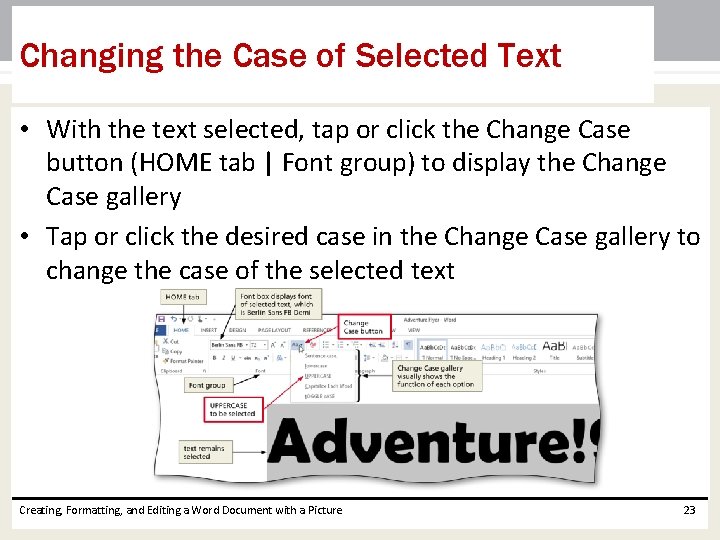
Changing the Case of Selected Text • With the text selected, tap or click the Change Case button (HOME tab | Font group) to display the Change Case gallery • Tap or click the desired case in the Change Case gallery to change the case of the selected text Creating, Formatting, and Editing a Word Document with a Picture 23
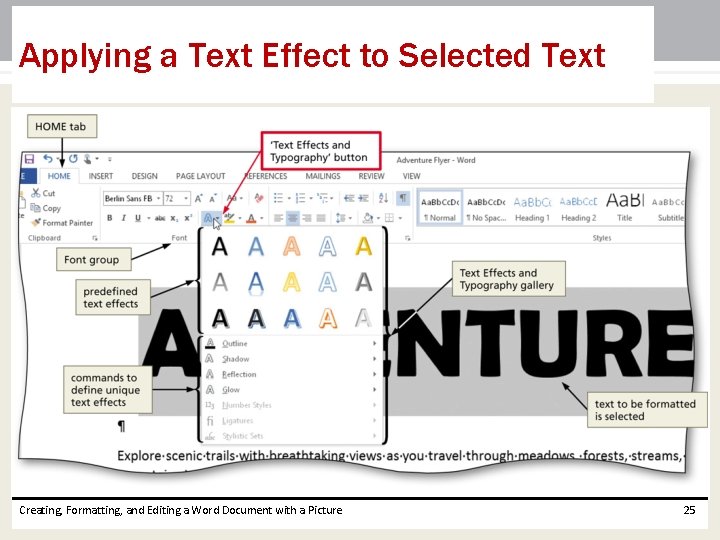
Applying a Text Effect to Selected Text • With the text selected, tap or click the Text Effects button (HOME tab | Font group) to display the Text Effects and Typography gallery • If you are using a mouse, point to the desired text effect to display a live preview of the selected text in the selected text effect • Tap or click the text effect to change the text effect of the selected text Creating, Formatting, and Editing a Word Document with a Picture 24
Applying a Text Effect to Selected Text Creating, Formatting, and Editing a Word Document with a Picture 25
Shading a Paragraph • Tap or click somewhere in the paragraph to be shaded • Tap or click the Shading arrow (HOME tab | Paragraph group) to display the Shading gallery • Tap or click the desired shading color Creating, Formatting, and Editing a Word Document with a Picture 26
Shading a Paragraph Creating, Formatting, and Editing a Word Document with a Picture 27
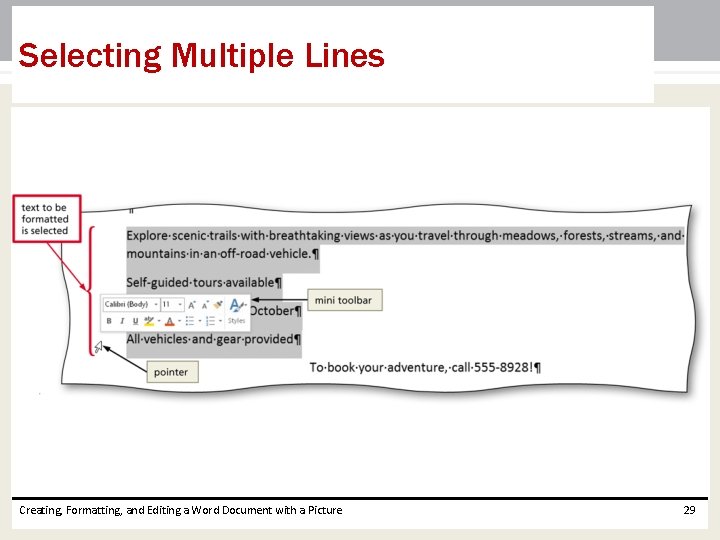
Selecting Multiple Lines • If you are using a touch screen, tap to position the insertion point in the text to select; if you are using a mouse, move the pointer to the left of the first paragraph to be selected until the pointer changes to a right-pointing block arrow • If you are using a touch screen, drag the selection handle(s) as necessary to select the text that will be formatted; if you are using a mouse, while the pointer is a right-pointing block arrow, drag downward to select all lines that will be formatted Creating, Formatting, and Editing a Word Document with a Picture 28
Selecting Multiple Lines Creating, Formatting, and Editing a Word Document with a Picture 29
Bulleting a List of Paragraphs • Select the paragraphs to be formatted • Tap or click the Bullets button (HOME tab | Paragraph group) to place a bullet character at the beginning of each selected paragraph Creating, Formatting, and Editing a Word Document with a Picture 30
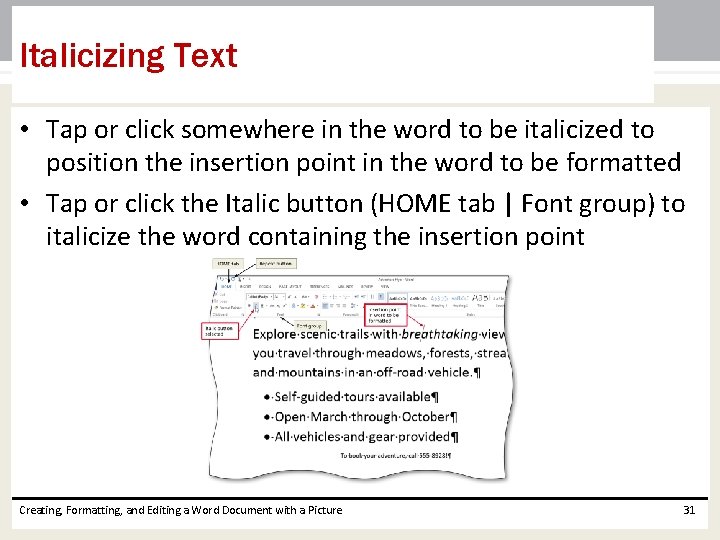
Italicizing Text • Tap or click somewhere in the word to be italicized to position the insertion point in the word to be formatted • Tap or click the Italic button (HOME tab | Font group) to italicize the word containing the insertion point Creating, Formatting, and Editing a Word Document with a Picture 31
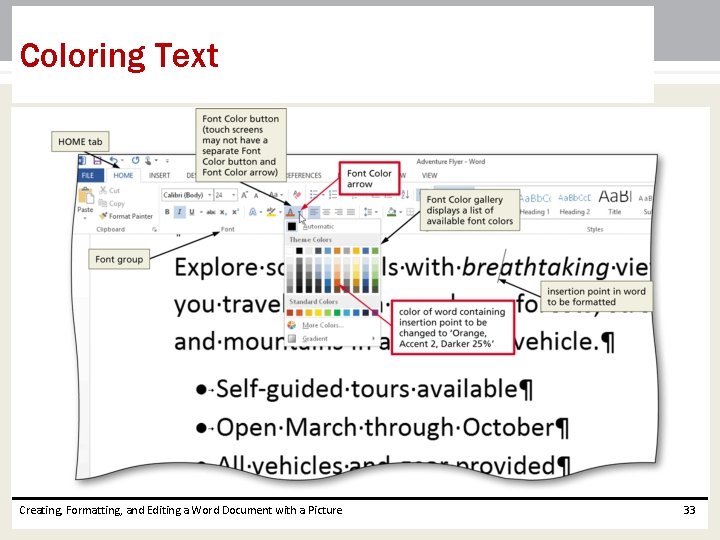
Coloring Text • With the insertion point in the word to format, tap or click the Font Color arrow (HOME tab | Font group) to display the Font Color gallery • Tap or click the font color to change the color of the text Creating, Formatting, and Editing a Word Document with a Picture 32
Coloring Text Creating, Formatting, and Editing a Word Document with a Picture 33
Using the Mini Toolbar to Format Text • Select the text to format to display the mini toolbar Creating, Formatting, and Editing a Word Document with a Picture 34
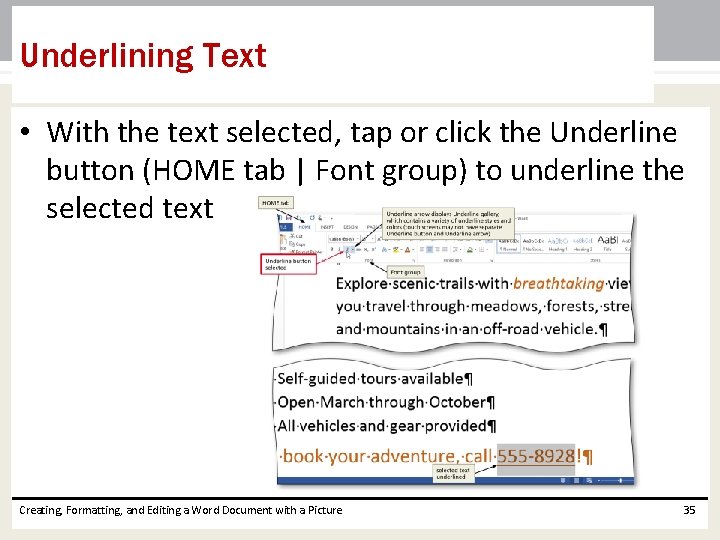
Underlining Text • With the text selected, tap or click the Underline button (HOME tab | Font group) to underline the selected text Creating, Formatting, and Editing a Word Document with a Picture 35
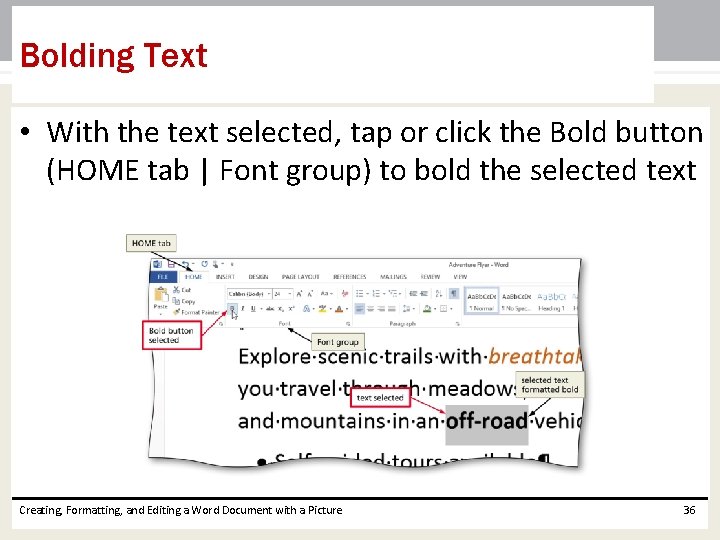
Bolding Text • With the text selected, tap or click the Bold button (HOME tab | Font group) to bold the selected text Creating, Formatting, and Editing a Word Document with a Picture 36
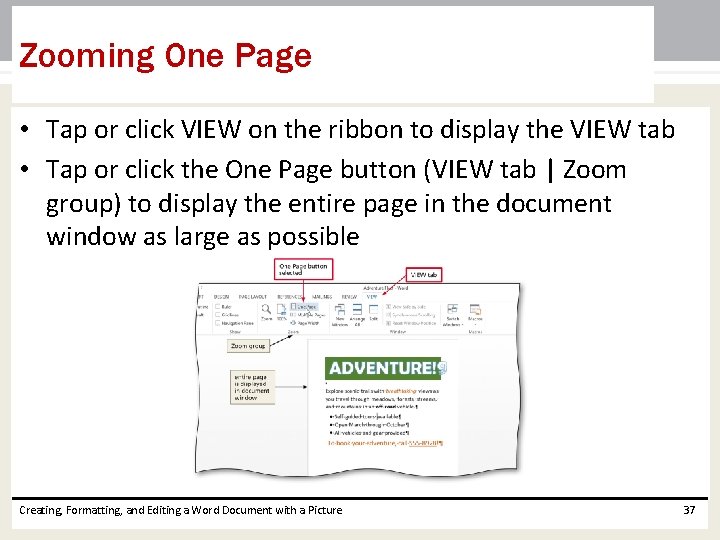
Zooming One Page • Tap or click VIEW on the ribbon to display the VIEW tab • Tap or click the One Page button (VIEW tab | Zoom group) to display the entire page in the document window as large as possible Creating, Formatting, and Editing a Word Document with a Picture 37
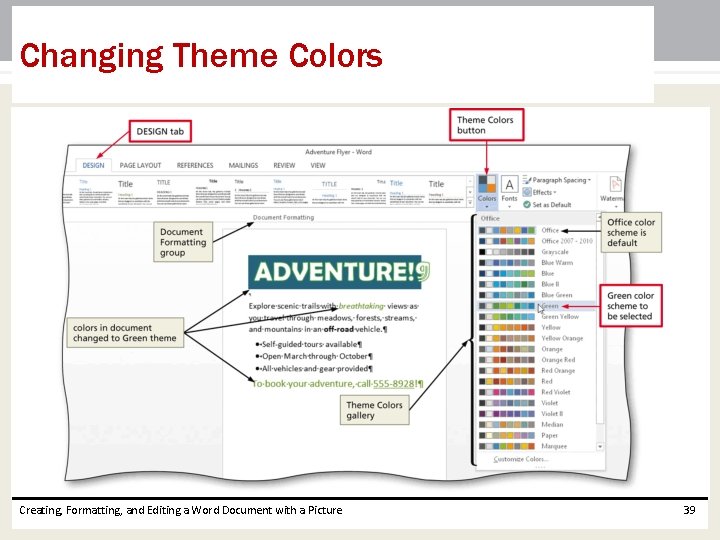
Changing Theme Colors • Tap or click DESIGN on the ribbon to display the DESIGN tab • Tap or click the Theme Colors button (DESIGN tab | Document Formatting group) to display the Theme Colors gallery • Tap or click the desired theme color to change the document theme colors Creating, Formatting, and Editing a Word Document with a Picture 38
Changing Theme Colors Creating, Formatting, and Editing a Word Document with a Picture 39
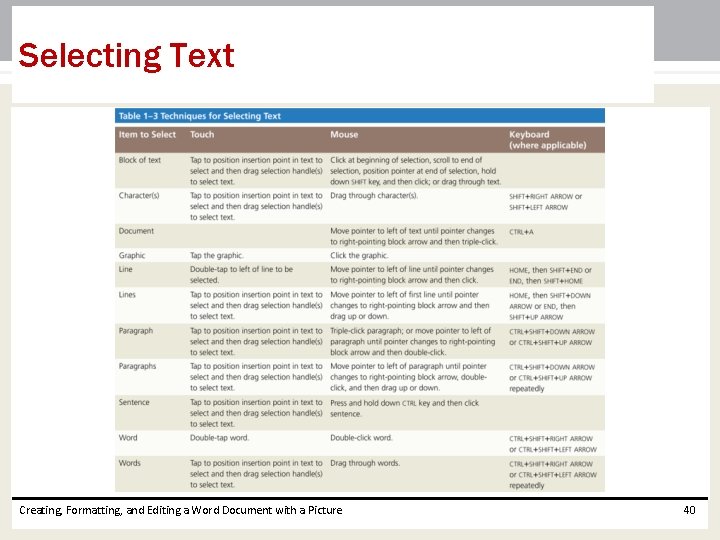
Selecting Text Creating, Formatting, and Editing a Word Document with a Picture 40
Inserting a Picture • Position the insertion point where you want to insert the picture • Tap or click INSERT on the ribbon to display the INSERT tab • Tap or click the From File button to display the Insert Picture dialog box • Navigate to the picture location • Select the picture you wish to insert • Tap or click the Insert button to insert the picture at the location of the insertion point in the document Creating, Formatting, and Editing a Word Document with a Picture 41
Inserting a Picture Creating, Formatting, and Editing a Word Document with a Picture 42
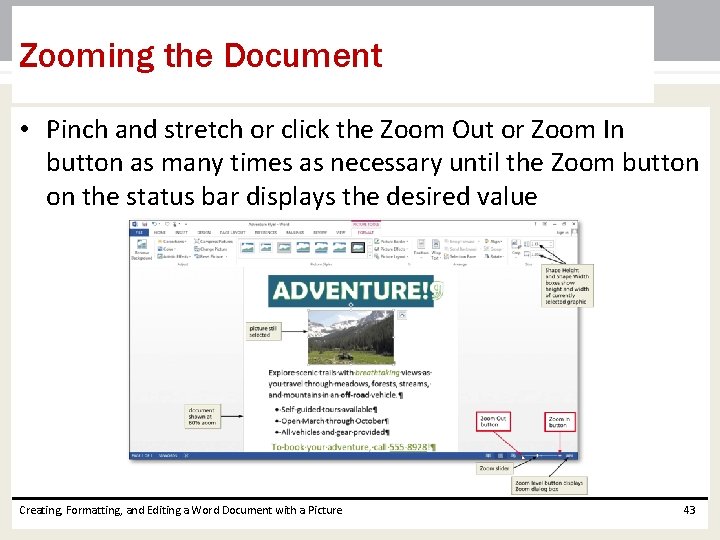
Zooming the Document • Pinch and stretch or click the Zoom Out or Zoom In button as many times as necessary until the Zoom button on the status bar displays the desired value Creating, Formatting, and Editing a Word Document with a Picture 43
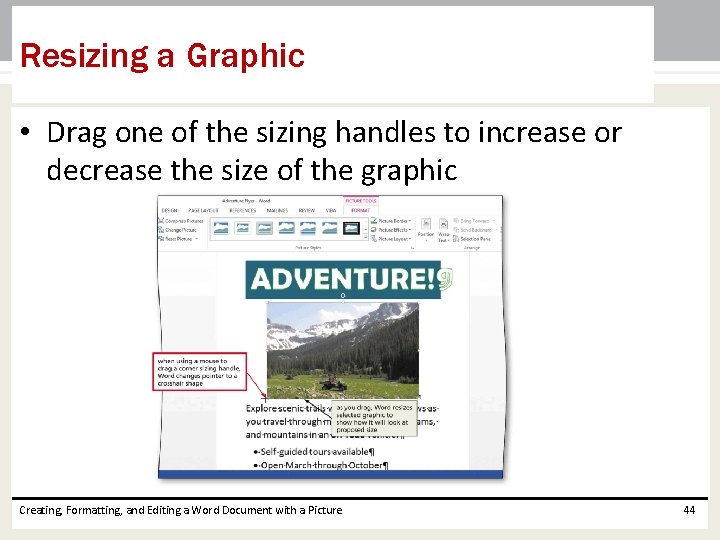
Resizing a Graphic • Drag one of the sizing handles to increase or decrease the size of the graphic Creating, Formatting, and Editing a Word Document with a Picture 44
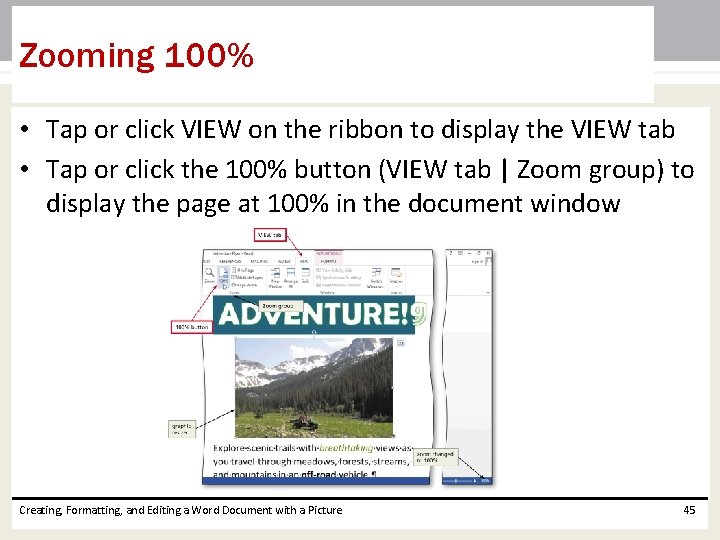
Zooming 100% • Tap or click VIEW on the ribbon to display the VIEW tab • Tap or click the 100% button (VIEW tab | Zoom group) to display the page at 100% in the document window Creating, Formatting, and Editing a Word Document with a Picture 45
Applying a Picture Style • Tap or click PICTURE TOOLS FORMAT on the ribbon to display the PICTURE TOOLS FORMAT tab • Be sure the graphic still is selected • Tap or click the More button in the Picture Styles gallery (PICTURE TOOLS FORMAT tab | Picture Styles group) to expand the gallery • Tap or click the desired style in the Picture Styles gallery to apply the style to the selected picture Creating, Formatting, and Editing a Word Document with a Picture 46
Applying a Picture Style Creating, Formatting, and Editing a Word Document with a Picture 47
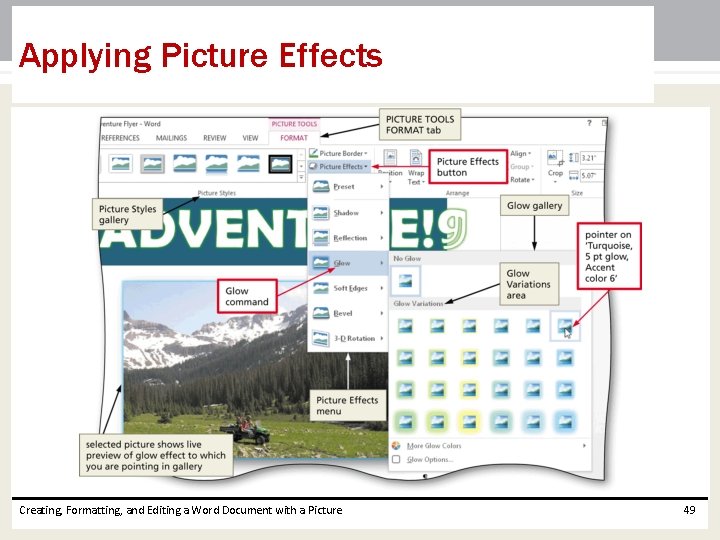
Applying Picture Effects • With the picture still selected, tap or click the Picture Effects button (PICTURE TOOLS FORMAT tab | Picture Styles group) to display the Picture Effects menu • Tap or point to the desired effect category • Tap or click the desired picture effect in the gallery to apply the selected picture effect Creating, Formatting, and Editing a Word Document with a Picture 48
Applying Picture Effects Creating, Formatting, and Editing a Word Document with a Picture 49
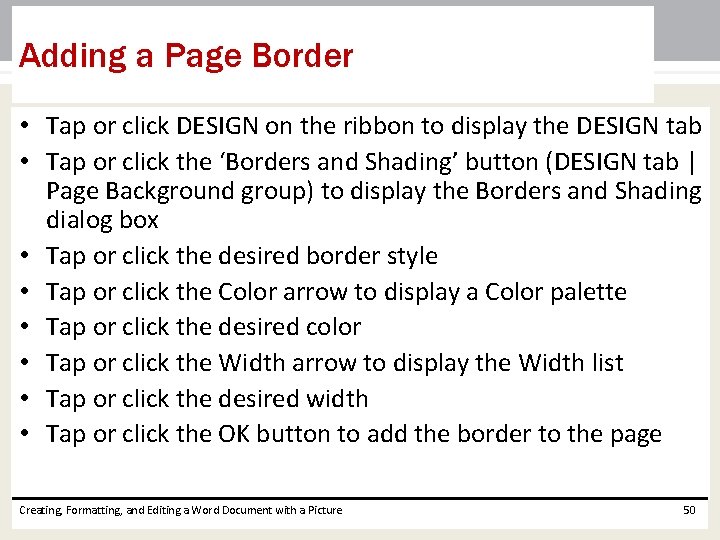
Adding a Page Border • Tap or click DESIGN on the ribbon to display the DESIGN tab • Tap or click the ‘Borders and Shading’ button (DESIGN tab | Page Background group) to display the Borders and Shading dialog box • Tap or click the desired border style • Tap or click the Color arrow to display a Color palette • Tap or click the desired color • Tap or click the Width arrow to display the Width list • Tap or click the desired width • Tap or click the OK button to add the border to the page Creating, Formatting, and Editing a Word Document with a Picture 50
Adding a Page Border Creating, Formatting, and Editing a Word Document with a Picture 51
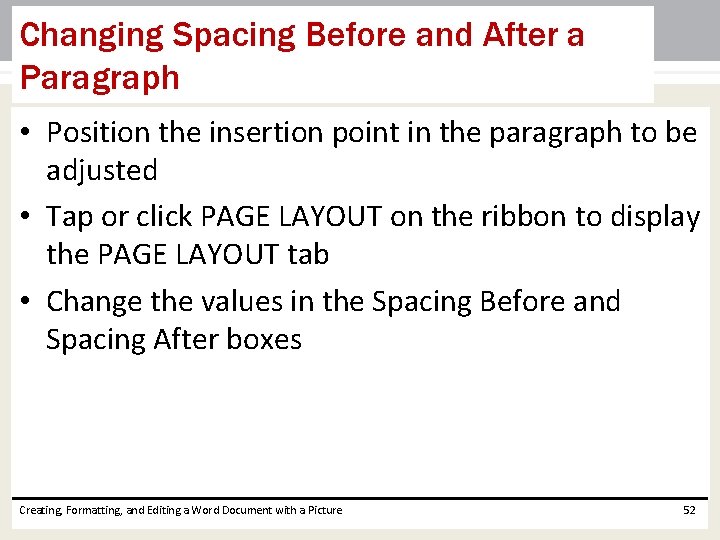
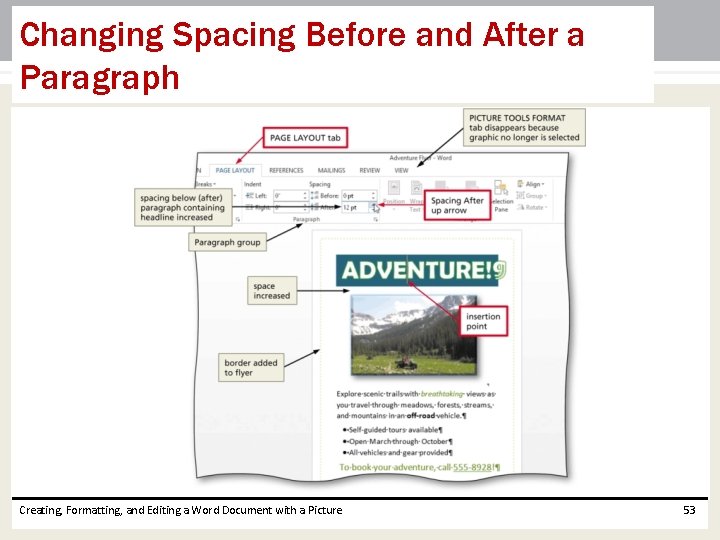
Changing Spacing Before and After a Paragraph • Position the insertion point in the paragraph to be adjusted • Tap or click PAGE LAYOUT on the ribbon to display the PAGE LAYOUT tab • Change the values in the Spacing Before and Spacing After boxes Creating, Formatting, and Editing a Word Document with a Picture 52
Changing Spacing Before and After a Paragraph Creating, Formatting, and Editing a Word Document with a Picture 53
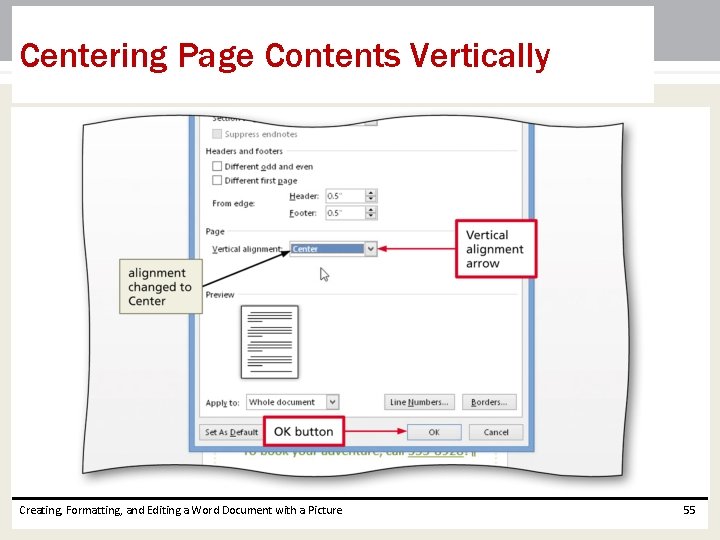
Centering Page Contents Vertically • If necessary, tap or click PAGE LAYOUT on the ribbon to display the PAGE LAYOUT tab • Tap or click the Page Setup Dialog Box Launcher (PAGE LAYOUT tab | Page Setup group) to display the Page Setup dialog box • Tap or click the Layout tab (Page Setup dialog box) to display the Layout sheet • Tap or click the Vertical alignment arrow to display the list of alignment options and then tap or click Center in the list • Tap or click the OK button to center the page contents vertically on the screen Creating, Formatting, and Editing a Word Document with a Picture 54
Centering Page Contents Vertically Creating, Formatting, and Editing a Word Document with a Picture 55
Deleting Text • Select the text to be deleted • With the text selected, press the DELETE key to delete the selected text Creating, Formatting, and Editing a Word Document with a Picture 56
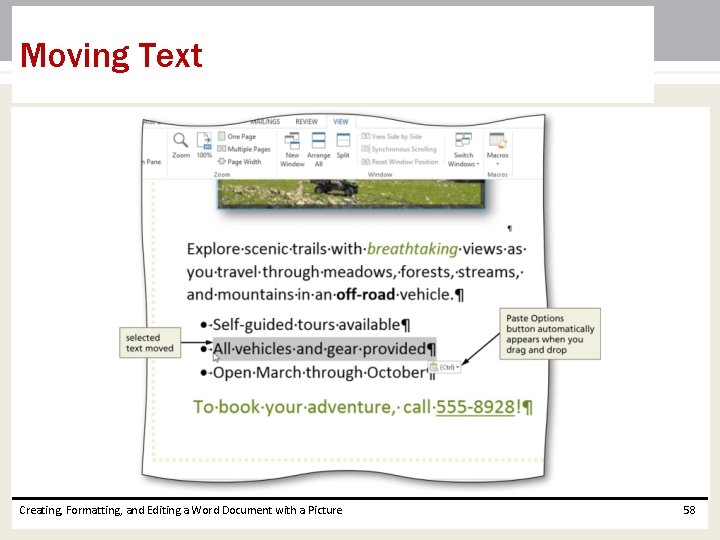
Moving Text • Select the text to be moved • If you are using a mouse, with the pointer in the selected text, press and hold down the mouse button, which displays a small dotted box with the pointer • If you are using a mouse, drag the insertion point to the location where the selected text is to be moved • If you are using a mouse, release the mouse button to move the selected text to the location of the dotted insertion point • Tap or click anywhere in the document window to remove the selection Creating, Formatting, and Editing a Word Document with a Picture 57
Moving Text Creating, Formatting, and Editing a Word Document with a Picture 58
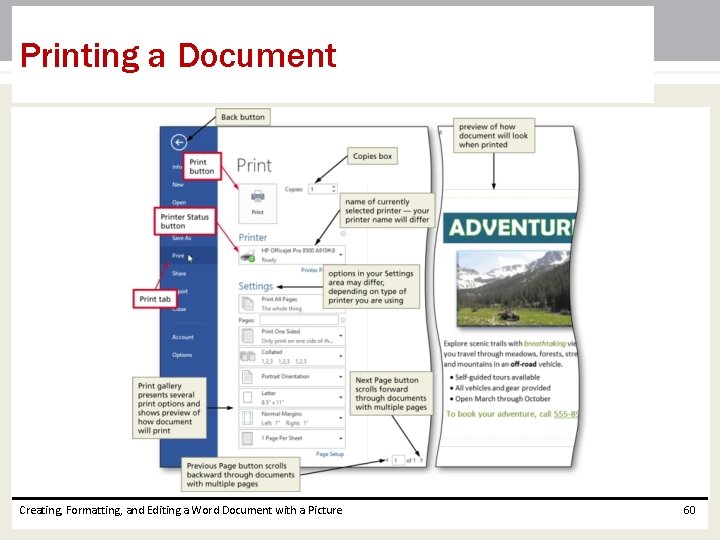
Printing a Document • Tap or click FILE on the ribbon to open the Backstage view • Tap or click the Print tab in the Backstage view to display the Print gallery • Verify the printer name that appears on the Printer Status button will print a hard copy of the document. If necessary, click the Printer Status button to display a list of available printer options and then click the desired printer to change the currently selected printer • Tap or click the Print button in the Print gallery to print the document on the currently selected printer Creating, Formatting, and Editing a Word Document with a Picture 59
Printing a Document Creating, Formatting, and Editing a Word Document with a Picture 60
Switching to Read Mode • Tap or click the Read Mode button on the status bar to switch to Read mode Creating, Formatting, and Editing a Word Document with a Picture 61
Chapter Summary • • • Enter text in a Word document Check spelling as you type Format paragraphs Format text Undo and redo commands or actions Change theme colors Creating, Formatting, and Editing a Word Document with a Picture 62
Chapter Summary • • Insert digital pictures in a Word document Format pictures Add a page border Adjust spacing Change document properties Correct errors and revise a document Print and read a document Creating, Formatting, and Editing a Word Document with a Picture 63
Microsoft Word 2013 Chapter 1 Complete