
MICROSOFT WORD 2010 Assistant lecturer Nisreen A Jabr
MICROSOFT WORD 2010 Assistant lecturer Nisreen A. Jabr
is the word processing program of the Microsoft Offic suite that allows you to create documents and reports.
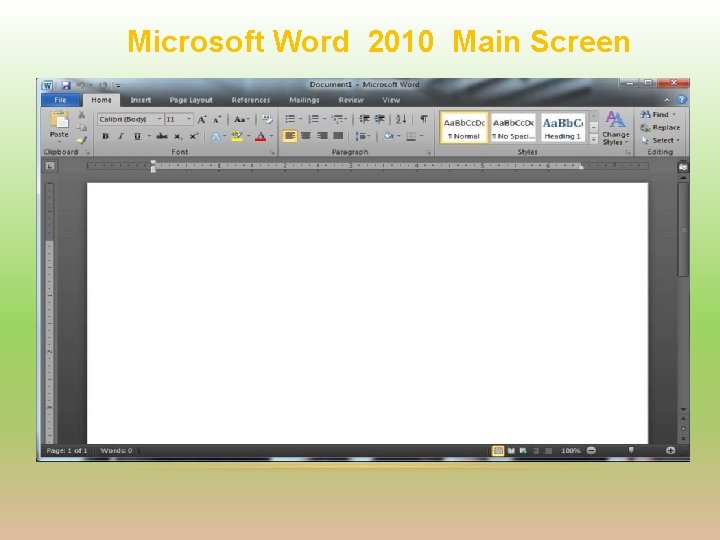
Microsoft Word 2010 Main Screen
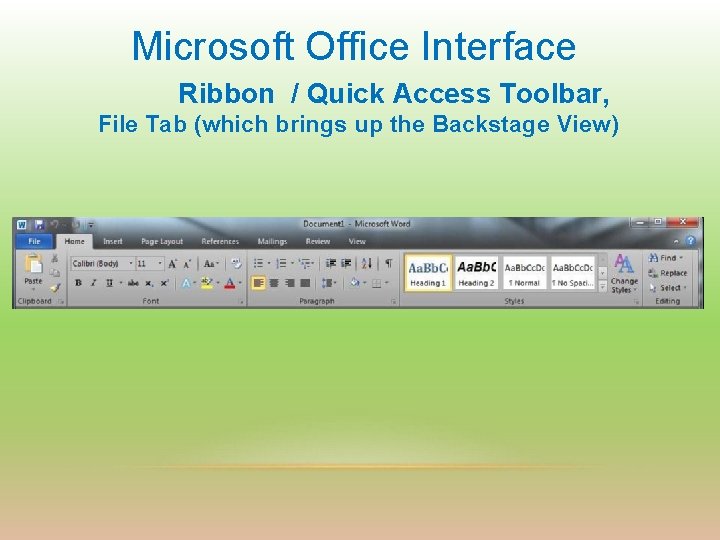
Microsoft Office Interface Ribbon / Quick Access Toolbar, File Tab (which brings up the Backstage View)
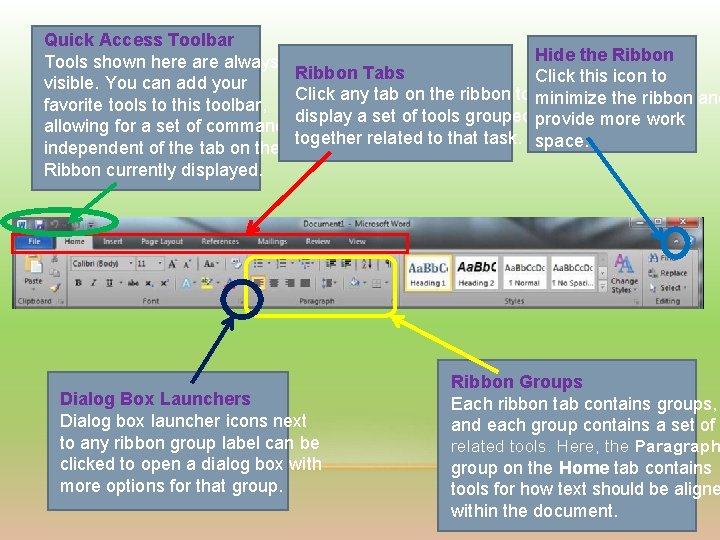
Quick Access Toolbar Hide the Ribbon Tools shown here always Ribbon Tabs Click this icon to visible. You can add your Click any tab on the ribbon to minimize the ribbon and favorite tools to this toolbar, display a set of tools grouped provide more work allowing for a set of commands together related to that task. space. independent of the tab on the Ribbon currently displayed. Dialog Box Launchers Dialog box launcher icons next to any ribbon group label can be clicked to open a dialog box with more options for that group. Ribbon Groups Each ribbon tab contains groups, and each group contains a set of related tools. Here, the Paragraph group on the Home tab contains tools for how text should be aligne within the document.
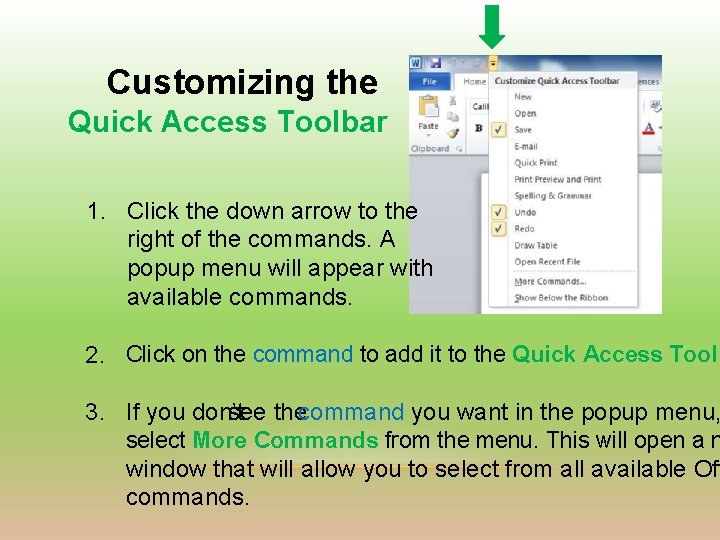
Customizing the Quick Access Toolbar 1. Click the down arrow to the right of the commands. A popup menu will appear with available commands. 2. Click on the command to add it to the Quick Access Toolb see thecommand you want in the popup menu, 3. If you don’t select More Commands from the menu. This will open a n window that will allow you to select from all available Off commands.
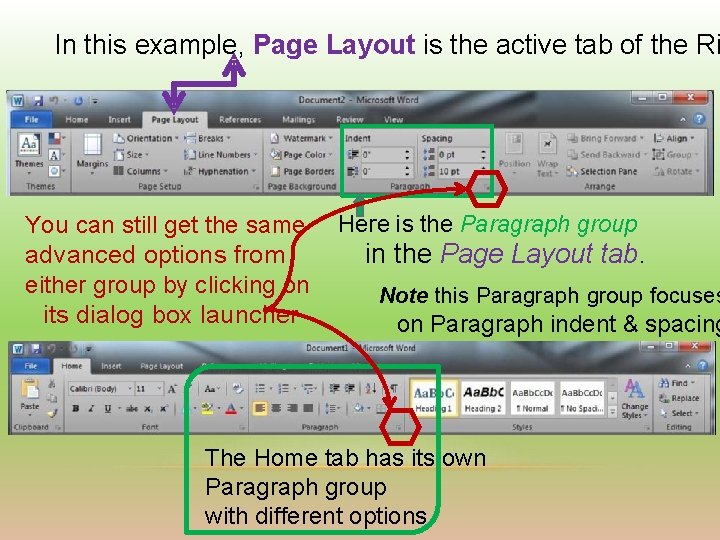
In this example, Page Layout is the active tab of the Ri You can still get the same advanced options from either group by clicking on its dialog box launcher Here is the Paragraph group in the Page Layout tab. Note this Paragraph group focuses on Paragraph indent & spacing The Home tab has its own Paragraph group with different options.
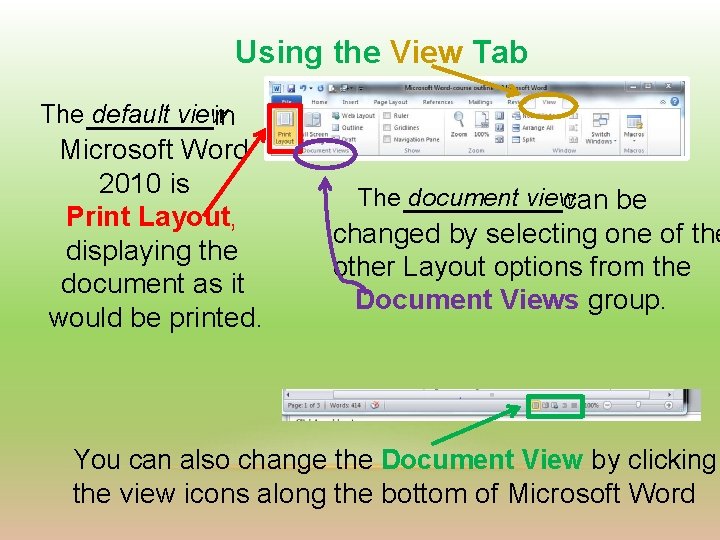
Using the View Tab The default view in Microsoft Word 2010 is Print Layout, displaying the document as it would be printed. The document view can be changed by selecting one of the other Layout options from the Document Views group. You can also change the Document View by clicking the view icons along the bottom of Microsoft Word

The Backstage View appears when clicking the File Tab on the R This is a set of commands you use to do things to a document. Save (& Send) Inspect documents for hidden Metadata or personal information Create Help Set Options such as turning on or off Auto Complete suggestions
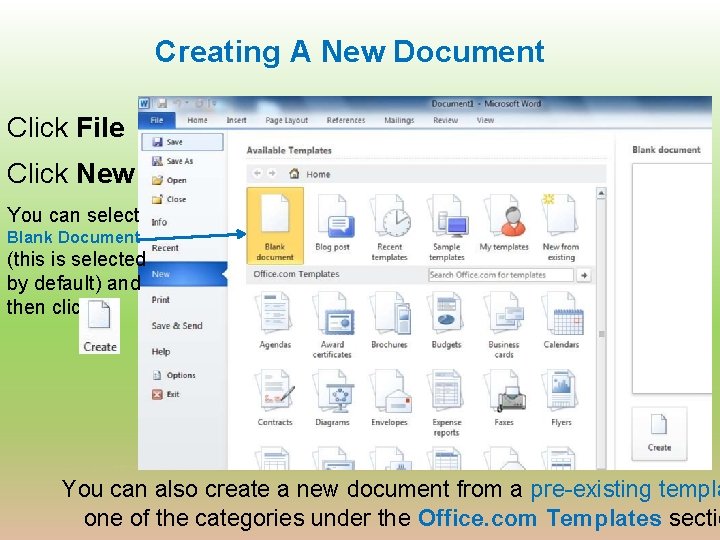
Creating A New Document Click File Click New You can select Blank Document (this is selected by default) and then click You can also create a new document from a pre-existing templa one of the categories under the Office. com Templates sectio
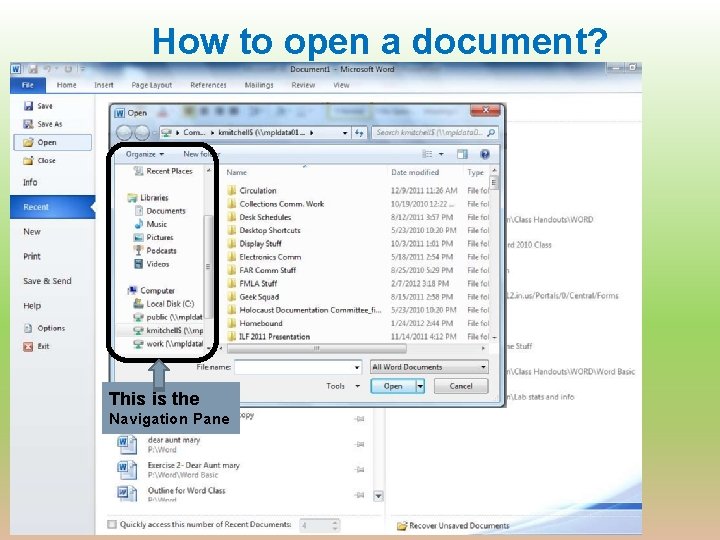
How to open a document? This is the Navigation Pane
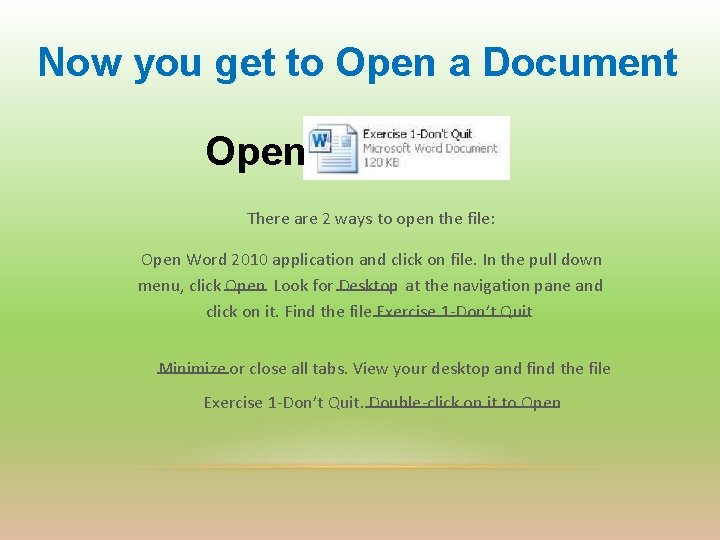
Now you get to Open a Document Open There are 2 ways to open the file: Open Word 2010 application and click on file. In the pull down menu, click Open. Look for Desktop at the navigation pane and click on it. Find the file Exercise 1 -Don’t Quit. Minimize or close all tabs. View your desktop and find the file Exercise 1 -Don’t Quit. Double-click on it to Open.
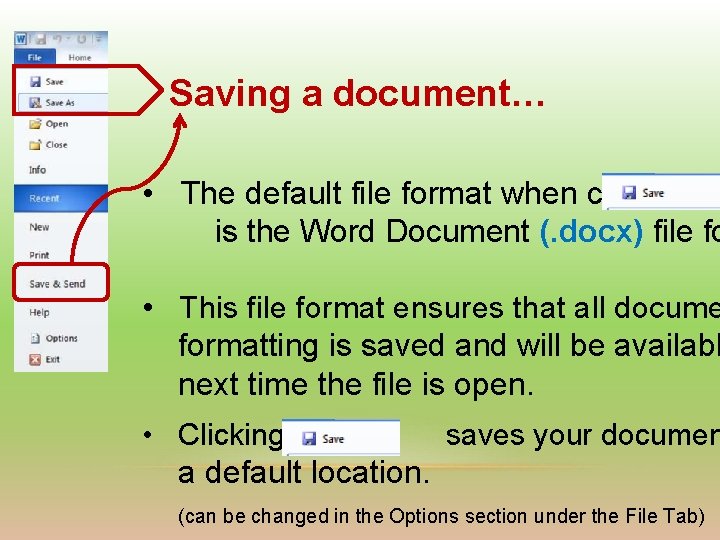
Saving a document… • The default file format when clicking is the Word Document (. docx) file fo • This file format ensures that all docume formatting is saved and will be availabl next time the file is open. • Clicking saves your documen a default location. (can be changed in the Options section under the File Tab)
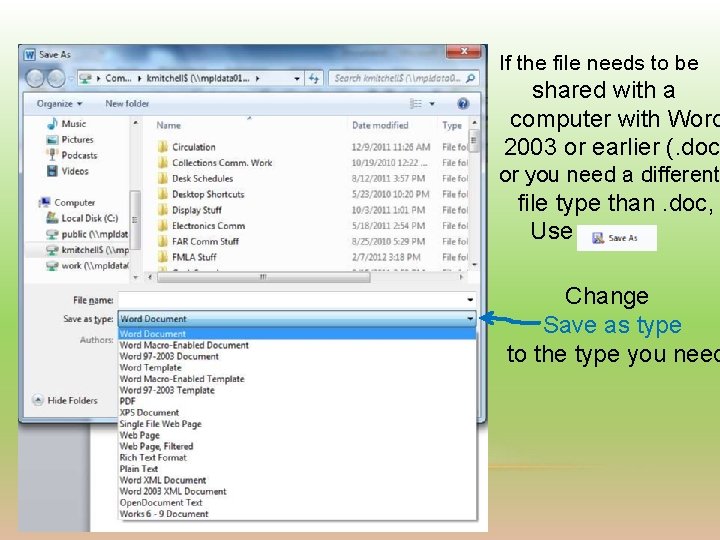
If the file needs to be shared with a computer with Word 2003 or earlier (. doc or you need a different file type than. doc, Use Change Save as type to the type you need
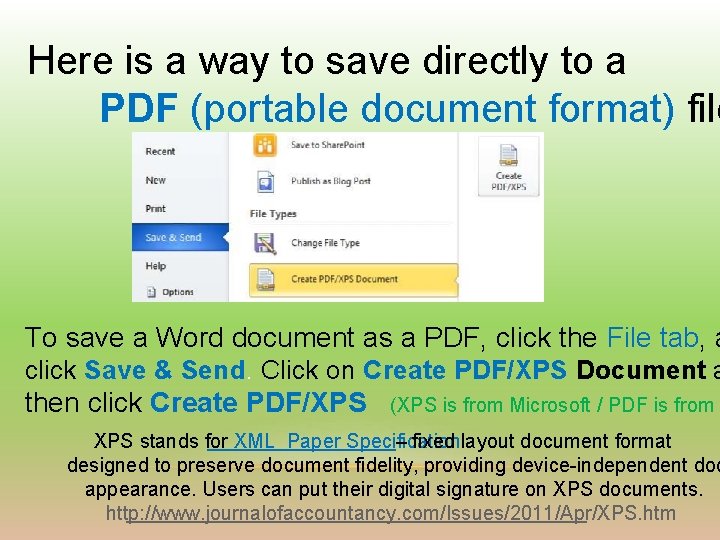
Here is a way to save directly to a PDF (portable document format) file To save a Word document as a PDF, click the File tab, a click Save & Send. Click on Create PDF/XPS Document a then click Create PDF/XPS (XPS is from Microsoft / PDF is from – fixed layout document format XPS stands for XML Paper Specification designed to preserve document fidelity, providing device-independent doc appearance. Users can put their digital signature on XPS documents. http: //www. journalofaccountancy. com/Issues/2011/Apr/XPS. htm
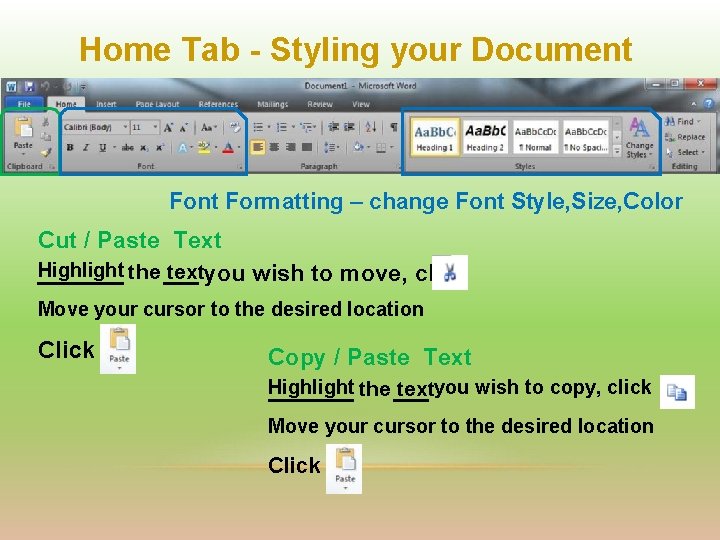
Home Tab - Styling your Document Formatting – change Font Style, Size, Color Cut / Paste Text Highlight the textyou wish to move, click Move your cursor to the desired location Click Copy / Paste Text Highlight the textyou wish to copy, click Move your cursor to the desired location Click
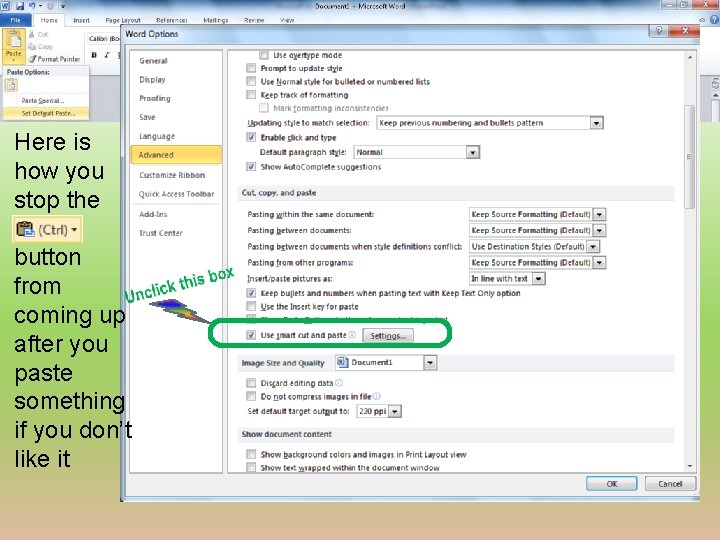
Here is how you stop the button from coming up after you paste something if you don’t like it
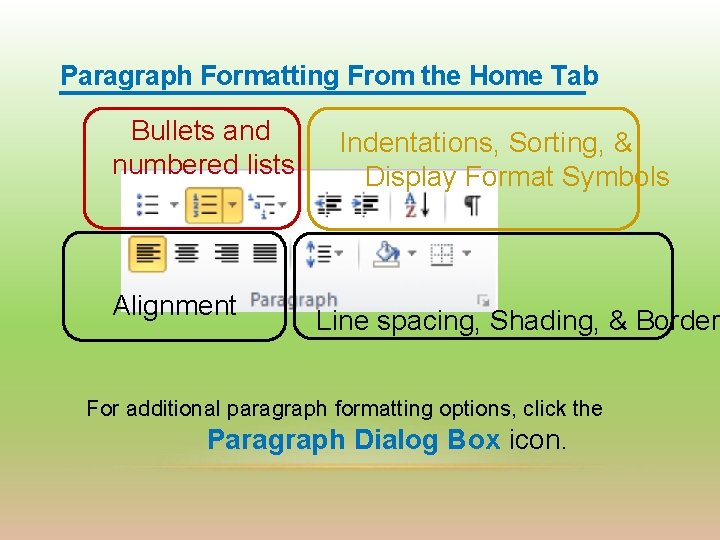
Paragraph Formatting From the Home Tab Bullets and numbered lists Alignment Indentations, Sorting, & Display Format Symbols Line spacing, Shading, & Border For additional paragraph formatting options, click the Paragraph Dialog Box icon.
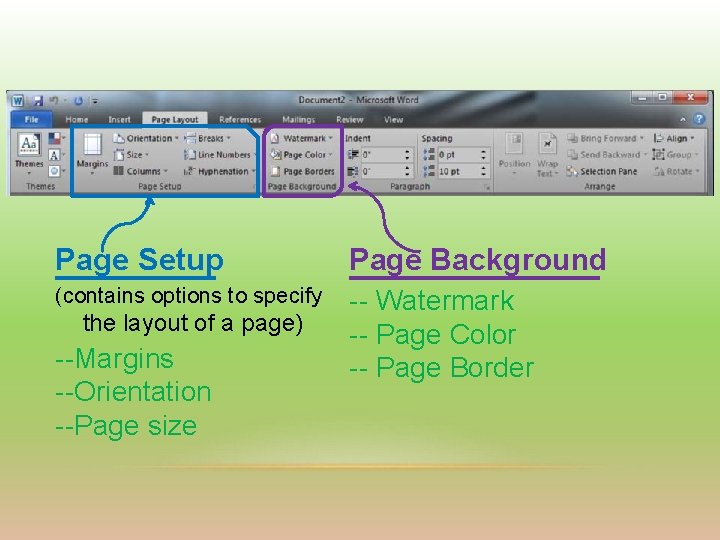
Page Setup Page Background (contains options to specify -- Watermark -- Page Color -- Page Border the layout of a page) --Margins --Orientation --Page size
PRINT YOUR DOCUMENT
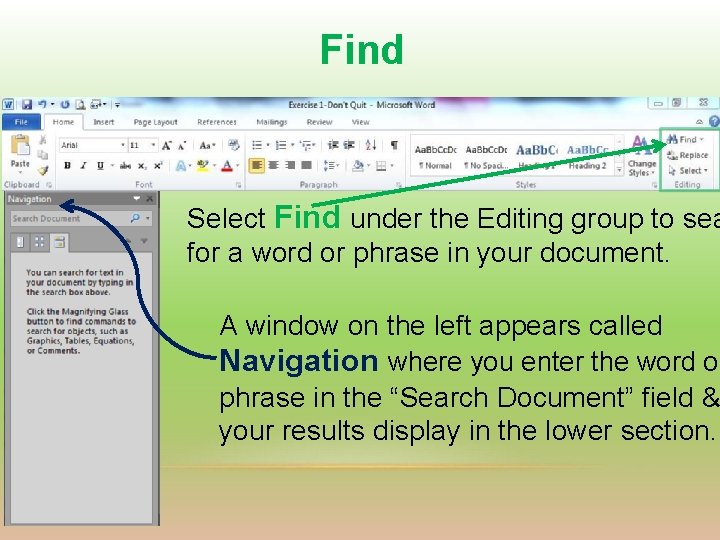
Find Select Find under the Editing group to sea for a word or phrase in your document. A window on the left appears called Navigation where you enter the word or phrase in the “Search Document” field & your results display in the lower section.
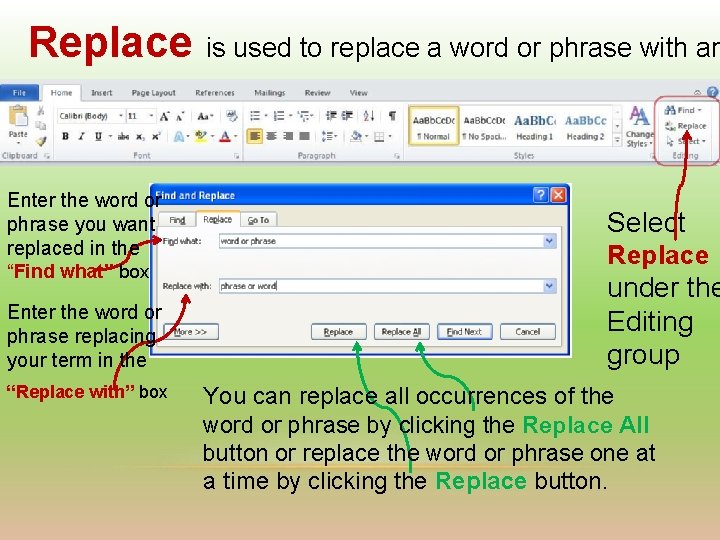
Replace is used to replace a word or phrase with an Enter the word or phrase you want replaced in the “Find what” box Enter the word or phrase replacing your term in the “Replace with” box Select Replace under the Editing group You can replace all occurrences of the word or phrase by clicking the Replace All button or replace the word or phrase one at a time by clicking the Replace button.
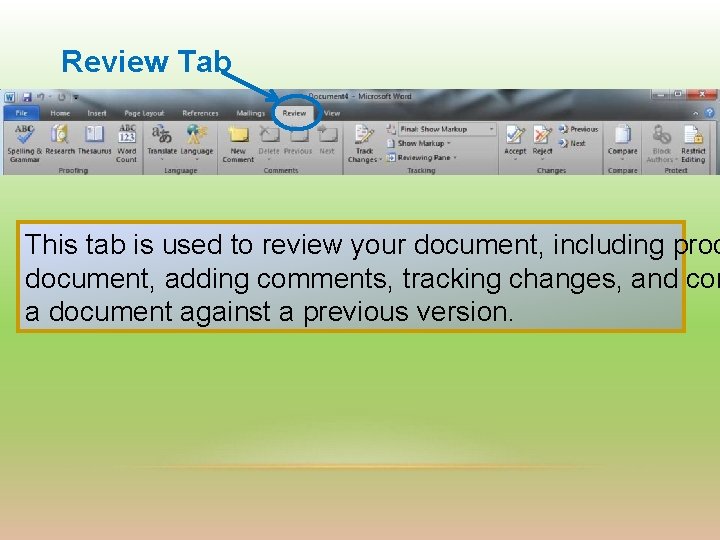
Review Tab This tab is used to review your document, including proo document, adding comments, tracking changes, and com a document against a previous version.
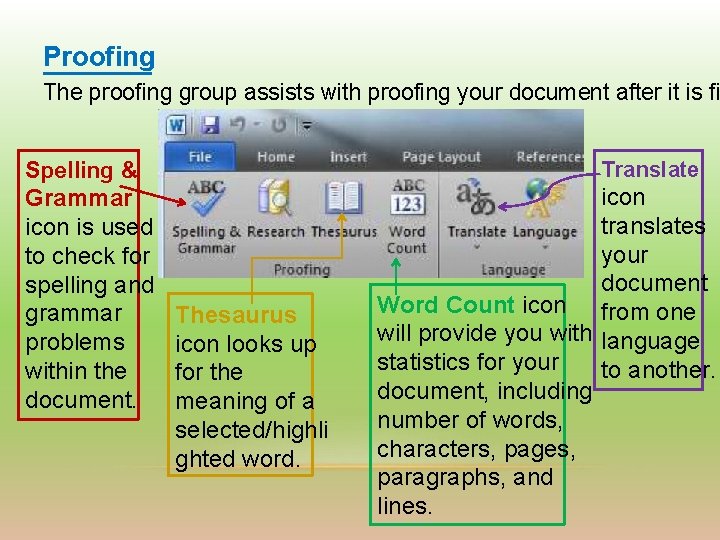
Proofing The proofing group assists with proofing your document after it is fi Translate Spelling & Grammar icon is used to check for spelling and grammar problems within the document. Thesaurus icon looks up for the meaning of a selected/highli ghted word. icon translates your document Word Count icon from one will provide you with language statistics for your to another. document, including number of words, characters, pages, paragraphs, and lines.

Insert Tab Used to insert various types of objects P A G E S T A B L E S I L L U S T R A T I O N S Pictures Clip Art Screenshot Shapes L I N K S H E A D E R S & F O O T E R S T E X T S Y M B O L S
- Slides: 25