
MICROSOFT WORD 2007 INTERMEDIATEADVANCED CREATE A NEW STYLE

- Slides: 25
MICROSOFT WORD 2007 INTERMEDIATE/ADVANCED
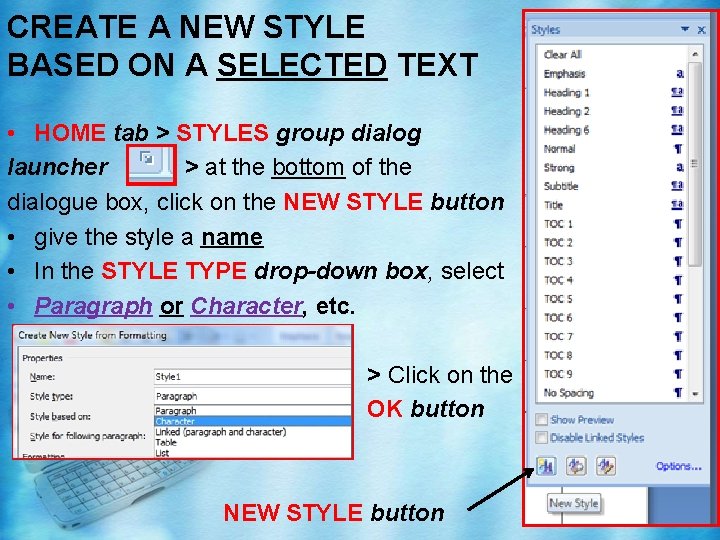
CREATE A NEW STYLE BASED ON A SELECTED TEXT • HOME tab > STYLES group dialog launcher > at the bottom of the dialogue box, click on the NEW STYLE button • give the style a name • In the STYLE TYPE drop-down box, select • Paragraph or Character, etc. > Click on the OK button NEW STYLE button
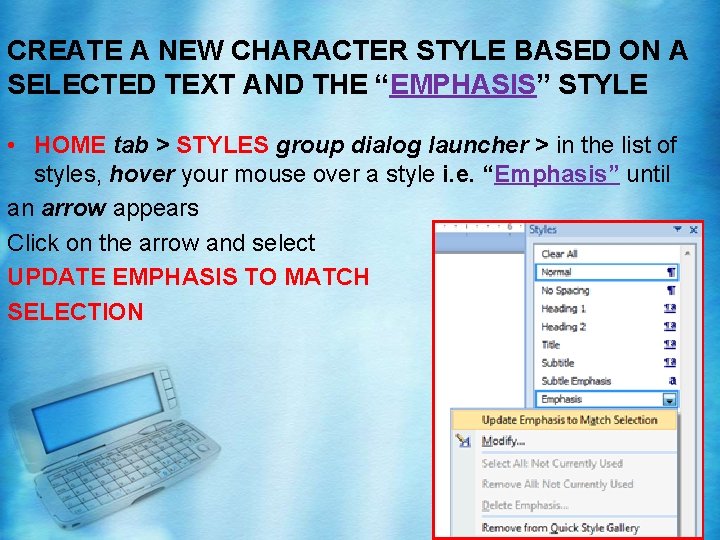
CREATE A NEW CHARACTER STYLE BASED ON A SELECTED TEXT AND THE “EMPHASIS” STYLE • HOME tab > STYLES group dialog launcher > in the list of styles, hover your mouse over a style i. e. “Emphasis” until an arrow appears Click on the arrow and select UPDATE EMPHASIS TO MATCH SELECTION
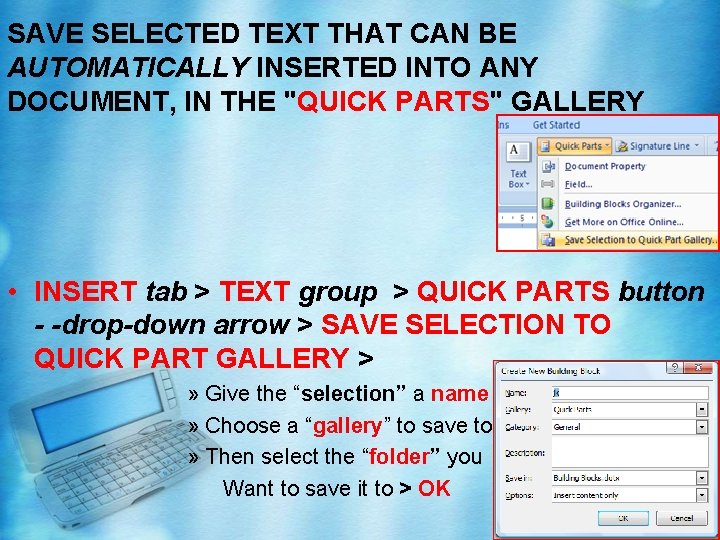
SAVE SELECTED TEXT THAT CAN BE AUTOMATICALLY INSERTED INTO ANY DOCUMENT, IN THE "QUICK PARTS" GALLERY • INSERT tab > TEXT group > QUICK PARTS button - -drop-down arrow > SAVE SELECTION TO QUICK PART GALLERY > » Give the “selection” a name » Choose a “gallery” to save to » Then select the “folder” you Want to save it to > OK
USE QUICK PARTS TO AUTOMATICALLY ADD THE BUILDING BLOCK "BACKGROUND" TO A LETTER • INSERT > QUICK PARTS > BUILDING BLOCKS ORGANIZER • Select: BACKGROUND at the top of the list
INSERT TEXT FROM ANOTHER DOCUMENT WITHOUT CREATING A SUBDOCUMENT • INSERT tab > TEXT group > OBJECT button drop-down arrow > TEXT FROM FILE > • Navigate to where the file is, and then doubleclick on the filename
MASTER DOCUMENT/SUBDOCUMENT • A “MASTER DOCUMENT” is a Word doc that contains links to 2 or more related documents called: “SUBDOCUMENTS” • You create a “MASTER DOCUMENT” to organize & format long documents like: » Reports » Books » Into manageable subdocuments » Each of which you can open & edit directly from the Master Document
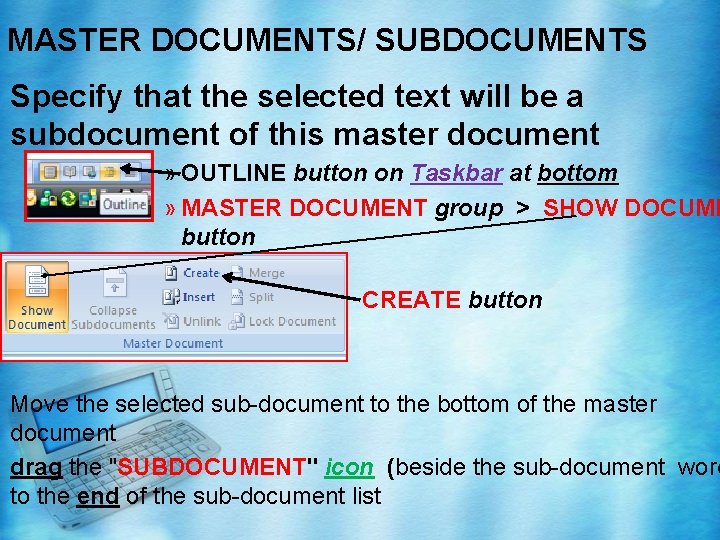
MASTER DOCUMENTS/ SUBDOCUMENTS Specify that the selected text will be a subdocument of this master document » OUTLINE button on Taskbar at bottom » MASTER DOCUMENT group > SHOW DOCUME button » CREATE button Move the selected sub-document to the bottom of the master document drag the "SUBDOCUMENT" icon (beside the sub-document word to the end of the sub-document list
Document Map • A way to quickly navigate your document – View tab, Show/Hide group, add check to Document Map checkbox – Double click on any item in the Document Map to go to that location
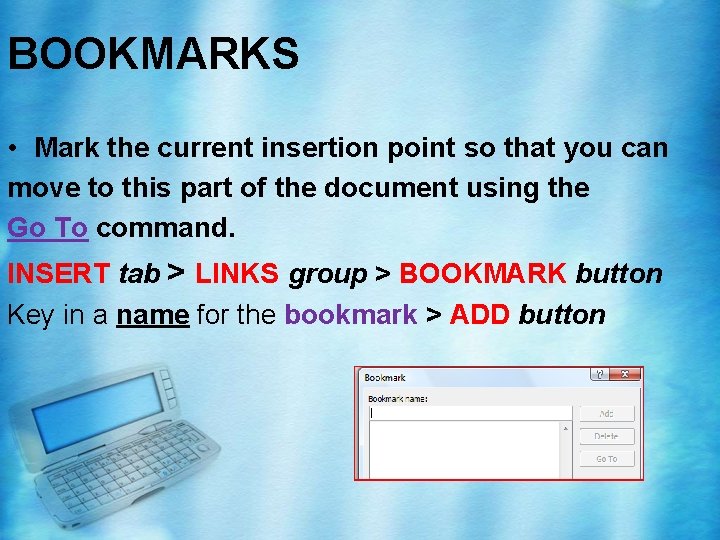
BOOKMARKS • Mark the current insertion point so that you can move to this part of the document using the Go To command. INSERT tab > LINKS group > BOOKMARK button Key in a name for the bookmark > ADD button
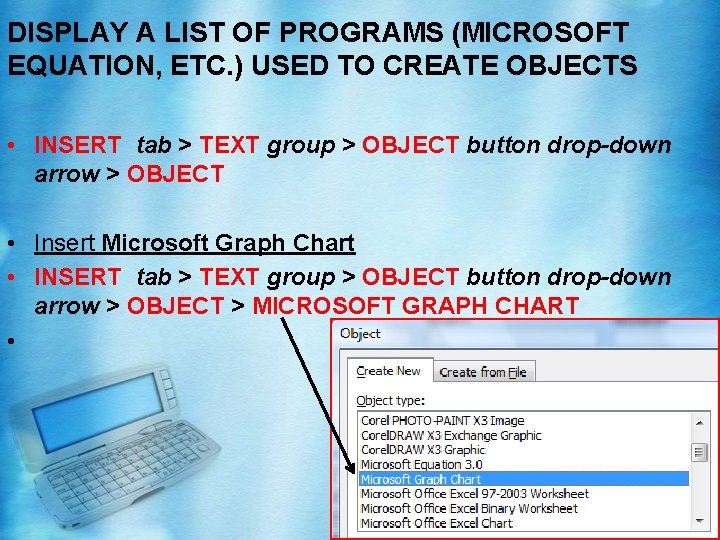
DISPLAY A LIST OF PROGRAMS (MICROSOFT EQUATION, ETC. ) USED TO CREATE OBJECTS • INSERT tab > TEXT group > OBJECT button drop-down arrow > OBJECT • Insert Microsoft Graph Chart • INSERT tab > TEXT group > OBJECT button drop-down arrow > OBJECT > MICROSOFT GRAPH CHART •
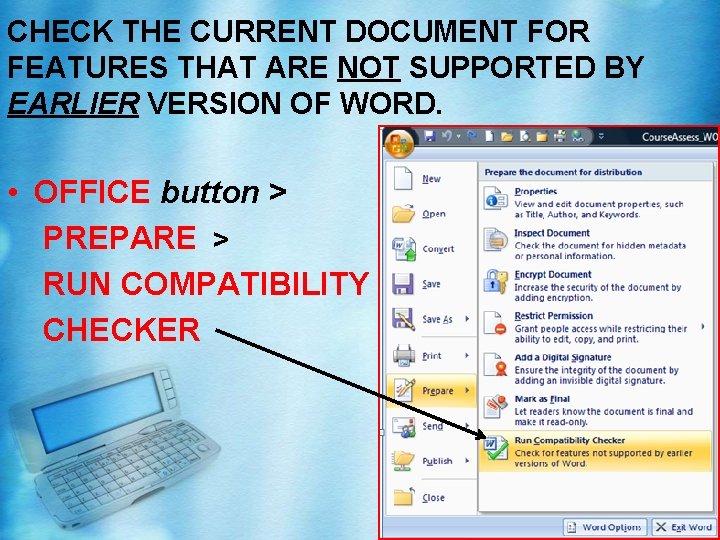
CHECK THE CURRENT DOCUMENT FOR FEATURES THAT ARE NOT SUPPORTED BY EARLIER VERSION OF WORD. • OFFICE button > PREPARE > RUN COMPATIBILITY CHECKER
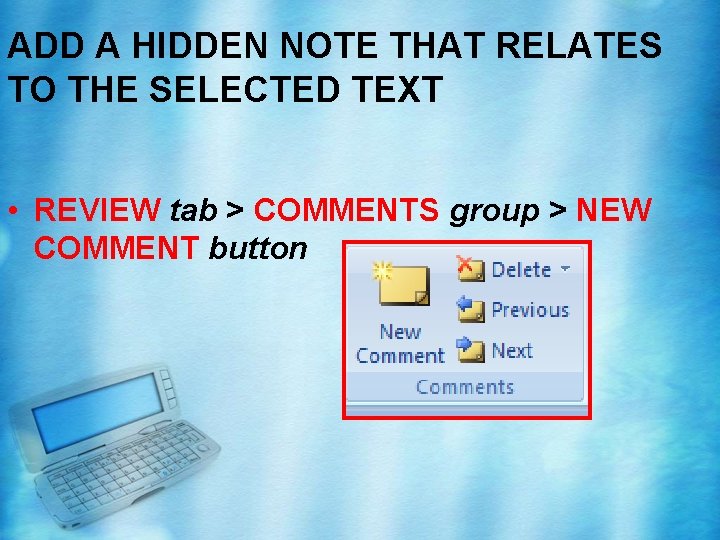
ADD A HIDDEN NOTE THAT RELATES TO THE SELECTED TEXT • REVIEW tab > COMMENTS group > NEW COMMENT button
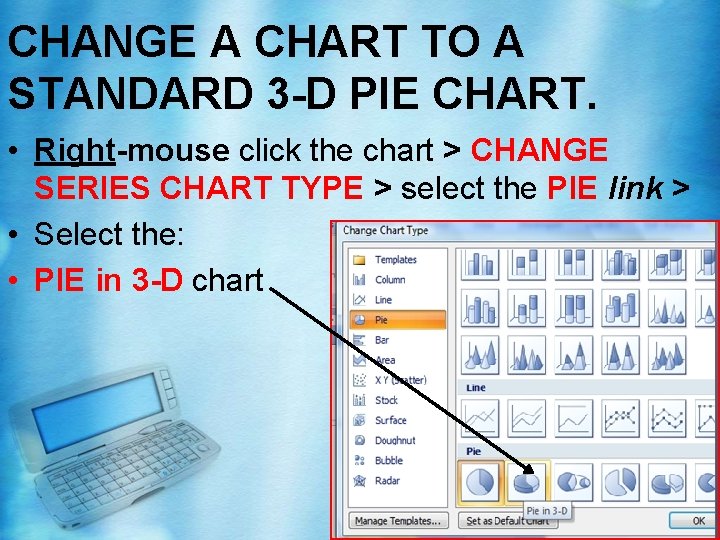
CHANGE A CHART TO A STANDARD 3 -D PIE CHART. • Right-mouse click the chart > CHANGE SERIES CHART TYPE > select the PIE link > • Select the: • PIE in 3 -D chart
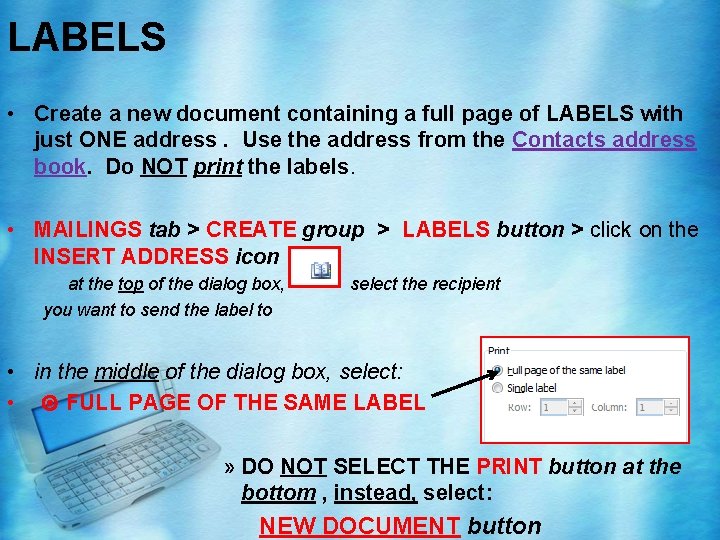
LABELS • Create a new document containing a full page of LABELS with just ONE address. Use the address from the Contacts address book. Do NOT print the labels. • MAILINGS tab > CREATE group > LABELS button > click on the INSERT ADDRESS icon at the top of the dialog box, you want to send the label to select the recipient • in the middle of the dialog box, select: • FULL PAGE OF THE SAME LABEL » DO NOT SELECT THE PRINT button at the bottom , instead, select: NEW DOCUMENT button
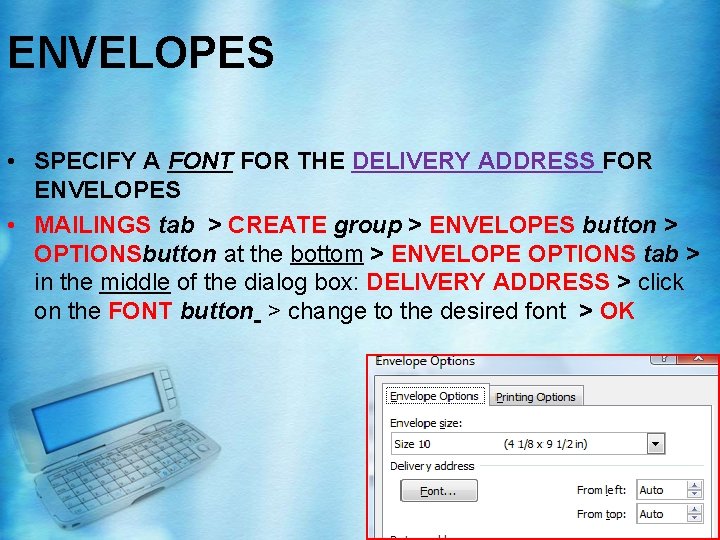
ENVELOPES • SPECIFY A FONT FOR THE DELIVERY ADDRESS FOR ENVELOPES • MAILINGS tab > CREATE group > ENVELOPES button > OPTIONSbutton at the bottom > ENVELOPE OPTIONS tab > in the middle of the dialog box: DELIVERY ADDRESS > click on the FONT button > change to the desired font > OK
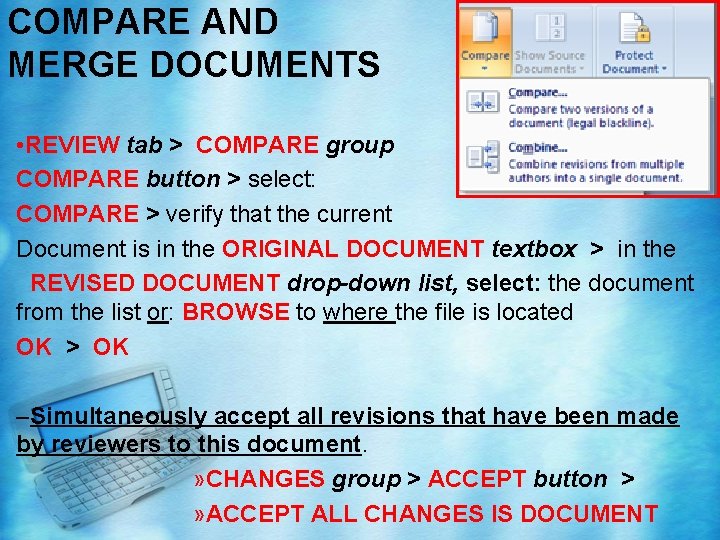
COMPARE AND MERGE DOCUMENTS • REVIEW tab > COMPARE group COMPARE button > select: COMPARE > verify that the current Document is in the ORIGINAL DOCUMENT textbox > in the REVISED DOCUMENT drop-down list, select: the document from the list or: BROWSE to where the file is located OK > OK –Simultaneously accept all revisions that have been made by reviewers to this document. » CHANGES group > ACCEPT button > » ACCEPT ALL CHANGES IS DOCUMENT
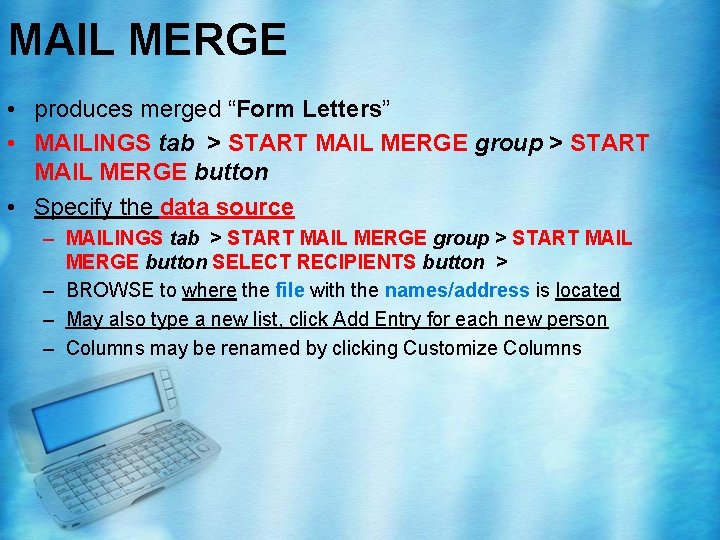
MAIL MERGE • produces merged “Form Letters” • MAILINGS tab > START MAIL MERGE group > START MAIL MERGE button • Specify the data source – MAILINGS tab > START MAIL MERGE group > START MAIL MERGE button SELECT RECIPIENTS button > – BROWSE to where the file with the names/address is located – May also type a new list, click Add Entry for each new person – Columns may be renamed by clicking Customize Columns
MAIL MERGE cont • To add a mail merge field: – Click on the MORE ITEM link on the Mail Merge task pane – Select the field you want from the list > INSERT button • Filter Recipients – Mailings tab, Edit Recipient List, click the Filter link in the lower section of the dialogue – In the new dialogue that opens choose a Field, a Comparison type, and a Compare To value, click OK, OK to apply the filter – Only records matching the filter will be merged
Mail Merge • To add a Fill-in field – Mailings tab, Write and Insert Fields group, Rules button, choose Fill-in – The Fill-in dialogue appears, enter text that will prompt the user to enter the required information – Click OK, OK – Nothing will appear to happen until the document is merged, when the prompt will appear – Ensure that you have correct spacing and punctuation around the Fill-in field
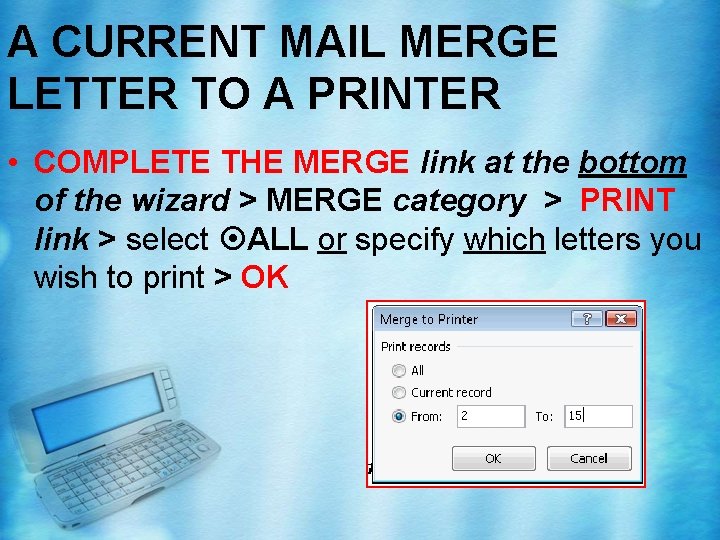
A CURRENT MAIL MERGE LETTER TO A PRINTER • COMPLETE THE MERGE link at the bottom of the wizard > MERGE category > PRINT link > select ALL or specify which letters you wish to print > OK
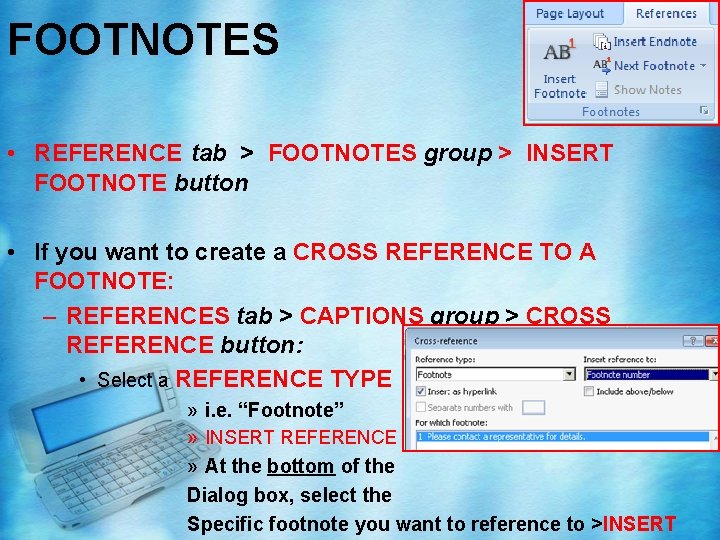
FOOTNOTES • REFERENCE tab > FOOTNOTES group > INSERT FOOTNOTE button • If you want to create a CROSS REFERENCE TO A FOOTNOTE: – REFERENCES tab > CAPTIONS group > CROSS REFERENCE button: • Select a REFERENCE TYPE » i. e. “Footnote” » INSERT REFERENCE TO » At the bottom of the Dialog box, select the Specific footnote you want to reference to >INSERT
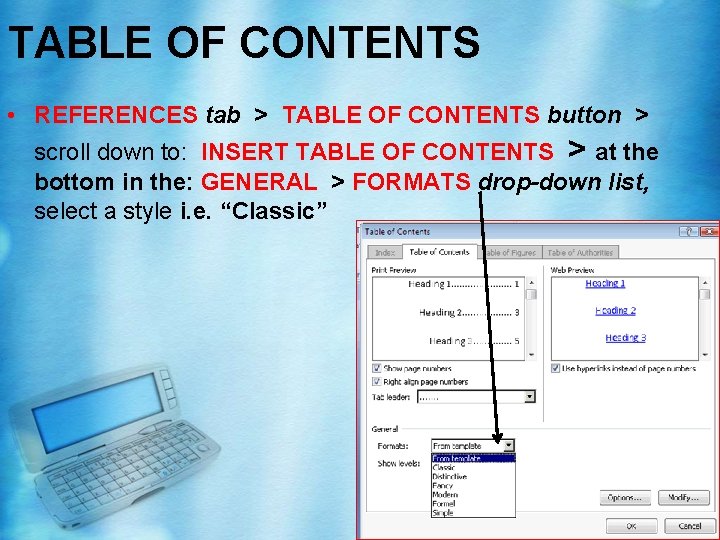
TABLE OF CONTENTS • REFERENCES tab > TABLE OF CONTENTS button > scroll down to: INSERT TABLE OF CONTENTS > at the bottom in the: GENERAL > FORMATS drop-down list, select a style i. e. “Classic”
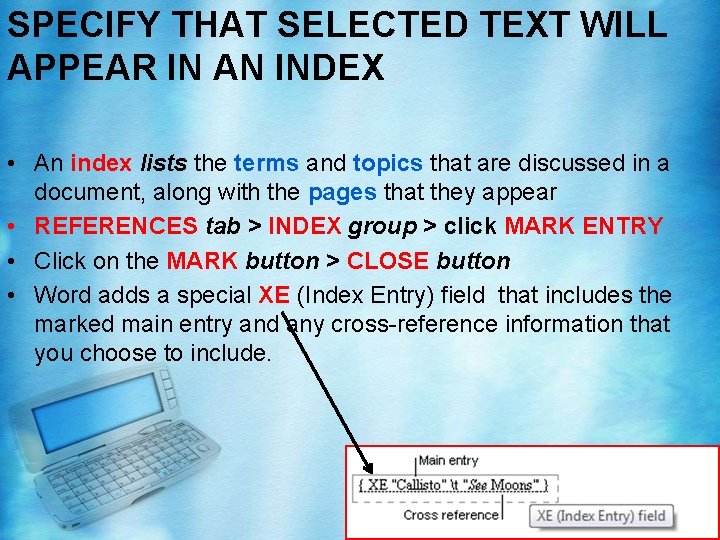
SPECIFY THAT SELECTED TEXT WILL APPEAR IN AN INDEX • An index lists the terms and topics that are discussed in a document, along with the pages that they appear • REFERENCES tab > INDEX group > click MARK ENTRY • Click on the MARK button > CLOSE button • Word adds a special XE (Index Entry) field that includes the marked main entry and any cross-reference information that you choose to include.
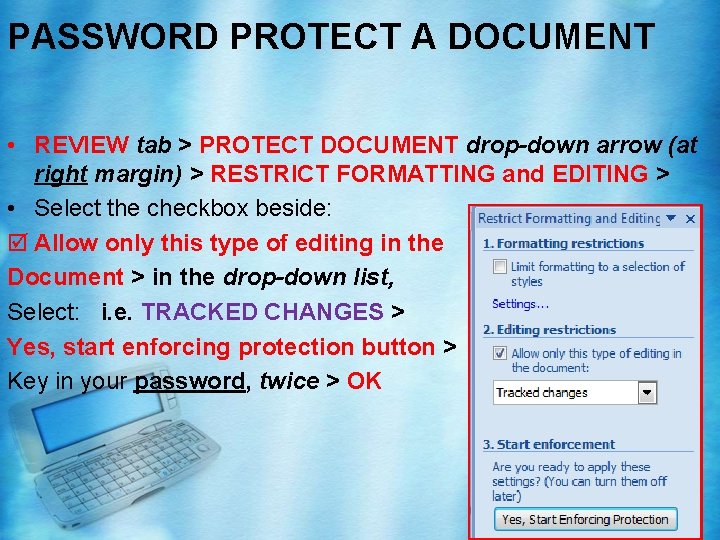
PASSWORD PROTECT A DOCUMENT • REVIEW tab > PROTECT DOCUMENT drop-down arrow (at right margin) > RESTRICT FORMATTING and EDITING > • Select the checkbox beside: þ Allow only this type of editing in the Document > in the drop-down list, Select: i. e. TRACKED CHANGES > Yes, start enforcing protection button > Key in your password, twice > OK