
Microsoft Windows XP Inside Out Chapter 25 Managing
- Slides: 76
Microsoft Windows XP Inside Out Chapter 25 - Managing Shared Folders and Printers Last modified 11 -9 -06
Introducing Windows XP Sharing and Security Models Simple File Sharing – A share created this way is available to all network users; you can’t selectively set permissions for different users – With Simple File Sharing, Windows uses the Guest account for all network logons
Introducing Windows XP Sharing and Security Models Classic sharing – When you share a folder, you must set appropriate shared resource permissions and NTFS file permissions to control the folder’s use – You’ll need to set up appropriate user accounts on each computer that allows network access (unless you’re on a Domain)
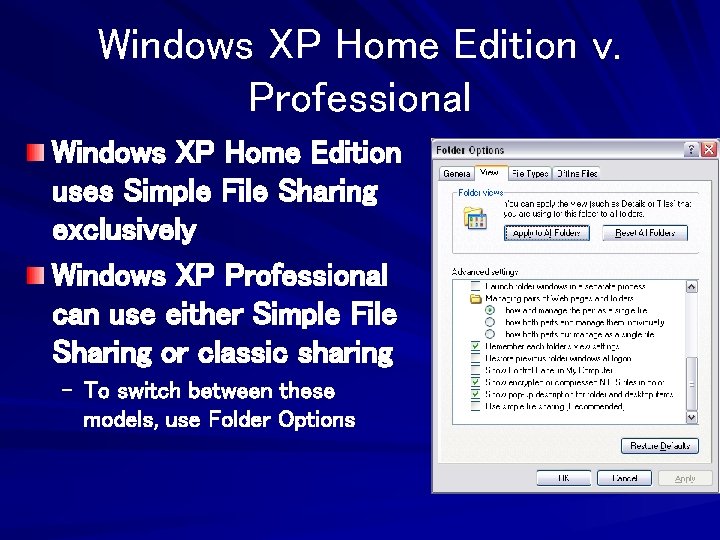
Windows XP Home Edition v. Professional Windows XP Home Edition uses Simple File Sharing exclusively Windows XP Professional can use either Simple File Sharing or classic sharing – To switch between these models, use Folder Options
Domains If your computer is joined to a domain, it always uses the classic sharing model, regardless of your setting in Folder Options.
Sharing a Folder Over a Network Enabling File Sharing is disabled on a clean installation of Windows XP – That’s because the Guest account is disabled The easiest way to configure your computer for sharing folders, files, and printers is to run the Network Setup Wizard
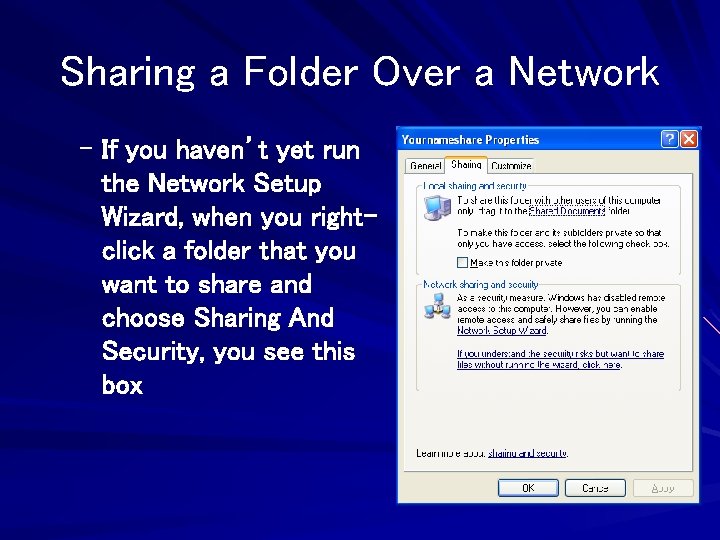
Sharing a Folder Over a Network – If you haven’t yet run the Network Setup Wizard, when you rightclick a folder that you want to share and choose Sharing And Security, you see this box
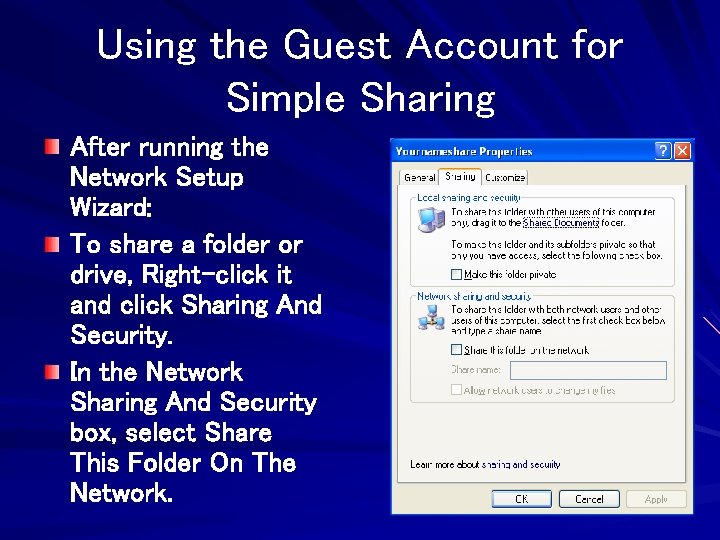
Using the Guest Account for Simple Sharing After running the Network Setup Wizard: To share a folder or drive, Right-click it and click Sharing And Security. In the Network Sharing And Security box, select Share This Folder On The Network.
What Simple File Sharing Does: It creates a share and grants shared resource permission to the built-in Everyone group If the shared folder is on an NTFS-formatted drive, Windows adds an entry for Everyone to the folder’s access control list (ACL)
Restricting Access to Network Shares With Classic Sharing – Note: Classic sharing is not available in Windows XP Home Edition. You specify shared resource permissions on a per-user basis If the shared folder is on an NTFS volume, you specify ACLs for each object in the share. Users who connect to your computer over the network are not automatically authenticated as Guest
Shared Resource Permissions and NTFS Permissions Work Together Shared resource permissions control network access to a particular resource Shared resource permissions do not affect users who log on locally You set shared resource permissions on the Sharing tab of a folder’s properties dialog box. NTFS permissions apply to folders and files on an NTFS-formatted drive
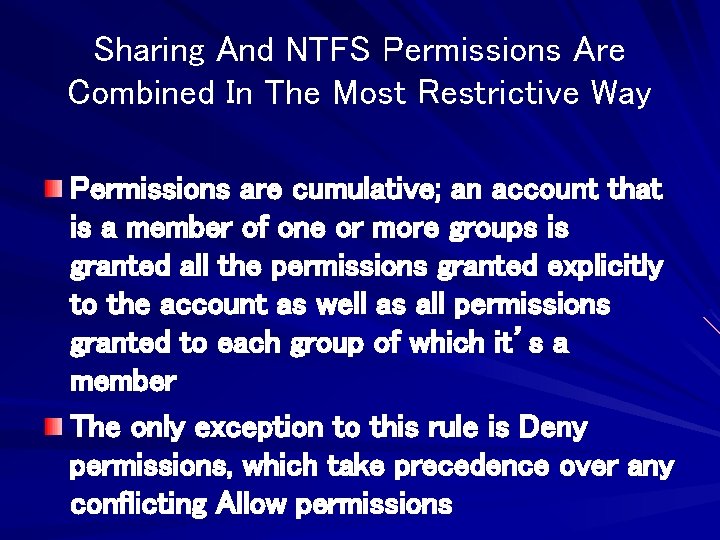
Sharing And NTFS Permissions Are Combined In The Most Restrictive Way If a user is granted read permission on the network share, it doesn’t matter whether the account has Full-Control NTFS permissions on the same folder; the user gets only read access when connecting over the network In determining the effective permission for a particular account, you must also consider the effect of group membership
Sharing And NTFS Permissions Are Combined In The Most Restrictive Way Permissions are cumulative; an account that is a member of one or more groups is granted all the permissions granted explicitly to the account as well as all permissions granted to each group of which it’s a member The only exception to this rule is Deny permissions, which take precedence over any conflicting Allow permissions
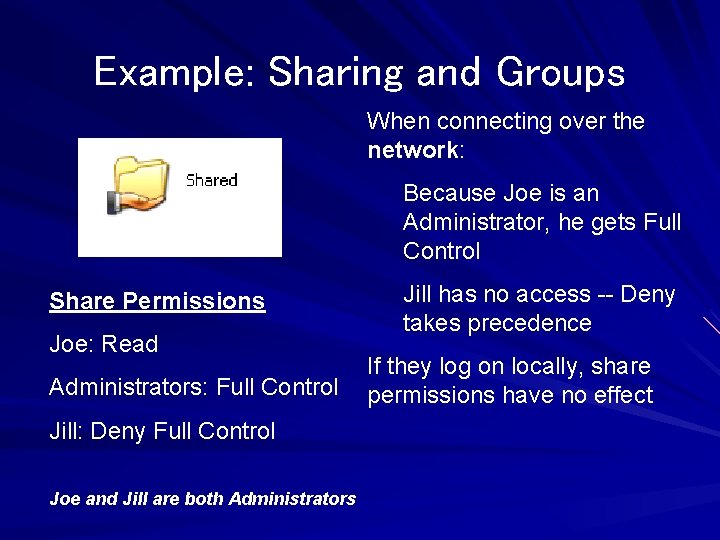
Example: Sharing and Groups When connecting over the network: Because Joe is an Administrator, he gets Full Control Share Permissions Joe: Read Administrators: Full Control Jill: Deny Full Control Joe and Jill are both Administrators Jill has no access -- Deny takes precedence If they log on locally, share permissions have no effect
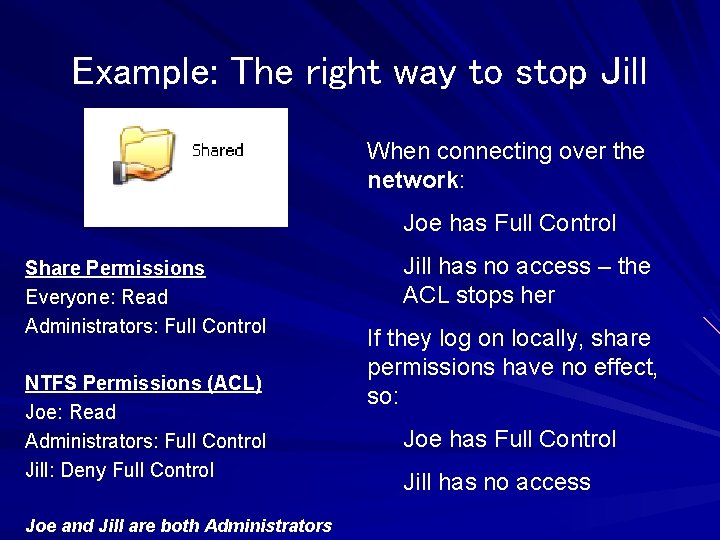
Example: The right way to stop Jill When connecting over the network: Joe has Full Control Share Permissions Everyone: Read Administrators: Full Control NTFS Permissions (ACL) Joe: Read Administrators: Full Control Jill: Deny Full Control Joe and Jill are both Administrators Jill has no access – the ACL stops her If they log on locally, share permissions have no effect, so: Joe has Full Control Jill has no access
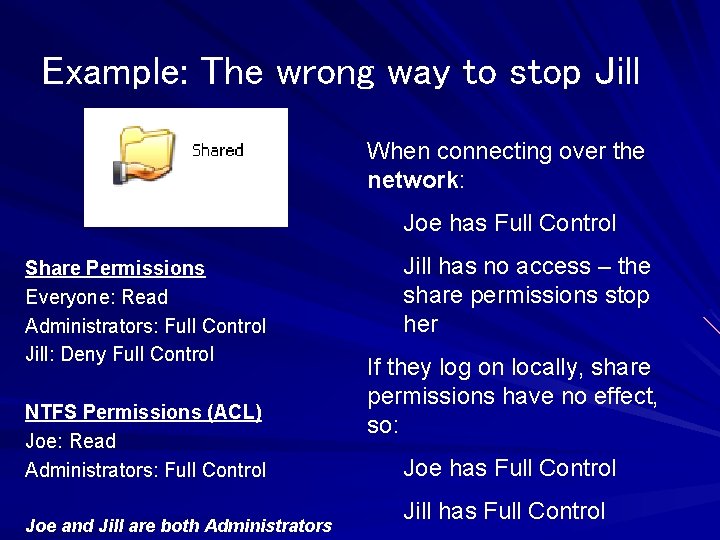
Example: The wrong way to stop Jill When connecting over the network: Joe has Full Control Share Permissions Everyone: Read Administrators: Full Control Jill: Deny Full Control NTFS Permissions (ACL) Joe: Read Administrators: Full Control Joe and Jill are both Administrators Jill has no access – the share permissions stop her If they log on locally, share permissions have no effect, so: Joe has Full Control Jill has Full Control
Preparing for Classic Security: Setting Up User Accounts Each machine in the workgroup must have an account for each user who needs access to shared resources, with the same name and password
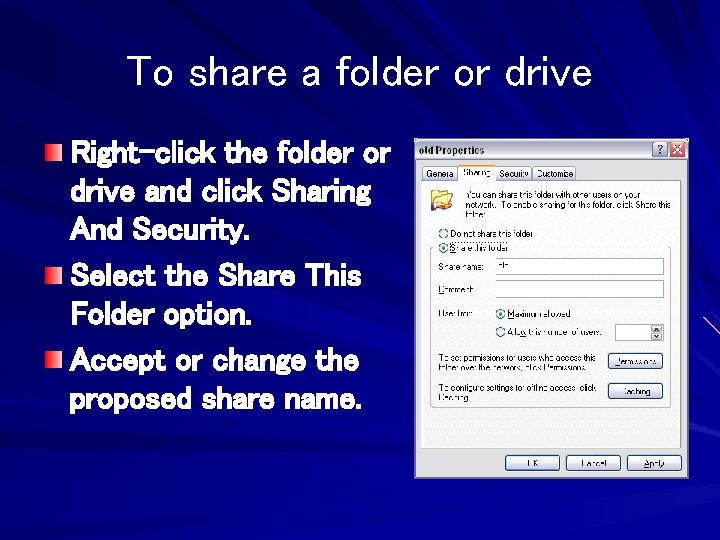
To share a folder or drive Right-click the folder or drive and click Sharing And Security. Select the Share This Folder option. Accept or change the proposed share name.
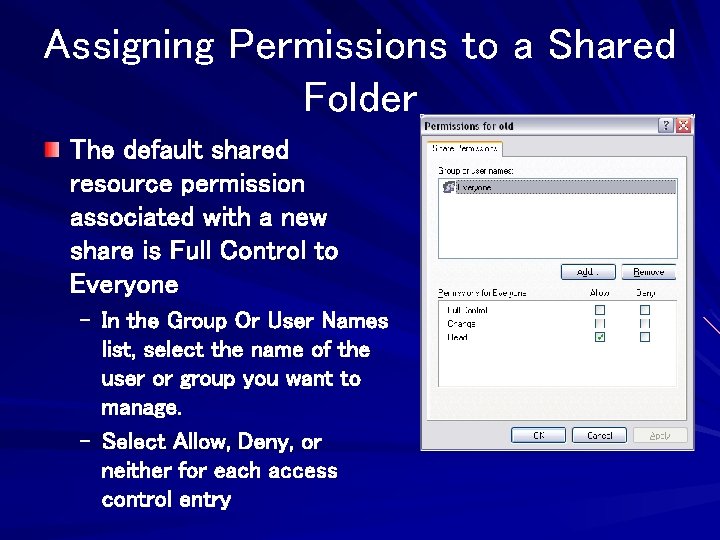
Assigning Permissions to a Shared Folder The default shared resource permission associated with a new share is Full Control to Everyone – In the Group Or User Names list, select the name of the user or group you want to manage. – Select Allow, Deny, or neither for each access control entry
The Three Share Permission Levels Full Control – Allows users to create, read, write, rename, and delete files in the folder and its subfolders. In addition, users can change permissions and take ownership of files on NTFS volumes.
The Three Share Permission Levels Change – Allows users to read, write, rename, and delete files in the folder and its subfolders, but not to create new files. Read – Allows users to read files but not write to them or delete them.
Neither Allow Nor Deny If you select neither Allow nor Deny, the user or group can still inherit the permission through membership in another group that has the permission If the user or group doesn’t belong to another such group, the user or group is implicitly denied permission.
Authenticated Users is more Restrictive than Everyone Setting up a share grants permission to the built-in Everyone group by default – The Guest account is included in Everyone – Network users who don’t have an account on the local computer are Guests Therefore, anyone on your network has access to a share – If you want to exclude anyone who does not have a user account on your computer Remove Guests Use Authenticated Users instead
Share Permissions Don’t Restrict Local Access Shared resource permissions apply only when the folder is accessed over a network – They don’t protect files or folders when opened locally from the computer on which they reside NTFS permissions protect the files locally, and they also apply to network users.
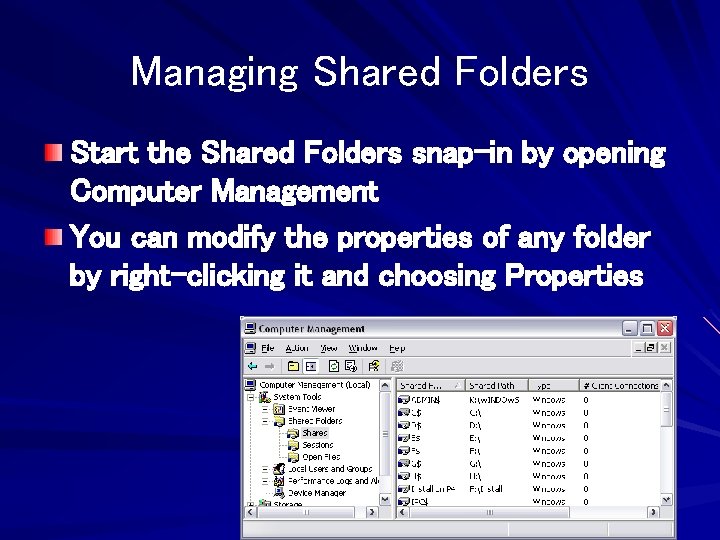
Managing Shared Folders Start the Shared Folders snap-in by opening Computer Management You can modify the properties of any folder by right-clicking it and choosing Properties
Administrative Shares The Administrative shares end with a dollar sign ($), which makes them "invisible" because they do not appear in the browse list (in Windows Explorer)
Administrative Shares You can’t view or set permissions on most of these shares, as you can for shares you create; the operating system restricts access to them to accounts with administrative privileges. – – – C$, D$, E$, and so on ADMIN$ (used for remote admin) IPC$ (used by programs and for remote admin) PRINT$ FAX$
Removing Administrative Shares (not in lecture notes or textbook) You can remove Administrative shares, but usually they reappear after a restart. You can edit the Registry to remove them permanently Some malicious programs remove the administrative shares; and you have to put them back to make your machine properly again – See links Ch 25 a, 25 b, and 25 c
I skipped pages 922 -931 The Shared Folders snap-in and Adding a Network Place seem unimportant You have already done Drive Mapping in the projects
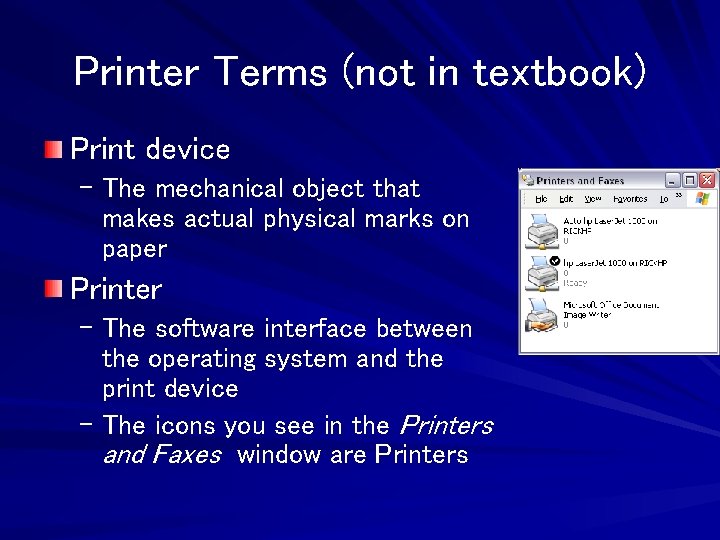
Printer Terms (not in textbook) Print device – The mechanical object that makes actual physical marks on paper Printer – The software interface between the operating system and the print device – The icons you see in the Printers and Faxes window are Printers
Printer Terms (not in textbook) Print job – A document sent to the printer (can be many pages long) Printer Driver – A software program that enables programs to communicate with a particular
Printer Terms (not in textbook) Print spooler – A software program that catches a print job on its way to the printer and sends it to a temporary storage place (on a hard disk, or in RAM), where it waits for its turn to print Print queue – A buffer where documents wait to be printed – Same thing as a spool file
Printer Terms (not in textbook) Printer port – A software program that catches a print job on its way to the printer and sends it to a temporary storage place (on a hard disk, or in RAM), where it waits for its turn to print
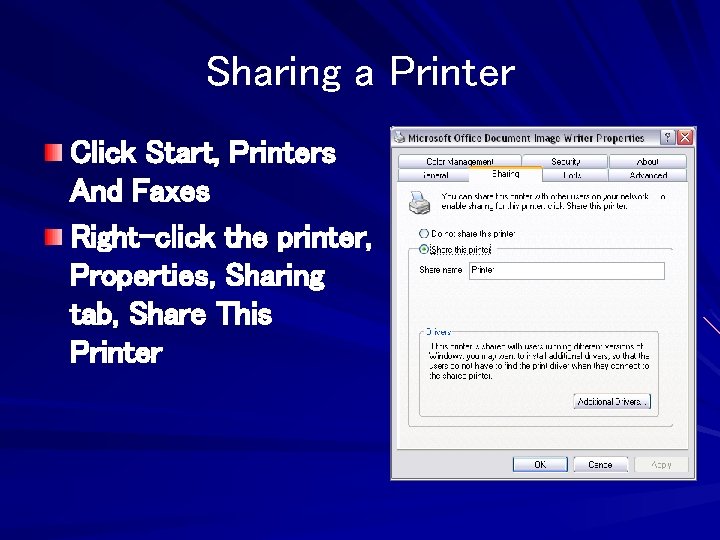
Sharing a Printer Click Start, Printers And Faxes Right-click the printer, Properties, Sharing tab, Share This Printer
Using a Local Printer Local printers are connected directly to one computer through a local ports such as a parallel port (LPTx), a serial port (COMx), an infrared (Ir. DA) port, a universal serial bus (USB) port, or a 1394 port (Firewire)
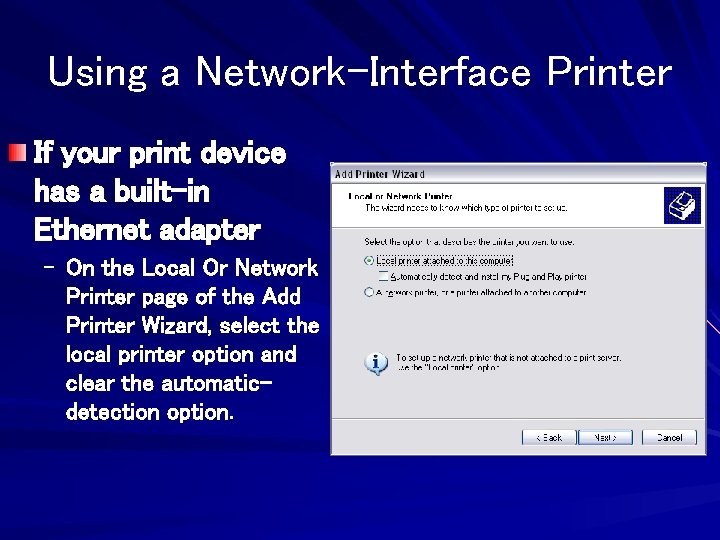
Using a Network-Interface Printer If your print device has a built-in Ethernet adapter – On the Local Or Network Printer page of the Add Printer Wizard, select the local printer option and clear the automaticdetection option.
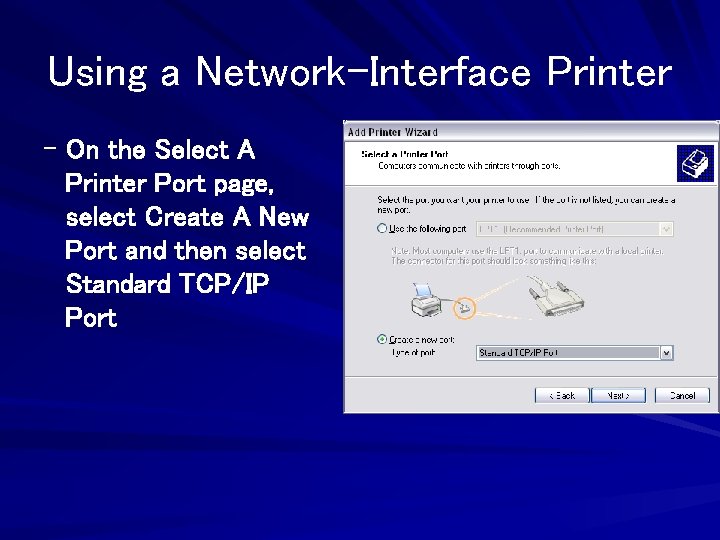
Using a Network-Interface Printer – On the Select A Printer Port page, select Create A New Port and then select Standard TCP/IP Port
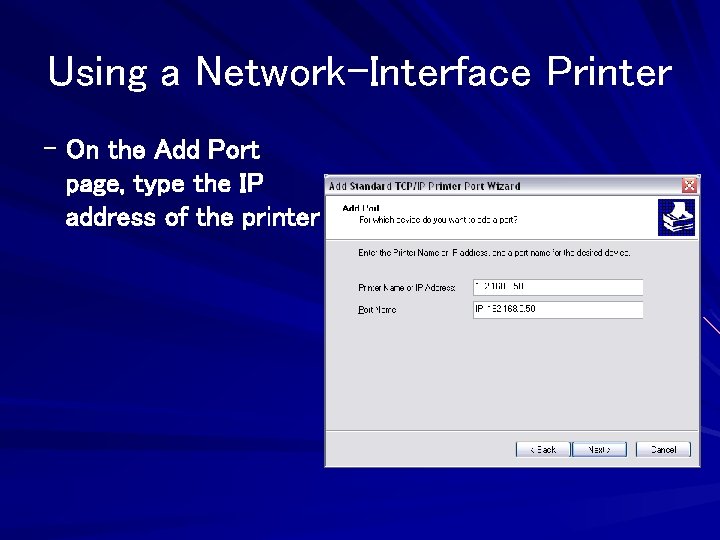
Using a Network-Interface Printer – On the Add Port page, type the IP address of the printer
Setting Permissions on Shared Printers When you set up a printer, initially all users in the Everyone group have Print permission for documents they create – Provides access to the printer – Ability to manage their own documents in the print queue And by default, members of the Administrators and Power Users groups also have Manage Printers and Manage Documents permission
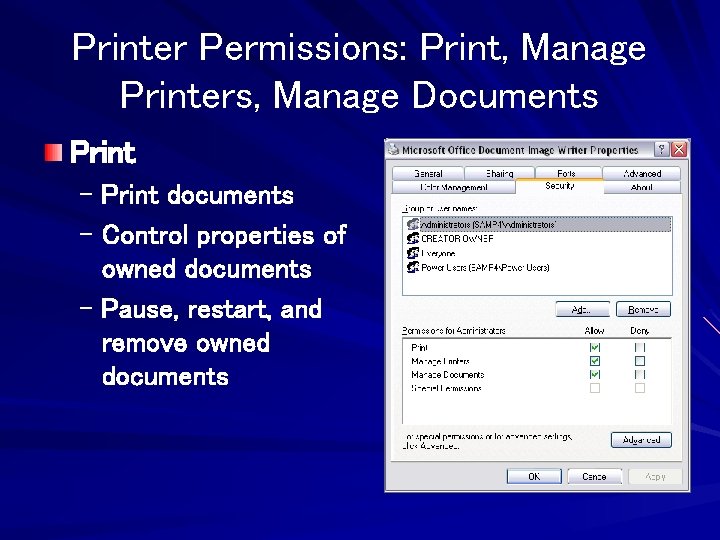
Printer Permissions: Print, Manage Printers, Manage Documents Print – Print documents – Control properties of owned documents – Pause, restart, and remove owned documents
Printer Permissions: Print, Manage Printers, Manage Documents Manage Printers – Share printer – Change printer properties – Remove printer – Change printer permissions – Pause and restart the printer
Printer Permissions: Print, Manage Printers, Manage Documents – Pause, restart, move, and remove all queued documents A user account that doesn’t have any of these permissions can’t connect to the printer, print to it locally, or view its queue.
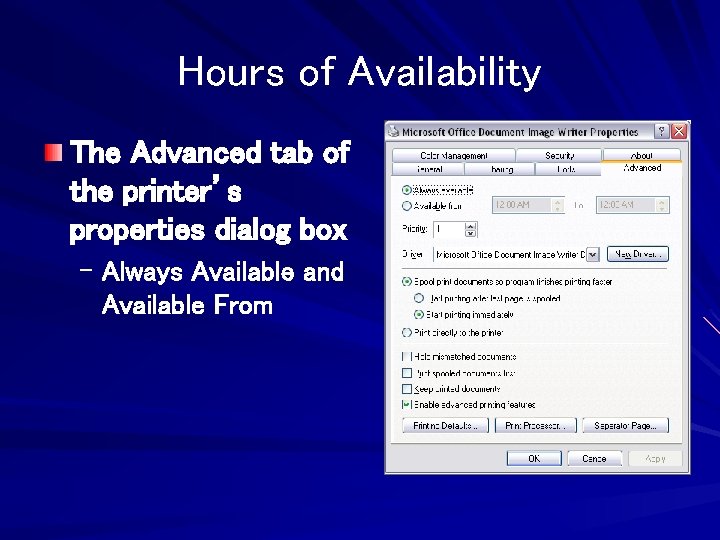
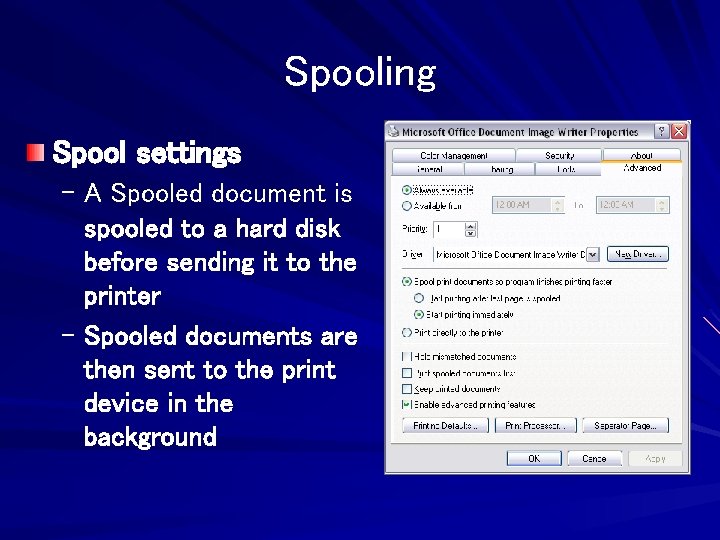
Hours of Availability The Advanced tab of the printer’s properties dialog box – Always Available and Available From
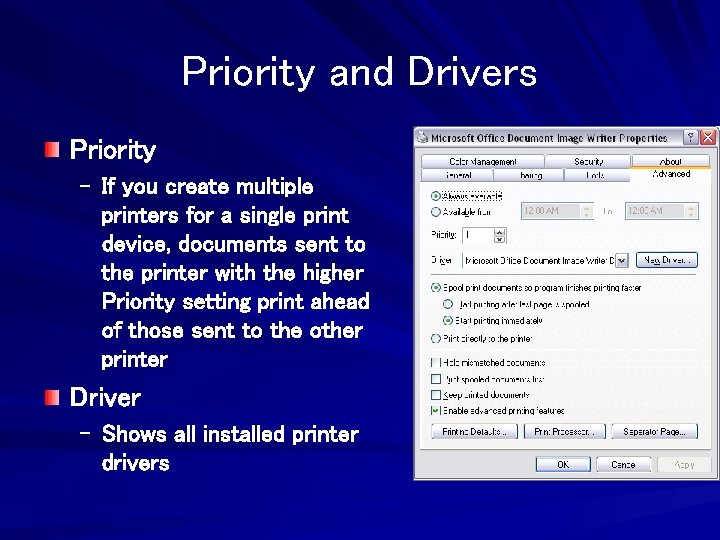
Priority and Drivers Priority – If you create multiple printers for a single print device, documents sent to the printer with the higher Priority setting print ahead of those sent to the other printer Driver – Shows all installed printer drivers
Spooling Spool settings – A Spooled document is spooled to a hard disk before sending it to the printer – Spooled documents are then sent to the print device in the background
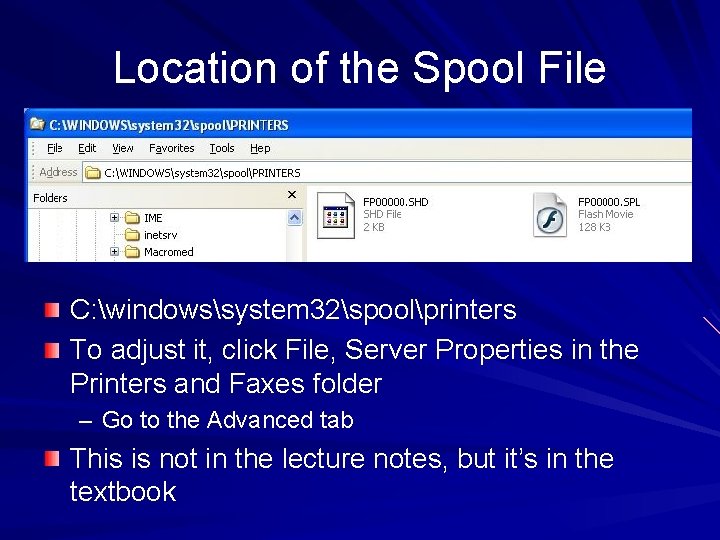
Location of the Spool File C: windowssystem 32spoolprinters To adjust it, click File, Server Properties in the Printers and Faxes folder – Go to the Advanced tab This is not in the lecture notes, but it’s in the textbook
Spooling Hold Mismatched Documents – Documents that can’t print because the document’s properties don’t match printer properties are held in the queue – A mismatched document typically occurs when an application specifies a form that’s not currently assigned to a printer tray
Spooling Print Spooled Documents First – Selecting this option maximizes printer efficiency because the print device doesn’t have to wait for an incomplete, high- priority document to finish spooling before it can begin printing a complete, lower-priority document. Keep Printed Documents – Spooler doesn’t delete documents from the queue after they print
Command-Line Utilities for Managing Shared Resources Net Share – The Net Share command lets you view, create, modify, or delete shared resources on your computer. Net Use – The Net Use command connects your computer to shared resources on other computers
Chapter 26 - Remote Access Options
Win XP Home Edition Remote Desktop is not available in Windows XP Home Edition – However, you can use Remote Desktop Connection on a computer running Home Edition to connect to a computer running Windows XP Professional – If you want to connect to a remote computer that’s running Windows XP Home Edition, you can use Remote Assistance or Net. Meeting, but not Remote Desktop
Remote Desktop and Virtual Private Network (VPN) With Remote Desktop, you use your office computer by controlling it from home. With a VPN, you use the Internet to connect a computer to your network – In effect, this adds your home computer to your office network, just as if your computer were physically connected to the local area network (LAN)
Remote Desktop and Virtual Private Network (VPN) Both Remote Desktop and VPN connections are encrypted, so your information is secure, even if you’re making a connection over the public Internet.
Remote Desktop and Virtual Private Network (VPN) The basic difference between Remote Desktop and a VPN is – With Remote Desktop, your computer takes over control of a remote computer – With a VPN connection, your computer becomes another node on the network
Setting Up a Remote Desktop Connection to Another Computer Remote Desktop – Allows you to work on your Windows XP Professional computer from any other computer – Based on the Terminal Services technology from Windows NT Server and Windows 2000 Server
What You Need to Use Remote Desktop You need two computers that are connected via a local area network, the Internet, or a dial-up connection. The computer that you want to control —the one at the remote location—is called the remote computer The computer you want to use to control the remote computer is called the client computer
Requirements for the Remote Computer – Windows XP Professional – Must have a connection to a local area network or to the Internet Or it must have a modem that’s configured to answer incoming calls automatically – If you’re going to connect to this computer over the Internet, its Internet connection must have a known, public IP address
Requirements for the Client computer – Can use nearly any version of Windows XP (all versions), Windows 2000 (all versions), Windows Me, Windows 98, Windows 95, Windows NT, or Windows for Workgroups – You must install client software (included on the Windows XP Professional CD-ROM) on the client computer – This computer must have access to the remote computer Via a network connection, a virtual private network, or a dial-up connection
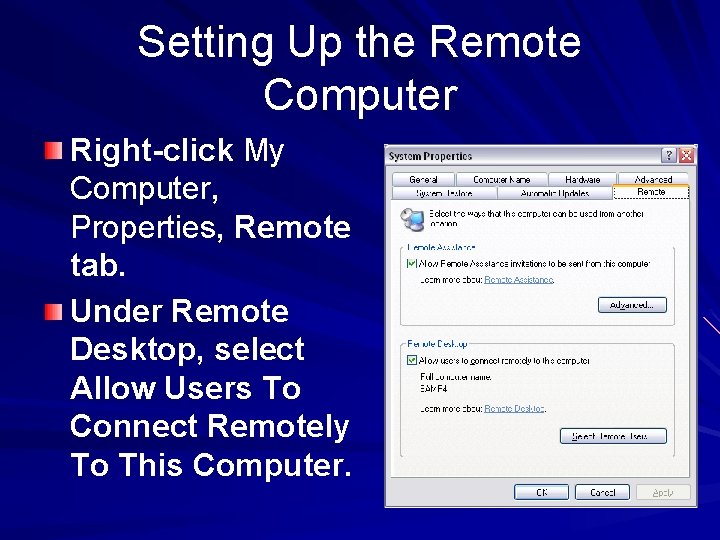
Setting Up the Remote Computer Right-click My Computer, Properties, Remote tab. Under Remote Desktop, select Allow Users To Connect Remotely To This Computer.
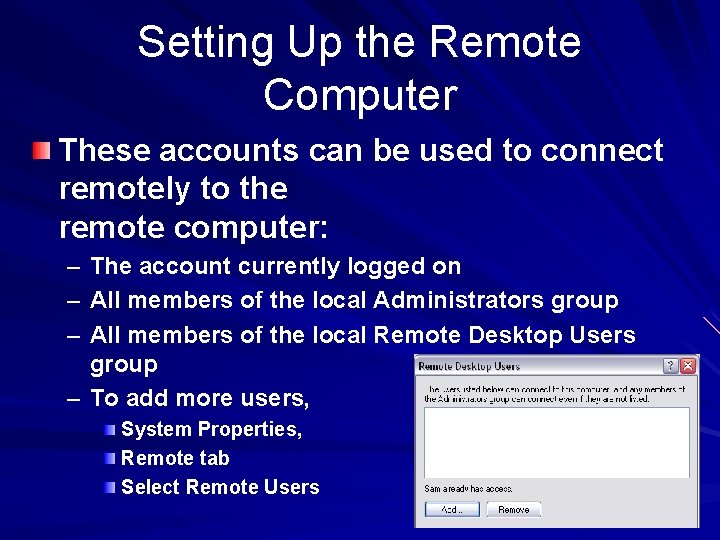
Setting Up the Remote Computer These accounts can be used to connect remotely to the remote computer: – The account currently logged on – All members of the local Administrators group – All members of the local Remote Desktop Users group – To add more users, System Properties, Remote tab Select Remote Users
Setting Up the Remote Computer If you’re going to connect from another computer on your local area network, that’s all you need to do to set up the remote computer. If you’re planning to connect to the remote computer via a dial-up connection, you must install a modem, configure it to answer automatically, and then set up an incoming connection.
Connecting Over the Internet If you connect via the Internet, you must open port 3389 for Remote Desktop – If you use Windows Firewall from Service Pack 2, that port opens automatically If you’re going to connect over the Internet, and it’s not connected directly to the Internet, you must create a virtual private network
Setting Up the Client Computer If the client computer has Windows XP, you don’t need to install any additional software. Remote Desktop Connection, the client software, is installed by default in both Windows XP Professional and Windows XP Home Edition.
Connecting to a Remote Desktop Start, All Programs, Accessories, Communications, Remote Desktop Connection
Logging On If another person is logged in, they will have to log off to let you use the machine. While you use the remote computer, the remote computer’s monitor displays the Welcome screen, or the Unlock Computer dialog box.
Ctrl+Alt+Del If you press Ctrl+Alt+Delete on the client computer, it will affect the client computer, not the remote computer. You must press Ctrl+Alt+End to send a Ctrl+Alt+Delete to the remote computer
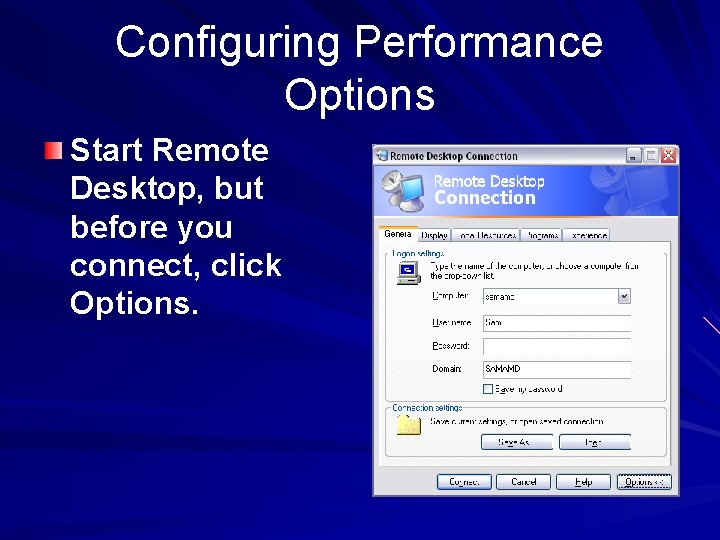
Configuring Performance Options Start Remote Desktop, but before you connect, click Options.
Virtual Private Networks (not in textbook) Tunneling provides a secure, costeffective way to connect two computers (or two networks) that are each connected to the Internet This path is created by – Encrypting each IP packet or frame – Wrapping it inside another packet or frame with new header information For traveling through the intervening network
L 2 TP/IPSec v. PPTP Windows XP can use: Point-to-Point Tunneling Protocol (PPTP), or Layer 2 Tunneling Protocol (L 2 TP) – Both can encapsulate network traffic so that it can travel over the Internet The traffic starts out as PPP (Point to Point Protocol) – telephone modem traffic
L 2 TP/IPSec v. PPTP L 2 TP/IPSec – Layer 2 Tunneling Protocol / IP Security – Uses either a 56 -bit key for DES or three 56 bit keys for 3 -DES – Requires a certificate infrastructure PPTP – Point-to-Point Tunneling Protocol – Includes encryption with 40, 56, or 128 -bit encryption keys See link Ch 26 a for more details
Windows Versions Windows XP can be either a server or a client for PPTP connections Windows XP can be the client for a L 2 TP/IPSec connection, but the server must run Windows 2000 Server or Windows 2003 Server
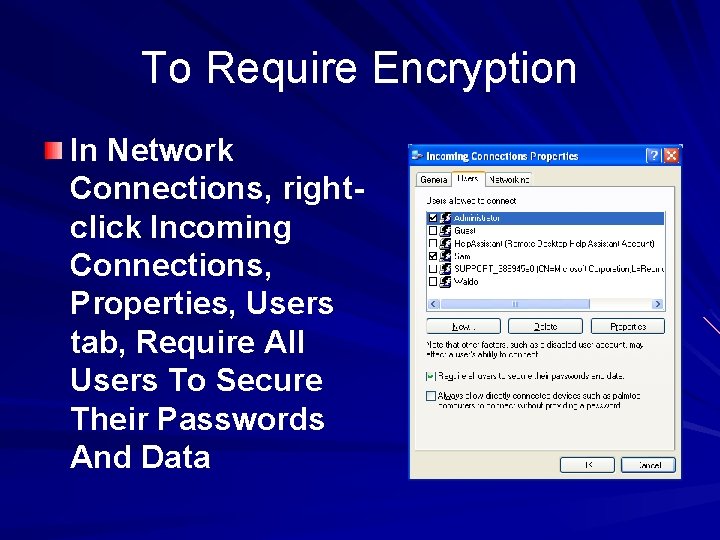
Configuring a VPN Server Win XP Pro can act as a remote access server so that others can connect to it via a VPN You can improve security by requiring encryption.
To Require Encryption In Network Connections, rightclick Incoming Connections, Properties, Users tab, Require All Users To Secure Their Passwords And Data
Internet Connection Firewall and VPN Access At the server, when you use the New Connection Wizard to create an incoming VPN connection, the wizard automatically configures the built-in Internet Connection Firewall appropriately – Internet Connection Properties, Advanced tab, Settings – Incoming Connection VPN (L 2 TP) and Incoming Connection VPN (PPTP should both be selected
Other Firewalls For PPTP connections (the type most commonly used with a Windows XP– based VPN), you must open port 1723 for TCP communication L 2 TP connections, which use port 1701, require a machine certificate for authentication and are available only when the VPN server is on a network with Windows. NET Server or Windows 2000 Server.
Connecting to a Virtual Private Network To connect to your Windows XP VPN server, you don’t need to run Windows XP; you can connect with any version of Windows.