
Microsoft Visual Basic 2015 CHAPTER THREE Program Design
Microsoft Visual Basic 2015 CHAPTER THREE Program Design and Coding
3 Objectives ►Change the color properties of an object ►Add images to a Picture. Box object ►Locate and save an image from the web ►Import an image into the Program Resources folder ►Size an image Chapter 3: Program Design and Coding © 2016 Cengage Learning®. May not be scanned, copied or duplicated, or posted to a publicly accessible website, in whole or in part. 2
3 Objectives ►Set the Visible property in the Properties window ►Set the Enabled property in the Properties window ►Run a Visual Basic 2015 program ►Enter Visual Basic 2015 code ►Understand Visual Basic 2015 code statement formats Chapter 3: Program Design and Coding © 2016 Cengage Learning®. May not be scanned, copied or duplicated, or posted to a publicly accessible website, in whole or in part. 3
3 Objectives ►Use Intelli. Sense to enter Visual Basic 2015 code statements ►Use code to set the Visible property of an object ►Use code to set the Enabled property of an object ►Enter comments in Visual Basic 2015 code Chapter 3: Program Design and Coding © 2016 Cengage Learning®. May not be scanned, copied or duplicated, or posted to a publicly accessible website, in whole or in part. 4
3 Objectives ►Correct errors in Visual Basic 2015 code ►Write code to use the Close() procedure ►Print code ►Prepare an event-planning document Chapter 3: Program Design and Coding © 2016 Cengage Learning®. May not be scanned, copied or duplicated, or posted to a publicly accessible website, in whole or in part. 5
3 Back. Color and Fore. Color Properties ►Tap or click the Windows Form object to select it ►If necessary, scroll in the Properties window until the Back. Color property is displayed, and then tap or click the right column of the Back. Color property ►Tap or click the Back. Color arrow. Then, tap or click the Web tab to display the Web tabbed page ►Scroll to display the color you wish to apply ►Tap or click the color you wish to apply on the color list Chapter 3: Program Design and Coding © 2016 Cengage Learning®. May not be scanned, copied or duplicated, or posted to a publicly accessible website, in whole or in part. 6
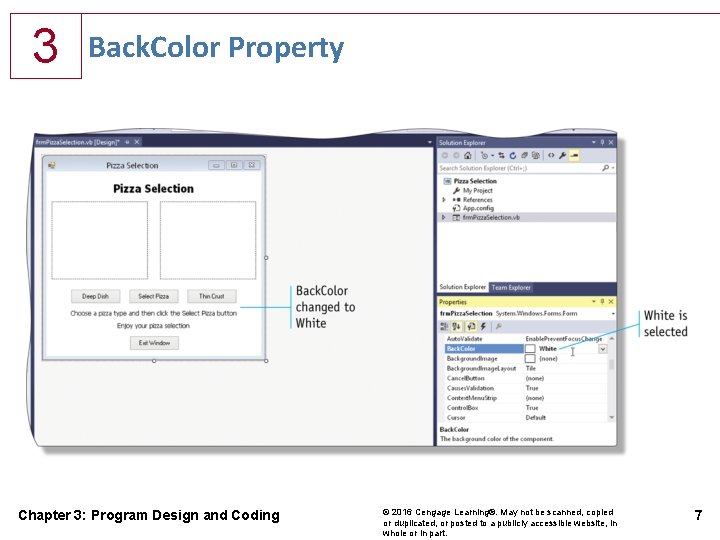
3 Back. Color Property Chapter 3: Program Design and Coding © 2016 Cengage Learning®. May not be scanned, copied or duplicated, or posted to a publicly accessible website, in whole or in part. 7
3 Locating and Saving an Image from the Web ►Open your web browser and navigate to the webpage containing the image you want to save ►Press and hold or right-click the image, tap or click Save Picture As, and then navigate to the location on your computer where you store downloaded files ►Click the Save button to save the image Chapter 3: Program Design and Coding © 2016 Cengage Learning®. May not be scanned, copied or duplicated, or posted to a publicly accessible website, in whole or in part. 8
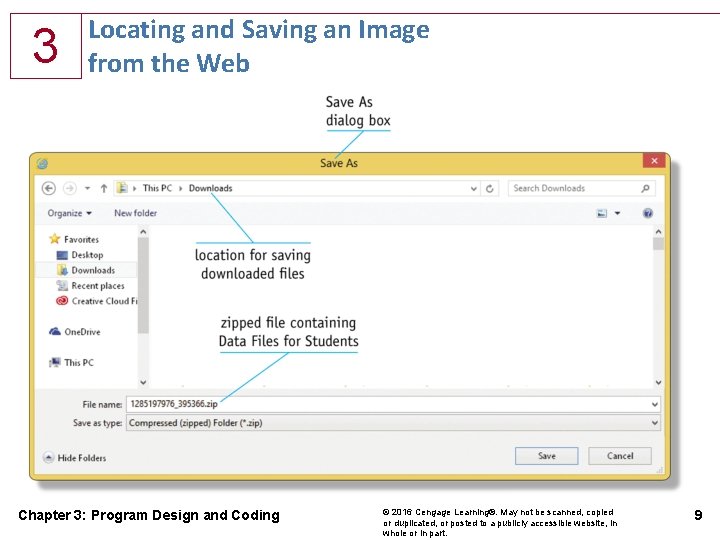
3 Locating and Saving an Image from the Web Chapter 3: Program Design and Coding © 2016 Cengage Learning®. May not be scanned, copied or duplicated, or posted to a publicly accessible website, in whole or in part. 9
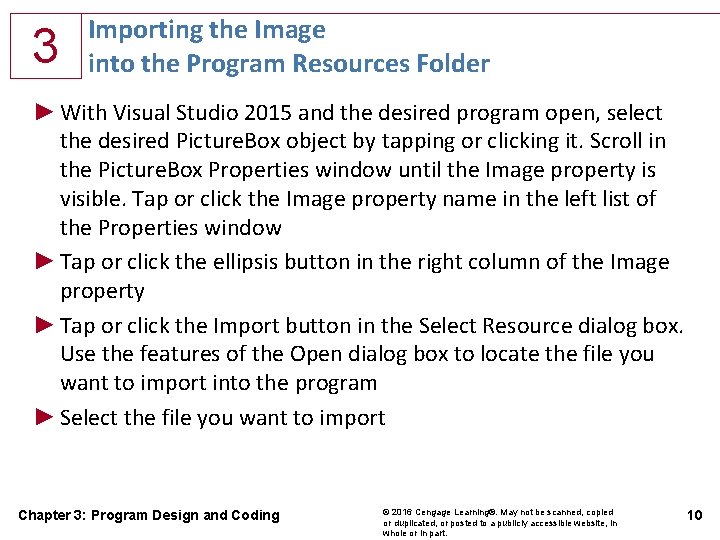
3 Importing the Image into the Program Resources Folder ► With Visual Studio 2015 and the desired program open, select the desired Picture. Box object by tapping or clicking it. Scroll in the Picture. Box Properties window until the Image property is visible. Tap or click the Image property name in the left list of the Properties window ► Tap or click the ellipsis button in the right column of the Image property ► Tap or click the Import button in the Select Resource dialog box. Use the features of the Open dialog box to locate the file you want to import into the program ► Select the file you want to import Chapter 3: Program Design and Coding © 2016 Cengage Learning®. May not be scanned, copied or duplicated, or posted to a publicly accessible website, in whole or in part. 10
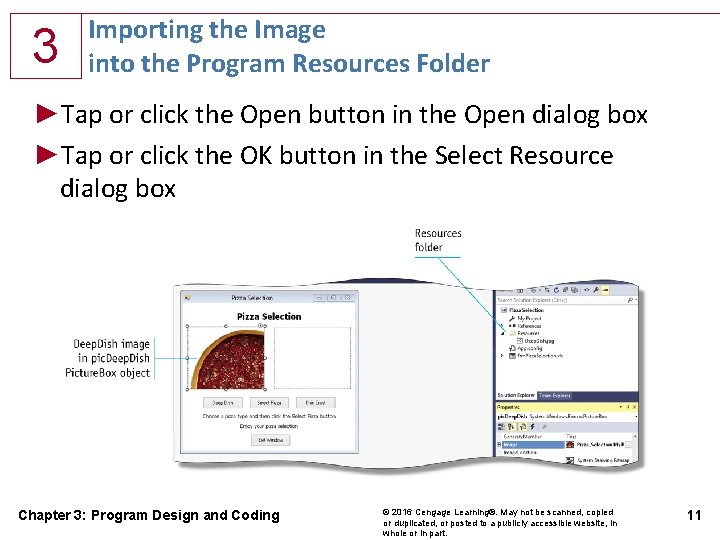
3 Importing the Image into the Program Resources Folder ►Tap or click the Open button in the Open dialog box ►Tap or click the OK button in the Select Resource dialog box Chapter 3: Program Design and Coding © 2016 Cengage Learning®. May not be scanned, copied or duplicated, or posted to a publicly accessible website, in whole or in part. 11
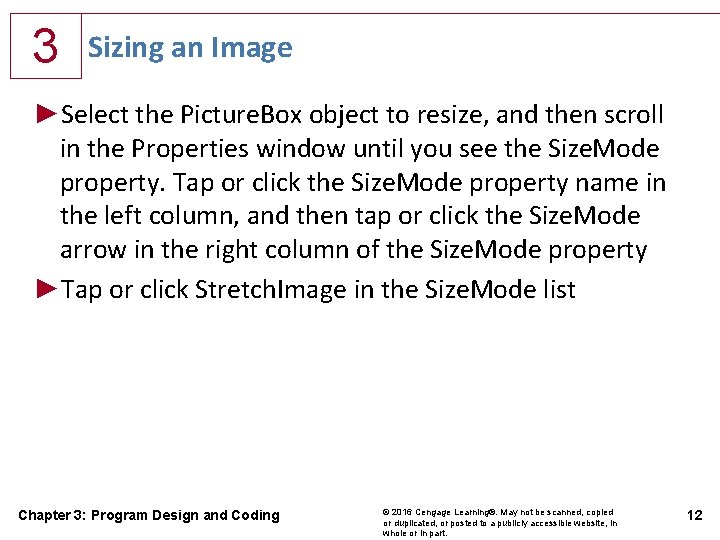
3 Sizing an Image ►Select the Picture. Box object to resize, and then scroll in the Properties window until you see the Size. Mode property. Tap or click the Size. Mode property name in the left column, and then tap or click the Size. Mode arrow in the right column of the Size. Mode property ►Tap or click Stretch. Image in the Size. Mode list Chapter 3: Program Design and Coding © 2016 Cengage Learning®. May not be scanned, copied or duplicated, or posted to a publicly accessible website, in whole or in part. 12
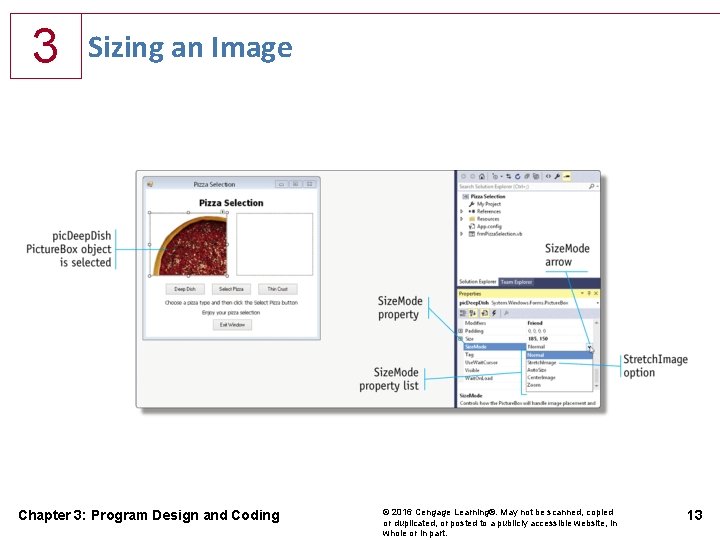
3 Sizing an Image Chapter 3: Program Design and Coding © 2016 Cengage Learning®. May not be scanned, copied or duplicated, or posted to a publicly accessible website, in whole or in part. 13
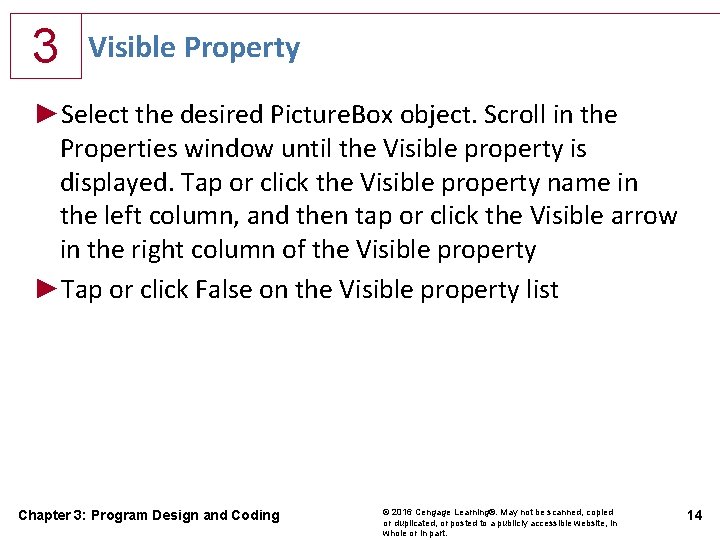
3 Visible Property ►Select the desired Picture. Box object. Scroll in the Properties window until the Visible property is displayed. Tap or click the Visible property name in the left column, and then tap or click the Visible arrow in the right column of the Visible property ►Tap or click False on the Visible property list Chapter 3: Program Design and Coding © 2016 Cengage Learning®. May not be scanned, copied or duplicated, or posted to a publicly accessible website, in whole or in part. 14
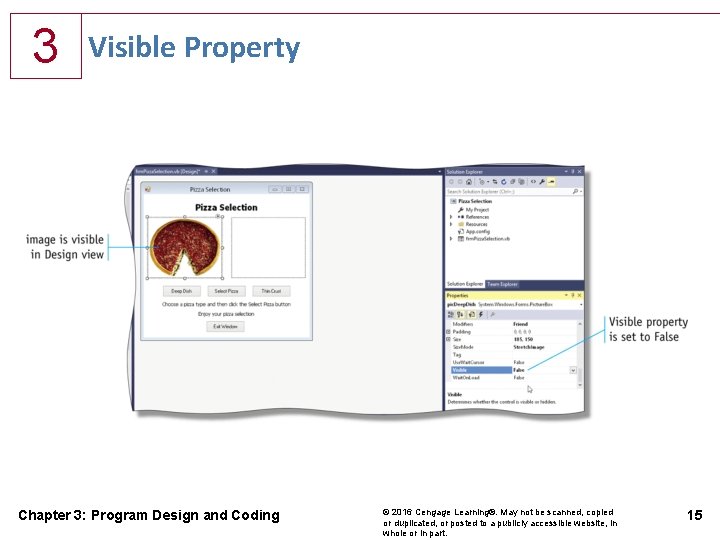
3 Visible Property Chapter 3: Program Design and Coding © 2016 Cengage Learning®. May not be scanned, copied or duplicated, or posted to a publicly accessible website, in whole or in part. 15
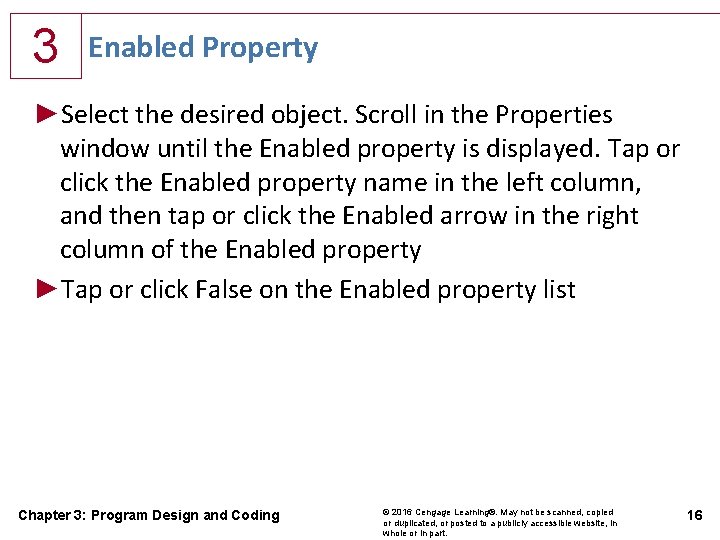
3 Enabled Property ►Select the desired object. Scroll in the Properties window until the Enabled property is displayed. Tap or click the Enabled property name in the left column, and then tap or click the Enabled arrow in the right column of the Enabled property ►Tap or click False on the Enabled property list Chapter 3: Program Design and Coding © 2016 Cengage Learning®. May not be scanned, copied or duplicated, or posted to a publicly accessible website, in whole or in part. 16
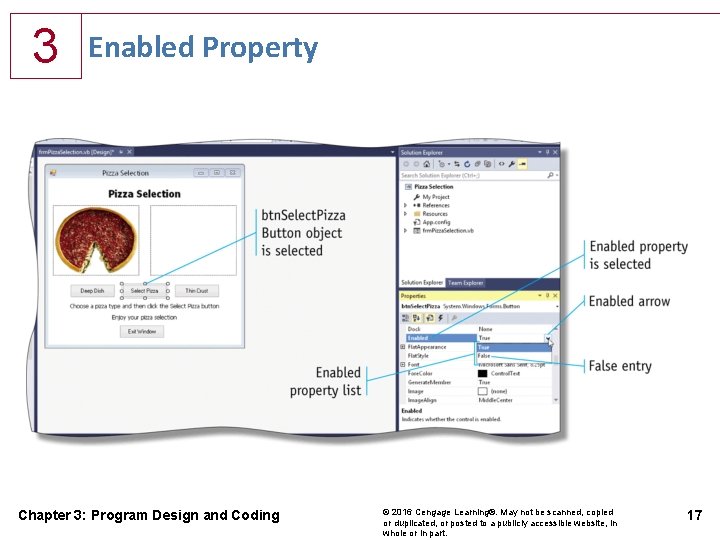
3 Enabled Property Chapter 3: Program Design and Coding © 2016 Cengage Learning®. May not be scanned, copied or duplicated, or posted to a publicly accessible website, in whole or in part. 17
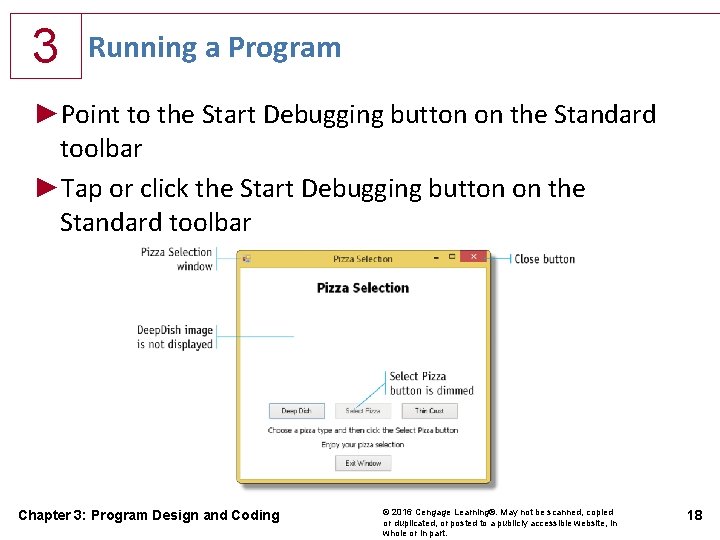
3 Running a Program ►Point to the Start Debugging button on the Standard toolbar ►Tap or click the Start Debugging button on the Standard toolbar Chapter 3: Program Design and Coding © 2016 Cengage Learning®. May not be scanned, copied or duplicated, or posted to a publicly accessible website, in whole or in part. 18
3 Entering Visual Basic Code for Event Handling ►With Visual Studio 2015 and the desired program open and the [Design] tabbed window visible, point to the desired button object in the Windows Form object ►Double-tap or double-click the button object Chapter 3: Program Design and Coding © 2016 Cengage Learning®. May not be scanned, copied or duplicated, or posted to a publicly accessible website, in whole or in part. 19
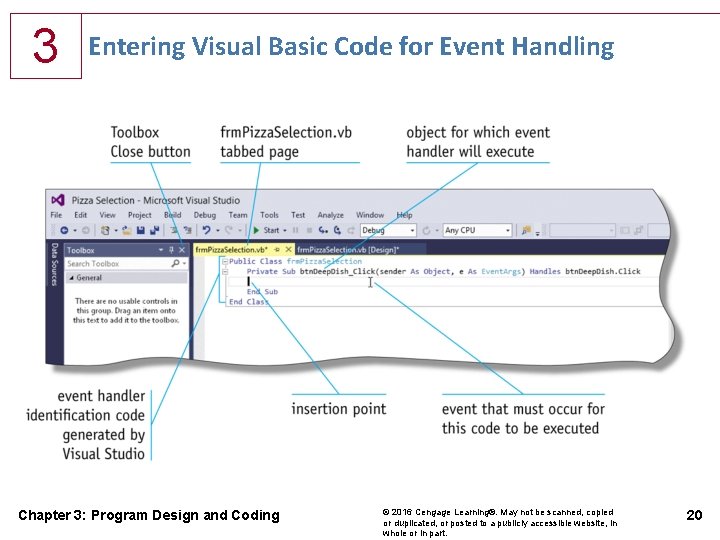
3 Entering Visual Basic Code for Event Handling Chapter 3: Program Design and Coding © 2016 Cengage Learning®. May not be scanned, copied or duplicated, or posted to a publicly accessible website, in whole or in part. 20
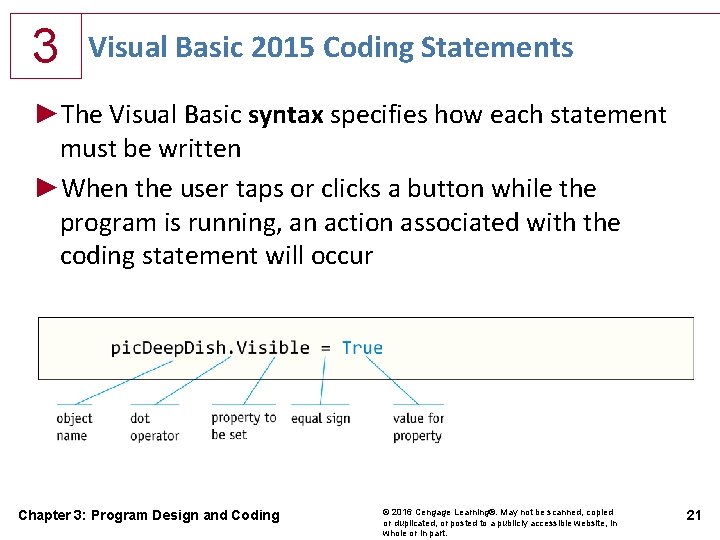
3 Visual Basic 2015 Coding Statements ►The Visual Basic syntax specifies how each statement must be written ►When the user taps or clicks a button while the program is running, an action associated with the coding statement will occur Chapter 3: Program Design and Coding © 2016 Cengage Learning®. May not be scanned, copied or duplicated, or posted to a publicly accessible website, in whole or in part. 21
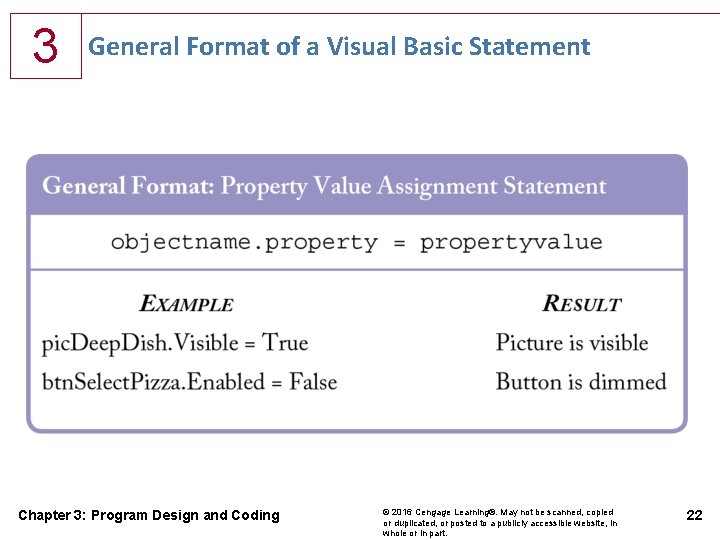
3 General Format of a Visual Basic Statement Chapter 3: Program Design and Coding © 2016 Cengage Learning®. May not be scanned, copied or duplicated, or posted to a publicly accessible website, in whole or in part. 22
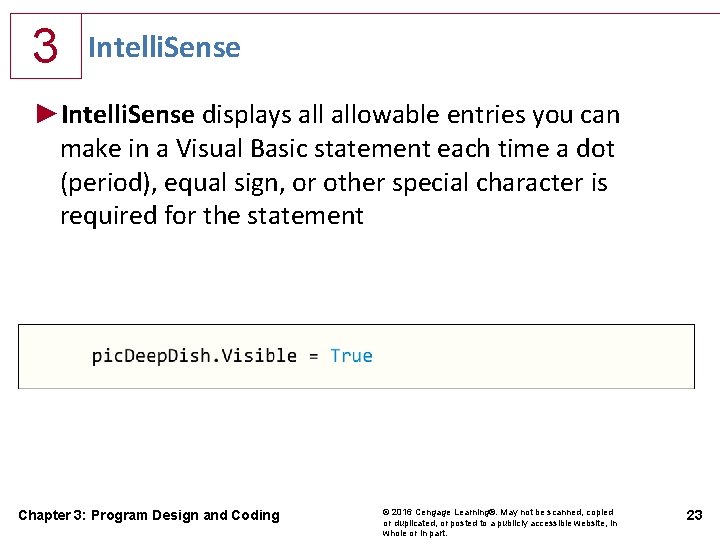
3 Intelli. Sense ►Intelli. Sense displays allowable entries you can make in a Visual Basic statement each time a dot (period), equal sign, or other special character is required for the statement Chapter 3: Program Design and Coding © 2016 Cengage Learning®. May not be scanned, copied or duplicated, or posted to a publicly accessible website, in whole or in part. 23
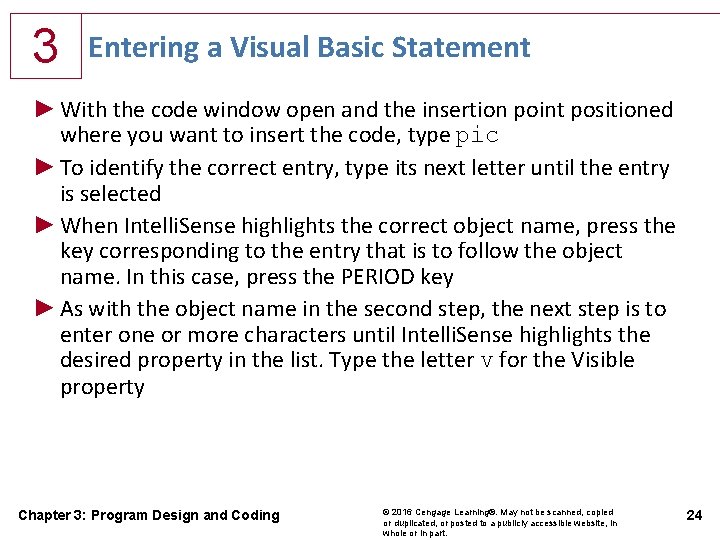
3 Entering a Visual Basic Statement ► With the code window open and the insertion point positioned where you want to insert the code, type pic ► To identify the correct entry, type its next letter until the entry is selected ► When Intelli. Sense highlights the correct object name, press the key corresponding to the entry that is to follow the object name. In this case, press the PERIOD key ► As with the object name in the second step, the next step is to enter one or more characters until Intelli. Sense highlights the desired property in the list. Type the letter v for the Visible property Chapter 3: Program Design and Coding © 2016 Cengage Learning®. May not be scanned, copied or duplicated, or posted to a publicly accessible website, in whole or in part. 24
3 Entering a Visual Basic Statement ►Press the key for the character that is to follow the property name. In this case, press the SPACEBAR ►Press the EQUAL SIGN key on the keyboard and then press the SPACEBAR and the letter t ►Type t for True ►Press the key for the character that follows the True entry. In this case, press the ENTER key Chapter 3: Program Design and Coding © 2016 Cengage Learning®. May not be scanned, copied or duplicated, or posted to a publicly accessible website, in whole or in part. 25
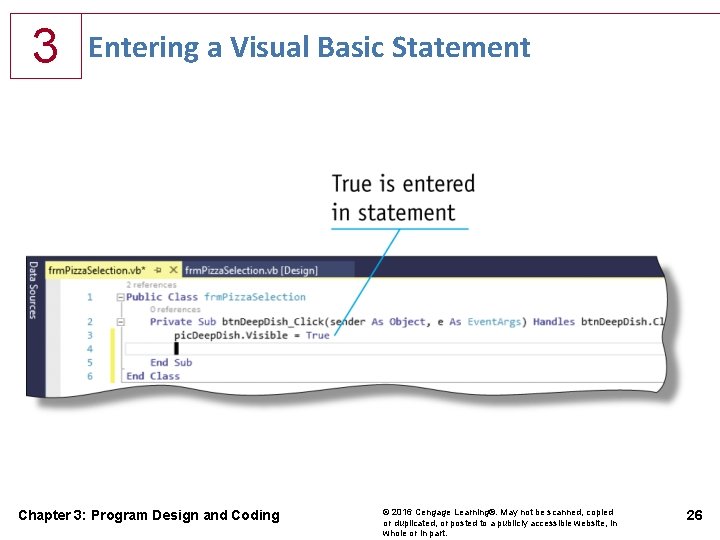
3 Entering a Visual Basic Statement Chapter 3: Program Design and Coding © 2016 Cengage Learning®. May not be scanned, copied or duplicated, or posted to a publicly accessible website, in whole or in part. 26
3 Setting the Visible Property to False ►With the insertion point in the desired location, type pic ►Type the next letter for the button name ►Press the key for the character that is to follow the object name. In this case, press the PERIOD key ►Press the SPACEBAR, press the EQUAL SIGN key, and then press the SPACEBAR ►Type f and then press the ENTER key Chapter 3: Program Design and Coding © 2016 Cengage Learning®. May not be scanned, copied or duplicated, or posted to a publicly accessible website, in whole or in part. 27
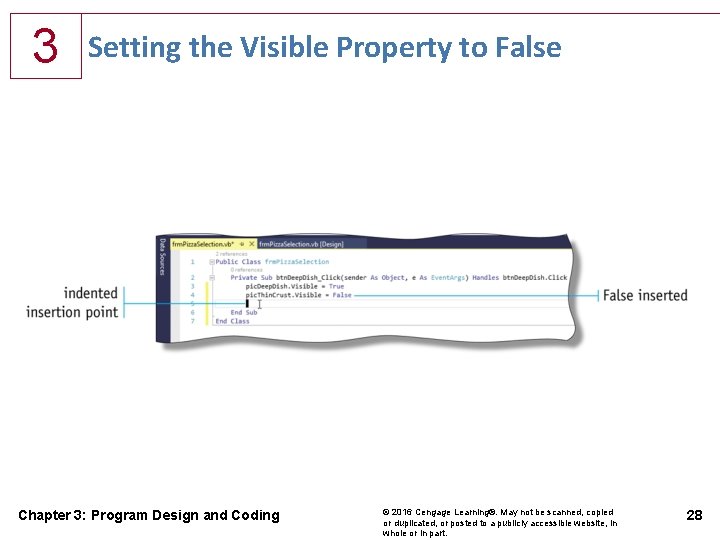
3 Setting the Visible Property to False Chapter 3: Program Design and Coding © 2016 Cengage Learning®. May not be scanned, copied or duplicated, or posted to a publicly accessible website, in whole or in part. 28
3 Enabled Property ►Type btn to display the Intelli. Sense list ►Type additional characters in the button name until Intelli. Sense highlights the desired entry in the list ►Type a period, type e, press the SPACEBAR, press the EQUAL SIGN key, press the SPACEBAR again, and then type true to select True in the Intelli. Sense list ►Press the ENTER key to enter the completed statement and place the insertion point on the next line Chapter 3: Program Design and Coding © 2016 Cengage Learning®. May not be scanned, copied or duplicated, or posted to a publicly accessible website, in whole or in part. 29
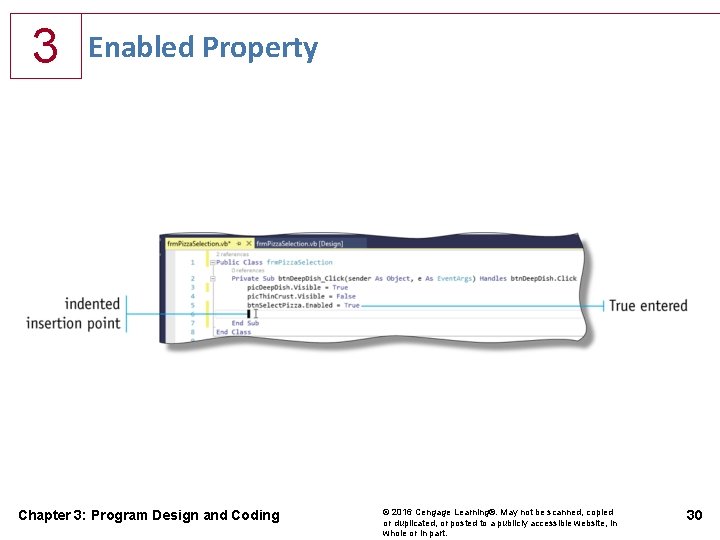
3 Enabled Property Chapter 3: Program Design and Coding © 2016 Cengage Learning®. May not be scanned, copied or duplicated, or posted to a publicly accessible website, in whole or in part. 30
3 Comments in Program Statements ►To insert a blank line following the event code generated by Visual Studio that begins with the word, Private, tap or click anywhere in that line and then press the END ►Press the ENTER key ►Type the first line of the comments, beginning with an apostrophe, and then press the ENTER key Chapter 3: Program Design and Coding © 2016 Cengage Learning®. May not be scanned, copied or duplicated, or posted to a publicly accessible website, in whole or in part. 31
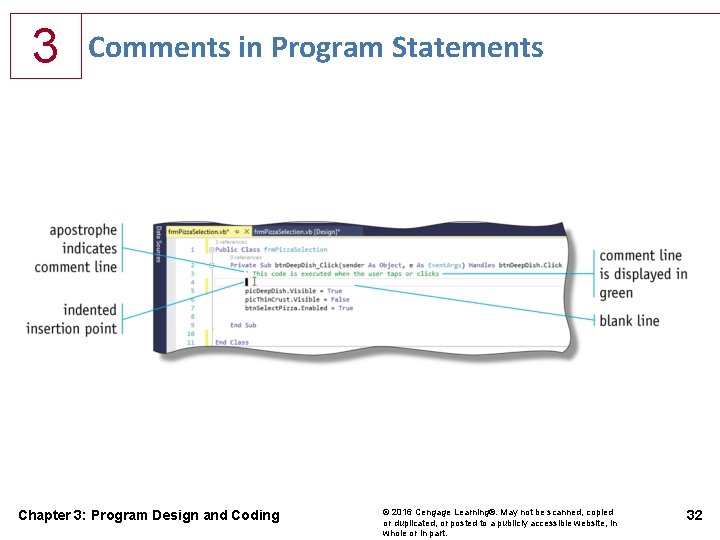
3 Comments in Program Statements Chapter 3: Program Design and Coding © 2016 Cengage Learning®. May not be scanned, copied or duplicated, or posted to a publicly accessible website, in whole or in part. 32
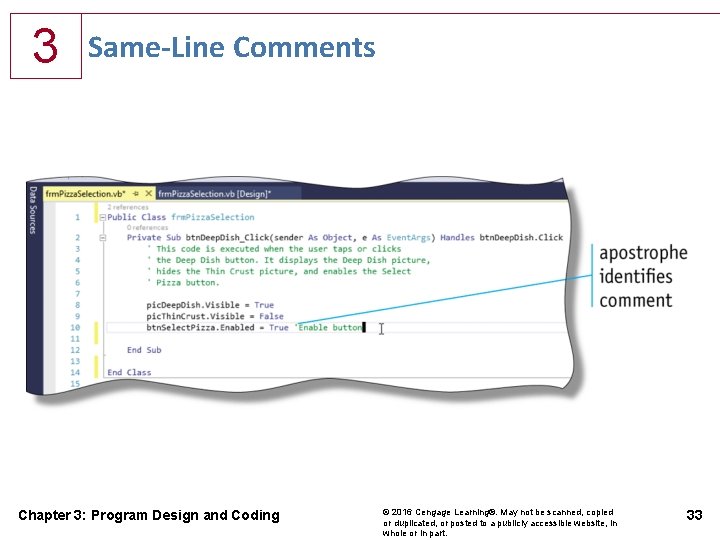
3 Same-Line Comments Chapter 3: Program Design and Coding © 2016 Cengage Learning®. May not be scanned, copied or duplicated, or posted to a publicly accessible website, in whole or in part. 33
3 Introductory Comments ►Tap or click to the left of the word, Public, on line 1 in the program to place the insertion point on that line ►Press the ENTER key and then press the UP ARROW key ►Type an apostrophe, a space, the text Program Name: and then press the TAB key one time ►Type the program name and then press the ENTER key Chapter 3: Program Design and Coding © 2016 Cengage Learning®. May not be scanned, copied or duplicated, or posted to a publicly accessible website, in whole or in part. 34
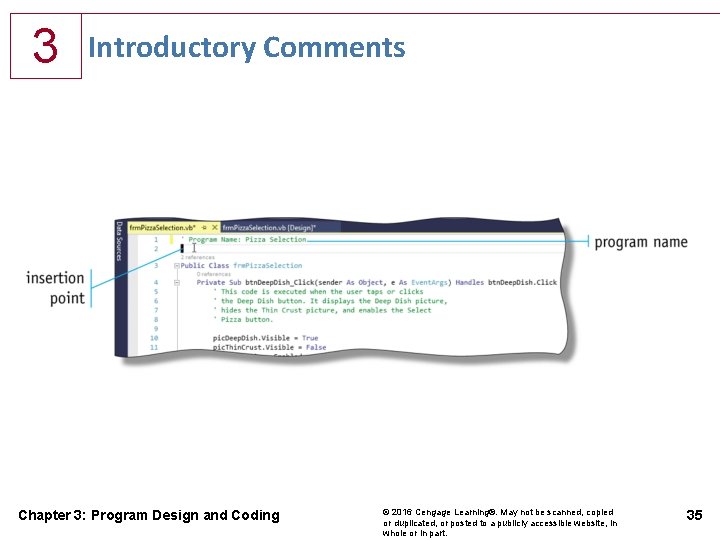
3 Introductory Comments Chapter 3: Program Design and Coding © 2016 Cengage Learning®. May not be scanned, copied or duplicated, or posted to a publicly accessible website, in whole or in part. 35
3 Correcting Errors in Code ►Using Intelli. Sense to help you enter code reduces the likelihood of coding errors considerably • One possible error would be to forget an apostrophe in a comment statement ►A build errors message means the Visual Basic compiler detected a coding error in the program Chapter 3: Program Design and Coding © 2016 Cengage Learning®. May not be scanned, copied or duplicated, or posted to a publicly accessible website, in whole or in part. 36
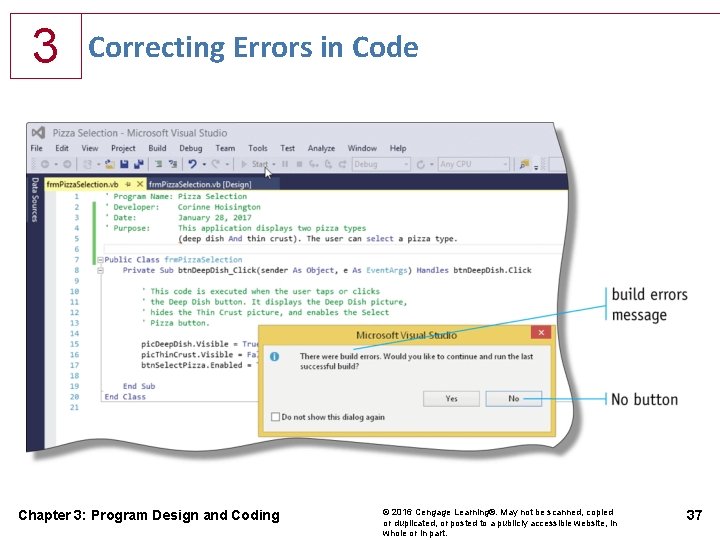
3 Correcting Errors in Code Chapter 3: Program Design and Coding © 2016 Cengage Learning®. May not be scanned, copied or duplicated, or posted to a publicly accessible website, in whole or in part. 37
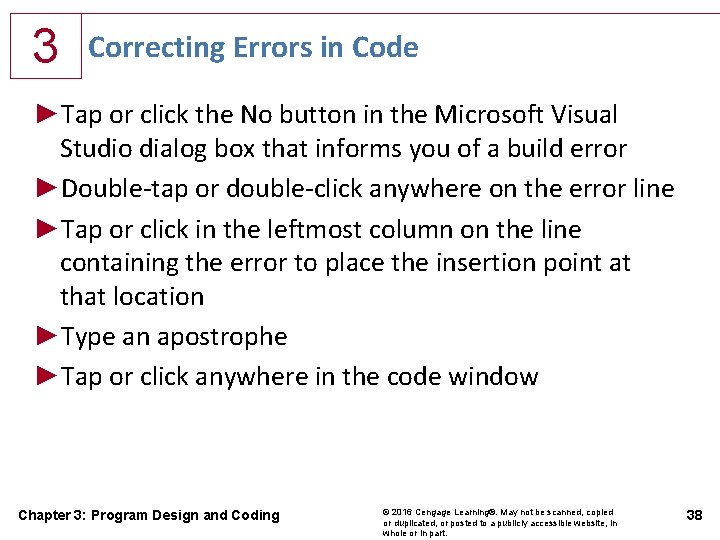
3 Correcting Errors in Code ►Tap or click the No button in the Microsoft Visual Studio dialog box that informs you of a build error ►Double-tap or double-click anywhere on the error line ►Tap or click in the leftmost column on the line containing the error to place the insertion point at that location ►Type an apostrophe ►Tap or click anywhere in the code window Chapter 3: Program Design and Coding © 2016 Cengage Learning®. May not be scanned, copied or duplicated, or posted to a publicly accessible website, in whole or in part. 38
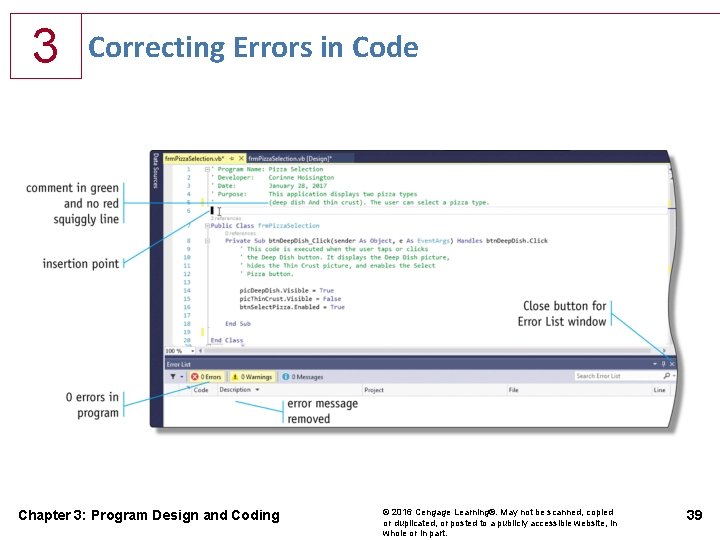
3 Correcting Errors in Code Chapter 3: Program Design and Coding © 2016 Cengage Learning®. May not be scanned, copied or duplicated, or posted to a publicly accessible website, in whole or in part. 39
![3 Additional Tap or Click Events ►On the [Design] tabbed page, double-tap or doubleclick](http://slidetodoc.com/presentation_image_h2/22d49dd7e35b478e135012ba3f0f5331/image-40.jpg "3 Additional Tap or Click Events ►On the [Design] tabbed page, double-tap or doubleclick")
3 Additional Tap or Click Events ►On the [Design] tabbed page, double-tap or doubleclick the Exit Window Button object Chapter 3: Program Design and Coding © 2016 Cengage Learning®. May not be scanned, copied or duplicated, or posted to a publicly accessible website, in whole or in part. 40
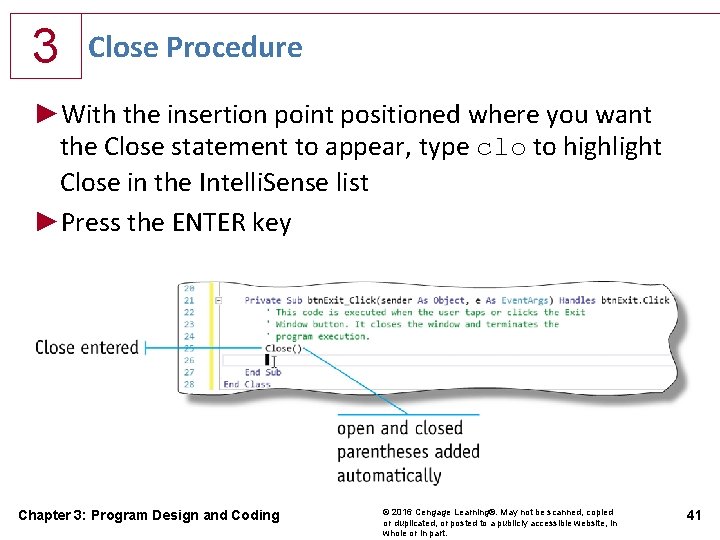
3 Close Procedure ►With the insertion point positioned where you want the Close statement to appear, type clo to highlight Close in the Intelli. Sense list ►Press the ENTER key Chapter 3: Program Design and Coding © 2016 Cengage Learning®. May not be scanned, copied or duplicated, or posted to a publicly accessible website, in whole or in part. 41
3 Printing Code ►Tap or click File on the menu bar to display the File menu ►Tap or click Print on the File menu to display the Print dialog box ►Ensure that a check mark appears in the Include line numbers check box if you want line numbers on your printout. Most developers prefer line numbers on printouts ►Make any other needed selections in the Print dialog box ►Tap or click the OK button in the Print dialog box to print the code Chapter 3: Program Design and Coding © 2016 Cengage Learning®. May not be scanned, copied or duplicated, or posted to a publicly accessible website, in whole or in part. 42
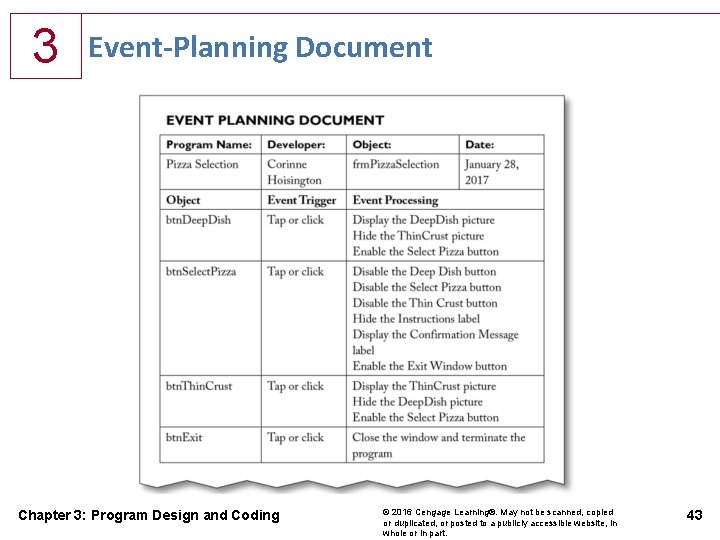
3 Event-Planning Document Chapter 3: Program Design and Coding © 2016 Cengage Learning®. May not be scanned, copied or duplicated, or posted to a publicly accessible website, in whole or in part. 43
3 Phase 4 – Code the Program ►After the events and tasks within the events have been identified, the developer is ready to code the program • Entering Visual Basic statements to accomplish the tasks specified on the event-planning document ►Developer enters the code and implements the logic Chapter 3: Program Design and Coding © 2016 Cengage Learning®. May not be scanned, copied or duplicated, or posted to a publicly accessible website, in whole or in part. 44
3 Summary ►Change the color properties of an object ►Add images to a Picture. Box object ►Locate and save an image from the web ►Import an image into the Program Resources folder ►Size an image Chapter 3: Program Design and Coding © 2016 Cengage Learning®. May not be scanned, copied or duplicated, or posted to a publicly accessible website, in whole or in part. 45
3 Summary ►Set the Visible property in the Properties window ►Set the Enabled property in the Properties window ►Run a Visual Basic 2015 program ►Enter Visual Basic 2015 code ►Understand Visual Basic 2015 code statement formats Chapter 3: Program Design and Coding © 2016 Cengage Learning®. May not be scanned, copied or duplicated, or posted to a publicly accessible website, in whole or in part. 46
3 Summary ►Use Intelli. Sense to enter Visual Basic 2015 code statements ►Use code to set the Visible property of an object ►Use code to set the Enabled property of an object ►Enter comments in Visual Basic 2015 code Chapter 3: Program Design and Coding © 2016 Cengage Learning®. May not be scanned, copied or duplicated, or posted to a publicly accessible website, in whole or in part. 47
3 Summary ►Correct errors in Visual Basic 2015 code ►Write code to use the Close() procedure ►Print code ►Prepare an event-planning document Chapter 3: Program Design and Coding © 2016 Cengage Learning®. May not be scanned, copied or duplicated, or posted to a publicly accessible website, in whole or in part. 48
Microsoft Visual Basic 2015 CHAPTER THREE COMPLETE Program Design and Coding
- Slides: 49