
Microsoft Virtualization Deep Dive Current and Future Architecture



- Slides: 30
Microsoft Virtualization Deep Dive Current and Future Architecture Shai Ofek Principal Technology Architect Windows Server Division, PMG shai. ofek@microsoft. com
Topics Reviewed Virtualization Characterization Virtual Server 2005 R 2 Architecture Windows Server Virtualization Architecture
Virtualization Characterization From IBM System Virtualization Engine: “There are two types of hypervisors” Type 1 hypervisors run directly on the system hardware Type 2 hypervisors run on a host operating system that provides virtualization services, such as I/O device support and memory management
VMM Arrangements Type-2 VMM Guest 1 Hybrid VMM Type-1 VMM (Hypervisor) Guest 2 VMM Host OS Hardware Examples: JVM CLR Guest 1 Host OS Guest 2 VMM Hardware Examples: Virtual PC & Virtual Server 2005 R 2 In Production today Guest 1 Guest 2 VMM Hardware Examples: Windows Virtualization In Beta Q 4 2006
Virtual Server R 2: Enhancements (1 of 4) Greater Scalability with 64 -bit x 64 hosts – 32 -bit guests Windows Server 2003 Standard x 64 Edition Windows Server 2003 Enterprise x 64 Edition Windows XP Professional x 64 Edition 64 -bit port of Virtual Machine Manager (VMM) and service Better scaling from larger kernel address space x 64 systems typically can have more RAM Increased Performance Improved shadow page table management Improved performance of guest process switching and memory intensive application SQL team reported 100% performance improvement over R 1 Exchange team reported 105% performance improvement over R 1 65% increase in internal memory tests Early customer saw a 50% drop in CPU utilization
Virtual Server R 2: Enhancements (2 of 4) Higher Availability Virtual Server R 2 Host Cluster support The ability to cluster Virtual Server hosts Virtual Server host clustering uses Windows Server 2003 EE/DTC clustering Supports FC-SAN and i. SCSI-SAN or direct attached storage Planned downtime: Servicing the host hardware or patching the host operating system. Virtual Machines (VMs) can be moved from one cluster node to another with minimal downtime <10 seconds to move 128 MB vm via 1 Gb. E i. SCSI (1 spindle) <4 seconds to move 512 MB vm via 2 Gb FC (3 spindles) <8 seconds to move 1 GB vm via 2 Gb FC (3 spindles) Unplanned downtime: Failover to another cluster node due to hardware failure Other benefits: Guest operating system-agnostic FREE http: //www. microsoft. com/virtualserver
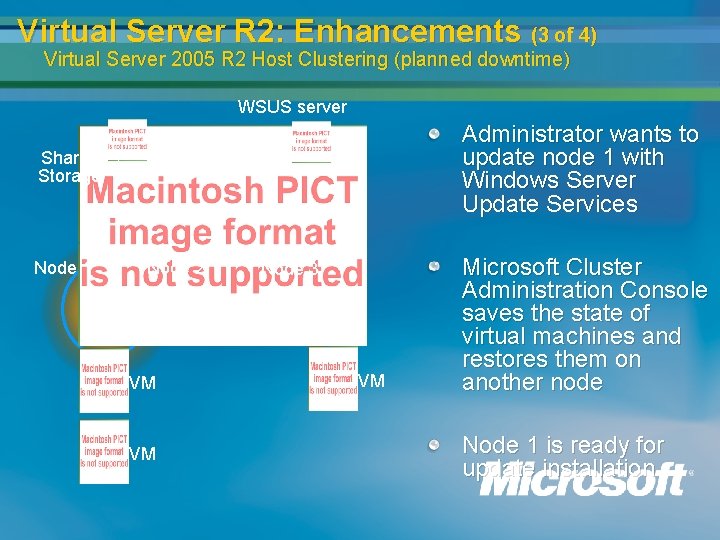
Virtual Server R 2: Enhancements (3 of 4) Virtual Server 2005 R 2 Host Clustering (planned downtime) WSUS server Administrator wants to update node 1 with Windows Server Update Services Shared Storage Node 1 Node 2 VM VM Node 3 VM Microsoft Cluster Administration Console saves the state of virtual machines and restores them on another node Node 1 is ready for update installation
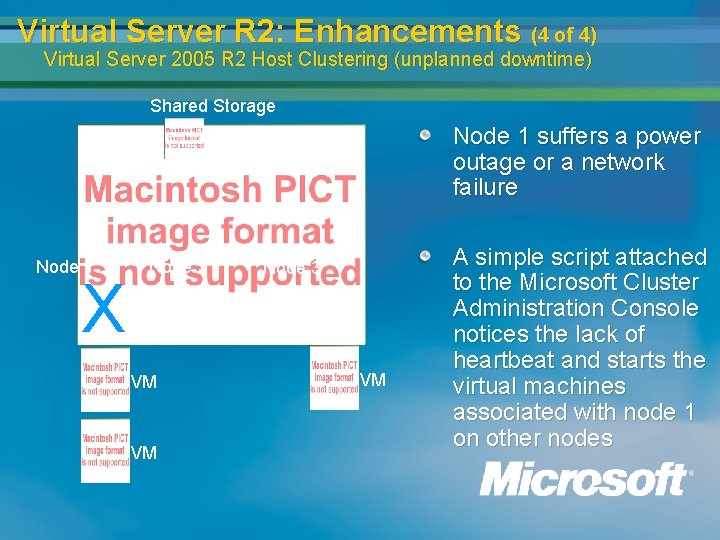
Virtual Server R 2: Enhancements (4 of 4) Virtual Server 2005 R 2 Host Clustering (unplanned downtime) Shared Storage Node 1 suffers a power outage or a network failure Node 1 X Node 2 VM VM Node 3 VM A simple script attached to the Microsoft Cluster Administration Console notices the lack of heartbeat and starts the virtual machines associated with node 1 on other nodes
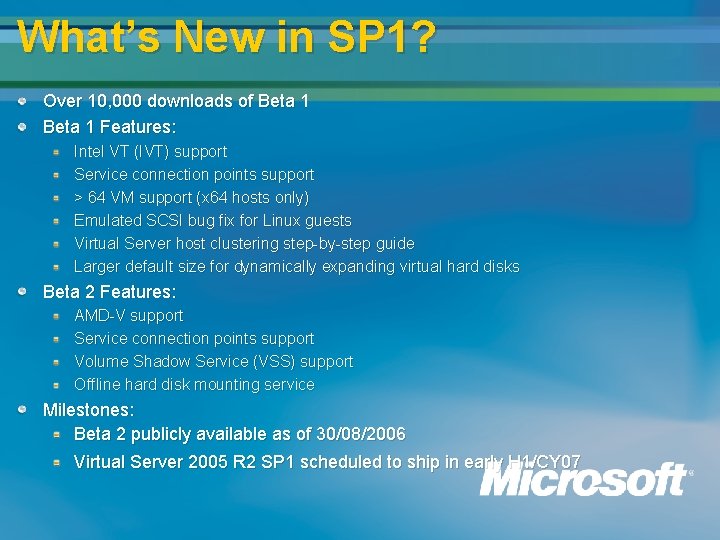
What’s New in SP 1? Over 10, 000 downloads of Beta 1 Features: Intel VT (IVT) support Service connection points support > 64 VM support (x 64 hosts only) Emulated SCSI bug fix for Linux guests Virtual Server host clustering step-by-step guide Larger default size for dynamically expanding virtual hard disks Beta 2 Features: AMD-V support Service connection points support Volume Shadow Service (VSS) support Offline hard disk mounting service Milestones: Beta 2 publicly available as of 30/08/2006 Virtual Server 2005 R 2 SP 1 scheduled to ship in early H 1/CY 07
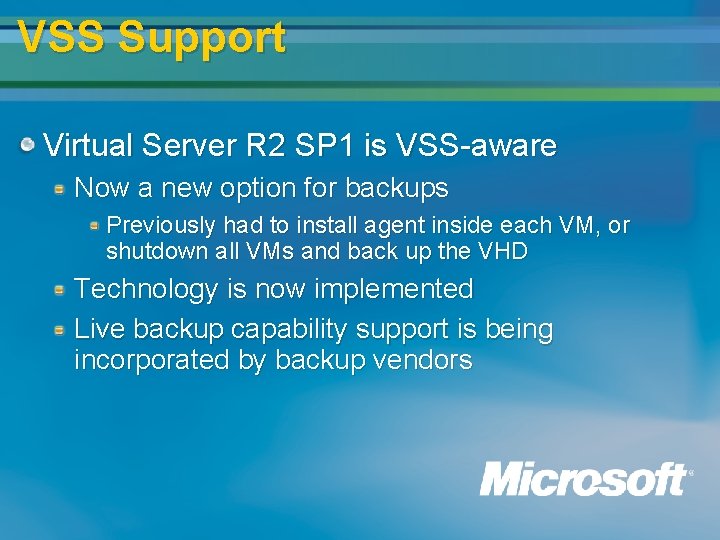
VSS Support Virtual Server R 2 SP 1 is VSS-aware Now a new option for backups Previously had to install agent inside each VM, or shutdown all VMs and back up the VHD Technology is now implemented Live backup capability support is being incorporated by backup vendors
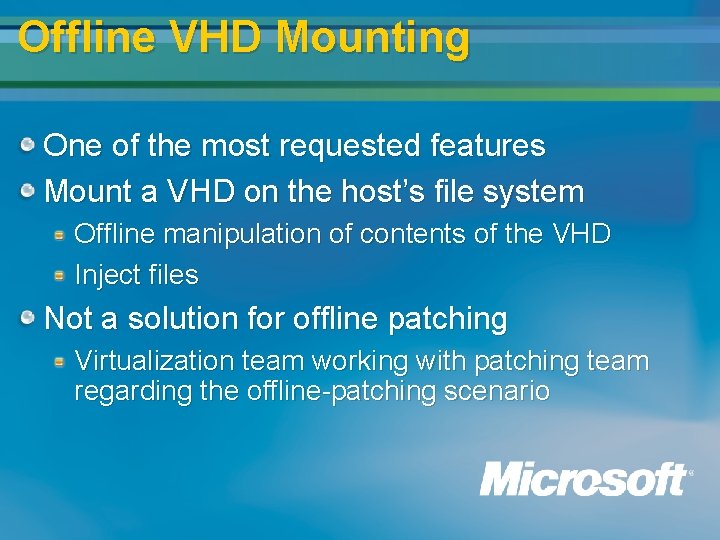
Offline VHD Mounting One of the most requested features Mount a VHD on the host’s file system Offline manipulation of contents of the VHD Inject files Not a solution for offline patching Virtualization team working with patching team regarding the offline-patching scenario
Summary Virtual Server 2005 R 2 – Shipping today Released Q 4 2004 Well received in the industry Used for production server consolidation Remote management of virtual machine operations Great perf gains and functionality enhancement in SP 1 64 -bit host support, PXE support, and others 12
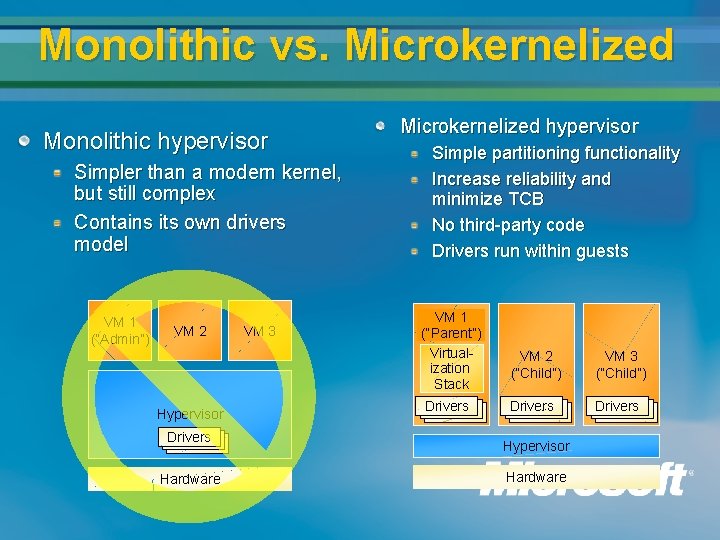
Monolithic vs. Microkernelized Monolithic hypervisor Simpler than a modern kernel, but still complex Contains its own drivers model VM 1 (“Admin”) VM 2 Hypervisor VM 3 Microkernelized hypervisor Simple partitioning functionality Increase reliability and minimize TCB No third-party code Drivers run within guests VM 1 (“Parent”) Virtualization Stack Drivers VM 2 (“Child”) VM 3 (“Child”) Drivers Drivers Drivers Hypervisor Hardware
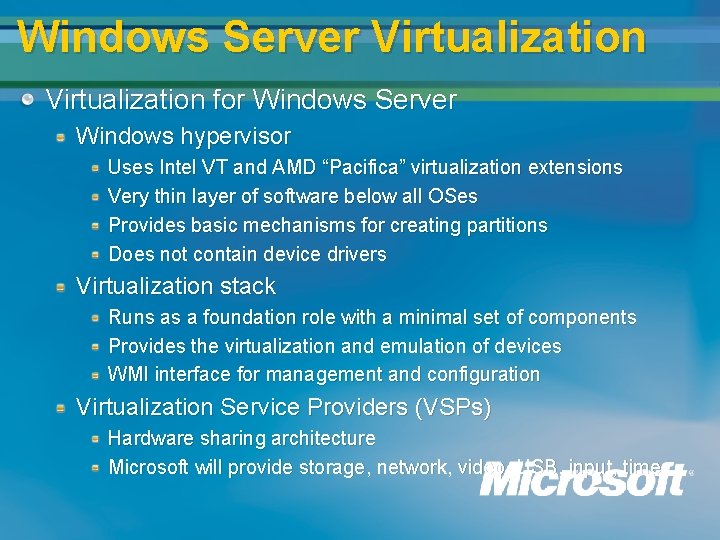
Windows Server Virtualization for Windows Server Windows hypervisor Uses Intel VT and AMD “Pacifica” virtualization extensions Very thin layer of software below all OSes Provides basic mechanisms for creating partitions Does not contain device drivers Virtualization stack Runs as a foundation role with a minimal set of components Provides the virtualization and emulation of devices WMI interface for management and configuration Virtualization Service Providers (VSPs) Hardware sharing architecture Microsoft will provide storage, network, video, USB, input, time
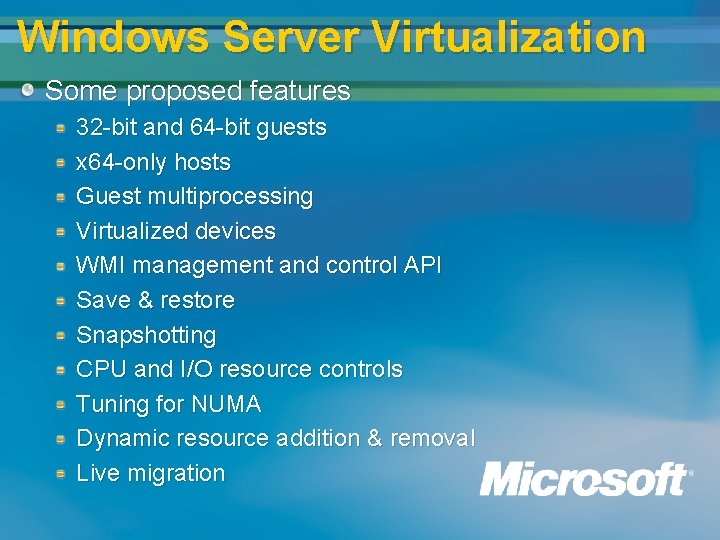
Windows Server Virtualization Some proposed features 32 -bit and 64 -bit guests x 64 -only hosts Guest multiprocessing Virtualized devices WMI management and control API Save & restore Snapshotting CPU and I/O resource controls Tuning for NUMA Dynamic resource addition & removal Live migration
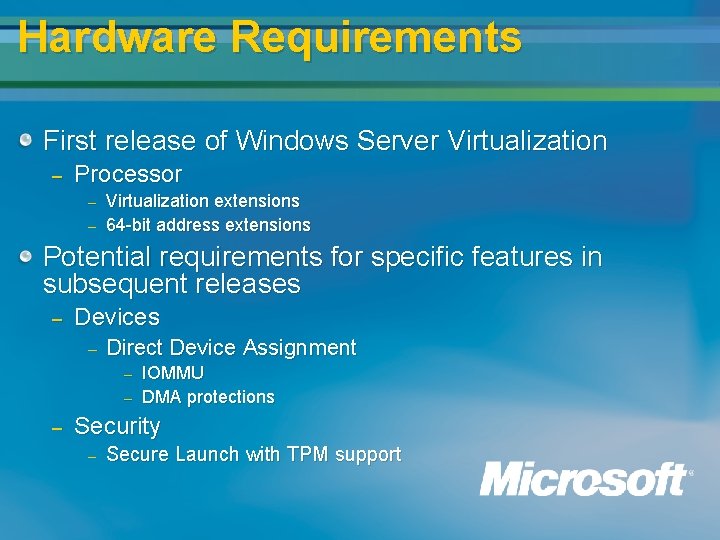
Hardware Requirements First release of Windows Server Virtualization – Processor – – Virtualization extensions 64 -bit address extensions Potential requirements for specific features in subsequent releases – Devices – Direct Device Assignment – – – IOMMU DMA protections Security – Secure Launch with TPM support
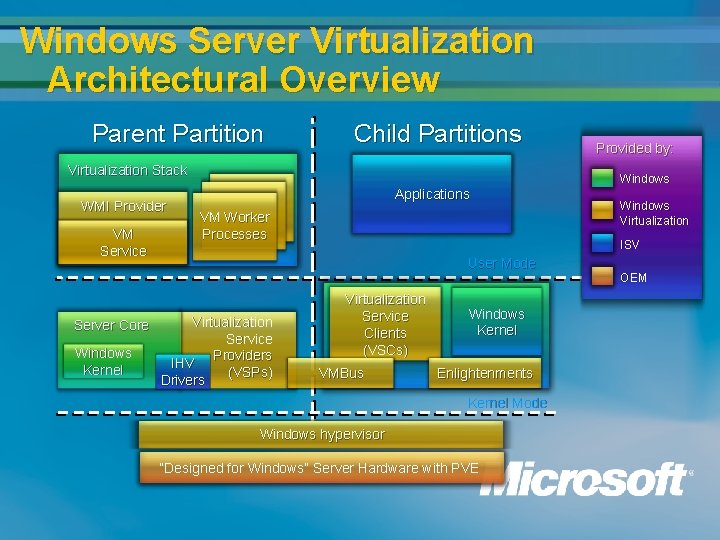
Windows Server Virtualization Architectural Overview Parent Partition Child Partitions Virtualization Stack WMI Provider VM Service Server Core Windows Kernel Provided by: Windows Applications VM Worker Processes ISV User Mode Virtualization Service Providers IHV (VSPs) Drivers Windows Virtualization Service Clients (VSCs) VMBus Windows Kernel Enlightenments Kernel Mode Windows hypervisor “Designed for Windows” Server Hardware with PVE OEM
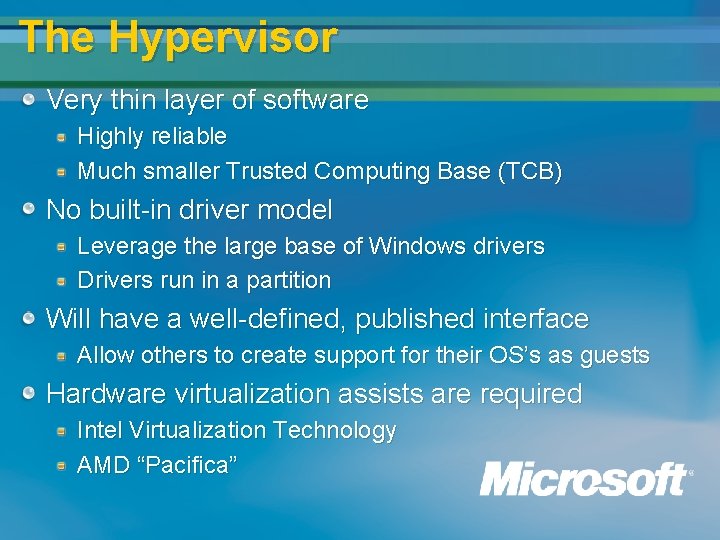
The Hypervisor Very thin layer of software Highly reliable Much smaller Trusted Computing Base (TCB) No built-in driver model Leverage the large base of Windows drivers Drivers run in a partition Will have a well-defined, published interface Allow others to create support for their OS’s as guests Hardware virtualization assists are required Intel Virtualization Technology AMD “Pacifica”
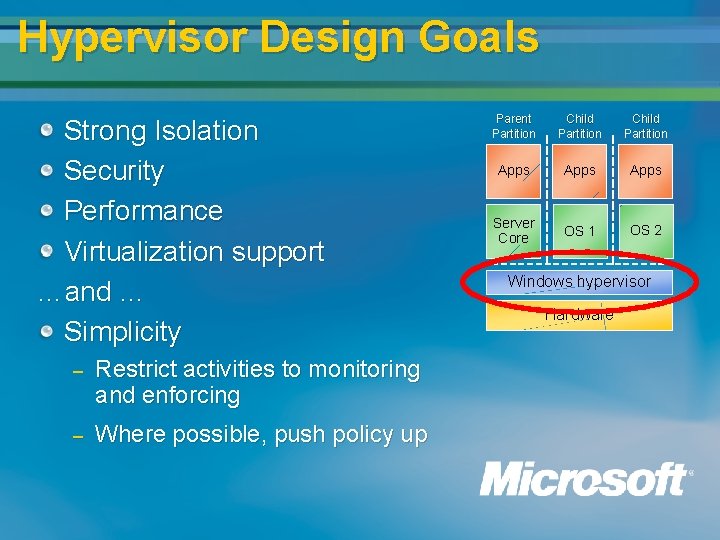
Hypervisor Design Goals Strong Isolation Security Performance Virtualization support …and … Simplicity – Restrict activities to monitoring and enforcing – Where possible, push policy up Parent Partition Child Partition Apps Server Core OS 1 OS 2 Windows hypervisor Hardware
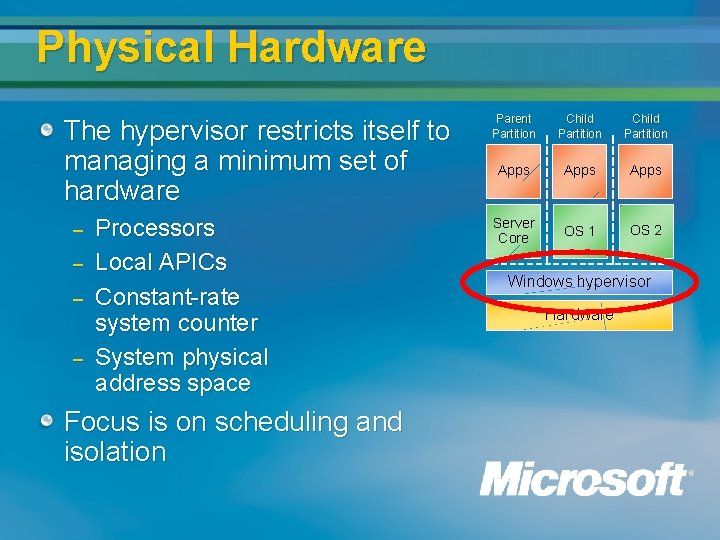
Physical Hardware The hypervisor restricts itself to managing a minimum set of hardware – – Processors Local APICs Constant-rate system counter System physical address space Focus is on scheduling and isolation Parent Partition Child Partition Apps Server Core OS 1 OS 2 Windows hypervisor Hardware
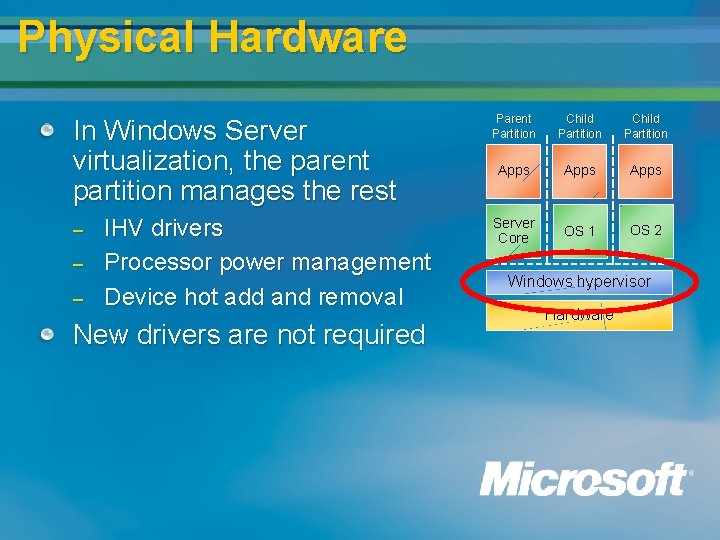
Physical Hardware In Windows Server virtualization, the parent partition manages the rest – – – IHV drivers Processor power management Device hot add and removal New drivers are not required Parent Partition Child Partition Apps Server Core OS 1 OS 2 Windows hypervisor Hardware
Hypercalls – Low Level API Guests communicate with the hypervisor via hypercalls – – – Hypervisor equivalent of a syscall Detected via CPUID Configured via MSR Simple format – – One input page, one output page Specify pages by physical address, then jump to known address
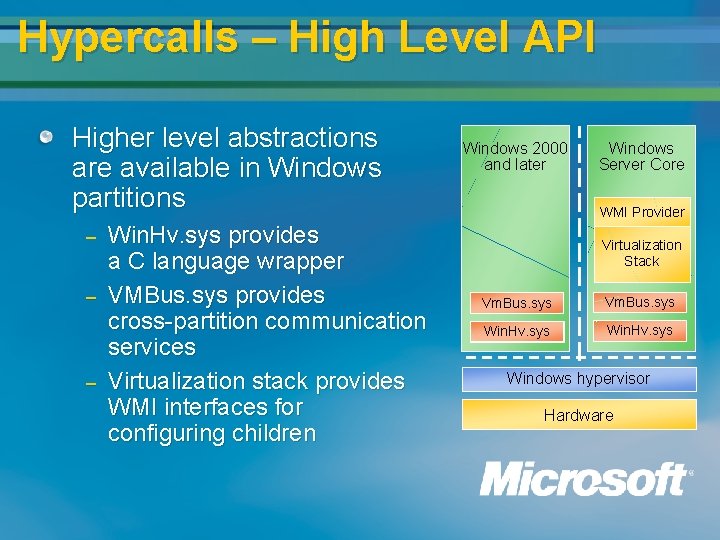
Hypercalls – High Level API Higher level abstractions are available in Windows partitions – – – Win. Hv. sys provides a C language wrapper VMBus. sys provides cross-partition communication services Virtualization stack provides WMI interfaces for configuring children Windows 2000 and later Windows Server Core WMI Provider Virtualization Stack Vm. Bus. sys Win. Hv. sys Windows hypervisor Hardware
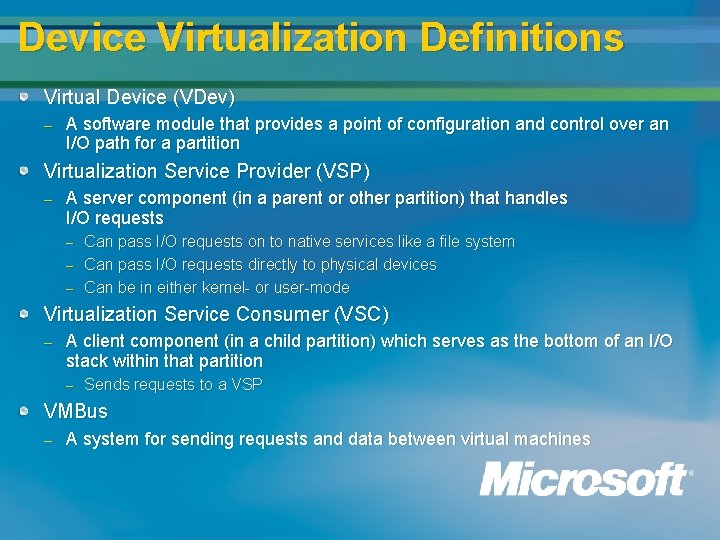
Device Virtualization Definitions Virtual Device (VDev) – A software module that provides a point of configuration and control over an I/O path for a partition Virtualization Service Provider (VSP) – A server component (in a parent or other partition) that handles I/O requests – – – Can pass I/O requests on to native services like a file system Can pass I/O requests directly to physical devices Can be in either kernel- or user-mode Virtualization Service Consumer (VSC) – A client component (in a child partition) which serves as the bottom of an I/O stack within that partition – Sends requests to a VSP VMBus – A system for sending requests and data between virtual machines
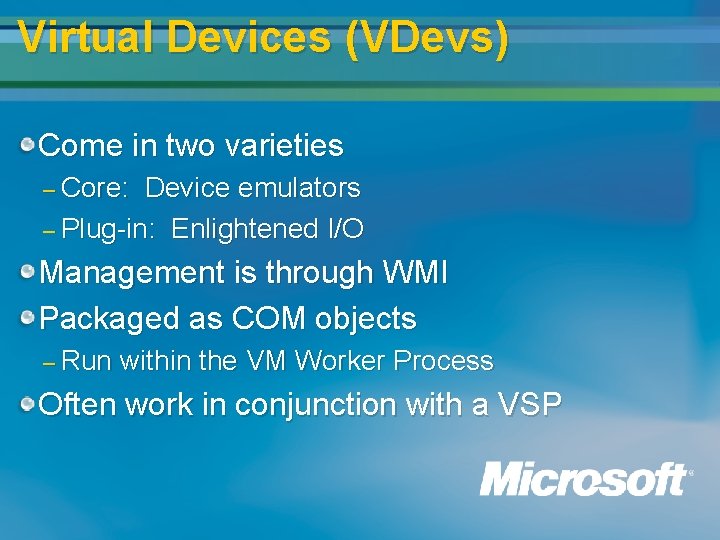
Virtual Devices (VDevs) Come in two varieties – Core: Device emulators – Plug-in: Enlightened I/O Management is through WMI Packaged as COM objects – Run within the VM Worker Process Often work in conjunction with a VSP
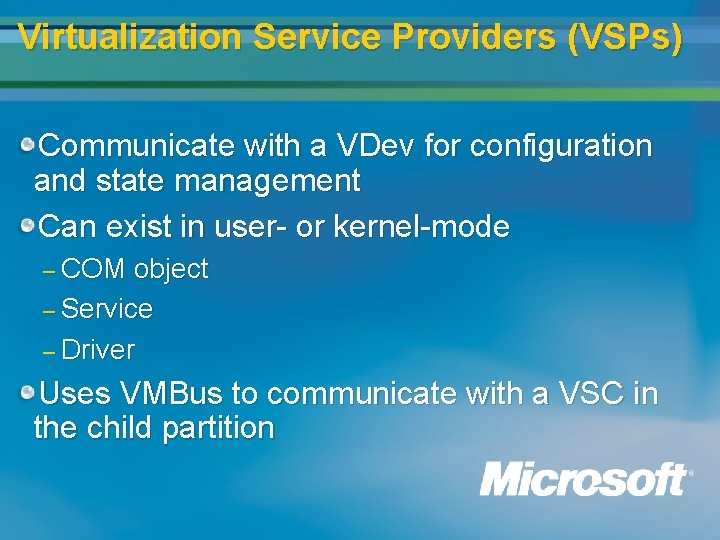
Virtualization Service Providers (VSPs) Communicate with a VDev for configuration and state management Can exist in user- or kernel-mode – COM object – Service – Driver Uses VMBus to communicate with a VSC in the child partition
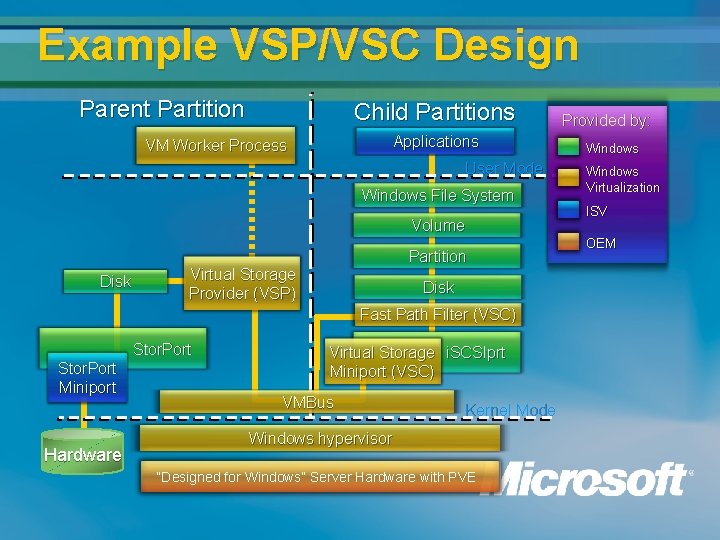
Example VSP/VSC Design Parent Partition Child Partitions Applications VM Worker Process User Mode Windows File System Volume Disk Partition Virtual Storage Provider (VSP) Disk Fast Path Filter (VSC) Stor. Port Miniport Hardware Virtual Storage i. SCSIprt Miniport (VSC) VMBus Kernel Mode Windows hypervisor “Designed for Windows” Server Hardware with PVE Provided by: Windows Virtualization ISV OEM
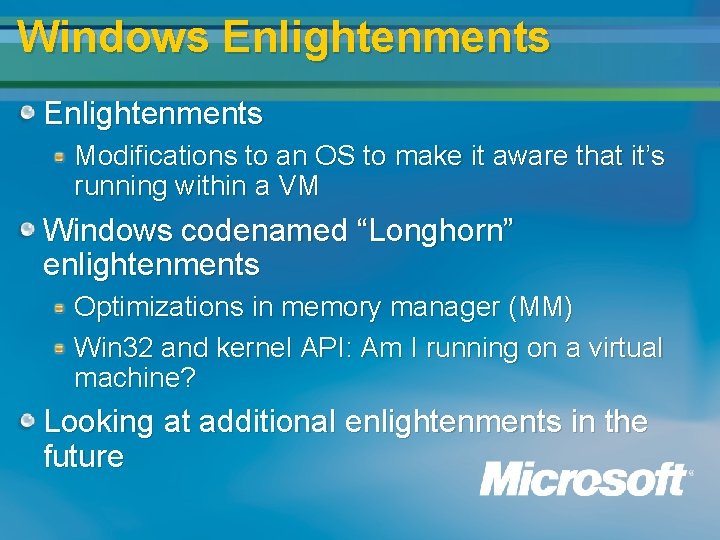
Windows Enlightenments Modifications to an OS to make it aware that it’s running within a VM Windows codenamed “Longhorn” enlightenments Optimizations in memory manager (MM) Win 32 and kernel API: Am I running on a virtual machine? Looking at additional enlightenments in the future
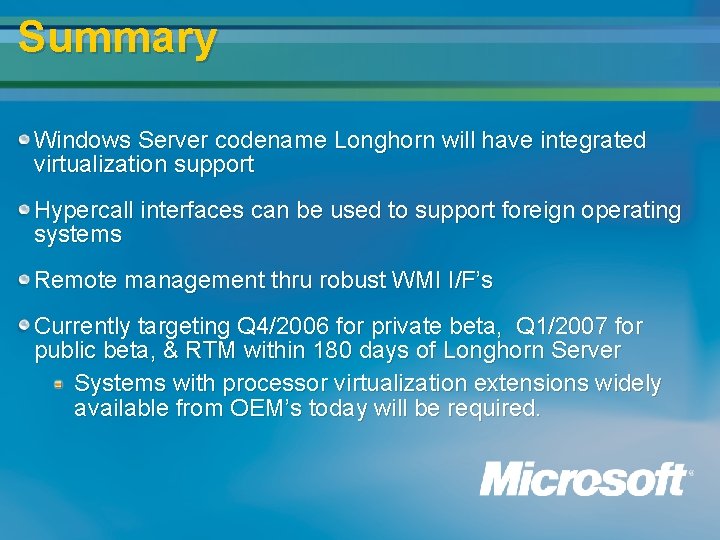
Summary Windows Server codename Longhorn will have integrated virtualization support Hypercall interfaces can be used to support foreign operating systems Remote management thru robust WMI I/F’s Currently targeting Q 4/2006 for private beta, Q 1/2007 for public beta, & RTM within 180 days of Longhorn Server Systems with processor virtualization extensions widely available from OEM’s today will be required.
Additional Resources MSDN for Virtual Server 2005 COM API http: //msdn. microsoft. com/library/en-us/msvs/portal. asp Windows Server Virtualization http: //www. microsoft. com/windowsserversystem/virtualization/default. mspx Windows Hardware & Driver Central (WHDC) www. microsoft. com/whdc/default. mspx Technical Communities www. microsoft. com/communities/products/default. mspx Non-Microsoft Community Sites www. microsoft. com/communities/related/default. mspx Microsoft Public Newsgroups www. microsoft. com/communities/newsgroups Technical Chats and Webcasts www. microsoft. com/communities/chats/default. mspx www. microsoft. com/webcasts Microsoft Blogs www. microsoft. com/communities/blogs