
Microsoft Teams Quick Start Guide for Families Technology
- Slides: 20
Microsoft Teams Quick Start Guide for Families
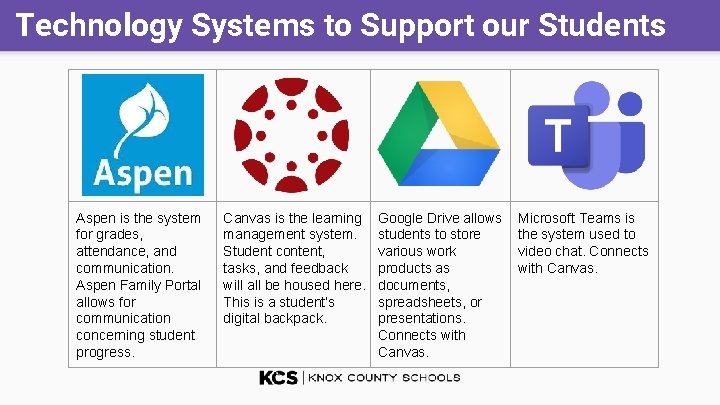
Technology Systems to Support our Students Aspen is the system for grades, attendance, and communication. Aspen Family Portal allows for communication concerning student progress. Canvas is the learning management system. Student content, tasks, and feedback will all be housed here. This is a student’s digital backpack. Google Drive allows students to store various work products as documents, spreadsheets, or presentations. Connects with Canvas. Microsoft Teams is the system used to video chat. Connects with Canvas.
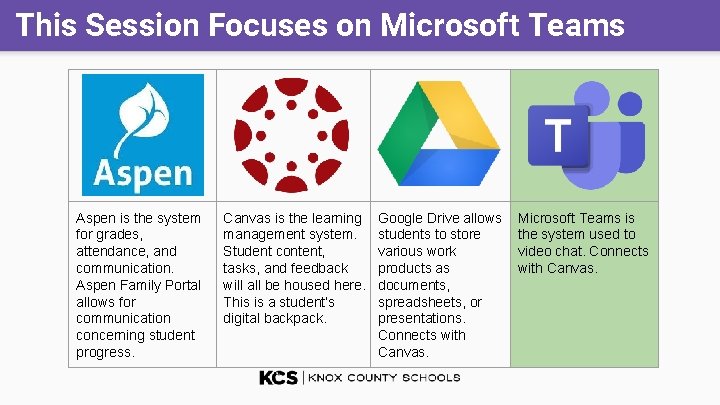
This Session Focuses on Microsoft Teams Aspen is the system for grades, attendance, and communication. Aspen Family Portal allows for communication concerning student progress. Canvas is the learning management system. Student content, tasks, and feedback will all be housed here. This is a student’s digital backpack. Google Drive allows students to store various work products as documents, spreadsheets, or presentations. Connects with Canvas. Microsoft Teams is the system used to video chat. Connects with Canvas.
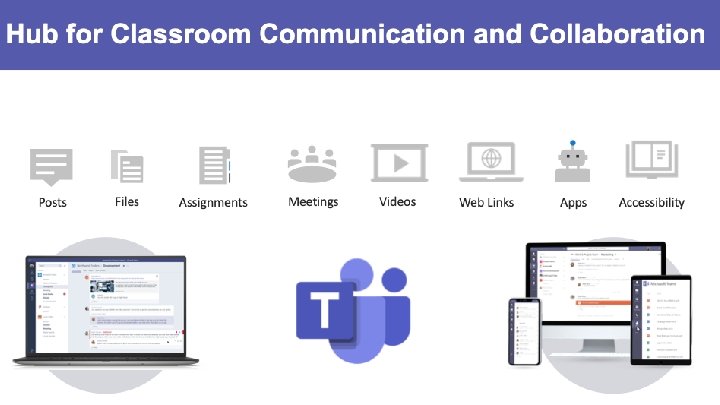
What is Microsoft Teams? Microsoft Teams for Education brings conversations and video meetings together in a secure learning environment. With Teams, families can connect with their children’s teachers for face to face conferences. It is the hub for online communication and collaboration.
Microsoft Teams Accessing a Microsoft Teams Meeting
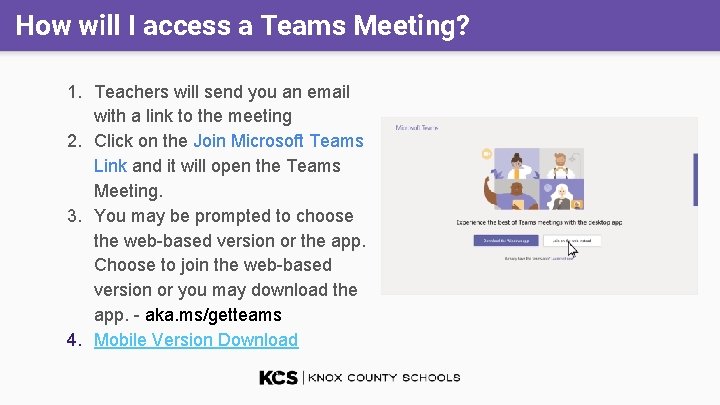
How will I access a Teams Meeting? 1. Teachers will send you an email with a link to the meeting 2. Click on the Join Microsoft Teams Link and it will open the Teams Meeting. 3. You may be prompted to choose the web-based version or the app. Choose to join the web-based version or you may download the app. - aka. ms/getteams 4. Mobile Version Download
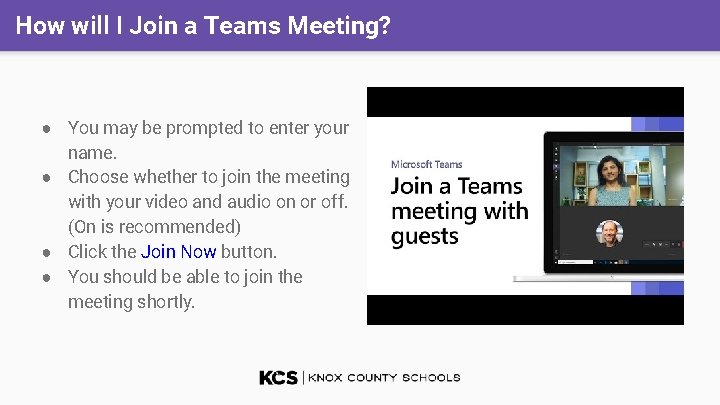
How will I Join a Teams Meeting? ● You may be prompted to enter your name. ● Choose whether to join the meeting with your video and audio on or off. (On is recommended) ● Click the Join Now button. ● You should be able to join the meeting shortly.
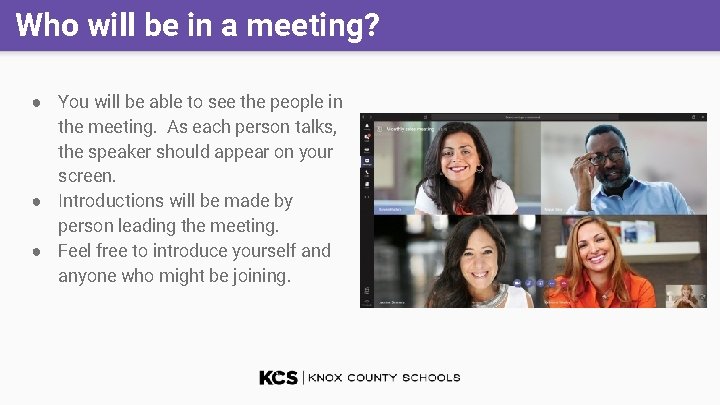
Who will be in a meeting? ● You will be able to see the people in the meeting. As each person talks, the speaker should appear on your screen. ● Introductions will be made by person leading the meeting. ● Feel free to introduce yourself and anyone who might be joining.
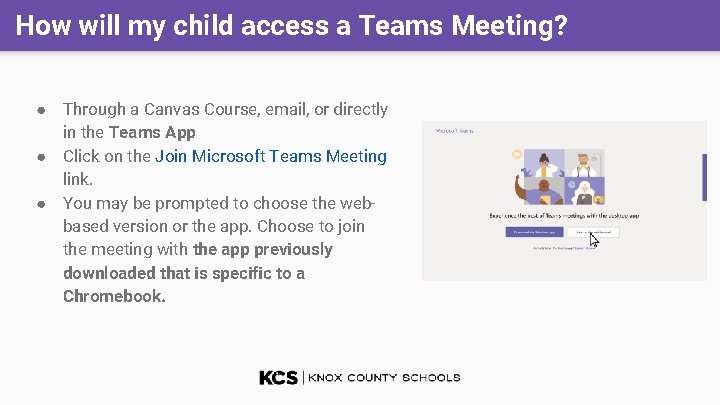
How will my child access a Teams Meeting? ● Through a Canvas Course, email, or directly in the Teams App ● Click on the Join Microsoft Teams Meeting link. ● You may be prompted to choose the webbased version or the app. Choose to join the meeting with the app previously downloaded that is specific to a Chromebook.
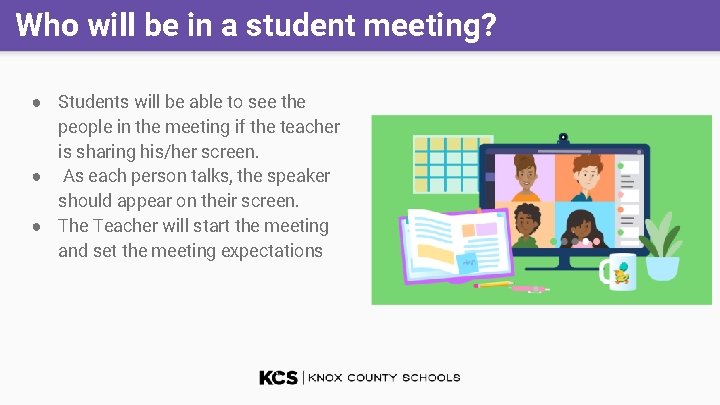
Who will be in a student meeting? ● Students will be able to see the people in the meeting if the teacher is sharing his/her screen. ● As each person talks, the speaker should appear on their screen. ● The Teacher will start the meeting and set the meeting expectations
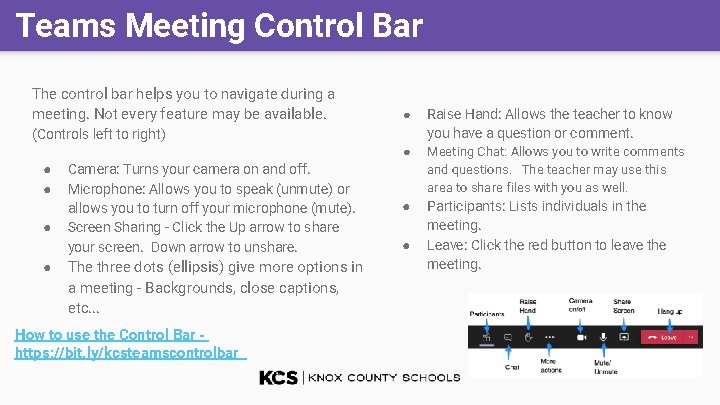
Teams Meeting Control Bar The control bar helps you to navigate during a meeting. Not every feature may be available. ● Raise Hand: Allows the teacher to know you have a question or comment. ● Meeting Chat: Allows you to write comments and questions. The teacher may use this area to share files with you as well. ● Participants: Lists individuals in the meeting. Leave: Click the red button to leave the meeting. (Controls left to right) ● ● Camera: Turns your camera on and off. Microphone: Allows you to speak (unmute) or allows you to turn off your microphone (mute). Screen Sharing - Click the Up arrow to share your screen. Down arrow to unshare. The three dots (ellipsis) give more options in a meeting - Backgrounds, close captions, etc. . . How to use the Control Bar https: //bit. ly/kcsteamscontrolbar ●
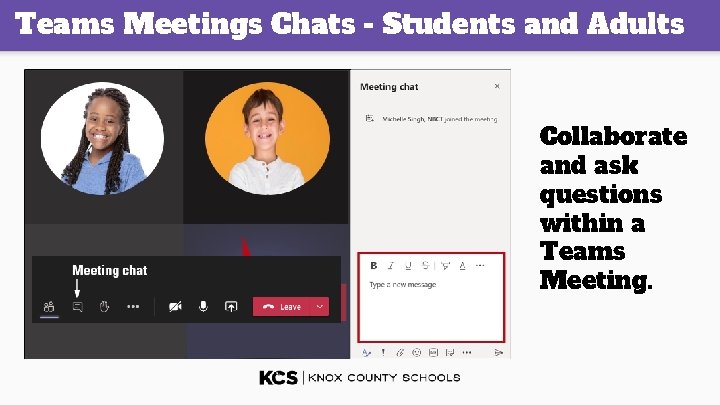
Teams Meetings Chats - Students and Adults Collaborate and ask questions within a Teams Meeting.
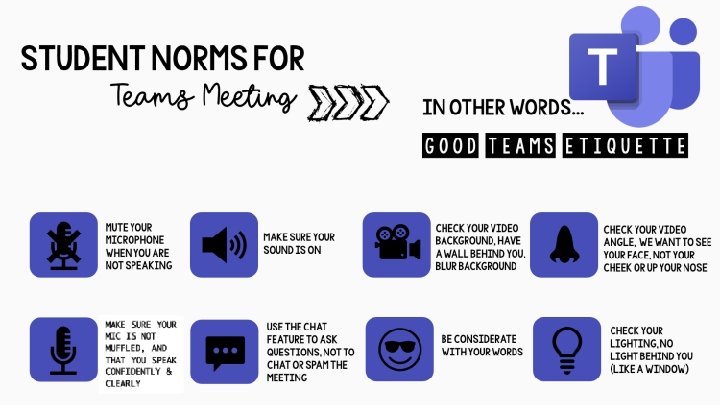
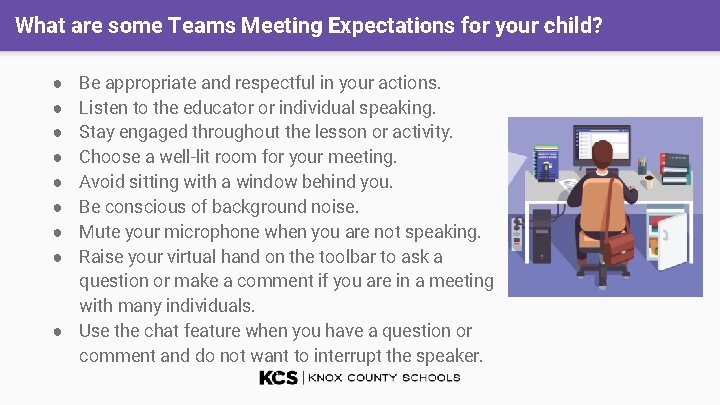
What are some Teams Meeting Expectations for your child? Be appropriate and respectful in your actions. Listen to the educator or individual speaking. Stay engaged throughout the lesson or activity. Choose a well-lit room for your meeting. Avoid sitting with a window behind you. Be conscious of background noise. Mute your microphone when you are not speaking. Raise your virtual hand on the toolbar to ask a question or make a comment if you are in a meeting with many individuals. ● Use the chat feature when you have a question or comment and do not want to interrupt the speaker. ● ● ● ●
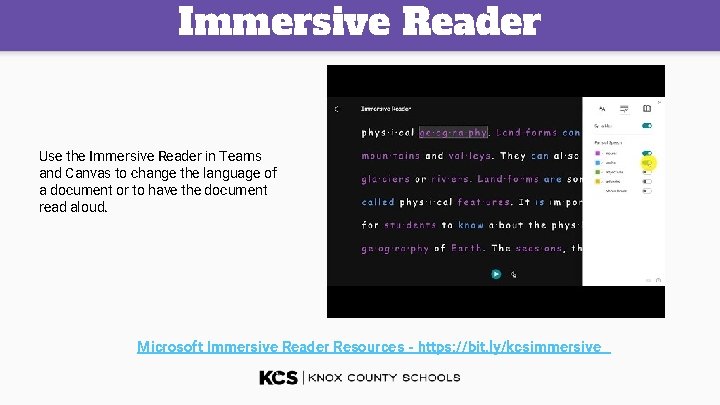
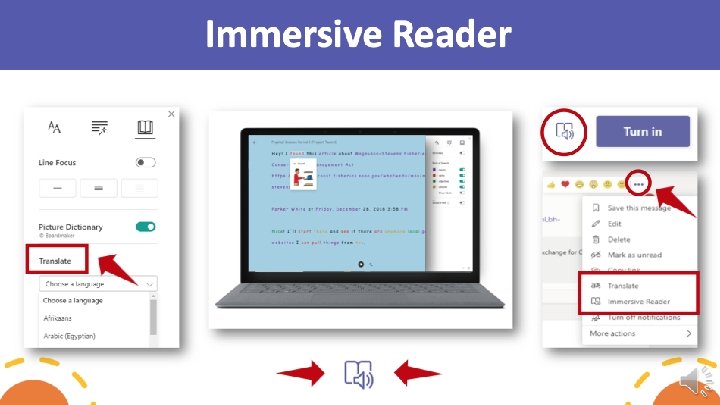
Immersive Reader Use the Immersive Reader in Teams and Canvas to change the language of a document or to have the document read aloud. Microsoft Immersive Reader Resources - https: //bit. ly/kcsimmersive
What happens if I have technical difficulties during a Meeting? What happens if I am disconnected from the meeting? Rejoin the meeting by clicking on the original link you were sent. What do I do if I cannot hear the person speaking? Most likely, the person has his/her microphone muted. You may wish to make a comment in the chat or you may unmute your microphone and let the speaker know. You may need to adjust the volume on your computer or phone.
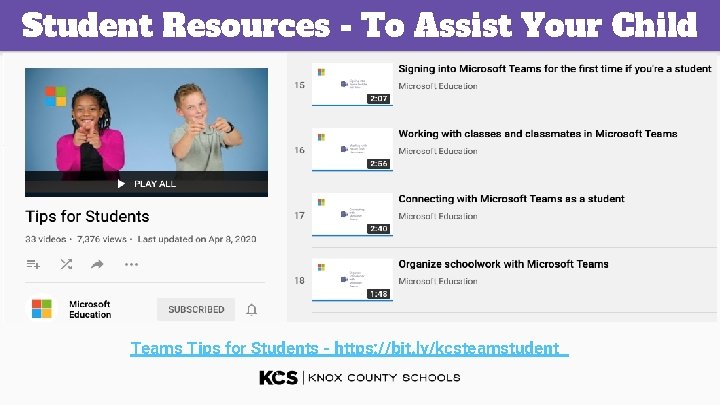
Student Resources - To Assist Your Child Teams Tips for Students - https: //bit. ly/kcsteamstudent