
Microsoft Teams Overview HOW DO I LOGIN Go






- Slides: 9
Microsoft Teams Overview
HOW DO I LOGIN?
Go to www. portal. office. com Click on the Teams Icon * You can also find a link to Teams on your teachers' website (located on the Odenville Intermediate School
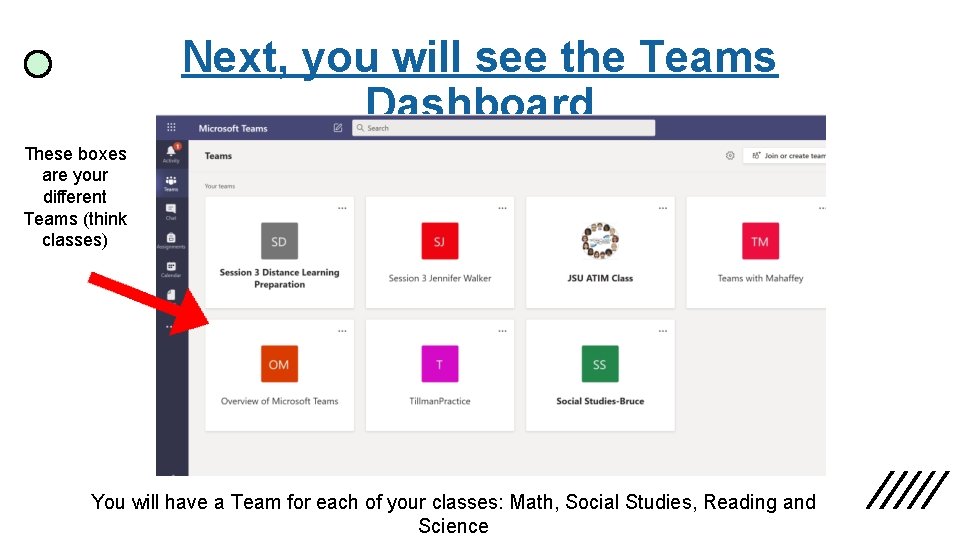
Next, you will see the Teams Dashboard These boxes are your different Teams (think classes) You will have a Team for each of your classes: Math, Social Studies, Reading and Science
Choose the class Team you need to work on… When you click on the Team you want to work on it will pull up the Post page: • On the Post page you will see: 1. announcements from your teacher 2. assignments that you have been given from your teacher 3. other fun stuff. . . so make sure you check it first!
Where do I find my assignments? Click on the tab at the top of the page that shows Assignments. Helpful Hint: You can also click on your assignments from the Post page.
What do I do next? Look! I have 2 assignments I need to get done! You will see a list of all your assignments, click on the one you need to complete and follow the directions.
What do I do when I am finished? • When you complete an assignment, you will submit it. PLEASE read the directions carefully. Some assignments you will type your answers, some you will click and drag to answer, some you will take a picture and attach it. Let’s practice!
You CAN do this!