
Microsoft Teams An Introduction to Chat and Virtual


- Slides: 33
Microsoft Teams An Introduction to Chat and Virtual Meetings Julia Reardon – Learning Facilitator Office 365 2020
Agenda • Resources needed • Chat / Conversations • Start an Instant meeting • Schedule a Teams meeting from Outlook • Joining a scheduled Teams meeting • Teams meeting controls • Meeting Notes • Record a Teams meeting • Teams meeting checklist • Additional Support 3
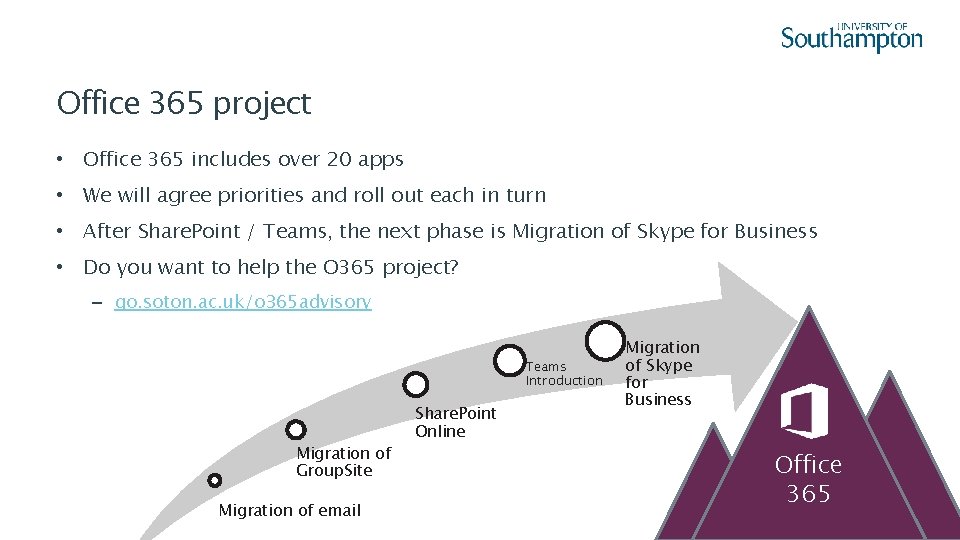
Office 365 project • Office 365 includes over 20 apps • We will agree priorities and roll out each in turn • After Share. Point / Teams, the next phase is Migration of Skype for Business • Do you want to help the O 365 project? – go. soton. ac. uk/o 365 advisory Teams Introduction Migration of Group. Site Migration of email Share. Point Online Migration of Skype for Business Office 365 4
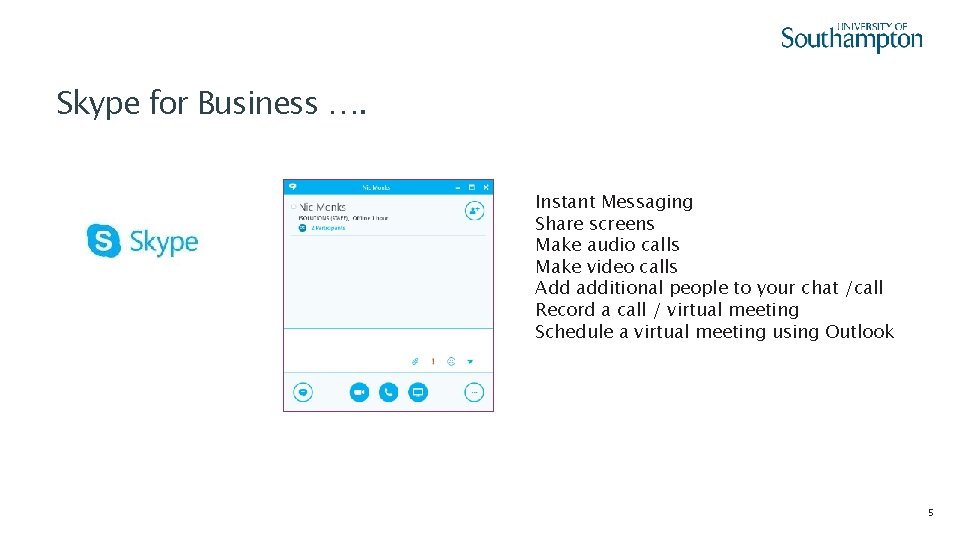
Skype for Business …. Instant Messaging Share screens Make audio calls Make video calls Add additional people to your chat /call Record a call / virtual meeting Schedule a virtual meeting using Outlook 5
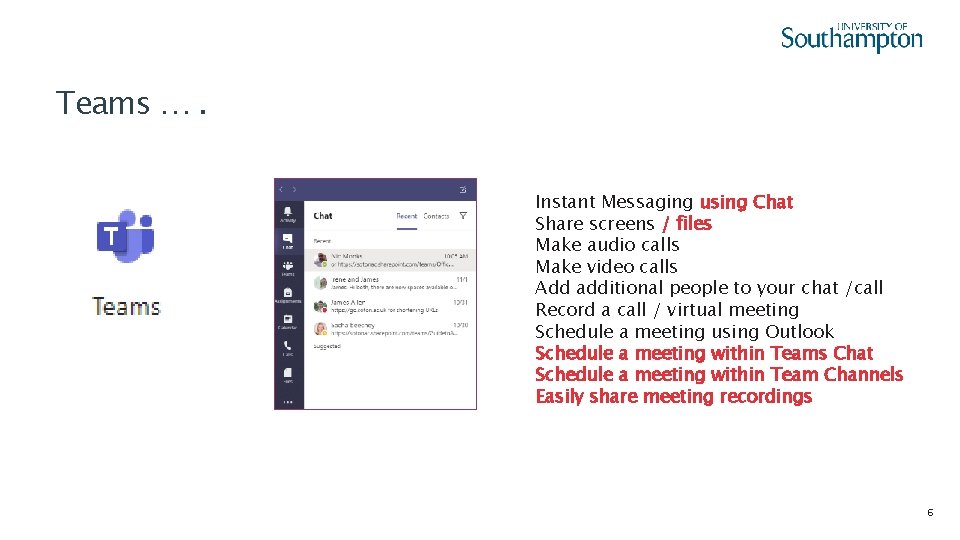
Teams …. Instant Messaging using Chat Share screens / files Make audio calls Make video calls Add additional people to your chat /call Record a call / virtual meeting Schedule a meeting using Outlook Schedule a meeting within Teams Chat Schedule a meeting within Team Channels Easily share meeting recordings 6
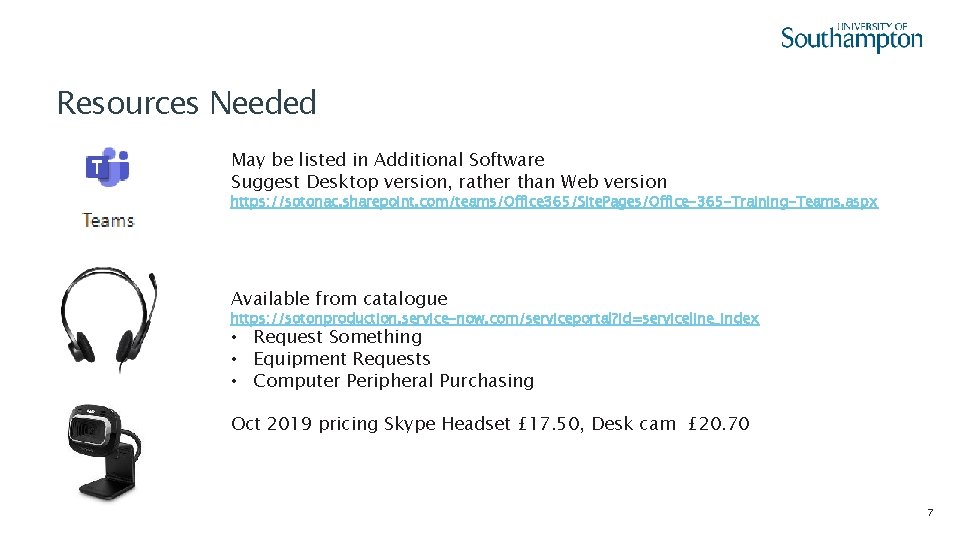
Resources Needed May be listed in Additional Software Suggest Desktop version, rather than Web version https: //sotonac. sharepoint. com/teams/Office 365/Site. Pages/Office-365 -Training-Teams. aspx Available from catalogue https: //sotonproduction. service-now. com/serviceportal? id=serviceline_index • Request Something • Equipment Requests • Computer Peripheral Purchasing Oct 2019 pricing Skype Headset £ 17. 50, Desk cam £ 20. 70 7
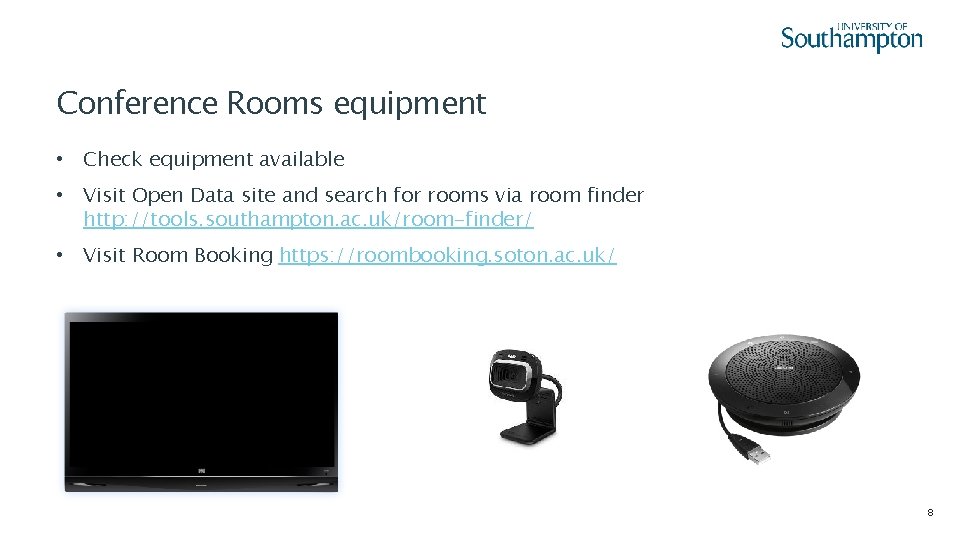
Conference Rooms equipment • Check equipment available • Visit Open Data site and search for rooms via room finder http: //tools. southampton. ac. uk/room-finder/ • Visit Room Booking https: //roombooking. soton. ac. uk/ 8
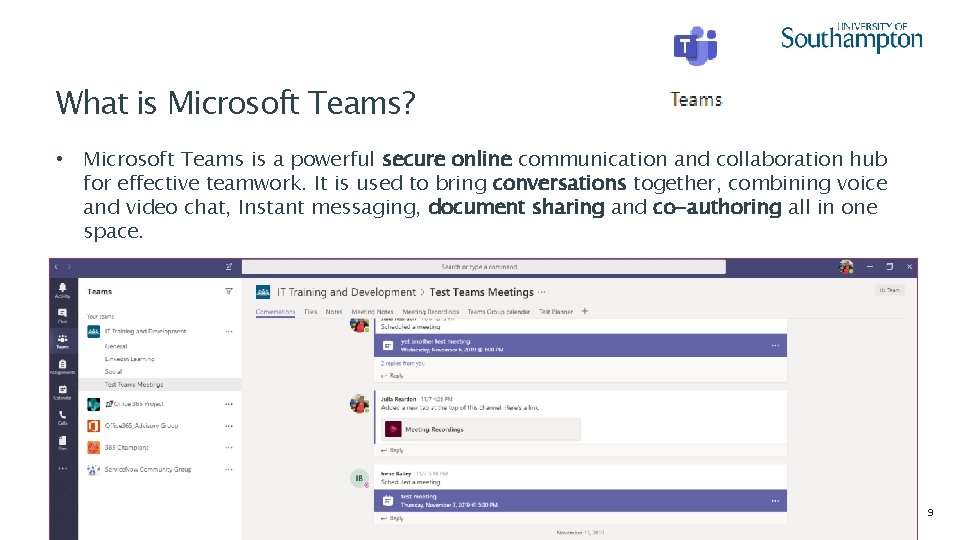
What is Microsoft Teams? • Microsoft Teams is a powerful secure online communication and collaboration hub for effective teamwork. It is used to bring conversations together, combining voice and video chat, Instant messaging, document sharing and co-authoring all in one space. 9
Access to Teams 10
Chat & Posts (Instant Messaging) • Send text notes back & forth to colleagues and / or Teams members • Persistent and easily searchable • Share links to files / websites • Can be more effective than emails for resolving issues quickly 11
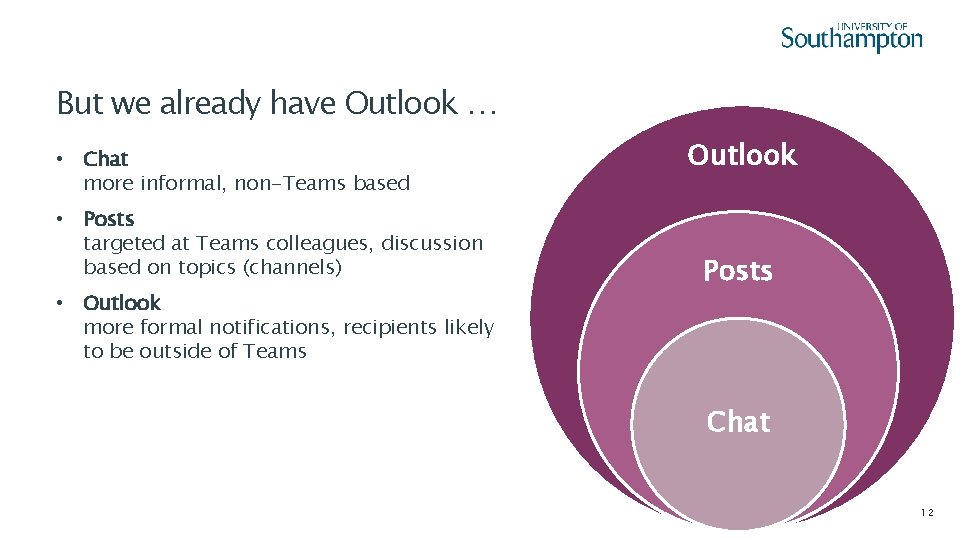
But we already have Outlook … • Chat more informal, non-Teams based • Posts targeted at Teams colleagues, discussion based on topics (channels) • Outlook more formal notifications, recipients likely to be outside of Teams Outlook Posts Chat 12
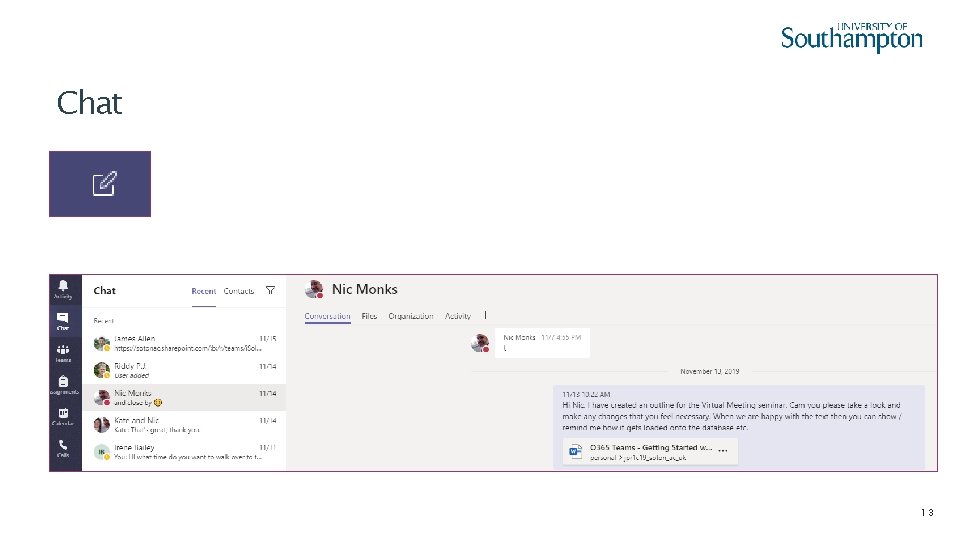
Chat 13
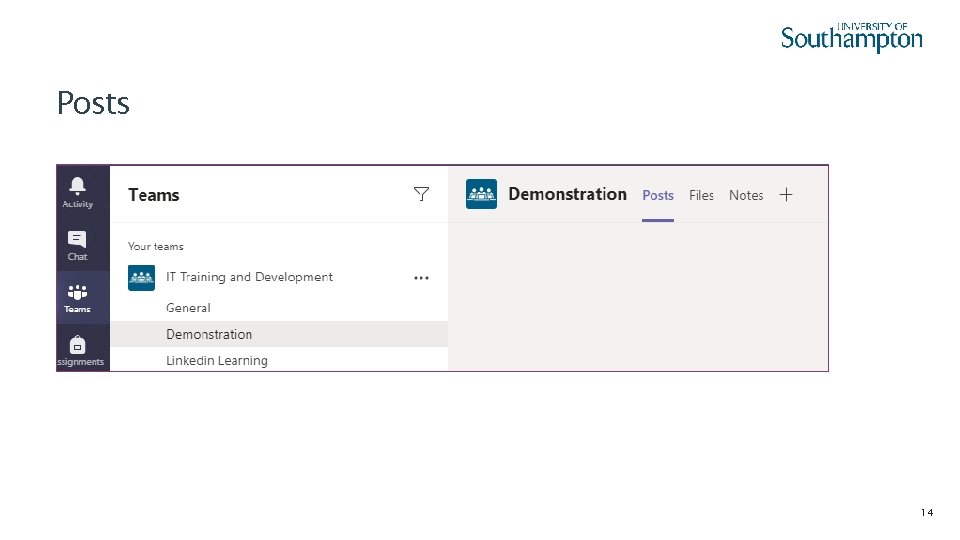
Posts 14
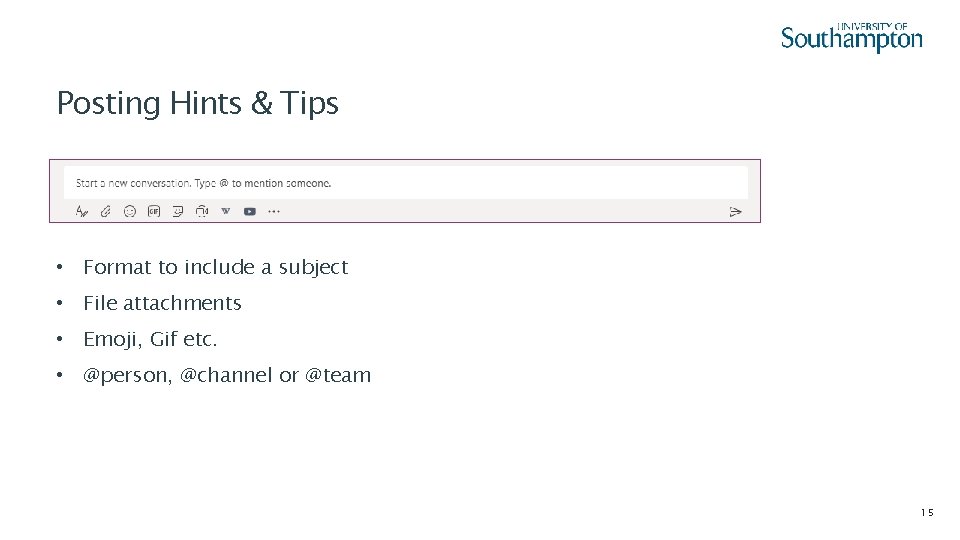
Posting Hints & Tips • Format to include a subject • File attachments • Emoji, Gif etc. • @person, @channel or @team 15
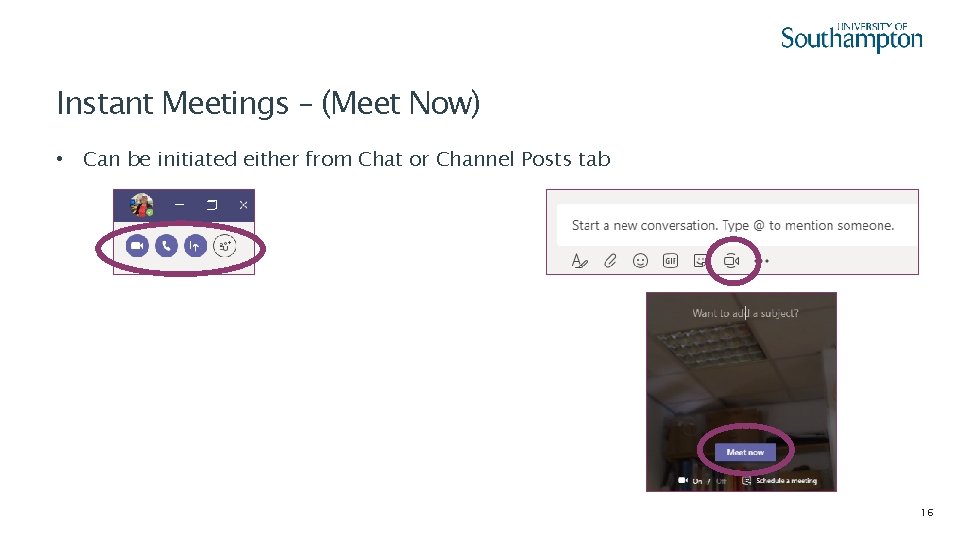
Instant Meetings – (Meet Now) • Can be initiated either from Chat or Channel Posts tab 16
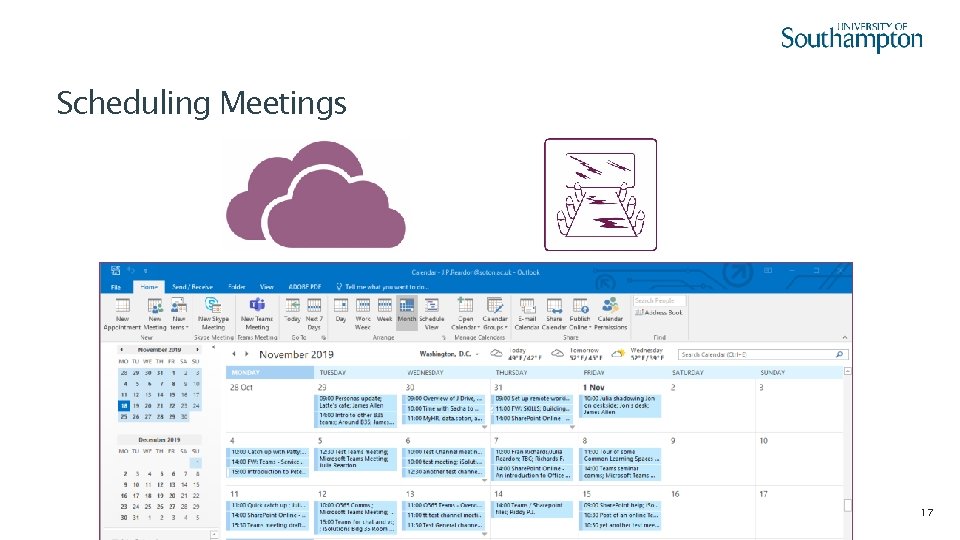
Scheduling Meetings 17
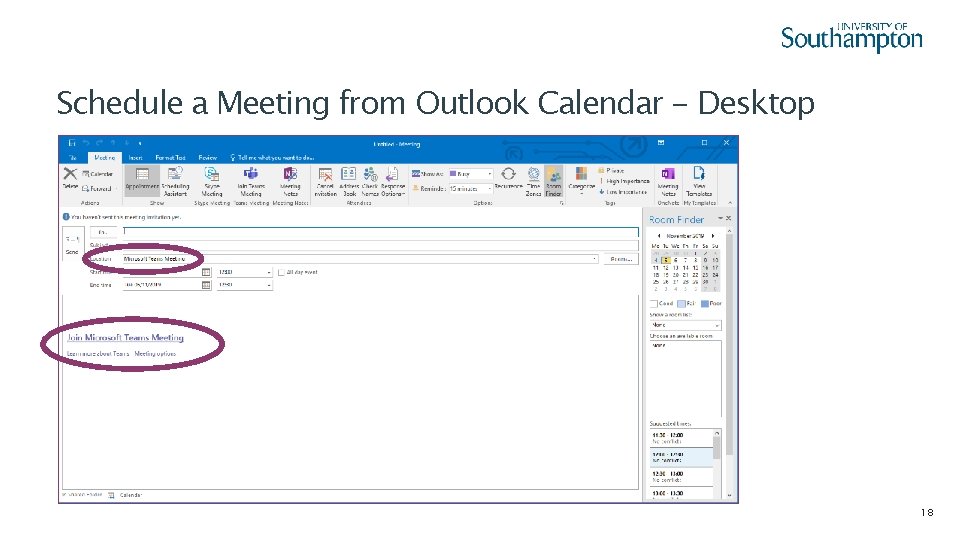
Schedule a Meeting from Outlook Calendar - Desktop 18
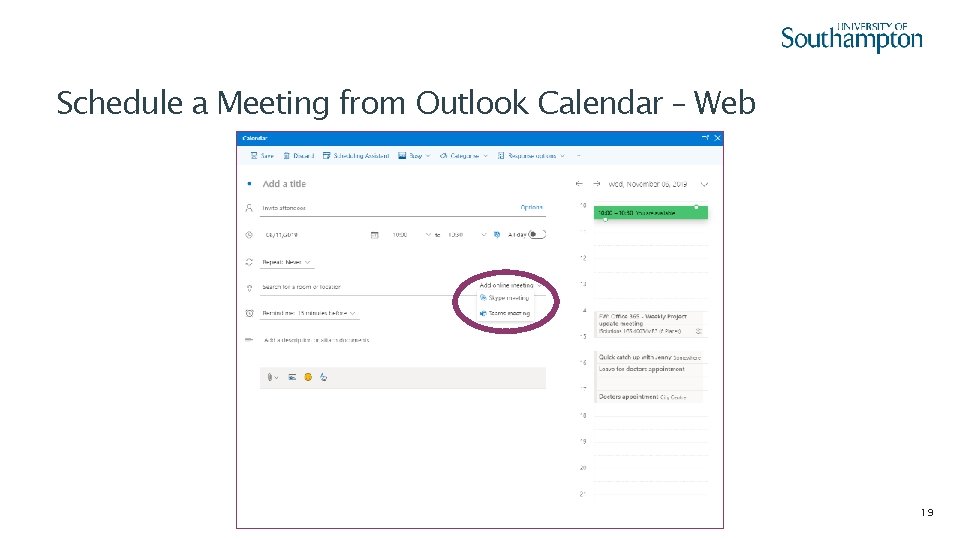
Schedule a Meeting from Outlook Calendar – Web 19
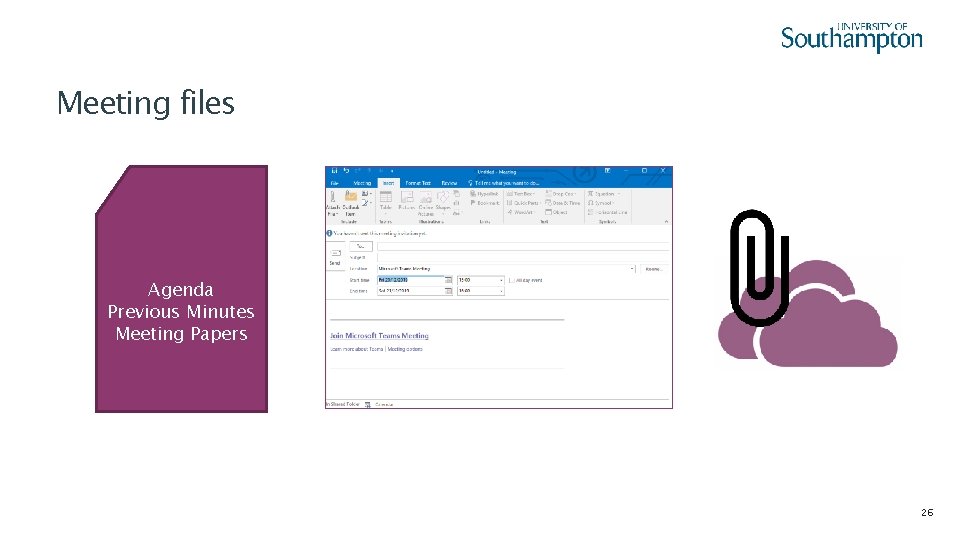
Meeting files Agenda Previous Minutes Meeting Papers 26
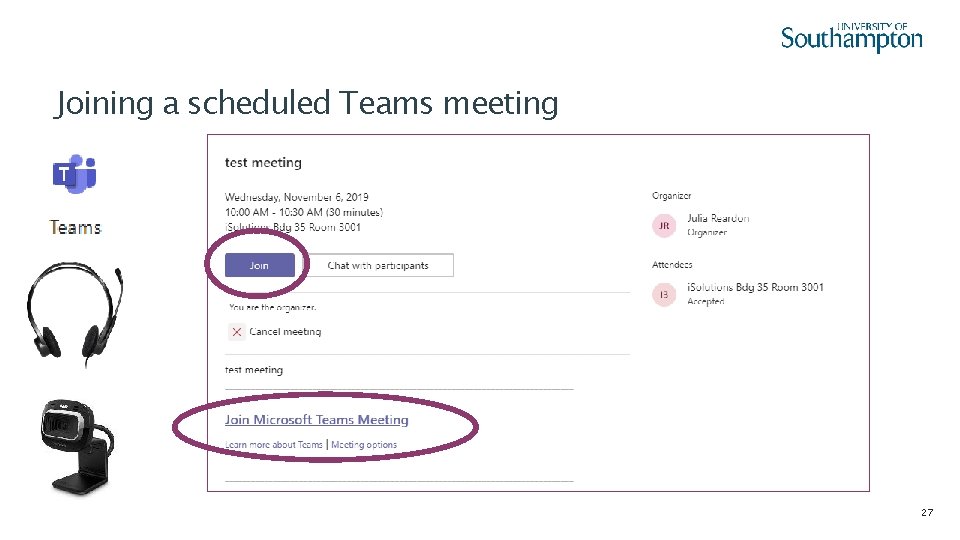
Joining a scheduled Teams meeting 27
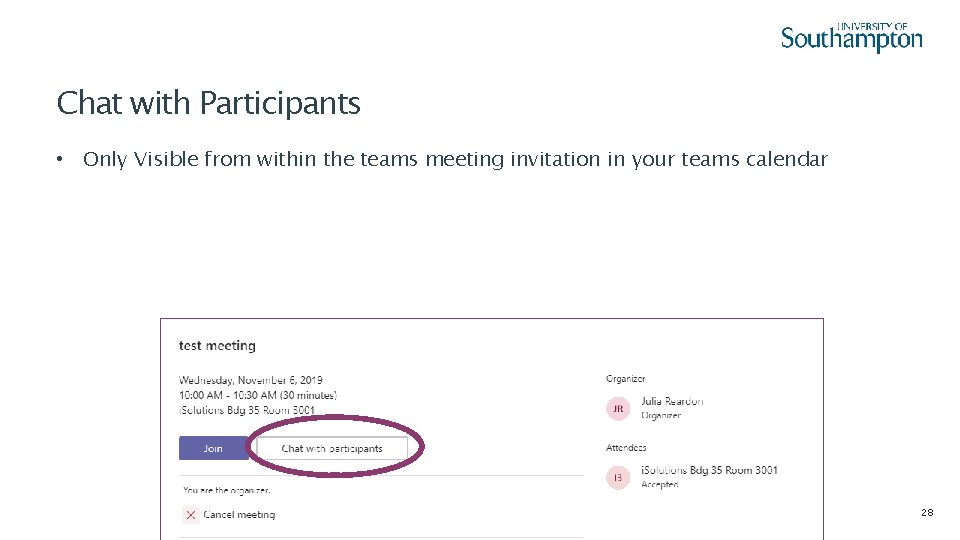
Chat with Participants • Only Visible from within the teams meeting invitation in your teams calendar 28
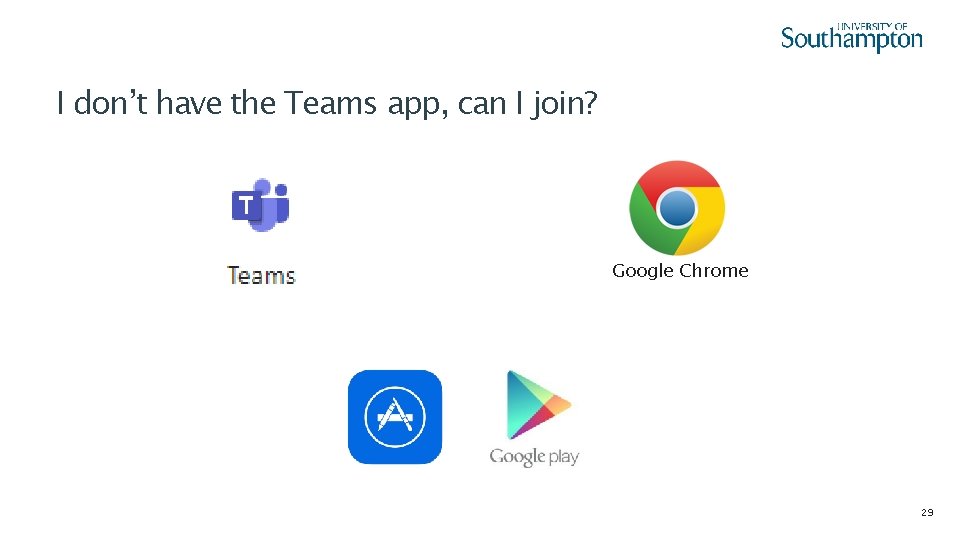
I don’t have the Teams app, can I join? Google Chrome 29
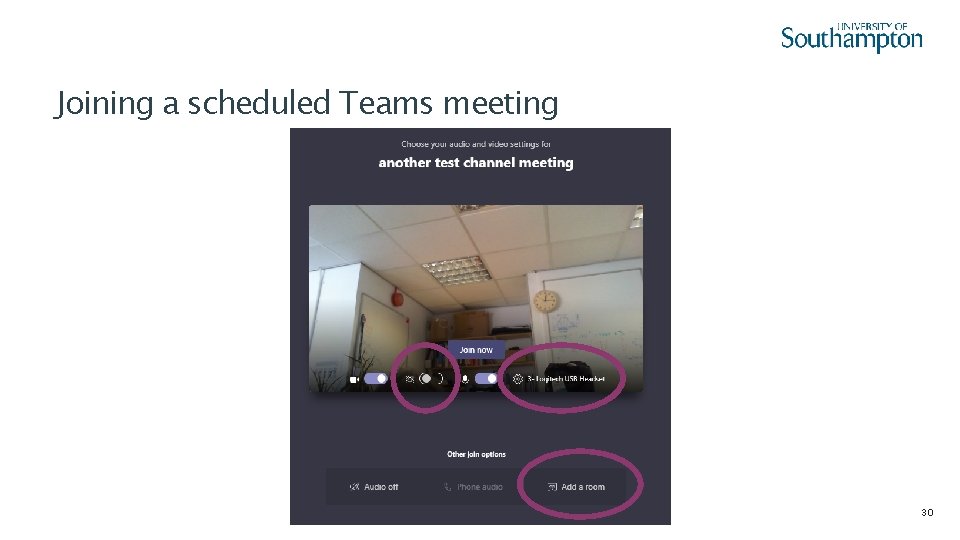
Joining a scheduled Teams meeting 30
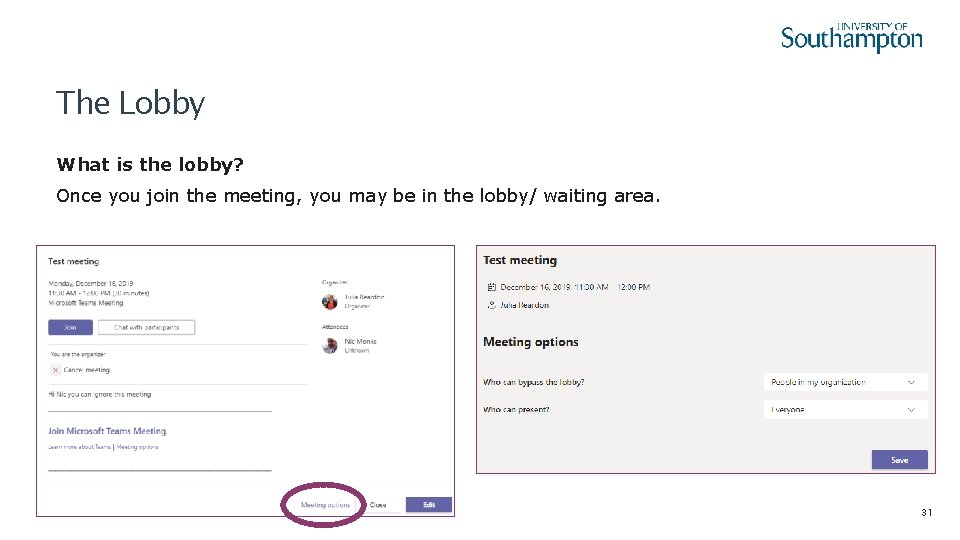
The Lobby What is the lobby? Once you join the meeting, you may be in the lobby/ waiting area. 31
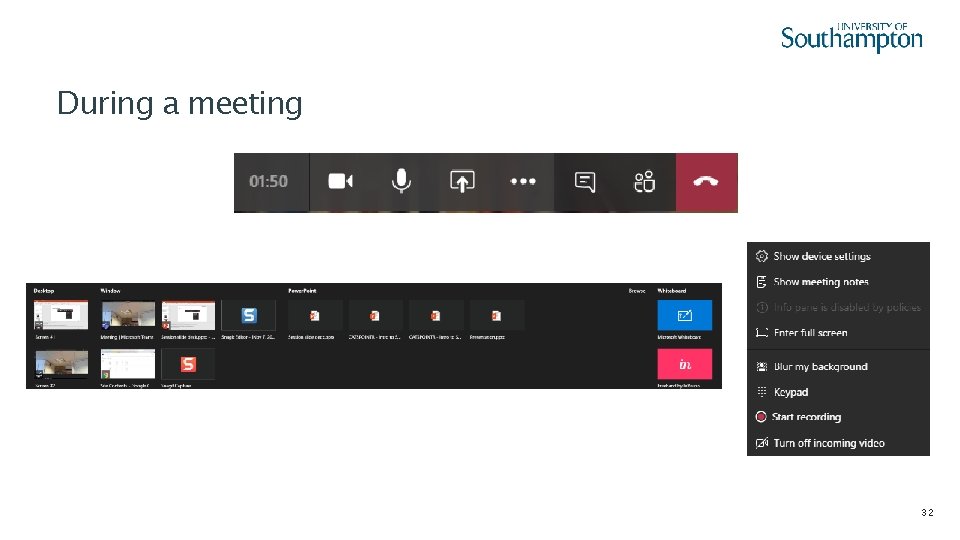
During a meeting 32
Meeting Notes – which one should I use? • Teams Meeting Notes (if meeting in a Channel this will appear as new tab) • One. Note notebook (each Teams site does have one) 33
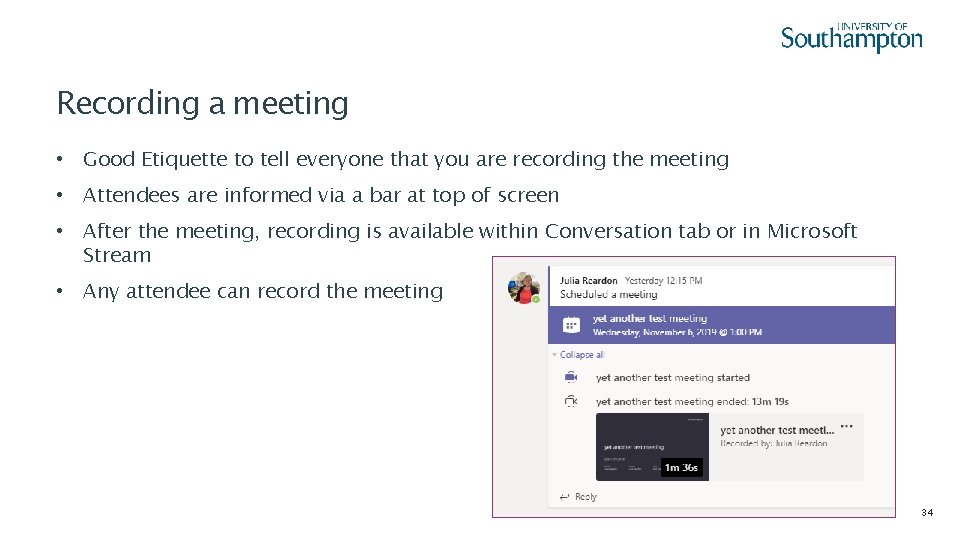
Recording a meeting • Good Etiquette to tell everyone that you are recording the meeting • Attendees are informed via a bar at top of screen • After the meeting, recording is available within Conversation tab or in Microsoft Stream • Any attendee can record the meeting 34
Scheduled Virtual Meetings Checklist – Prior to meeting • Organiser: – Check all participants have access to required resources – Check physical location (room) has required resources – Load meeting files to a sharable location e. g. Share. Point site or Teams site – Include link to meeting files in invitation – For a large number of attendees, ask a colleague to monitor the conversation pane • Attendee – Check resources (if not at your normal location) – Access meeting files (inform organiser of any access problems) – If meeting is sensitive, arrange a private space 35
Scheduled Virtual Meetings Checklist – Joining meeting • If necessary, sign into any room equipment and check audio / video • Check Deskcam for view , blur background as necessary • If large number of attendees, Organiser may ask you to use the Conversation pane to ask questions • For clarity, mute your microphone when not speaking • Organiser, inform attendees if meeting recorded • Organiser, remember to turn participant pane on as you may have people waiting in the Lobby 36
Scheduled Virtual Meetings Checklist – Ending / After meeting • Organiser to communicate – How to access to meeting notes – How to access to meeting recording – Actions required • Ensure meeting is ended (hang up) 37
Additional Support • Office 365 support Hub https: //sotonac. sharepoint. com/teams/Office 365 • Linked. In Learning https: //www. southampton. ac. uk/linkedinlearning • i. Solutions IT Training and Development https: //learnit. soton. ac. uk/training/index. php 38
YOUR QUESTIONS