
Microsoft Small Basic Events and Interactivity Estimated time
Microsoft® Small Basic Events and Interactivity Estimated time to complete this lesson: 1 hour
Events and Interactivity In this lesson, you will learn how to: Use keyboard events in your program. Use mouse events in your program.
Introduction to Events This lesson introduces you to events with which you can add interactivity to your Small Basic programs. In other words, you can create an interactive program in Small Basic by defining events that trigger an action in response to user inputs. Interactivity here includes events that trigger an action; for instance, when the user clicks a button on the mouse or presses a key on the keyboard.
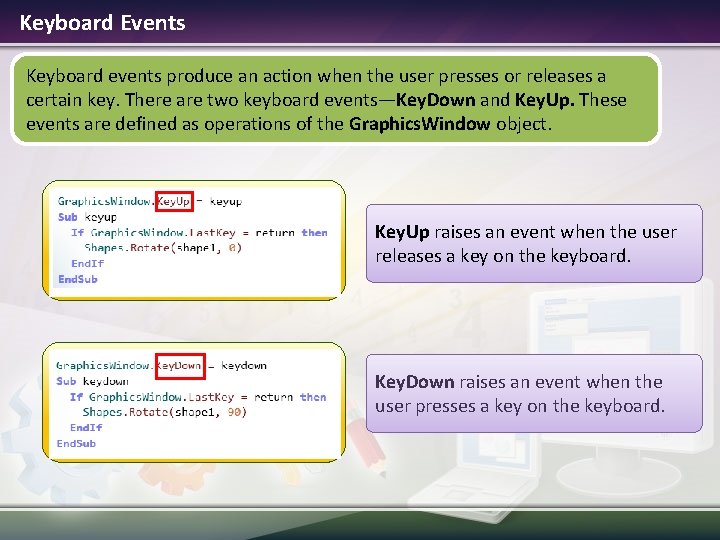
Keyboard Events Keyboard events produce an action when the user presses or releases a certain key. There are two keyboard events—Key. Down and Key. Up. These events are defined as operations of the Graphics. Window object. Key. Up raises an event when the user releases a key on the keyboard. Key. Down raises an event when the user presses a key on the keyboard.
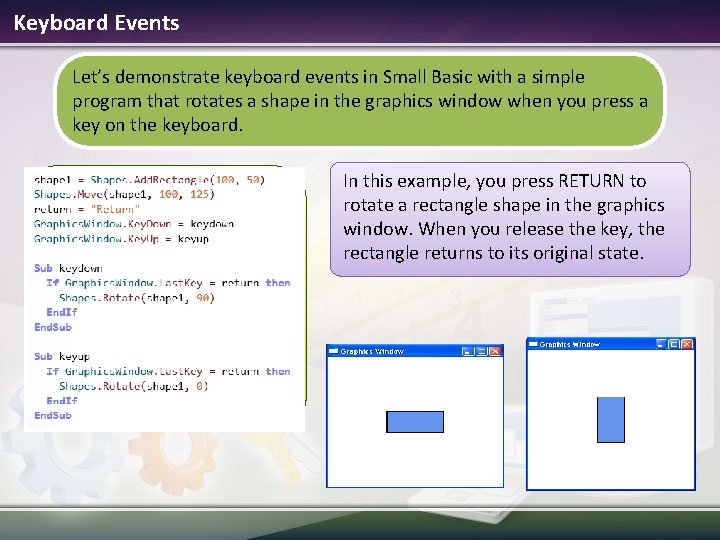
Keyboard Events Let’s demonstrate keyboard events in Small Basic with a simple program that rotates a shape in the graphics window when you press a key on the keyboard. In this example, you press RETURN to rotate a rectangle shape in the graphics window. When you release the key, the rectangle returns to its original state.
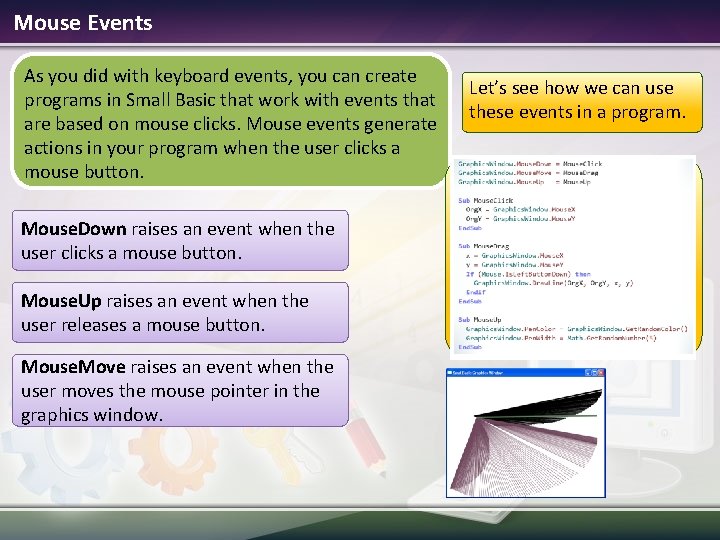
Mouse Events As you did with keyboard events, you can create programs in Small Basic that work with events that are based on mouse clicks. Mouse events generate actions in your program when the user clicks a mouse button. Mouse. Down raises an event when the user clicks a mouse button. Mouse. Up raises an event when the user releases a mouse button. Mouse. Move raises an event when the user moves the mouse pointer in the graphics window. Let’s see how we can use these events in a program.
Let’s Summarize… Congratulations! Now you know how to: Use keyboard events in your program. Using mouse events in your program.

Show What You Know Write a program to demonstrate mouse events by performing the following steps: v Create a user interface by using the Graphics. Window object. v Insert buttons to draw shapes by using the Controls (see section 3. 5) object. v Use the Mouse. Down and Mouse. Move events to draw shapes in the drawing area. v Use If and Else statements to define the actions that occur when the user clicks the mouse.
- Slides: 8