
Microsoft Powerpoint 2013 Lesson 9 Using Animation and

- Slides: 27
Microsoft Powerpoint 2013 Lesson 9 Using Animation and Multimedia © 2014, John Wiley & Sons, Inc. Microsoft Official Academic Course, Powerpoint 2013 1
Using Animation and Multimedia • Power. Point presentations should relay correct information and contain plenty of animation and movement to capture people’s attention. • The animation and multimedia capabilities of Power. Point allow you to include transitions, animations and audio and video clips to enliven your presentations. 11/22/2020 2
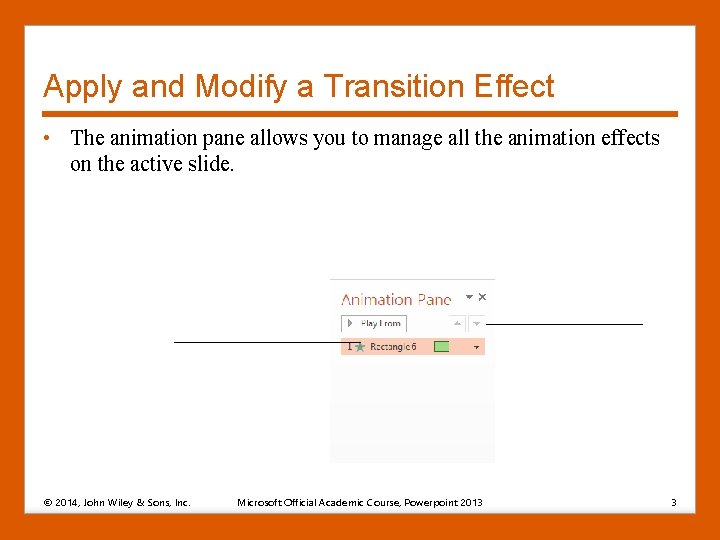
Apply and Modify a Transition Effect • The animation pane allows you to manage all the animation effects on the active slide. © 2014, John Wiley & Sons, Inc. Microsoft Official Academic Course, Powerpoint 2013 3
Setting Up slide Transitions • Transitions are animated effects that occur when you move from one slide to another. • Transitions are different from animations because transitions apply to the entire slide. • By default, there are no transitions assigned to slides. • You can assign a sound to a transition. There are preset sounds in Microsoft or you can select your own sound under Other Sound. • The duration setting for a transition is its speed of execution – number of seconds the effect takes to occur. Each transition has a default duration. 11/22/2020 4
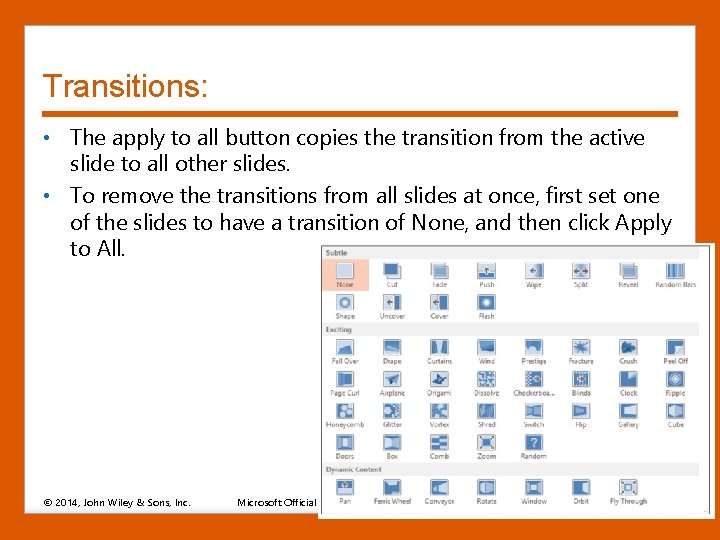
Transitions: • The apply to all button copies the transition from the active slide to all other slides. • To remove the transitions from all slides at once, first set one of the slides to have a transition of None, and then click Apply to All. © 2014, John Wiley & Sons, Inc. Microsoft Official Academic Course, Powerpoint 2013 5
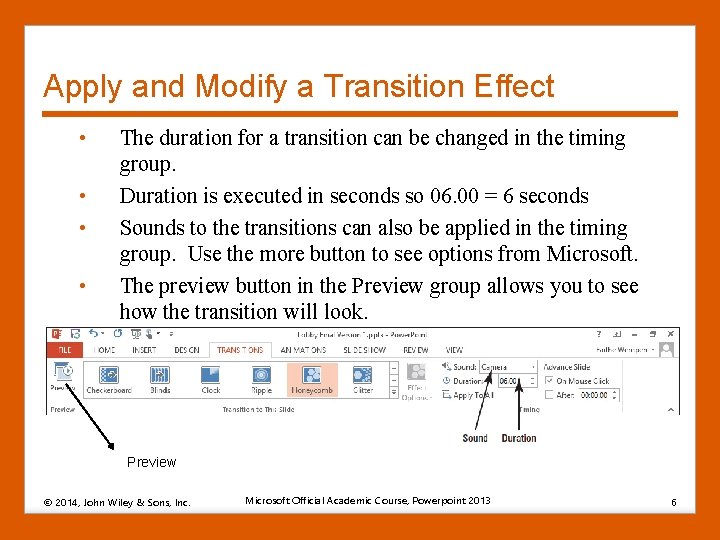
Apply and Modify a Transition Effect • • The duration for a transition can be changed in the timing group. Duration is executed in seconds so 06. 00 = 6 seconds Sounds to the transitions can also be applied in the timing group. Use the more button to see options from Microsoft. The preview button in the Preview group allows you to see how the transition will look. Preview © 2014, John Wiley & Sons, Inc. Microsoft Official Academic Course, Powerpoint 2013 6
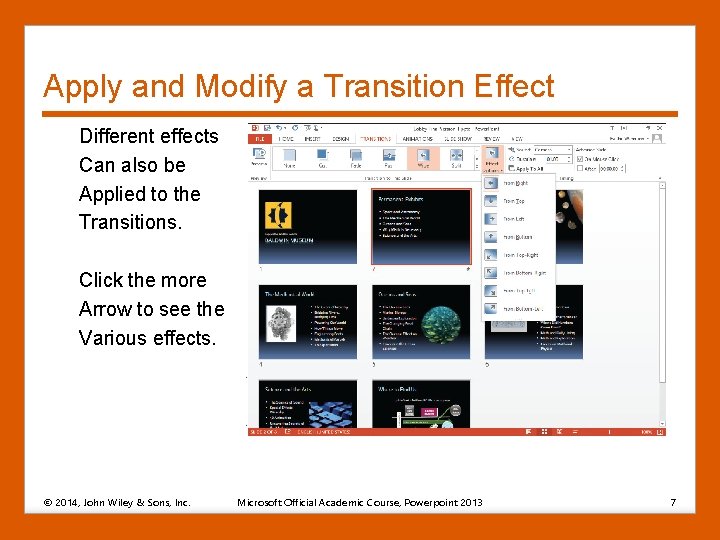
Apply and Modify a Transition Effect Different effects Can also be Applied to the Transitions. Click the more Arrow to see the Various effects. © 2014, John Wiley & Sons, Inc. Microsoft Official Academic Course, Powerpoint 2013 7
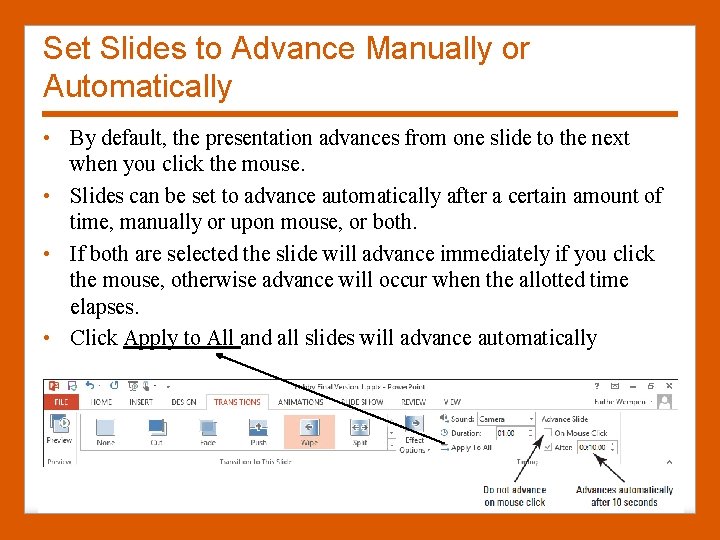
Set Slides to Advance Manually or Automatically • By default, the presentation advances from one slide to the next when you click the mouse. • Slides can be set to advance automatically after a certain amount of time, manually or upon mouse, or both. • If both are selected the slide will advance immediately if you click the mouse, otherwise advance will occur when the allotted time elapses. • Click Apply to All and all slides will advance automatically © 2014, John Wiley & Sons, Inc. Microsoft Official Academic Course, Powerpoint 2013 8
Animating slide content: • You can animate individual objects on a slide to give the presentation a more active and dynamic feel. • Objects can be set to enter or exit the slide in an animated way. • Animations are effects applied to placeholders or other content to move the content in unique ways on the slide. • Animations can be divided into 4 types: 1. Entrance – animate entry onto the slide separate than slide entrance itself. 2. Emphasis – calls attention to an object on your slide 3. Exit – object leaves the slide before the slide itself exits 4. Motion paths – moves the object from point A to point B following along a path you create for it. 11/22/2020 9
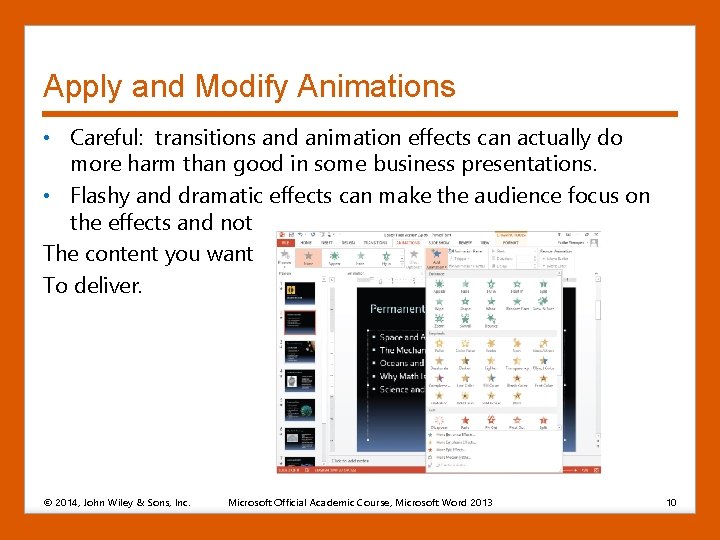
Apply and Modify Animations • Careful: transitions and animation effects can actually do more harm than good in some business presentations. • Flashy and dramatic effects can make the audience focus on the effects and not The content you want To deliver. © 2014, John Wiley & Sons, Inc. Microsoft Official Academic Course, Microsoft Word 2013 10
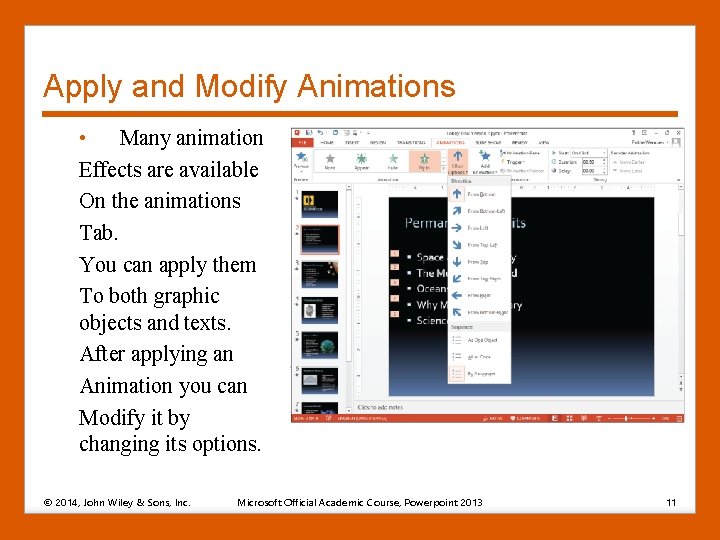
Apply and Modify Animations • Many animation Effects are available On the animations Tab. You can apply them To both graphic objects and texts. After applying an Animation you can Modify it by changing its options. © 2014, John Wiley & Sons, Inc. Microsoft Official Academic Course, Powerpoint 2013 11
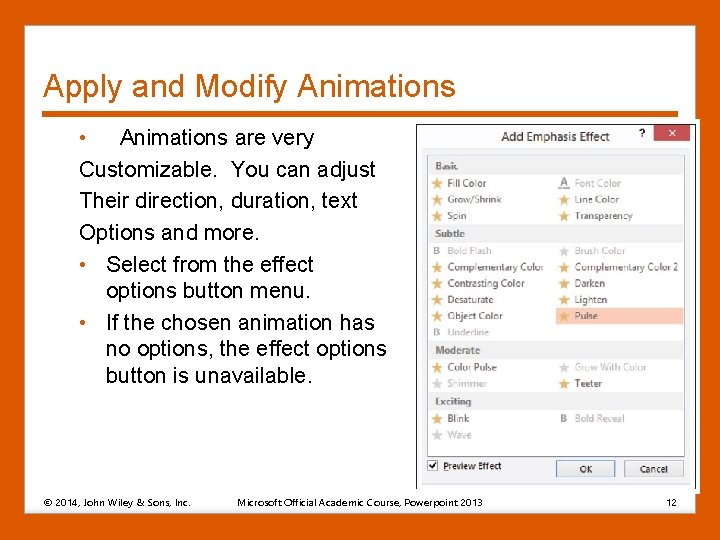
Apply and Modify Animations • Animations are very Customizable. You can adjust Their direction, duration, text Options and more. • Select from the effect options button menu. • If the chosen animation has no options, the effect options button is unavailable. © 2014, John Wiley & Sons, Inc. Microsoft Official Academic Course, Powerpoint 2013 12
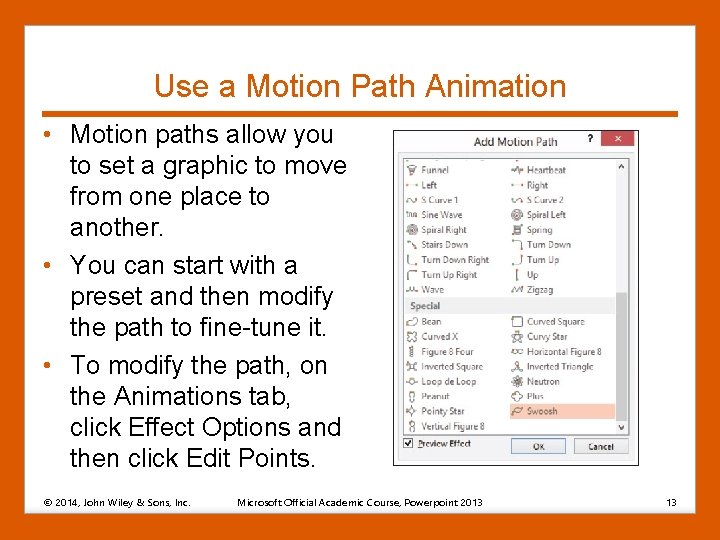
Use a Motion Path Animation • Motion paths allow you to set a graphic to move from one place to another. • You can start with a preset and then modify the path to fine-tune it. • To modify the path, on the Animations tab, click Effect Options and then click Edit Points. © 2014, John Wiley & Sons, Inc. Microsoft Official Academic Course, Powerpoint 2013 13
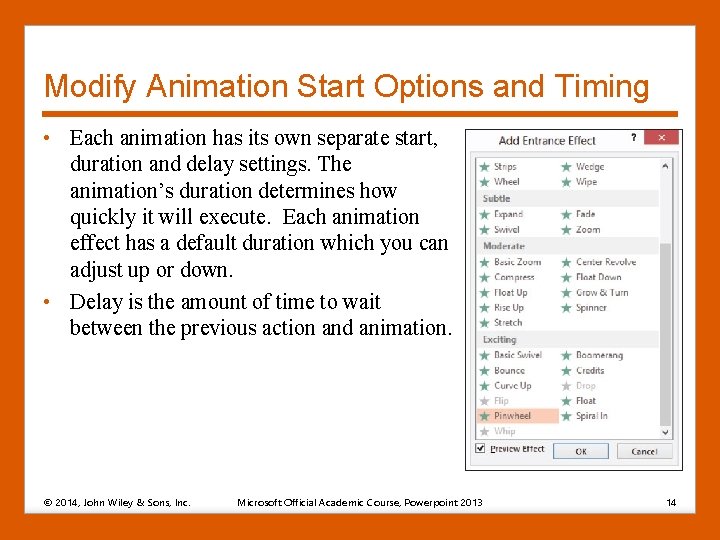
Modify Animation Start Options and Timing • Each animation has its own separate start, duration and delay settings. The animation’s duration determines how quickly it will execute. Each animation effect has a default duration which you can adjust up or down. • Delay is the amount of time to wait between the previous action and animation. © 2014, John Wiley & Sons, Inc. Microsoft Official Academic Course, Powerpoint 2013 14
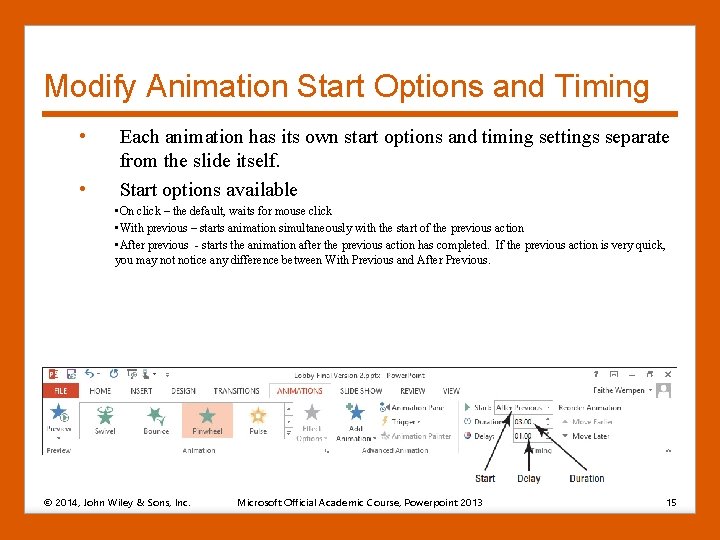
Modify Animation Start Options and Timing • • Each animation has its own start options and timing settings separate from the slide itself. Start options available • On click – the default, waits for mouse click • With previous – starts animation simultaneously with the start of the previous action • After previous - starts the animation after the previous action has completed. If the previous action is very quick, you may notice any difference between With Previous and After Previous. © 2014, John Wiley & Sons, Inc. Microsoft Official Academic Course, Powerpoint 2013 15
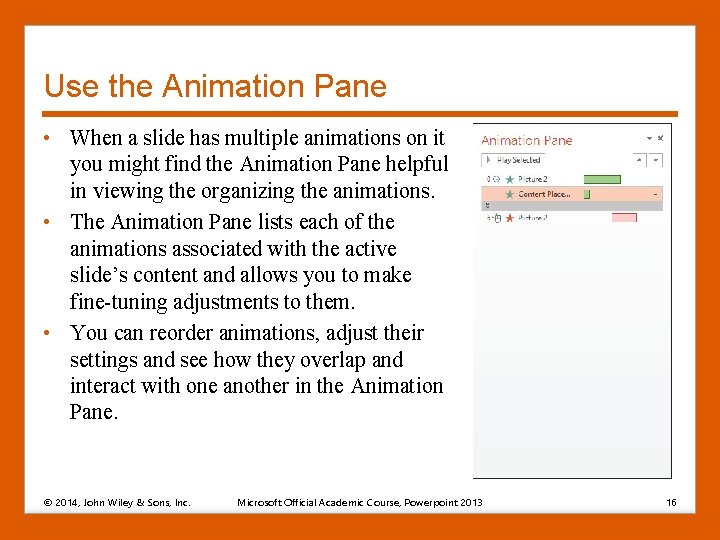
Use the Animation Pane • When a slide has multiple animations on it you might find the Animation Pane helpful in viewing the organizing the animations. • The Animation Pane lists each of the animations associated with the active slide’s content and allows you to make fine-tuning adjustments to them. • You can reorder animations, adjust their settings and see how they overlap and interact with one another in the Animation Pane. © 2014, John Wiley & Sons, Inc. Microsoft Official Academic Course, Powerpoint 2013 16
Use Animation Painter • The Animation Painter allows you to select an object that already has the animation you want, including the delay, duration, sound effects, and then copy that animation to another object. • Works very much like Format Painter. © 2014, John Wiley & Sons, Inc. Microsoft Official Academic Course, Powerpoint 2013 17
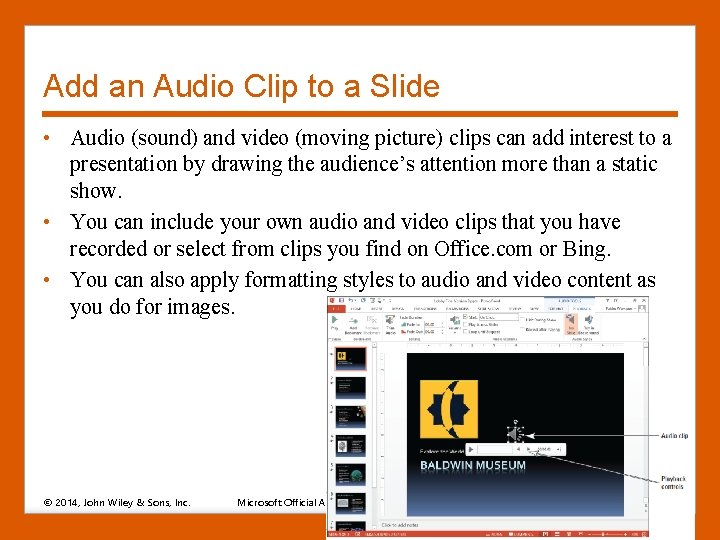
Add an Audio Clip to a Slide • Audio (sound) and video (moving picture) clips can add interest to a presentation by drawing the audience’s attention more than a static show. • You can include your own audio and video clips that you have recorded or select from clips you find on Office. com or Bing. • You can also apply formatting styles to audio and video content as you do for images. © 2014, John Wiley & Sons, Inc. Microsoft Official Academic Course, Powerpoint 2013 18
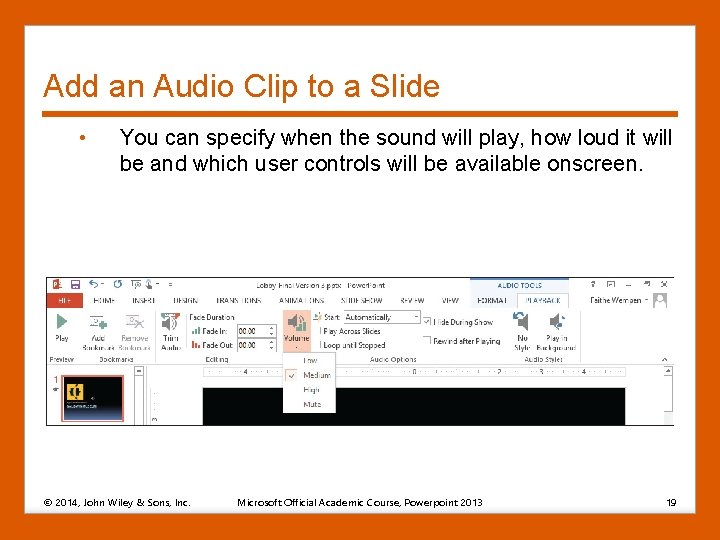
Add an Audio Clip to a Slide • You can specify when the sound will play, how loud it will be and which user controls will be available onscreen. © 2014, John Wiley & Sons, Inc. Microsoft Official Academic Course, Powerpoint 2013 19
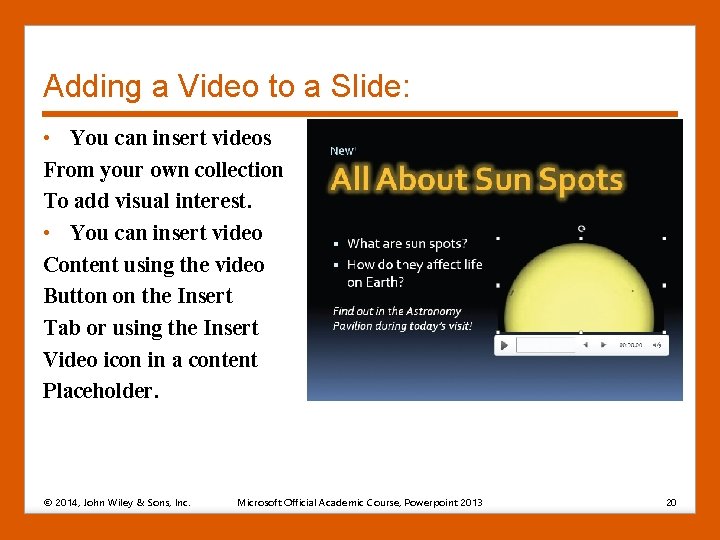
Adding a Video to a Slide: • You can insert videos From your own collection To add visual interest. • You can insert video Content using the video Button on the Insert Tab or using the Insert Video icon in a content Placeholder. © 2014, John Wiley & Sons, Inc. Microsoft Official Academic Course, Powerpoint 2013 20
• After inserting a video clip you can use controls in the Video Options group on the Video Tools Playback tab to customize how it plays. • Options include: 1. 2. 3. 4. 5. 11/22/2020 Start – automatically or on click Play full screen – when the clip begins playing, it switches to fullscreen mode. Hide while not playing – when clip is not playing it does not appear on the slide. Make sure you set to Start Automatically otherwise you will have no way of starting the clip. Loop until stopped – clip repeats until next slide appears Rewind after playing – when the clip is finished playing, the first frame of the clip reappears. 21
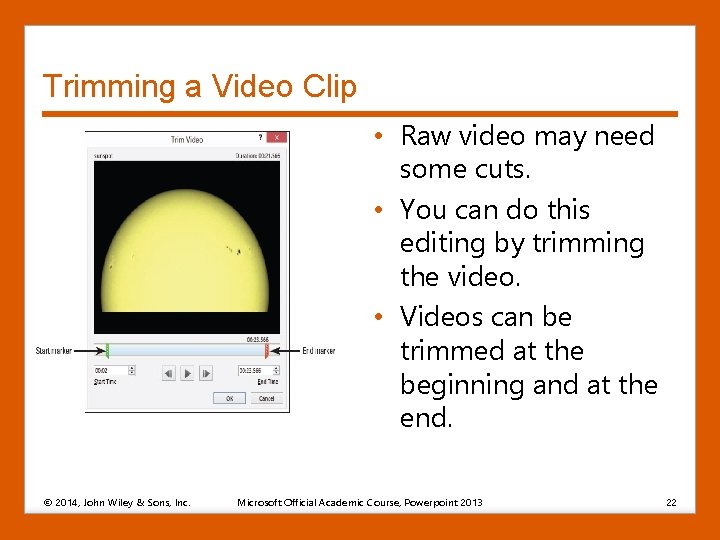
Trimming a Video Clip • Raw video may need some cuts. • You can do this editing by trimming the video. • Videos can be trimmed at the beginning and at the end. © 2014, John Wiley & Sons, Inc. Microsoft Official Academic Course, Powerpoint 2013 22
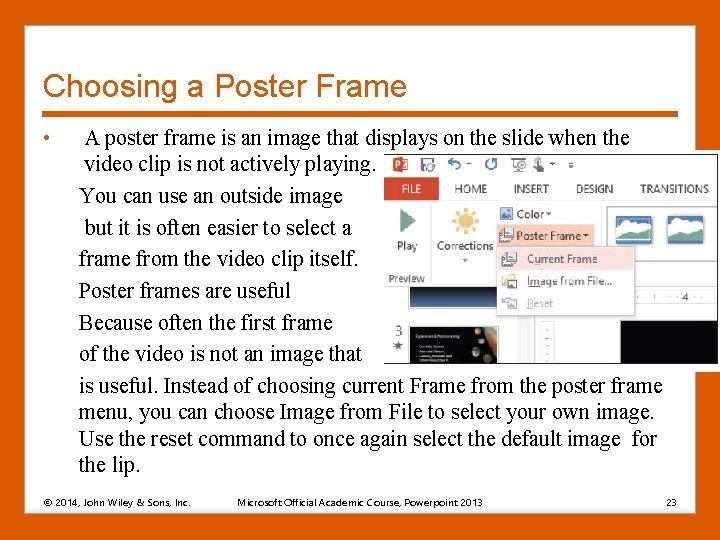
Choosing a Poster Frame • A poster frame is an image that displays on the slide when the video clip is not actively playing. You can use an outside image but it is often easier to select a frame from the video clip itself. Poster frames are useful Because often the first frame of the video is not an image that is useful. Instead of choosing current Frame from the poster frame menu, you can choose Image from File to select your own image. Use the reset command to once again select the default image for the lip. © 2014, John Wiley & Sons, Inc. Microsoft Official Academic Course, Powerpoint 2013 23
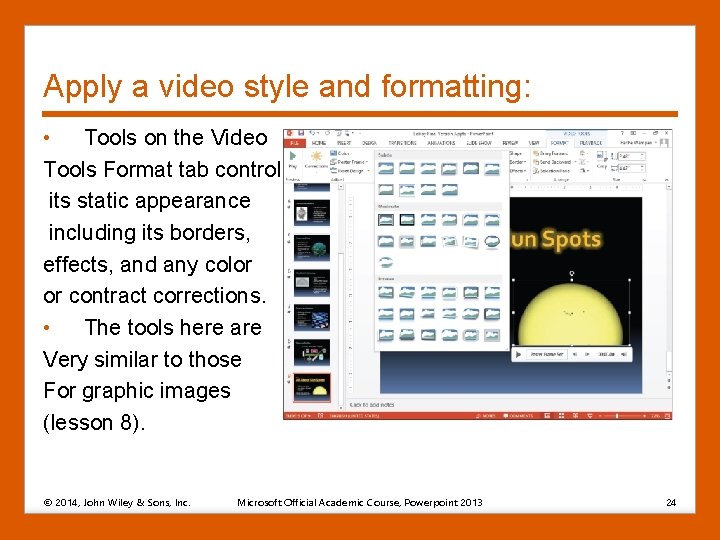
Apply a video style and formatting: • Tools on the Video Tools Format tab control its static appearance including its borders, effects, and any color or contract corrections. • The tools here are Very similar to those For graphic images (lesson 8). © 2014, John Wiley & Sons, Inc. Microsoft Official Academic Course, Powerpoint 2013 24
Sizing and Arranging Video or Audio Content: • Video and Audio clips have a visible icon that can be sized and arranged like any other content on a slide. • You can drag them to move or resize them to exact measurements. • You can also align them with other content using Align tools from lesson 8. 1. You can drag one of its selection handles 2. Enter precise measurements in the height and width boxes on the Video Tools Format tab 3. Right-click the clip and choose Size and Position to open the size controls in the Format Video task pane. © 2014, John Wiley & Sons, Inc. Microsoft Official Academic Course, Powerpoint 2013 25
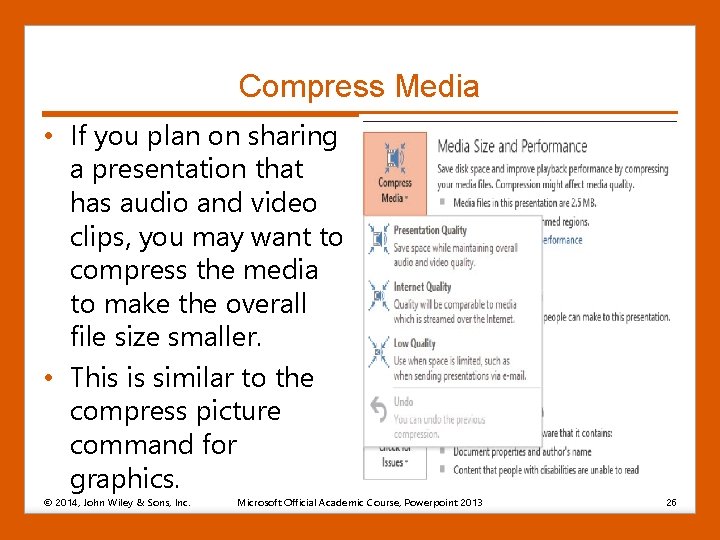
Compress Media • If you plan on sharing a presentation that has audio and video clips, you may want to compress the media to make the overall file size smaller. • This is similar to the compress picture command for graphics. © 2014, John Wiley & Sons, Inc. Microsoft Official Academic Course, Powerpoint 2013 26
• You can choose high, medium or low quality depending on how you plan to use the presentation file. • This is completed by going to the backstage view (File tab) and clicking compress media. • Menu opens showing 3 choices for media quality. © 2014, John Wiley & Sons, Inc. Microsoft Official Academic Course, Microsoft Word 2013 27