
Microsoft Powerpoint 2013 Lesson 5 Adding Tables to
Microsoft Powerpoint 2013 Lesson 5 Adding Tables to Slides © 2014, John Wiley & Sons, Inc. Microsoft Official Academic Course, Microsoft Word 2013 1
Tables • Tables are designed to organize data in columns and rows. • The Table Tools Design tab and the Table Tools Layout tab provide tools for modifying and formatting a table. • These tabs become active only when a table is selected. • PPT has automated the process of creating a table so that you can simply specify the numbers of columns and rows and then type data to achieve a professionally formatted result. © 2014, John Wiley & Sons, Inc. Microsoft Official Academic Course, Microsoft Word 2013 2
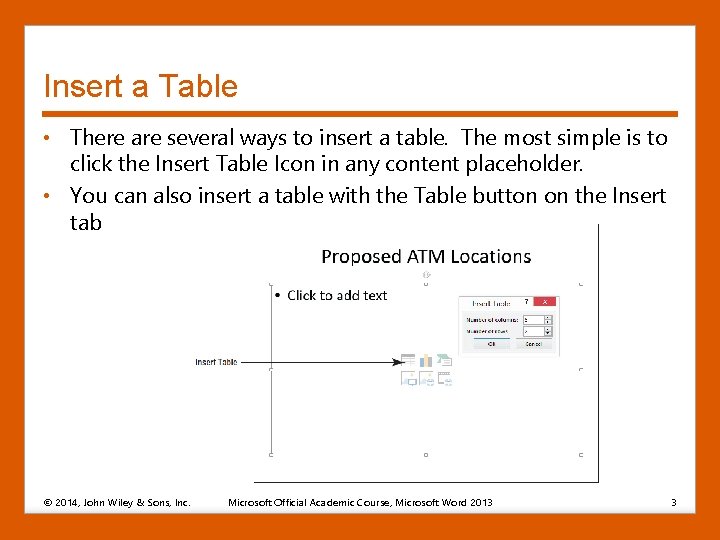
Insert a Table • There are several ways to insert a table. The most simple is to click the Insert Table Icon in any content placeholder. • You can also insert a table with the Table button on the Insert tab © 2014, John Wiley & Sons, Inc. Microsoft Official Academic Course, Microsoft Word 2013 3
Insert a table • By default, PPT sizes a new table to fill the width of the content placeholder. • If you need to reposition a table on a slide, you can do so by dragging its outer frame. • Dragging the corners of a table’s frame changes the sizes of all the rows and columns proportionally. • You can also elect to draw a table where the mouse pointer becomes a pencil. • You can insert an Excel worksheet directly on the slide and use it to manipulate data just as you would in Excel. 9/16/2020 4
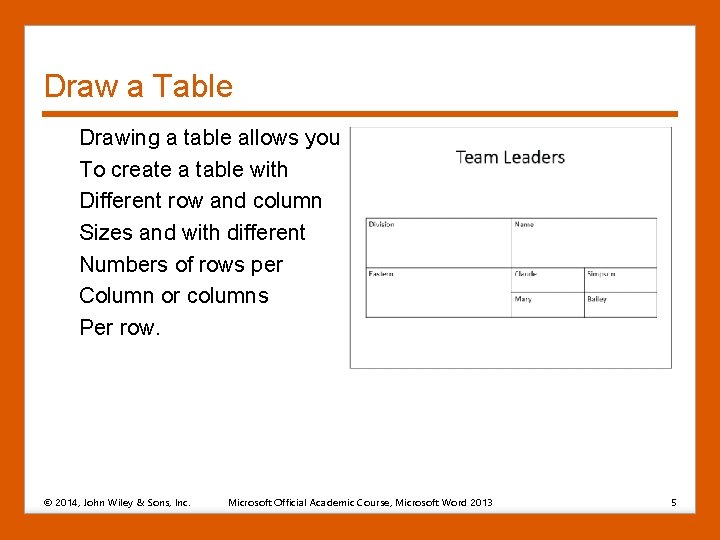
Draw a Table Drawing a table allows you To create a table with Different row and column Sizes and with different Numbers of rows per Column or columns Per row. © 2014, John Wiley & Sons, Inc. Microsoft Official Academic Course, Microsoft Word 2013 5
Using an Excel Worksheet in Power. Point • Inserting an Excel Worksheet from a Workbook gives you access to all of Excel’s data manipulation and formatting tools. • If you want to show Excel data on a slide and have not yet created the worksheet, it makes sense to create the worksheet directly on the PPT slide. This is called embedded since it is part of the PPT presentation. © 2014, John Wiley & Sons, Inc. Microsoft Official Academic Course, Microsoft Word 2013 6
Insert an Excel Worksheet • If you have already created an Excel worksheet and want to use the data on a slide, you have several additional options for moving it from Excel to PPT: 1. 2. 3. 4. • Select the data in Excel, copy it to the Clipboard and past it on a PPT slide. This action pastes the Excel data as a PPT table that cannot be edited in Excel but can be modified like any other PPT table. Select the data in Excel, copy it to the Clipboard, click the Paste button drop-down arrow in PPT and select Paste Special. In the Paste Special dialog box, choose to Paste the data as an Excel Worksheet object. The data is then embedded on the slide just as when you used the Excel command. Select the data in Excel, copy it to the Clipboard and open the Paste Special dialog box in PPT. Choose to Paste link the data as an Excel object. The data is then linked to the Excel worksheet so that if you make a change to the worksheet in Excel the data on the slide will show the same change. Click the Object button on the Insert tab to open the Insert Object dialog box. Here you can choose to create a new worksheet file or navigate to an existing file and paste it on the slide with or without linking. Widen the columns as needed so that there are no #### entries in any of the cells. This symbol means there is not enough room for the entry. © 2014, John Wiley & Sons, Inc. Microsoft Official Academic Course, Microsoft Word 2013 7
Modifying Table Layout • It is often necessary to modify the layout as you work with a table. • One of the most common reasons to change a table’s structure is to add data to or remove data from the table. © 2014, John Wiley & Sons, Inc. Microsoft Official Academic Course, Microsoft Word 2013 8
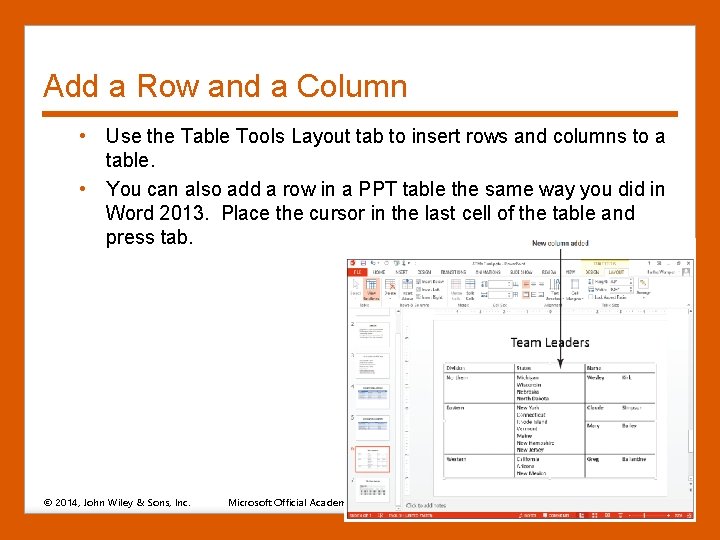
Add a Row and a Column • Use the Table Tools Layout tab to insert rows and columns to a table. • You can also add a row in a PPT table the same way you did in Word 2013. Place the cursor in the last cell of the table and press tab. © 2014, John Wiley & Sons, Inc. Microsoft Official Academic Course, Microsoft Word 2013 9
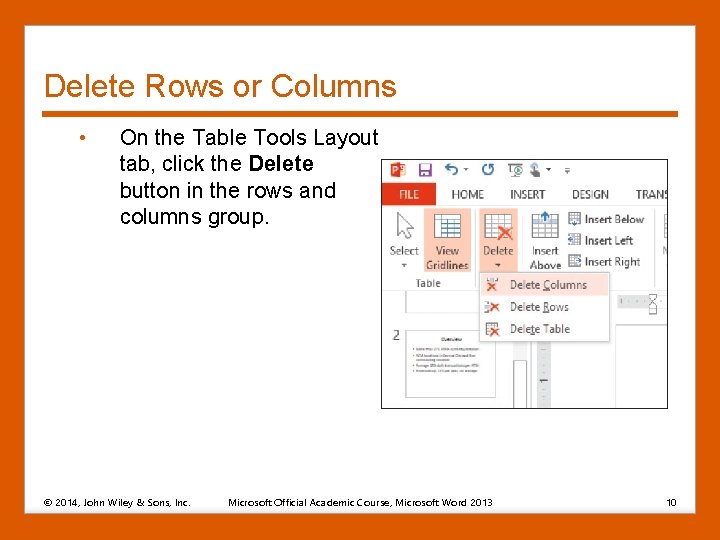
Delete Rows or Columns • On the Table Tools Layout tab, click the Delete button in the rows and columns group. © 2014, John Wiley & Sons, Inc. Microsoft Official Academic Course, Microsoft Word 2013 10
Moving Rows and Columns • Move rows and columns when you need to reorder data. • You can use drag and drop or the Cut and Paste commands to move row or column data into a new, blank row or column. • Also, can use the Table Tools Layout tab to help. © 2014, John Wiley & Sons, Inc. Microsoft Official Academic Course, Microsoft Word 2013 11
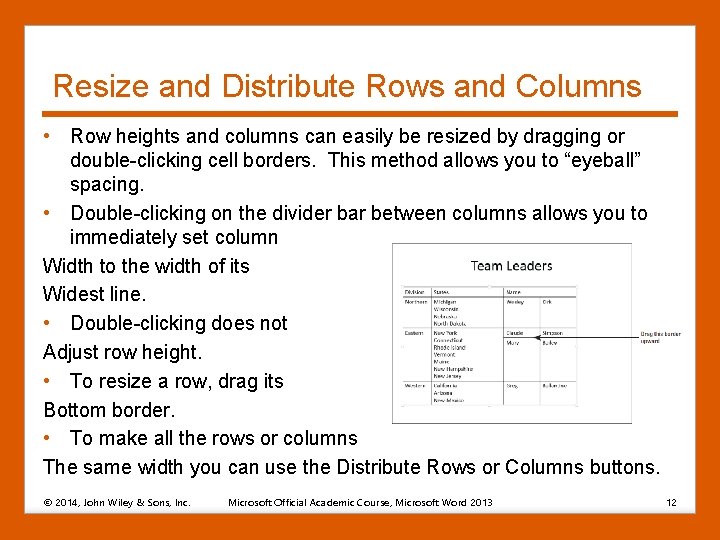
Resize and Distribute Rows and Columns • Row heights and columns can easily be resized by dragging or double-clicking cell borders. This method allows you to “eyeball” spacing. • Double-clicking on the divider bar between columns allows you to immediately set column Width to the width of its Widest line. • Double-clicking does not Adjust row height. • To resize a row, drag its Bottom border. • To make all the rows or columns The same width you can use the Distribute Rows or Columns buttons. © 2014, John Wiley & Sons, Inc. Microsoft Official Academic Course, Microsoft Word 2013 12
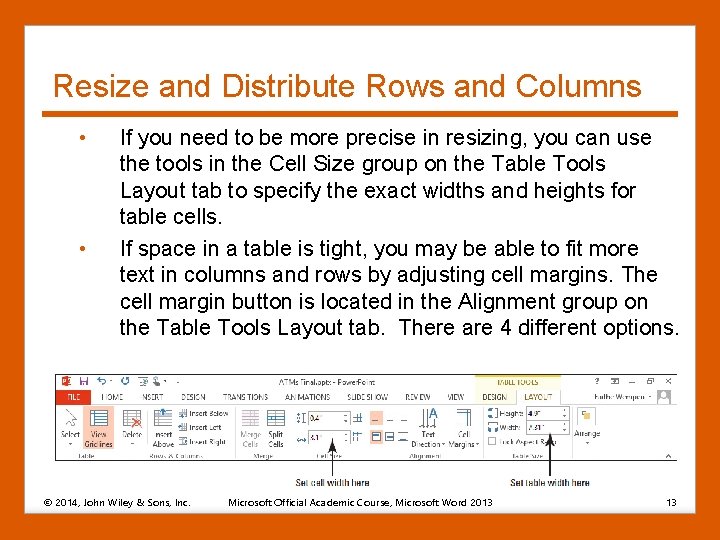
Resize and Distribute Rows and Columns • • If you need to be more precise in resizing, you can use the tools in the Cell Size group on the Table Tools Layout tab to specify the exact widths and heights for table cells. If space in a table is tight, you may be able to fit more text in columns and rows by adjusting cell margins. The cell margin button is located in the Alignment group on the Table Tools Layout tab. There are 4 different options. © 2014, John Wiley & Sons, Inc. Microsoft Official Academic Course, Microsoft Word 2013 13
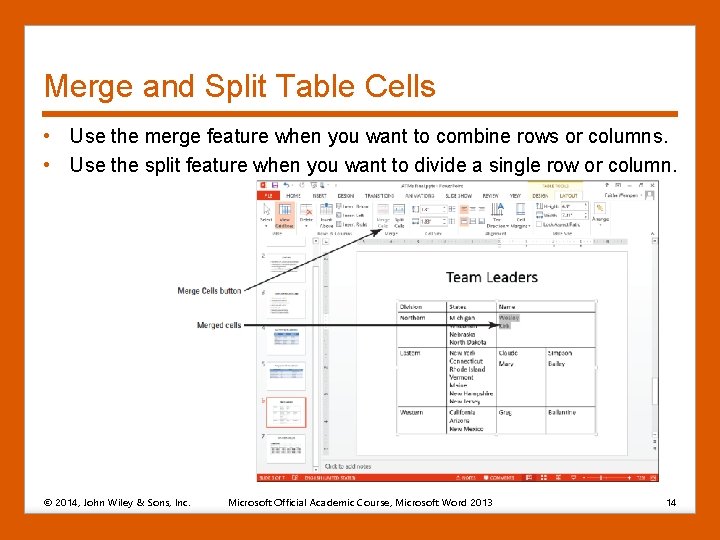
Merge and Split Table Cells • Use the merge feature when you want to combine rows or columns. • Use the split feature when you want to divide a single row or column. © 2014, John Wiley & Sons, Inc. Microsoft Official Academic Course, Microsoft Word 2013 14
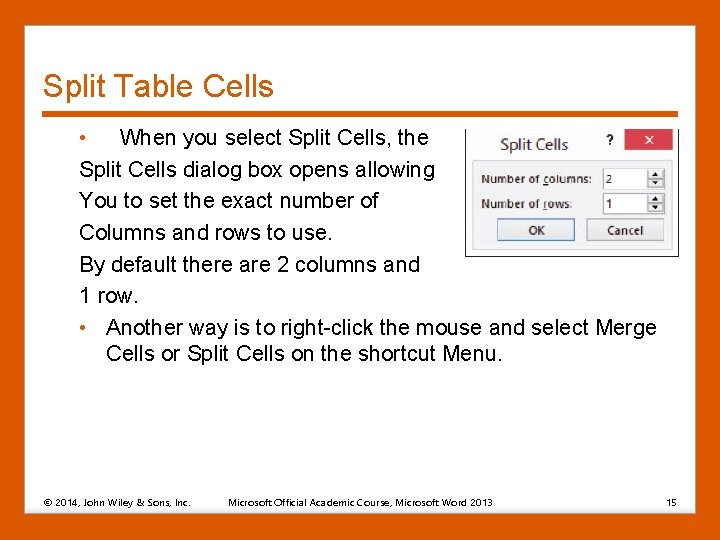
Split Table Cells • When you select Split Cells, the Split Cells dialog box opens allowing You to set the exact number of Columns and rows to use. By default there are 2 columns and 1 row. • Another way is to right-click the mouse and select Merge Cells or Split Cells on the shortcut Menu. © 2014, John Wiley & Sons, Inc. Microsoft Official Academic Course, Microsoft Word 2013 15
Align and Orient Text in a Table • • Text can be aligned both vertically and horizontally within a cell. You can change the rotation of text to create visual interest. Vertical alignment options control how content appears from the top to the bottom of a cell. The default alignment is top. Use options in the Text Direction menu in the Alignment group of the Table Tools Layout tab to change the orientation of text for a special effect. © 2014, John Wiley & Sons, Inc. Microsoft Official Academic Course, Microsoft Word 2013 16
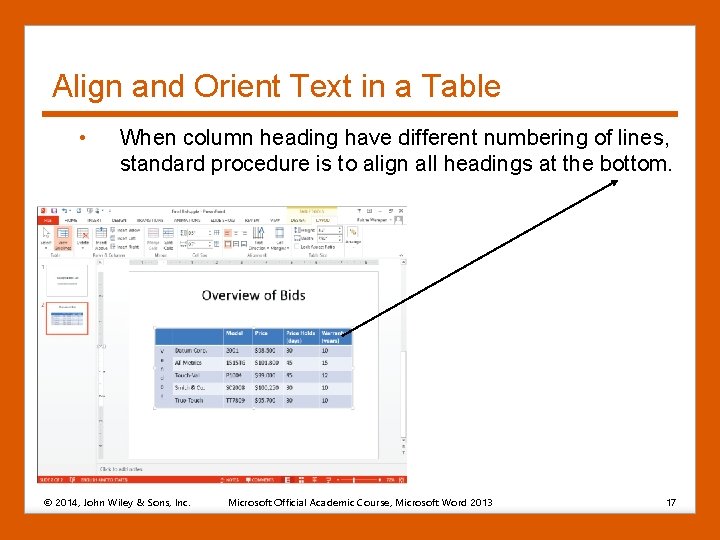
Align and Orient Text in a Table • When column heading have different numbering of lines, standard procedure is to align all headings at the bottom. © 2014, John Wiley & Sons, Inc. Microsoft Official Academic Course, Microsoft Word 2013 17
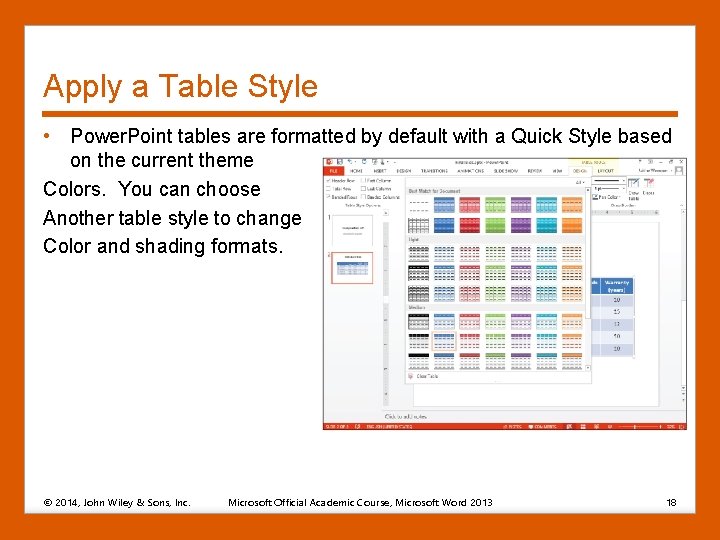
Apply a Table Style • Power. Point tables are formatted by default with a Quick Style based on the current theme Colors. You can choose Another table style to change Color and shading formats. © 2014, John Wiley & Sons, Inc. Microsoft Official Academic Course, Microsoft Word 2013 18
Turn Table Style Options On and Off • The options in the Table Style Options group on the Table Tools Design tab allow you to adjust what part of a table receives special emphasis. • Keep in mind there is sometimes a fine line between effective emphasis and the visual confusion that can result from too much emphasis. © 2014, John Wiley & Sons, Inc. Microsoft Official Academic Course, Microsoft Word 2013 19
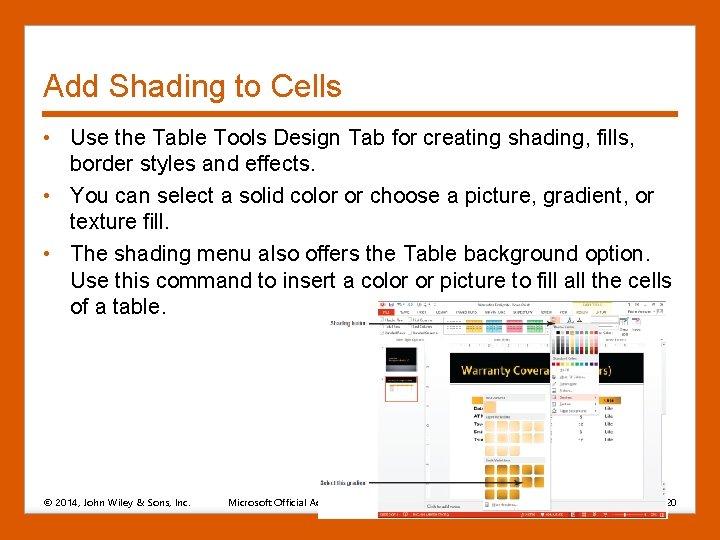
Add Shading to Cells • Use the Table Tools Design Tab for creating shading, fills, border styles and effects. • You can select a solid color or choose a picture, gradient, or texture fill. • The shading menu also offers the Table background option. Use this command to insert a color or picture to fill all the cells of a table. © 2014, John Wiley & Sons, Inc. Microsoft Official Academic Course, Microsoft Word 2013 20
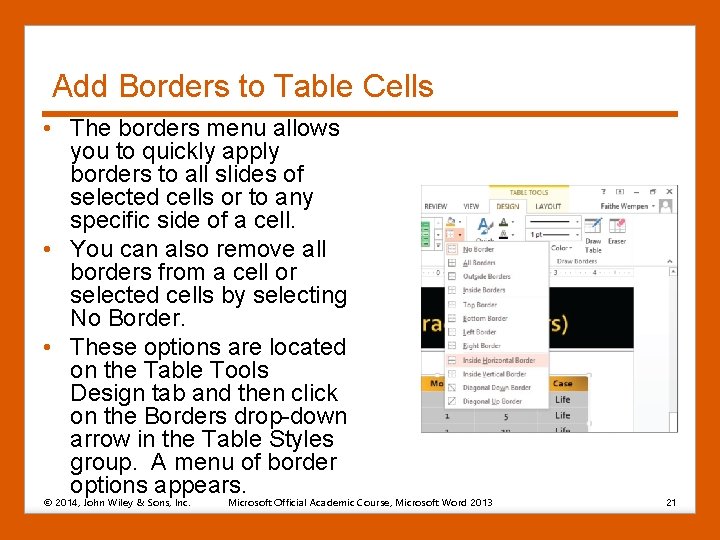
Add Borders to Table Cells • The borders menu allows you to quickly apply borders to all slides of selected cells or to any specific side of a cell. • You can also remove all borders from a cell or selected cells by selecting No Border. • These options are located on the Table Tools Design tab and then click on the Borders drop-down arrow in the Table Styles group. A menu of border options appears. © 2014, John Wiley & Sons, Inc. Microsoft Official Academic Course, Microsoft Word 2013 21
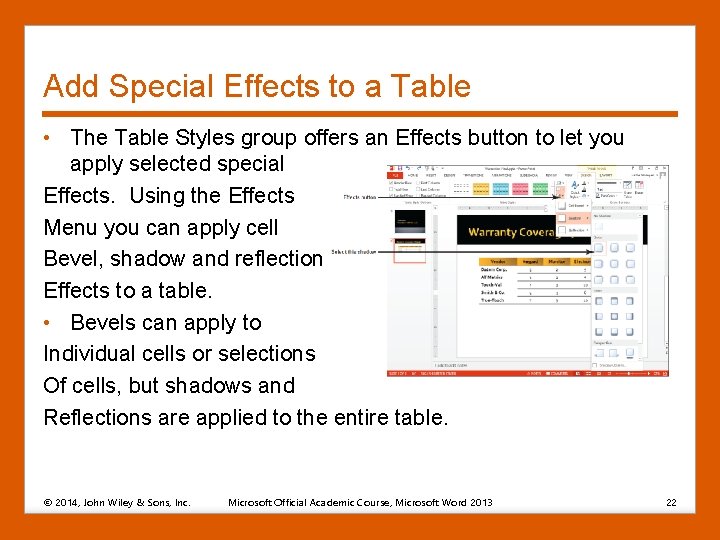
Add Special Effects to a Table • The Table Styles group offers an Effects button to let you apply selected special Effects. Using the Effects Menu you can apply cell Bevel, shadow and reflection Effects to a table. • Bevels can apply to Individual cells or selections Of cells, but shadows and Reflections are applied to the entire table. © 2014, John Wiley & Sons, Inc. Microsoft Official Academic Course, Microsoft Word 2013 22
Adding an Image to a Table • An image can serve as the background in one or more table cells. • The image is not the cell content, but rather a background fill, just as a color fill would be. • The text in the cell appears on top of the background fill. • Be careful if you use a picture on your slide not to let the picture overwhelm the text. • Use the transparency slider to help control the color of the picture. © 2014, John Wiley & Sons, Inc. Microsoft Official Academic Course, Microsoft Word 2013 23
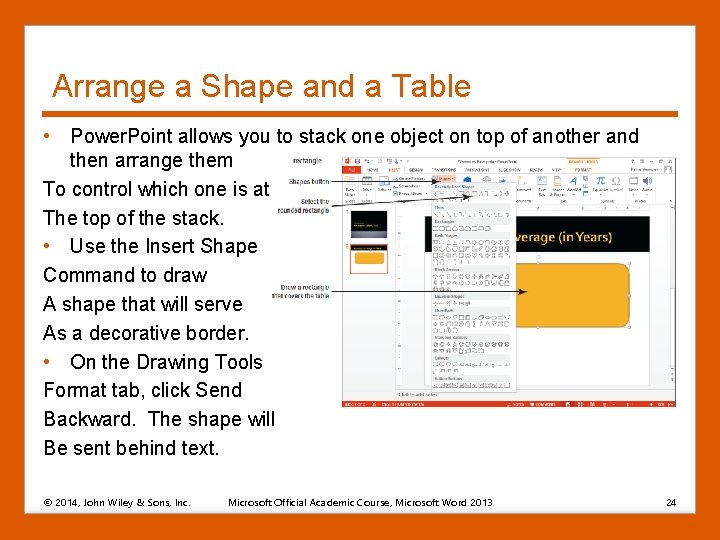
Arrange a Shape and a Table • Power. Point allows you to stack one object on top of another and then arrange them To control which one is at the The top of the stack. • Use the Insert Shape Command to draw A shape that will serve As a decorative border. • On the Drawing Tools Format tab, click Send Backward. The shape will Be sent behind text. © 2014, John Wiley & Sons, Inc. Microsoft Official Academic Course, Microsoft Word 2013 24
- Slides: 24