
Microsoft Power Point What is MS Power Point
- Slides: 12
Microsoft Power. Point
What is MS Power. Point? Microsoft Power. Point is a presentation program made by Microsoft. It is part of a bunch of programs called Microsoft Office. Just like Microsoft Word, it is widely used because it has a long history and has a lot of features. Almost all businesses and schools use it. It is used to prepare for a presentation. It allows someone to have slides and animations to help present a topic or idea.
File Types: MS Power. Point Microsoft Power. Point uses certain file extensions depending on the type of document you made. The most common file type is. pptx If you see just. ppt, that means it is a document made before MS Office 2007, and is old. This also means that versions before MS Office 2007 can not read. pptx documents.
MS Powerpoint Basics In the next few slides we will go over some basics: 1. Adding slides. 2. Inserting photos, images, videos, and sound. 3. Changing the design of your presentation. 4. Adding effects between slides. 5. Adding animations inside your slides. 6. View your slide show.
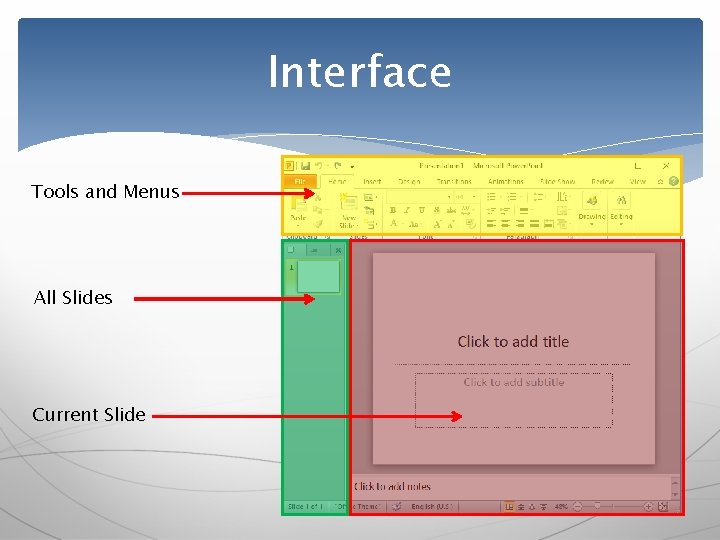
Interface Tools and Menus All Slides Current Slide
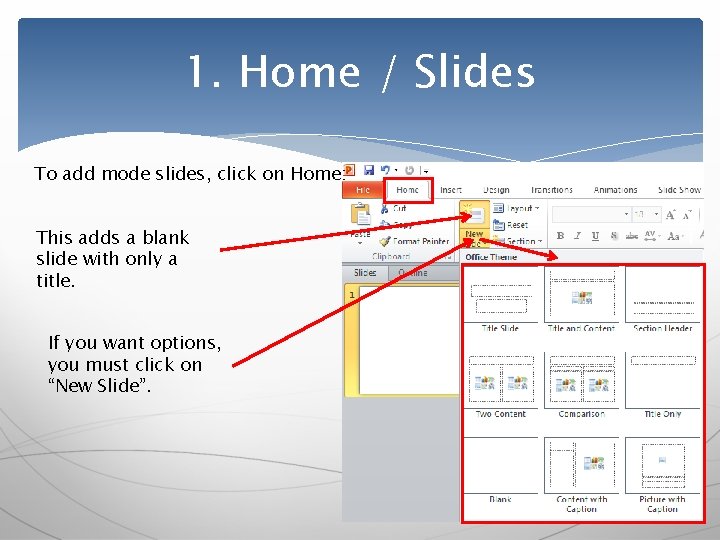
1. Home / Slides To add mode slides, click on Home: This adds a blank slide with only a title. If you want options, you must click on “New Slide”.
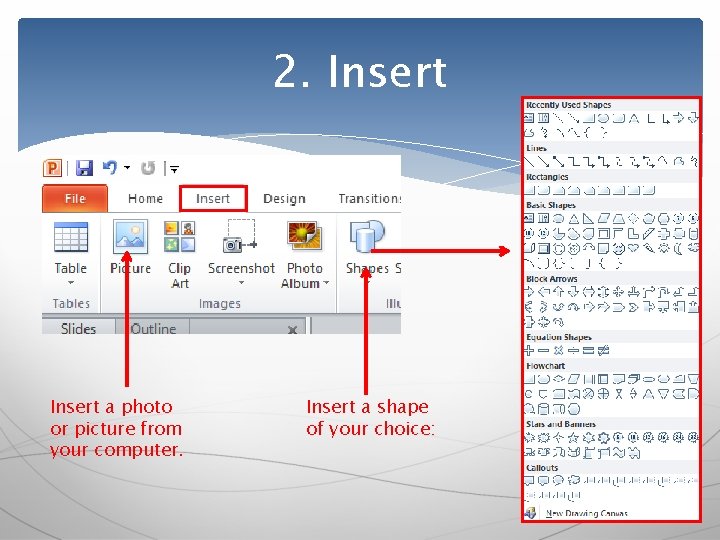
2. Insert a photo or picture from your computer. Insert a shape of your choice:
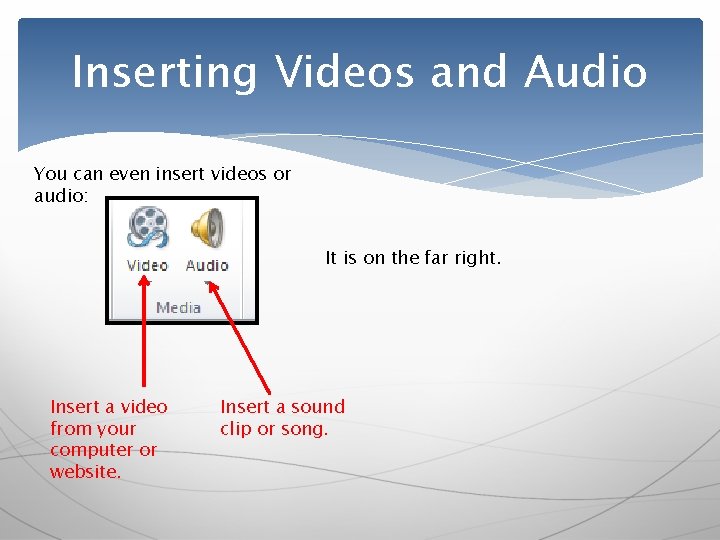
Inserting Videos and Audio You can even insert videos or audio: It is on the far right. Insert a video from your computer or website. Insert a sound clip or song.
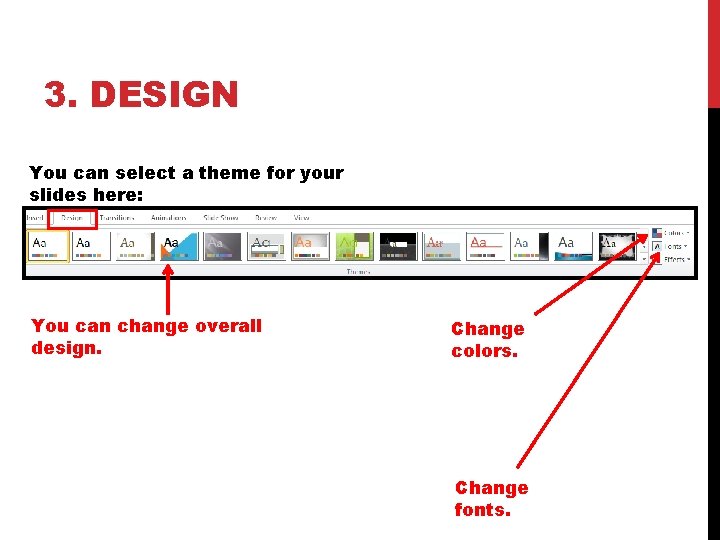
3. DESIGN You can select a theme for your slides here: You can change overall design. Change colors. Change fonts.
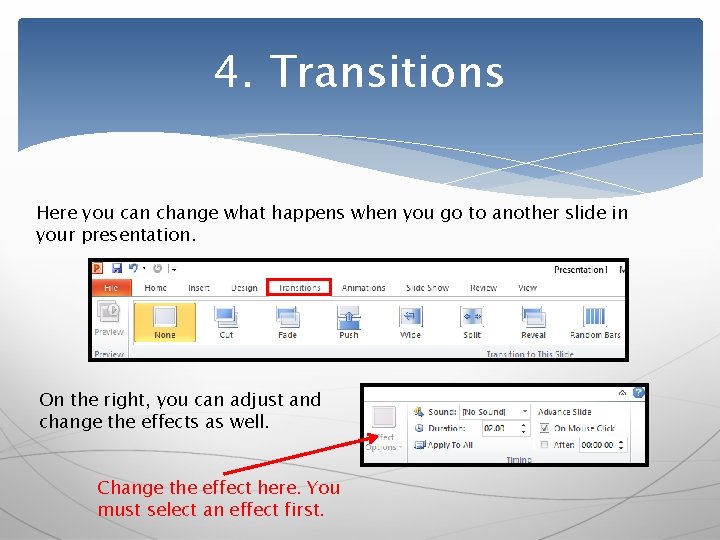
4. Transitions Here you can change what happens when you go to another slide in your presentation. On the right, you can adjust and change the effects as well. Change the effect here. You must select an effect first.
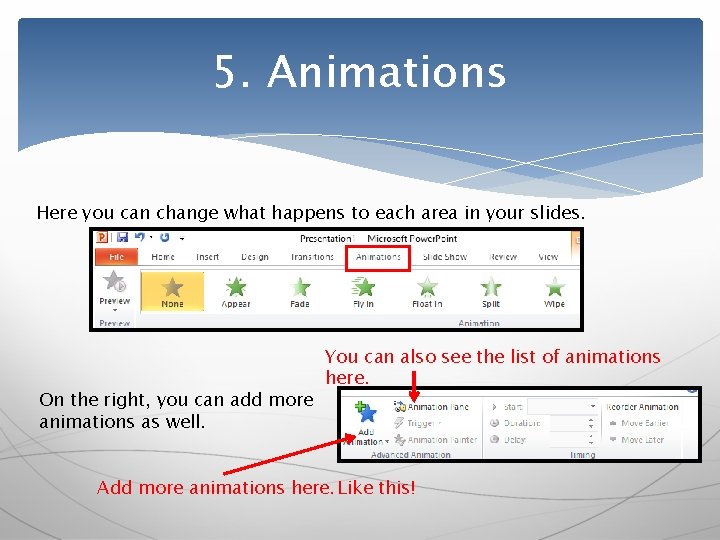
5. Animations Here you can change what happens to each area in your slides. On the right, you can add more animations as well. You can also see the list of animations here. Add more animations here. Like this!
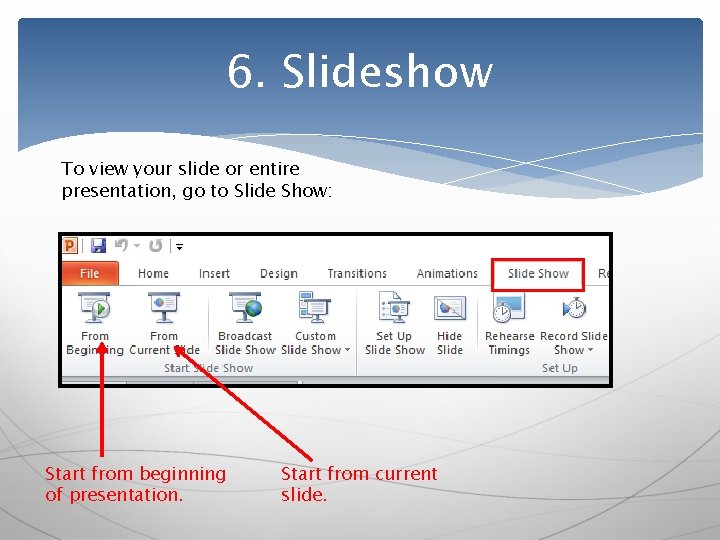
6. Slideshow To view your slide or entire presentation, go to Slide Show: Start from beginning of presentation. Start from current slide.