
Microsoft Power Point Social Media Page Activity Fakebook
Microsoft Power. Point - Social Media Page Activity “Fakebook Page Activity”
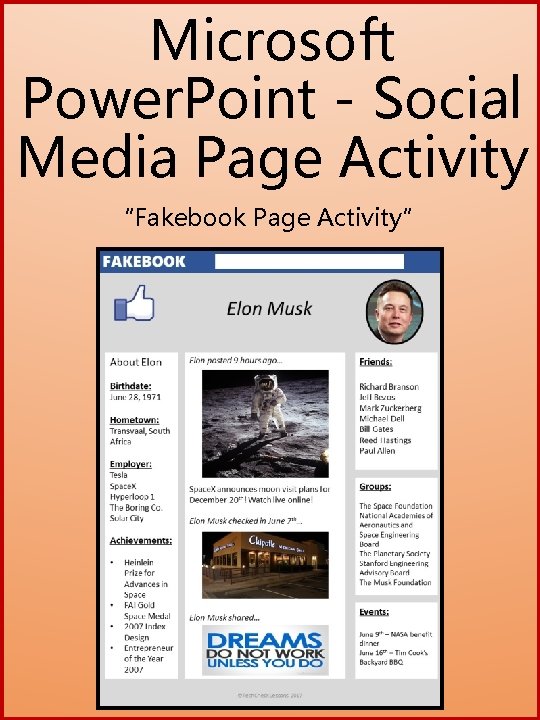
Your Task • You will use your Power. Point skills to create a fake Social Media homepage for a person (your teacher will tell you if it’s a real or fake person as this lesson can be fun with fake people to simply review/learn Power. Point skills or a real person learn about perhaps a famous computer pioneer for tech class or a famous president for History class or a famous African American for Black History month…you get the point) • Please use sample I created on slide 8 as guidance • Please remember to check your spelling (Review Tab) • When you are finished save the file as “Last Name + First Name + Fakebook” and send it to me for grading ©Tech. Check. Lessons, 2019
Steps to create your Fakebook page • New presentation [File Tab – New Blank Presentation] • Change the slide layout to Blank [Home Tab – Slides Group - Slide Layout] • Change the slide size to portrait – 4: 3 [Design Tab – Customize Group Slide Size] • Format the background color to a solid color – White, Background 1, Darker 15% [Design Tab – Customize Group - Format Background] ©Tech. Check. Lessons, 2019
Steps to create your Fakebook page • Insert a rectangle shape (masthead) across the top - Shape fill = Blue, Accent 1, Darker 25%, no outline [Insert Tab – Illustrations Group - Shape] • Insert a Text box on the left side of the blue rectangle. Type FAKEBOOK and use Segoe UI Black (or whatever font you want really) font size 24 [Insert Tab – Text Group - Text. Box] • Insert another rectangle shape across the top that goes in the blue masthead Shape fill = white, no outline. [Drawing Tools – Shape Styles Group - Shape Fill, Shape Outline] This will look like a search bar at the top • Insert a Text box right under the blue masthead, Align = centered. Type the name of the person this Fakebook page is about. Font = Calibri Body, size 32 ©Tech. Check. Lessons, 2019
Steps to create your Fakebook page • Copy and paste an image/headshot (from google images, labeled for reuse of course) of the person to the right of their name. Crop the image so it’s not too big and the face is clear and centered. [Format Picture – Size Group - Crop] • Now Crop the image to a Shape – oval. Resize the image so it fits nicely next their name near the top. Now give the image a picture border = Black, weight = 3 point [Format Picture – Size Group - Crop to Shape – Oval, Format Picture – Picture Border] ©Tech. Check. Lessons, 2019
Steps to create your Fakebook page • Now we are going to insert one main rectangle, Arrange Group - Aligned center, and 4 other rectangles (1 on the left, 3 on the right). All – Drawing Tools Tabs – Shape Styles Group - White fill, no outline (I would make one rectangle and copy and paste it 4 times, then resize them) • Select all five rectangles (hold down the Control key) and align the text in each to be Top [Drawing tools – Paragraph Group – align Text - Top] , and aligned (Control + L) Left ©Tech. Check. Lessons, 2019
Steps to create your Fakebook page • The main rectangle in the middle will be the person’s timeline. You will fill this in with pictures, posts and captions that you feel the person might make on their actual Fakebook page. In my example I shared a picture with a caption, an inspirational quote, and a check-in at a restaurant. • The tall skinny rectangle on the far left will contain biographical information about your person. (Birthdate, Hometown, Employer, Awards and Achievements) ©Tech. Check. Lessons, 2019
Steps to create your Fakebook page • The 3 right-side rectangles will contain information regarding their Fakebook friends, the Fakebook groups they subscribe to and Fakebook events and invitations on their calendars. • You’ll have to use your font formatting skills in these rectangles to make the font black and easy to read. See my example how I use bold and underlines to make headings stand out. You’ll also have to use different font size to fit everything nicely. I even used a bulleted list in one of the rectangles. [Home Tab – Font Group] ©Tech. Check. Lessons, 2019
Steps to create your Fakebook page • Just for decoration you can copy and paste an image (from google images, labeled for reuse of course) of a thumbs up near the masthead • Do a Spell Check! [Review Tab – Proofing Group - Spelling] ©Tech. Check. Lessons, 2019
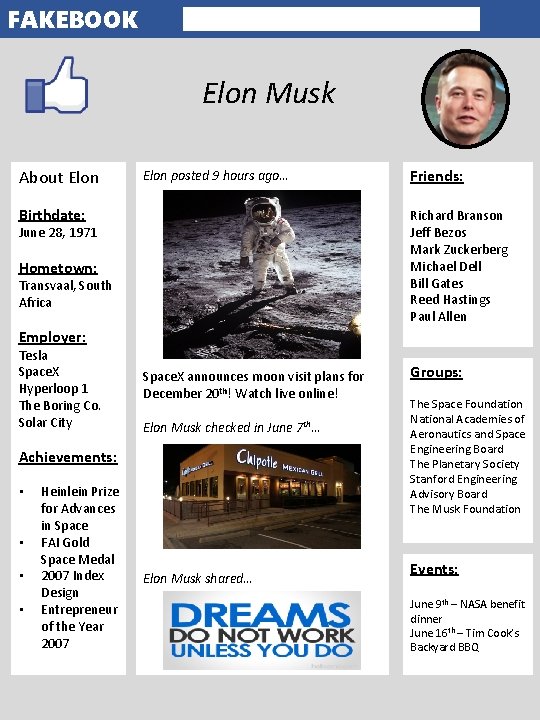
FAKEBOOK Elon Musk About Elon posted 9 hours ago… Birthdate: Friends: Richard Branson Jeff Bezos Mark Zuckerberg Michael Dell Bill Gates Reed Hastings Paul Allen June 28, 1971 Hometown: Transvaal, South Africa Employer: Tesla Space. X Hyperloop 1 The Boring Co. Solar City Space. X announces moon visit plans for December 20 th! Watch live online! Elon Musk checked in June 7 th… Achievements: • • Heinlein Prize for Advances in Space FAI Gold Space Medal 2007 Index Design Entrepreneur of the Year 2007 Elon Musk shared… Groups: The Space Foundation National Academies of Aeronautics and Space Engineering Board The Planetary Society Stanford Engineering Advisory Board The Musk Foundation Events: June 9 th – NASA benefit dinner June 16 th – Tim Cook’s Backyard BBQ
Materials & Objective • Materials • Computer with Microsoft Power. Point 2016 or 2019 • Internet Access • Color Printer (optional) • Objective • Using Power. Point skills listed in the directions, students will create a fake Social Media web page for a famous technology or business icon ©Tech. Check. Lessons, 2019
Enrichment • Make another social media web page using the first one you made as a template (so you don’t have to start over) but this time for a fictional TV or movie character – have fun with this! ©Tech. Check. Lessons, 2019
Skills Taught • Inserting and Formatting Shapes • Inserting Pictures • Picture Style • Font Formatting • Object Alignment • Page Background ©Tech. Check. Lessons, 2019
- Slides: 13