
Microsoft Power Point Notes Part 1 Introduction to

- Slides: 25
Microsoft Power. Point Notes Part 1 Introduction to Power. Point: Presentations Made Easy Power. Point Notes 1
Objectives • • Describe common user interface Open and Modify existing presentations Describe various ways to print Describe different views and features of each Power. Point Notes 2
More Objectives • • Use Outline View Add Clip Art Time and rehearse a presentation Describe Meeting Minder, Slide Navigator, and Pen tools Power. Point Notes 3
Overview • • • Microsoft Office Suite Application Create a professional presentation yourself Easy to learn 5 different views Content and delivery are very important and up to you Power. Point Notes 4
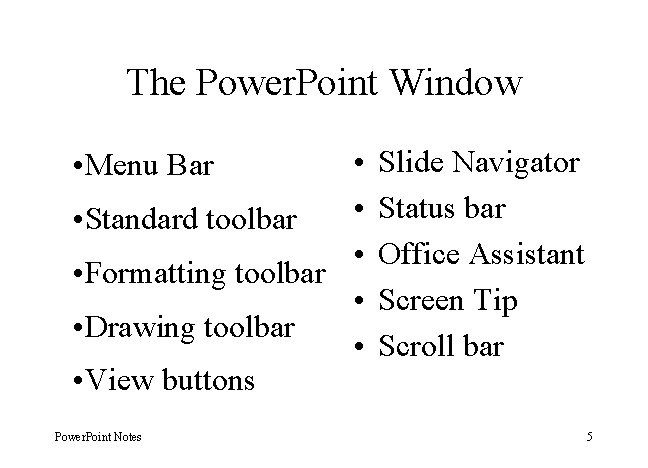
The Power. Point Window • • • Standard toolbar • • Formatting toolbar • • Drawing toolbar • • View buttons • Menu Bar Power. Point Notes Slide Navigator Status bar Office Assistant Screen Tip Scroll bar 5
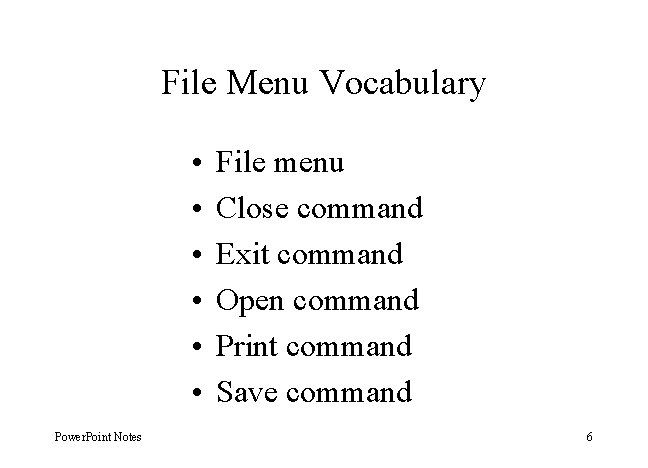
File Menu Vocabulary • • • Power. Point Notes File menu Close command Exit command Open command Print command Save command 6
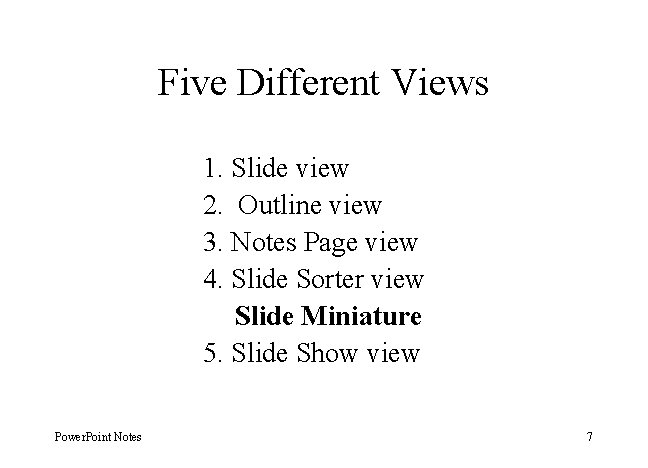
Five Different Views 1. Slide view 2. Outline view 3. Notes Page view 4. Slide Sorter view Slide Miniature 5. Slide Show view Power. Point Notes 7
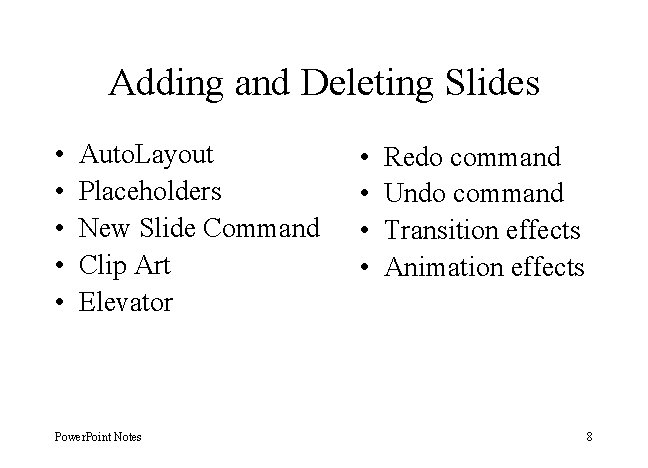
Adding and Deleting Slides • • • Auto. Layout Placeholders New Slide Command Clip Art Elevator Power. Point Notes • • Redo command Undo command Transition effects Animation effects 8
Slide Show Tools Vocabulary • • • Power. Point Notes Rehearse Timings Action Items Meeting Minder Annotating a Slide Hidden Slide Pen 9
Microsoft Power. Point Notes Part 2 Creating a Presentation: Content, Formatting, and Animation Power. Point Notes 10
Objectives • • Power. Point Notes Use Outline View Check Spelling Apply a Design Template Add Transition Effects Modify Template Modify Slide Master Explain Auto. Content Wizard 11
Overview • Two Steps 1. Develop Content 2. Format Presentation • Enter text in Outline View • Auto. Content Wizard facilitates content Power. Point Notes 12
Overview (continued ) • Use Spell Check and Auto. Correct features • Format using professionally designed templates • Add Transition effects • Fine-Tune Presentation Power. Point Notes 13
Creating a Presentation Vocabulary • • Slide Icon Promote Demote Insertion Point Power. Point Notes • • Outline Toolbar Template Auto. Correct Auto. Content Wizard 14
Creating a Slide Show (Vocabulary) • • Power. Point Notes Transition Animation Effect Slide Sorter toolbar Summary Slide 15
Microsoft Power. Point Notes Part 3 Enhancing a Presentation: The Web and Other Resources Power. Point Notes 16
Objectives (1 of 2) 1. Use Microsoft Graph 2. Use Drawing tools 3. Use Microsoft Organization Chart 4. Use Microsoft Word. Art 5. Link an Excel worksheet Power. Point Notes 17
Objectives (2 of 2) 6. Distinguish between Linking and Embedding 7. Embed a sound file 8. Display and use Web toolbar 9. Download and use photograph from the Web Power. Point Notes 18
Overview • Add impact with visual elements • Add Clip Art or photographs • Add Graphs, Organization Charts, and Word. Art • Add Objects • Download Web resources Power. Point Notes 19
Microsoft Graph - Vocabulary • • • Power. Point Notes Microsoft Graph Category names Datasheet Data Points Data Series In-Place Editing 20
Office Art - Vocabulary • Office Art • Object • Drawing toolbar • Group command • Ungroup command Power. Point Notes 21
Object Linking and Embedding • • Object Linking and Embedding Compound document Embedded object Linked Object Power. Point Notes 22
More OLE • • • Power. Point Notes Microsoft Clip Gallery Microsoft Word. Art Microsoft Organization Chart Autoshapes Sound 23
Suggested Exercise 1. Create the Title Slide 2. Add an Object Slide 3. Insert the Excel Worksheet 4. Complete the Slide 5. Create the Organization Chart 6. Complete the Organization Chart Power. Point Notes 7. Clip Art and Auto. Shapes 8. The Slide Finder 9 & 10. Word Art 11. Insert a Sound 12. Custom Animation 13. Applause, Applause 24
Internet and Web Resources - Vocabulary • • Internet World Wide Web Hypertext document Hypermedia document • Insert Picture command Power. Point Notes • Web toolbar • Insert Hyperlink command • Copyright • Public Domain 25