
Microsoft Power Point 2010 INTRODUCTION to PPT pg

- Slides: 23
Microsoft Power. Point 2010
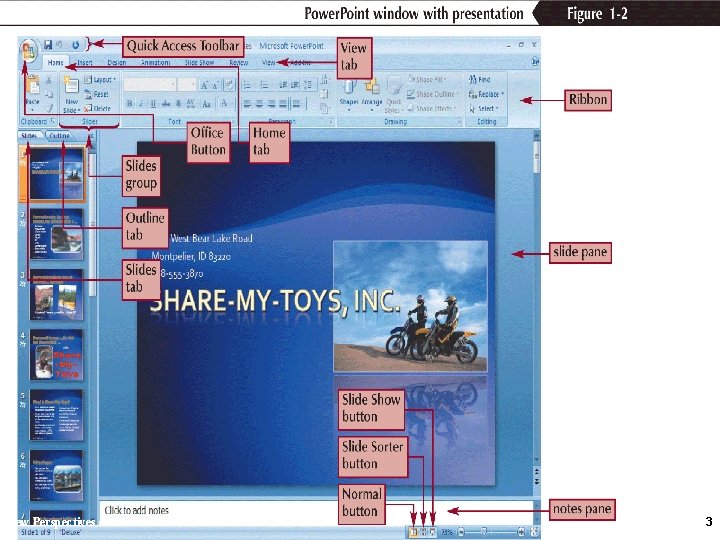
INTRODUCTION to PPT (pg. 808809) Slide: the most basic element of ppt. a single page in ppt Slide Show: a collection of slides that can be used in a presentation Slide Layout: how things are arranged on a slide Design Template: all slides are unified by preselected fonts, colours, graphics etc. Power. Point: a presentation software used to create an electronic slide show and other materials
Power. Point Presentation New Perspectives on Microsoft Office Power. Point 2007 3
USING PPT VIEWS (pg. 809813) Normal View: three pane “default ppt view” Notes Page View: used to print audience hand-outs that include the slide and associated notes Slide Sorter View: displays thumbnails of multiple slides simultaneously. Used for reordering slides. Reading View: displays a full screen view of presentation that includes navigation buttons, view buttons and title bar Slide Show View: full screen view of a presentation to an audience, with one slide at a time F 5: press the key F 5 to start presentation from the first slide Presenter View: delivers a presentation on two monitors simultaneously
Viewing a Presentation in Slide Show View Slide Show view is the view you use when you present an on-screen presentation to an audience When you click the Slide Show button on the status bar, the slide show starts beginning with the current slide When you click the Slide Show button on the View tab on the Ribbon or press the F 5 key, the slide show starts at the beginning of the presentation 5
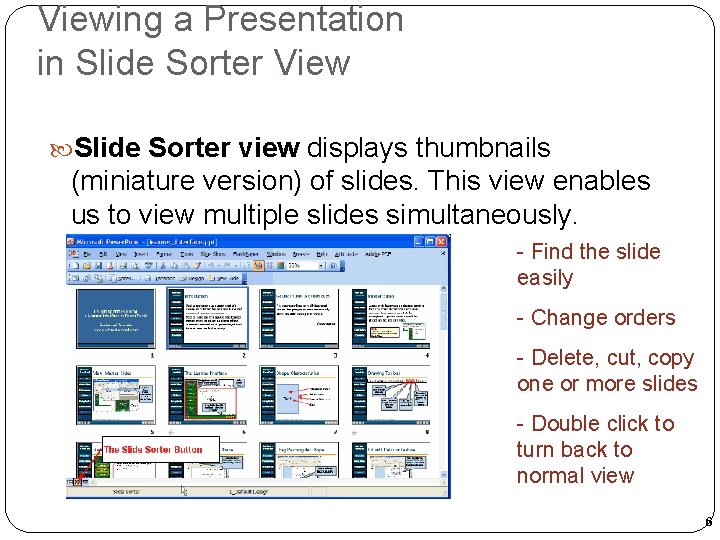
Viewing a Presentation in Slide Sorter View Slide Sorter view displays thumbnails (miniature version) of slides. This view enables us to view multiple slides simultaneously. - Find the slide easily - Change orders - Delete, cut, copy one or more slides - Double click to turn back to normal view 6
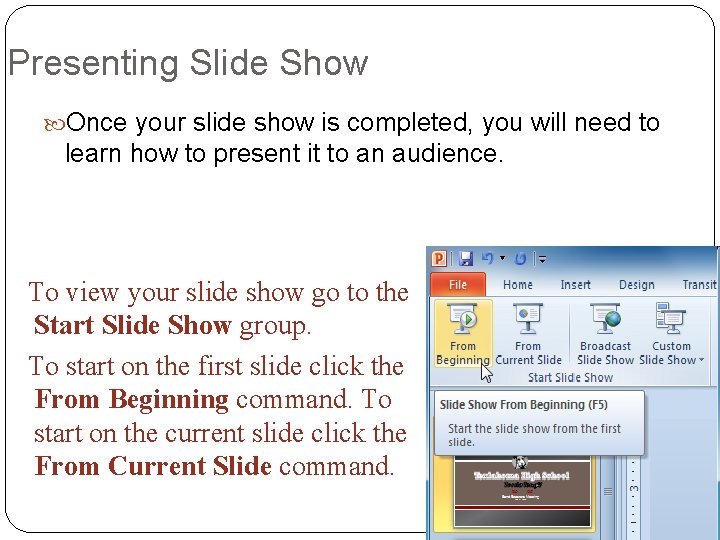
Presenting Slide Show Once your slide show is completed, you will need to learn how to present it to an audience. To view your slide show go to the Start Slide Show group. To start on the first slide click the From Beginning command. To start on the current slide click the From Current Slide command.
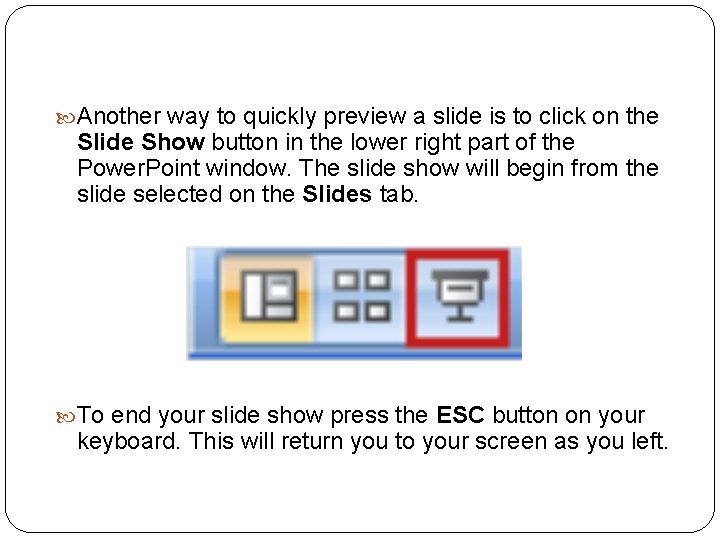
Another way to quickly preview a slide is to click on the Slide Show button in the lower right part of the Power. Point window. The slide show will begin from the slide selected on the Slides tab. To end your slide show press the ESC button on your keyboard. This will return you to your screen as you left.
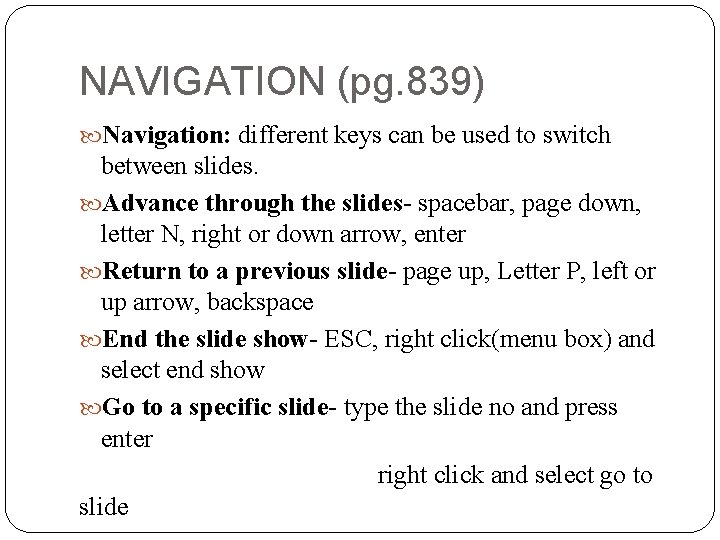
NAVIGATION (pg. 839) Navigation: different keys can be used to switch between slides. Advance through the slides- spacebar, page down, letter N, right or down arrow, enter Return to a previous slide- page up, Letter P, left or up arrow, backspace End the slide show- ESC, right click(menu box) and select end show Go to a specific slide- type the slide no and press enter right click and select go to slide
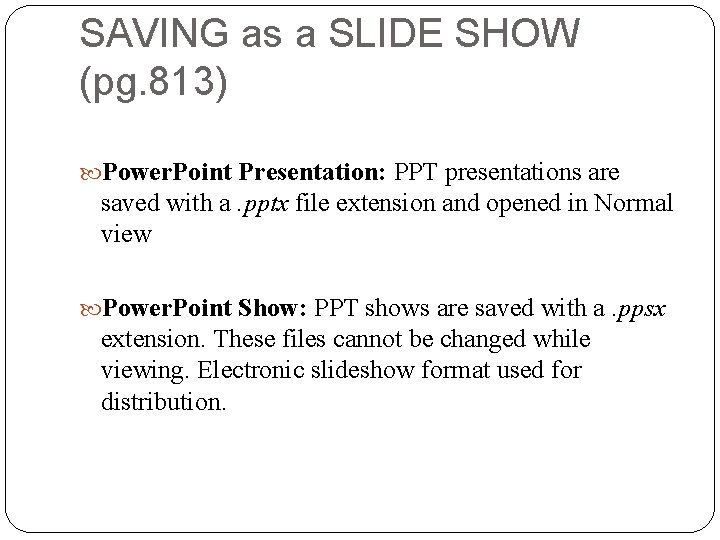
SAVING as a SLIDE SHOW (pg. 813) Power. Point Presentation: PPT presentations are saved with a. pptx file extension and opened in Normal view Power. Point Show: PPT shows are saved with a. ppsx extension. These files cannot be changed while viewing. Electronic slideshow format used for distribution.
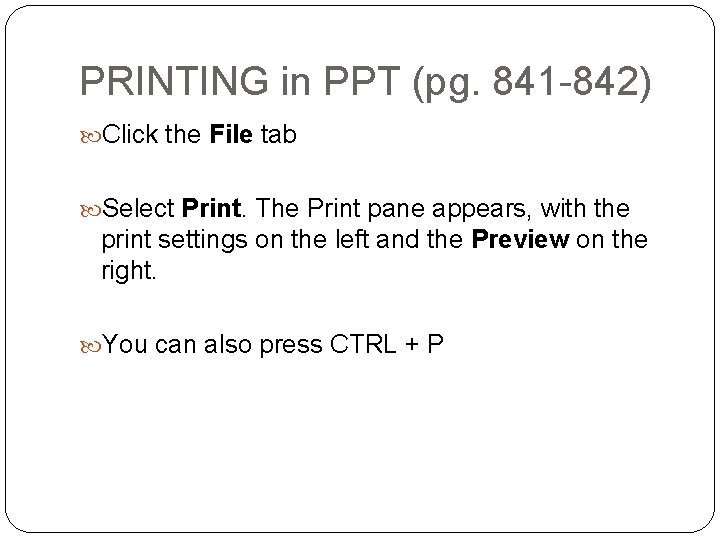
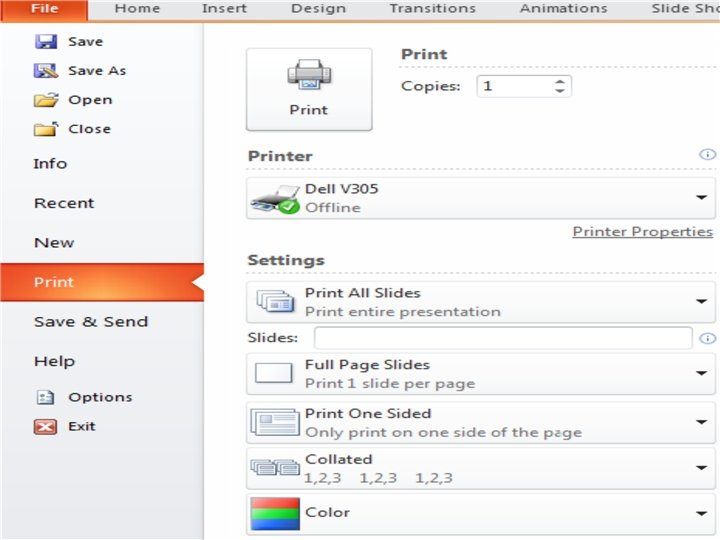
PRINTING in PPT (pg. 841 -842) Click the File tab Select Print. The Print pane appears, with the print settings on the left and the Preview on the right. You can also press CTRL + P
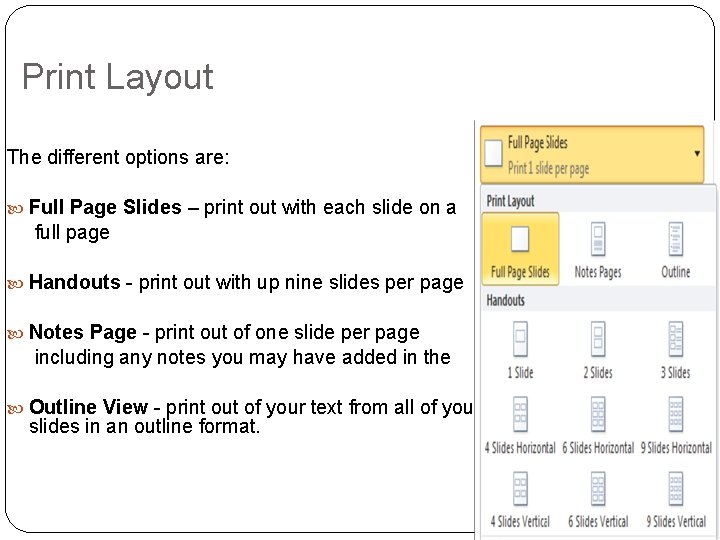
Print Layout The different options are: Full Page Slides – print out with each slide on a full page Handouts - print out with up nine slides per page Notes Page - print out of one slide per page including any notes you may have added in the Outline View - print out of your text from all of your slides in an outline format.
USING TRANSITIONS (pg. 829830) Transitions are motion effects that, when in Slide Show View, add movement to your slides as you advance from one slide to another. Movement applied to each slide. There are many transitions to choose from; each one allows you to control the speed and even add sound.
To apply a transition: 1. 2. 3. 4. Select the slide you wish to modify. Click the Transitions tab. Locate the Transition to This Slide group. Click a transition to apply it to the selected slide. This will automatically preview the transition as well.
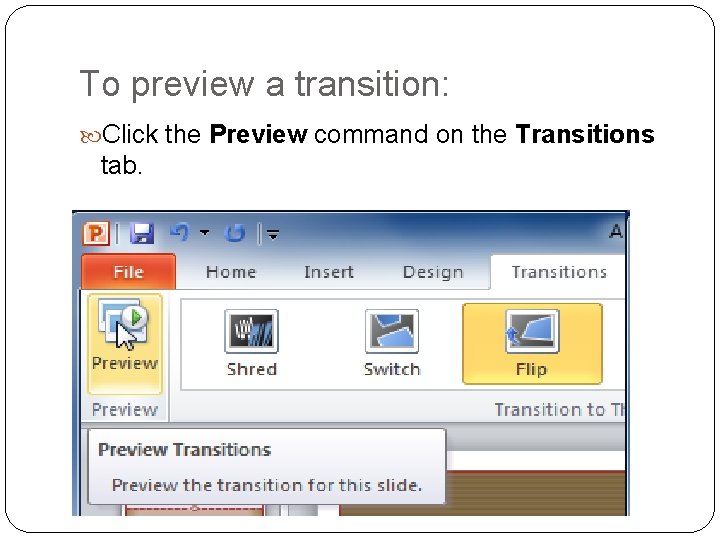
To preview a transition: Click the Preview command on the Transitions tab.
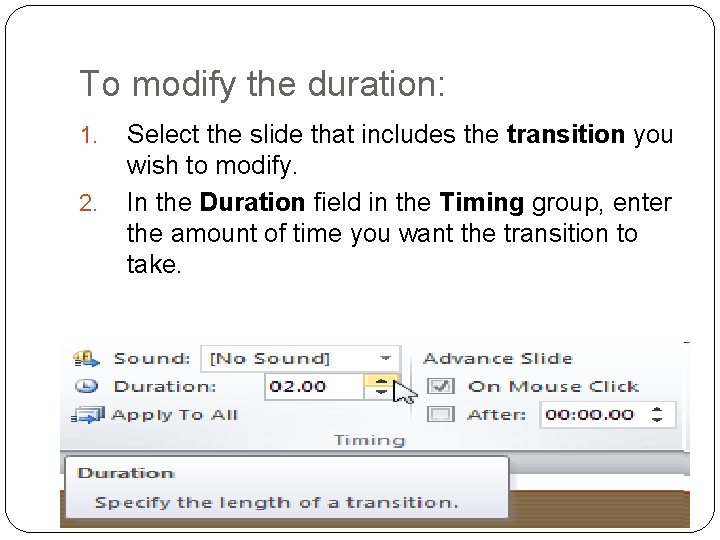
To modify the duration: 1. 2. Select the slide that includes the transition you wish to modify. In the Duration field in the Timing group, enter the amount of time you want the transition to take.
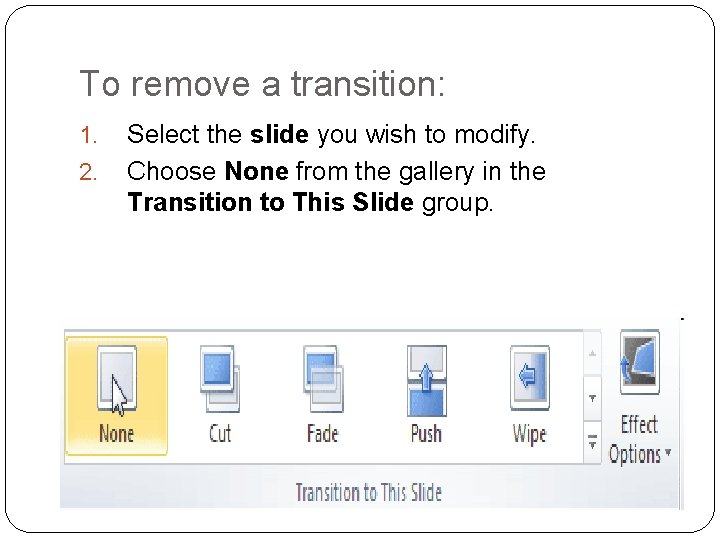
To remove a transition: 1. 2. Select the slide you wish to modify. Choose None from the gallery in the Transition to This Slide group.
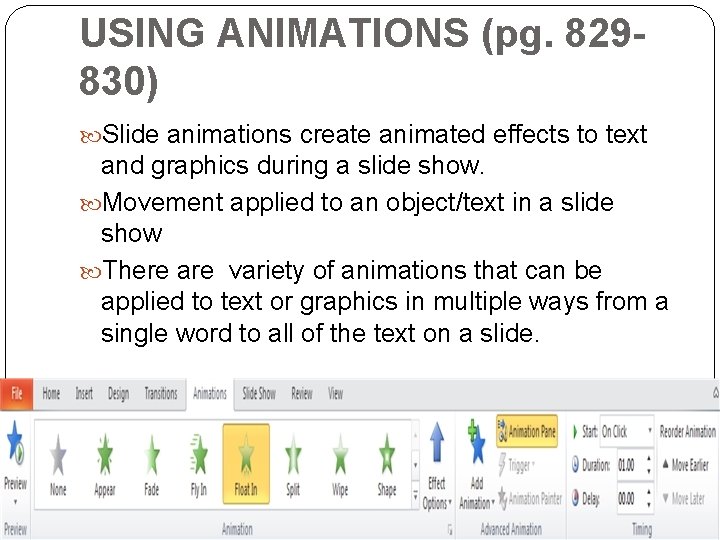
USING ANIMATIONS (pg. 829830) Slide animations create animated effects to text and graphics during a slide show. Movement applied to an object/text in a slide show There are variety of animations that can be applied to text or graphics in multiple ways from a single word to all of the text on a slide.
APPLYING A THEME (pg. 826827) To create a more consistent and business-like look for your presentation , you can apply a theme. Design Tab- themes group- select a theme to apply
USING TEMPLATES (pg. 862864) Template is a file that includes a theme, a layout and content that can be modified File tab- New- Home/Office. com templates- Select- Create/Download Any changes can be made on the templates
Microsoft PPT 2010 Topics Introduction to powerpoint – p. 808 Using powerpoint views – p. 809 – 813 Saving as a slide show – p. 813 Using slide layouts – p. 820 Applying themes – p. 821 Presentation creation: creating presentation, adding new slides, modifying text and layouts, applying a theme, reordering slides – p. 823 – 827 Presentation development: inserting media objects, adding a table, applying transitions, using animations and transitions, inserting a header and footer – p. 828 – 833 Navigation and printing: running and navigating a slide show- p. 839, printing powerpoint – p. 841 – 843 Templates : creating a presentation using a template – p. 862 -63, modifying a template – p. 864 Outlines : creating a presentation in outline view – p. 869, modifying an outline structure – p. 870, printing an outline – p. 871 -72 Presentation design: creating and modifying shapes p. 904, 905, 909, creating/modifying smart and wordart p. 925, 928, 929, 932, 933, 934 Object manipulation: modifying, rotating, grouping – p. 939 – 942 Pictures: inserting, changing color, applying picture style – p. 974 -976, 980, 983 Master basics: modifying a slide master – p. 976, 978 -81