
Microsoft Power BI Integration with Maps Marie Woltman

Microsoft Power BI Integration with Maps & Marie Woltman (Devon CC)

Map Options…
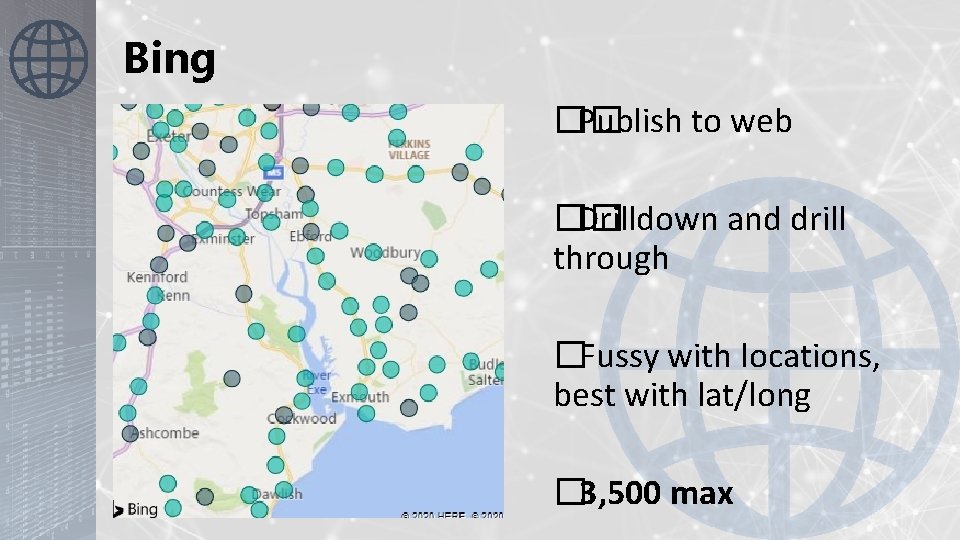
Bing �� Publish to web �� Drilldown and drill through �Fussy with locations, best with lat/long � 3, 500 max
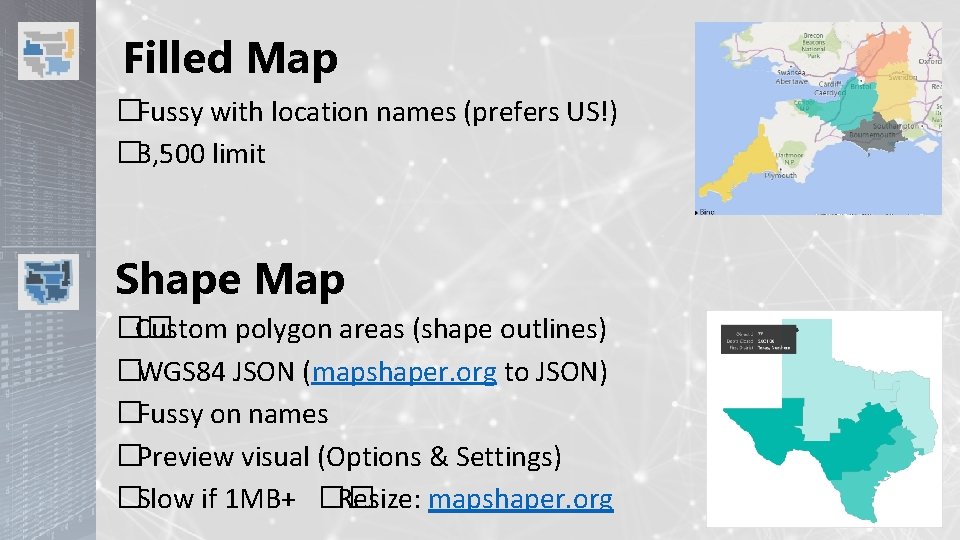
Filled Map �Fussy with location names (prefers US!) � 3, 500 limit Shape Map �� Custom polygon areas (shape outlines) �WGS 84 JSON (mapshaper. org to JSON) �Fussy on names �Preview visual (Options & Settings) �Slow if 1 MB+ �� Resize: mapshaper. org
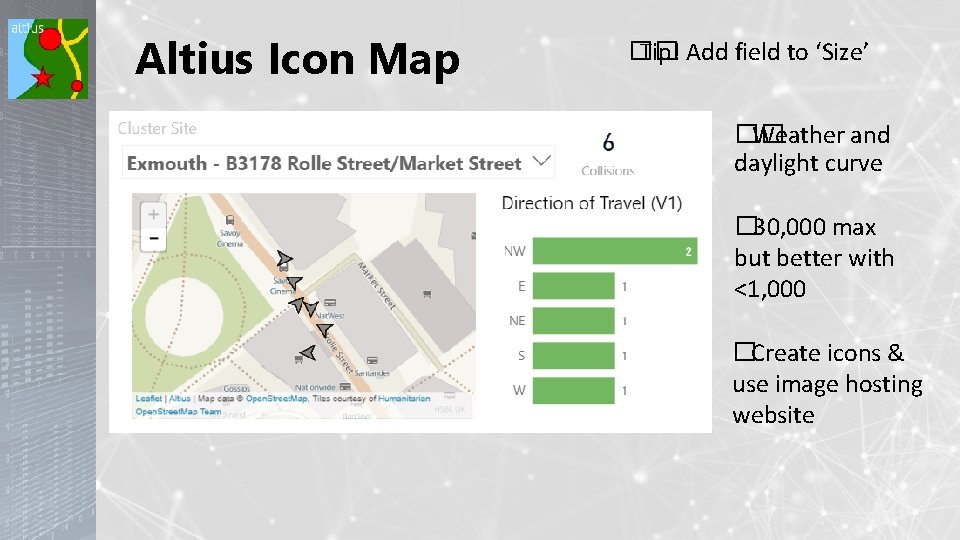
Altius Icon Map �� Tip! Add field to ‘Size’ �� Weather and daylight curve � 30, 000 max but better with <1, 000 �Create icons & use image hosting website

ESRI Heatmap & clustering �*30, 000 max lat/long on most browsers (*see next slide) Select points / within ref layer / drive buffer �Publish to web, or private embedded up to 10 points �� Tip! Click Edit to access features
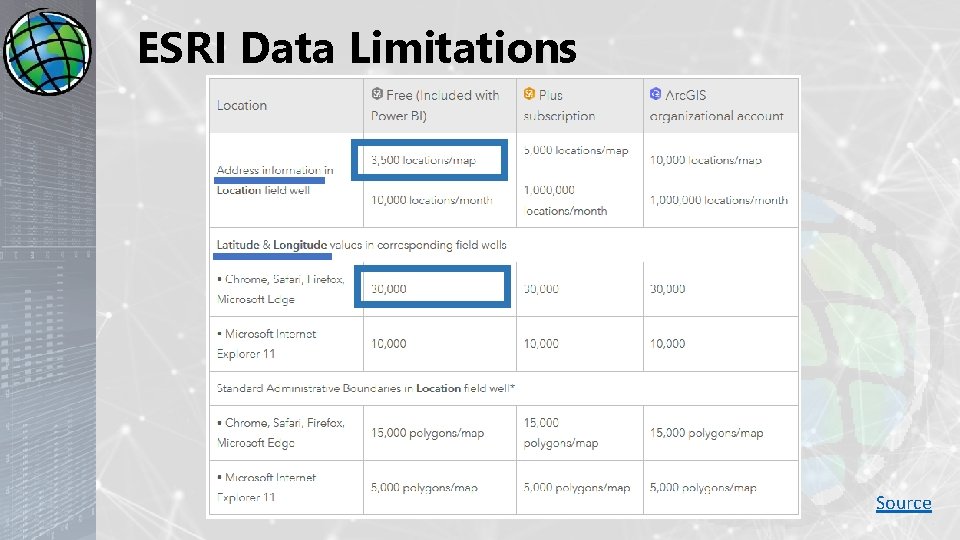
ESRI Data Limitations Source
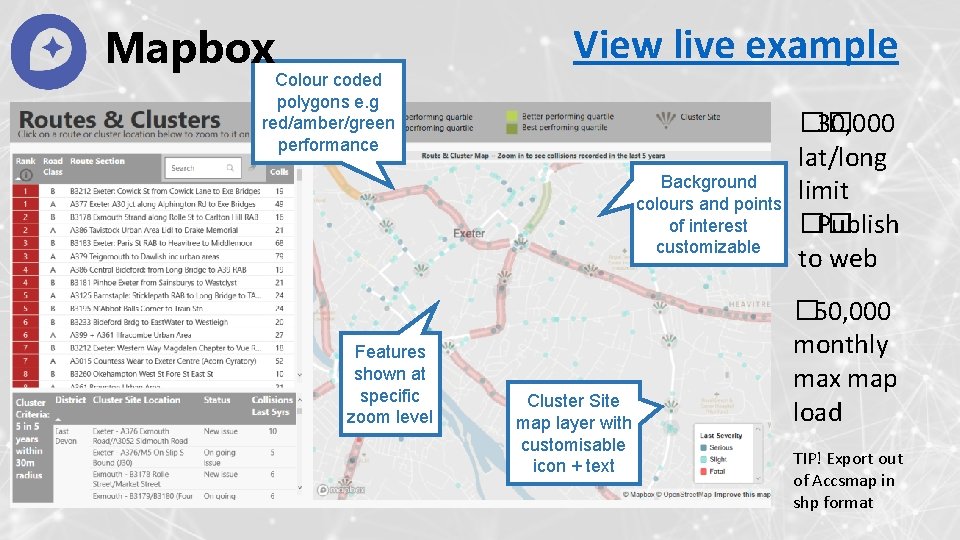
Mapbox View live example Colour coded polygons e. g red/amber/green performance Background colours and points of interest customizable Features shown at specific zoom level Cluster Site map layer with customisable icon + text �� 30, 000 lat/long limit �� Publish to web � 50, 000 monthly max map load TIP! Export out of Accsmap in shp format
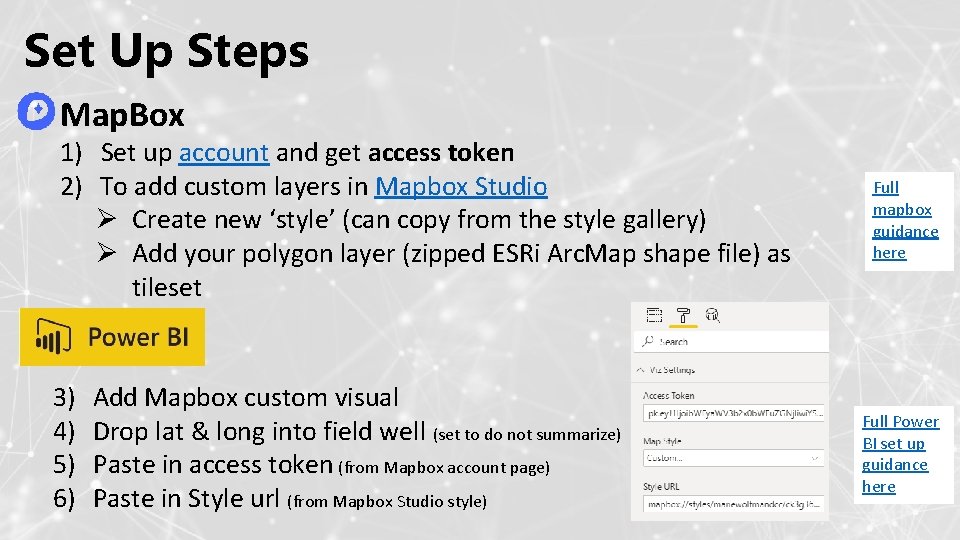
Set Up Steps Map. Box 1) Set up account and get access token 2) To add custom layers in Mapbox Studio Ø Create new ‘style’ (can copy from the style gallery) Ø Add your polygon layer (zipped ESRi Arc. Map shape file) as tileset 3) 4) 5) 6) Add Mapbox custom visual Drop lat & long into field well (set to do not summarize) Paste in access token (from Mapbox account page) Paste in Style url (from Mapbox Studio style) Full mapbox guidance here Full Power BI set up guidance here

+ Integrating R Scripts
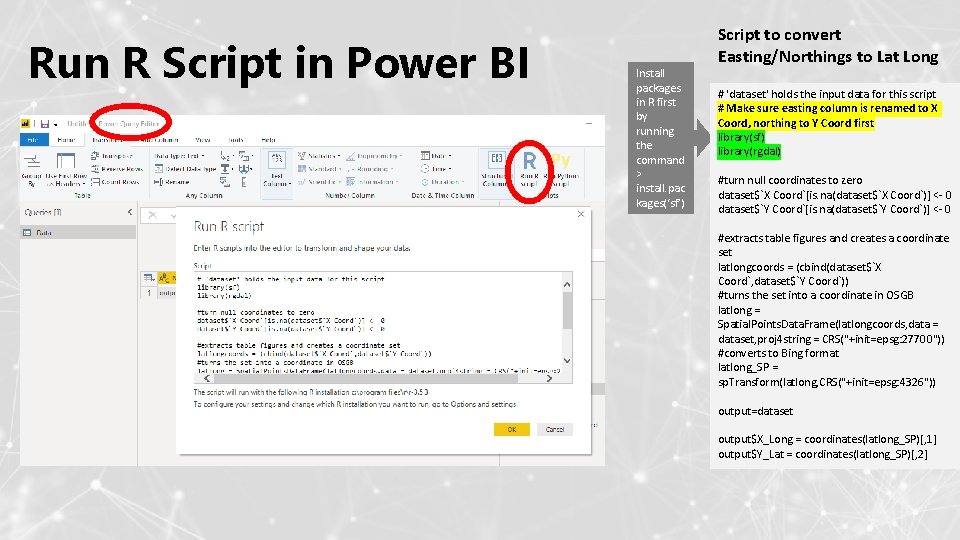
Run R Script in Power BI Install packages in R first by running the command > install. pac kages(‘sf’) Script to convert Easting/Northings to Lat Long # 'dataset' holds the input data for this script # Make sure easting column is renamed to X Coord, northing to Y Coord first library(sf) library(rgdal) #turn null coordinates to zero dataset$`X Coord`[is. na(dataset$`X Coord`)] <- 0 dataset$`Y Coord`[is. na(dataset$`Y Coord`)] <- 0 #extracts table figures and creates a coordinate set latlongcoords = (cbind(dataset$`X Coord`, dataset$`Y Coord`)) #turns the set into a coordinate in OSGB latlong = Spatial. Points. Data. Frame(latlongcoords, data = dataset, proj 4 string = CRS("+init=epsg: 27700")) #converts to Bing format latlong_SP = sp. Transform(latlong, CRS("+init=epsg: 4326")) output=dataset output$X_Long = coordinates(latlong_SP)[, 1] output$Y_Lat = coordinates(latlong_SP)[, 2]
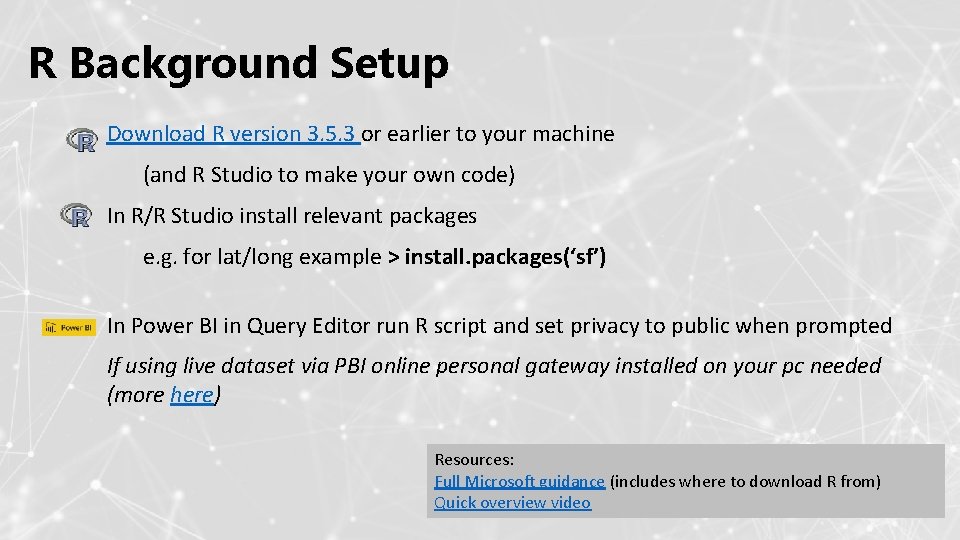
R Background Setup Download R version 3. 5. 3 or earlier to your machine (and R Studio to make your own code) In R/R Studio install relevant packages e. g. for lat/long example > install. packages(‘sf’) In Power BI in Query Editor run R script and set privacy to public when prompted If using live dataset via PBI online personal gateway installed on your pc needed (more here) Resources: Full Microsoft guidance (includes where to download R from) Quick overview video

Power BI Mapping Tips & Tricks
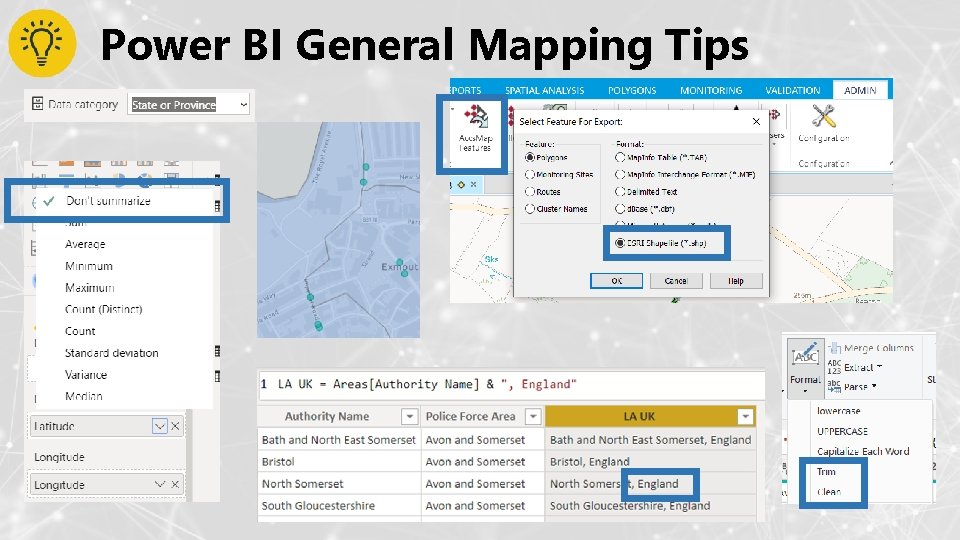
Power BI General Mapping Tips
Power BI General Mapping Tips Lat/long = more map points (be aware of max limits) Beware of missing data! • Postcode 1 issue (CRASH) • Data format issues like gaps, hyphens Use complimenting chart visuals to help filter the map
Resources R • R & Power BI video by Guy. In. ACube • Intro to R Devon Live Power BI Reports/Dashboards: • General public ones • Routes & Clusters map • Devon Annual Stats Report (Report has lots of screen grabs to give ideas!) Maps • Microsoft Map info page • ESRI in Power BI official video • Create ESRI reference layers • Getting started with Mapbox Linked. In Profile
- Slides: 16