
Microsoft Office Fundamentals Lesson 1 Microsoft Office Tour
- Slides: 12
Microsoft Office Fundamentals
Lesson 1: Microsoft Office Tour Objectives: • Identify the “Big Four” Microsoft Office Suite applications • Determine the situations in which each application is most useful
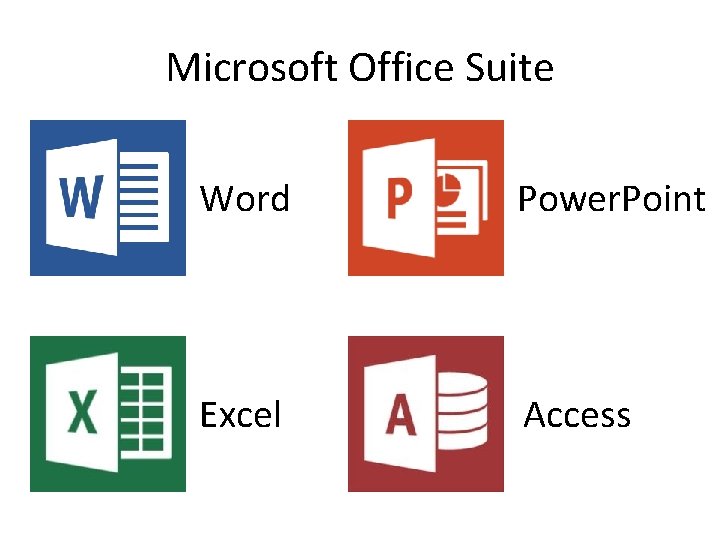
Microsoft Office Suite Word Power. Point Excel Access
Microsoft Word • Create text-based documents • Some examples include letters, invitations, term papers, flyers, resumes, novels, etc.
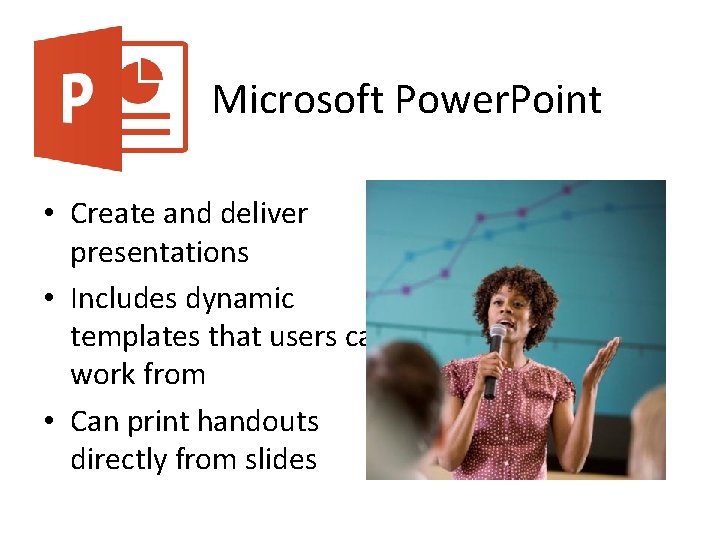
Microsoft Power. Point • Create and deliver presentations • Includes dynamic templates that users can work from • Can print handouts directly from slides
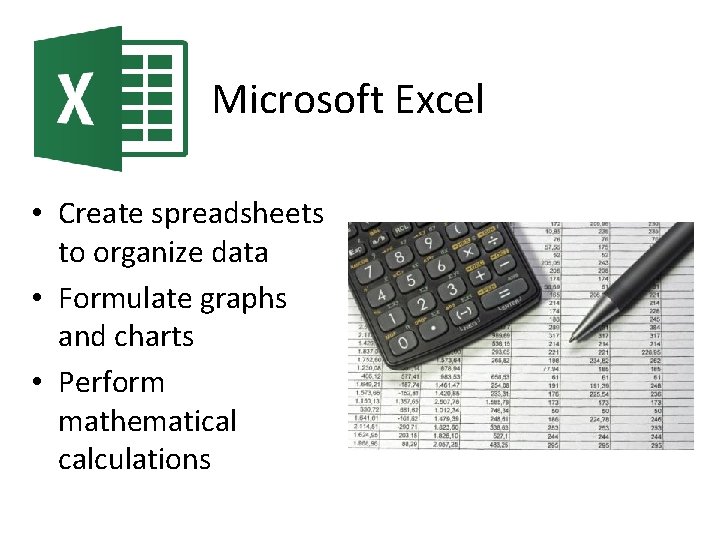
Microsoft Excel • Create spreadsheets to organize data • Formulate graphs and charts • Perform mathematical calculations
Microsoft Access • Create and manage databases • Keep information safe and well-organized • Similar to but more powerful than Excel • Often used by businesses
Lesson 2: Working with Files Objectives: • Discover how to arrange multiple windows on the screen • Learn how to save files to the computer • Define Backstage View
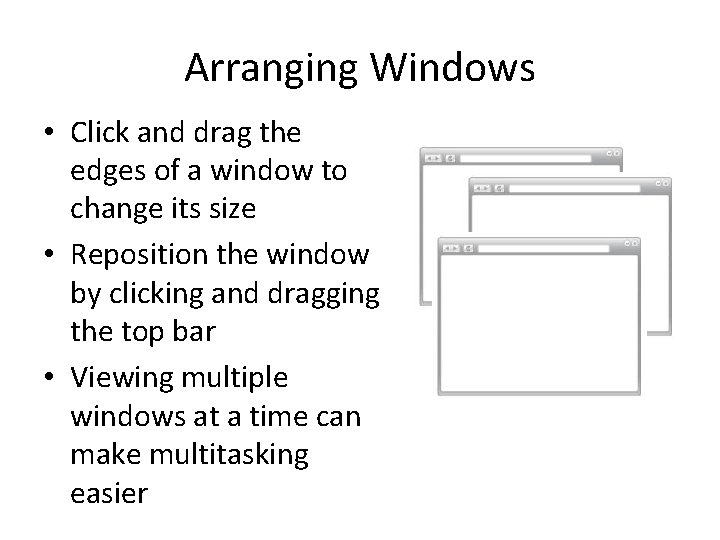
Arranging Windows • Click and drag the edges of a window to change its size • Reposition the window by clicking and dragging the top bar • Viewing multiple windows at a time can make multitasking easier
Saving Files • Clicking “File” at the top left corner of the screen brings up Backstage View, a menu used to manage files. • Choosing “Save As” from this menu and following the prompts will preserve work for later access.
Lesson 3: Getting Help Objectives: • Discover how to access Microsoft Office’s built-in Help program • Use the search function to find help when needed
Microsoft Word Help • Press F 1 to access Microsoft Word Help • Enter terms into the search box and click search to view relevant topics • Click on a topic to access more information