
Microsoft Office Excel 2007 In Business Core Chapter
Microsoft Office Excel 2007 In Business Core Chapter 1 Introduction In Business Series © Prentice Hall 2007 1
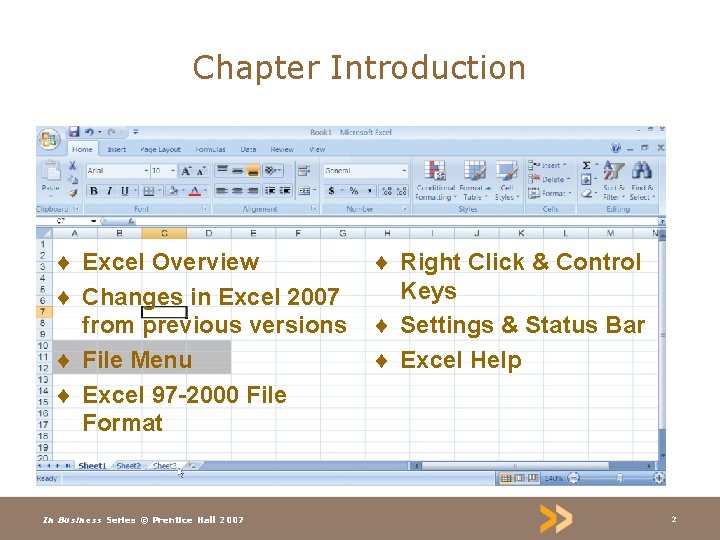
Chapter Introduction ¨ Excel Overview ¨ Changes in Excel 2007 from previous versions ¨ File Menu ¨ Excel 97 -2000 File Format In Business Series © Prentice Hall 2007 ¨ Right Click & Control Keys ¨ Settings & Status Bar ¨ Excel Help 2
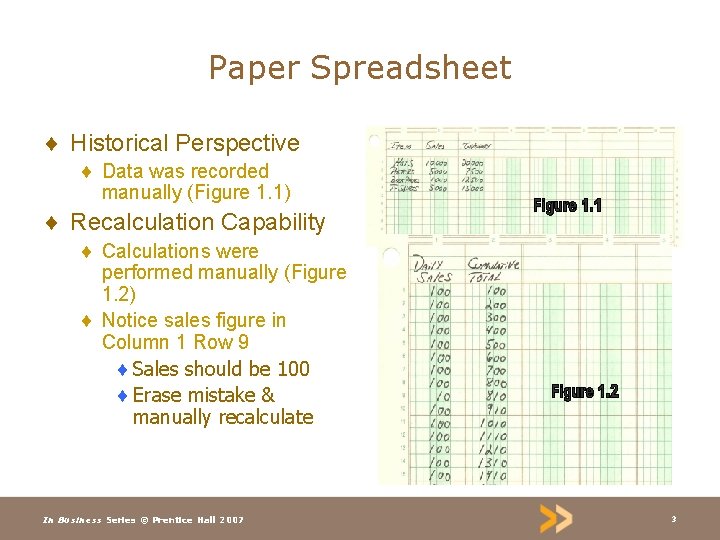
Paper Spreadsheet ¨ Historical Perspective ¨ Data was recorded manually (Figure 1. 1) ¨ Recalculation Capability ¨ Calculations were performed manually (Figure 1. 2) ¨ Notice sales figure in Column 1 Row 9 ¨ Sales should be 100 ¨ Erase mistake & manually recalculate In Business Series © Prentice Hall 2007 3
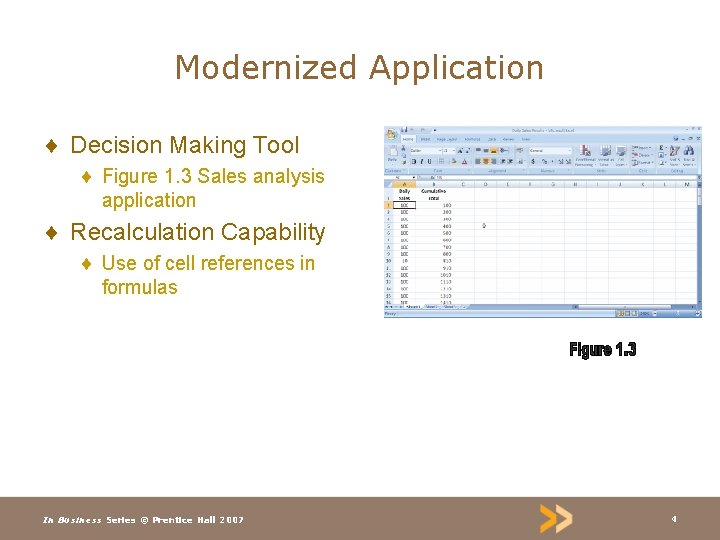
Modernized Application ¨ Decision Making Tool ¨ Figure 1. 3 Sales analysis application ¨ Recalculation Capability ¨ Use of cell references in formulas In Business Series © Prentice Hall 2007 4
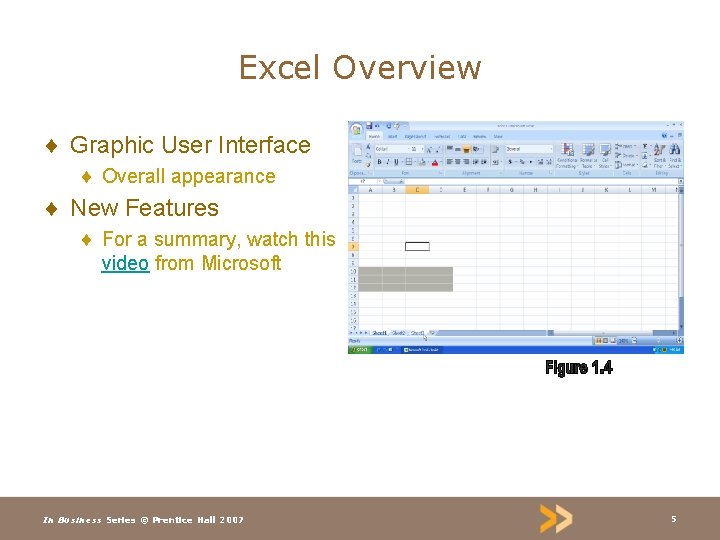
Excel Overview ¨ Graphic User Interface ¨ Overall appearance ¨ New Features ¨ For a summary, watch this video from Microsoft In Business Series © Prentice Hall 2007 5
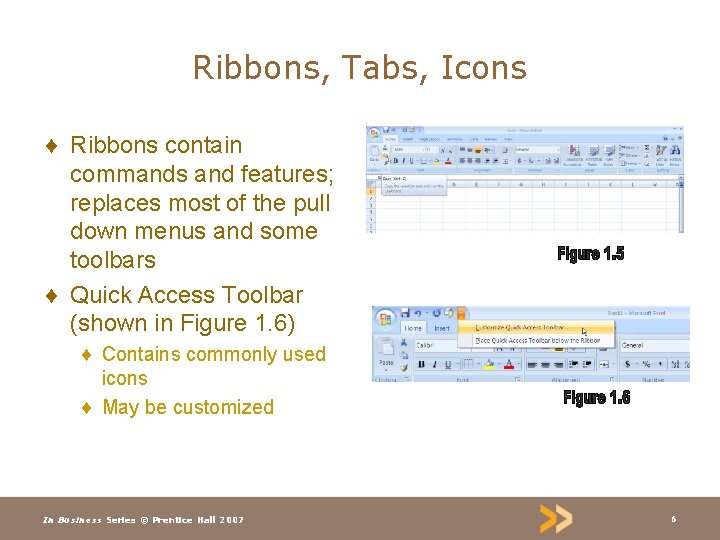
Ribbons, Tabs, Icons ¨ Ribbons contain commands and features; replaces most of the pull down menus and some toolbars ¨ Quick Access Toolbar (shown in Figure 1. 6) ¨ Contains commonly used icons ¨ May be customized In Business Series © Prentice Hall 2007 6
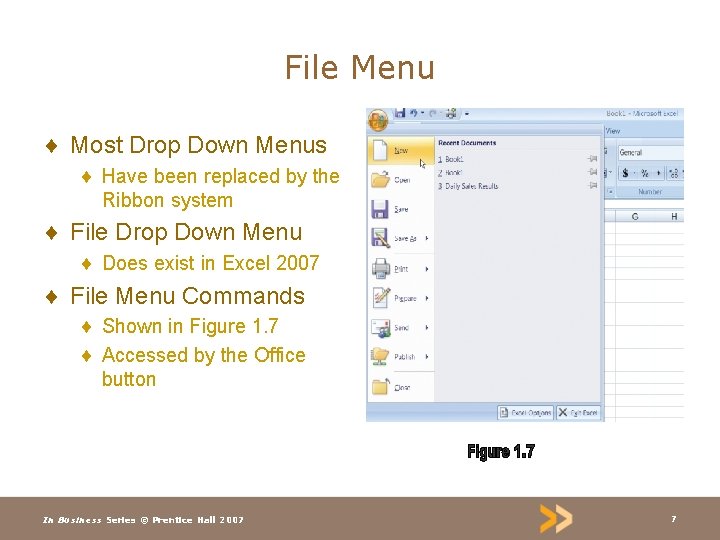
File Menu ¨ Most Drop Down Menus ¨ Have been replaced by the Ribbon system ¨ File Drop Down Menu ¨ Does exist in Excel 2007 ¨ File Menu Commands ¨ Shown in Figure 1. 7 ¨ Accessed by the Office button In Business Series © Prentice Hall 2007 7
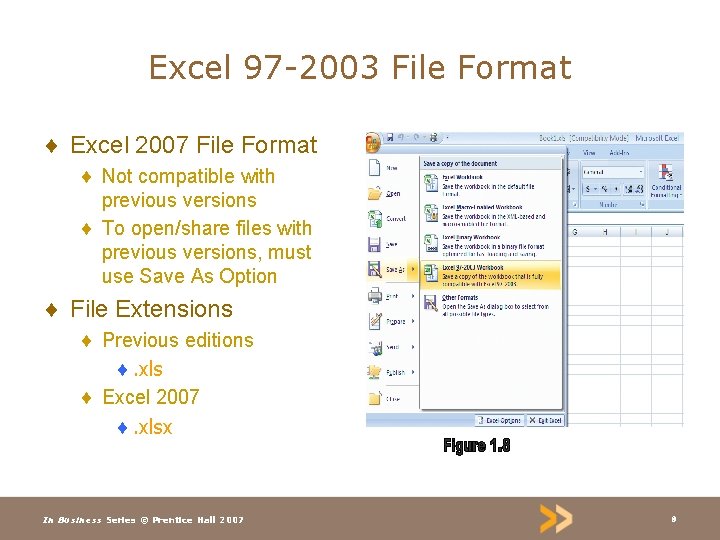
Excel 97 -2003 File Format ¨ Excel 2007 File Format ¨ Not compatible with previous versions ¨ To open/share files with previous versions, must use Save As Option ¨ File Extensions ¨ Previous editions ¨. xls ¨ Excel 2007 ¨. xlsx In Business Series © Prentice Hall 2007 8
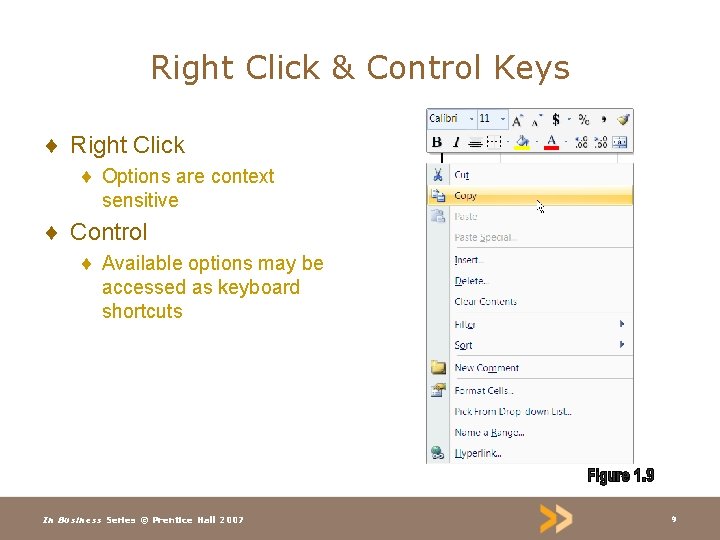
Right Click & Control Keys ¨ Right Click ¨ Options are context sensitive ¨ Control ¨ Available options may be accessed as keyboard shortcuts In Business Series © Prentice Hall 2007 9
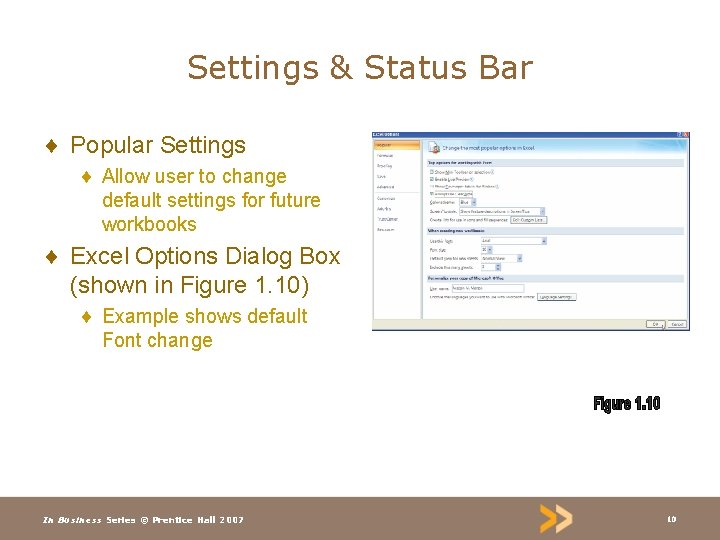
Settings & Status Bar ¨ Popular Settings ¨ Allow user to change default settings for future workbooks ¨ Excel Options Dialog Box (shown in Figure 1. 10) ¨ Example shows default Font change In Business Series © Prentice Hall 2007 10
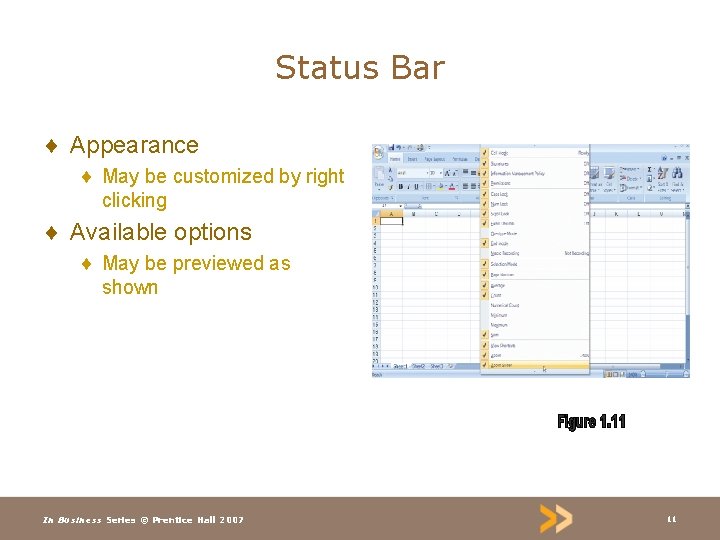
Status Bar ¨ Appearance ¨ May be customized by right clicking ¨ Available options ¨ May be previewed as shown In Business Series © Prentice Hall 2007 11
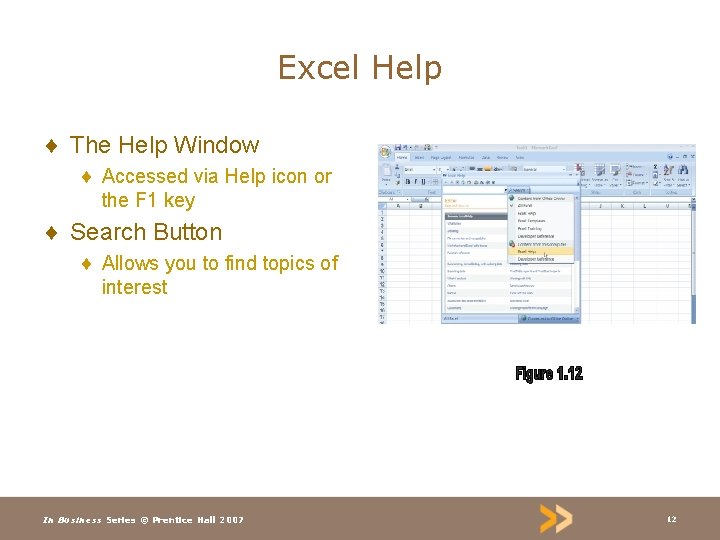
Excel Help ¨ The Help Window ¨ Accessed via Help icon or the F 1 key ¨ Search Button ¨ Allows you to find topics of interest In Business Series © Prentice Hall 2007 12
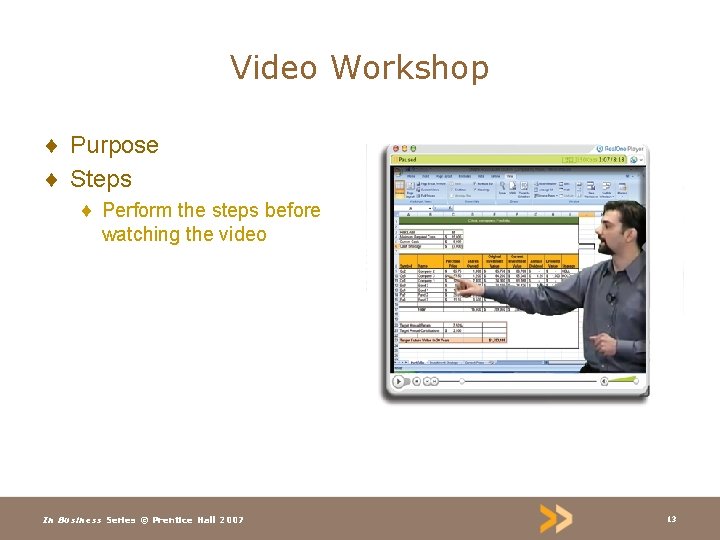
Video Workshop ¨ Purpose ¨ Steps ¨ Perform the steps before watching the video In Business Series © Prentice Hall 2007 13
Why Do I Need This? ¨ Cell Referencing ¨ Exercises illustrate how to maximize Excel’s cell referencing capabilities ¨ What is Wrong with This Spreadsheet? ¨ Gives you the opportunity to apply the concepts learned ¨ Will be offered in future chapters In Business Series © Prentice Hall 2007 14
Question Exercises ¨ Anecdote Questions for Discussion ¨ Review Questions ¨ Skills Exam ¨ Used to test knowledge of various skills ¨ Relate to Business applications ¨ Will begin at the end of Chapter 2 ¨ Challenge Question ¨ No specific solution method ¨ Results must be accurate In Business Series © Prentice Hall 2007 15
Chapter Summary ¨ Paper Spreadsheet ¨ Electronic Spreadsheet ¨ Excel Overview ¨ Ribbons, Tabs, Icons ¨ File Menu ¨ Excel 97 -2003 File Format In Business Series © Prentice Hall 2007 16
Chapter Summary (cont. ) ¨ Right Click & Control Keys ¨ Settings & Status Bar ¨ Excel Help In Business Series © Prentice Hall 2007 17
- Slides: 17