
Microsoft Office 2016 In Practice Chapter 1 Creating


- Slides: 38
Microsoft Office 2016: In Practice Chapter 1 Creating and Editing Workbooks 12/3/2020 © 2017 by Mc. Graw-Hill Education. This proprietary material is solely for authorized instructor use. Not authorized for sale or distribution in any manner. This document may not be copied, scanned, duplicated, forwarded, distributed, or posted on a website, in whole or part. 1
Student Learning Outcomes Creating, Saving, and Opening a Workbook Microsoft Office 2016: In Practice Entering and Editing Data Using the SUM Function Formatting a Worksheet Modifying Columns and Rows Modifying Worksheets Modifying the Appearance of the Workbook Finalizing a Workbook © 2017 by Mc. Graw-Hill Education. This proprietary material is solely for authorized instructor use. Not authorized for sale or distribution in any manner. This document may not be copied, scanned, duplicated, forwarded, distributed, or posted on a website, in whole or part.
Microsoft Office 2016: In Practice Case Study Paradise Lakes Resort (PLR) § Vacation company § Four resort chains § In northern Minnesota § Commonly use Excel © 2017 by Mc. Graw-Hill Education. This proprietary material is solely for authorized instructor use. Not authorized for sale or distribution in any manner. This document may not be copied, scanned, duplicated, forwarded, distributed, or posted on a website, in whole or part.
Microsoft Office 2016: In Creating, Saving, and Opening a Workbook SLO 1. 1 © 2017 by Mc. Graw-Hill Education. This proprietary material is solely for authorized instructor use. Not authorized for sale or distribution in any manner. This document may not be copied, scanned, duplicated, forwarded, distributed, or posted on a website, in whole or part. 4
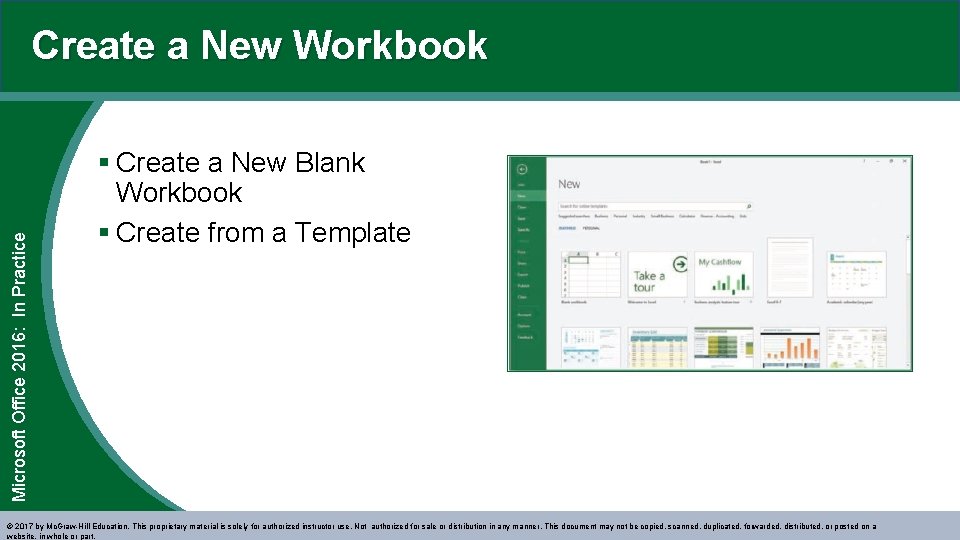
Microsoft Office 2016: In Practice Create a New Workbook § Create a New Blank Workbook § Create from a Template © 2017 by Mc. Graw-Hill Education. This proprietary material is solely for authorized instructor use. Not authorized for sale or distribution in any manner. This document may not be copied, scanned, duplicated, forwarded, distributed, or posted on a website, in whole or part.
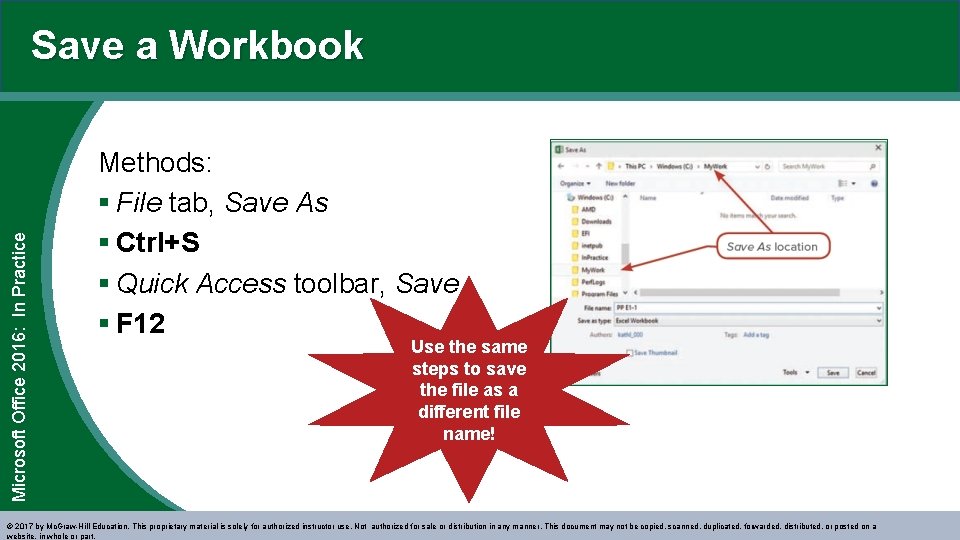
Microsoft Office 2016: In Practice Save a Workbook Methods: § File tab, Save As § Ctrl+S § Quick Access toolbar, Save § F 12 Use the same steps to save the file as a different file name! © 2017 by Mc. Graw-Hill Education. This proprietary material is solely for authorized instructor use. Not authorized for sale or distribution in any manner. This document may not be copied, scanned, duplicated, forwarded, distributed, or posted on a website, in whole or part.
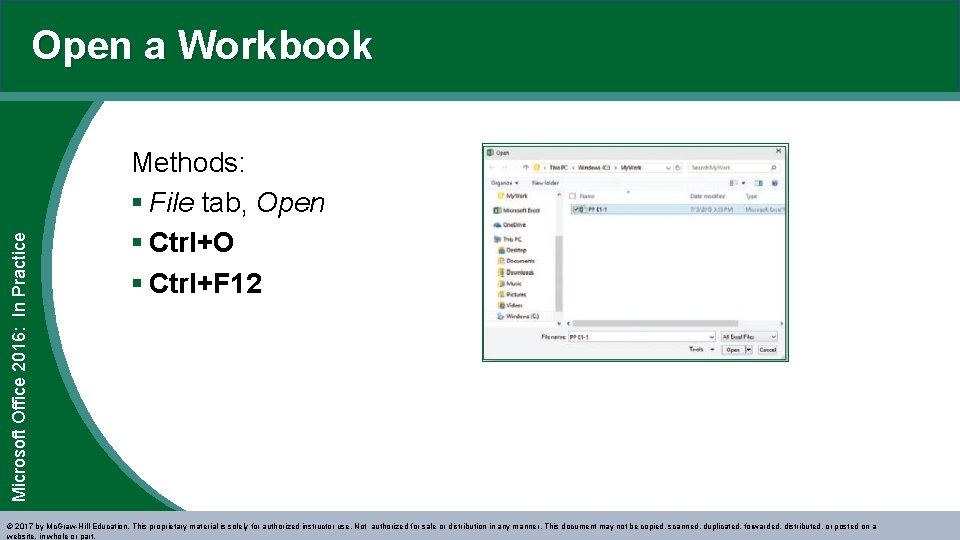
Microsoft Office 2016: In Practice Open a Workbook Methods: § File tab, Open § Ctrl+O § Ctrl+F 12 © 2017 by Mc. Graw-Hill Education. This proprietary material is solely for authorized instructor use. Not authorized for sale or distribution in any manner. This document may not be copied, scanned, duplicated, forwarded, distributed, or posted on a website, in whole or part.
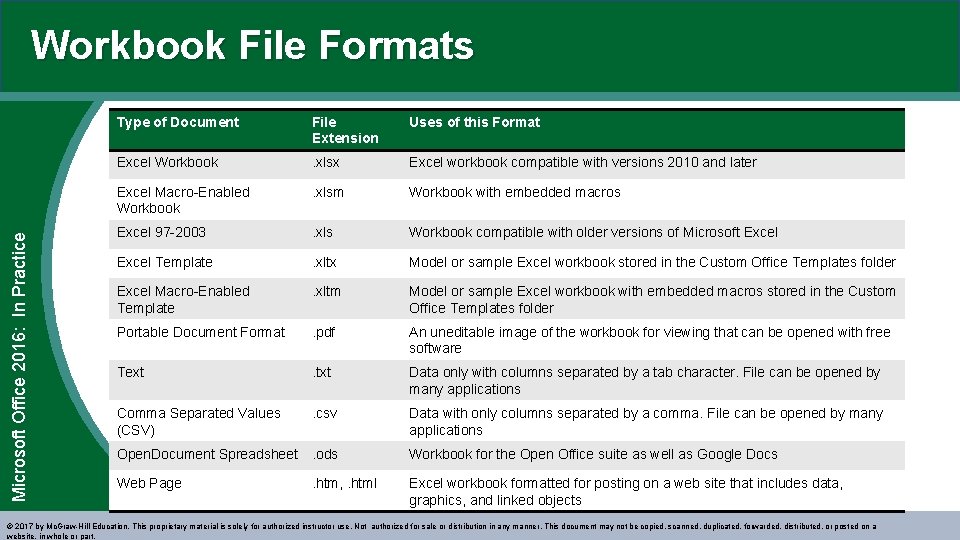
Microsoft Office 2016: In Practice Workbook File Formats Type of Document File Extension Uses of this Format Excel Workbook . xlsx Excel workbook compatible with versions 2010 and later Excel Macro-Enabled Workbook . xlsm Workbook with embedded macros Excel 97 -2003 . xls Workbook compatible with older versions of Microsoft Excel Template . xltx Model or sample Excel workbook stored in the Custom Office Templates folder Excel Macro-Enabled Template . xltm Model or sample Excel workbook with embedded macros stored in the Custom Office Templates folder Portable Document Format . pdf An uneditable image of the workbook for viewing that can be opened with free software Text . txt Data only with columns separated by a tab character. File can be opened by many applications Comma Separated Values (CSV) . csv Data with only columns separated by a comma. File can be opened by many applications Open. Document Spreadsheet. ods Workbook for the Open Office suite as well as Google Docs Web Page Excel workbook formatted for posting on a web site that includes data, graphics, and linked objects . htm, . html © 2017 by Mc. Graw-Hill Education. This proprietary material is solely for authorized instructor use. Not authorized for sale or distribution in any manner. This document may not be copied, scanned, duplicated, forwarded, distributed, or posted on a website, in whole or part.
Microsoft Office 2016: In Entering and Editing Data SLO 1. 2 © 2017 by Mc. Graw-Hill Education. This proprietary material is solely for authorized instructor use. Not authorized for sale or distribution in any manner. This document may not be copied, scanned, duplicated, forwarded, distributed, or posted on a website, in whole or part. 9
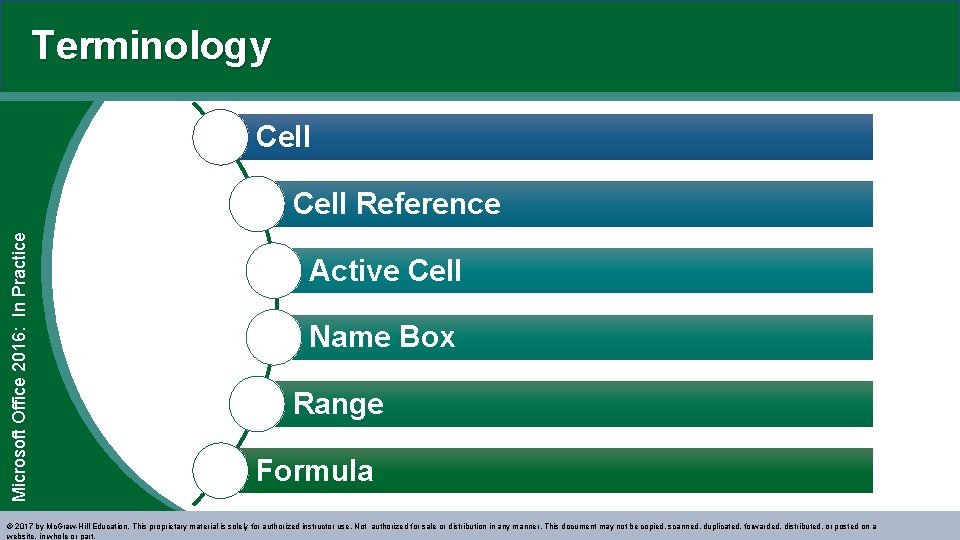
Terminology Cell Microsoft Office 2016: In Practice Cell Reference Active Cell Name Box Range Formula © 2017 by Mc. Graw-Hill Education. This proprietary material is solely for authorized instructor use. Not authorized for sale or distribution in any manner. This document may not be copied, scanned, duplicated, forwarded, distributed, or posted on a website, in whole or part.
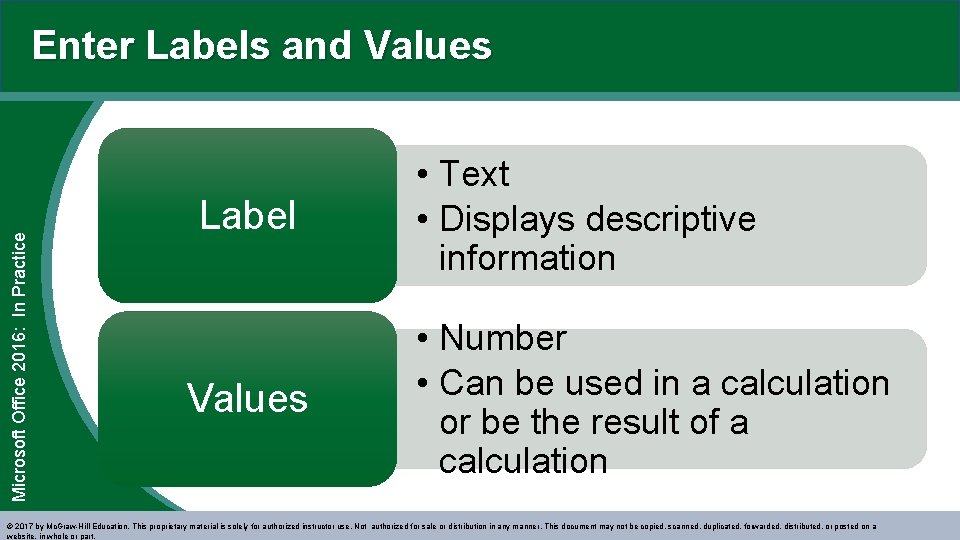
Microsoft Office 2016: In Practice Enter Labels and Values Label Values • Text • Displays descriptive information • Number • Can be used in a calculation or be the result of a calculation © 2017 by Mc. Graw-Hill Education. This proprietary material is solely for authorized instructor use. Not authorized for sale or distribution in any manner. This document may not be copied, scanned, duplicated, forwarded, distributed, or posted on a website, in whole or part.
Microsoft Office 2016: In Practice Edit, Replace, or Clear Cell Contents Edit Replac e Clear © 2017 by Mc. Graw-Hill Education. This proprietary material is solely for authorized instructor use. Not authorized for sale or distribution in any manner. This document may not be copied, scanned, duplicated, forwarded, distributed, or posted on a website, in whole or part.
Microsoft Office 2016: In Practice Align and Indent Cell Contents Alignment Indentatio n © 2017 by Mc. Graw-Hill Education. This proprietary material is solely for authorized instructor use. Not authorized for sale or distribution in any manner. This document may not be copied, scanned, duplicated, forwarded, distributed, or posted on a website, in whole or part.
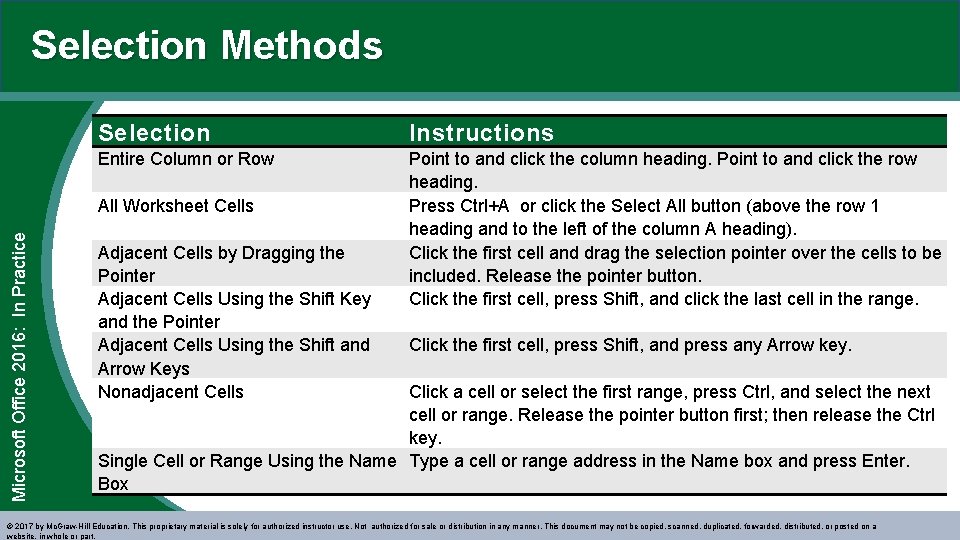
Selection Methods Selection Instructions Entire Column or Row Point to and click the column heading. Point to and click the row heading. Press Ctrl+A or click the Select All button (above the row 1 heading and to the left of the column A heading). Click the first cell and drag the selection pointer over the cells to be included. Release the pointer button. Click the first cell, press Shift, and click the last cell in the range. Microsoft Office 2016: In Practice All Worksheet Cells Adjacent Cells by Dragging the Pointer Adjacent Cells Using the Shift Key and the Pointer Adjacent Cells Using the Shift and Arrow Keys Nonadjacent Cells Click the first cell, press Shift, and press any Arrow key. Click a cell or select the first range, press Ctrl, and select the next cell or range. Release the pointer button first; then release the Ctrl key. Single Cell or Range Using the Name Type a cell or range address in the Name box and press Enter. Box © 2017 by Mc. Graw-Hill Education. This proprietary material is solely for authorized instructor use. Not authorized for sale or distribution in any manner. This document may not be copied, scanned, duplicated, forwarded, distributed, or posted on a website, in whole or part.
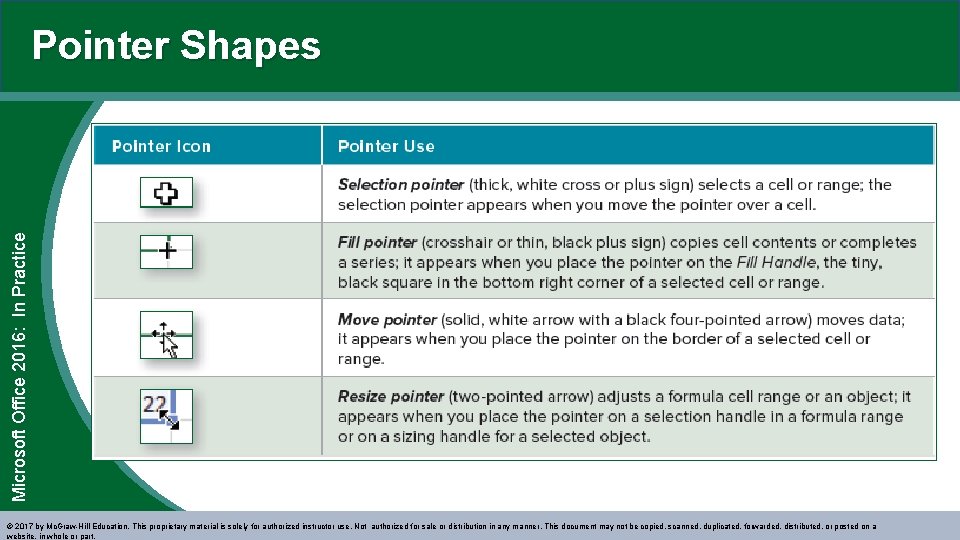
Microsoft Office 2016: In Practice Pointer Shapes © 2017 by Mc. Graw-Hill Education. This proprietary material is solely for authorized instructor use. Not authorized for sale or distribution in any manner. This document may not be copied, scanned, duplicated, forwarded, distributed, or posted on a website, in whole or part.
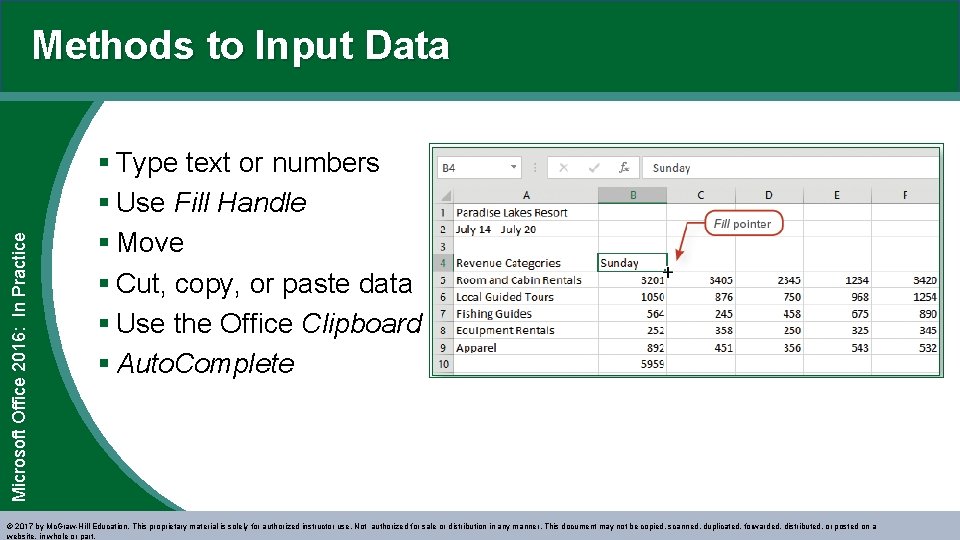
Microsoft Office 2016: In Practice Methods to Input Data § Type text or numbers § Use Fill Handle § Move § Cut, copy, or paste data § Use the Office Clipboard § Auto. Complete © 2017 by Mc. Graw-Hill Education. This proprietary material is solely for authorized instructor use. Not authorized for sale or distribution in any manner. This document may not be copied, scanned, duplicated, forwarded, distributed, or posted on a website, in whole or part.
Microsoft Office 2016: In Using the Sum Function SLO 1. 3 © 2017 by Mc. Graw-Hill Education. This proprietary material is solely for authorized instructor use. Not authorized for sale or distribution in any manner. This document may not be copied, scanned, duplicated, forwarded, distributed, or posted on a website, in whole or part. 17
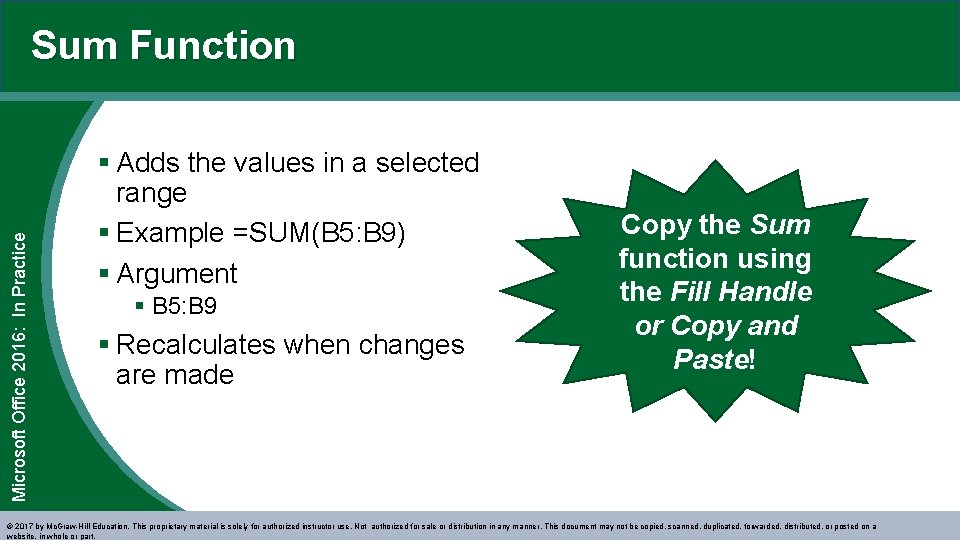
Microsoft Office 2016: In Practice Sum Function § Adds the values in a selected range § Example =SUM(B 5: B 9) § Argument § B 5: B 9 § Recalculates when changes are made Copy the Sum function using the Fill Handle or Copy and Paste! © 2017 by Mc. Graw-Hill Education. This proprietary material is solely for authorized instructor use. Not authorized for sale or distribution in any manner. This document may not be copied, scanned, duplicated, forwarded, distributed, or posted on a website, in whole or part.
Microsoft Office 2016: In Formatting a Worksheet SLO 1. 4 © 2017 by Mc. Graw-Hill Education. This proprietary material is solely for authorized instructor use. Not authorized for sale or distribution in any manner. This document may not be copied, scanned, duplicated, forwarded, distributed, or posted on a website, in whole or part. 19
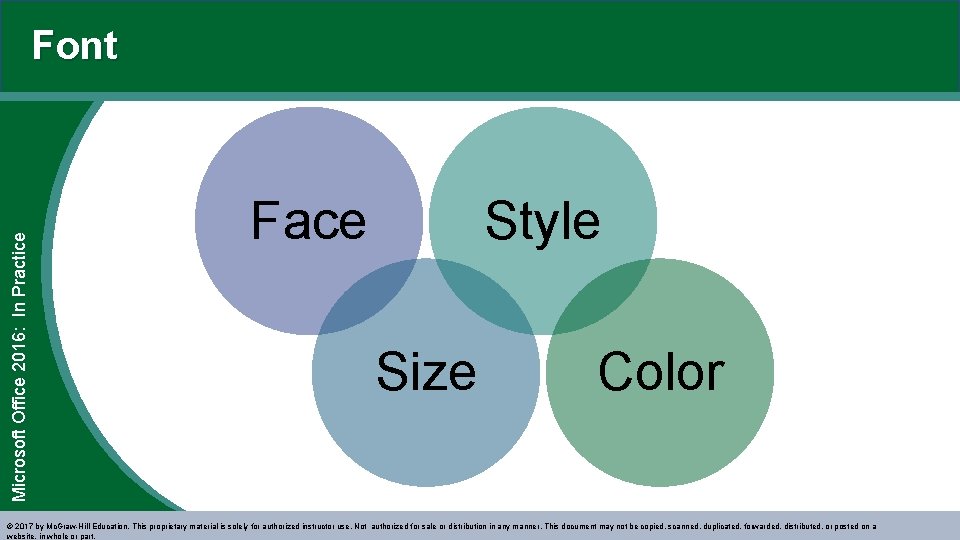
Microsoft Office 2016: In Practice Font Face Style Size Color © 2017 by Mc. Graw-Hill Education. This proprietary material is solely for authorized instructor use. Not authorized for sale or distribution in any manner. This document may not be copied, scanned, duplicated, forwarded, distributed, or posted on a website, in whole or part.
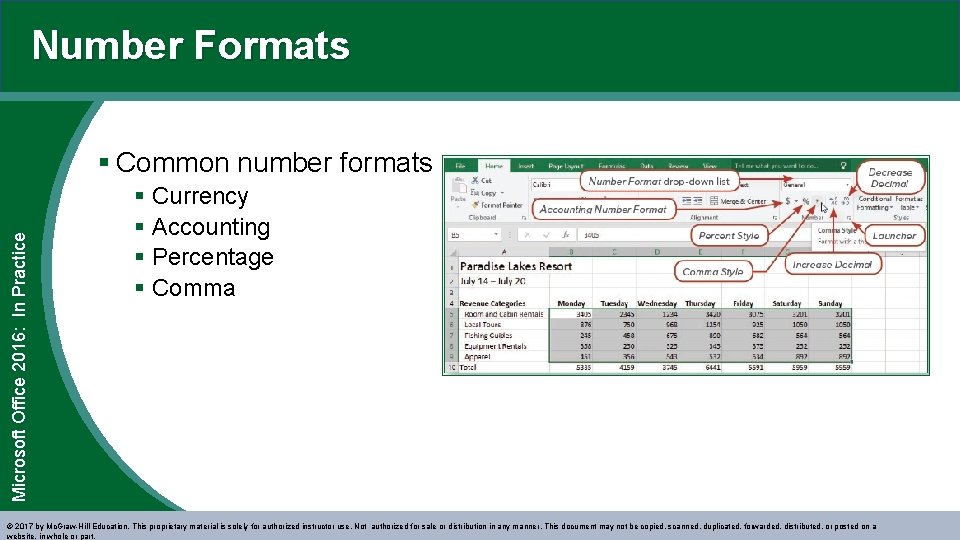
Number Formats Microsoft Office 2016: In Practice § Common number formats § Currency § Accounting § Percentage § Comma © 2017 by Mc. Graw-Hill Education. This proprietary material is solely for authorized instructor use. Not authorized for sale or distribution in any manner. This document may not be copied, scanned, duplicated, forwarded, distributed, or posted on a website, in whole or part.
Microsoft Office 2016: In Practice Borders and Fill § Design a border to separate main or column headings, to emphasize totals, or to group data § Apply fill to give cells a background color or pattern Use the Format Cells dialog box to make several changes at once! © 2017 by Mc. Graw-Hill Education. This proprietary material is solely for authorized instructor use. Not authorized for sale or distribution in any manner. This document may not be copied, scanned, duplicated, forwarded, distributed, or posted on a website, in whole or part.
Microsoft Office 2016: In Practice Cell Styles § Set of formatting elements § Can be customized § Includes font style, size, color, alignment, borders, fill, and number formats Provide a consistent and professional look! © 2017 by Mc. Graw-Hill Education. This proprietary material is solely for authorized instructor use. Not authorized for sale or distribution in any manner. This document may not be copied, scanned, duplicated, forwarded, distributed, or posted on a website, in whole or part.
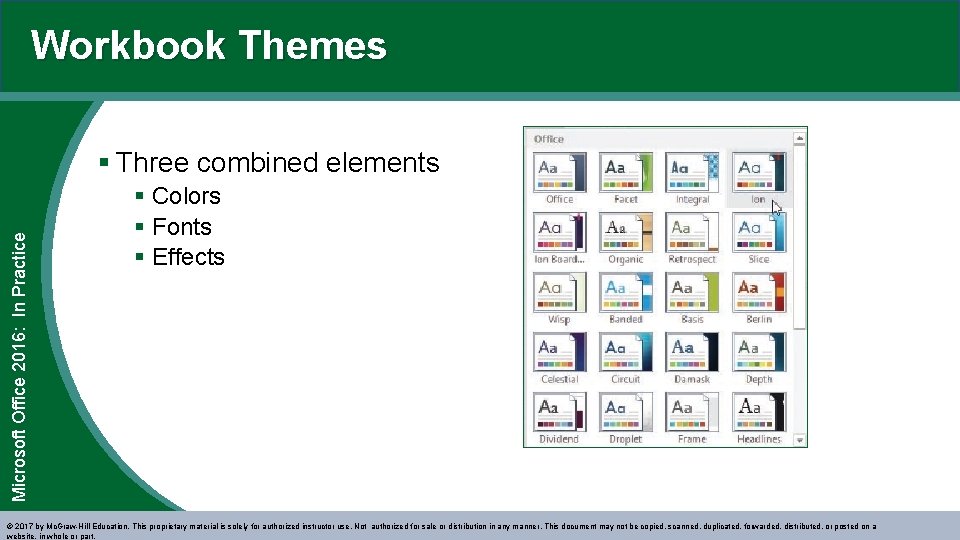
Workbook Themes Microsoft Office 2016: In Practice § Three combined elements § Colors § Fonts § Effects © 2017 by Mc. Graw-Hill Education. This proprietary material is solely for authorized instructor use. Not authorized for sale or distribution in any manner. This document may not be copied, scanned, duplicated, forwarded, distributed, or posted on a website, in whole or part.
Microsoft Office 2016: In Modifying Columns and Rows SLO 1. 5 © 2017 by Mc. Graw-Hill Education. This proprietary material is solely for authorized instructor use. Not authorized for sale or distribution in any manner. This document may not be copied, scanned, duplicated, forwarded, distributed, or posted on a website, in whole or part. 25
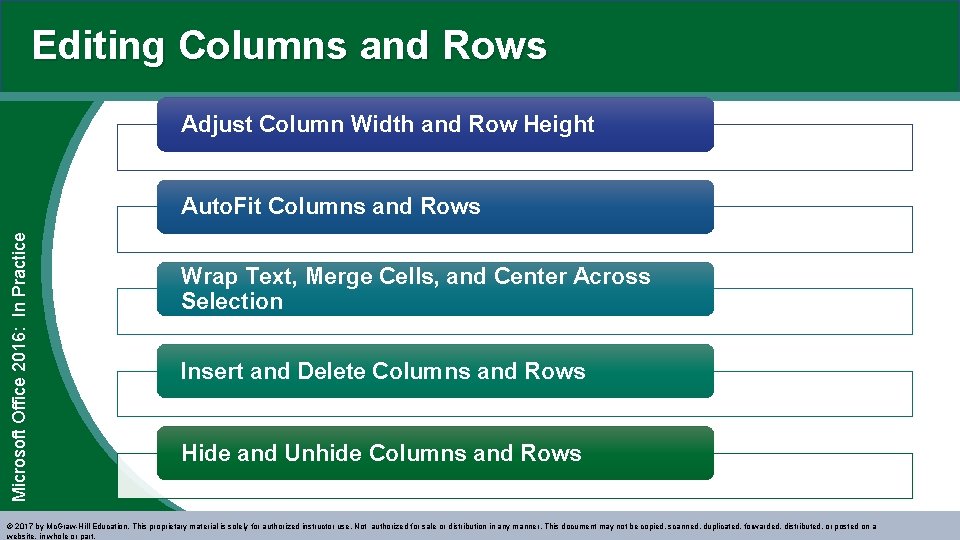
Editing Columns and Rows Adjust Column Width and Row Height Microsoft Office 2016: In Practice Auto. Fit Columns and Rows Wrap Text, Merge Cells, and Center Across Selection Insert and Delete Columns and Rows Hide and Unhide Columns and Rows © 2017 by Mc. Graw-Hill Education. This proprietary material is solely for authorized instructor use. Not authorized for sale or distribution in any manner. This document may not be copied, scanned, duplicated, forwarded, distributed, or posted on a website, in whole or part.
Microsoft Office 2016: In Modifying Worksheets SLO 1. 6 © 2017 by Mc. Graw-Hill Education. This proprietary material is solely for authorized instructor use. Not authorized for sale or distribution in any manner. This document may not be copied, scanned, duplicated, forwarded, distributed, or posted on a website, in whole or part. 27
Microsoft Office 2016: In Practice Editing Worksheets Insert and Delete Worksheets Rename Worksheets and Change Tab Color Move and Copy Worksheets © 2017 by Mc. Graw-Hill Education. This proprietary material is solely for authorized instructor use. Not authorized for sale or distribution in any manner. This document may not be copied, scanned, duplicated, forwarded, distributed, or posted on a website, in whole or part.
Microsoft Office 2016: In Modifying the Appearance of the Workbook SLO 1. 7 © 2017 by Mc. Graw-Hill Education. This proprietary material is solely for authorized instructor use. Not authorized for sale or distribution in any manner. This document may not be copied, scanned, duplicated, forwarded, distributed, or posted on a website, in whole or part. 29
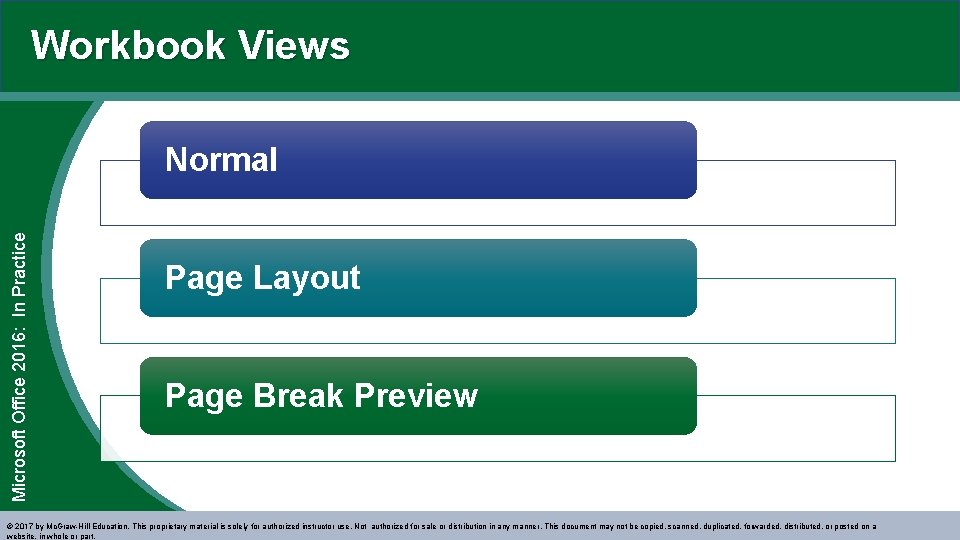
Workbook Views Microsoft Office 2016: In Practice Normal Page Layout Page Break Preview © 2017 by Mc. Graw-Hill Education. This proprietary material is solely for authorized instructor use. Not authorized for sale or distribution in any manner. This document may not be copied, scanned, duplicated, forwarded, distributed, or posted on a website, in whole or part.
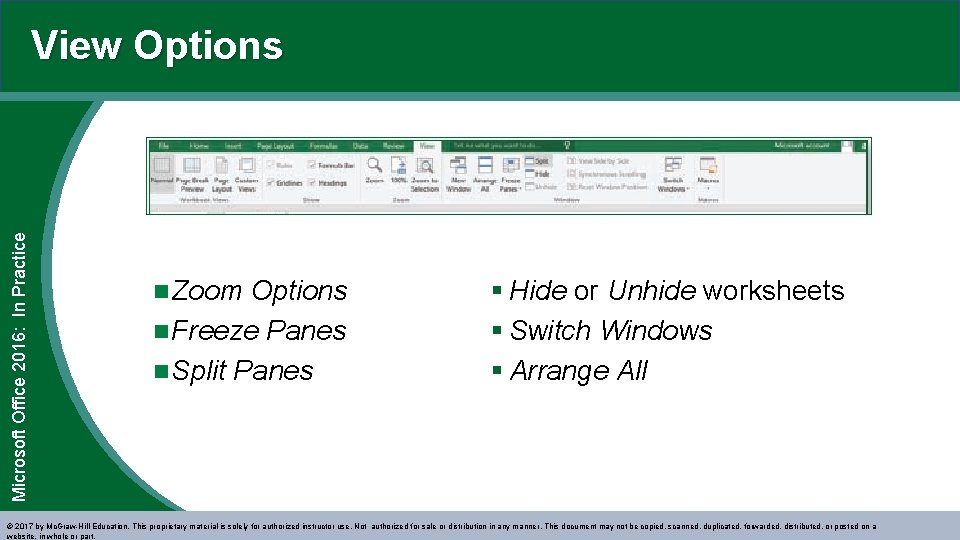
Microsoft Office 2016: In Practice View Options n Zoom Options n Freeze Panes n Split Panes § Hide or Unhide worksheets § Switch Windows § Arrange All © 2017 by Mc. Graw-Hill Education. This proprietary material is solely for authorized instructor use. Not authorized for sale or distribution in any manner. This document may not be copied, scanned, duplicated, forwarded, distributed, or posted on a website, in whole or part.
Microsoft Office 2016: In Finalizing a Workbook SLO 1. 8 © 2017 by Mc. Graw-Hill Education. This proprietary material is solely for authorized instructor use. Not authorized for sale or distribution in any manner. This document may not be copied, scanned, duplicated, forwarded, distributed, or posted on a website, in whole or part. 32
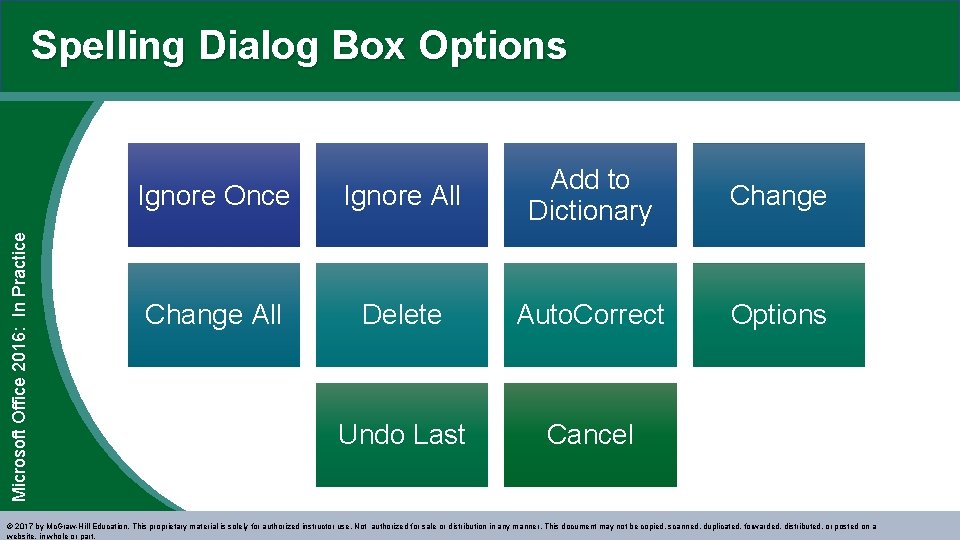
Microsoft Office 2016: In Practice Spelling Dialog Box Options Ignore Once Ignore All Add to Dictionary Change All Delete Auto. Correct Undo Last Cancel Change Options © 2017 by Mc. Graw-Hill Education. This proprietary material is solely for authorized instructor use. Not authorized for sale or distribution in any manner. This document may not be copied, scanned, duplicated, forwarded, distributed, or posted on a website, in whole or part.
Microsoft Office 2016: In Practice Modify Document Properties Document Panel Advanced Properties © 2017 by Mc. Graw-Hill Education. This proprietary material is solely for authorized instructor use. Not authorized for sale or distribution in any manner. This document may not be copied, scanned, duplicated, forwarded, distributed, or posted on a website, in whole or part.
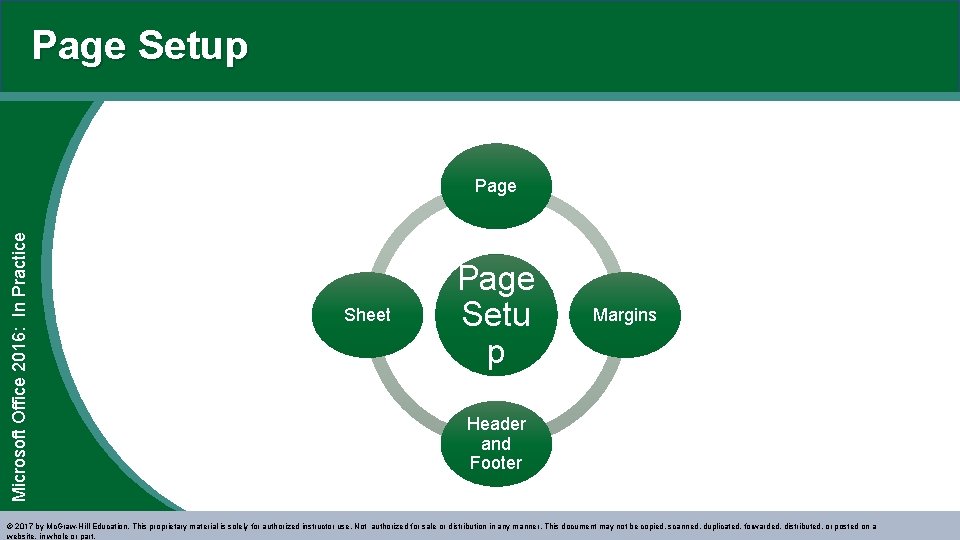
Page Setup Microsoft Office 2016: In Practice Page Sheet Page Setu p Margins Header and Footer © 2017 by Mc. Graw-Hill Education. This proprietary material is solely for authorized instructor use. Not authorized for sale or distribution in any manner. This document may not be copied, scanned, duplicated, forwarded, distributed, or posted on a website, in whole or part.
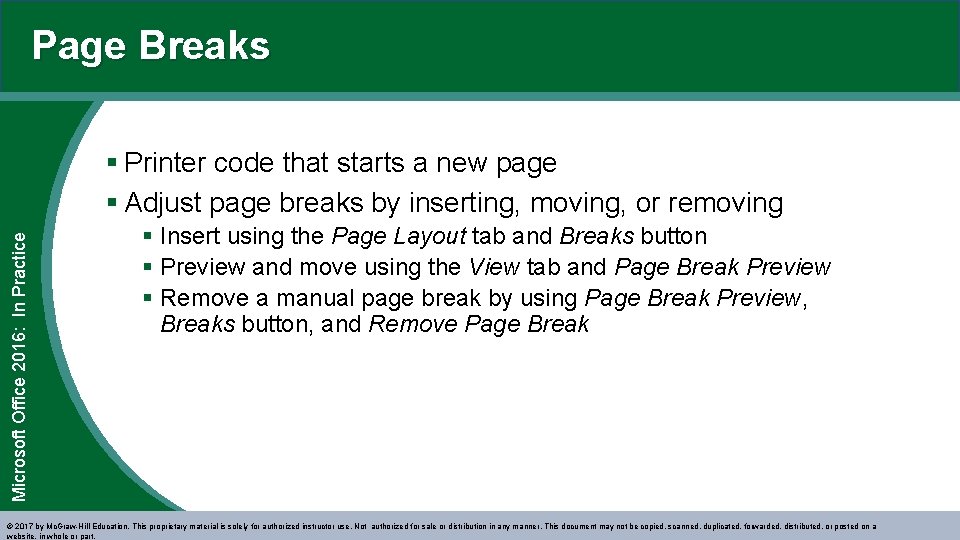
Page Breaks Microsoft Office 2016: In Practice § Printer code that starts a new page § Adjust page breaks by inserting, moving, or removing § Insert using the Page Layout tab and Breaks button § Preview and move using the View tab and Page Break Preview § Remove a manual page break by using Page Break Preview, Breaks button, and Remove Page Break © 2017 by Mc. Graw-Hill Education. This proprietary material is solely for authorized instructor use. Not authorized for sale or distribution in any manner. This document may not be copied, scanned, duplicated, forwarded, distributed, or posted on a website, in whole or part.
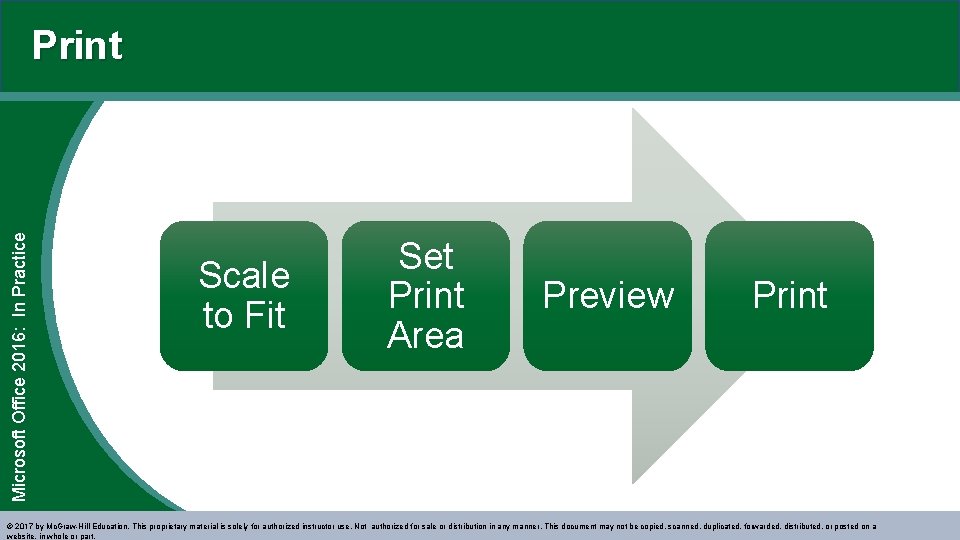
Microsoft Office 2016: In Practice Print Scale to Fit Set Print Area Preview Print © 2017 by Mc. Graw-Hill Education. This proprietary material is solely for authorized instructor use. Not authorized for sale or distribution in any manner. This document may not be copied, scanned, duplicated, forwarded, distributed, or posted on a website, in whole or part.
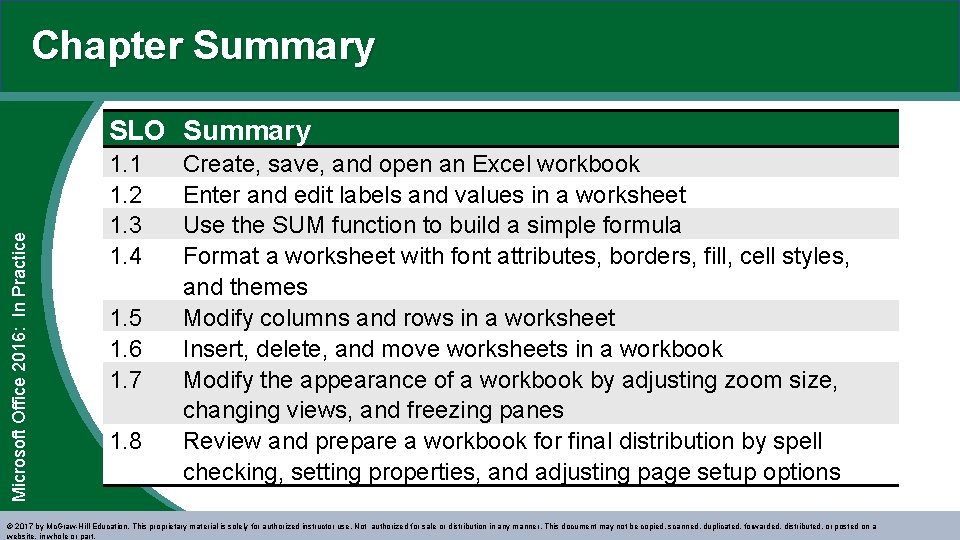
Chapter Summary Microsoft Office 2016: In Practice SLO Summary 1. 1 1. 2 1. 3 1. 4 1. 5 1. 6 1. 7 1. 8 Create, save, and open an Excel workbook Enter and edit labels and values in a worksheet Use the SUM function to build a simple formula Format a worksheet with font attributes, borders, fill, cell styles, and themes Modify columns and rows in a worksheet Insert, delete, and move worksheets in a workbook Modify the appearance of a workbook by adjusting zoom size, changing views, and freezing panes Review and prepare a workbook for final distribution by spell checking, setting properties, and adjusting page setup options © 2017 by Mc. Graw-Hill Education. This proprietary material is solely for authorized instructor use. Not authorized for sale or distribution in any manner. This document may not be copied, scanned, duplicated, forwarded, distributed, or posted on a website, in whole or part.