
Microsoft Office 2010 Illustrated Fundamentals Unit L Creating

- Slides: 26
Microsoft Office 2010 Illustrated Fundamentals Unit L: Creating Database Reports
Objectives • Create a report using the Report Wizard • View a report • Modify a report • Add a field to a report Microsoft Office 2010 -Illustrated Fundamentals 2
Objectives (cont’d) • Apply conditional formatting to a report • Add summary information to a report • Create mailing labels Microsoft Office 2010 -Illustrated Fundamentals 3
Unit L Introduction • A report is a summary of database information designed specifically for printing • A report can include one or more database fields, summary information, clip art, and descriptive labels • You create report from tables or queries • After a report is created it can be modified to present information clearly and attractively Microsoft Office 2010 -Illustrated Fundamentals 4
Creating a Report Using the Report Wizard • One way to create a report is by using the Report Wizard, which automatically create a report based on setting that you specify • You can create a report based on table or query data • Report data can be from on database object, or multiple objects Microsoft Office 2010 -Illustrated Fundamentals 5
Creating a Report Using the Report Wizard (cont. ) • Reports can be saved as objects in a database • Reports consist of sections that contain specific information • Choose the record source(s) to select the database object(s) from which a report gets its data • Use grouping to organize a report by field or field values Microsoft Office 2010 -Illustrated Fundamentals 6
Creating a Report Using the Report Wizard (cont. ) Report Wizard dialog box Report in Print Preview Microsoft Office 2010 -Illustrated Fundamentals 7
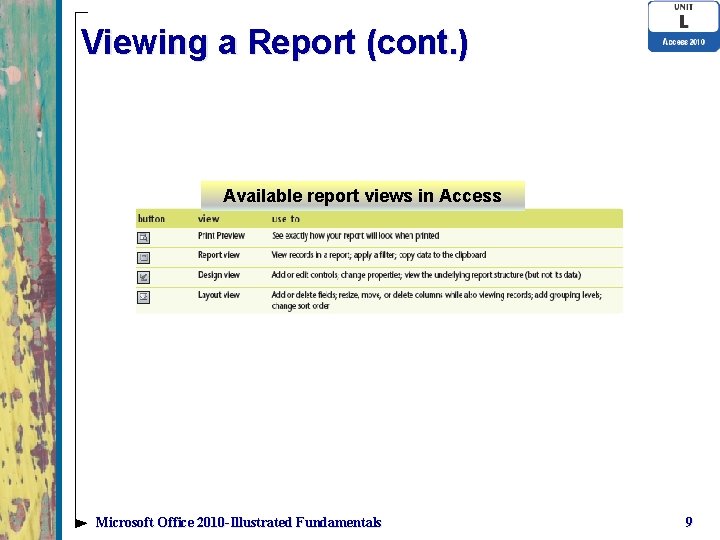
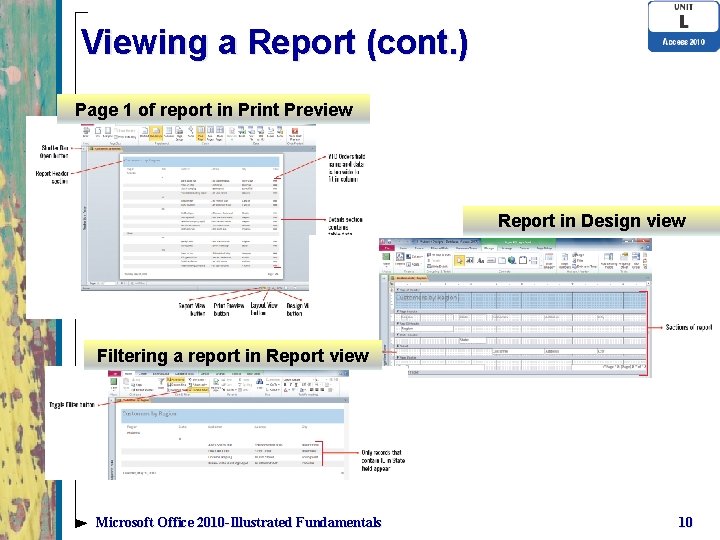
Viewing a Report • Access provides several ways to view a report • Print Preview-see exactly how the report will look when printed • Report View-looks similar to Print Preview, it displays the report in continuous flow without page break • Design View-includes many tools for modifying a report, but shows only the structure of the report not the included data • Layout View-does not include as many modification tools as Design view, but it shows you report data Microsoft Office 2010 -Illustrated Fundamentals 8
Viewing a Report (cont. ) Available report views in Access Microsoft Office 2010 -Illustrated Fundamentals 9
Viewing a Report (cont. ) Page 1 of report in Print Preview Report in Design view Filtering a report in Report view Microsoft Office 2010 -Illustrated Fundamentals 10
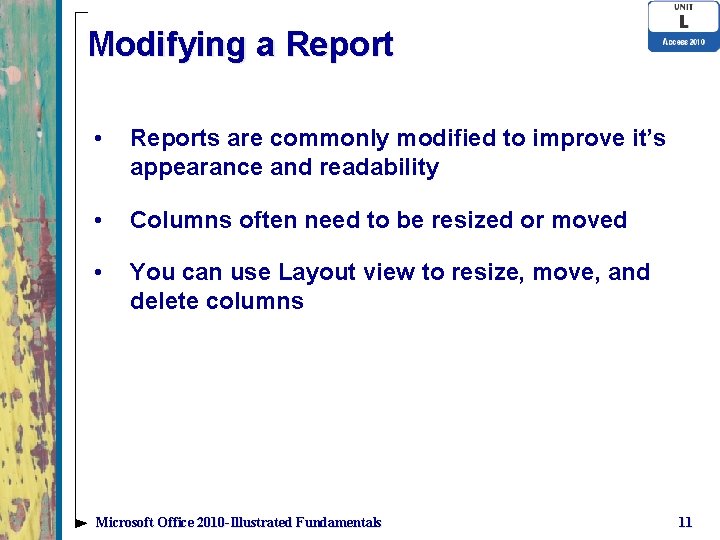
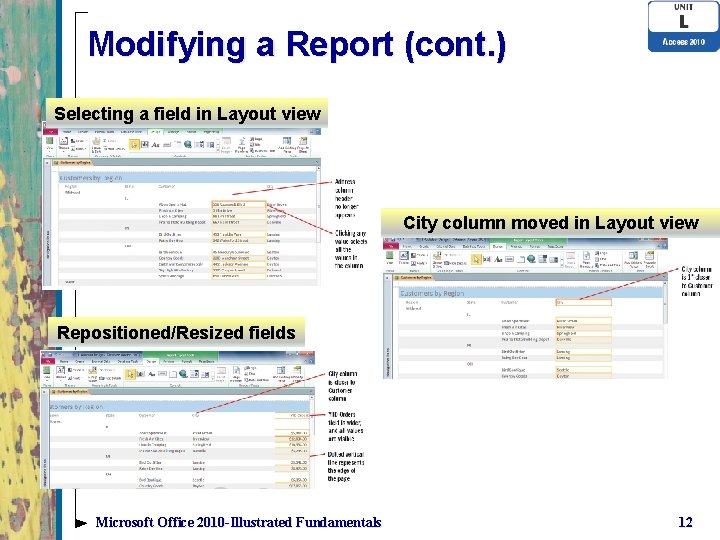
Modifying a Report • Reports are commonly modified to improve it’s appearance and readability • Columns often need to be resized or moved • You can use Layout view to resize, move, and delete columns Microsoft Office 2010 -Illustrated Fundamentals 11
Modifying a Report (cont. ) Selecting a field in Layout view City column moved in Layout view Repositioned/Resized fields Microsoft Office 2010 -Illustrated Fundamentals 12
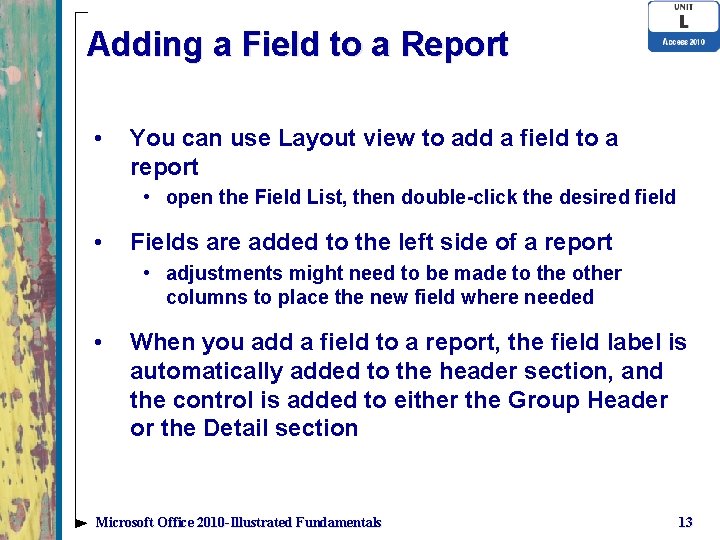
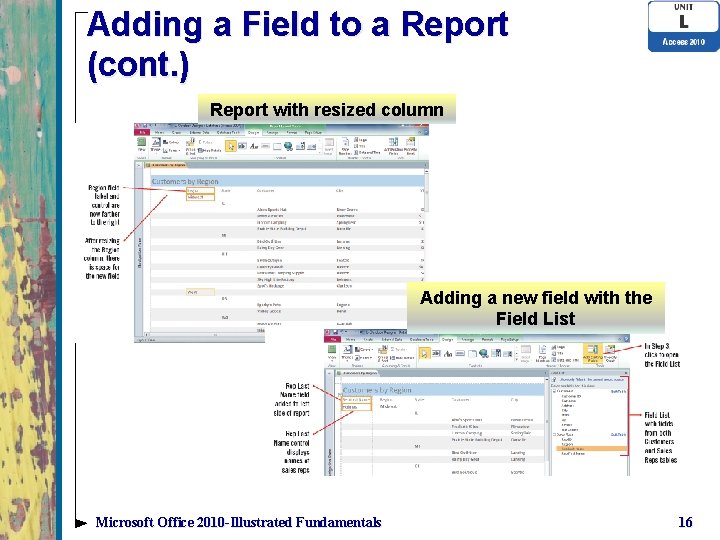
Adding a Field to a Report • You can use Layout view to add a field to a report • open the Field List, then double-click the desired field • Fields are added to the left side of a report • adjustments might need to be made to the other columns to place the new field where needed • When you add a field to a report, the field label is automatically added to the header section, and the control is added to either the Group Header or the Detail section Microsoft Office 2010 -Illustrated Fundamentals 13
Adding a Field to a Report (cont. ) • A field is composed of two parts: the field label, and its associated control • A control is an object that displays information in a report • Different controls are used for each data type Microsoft Office 2010 -Illustrated Fundamentals 14
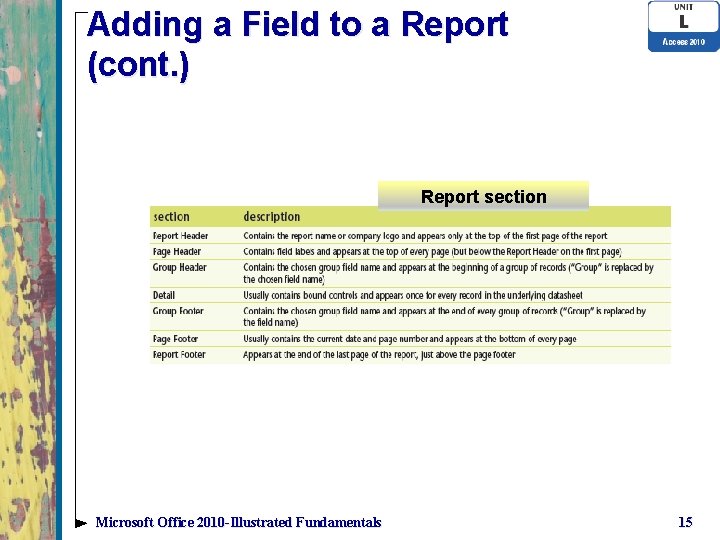
Adding a Field to a Report (cont. ) Report section Microsoft Office 2010 -Illustrated Fundamentals 15
Adding a Field to a Report (cont. ) Report with resized column Adding a new field with the Field List Microsoft Office 2010 -Illustrated Fundamentals 16
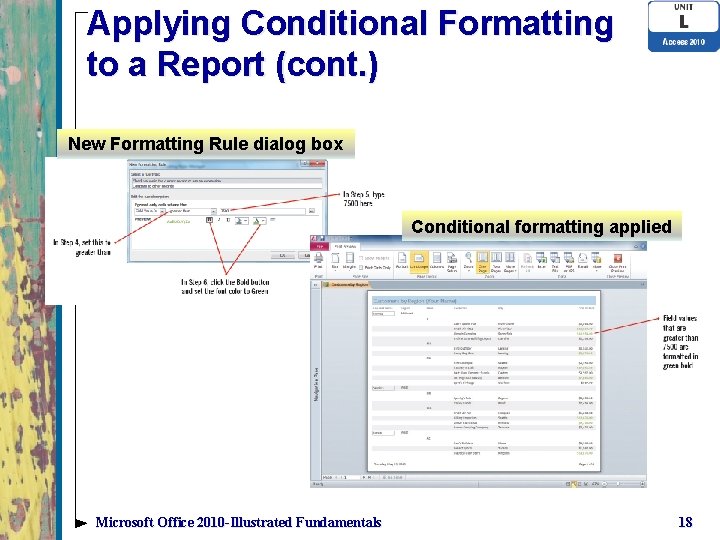
Applying Conditional Formatting to a Report • As in an Excel worksheet, you can apply conditional formatting in an Access report to highlight key information • Conditional formatting is a way to draw attention to information that meets specific • You access the Conditional formatting rules Manager dialog box from the Report Layout Tools Format tab in Layout view Microsoft Office 2010 -Illustrated Fundamentals 17
Applying Conditional Formatting to a Report (cont. ) New Formatting Rule dialog box Conditional formatting applied Microsoft Office 2010 -Illustrated Fundamentals 18
Applying a theme to a report • You can instantly change the appearance of a report by applying a theme • Access includes 40 different themes Microsoft Office 2010 -Illustrated Fundamentals 19
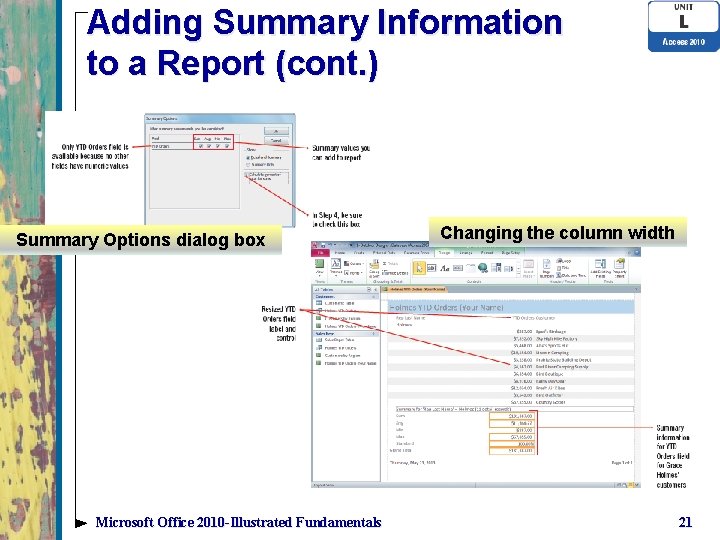
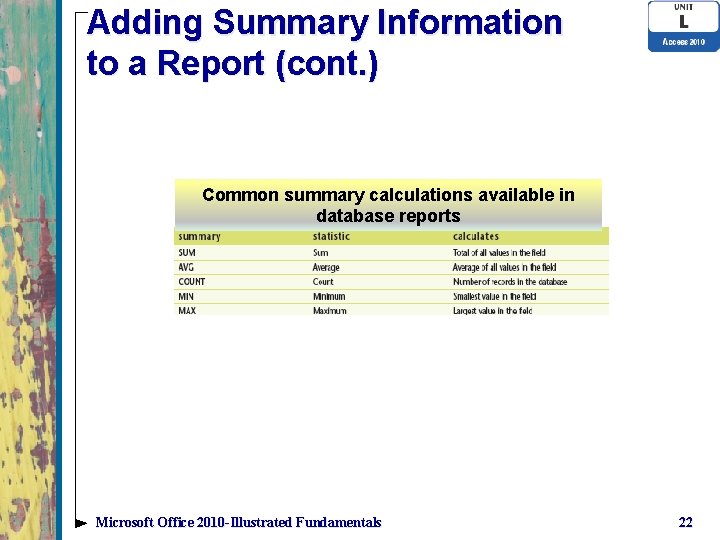
Adding Summary Information to a Report • Summary information in a report displays statistics about one or more fields in a database • Summaries include statistics for sum, average, count, minimum and maximum in any numeric field • There are five summary calculations you can use in your database reports • You can add summary information while creating the report with the Report Wizard Microsoft Office 2010 -Illustrated Fundamentals 20
Adding Summary Information to a Report (cont. ) Summary Options dialog box Microsoft Office 2010 -Illustrated Fundamentals Changing the column width 21
Adding Summary Information to a Report (cont. ) Common summary calculations available in database reports Microsoft Office 2010 -Illustrated Fundamentals 22
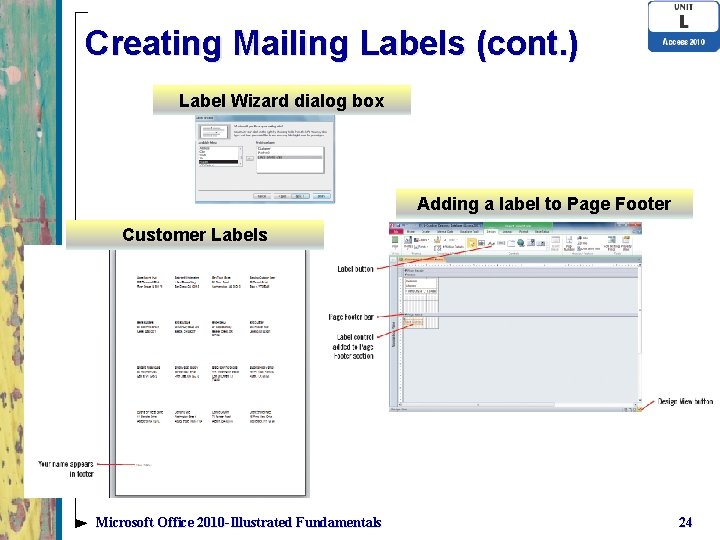
Creating Mailing Labels • You do not have to print all reports • You can use the data in a database to create other forms of printer output, such as labels or envelopes • Use the Label Wizard to create labels containing data from any fields in the database • Labels can be based on queries or tables Microsoft Office 2010 -Illustrated Fundamentals 23
Creating Mailing Labels (cont. ) Label Wizard dialog box Adding a label to Page Footer Customer Labels Microsoft Office 2010 -Illustrated Fundamentals 24
Summary • Reports are created from tables or queries in a database • One way to create a report is by using Report Wizard • Reports are easily modified in Layout view Microsoft Office 2010 -Illustrated Fundamentals 25
Summary • Use conditional formatting to highlight information that meets certain criteria • Summary information is useful in displaying certain statistics in a report • You can create mailing labels using the Label Wizard and specifying certain fields of a report to print (name and address) Microsoft Office 2010 -Illustrated Fundamentals 26