
Microsoft Office 2010 Illustrated Fundamentals Unit D Creating
- Slides: 36
Microsoft Office 2010 Illustrated Fundamentals Unit D: Creating a Document
Objectives • Create a new document from an existing file • Enter text in a document • Select and edit text • Copy text • Move text Microsoft Office 2010 -Illustrated Fundamentals 2
Objectives • • Find and replace text Format text using the Mini toolbar Check spelling and grammar Preview and print a document Microsoft Office 2010 -Illustrated Fundamentals 3
Unit Introduction • You can create professional-looking documents using Microsoft Word 2010 • You will learn the basic skills to create, edit, and print a document • Additional functions will include learning how to: • • Copy and move text Find and replace text Check spelling and grammar Preview a document before printing Microsoft Office 2010 -Illustrated Fundamentals 4
Creating a New Document from an Existing File • At times it is useful to create a new document that uses content from an existing document • Open the existing document and before making any changes you can use the Save As command to save a copy of the document • This keeps the original file intact in case you want to use it again • Using an existing document saves time and trouble of creating a new document from scratch Microsoft Office 2010 -Illustrated Fundamentals 5
Creating a new document from a template • Certain types of documents are easily created using a template in Word 2010 • a template is a file that contains formatting and layouts for a business letter, a memo, reports, and more • there are several templates in the Available Templates section that can be used • after selecting a template, a new document based on that template, opens ready for you complete • You can find additional templates at the Office. com site Microsoft Office 2010 -Illustrated Fundamentals 6
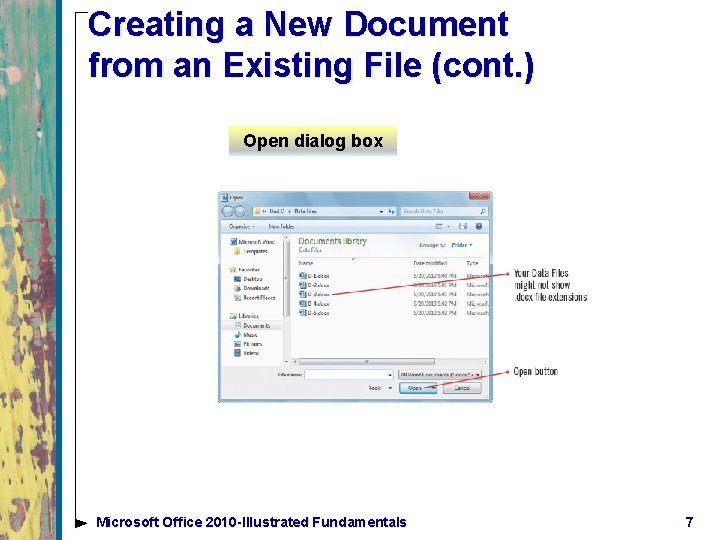
Creating a New Document from an Existing File (cont. ) Open dialog box Microsoft Office 2010 -Illustrated Fundamentals 7
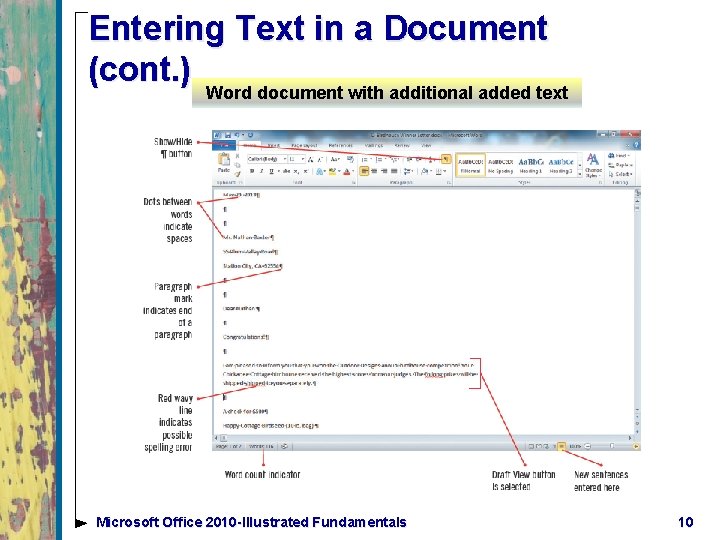
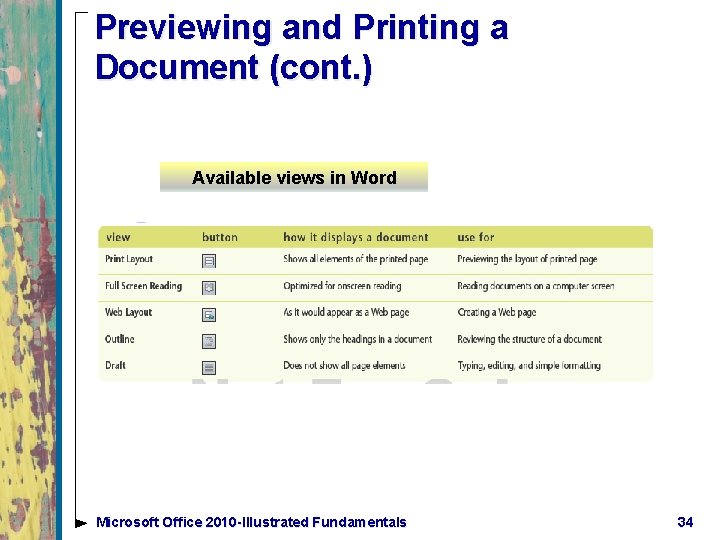
Entering Text in a Document • To add text to a document, click to position the insertion point, the blinking vertical line, where you want to insert text, and then start typing • Typing text is also called entering text • Before you start typing, check that you are viewing the document in a way suited to entering and editing text • Draft view is best for entering and editing text • in Draft view, several of the page elements are hidden • it is a good idea to turn on formatting marks to see the blank spaces and paragraph marks Microsoft Office 2010 -Illustrated Fundamentals 8
Entering Text in a Document (cont. ) • As you type the words move down, or wrap, to the next line automatically when the insertion point reaches the right margin • While entering text, if you type “teh” the Auto. Correct feature will automatically make the correction to “The” • You can work with Styles, which are settings that control how text and paragraphs are formatted • each document has its own set of styles which can be easily changed Microsoft Office 2010 -Illustrated Fundamentals 9
Entering Text in a Document (cont. ) Word document with additional added text Microsoft Office 2010 -Illustrated Fundamentals 10
Using Auto. Correct • The Auto. Correct feature works automatically to catch and correct incorrect spelling of common words as you type them • You can change Auto. Correct settings in the Auto. Correct dialog box Microsoft Office 2010 -Illustrated Fundamentals 11
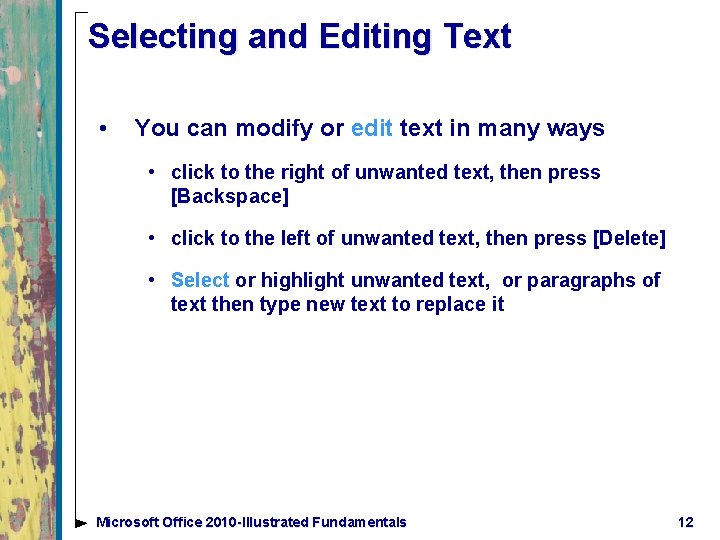
Selecting and Editing Text • You can modify or edit text in many ways • click to the right of unwanted text, then press [Backspace] • click to the left of unwanted text, then press [Delete] • Select or highlight unwanted text, or paragraphs of text then type new text to replace it Microsoft Office 2010 -Illustrated Fundamentals 12
Selecting and Editing Text (cont. ) • To be able to edit text you need to move the Insertion point around the document; you can use: • Point and click • using the keyboard • place the mouse pointer in the selection bar, area to the left of the left margin to select entire lines Microsoft Office 2010 -Illustrated Fundamentals 13
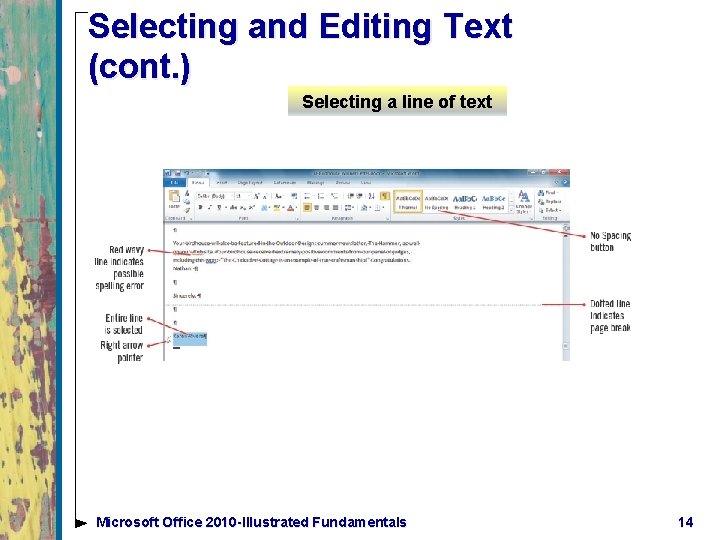
Selecting and Editing Text (cont. ) Selecting a line of text Microsoft Office 2010 -Illustrated Fundamentals 14
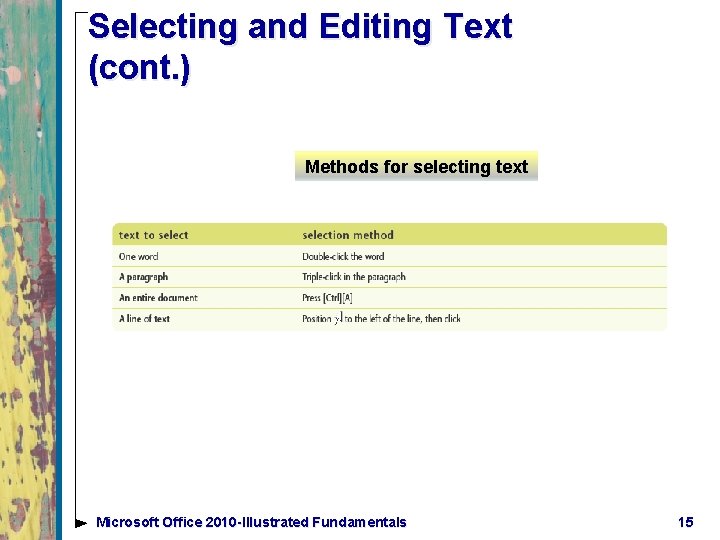
Selecting and Editing Text (cont. ) Methods for selecting text Microsoft Office 2010 -Illustrated Fundamentals 15
Copying Text • Copying leaves the text in the original location • Pasting moves a duplicate of it to a specified location • To copy and paste text, you first need to select the text to copy • The Copy command places a copy of the selected text on the Windows Clipboard, a temporary storage are in your computer’s memory • the Paste command inserts the copied text to a new location Microsoft Office 2010 -Illustrated Fundamentals 16
Copying Text (cont. ) • If you need to copy multiple items, you can use the Office Clipboard, which works with the Windows Clipboard • stores up to 24 terms at a time and is available only in Office programs • • To use the Office Clipboard, you need to open the Clipboard task pane To use drag and drop; select the text to copy, press and hold [Ctrl] then use the mouse to drag a copy of the selected text to the new location • items do not get placed on the Windows or Office Clipboard Microsoft Office 2010 -Illustrated Fundamentals 17
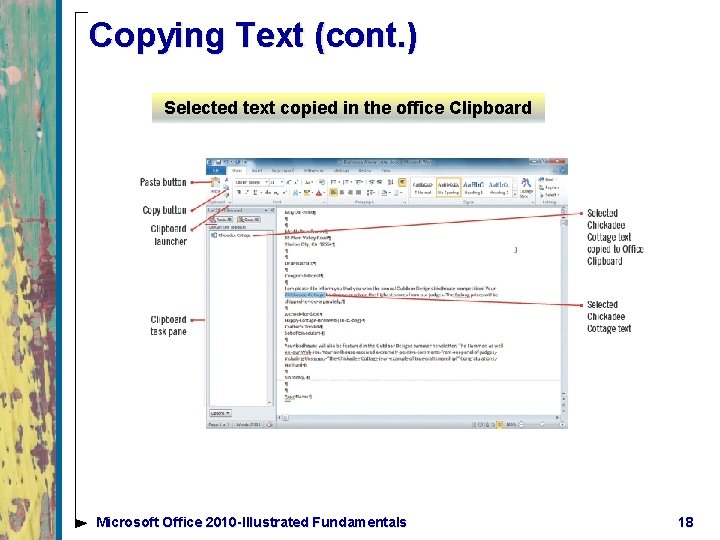
Copying Text (cont. ) Selected text copied in the office Clipboard Microsoft Office 2010 -Illustrated Fundamentals 18
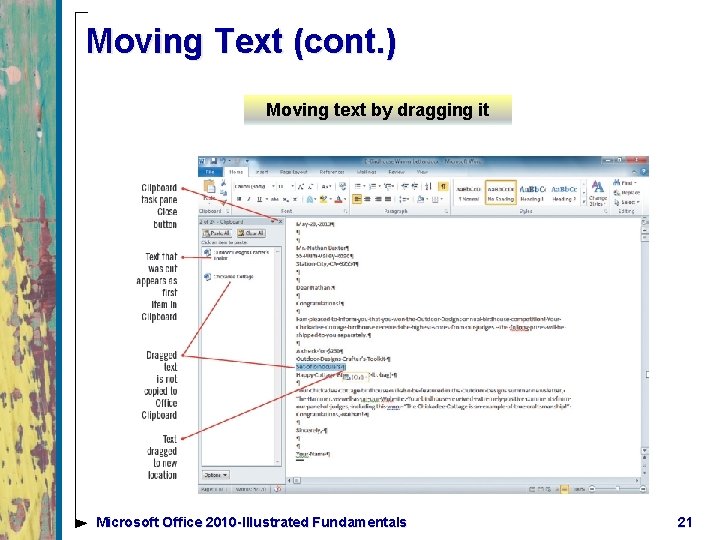
Moving Text • Moving text removes it from the original location and places it in a new specified location • You can move text from one location to another using these methods: • using the Cut command removes selected text and places it ion the Windows Clipboard • use the paste button to place the cut text in another location • Selecting and dragging selected text to a new location • items will not be copied to the Windows or Office Clipboard Microsoft Office 2010 -Illustrated Fundamentals 19
Activating the Office Clipboard • The Office Clipboard stores multiple items only if it active • Opening the Clipboard task pane automatically makes it active • If wanting to activate the Office Clipboard without showing the task pane, click Options to set it not to Collect Without Showing Office Clipboard • If the Office Clipboard is not active, you can only copy one item at a time using the Windows Clipboard Microsoft Office 2010 -Illustrated Fundamentals 20
Moving Text (cont. ) Moving text by dragging it Microsoft Office 2010 -Illustrated Fundamentals 21
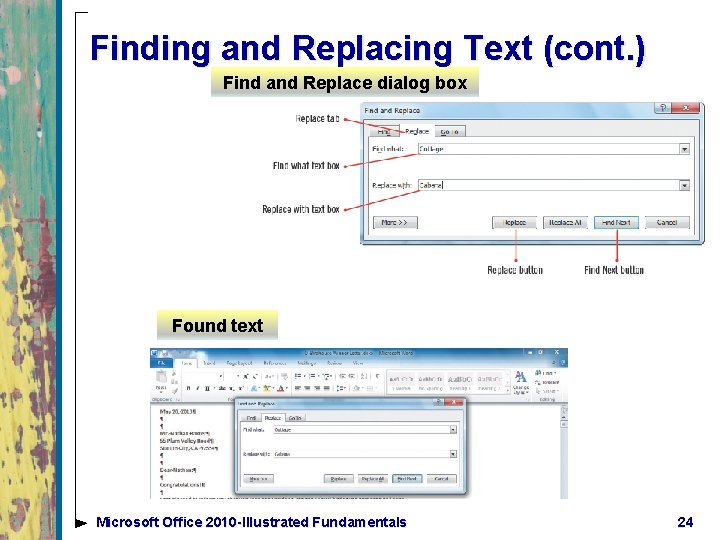
Finding and Replacing Text • The Replace command helps you quickly and easily substitute a new word or phrase for one or more occurrences • Use the Find and Replace dialog box to specify the text you want to find and the text with which you want to replace it • You can replace every occurrence of the text in one action, or you can review each occurrence and choose to replace it or keep the text Microsoft Office 2010 -Illustrated Fundamentals 22
Using the Navigation pane to find text • You can use the Navigation pane to quickly locate and highlight all instances of specified text • Use Find, type the text you want to find in the Search box • all instances of the text are highlighted in yellow in the document • the Navigation pane displays excerpts containing the text • click any excerpt in the Navigation pane to jump to the location of the instance of the text Microsoft Office 2010 -Illustrated Fundamentals 23
Finding and Replacing Text (cont. ) Find and Replace dialog box Found text Microsoft Office 2010 -Illustrated Fundamentals 24
Using the Research task pane • You have a powerful research tool in Office 2010, called the Research task pane • allows you look up information from several data sources provided by Microsoft and a growing number of partners • when the Research task pane opens on the right side of your screen providing the definition from Wikipedia, as well as additional information • you can also tap into many other data sources in the Research task pane, including a thesaurus, Bing, and several business and financial sites Microsoft Office 2010 -Illustrated Fundamentals 25
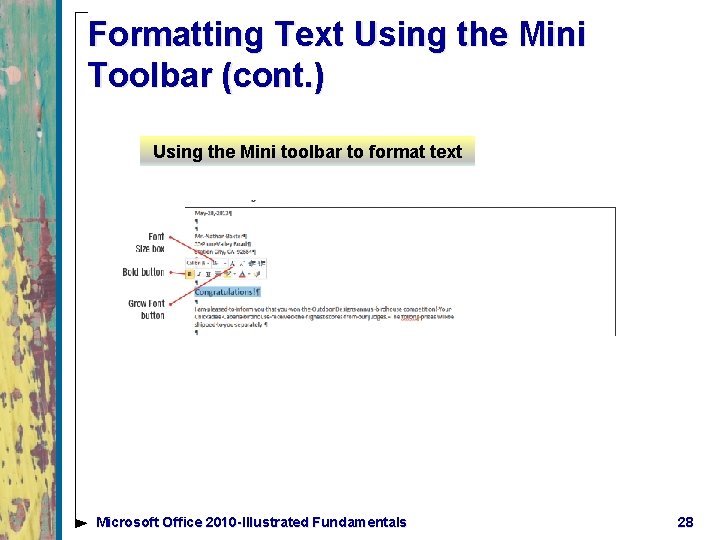
Formatting Text Using the Mini Toolbar • The Mini toolbar contains only the most common formatting commands • Use the Mini toolbar to make quick formatting changes to selected text • change the font (the design of a set of characters) such as Arial or Times New Roman • change the font style (bold, underline, italic) • change font size of selected text so that it is larger or smaller Microsoft Office 2010 -Illustrated Fundamentals 26
Formatting Text Using the Mini Toolbar (cont. ) • You can format selected paragraphs as a bulleted list using the shortcut menu • the shortcut menu opens above or below the Mini toolbar when you right-click the selected text • All of the Mini toolbar buttons are also available on the Home tab Microsoft Office 2010 -Illustrated Fundamentals 27
Formatting Text Using the Mini Toolbar (cont. ) Using the Mini toolbar to format text Microsoft Office 2010 -Illustrated Fundamentals 28
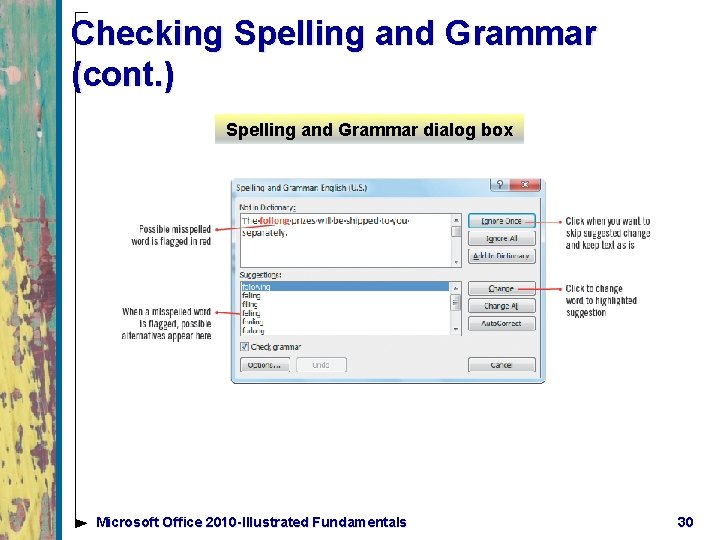
Checking Spelling and Grammar • Word provides tools to ensure your documents are free of errors • Auto. Correct feature corrects errors as you type (changes “teh” to “the”) • Word identifies possible misspellings with red wavy underlines and possible grammatical errors with green wavy underlines • the program identifies possible misspelled words by comparing each word to its built-in dictionary • you can open the Spelling and Grammar dialog box or right-click flagged misspelled words to identify and correct errors Microsoft Office 2010 -Illustrated Fundamentals 29
Checking Spelling and Grammar (cont. ) Spelling and Grammar dialog box Microsoft Office 2010 -Illustrated Fundamentals 30
Translating words or documents into other languages • Word 2010 has the ability to translate any word in your document into more than 20 different languages • The Mini Translator displays a screen tip of any word your point to in a specified language • To use the Mini Translator you need to first specify the language to be used Microsoft Office 2010 -Illustrated Fundamentals 31
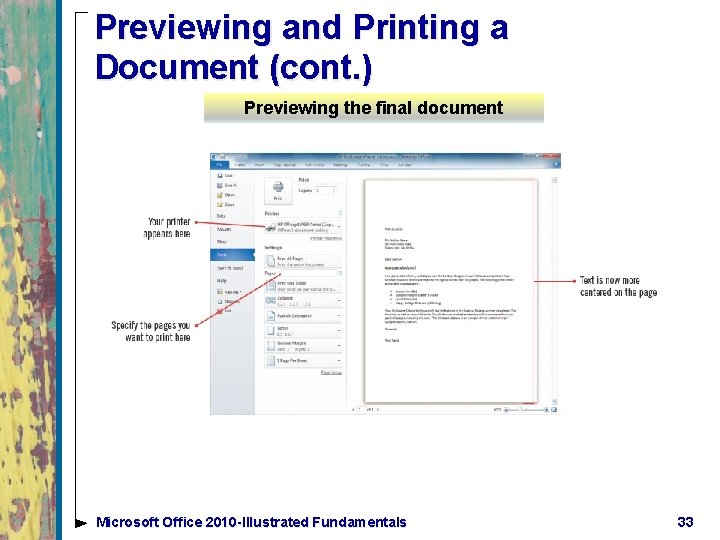
Previewing and Printing a Document • When you finish creating and editing a document, you can print it using the Print tab in Backstage view • The Print tab tools specify various print settings, printer selection, how many copies or specific pages to print • On the Print tab a preview of the document can be seen so that you can see exactly how it will look when printed • using Print Preview can save paper Microsoft Office 2010 -Illustrated Fundamentals 32
Previewing and Printing a Document (cont. ) Previewing the final document Microsoft Office 2010 -Illustrated Fundamentals 33
Previewing and Printing a Document (cont. ) Available views in Word Microsoft Office 2010 -Illustrated Fundamentals 34
Summary • Use Word to create documents • Use the Save As command to create a new document that’s based on an existing one • Edit text by placing the insertion point, and using the [Backspace] or [Delete] keys • Copy and move text in a document using Cut, Copy, and Paste commands or by dragging it Microsoft Office 2010 -Illustrated Fundamentals 35
Summary • Use Find and Replace dialog box to replace unwanted text with new text • Use the Mini toolbar to make quick formatting changes • Use Spelling and Grammar checker to ensure error-free documents • Preview a document before printing it to ensure it looks the way you want and saves paper Microsoft Office 2010 -Illustrated Fundamentals 36