
Microsoft Office 2007 Word Web Feature Creating Web
Microsoft Office 2007 Word Web Feature Creating Web Pages Using Word
Objectives • • Saving a Word document as a Web page Inserting a hyperlink Adding a background color with a pattern Using Windows Explorer to view a Web page Microsoft Office 2007: Introductory Concepts and Techniques 2
Plan Ahead • Craft a successful resume • Create a resume Web page from your resume Word document • Publish your resume Web page Microsoft Office 2007: Introductory Concepts and Techniques 3
Saving a Word Document as a Web Page • Start Word and then open the file named Canaan Resume created in Chapter 3 • With the resume file open in the document window, click the Office Button and then point to Save As on the Office Button menu to display the Save As submenu • Click Other Formats on the Save As submenu to display the Save As dialog box • Type Canaan Resume Web Page in the File name text box to change the file name. If necessary, change the Save in location to UDISK 2. 0 (E: ). (Your USB flash drive may have a different name and letter. ) • Click the Save as type box arrow, scroll to and then click Single File Web Page Microsoft Office 2007: Introductory Concepts and Techniques 4
Saving a Word Document as a Web Page • Click the Change Title button to display the Set Page Title dialog box • Type Canaan Resume in the Page title text box • Click the OK button in the Set Page Title dialog box • Click the Save button in the Save As dialog box to save the resume as a Web page and display it in the document window Microsoft Office 2007: Introductory Concepts and Techniques 5
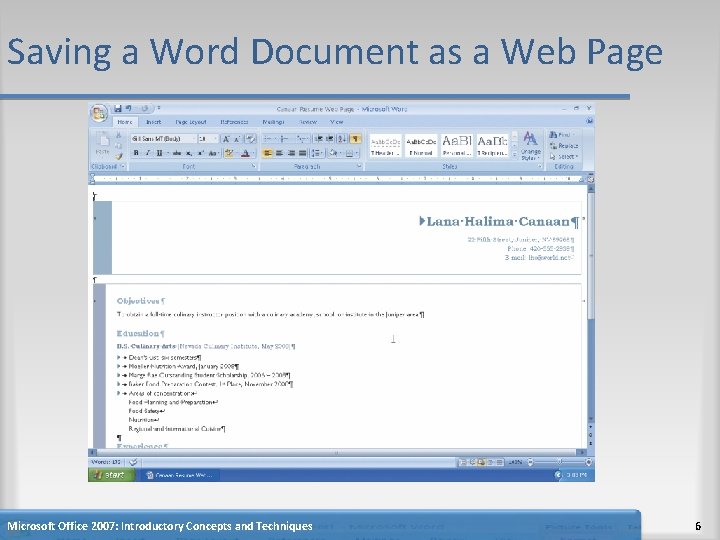
Saving a Word Document as a Web Page Microsoft Office 2007: Introductory Concepts and Techniques 6
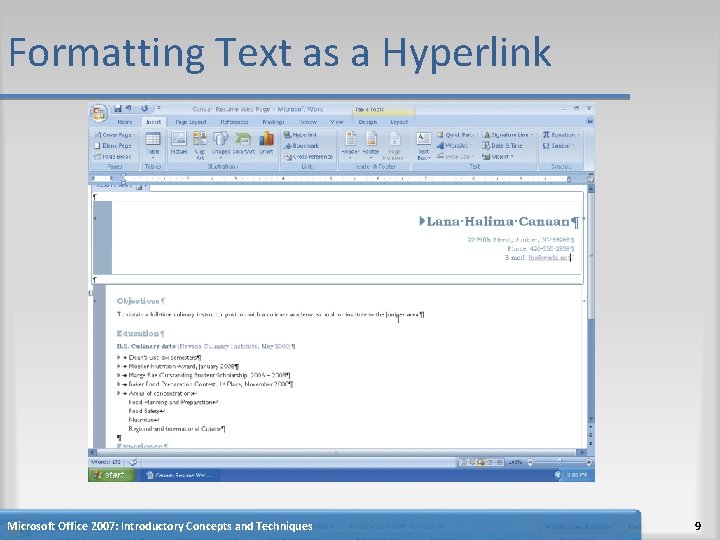
Formatting Text as a Hyperlink • Select the e-mail address (lhc@world. net, in this case) • Display the Insert tab • Click the Insert Hyperlink button on the Insert tab to display the Insert Hyperlink dialog box • Click E-mail Address in the Link to bar so that the dialog box displays e-mail address settings instead of Web page settings • In the ‘Text to display’ text box, if necessary, type lhc@world. net, which specifies the text that shows on the screen for the hyperlink Microsoft Office 2007: Introductory Concepts and Techniques 7
Formatting Text as a Hyperlink • Click the E-mail address text box and then type lhc@world. net to specify the e-mail address that the Web browser uses when a user clicks the hyperlink • Click the Screen. Tip button to display the Set Hyperlink Screen. Tip dialog box • In the text box, type Send e-mail message to Lana Halima Canaan, which is the text that will be displayed when a user points to the hyperlink • Click the OK button in each dialog box to format the e-mail address as a hyperlink Microsoft Office 2007: Introductory Concepts and Techniques 8
Formatting Text as a Hyperlink Microsoft Office 2007: Introductory Concepts and Techniques 9
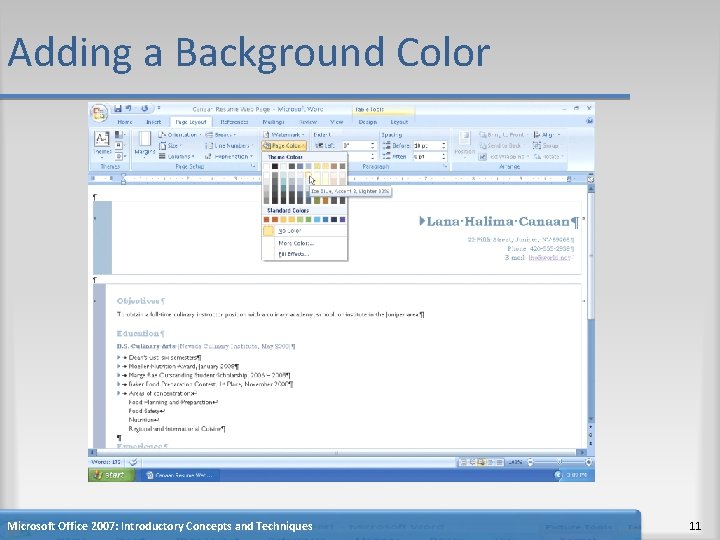
Adding a Background Color • Display the Page Layout tab • Click the Page Color button on the Page Layout tab to display the Page Color gallery • Point to the sixth color in the second row (Ice Blue, Accent 2, Lighter 80%) to display a live preview of the background color • Click the sixth color in the second row to change the background color to a light shade of blue Microsoft Office 2007: Introductory Concepts and Techniques 10
Adding a Background Color Microsoft Office 2007: Introductory Concepts and Techniques 11
Adding a Pattern Fill Effect to a Background • Click the Page Color button on the Page Layout tab to display the Page Color gallery again. • Click Fill Effects in the Page Color gallery to display the Fill Effects dialog box • Click the Pattern tab to display the Pattern sheet in the dialog box • Click the Outlined diamond pattern (rightmost pattern in the fifth row) to select it • Click the OK button to add the outlined diamond pattern to the blue background color Microsoft Office 2007: Introductory Concepts and Techniques 12
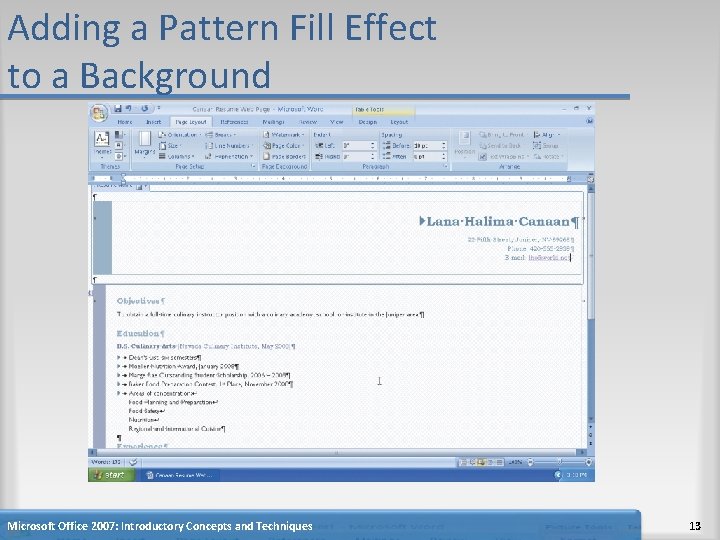
Adding a Pattern Fill Effect to a Background Microsoft Office 2007: Introductory Concepts and Techniques 13
Saving an Existing Document and Quitting Word • Click the Save button on the Quick Access Toolbar to overwrite the previous Canaan Resume Web Page file on the USB flash drive • Click the Close button on the right side of the title bar to quit Word Microsoft Office 2007: Introductory Concepts and Techniques 14
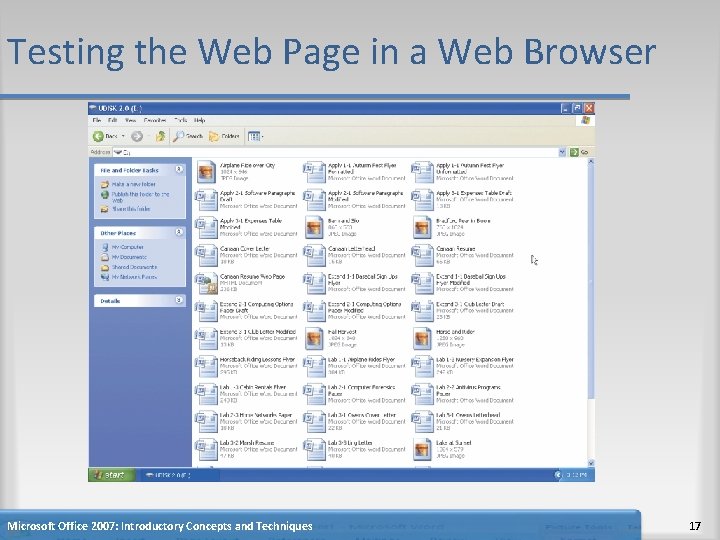
Testing the Web Page in a Web Browser • Click the Start button on the Windows taskbar to display the Start menu • Click My Computer on the Start menu to display the My Computer window • If necessary, maximize the My Computer window • Double-click the USB flash drive icon in the My Computer window to display the contents of the USB flash drive in an Explorer window Microsoft Office 2007: Introductory Concepts and Techniques 15
Testing the Web Page in a Web Browser • Double-click the file name, Canaan Resume Web Page, to start the Internet Explorer Web browser and display the file in the browser window (shown in Figure 1 a on page WD 217) • With the Web page document displaying in the Web browser, click the e-mail address link to ensure it displays the e-mail window, as shown in Figure 1 b on page WD 217 • Close all open windows Microsoft Office 2007: Introductory Concepts and Techniques 16
Testing the Web Page in a Web Browser Microsoft Office 2007: Introductory Concepts and Techniques 17
Summary • • Saving a Word document as a Web page Inserting a hyperlink Adding a background color with a pattern Using Windows Explorer to view a Web page Microsoft Office 2007: Introductory Concepts and Techniques 18
Microsoft Office 2007 Word Web Feature Complete
- Slides: 19