
Microsoft Office 2007 Illustrated Introductory Premium Video Edition


- Slides: 29
Microsoft Office 2007 - Illustrated Introductory, Premium Video Edition Getting Started with Excel 2007
Understanding Spreadsheet Software • Microsoft Excel • • Microsoft Office 2007 -Illustrated Introductory, Premium Video Edition
Understanding Spreadsheet Software • Advantages of using Excel • • Microsoft Office 2007 -Illustrated Introductory, Premium Video Edition
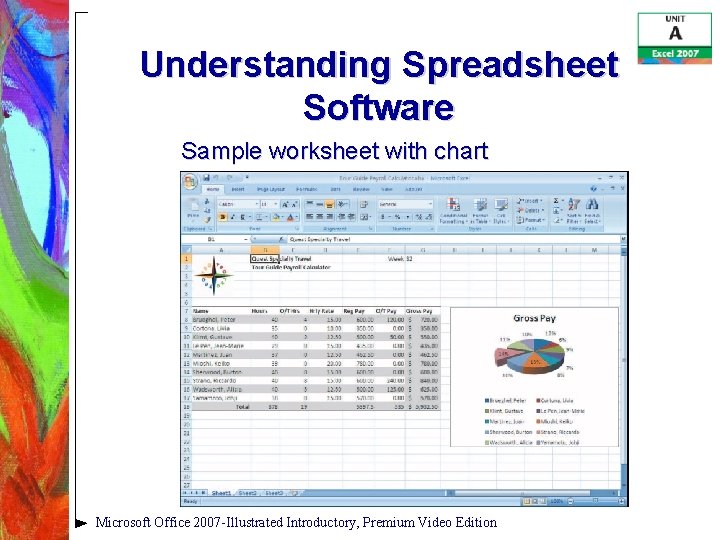
Understanding Spreadsheet Software Sample worksheet with chart Microsoft Office 2007 -Illustrated Introductory, Premium Video Edition
Touring the Excel 2007 Window • Name box • • Formula bar • • Cell • Microsoft Office 2007 -Illustrated Introductory, Premium Video Edition
Touring the Excel 2007 Window • Cell address • • • Active cell • • Sheet tabs • Microsoft Office 2007 -Illustrated Introductory, Premium Video Edition
Touring the Excel 2007 Window • Status bar • • Range • • Microsoft Office 2007 -Illustrated Introductory, Premium Video Edition
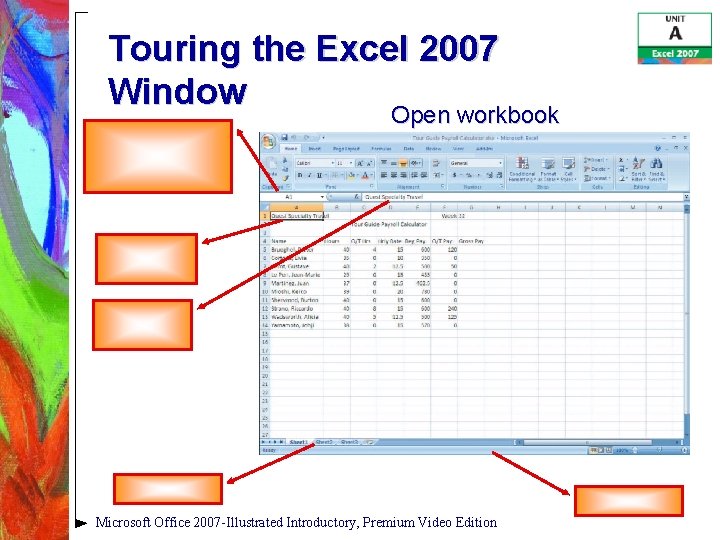
Touring the Excel 2007 Window Open workbook Microsoft Office 2007 -Illustrated Introductory, Premium Video Edition
Understanding Formulas • • Microsoft Office 2007 -Illustrated Introductory, Premium Video Edition
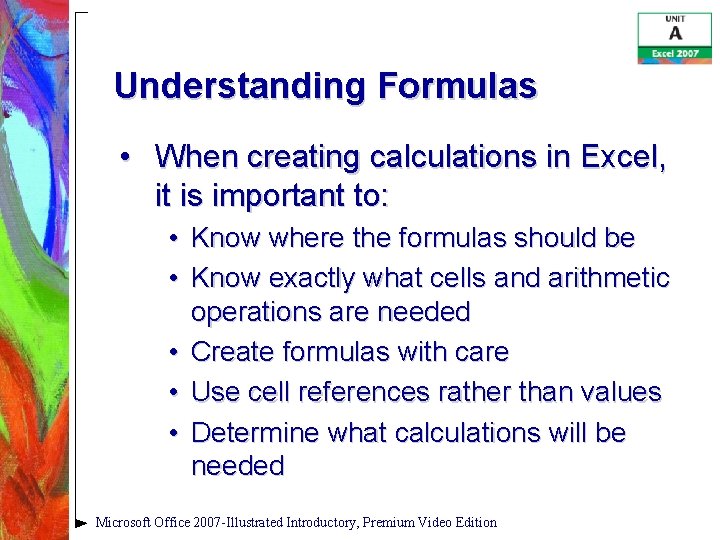
Understanding Formulas • When creating calculations in Excel, it is important to: • Know where the formulas should be • Know exactly what cells and arithmetic operations are needed • Create formulas with care • Use cell references rather than values • Determine what calculations will be needed Microsoft Office 2007 -Illustrated Introductory, Premium Video Edition
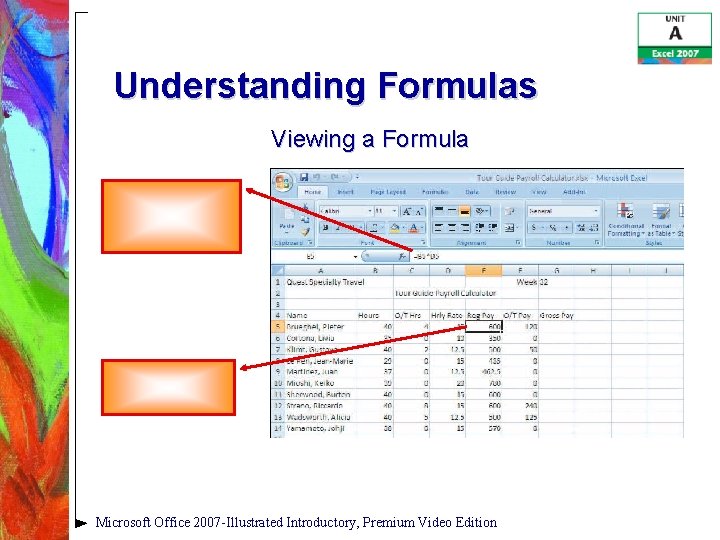
Understanding Formulas Viewing a Formula Microsoft Office 2007 -Illustrated Introductory, Premium Video Edition
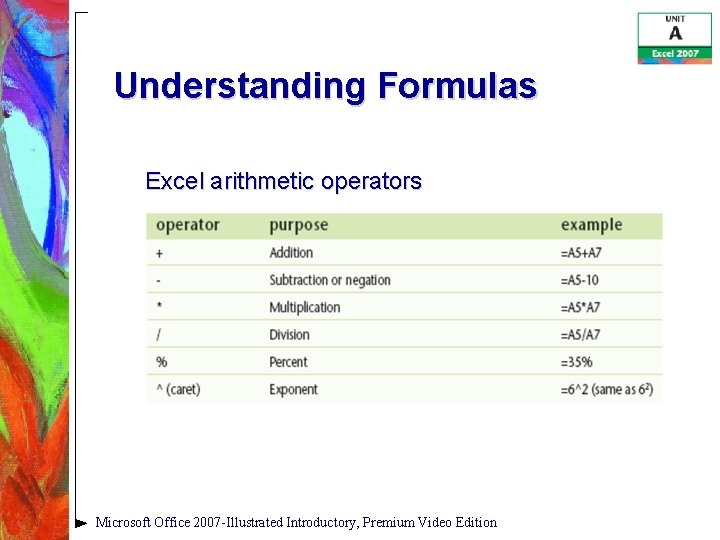
Understanding Formulas Excel arithmetic operators Microsoft Office 2007 -Illustrated Introductory, Premium Video Edition
Entering Labels and Values and Using Auto. Sum • Labels • • • Values • Microsoft Office 2007 -Illustrated Introductory, Premium Video Edition
Entering Labels and Values and Using Auto. Sum • Function • • Auto. Sum button • • • Fill button • Microsoft Office 2007 -Illustrated Introductory, Premium Video Edition
Entering Labels and Values and Using Auto. Sum Creating a formula using the Auto. Sum button Microsoft Office 2007 -Illustrated Introductory, Premium Video Edition
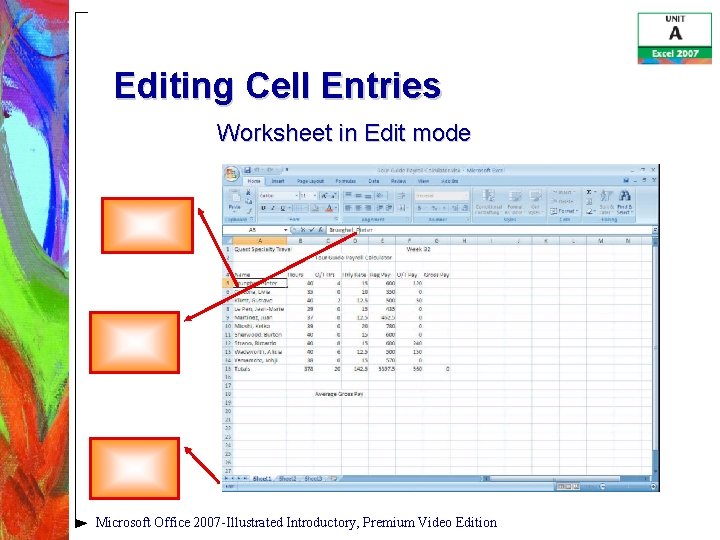
Editing Cell Entries Worksheet in Edit mode Microsoft Office 2007 -Illustrated Introductory, Premium Video Edition
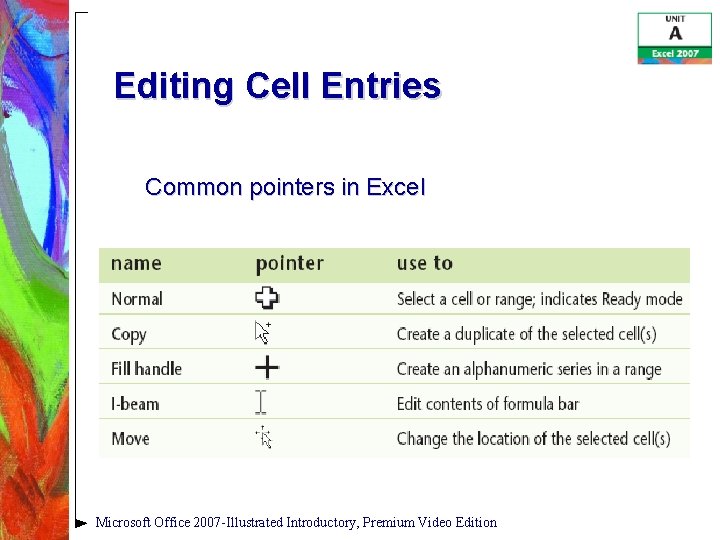
Editing Cell Entries Common pointers in Excel Microsoft Office 2007 -Illustrated Introductory, Premium Video Edition
Entering and Editing a Simple Formula • Formula prefix • • Calculation operators • • Arithmetic operators • Microsoft Office 2007 -Illustrated Introductory, Premium Video Edition
Inserting a Function • A function is a predefined worksheet formula that makes it easy to perform a complex calculation • • Microsoft Office 2007 -Illustrated Introductory, Premium Video Edition
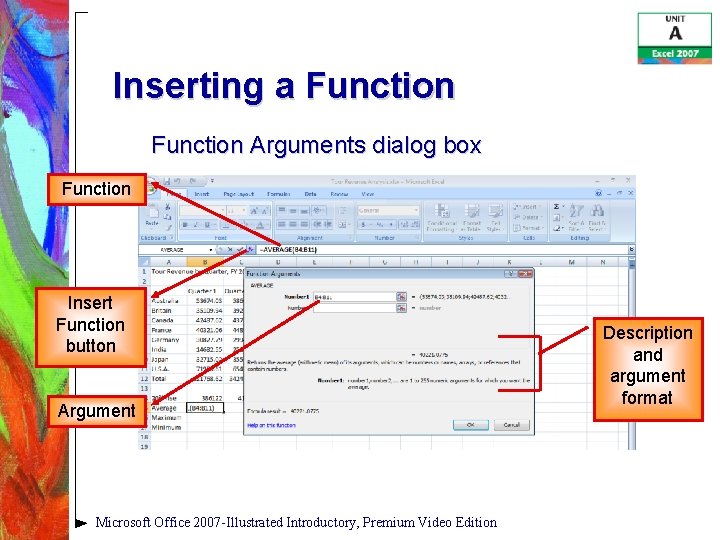
Inserting a Function Arguments dialog box Function Insert Function button Argument Microsoft Office 2007 -Illustrated Introductory, Premium Video Edition Description and argument format
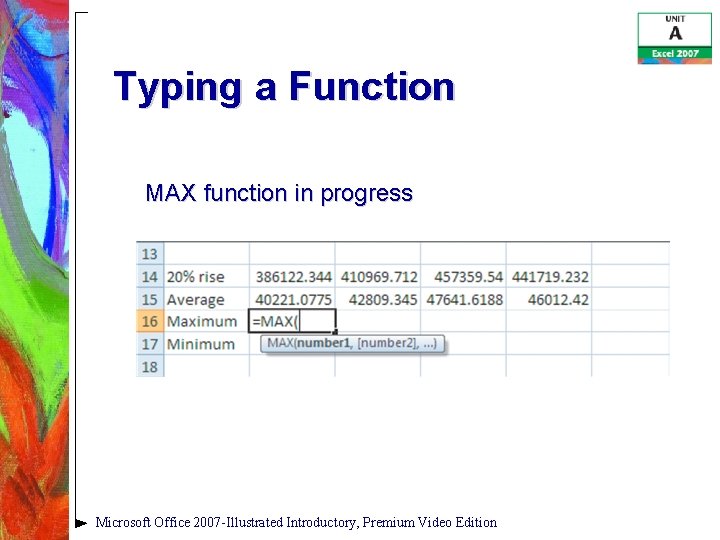
Typing a Function • A function can be typed manually into a cell • • Microsoft Office 2007 -Illustrated Introductory, Premium Video Edition
Typing a Function • While manually typing a function, it is necessary to begin with the equal sign (=) • Once you type an equal sign, each letter you type activates the Auto. Complete feature Microsoft Office 2007 -Illustrated Introductory, Premium Video Edition
Typing a Function MAX function in progress Microsoft Office 2007 -Illustrated Introductory, Premium Video Edition
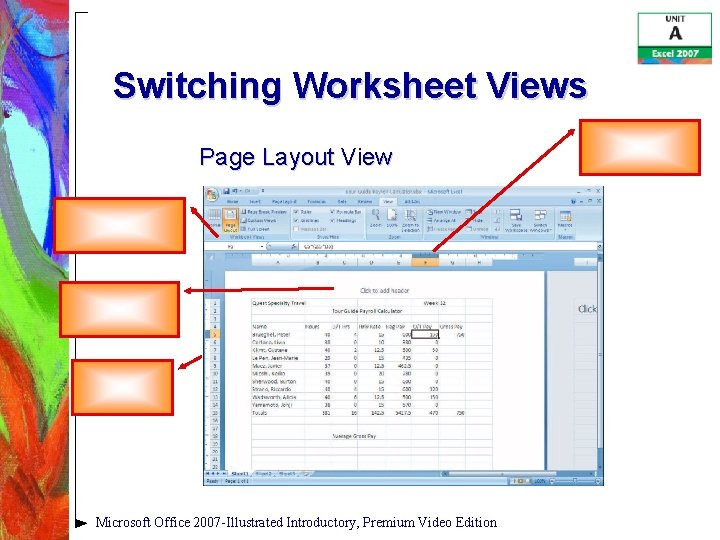
Switching Worksheet Views Page Layout View Microsoft Office 2007 -Illustrated Introductory, Premium Video Edition
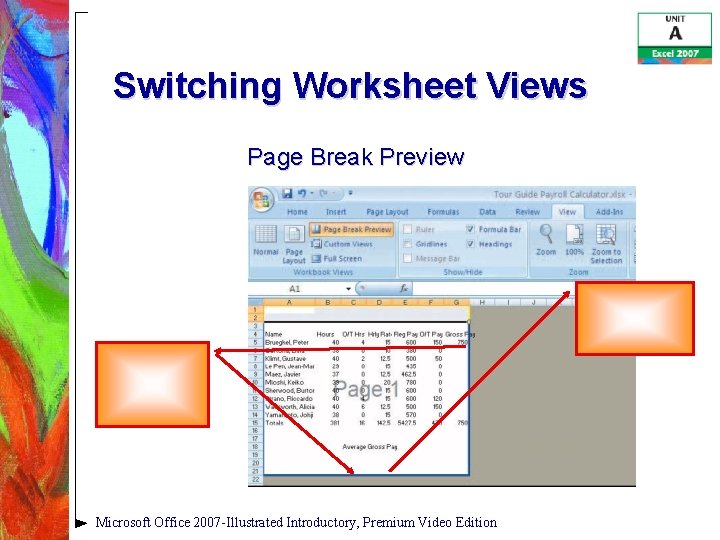
Switching Worksheet Views Page Break Preview Microsoft Office 2007 -Illustrated Introductory, Premium Video Edition
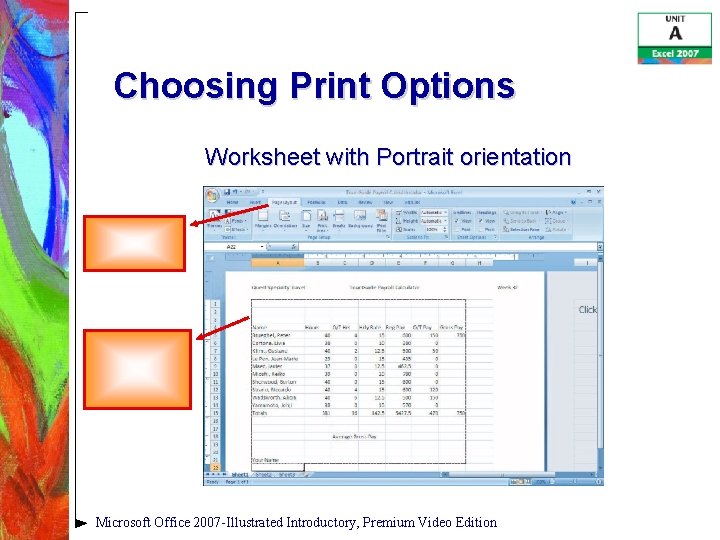
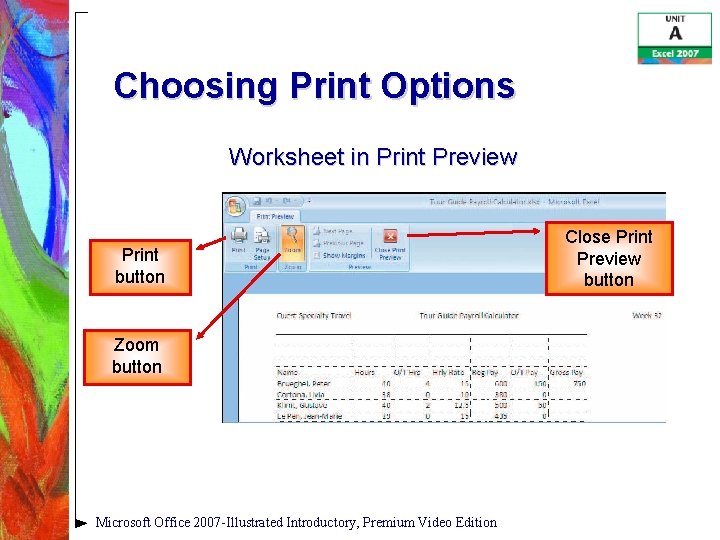
Choosing Print Options • You can see how a worksheet would look when printed using: • Page Layout tab • The dotted line indicates the print area, the area to be printed • Print Preview • You can print from this view by clicking the Print button on the Ribbon Microsoft Office 2007 -Illustrated Introductory, Premium Video Edition
Choosing Print Options • Page Layout tab • Page Setup group • Print orientation: landscape or portrait • • Scale to Fit group Sheet Options group • Print dialog box lets you choose the number of copies, the printer, etc. Microsoft Office 2007 -Illustrated Introductory, Premium Video Edition
Choosing Print Options Worksheet with Portrait orientation Microsoft Office 2007 -Illustrated Introductory, Premium Video Edition
Choosing Print Options Worksheet in Print Preview Print button Zoom button Microsoft Office 2007 -Illustrated Introductory, Premium Video Edition Close Print Preview button